

Today, I’d like to explore how to configure the Audit Policy for Registry Object Access in Windows using Intune. Leveraging Intune to audit access attempts to specific registry objects on devices can significantly enhance security monitoring.
Object Access auditing includes 14 subcategories, enabling detailed tracking of access attempts to sensitive registry objects.
What Does Audit Policy for Registry Object Access Do?
This setting allows you to track who attempts to access registry objects.
An audit event is only generated when a System Access Control List (SACL) is defined for the object — and when the requested access type (such as Read, Write, or Modify) and the requesting account match the SACL settings.
When the Audit Policy for Registry Object Access is enabled, every time an account tries to access a registry object with a defined SACL, an audit event is created:
✅ Successful attempts → logged as success audits.
❌ Failed attempts → logged as failure audits.
If this policy is not configured, it would be impossible to know when someone attempts to access specific registry settings.
Audit policies play a key role in strengthening a device’s security posture — by recording access attempts to sensitive registry areas and even tracking activity related to domain controllers or the local Security Accounts Manager (SAM).
Advantages of Configuring Audit Policy for Registry Object Access via Intune
The Object Access Audit Registry policy in Intune provides several security benefits:
Monitors registry access, helping detect unauthorized changes.
Helps identify insider threats and prevent malicious activity.
Supports compliance requirements by maintaining detailed audit logs.
Provides valuable data for investigating security incidents.
By tracking access to registry objects, this policy ensures your environment remains secure and compliant — with full visibility into what’s happening behind the scenes.
Where to Find Audit Policy for Registry Object Access in Intune
You can find the Audit Policy for Registry Object Access under the Auditing section of the Windows Configuration Service Provider (CSP), within the Object Access subcategories.
Details for the Object Access_Audit Registry Policy in the Windows CSP will be presented in the next section.
Description framework properties:

Allowed Values
In Intune’s Settings Catalog, the Allowed Values are the choices available for a particular setting. These selections directly dictate how that setting will behave on a device. The following table showcases the Allowed Values of the Object Access_Audit Registry policy.

Group Policy Mapping
Group Policy Mapping or Group Policy Analytics in Microsoft Intune is a tool that helps to move the current Group Policy Objects (GPOs) to the cloud. The table below shows how the Audit Policy for Registry Object Access in Windows using Intune

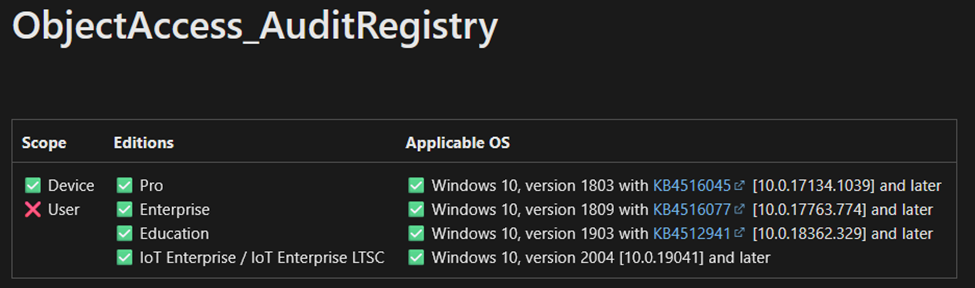
OMA-URI Configuration for Audit Policy: Registry Object Access in Windows
We can easily configure the Audit Policy for Registry Object Access on Windows devices using Microsoft Intune by applying a custom OMA-URI setting.
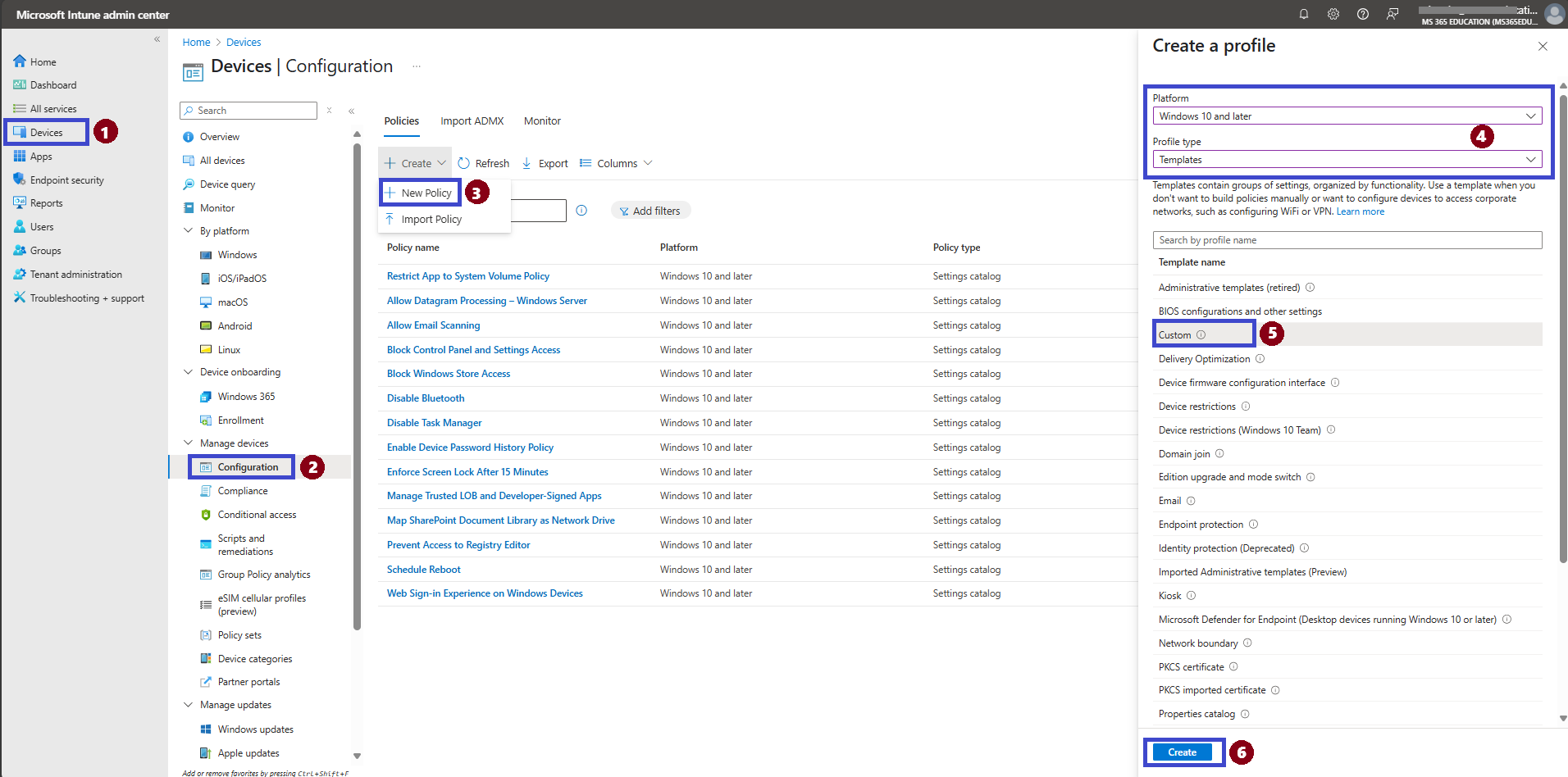
Below is a step-by-step guide to set this up:
✅ Steps to Configure via Intune
Sign in to the Microsoft Intune Admin Center.
Navigate to Devices.
Go to Configuration.
Click Create > New policy.
For Platform, select Windows 10 and later.
For Profile type, choose Templates > Custom.
Click Create.
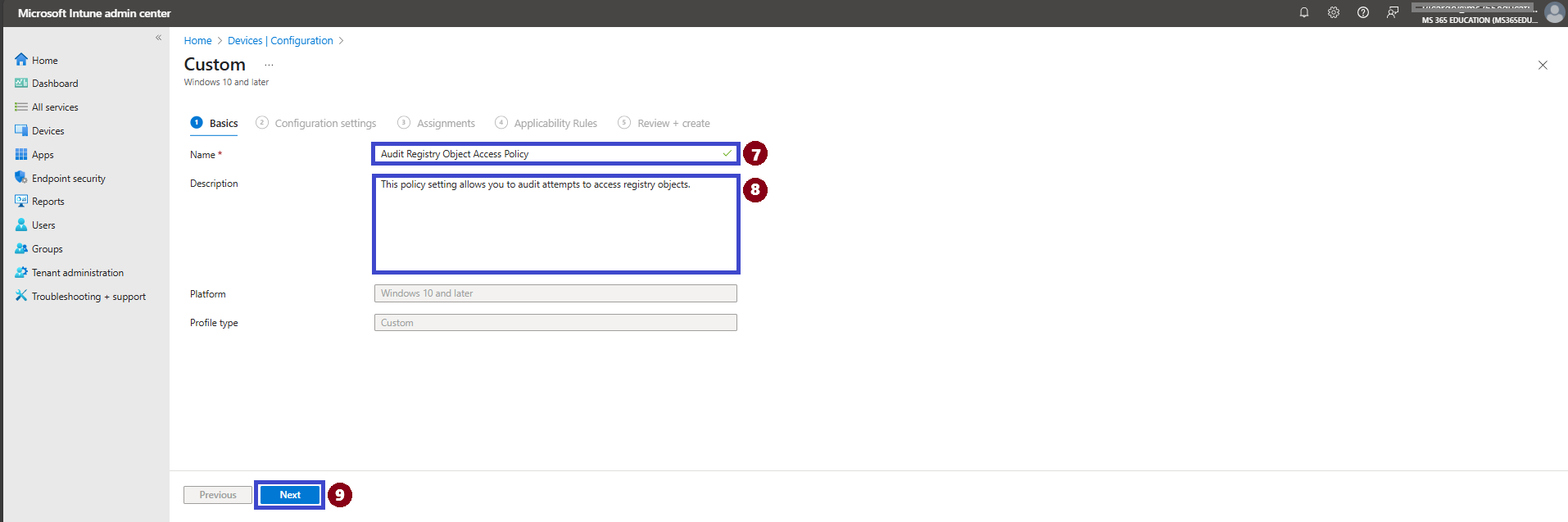
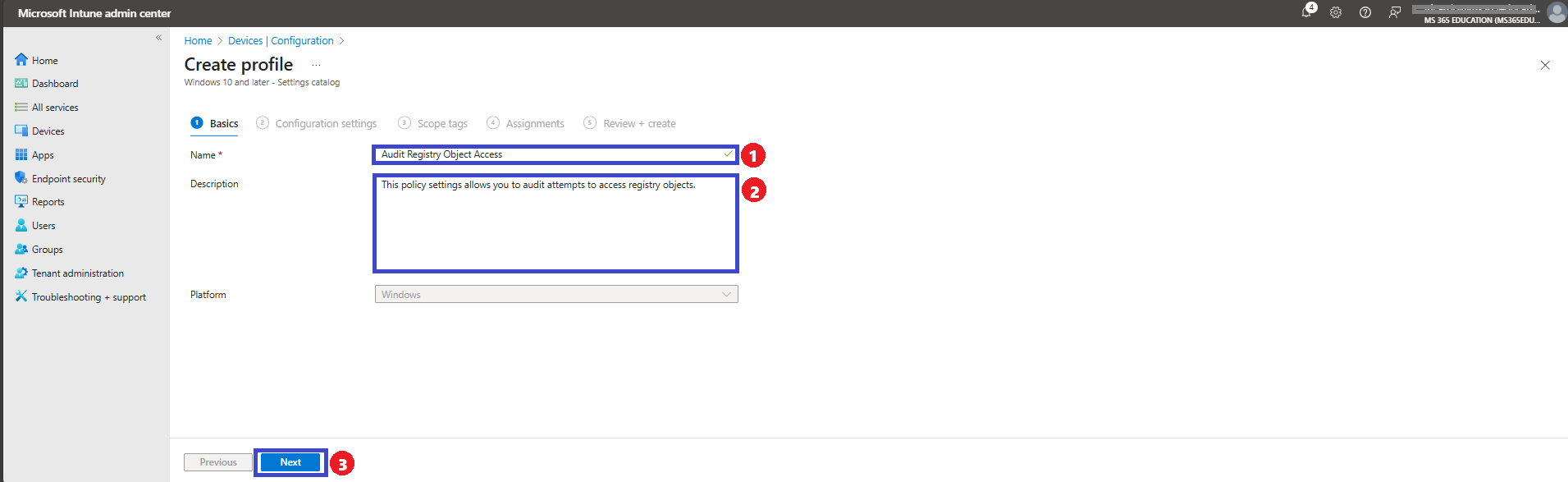
In the basic settings section, you will enter details such as the name and description.
Provide a Name, for example: ➔ Audit Registry Object Access Policy.
(Optional) Add a Description, such as: ➔ "This policy setting allows you to audit attempts to access registry objects."
Click Next
Under OMA-URI Settings, click + Add to configure the setting.
Configure the OMA-URI Setting
Name: ➔ Audit Registry Object Access Policy
Description: ➔ Allows auditing of access attempts to registry objects.
OMA-URI: ➔ ./Device/Vendor/MSFT/Policy/Config/Audit/ObjectAccess_AuditRegistry
Data type: ➔ Integer
Value: ➔ 1 to enable Success auditing for registry object access. ➔ 0 to turn Off auditing.
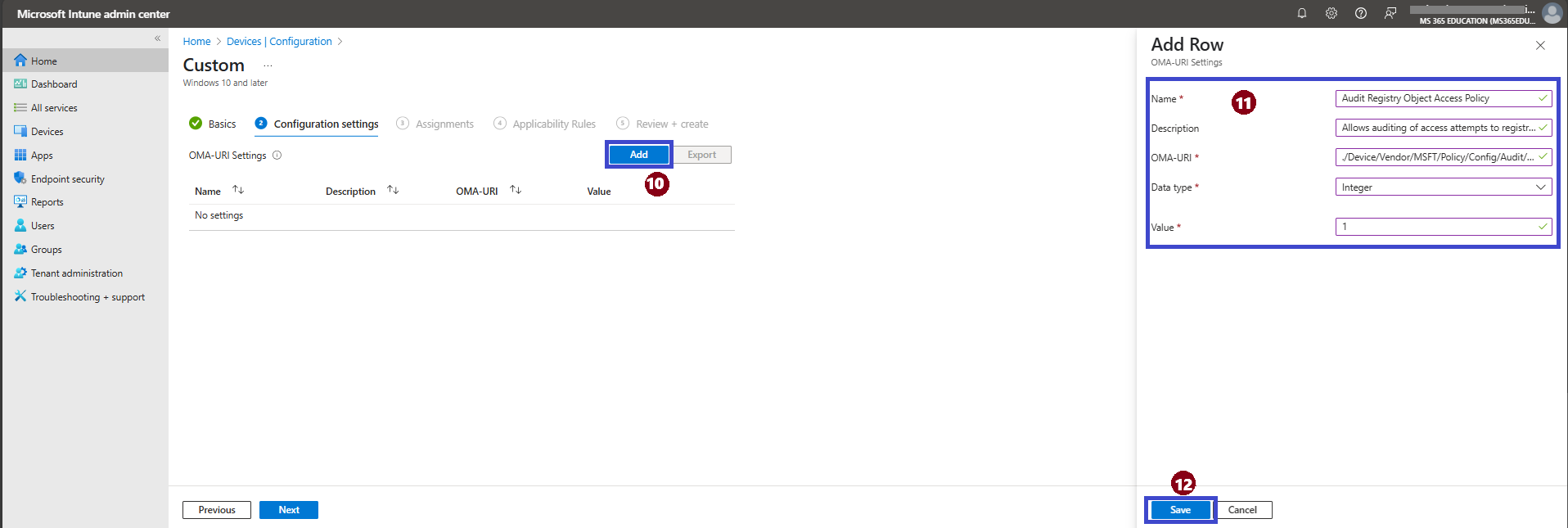
Final Step
After filling in the details above, click Save to apply the setting. Then click Next, and click Review + Create to finalize and deploy the policy.
✅ Quick Summary
1 = Audit successful attempts to access registry objects.
0 = Disable auditing for registry object access.
How to Configure Audit Policy for Registry Object Access in Windows Using Intune
In this section, we’ll walk you through the step-by-step process of configuring the Audit Policy for Registry Object Access on Windows devices using Microsoft Intune. We'll create a configuration profile and assign it to a group of users or devices.
Follow the steps below:
Go to the Microsoft Intune admin center.
In the left-hand menu, click Devices.
Select Windows Devices.
Click on Configuration.
Click Policies > New Policy.
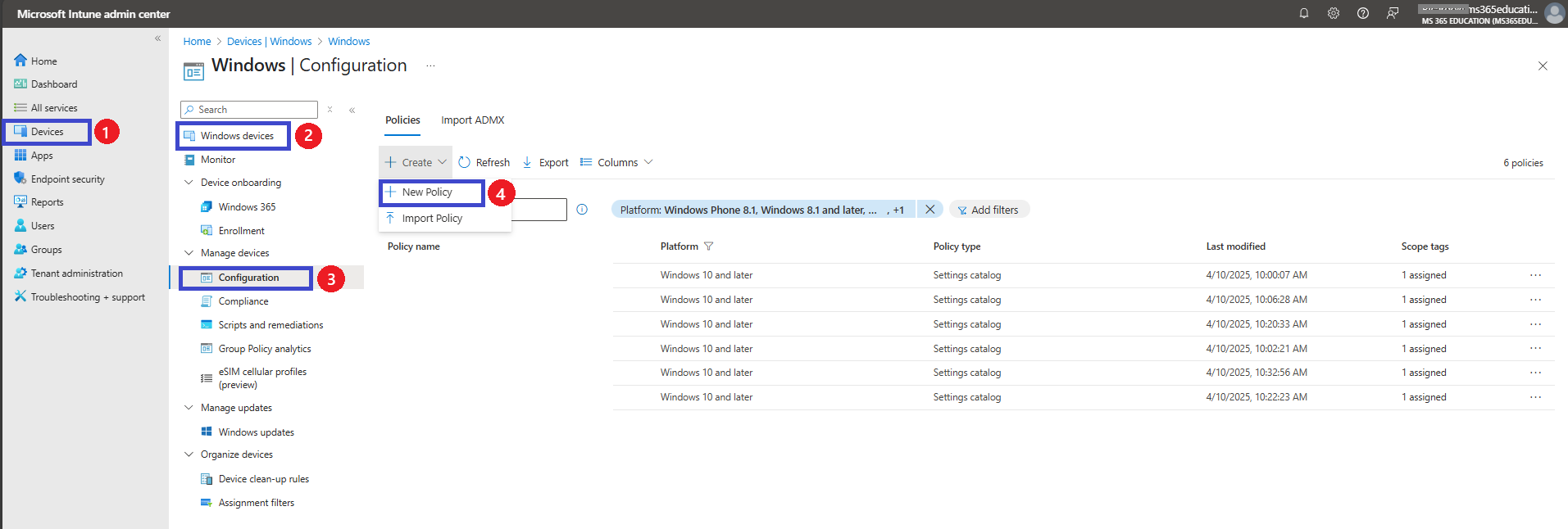
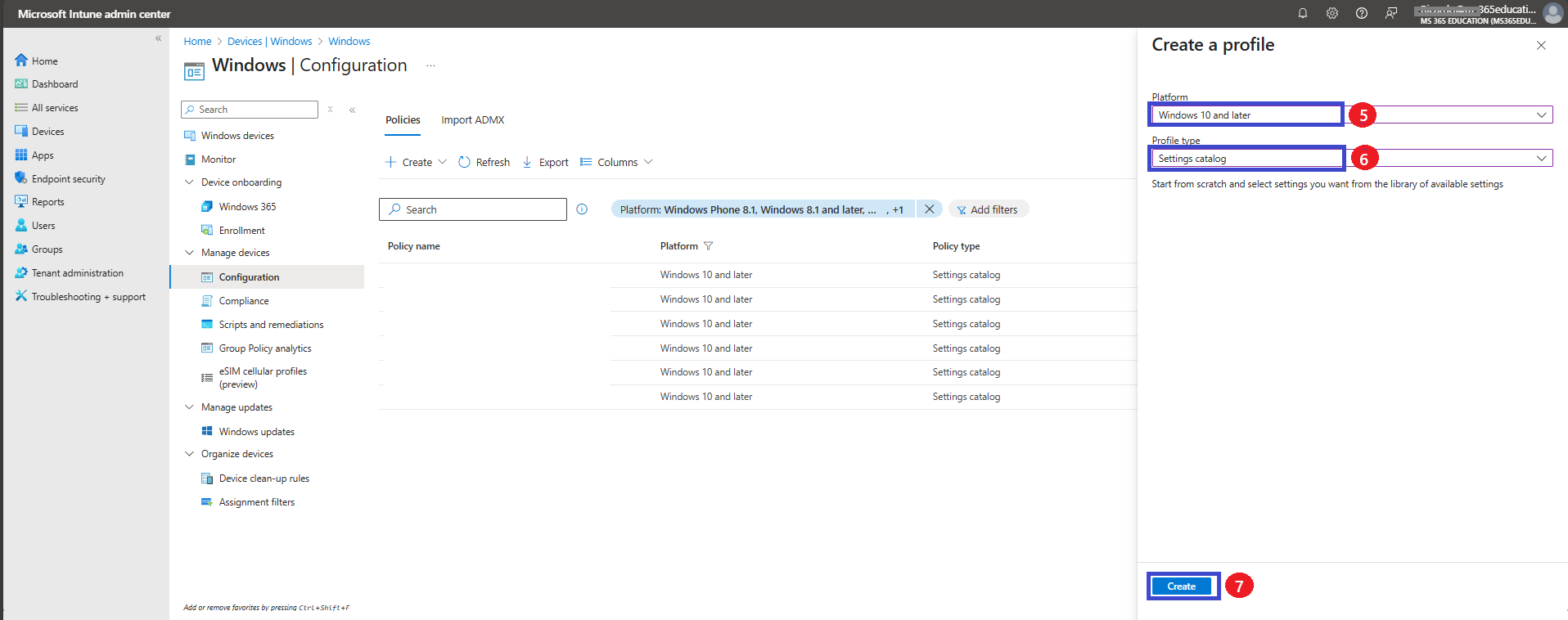
A new pane will open on the right side.
Under Platform, select Windows 10 and later.
Under Profile type, choose Settings catalog.
Click Create to begin configuring the policy.
In this next step, we’ll name our policy and provide a description. A clear name and description help ensure easy identification and management in the future. Then, click Next to proceed.
Configuration Settings
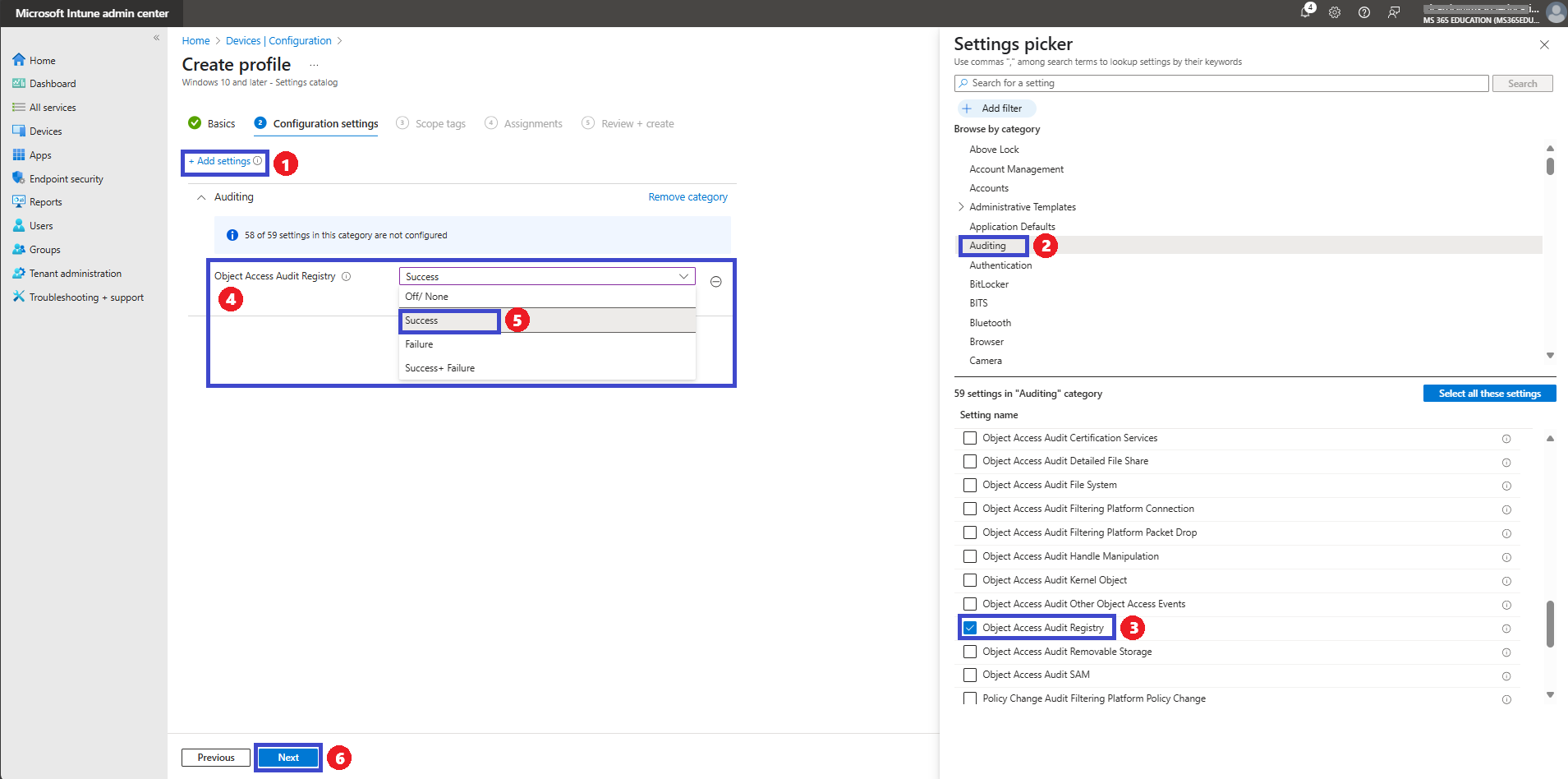
Now, let’s move on to Configuration Settings — this is where we define what the policy will actually do.
Click Add settings to open the Settings Picker. In the search bar, type Auditing, then select Object_Access Audit Registry from the results.
Once Object_Access Audit Registry is selected and the Settings Picker is closed, you will see it listed on the Configuration Settings page.
By default, its status will appear as Off/None (Not configured).
The Object_Access Audit Registry setting provides three configurable options (more details typically available in documentation or reference tables).
For this policy, we will select Success (Value 1) — this option records successful attempts to access a registry object that has an SACL (System Access Control List) defined.
After selecting Success, click Next to proceed to the next step.
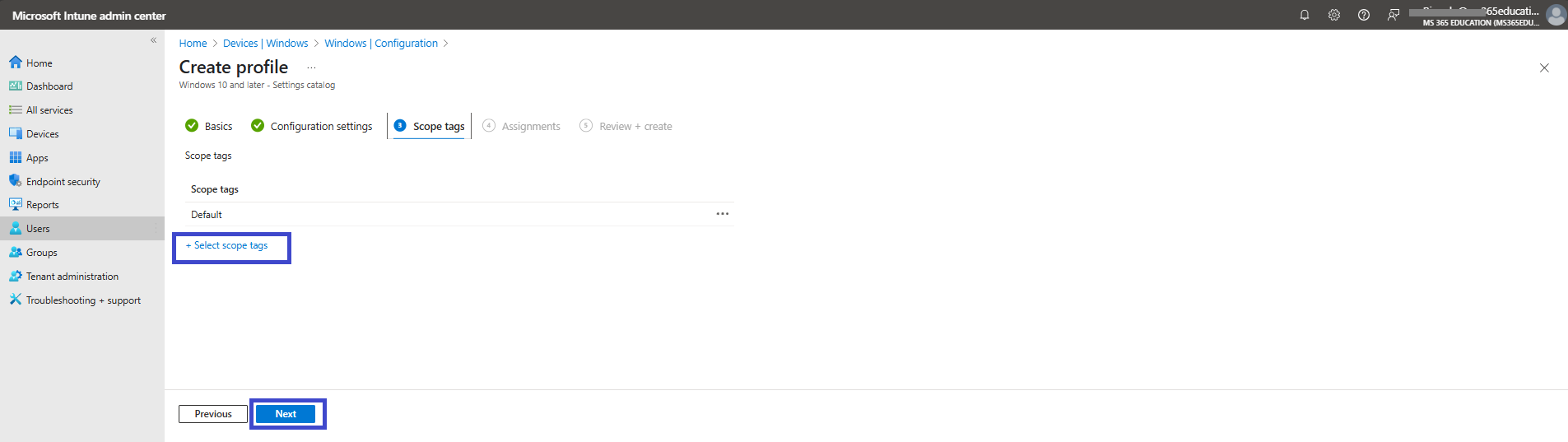
Define Scope (if applicable)
In this step, you can define scoping filters to target specific groups or conditions—this is useful in more complex environments where policies should only apply to a subset of devices or users. If you’re not using scoping filters, simply leave the default settings and click Next to proceed.
Assign the Policy
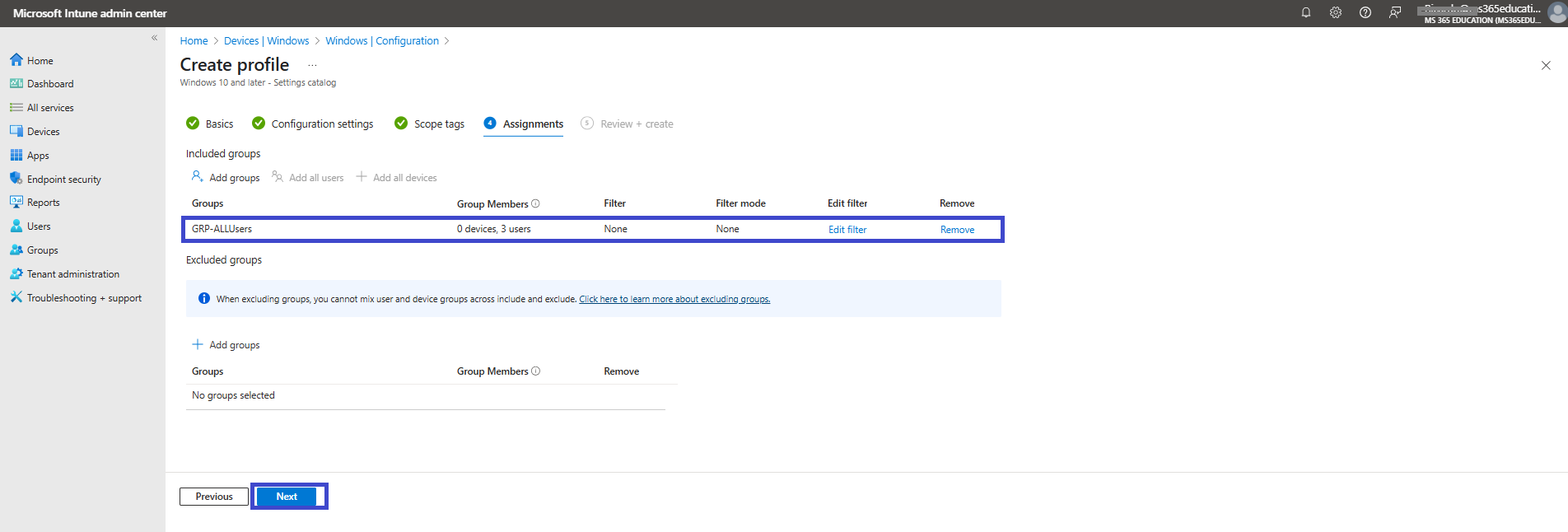
In the Assignments tab, choose who will receive this reboot policy. You can assign it to a specific group, or apply it broadly to All Users or All Devices, depending on your deployment strategy.
Once you've selected the appropriate target group, click Next to continue.
Review and Create
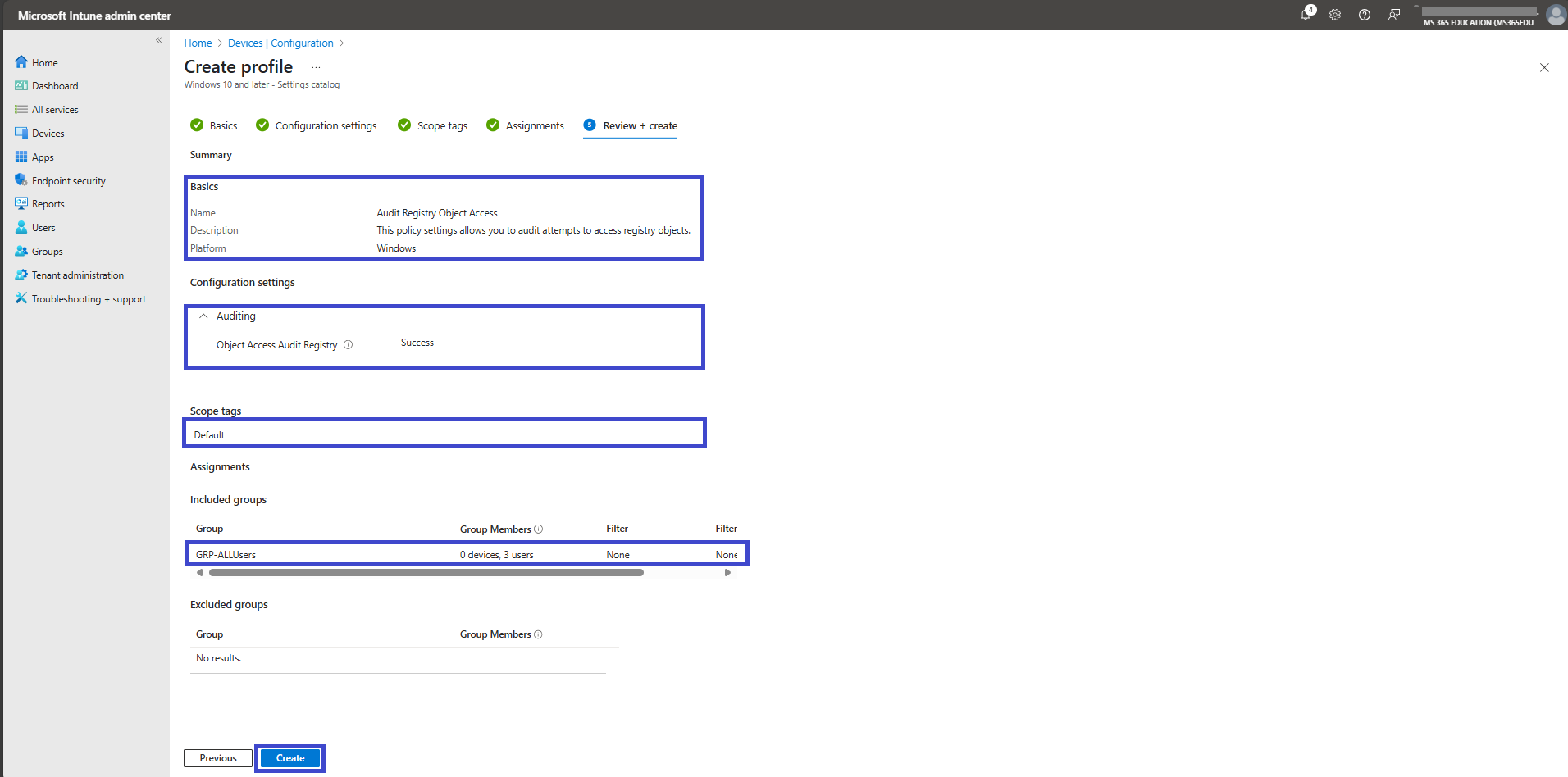
In the final step, review all the configurations you've made — including the platform, profile type, settings, scope, and assignments.
If everything looks correct, click Create to deploy the policy.
This will apply the Audit Policy for Registry Object Access configuration to the assigned devices, enabling auditing of successful access attempts to protected registry objects without requiring manual intervention.
Device and User Check-in Status
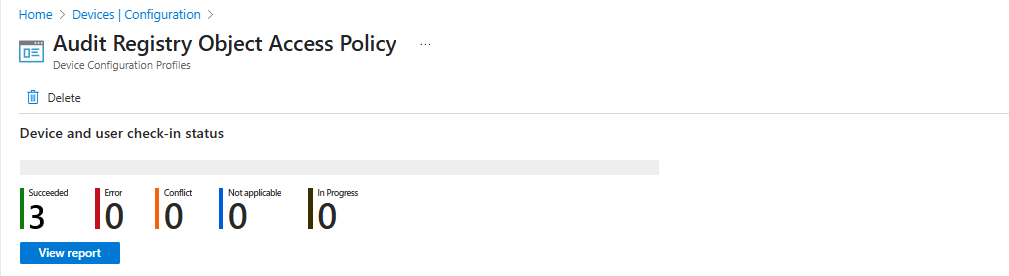
We can verify the policy in the Intune Portal. Policy creation typically takes around 8 hours. If it’s taking longer, use the manual sync option in the Company Portal app on the device, then check the status again.
Go to Devices, then Configuration.
Click on the policy Audit Registry Object Access.
The Audit Registry Object Access policy status is succeeded (1).
Client Side Verification
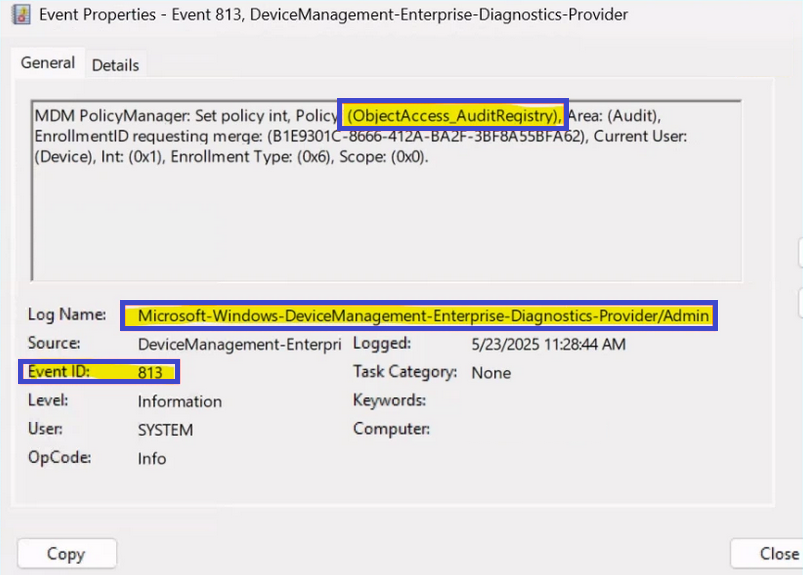
To check if the policy applied, use the Event Viewer on the client device. Navigate to Applications and Services Logs > Microsoft > Windows > Device Management > Enterprise Diagnostic Provider > Admin.
We can see a list of policies there. Use the Filter Current Log option on the right and search for Intune event 813. This event confirms that a text setting has been applied to a Windows 10 or 11 device and will display the specific setting.
MDM PolicyManager: Set policy int, Policy: (Object Access_Audit Registry), Area: (Audit), EnrollmentID requesting merge: (B1E9301C-8666-412A-BA2F-3BF8A55BFA62), Current User: (Device), Int: (0x1), Enrollment Type: (0x6), Scope: (0x0).
More Information
For additional guidance on configuring and managing Audit Policy for Registry Object Access using Microsoft Intune, refer to the following Microsoft Learn resources:
Policy CSP - Audit Provides detailed information on the Audit CSP, including available auditing settings for registry object access and other object types.
View security event logs Instructions for monitoring Event Viewer and auditing events to verify policy application.
Custom configuration profiles in Intune Details how to deploy custom OMA-URI settings in Intune to enforce fine-grained security policies, such as registry object access auditing.
These resources provide comprehensive guidance for configuring, monitoring, and managing Audit Policy for Registry Object Access using Microsoft Intune.
Thank you!
🖥️ Ricardo Barbosa
📘 MCT Microsoft Certified Trainer | ☁️ Cloud Architect
🌐 Technology Director - https://altelix.com
