

In today’s cybersecurity landscape, scareware remains one of the most deceptive and dangerous threats to users. These scams often appear as fake virus alerts or system warnings, tricking people into downloading malicious software or paying for bogus “security services.” The result? Potential data breaches, credential theft, and unnecessary business disruption.
Microsoft Edge now offers Scareware Block Protection an AI-powered feature designed to detect and block these fraudulent warnings before users fall victim. And with Microsoft Intune, IT administrators can centrally enable and enforce this protection across the entire organization.
Why This Matters
Imagine managing a financial institution where employees start seeing an unusual surge in scareware pop-ups. These alerts mimic antivirus software and urge users to download fake tools. One wrong click could expose sensitive financial data or give attackers access to internal systems.
By enabling Scareware Block Protection via Intune:
Users receive clear warnings when a suspicious pop-up is detected.
Risk of malware infections and browser hijacks is drastically reduced.
Helpdesk tickets related to fake antivirus downloads drop significantly.
Employees gain confidence and peace of mind while browsing.
What This Policy Does
When enabled, Scareware Block Protection in Microsoft Edge actively prevents deceptive pop-ups from loading. Instead of being tricked into unsafe actions, users see a security prompt warning them about the suspicious content.
This feature:
Blocks scareware websites before they can deliver malicious payloads.
Protects all managed devices with consistent security policies.
Uses AI detection to adapt to new scam techniques.
Next Steps
In this article, I’ll walk you through the step-by-step process to enable Scareware Block Protection in Microsoft Edge using Intune. By the end, you’ll have a scalable, enforceable policy that strengthens browser security across your organization no matter the size.
Because in security, speed matters and with Intune, you can stop scareware attacks fast.
How to Configure Scareware Block Protection Policy via Intune
Microsoft Intune allows administrators to quickly deploy configuration profiles using the Settings Catalog. To enable the Scareware Block Protection feature in Microsoft Edge, follow the steps below to create the required policy.
Step-by-Step Guide
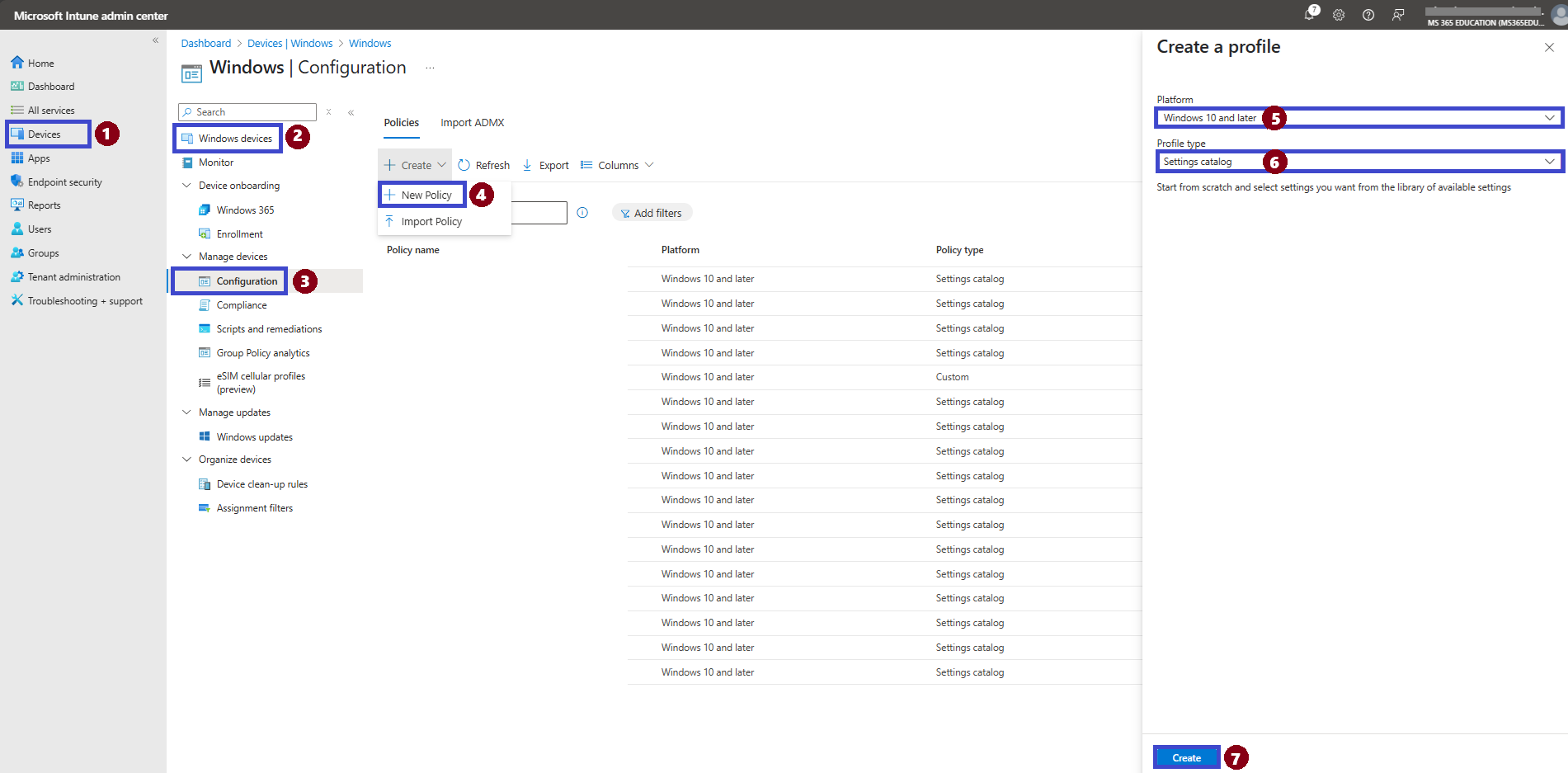
Refer to the screenshot for visual guidance and follow the instructions below:
In the Microsoft Intune admin center, navigate to Devices
Click on Windows devices
Under the Policy section, select Configuration
Click on + Create and choose New Policy
In the Create a profile pane, set the Platform to Windows 10 and later
Set the Profile type to Settings catalog
Click on Create to proceed
Define Basic Profile Details
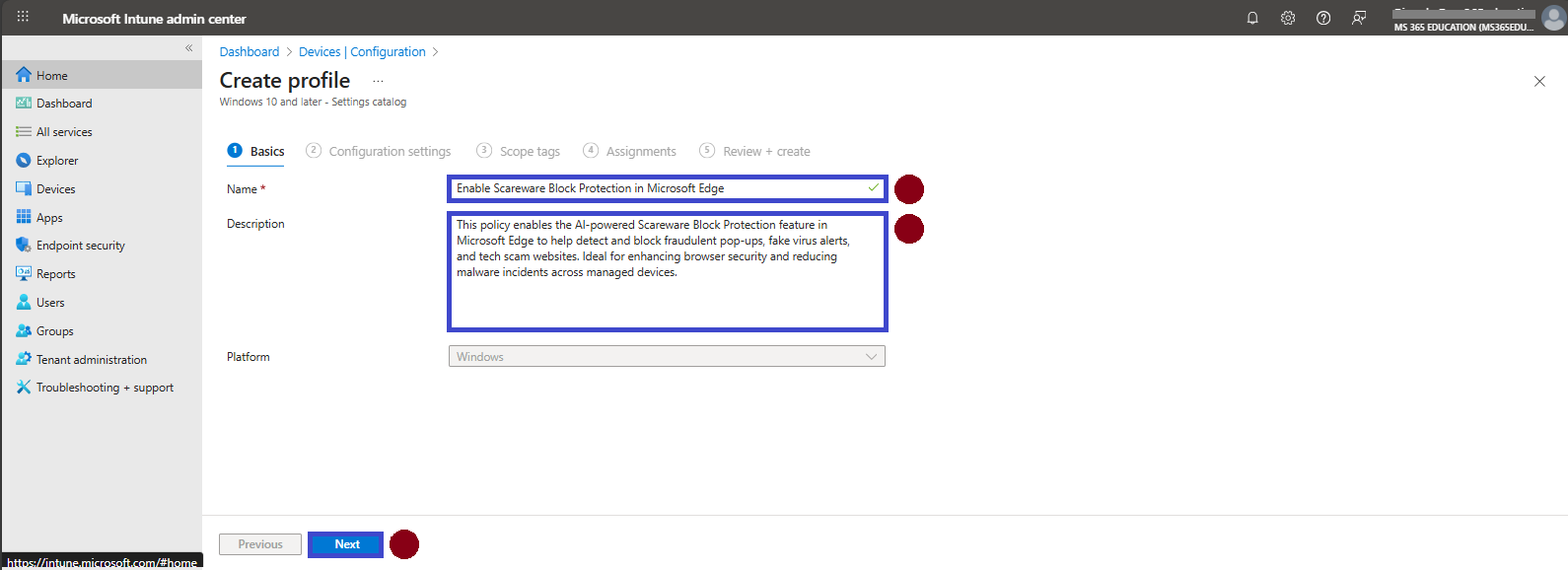
After clicking Create, the next step is to define the basic details of your configuration profile. You'll be asked to provide a Name, an optional but recommended Description, and to confirm the Platform (which should already be pre-selected as Windows 10 and later).
Providing a clear and descriptive name makes it easier to identify and manage the policy later, especially in environments with multiple configuration profiles.
✅ Suggested Name and Description:
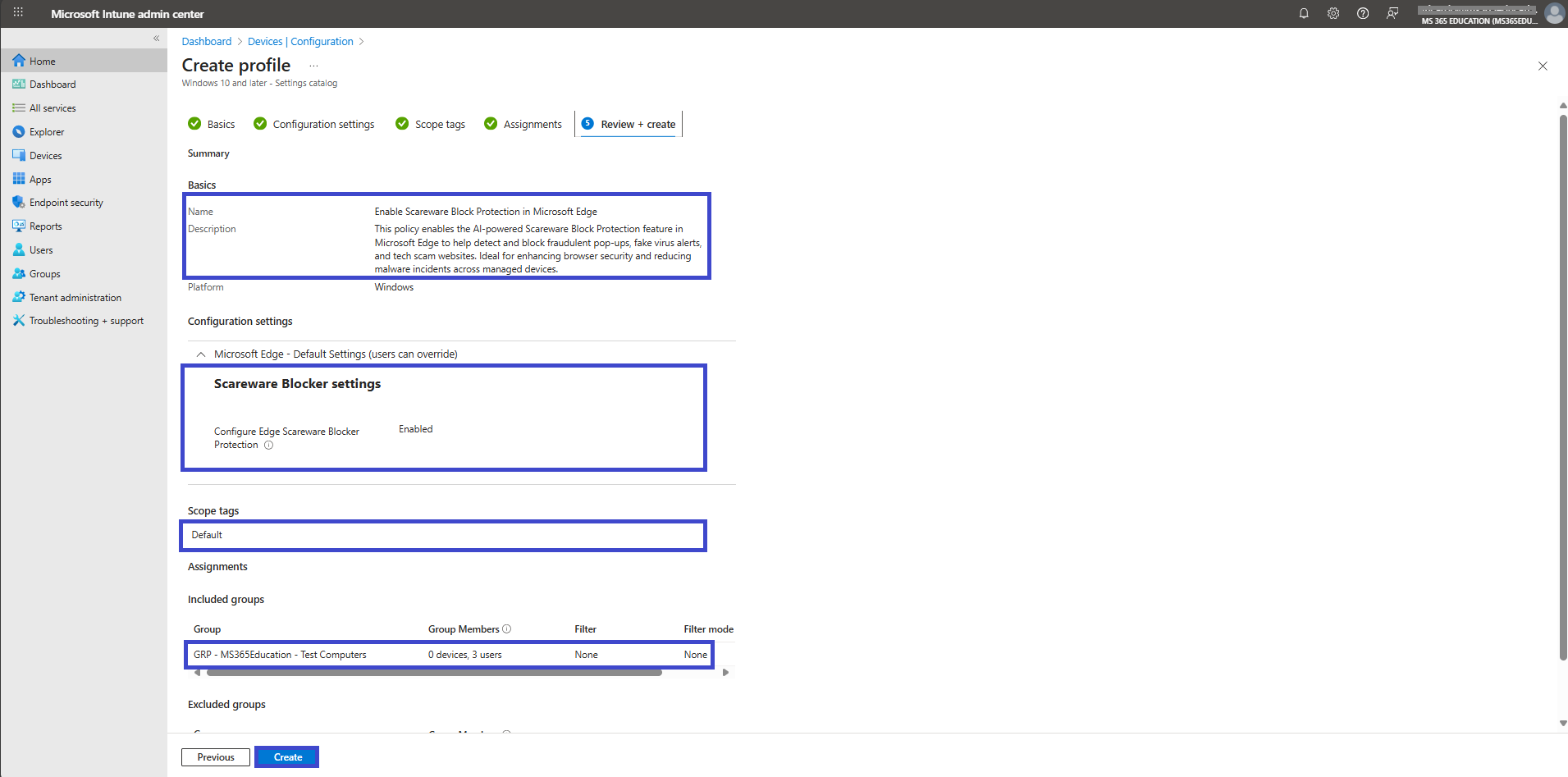
Name: Enable Scareware Block Protection in Microsoft Edge
Description: This policy enables the AI-powered Scareware Block Protection feature in Microsoft Edge to help detect and block fraudulent pop-ups, fake virus alerts, and tech scam websites. Ideal for enhancing browser security and reducing malware incidents across managed devices.
No changes are needed in the Platform field. Once the Name and Description are filled in, click Next to continue.
Configure the Scareware Block Protection Setting
In this step, you'll use the Settings Catalog to configure the Scareware Block Protection policy an important feature that uses AI to detect and block fraudulent pop-ups, fake virus alerts, and tech scam websites in Microsoft Edge.
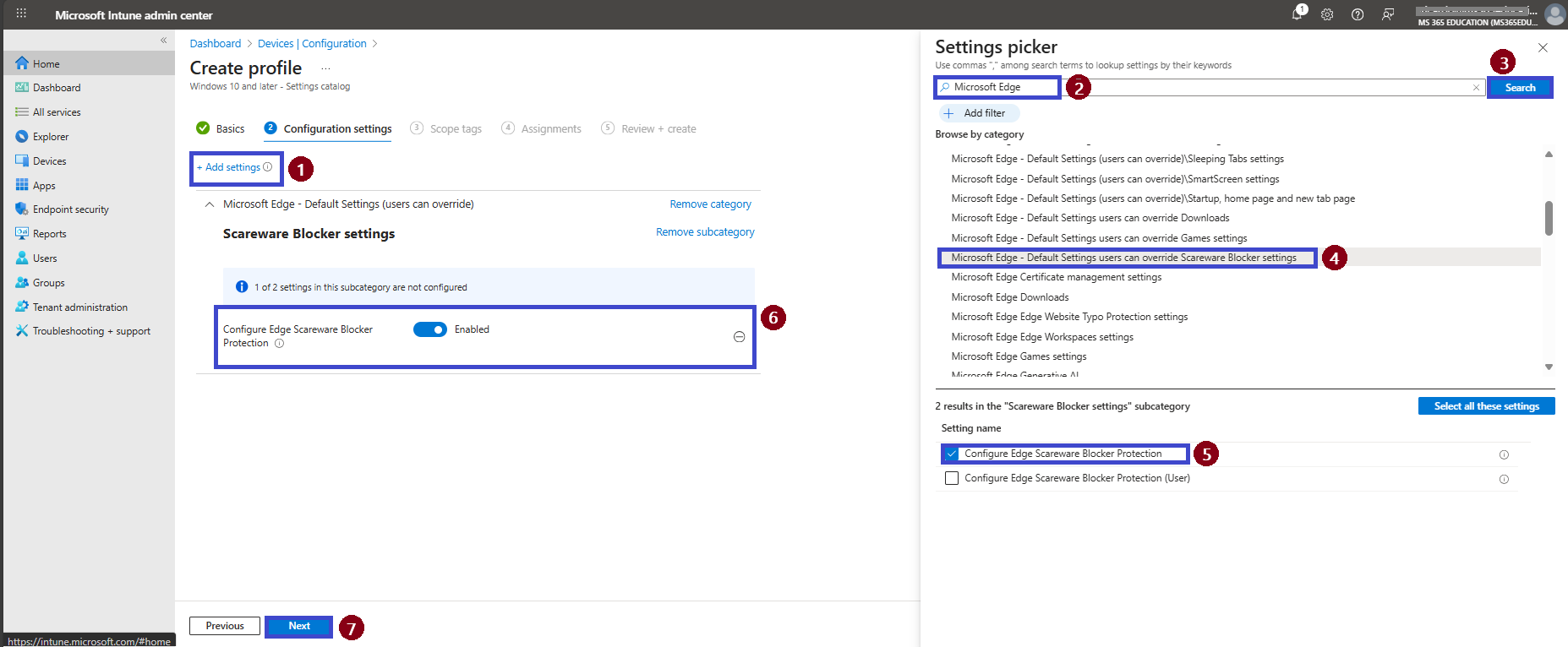
Follow the instructions below, referring to the image:
On the Configuration settings page, click + Add settings
In the Settings picker pane, type Microsoft Edge into the search bar and click Search
From the results, locate Microsoft Edge – Default settings (users can override)
Under this category, find and select Configure Edge Scareware Blocker Protection
The setting will now appear in the main configuration pane
Toggle the value to Enabled this will turn on AI-powered protection against scareware attacks in Microsoft Edge
Click Next to proceed
✅ Observation:
By default, this setting is Disabled, meaning Scareware Block Protection is turned off and users are not warned about tech scams.
When set to Enabled, it activates AI-based detection and warning messages to protect users from deceptive pop-ups, fake antivirus alerts, and fraudulent websites.
This configuration is especially useful in environments like financial institutions, healthcare settings, shared workstations, and education labs, where protecting sensitive data and preventing credential theft is critical.
Configure Scope Tags (Optional)
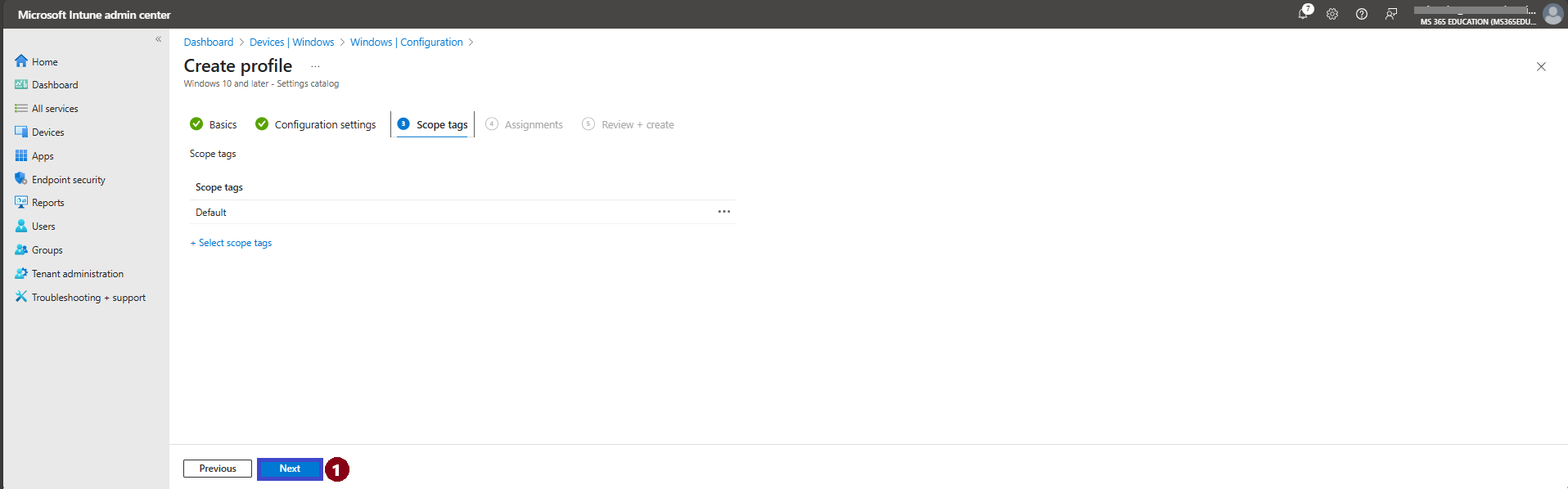
The next step is the Scope tags tab. Scope tags are typically used to associate policies with specific groups or administrative units within your organization, especially in larger or delegated environments.
For this particular policy, scope tags are not required. If you don’t need to assign the policy to a custom scope, you can simply leave this section blank.
Click Next to continue to the Assignments step.
Assign the Policy to Target Devices
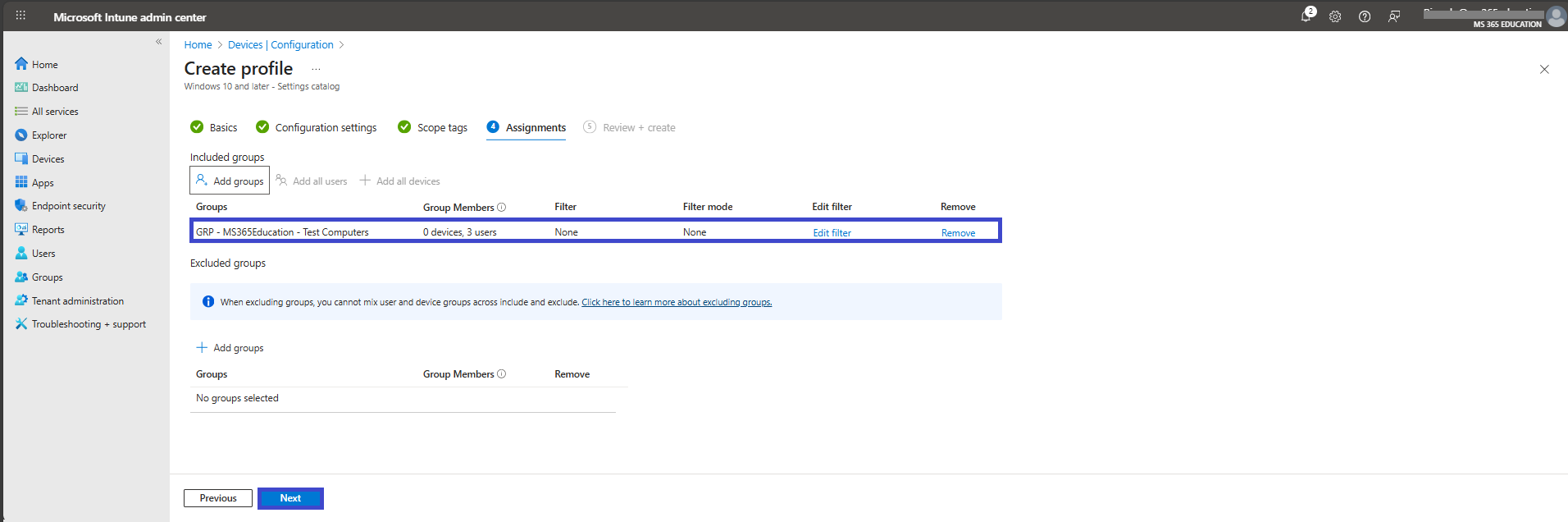
In the Assignments section, you'll define who will receive this policy. This step is essential, as it determines which users or devices the configuration will apply to.
To deploy this policy to a specific group:
Click on Add groups under the Include groups section. A list of available groups will appear use the search bar to quickly find the target group.
Once you've selected the appropriate group(s), confirm your choice. Click Next to move forward to the final step: Review + Create.
Review and Create the Policy
After completing the Assignments step, you'll land on the final tab: Review + Create.
This is your chance to review a full summary of the configuration including the basic details, selected settings, and group assignments. Take a moment to carefully review all entries to ensure everything is accurate and aligned with your intent.
If you need to make any changes, you can easily navigate back to the previous tabs and update the information as needed.
Once everything looks good, click Create to deploy the policy.
Your configuration will now be saved and pushed to the assigned devices based on the group you selected.
Monitor Scareware Block Protection Policy Deployment
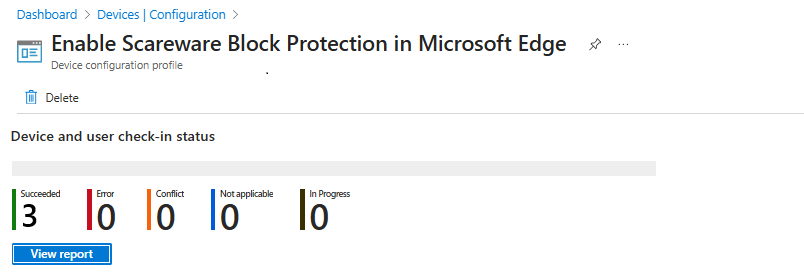
After creating and assigning the Scareware Block Protection policy, it’s important to monitor whether the configuration has been successfully deployed to all targeted devices.
By default, Intune policy deployment may take up to 8 hours. To speed up the process, you can:
Manually trigger a device sync using the Company Portal app
Initiate a sync via the Intune Management Extension
✅ How to Verify Deployment Status:
In the Microsoft Intune admin center, navigate to: Devices ➝ Configuration profiles
Use the search bar to locate the profile you created for example: "Enable Scareware Block Protection in Microsoft Edge"
Click on the policy name to open its Overview page
Review key deployment metrics such as:
This visibility ensures that the Scareware Block Protection policy has been properly applied, and allows administrators to take corrective actions if devices are non-compliant or facing deployment issues.
Client-Side Verification via Event Viewer
After manually syncing the device or waiting for Intune to automatically apply the policy, you can confirm that the Scareware Block Protection policy has been successfully enforced using Event Viewer on the client device.
This is especially useful for troubleshooting or auditing deployments in secure environments.
Steps to Verify Policy Application:
Open Event Viewer on the target Windows device
Navigate to: Applications and Services Logs ➝ Microsoft ➝ Windows ➝ DeviceManagement-Enterprise-Diagnostics-Provider ➝ Admin
In the right-hand pane, click Filter Current Log
Look for Event ID 814 this event typically indicates successful processing of the Scareware Block Protection configuration profile
In the event details, verify that:
💡 Pro Tip: Always ensure the Event ID reflects the correct timestamp and status. This method offers one of the most reliable ways to confirm if the Scareware Block Protection policy is successfully applied especially when troubleshooting delayed or failed deployments.
More Information
To deepen your understanding of how to configure and deploy the Scareware Block Protection policy in Microsoft Edge using Intune, explore the following official Microsoft Learn resources and trusted technical articles:
ScarewareBlockerProtectionEnabled – Microsoft Learn Detailed documentation for the “Configure Edge Scareware Blocker Protection” setting, including default behavior (disabled), requirements, and supported values.
Use the Intune Settings Catalog to configure settings – Microsoft Learn A step-by-step guide to creating and deploying configuration profiles using the Settings Catalog in Microsoft Intune the method used in this article.
Configure Microsoft Edge policy settings with Microsoft Intune – Microsoft Learn Official guidance on how to apply Microsoft Edge policy settings via Intune, equivalent to traditional GPOs but managed in the cloud.
Thank you!
🖥️ Ricardo Barbosa
🎖️ Microsoft MVP | 📘 Microsoft Certified Trainer (MCT)
☁️ Intune & Cloud Architect |💼 Technology Director at Altelix.com
