

Improve security and protect user credentials by enforcing CTRL + ALT + DEL login with Microsoft Intune
Today, we're diving into an important security feature—requiring CTRL + ALT + DEL to log on—and how you can enforce it using Microsoft Intune.
Implementing this requirement enhances security by ensuring that user credentials are entered through a trusted path, reducing the risk of password interception. In this article, we’ll guide you through the best practices for enabling this setting, helping you achieve the same secure login experience as when accessing a Windows Server.
Whether you're just starting with Intune or looking to refine your security policies, this guide will help you strengthen your device management strategy.
📌 Table of Contents
Why Require CTRL + ALT + DEL to Log On
How to Require CTRL + ALT + DEL to Log On with Microsoft Intune
Why Require CTRL + ALT + DEL to Log On?
This security policy setting ensures that users must press CTRL + ALT + DEL before logging into a Windows device. Microsoft designed this feature to provide a secure authentication mechanism, protecting users from potential attacks that attempt to intercept passwords.
If this requirement is disabled, malicious software could trick users into entering credentials into a fake login prompt. By enforcing CTRL + ALT + DEL, passwords are always processed through a secure and trusted path, significantly reducing security risks.
How to Require CTRL + ALT + DEL to Log On with Microsoft Intune
Now, let’s walk through the step-by-step process of configuring this policy using Microsoft Intune. We'll set up this security requirement through Configuration Profiles, ensuring that all managed Windows devices follow this policy.
Step-by-Step Guide:
Go to Intune Portal
Click on Devices
Click on Windows
Click on Configuration Profiles
Click on Create
Select New Policy
Platform: Windows 10 and later
Profile Type: Settings Catalog
Click on Create
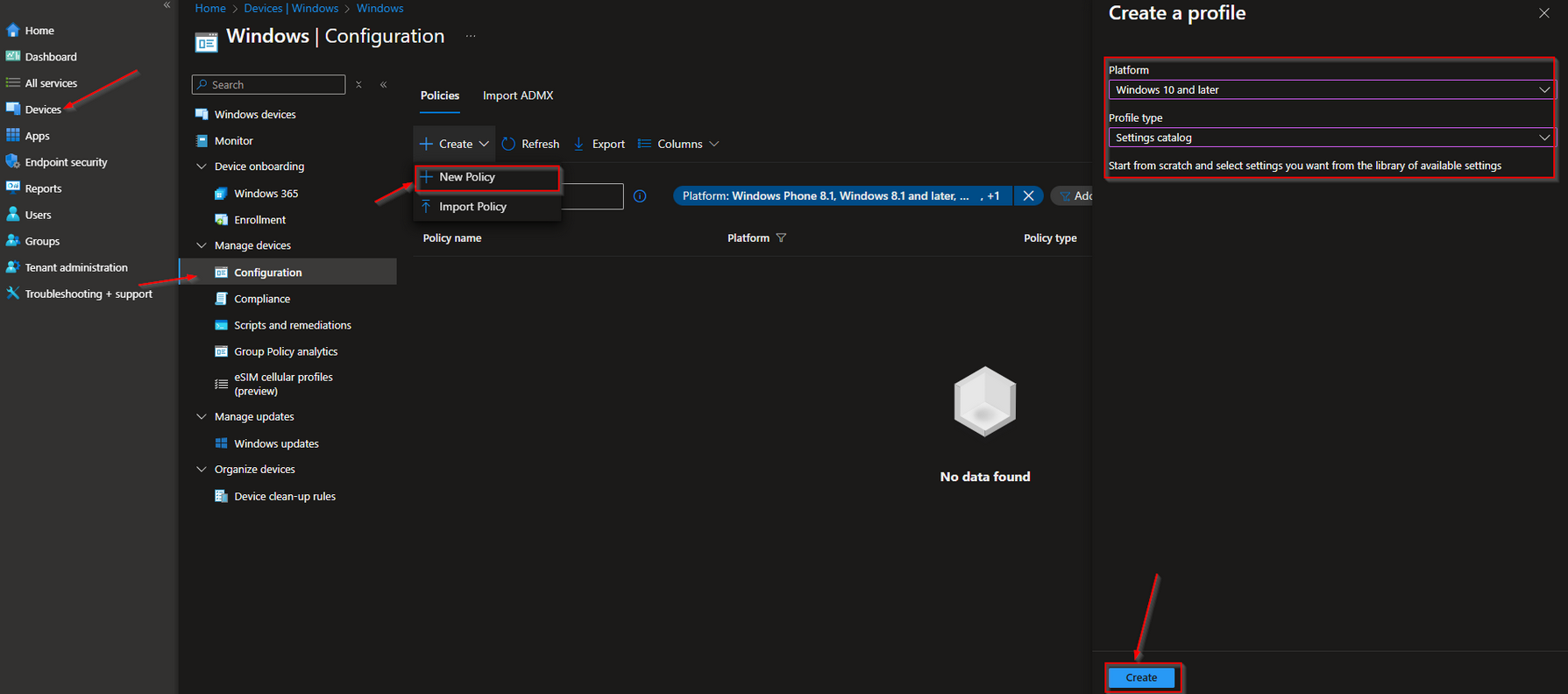
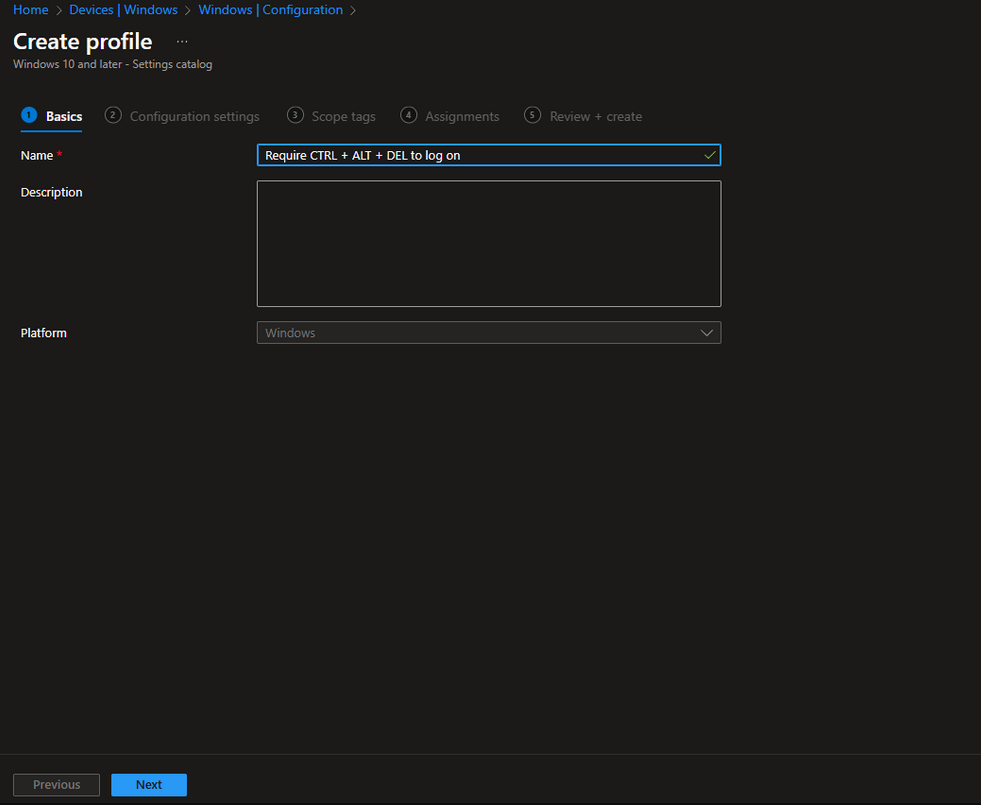
Give it a meaningful name and description. Click on Next.
On the Configuration settings tab do the following:
Click on Add settings
Search for Interactive Logon Do Not Require CTRLALTDEL
Choose Local Policies Security Options
Click on Interactive Logon Do Not Require CTRLALTDEL
On the left site Enabel Interactive Logon Do Not Require CTRLALTDEL
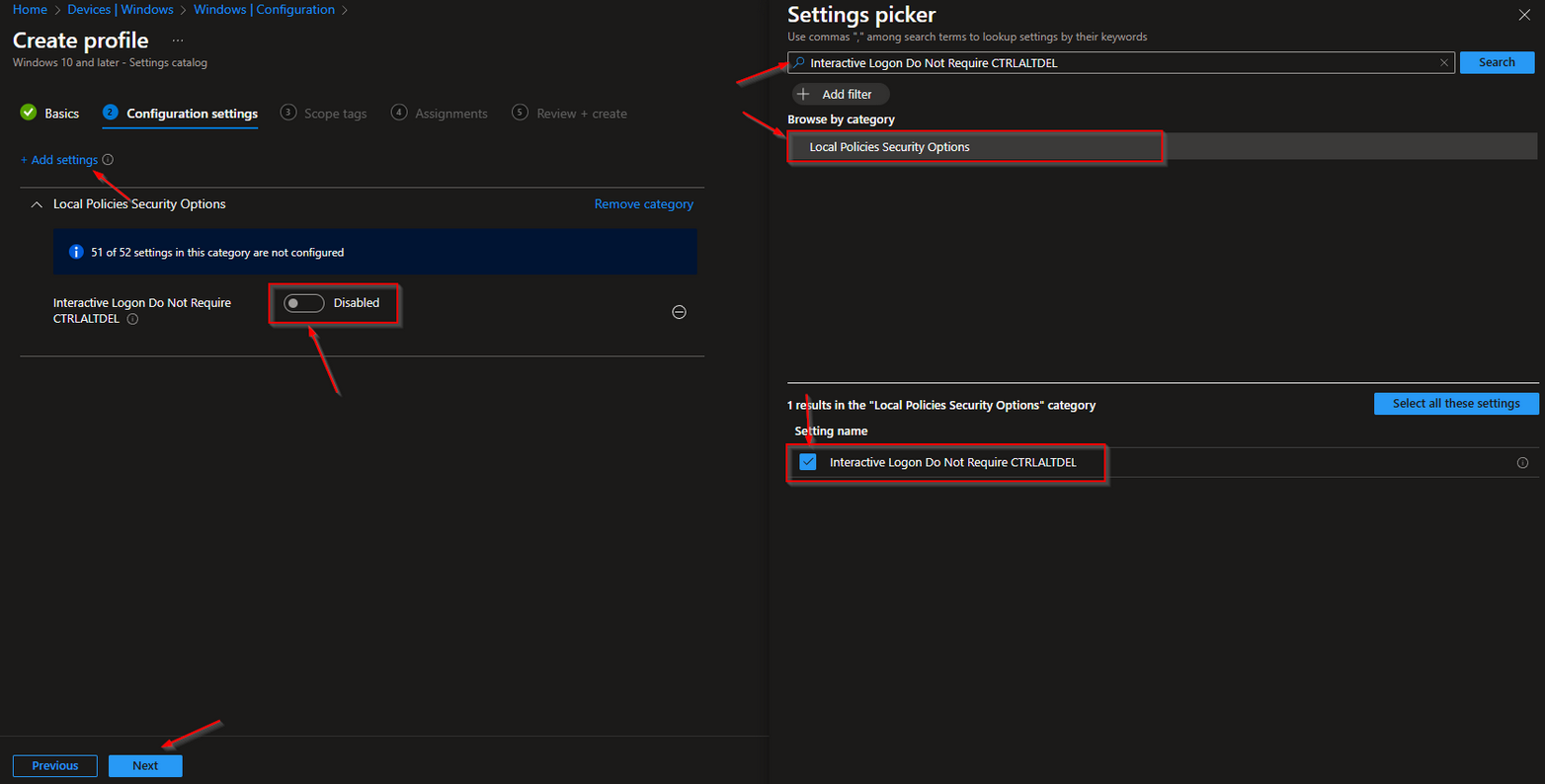
Define your Scope if applicable and click on Next
On the Assignments tab assign the Policy to a Group or to All Users / All Devices
And Review + Create the Policy
Congratulations! Your Policy Has Been Successfully Deployed!
Conclusion
In this guide, you’ve learned how to require CTRL + ALT + DEL to log on using Microsoft Intune. We walked through the process of creating a new Configuration Profile in the Microsoft Intune Portal, ensuring that your assigned users or groups receive the policy when their devices check in with the Intune service.
Once the policy is applied, users will be required to press CTRL + ALT + DEL before logging into Windows, unless they use a smart card—a secure, tamper-proof device that stores authentication credentials.
We hope this guide has provided valuable insights to enhance your device security and management strategy.
More Information
For additional guidance on configuring the "Require CTRL + ALT + DEL to log on" policy using Microsoft Intune, refer to the following resources on Microsoft Learn:
Overview of Microsoft Intune Learn about Microsoft Intune's features, capabilities, and how it helps manage devices and security policies.
Configuration Service Provider (CSP) Policies Understand how CSP policies work in Windows and how they can be managed via Intune.
Settings Catalog in Intune Discover how to create and manage policies using the Settings Catalog in Microsoft Intune.
Managing Devices with Intune A step-by-step guide on enrolling and managing devices with Microsoft Intune.
Assigning Policies and Apps in Intune Learn how to assign policies and applications to users and devices in Intune.
Interactive Logon: Do Not Require CTRL+ALT+DEL This document explains the security implications of requiring or disabling CTRL + ALT + DEL for logon.
These resources provide comprehensive instructions on setting up, managing, and optimizing device configurations with Microsoft Intune.
Thank you!
🖥️ Ricardo Barbosa
📘 MCT Microsoft Certified Trainer | ☁️ Cloud Architect
🌐 Technology Director - https://altelix.com
