

How to Configure Managed Home Screen Sign-In for Android Tablets: A Detailed Guide
Microsoft's Managed Home Screen, a feature within Intune, is an excellent solution for configuring dedicated and multi-app kiosk devices. Whether you're rolling out devices in educational settings or corporate environments, enabling sign-in functionality can improve the user experience while maintaining alignment with your organization's policies.
In this article, I will outline the key steps to set up Managed Home Screen sign-in for Android tablets, enabling users to seamlessly pass SSO credentials to other Microsoft applications.
Prerequisites
Intune Enrollment:
Android tablets must be enrolled in Microsoft Intune as corporate-owned dedicated devices configured with Microsoft Entra ID shared mode.
Managed Home Screen Installation:
The Managed Home Screen app must be deployed to your devices through Intune.
Azure Active Directory (Azure AD):
Azure AD accounts are necessary for user sign-ins.
1. Configure Managed Home Screen Sign-in
In the Intune Admin Center, navigate to: Devices > Android > Configuration Profiles, and either create a new configuration profile or edit an existing one.
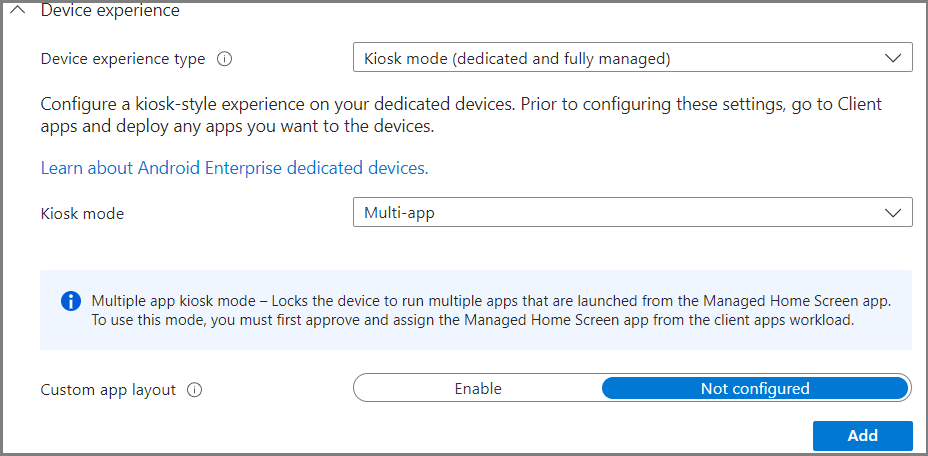
Under the Device Experience section:
Enable Kiosk Mode.
Enable Multi-App.
2. Add Apps to the Managed Home Screen
Include any apps you want to display on the Managed Home Screen. (Note: If no apps are added, users will see a blank page.)
Under Device Experience > Dedicated Devices:
Enable the MHS Sign-in Screen.

3. Basic Customization
Below this section, you can configure:
A custom wallpaper.
A screensaver.
These customizations can help with branding or provide guidance for users during sign-in prompts.

To add a screensaver to MHS, simply configure the screensaver fields further up under Device experience.

Session PIN & Timeout Settings
In this section, you can set up a session PIN requirement after sign-in. This feature is particularly useful for student devices that might be used sporadically during lessons. By configuring a session-specific PIN, users can quickly sign in and out without needing to re-enter their password each time the device enters screensaver mode or standby.
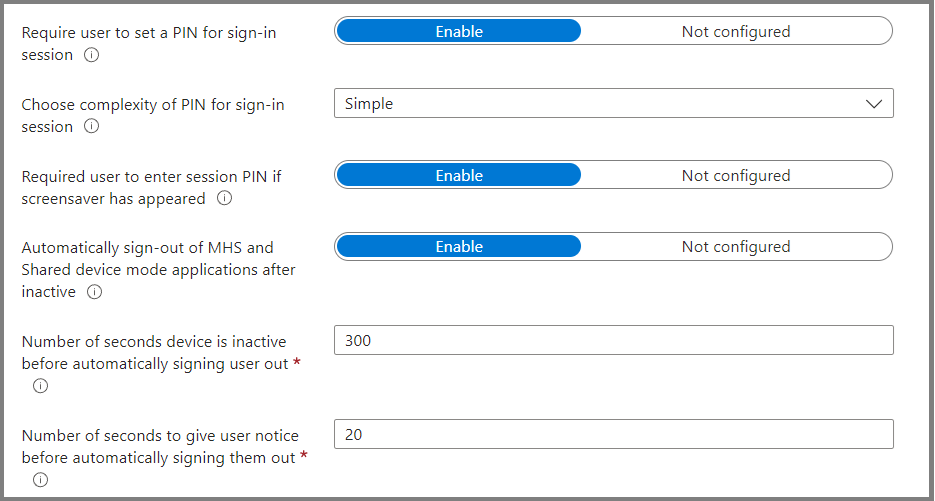
You can also enable automatic sign-out after X amount of seconds by adjusting the settings above.
4. Deploy Configuration Profile
Once the basic setup is complete, deploy your configuration profile to a group that includes your devices.
5. Advanced MHS Customization
To enhance the Managed Home Screen (MHS) sign-in experience, you can customize additional settings such as:
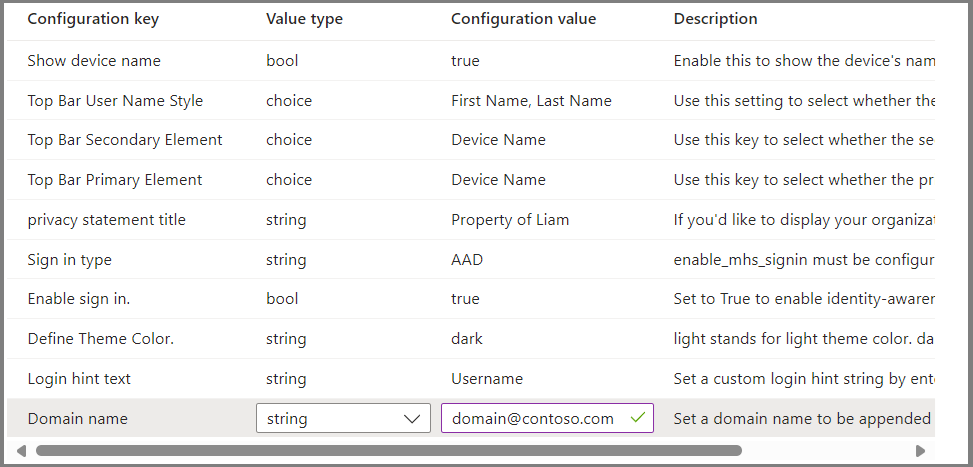
Top Bar Username Style
Secondary Element
Custom Sign-In Domain Name
To configure these settings:
Go to the Intune Admin Center.
Navigate to: Apps > App Configuration Policies > Create > Managed Devices.
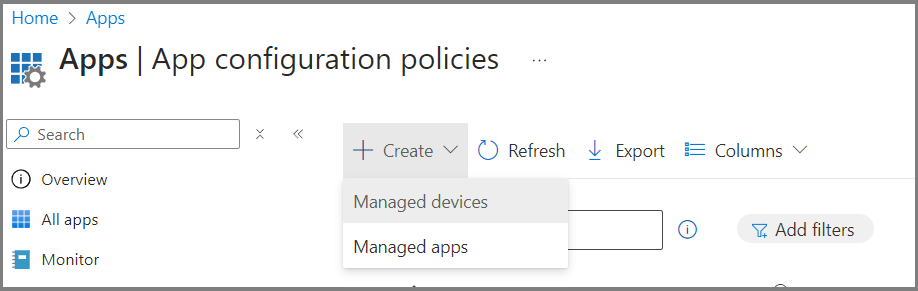
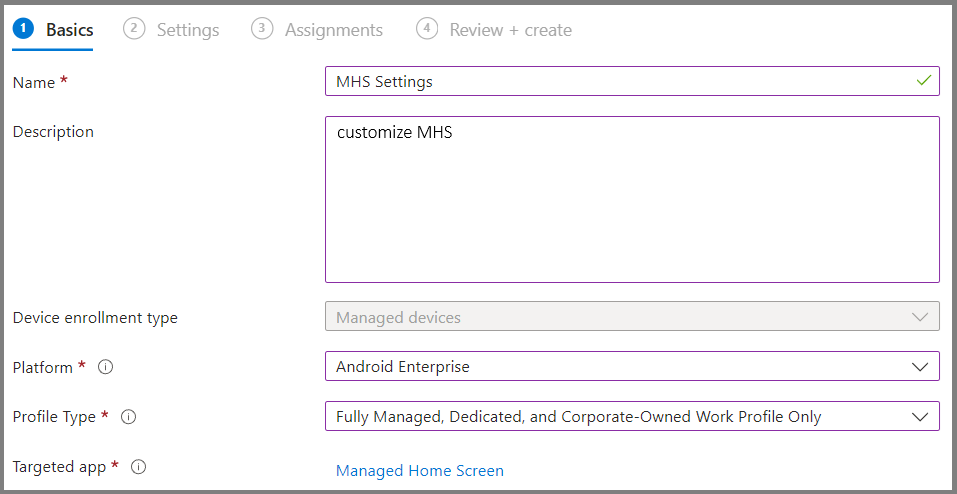
Fill in the basic settings, name/description and choose the Managed Home Screen app
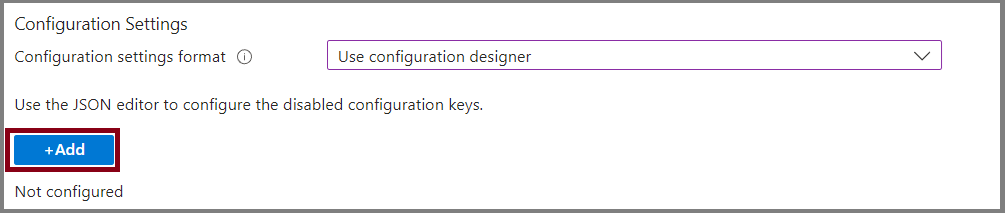
Use the drop down to select ‘Use Configuration Designer‘ and click + Add.
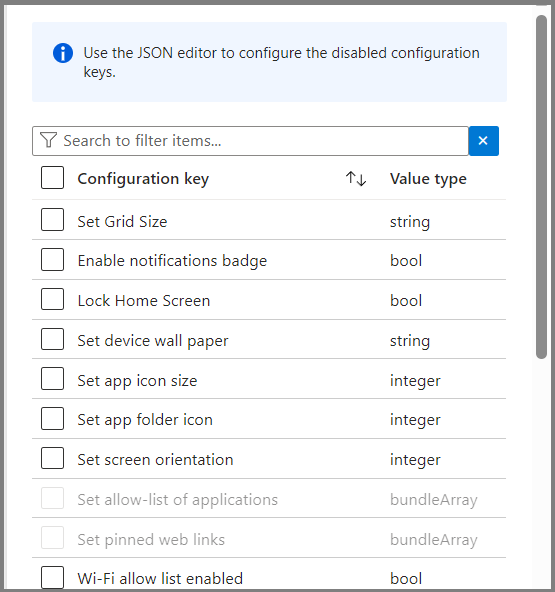
Use the panel to select which settings you’d like to configure.
You can customize this to your liking however I recommend enabling the following
6. Configure Device Permissions To enable specific features of Managed Home Screen Sign-in, the app requires the following device permissions:
Overlay Permission:
Required for:
Virtual home button
Screen saver
Automatic sign-out
Notification Permission:
Required for:
Notification badge
Alarms & Reminders Permission:
Required for:
Screen saver
Automatic sign-out
Automatic relaunch
Write Settings Permission:
Required for:
Brightness toggle
Rotation toggle
On first use, you may be prompted to grant permissions for the features you have enabled. Simply follow the on-screen prompts to complete this process.
If the Managed Home Screen gets stuck in a permissions loop and prevents you from toggling certain permissions, reboot the device and try again.
Some OEMs, such as Samsung, allow you to configure these permissions automatically. If you are using Samsung tablets, refer to the guide below to set up the permissions automatically. If not, you can skip this step.
Automatically Configure Managed Home Screen Permissions (Samsung OS 13+)
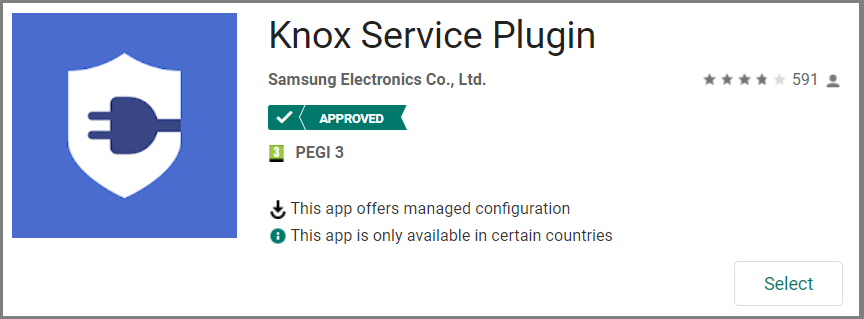
Step 1: Install the Samsung Knox Service Plugin
Search for the Knox Service Plugin in the Managed Google Play Store.
Deploy the plugin to your device(s) through your management platform.
Step 2 – Configure Plugin
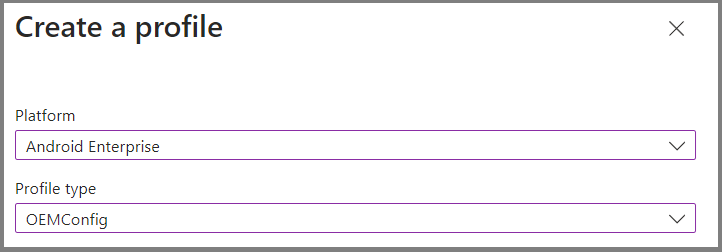
In the Intune Admin Centre head to Devices > Manage devices > Configuration > Create > New policy. Create a new policy with the following details.
Platform: Select Android Enterprise.
Profile type: Select OEMConfig.
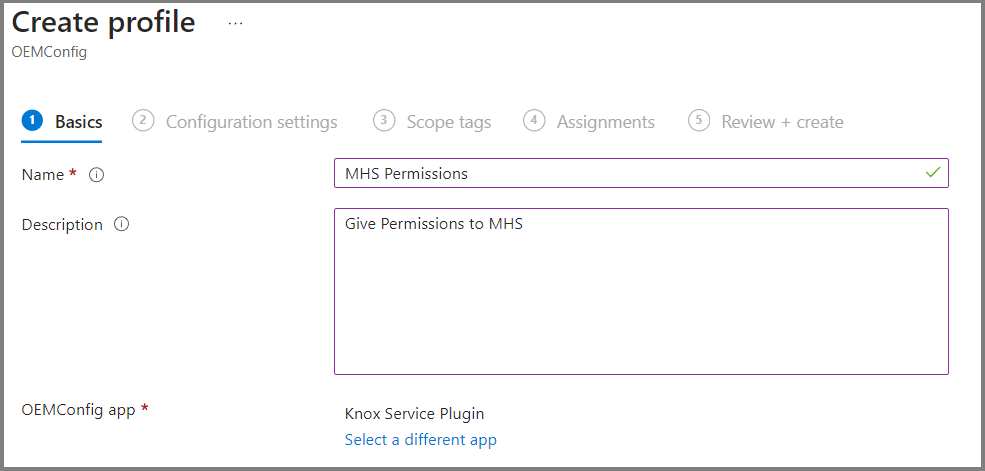
Fill in the basic details, under OEMConfig app, choose Knox Service Plugin
In Configuration settings, select the Configuration designer.
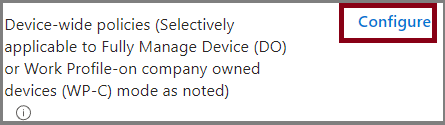
Under Device-Wide Policies, click Configure
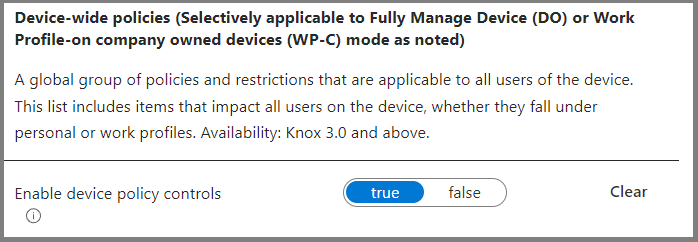
Set enable-device policy controls to true
In the same section click Configure under ‘Application Device Management‘
Set Enable Application Management Controls to True.
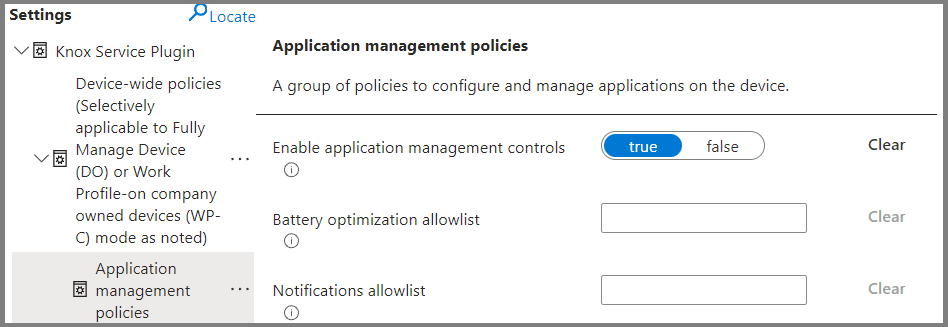
Now, return to the top-level Knox Service Plugin and locate the Permission Controls section.
Click the ellipsis (three dots icon) and select Add Setting.
From the dropdown menu, choose Notification Access.
Enter the following into the Package or Component Name field: com.microsoft.launcher.enterprise/com.microsoft.launcher.next.model.notification.AppNotificationService.
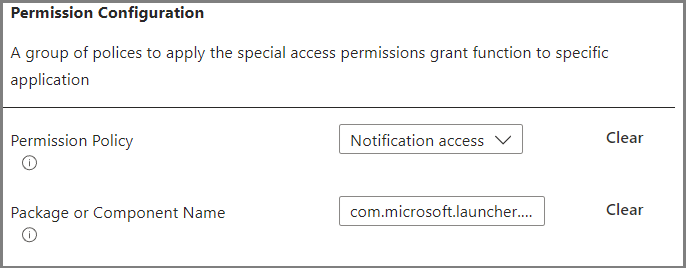
Repeat the previous step to add a second setting:
Select Alarms and Reminders and Appear on Top from the dropdown menu.
Enter com.microsoft.launcher.enterprise into the Package or Component Name field.
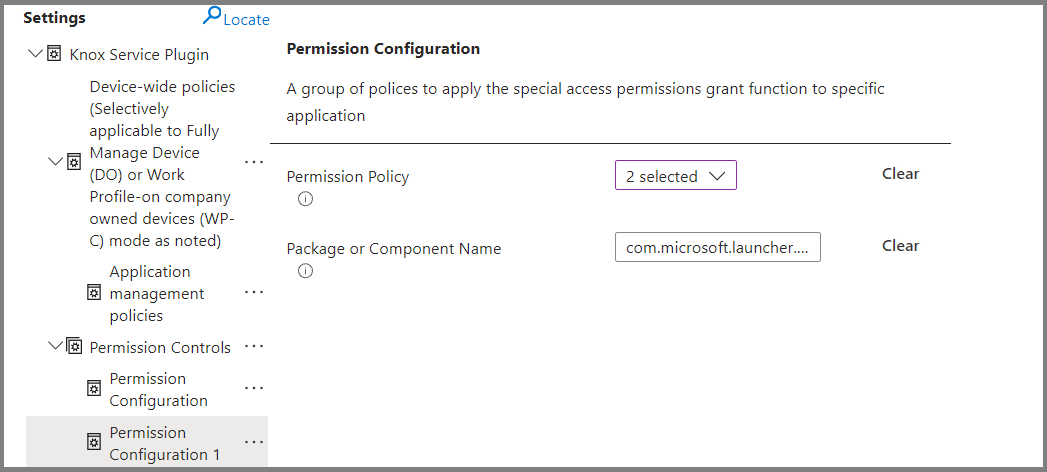
Deploy the configuration profile to your selected devices. The permissions should now be applied automatically.
Note: Devices running One UI Core do not support permission control. This includes:
Galaxy Tab A7 (One UI Core)
Galaxy Tab A7 Lite (One UI Core)
Galaxy Tab A8 (One UI Core)
More Information
For more information about configuring Managed Home Screen Sign-In for Android tablets, refer to the following documents:
Configure the Microsoft Managed Home Screen app - Microsoft Intune
Set permissions to Managed Home Screen using Android Enterprise OEMConfig in Intune
Corporate-owned Android Enterprise device restriction settings in Intune
These resources provide comprehensive guidance on setting up and managing the Managed Home Screen for Android devices using Microsoft Intune.
Thank you!
🖥️ Ricardo Barbosa
📘 MCT Microsoft Certified Trainer | ☁️ Cloud Architect
🌐 Technology Director - https://altelix.com
