

Updating Enterprise App Catalog apps
This short article focuses on creating awareness about the recently introduced functionality that simplifies updating apps from the Enterprise App Catalog. As part of Enterprise App Management, the Enterprise App Catalog offers a collection of Microsoft-prepared apps designed for use within Microsoft Intune.
This new functionality provides IT administrators with a streamlined, guided experience for managing app updates within the catalog. It begins with an overview of the available updates for catalog apps currently in use. From there, administrators are guided through a straightforward process to update a specific app.
The process culminates in the creation of a new Win32 app that supersedes the existing version of the app. This updated app can then be deployed to the required managed devices within the environment, ensuring users have access to the latest versions with minimal effort.
This article will walk you through the entire process of updating an app from the Enterprise App Catalog in Microsoft Intune, step by step.
Important: Enterprise App Management is part of the Intune Suite and requires additional licensing.
Checking for Updates in the Enterprise App Catalog
When searching for updates to apps created via the Enterprise App Catalog, the process begins with reporting. A new report has been introduced, offering a clear and concise overview of apps with available updates. There are several ways to access this report, providing flexibility for administrators.
The simplest method is to open the Microsoft Intune admin center portal and navigate to Apps. On the Overview page, you'll find a new tile labeled Enterprise App Catalog apps with updates, which provides direct access to the report. Alternatively, you can navigate to Apps > Monitor and select the Enterprise App Catalog apps with updates report.
Both options lead to the same report, as illustrated in Figure 1, making it easy for administrators to identify and manage updates effectively.
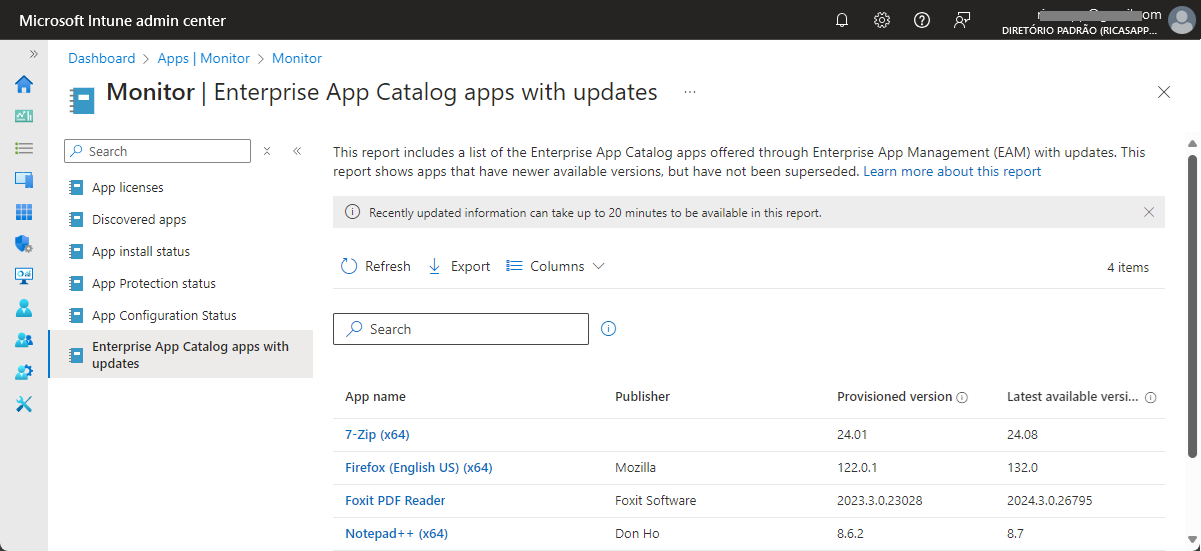
The report offers an overview of apps that have newer versions available but have not yet been superseded. For each app, it displays key details, including the app's name, publisher, currently installed version, and the latest version available. These apps are interactive, allowing IT administrators to click on them and be directed straight to the relevant configuration page.
Note: When selecting an app in Microsoft Intune that was created via the Enterprise App Catalog, the app’s details will prominently indicate that a newer version is available in the catalog.
Updating an Enterprise App Catalog App
One of the best features of the Enterprise App Catalog apps with updates report is how it simplifies the process of updating apps in Microsoft Intune to their latest versions. The process is straightforward and shares many similarities with creating the current version of the app. The key differences lie in how the update process is initiated and the supersedence relationship that is automatically established.
The following ten steps outline the process of updating Mozilla Firefox as an example app from the catalog, highlighting the overlap with creating the previous version of the app.
Important: Be sure to carefully follow the update process, as the new version of the app does not inherit the configuration of the existing version. Updating is essentially akin to creating an entirely new app.
Open the Microsoft Intune admin center portal and navigate to Apps > Monitor and select the Enterprise App Catalog apps with updates report
On the Monitor | Enterprise App Catalog apps with updates page, as shown in Figure 1, click on Firefox (English US) (x64)
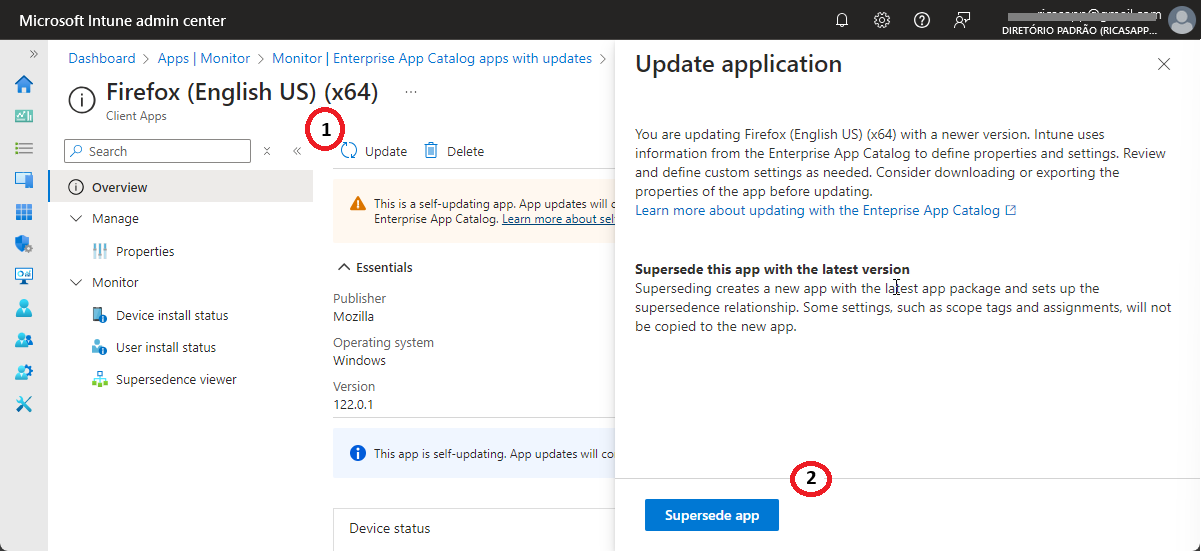
On the Firefox (English US) (x64) page, as shown below in Figure 2, click on Update (1)
On the Update application blade, as shown below in Figure 2, click Supersede app (2)
5. On the App information page, verify at least the pre-filled information for the required fields of Name, Description and Publisher and click Next
Note: At the moment of writing the pre-filled information does not contain the icon of the app.
6. On the Program page, verify at least the following (pre-filled) information and click Next
Install command: Verify the pre-filled installation command line and make adjustments when really needed
Uninstall command: Verify the pre-filled uninstall command line and make adjustments when really needed
Installation time required: Configure the time that is required for the installation of the app
Allow available uninstall: Configure if the uninstall is available for users
Device restart behavior: Configure the device restart behavior for the app
Specify return codes to indicate post-installation behavior: Verify the minimal pre-filled return codes
Note: Unlike normal Win32 apps, for Enterprise App Catalog apps Allow available uninstall is set by default to Yes.
7. On the Requirements page, verify at least the following pre-filled information and click Next
Operating system architecture: Verify the pre-filled operating system architecture
Minimum operating system: Verify the pre-filled minimum operating system
Note: Keep in mind that Enterprise App Management only supports 64-bit versions of Windows.
8. On the Detection rules page, verify at least the following pre-filled information and click Next
Rule format: Verify that the manual configuration is pre-filled for detection of the app
Rule: Verify that the detection rule(s) is pre-filled for the detection of the app
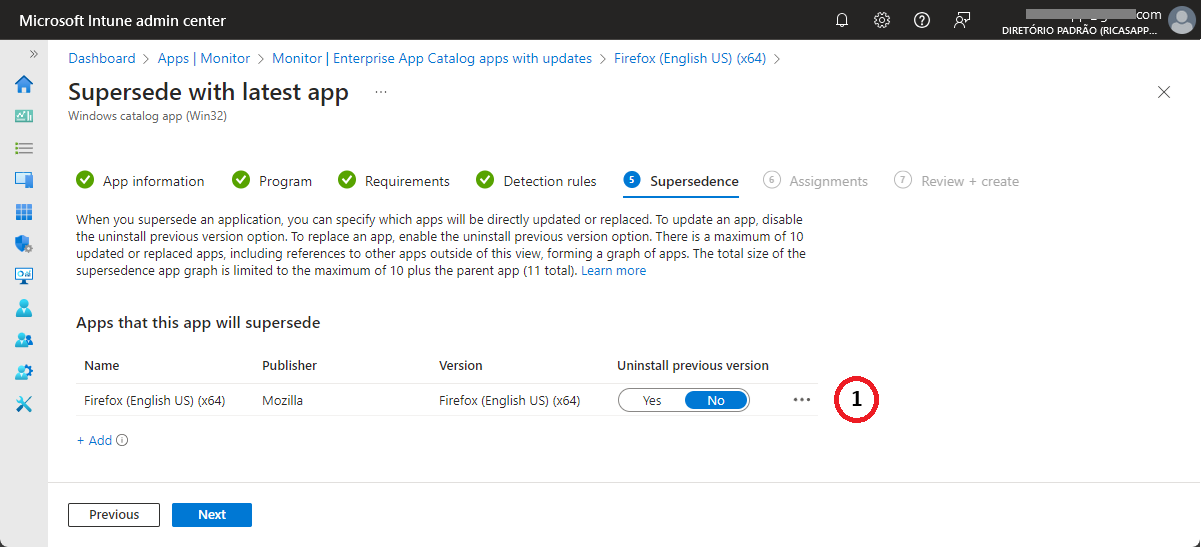
9. On the Supersedence page, as shown below in Figure 3, verify at least the following pre-filled information and click Next
Verify that Apps that this app will supersede (1) contains the current version of the app
10. On the Assignments page, (optionally) configure any required assignment and click Next
11. On the Review + create page, verify the provided configuration and click Create
More information
For more information about the Intune Suite add-on capabilities and Enterprise App Management, refer to the following docs.
Use Intune Suite add-on capabilities – Microsoft Intune | Microsoft Learn
Microsoft Intune Enterprise Application Management | Microsoft Learn
Add an Enterprise App Catalog app to Microsoft Intune | Microsoft Learn
Guided update supersedence for Enterprise App Management – Microsoft Intune | Microsoft Learn
Thank you!
🖥️ Ricardo Barbosa
📘 MCT Microsoft Certified Trainer | ☁️ Cloud Architect
🌐 Technology Director - https://altelix.com
