

Secure Your Environment: Blocking External Extension Installs with Intune
Hi everyone! Today, we’re going to explore how to allow or block external extensions from being installed in Microsoft Edge — using Microsoft Intune.
As many of you know, the Control the installation of external extensions policy is an important setting in Microsoft Edge, especially for organizations managing devices through Intune.
🎯 Why Blocking External Extensions Matters
In Microsoft Edge, administrators can enable settings such as “Block external extensions from being installed” and apply these configurations to specific user groups or devices.
This provides an easy and effective way to manage browser security and helps maintain data privacy and protection — especially in industries where compliance and security are critical.
By enabling this policy, organizations can ensure that extensions are only installed from official and trusted sources, such as the Microsoft Edge Add-ons store.
If this policy is enabled:
External extensions will be blocked from installation.
Only approved extensions from trusted sources can be used.
If this policy is disabled or not configured: ❌ Users will still be able to install extensions from unverified external sources, which introduces potential security risks to the organization.
Blocking unauthorized extensions helps reduce the chances of accidental data leakage or malicious code being introduced via third-party extensions.
🚀 What Happens When This Policy Is Enabled in Microsoft Edge via Intune?
When the “Control the installation of external extensions” setting is enabled in Microsoft Edge through Intune:
Users will be prevented from installing external extensions.
The organization gains greater control over the browsing environment.
It helps mitigate the risk of data leakage and security incidents caused by untrusted extensions.
🛠️ How to Deploy “Block External Extensions” Policy Using Intune
To deploy this policy, you first need to create a configuration profile in Intune.
Follow these steps:
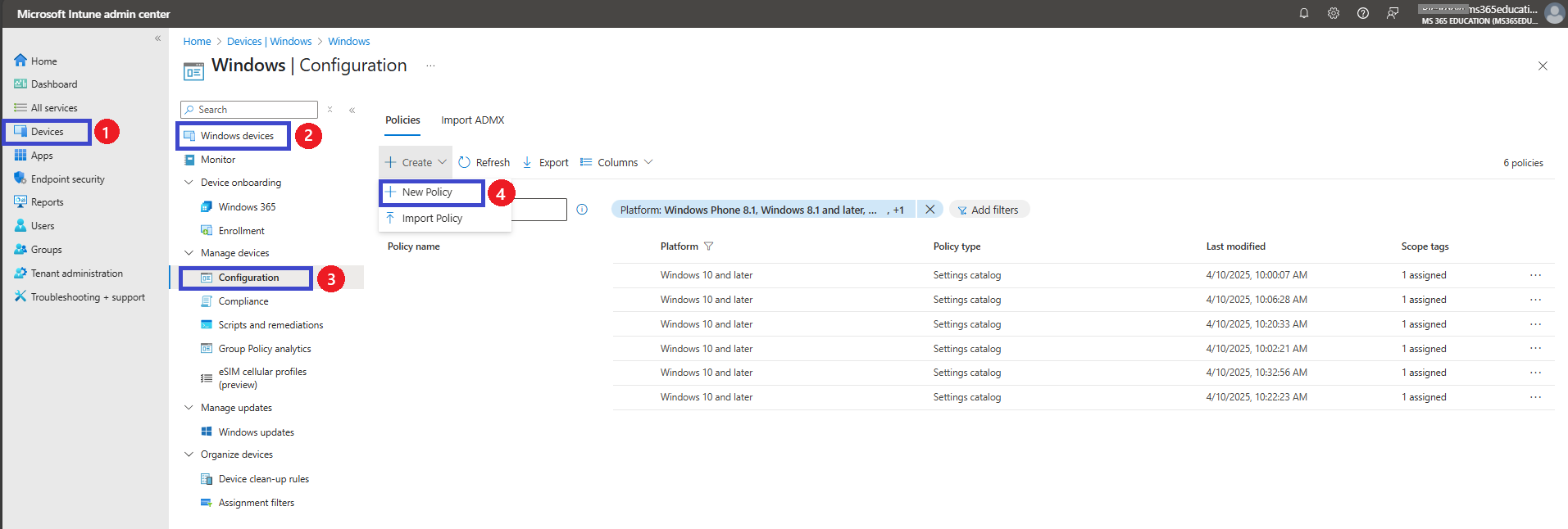
Go to Microsoft Intune admin center.
In the left-hand menu, click Devices.
Select Windows Devices.
Click on Configuration.
Policies New Policy.
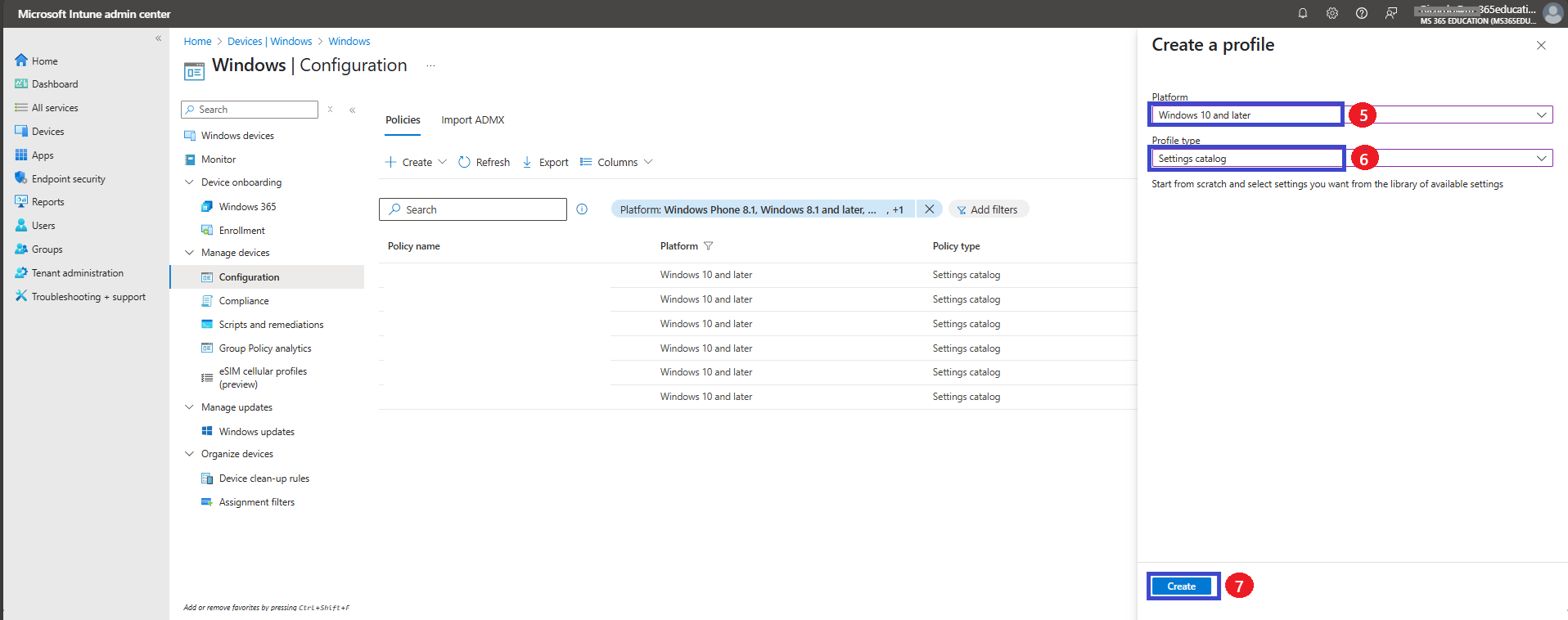
A new pane will open on the right side.
Under Platform, select Windows 10 and later.
Under Profile type, choose Settings catalog.
Click Create to begin configuring the policy.
Basic Information
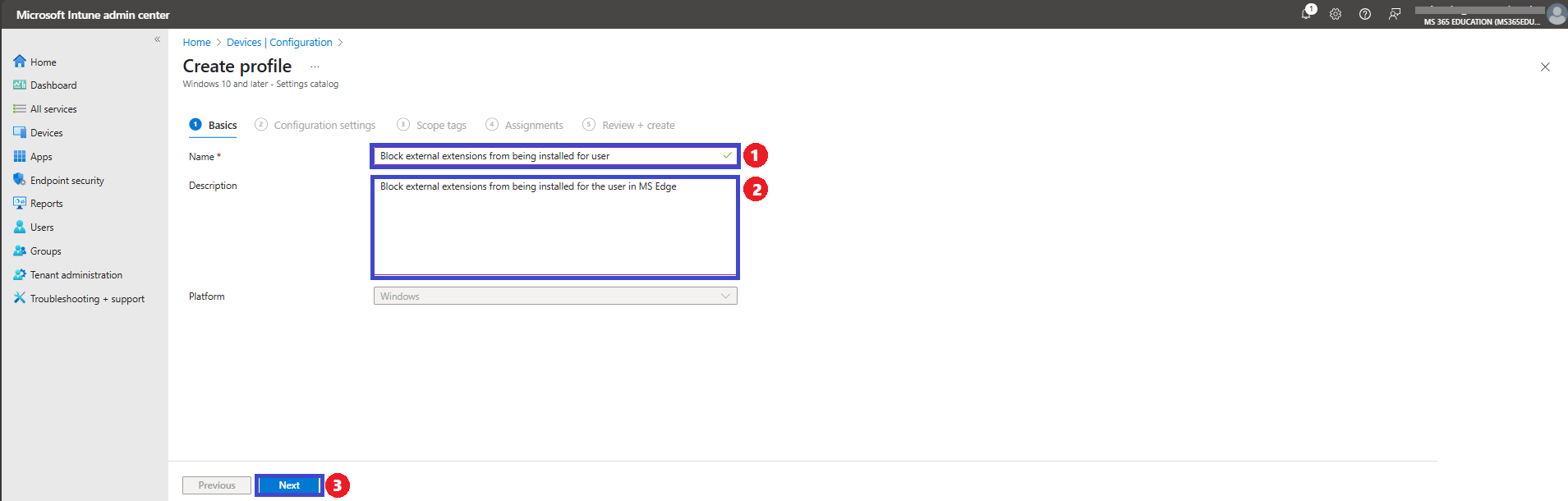
In the Basics tab, enter a name for your policy in the Name field. If you’d like, you can also include a description to provide more details about the policy’s purpose. This helps in identifying the policy later. The policy name and its description will be visible as shown in the screenshot below.
Name: I named the policy that Block external extensions from being installed for user.
Description: Block external extensions from being installed for the user in MS Edge
Configuration Settings
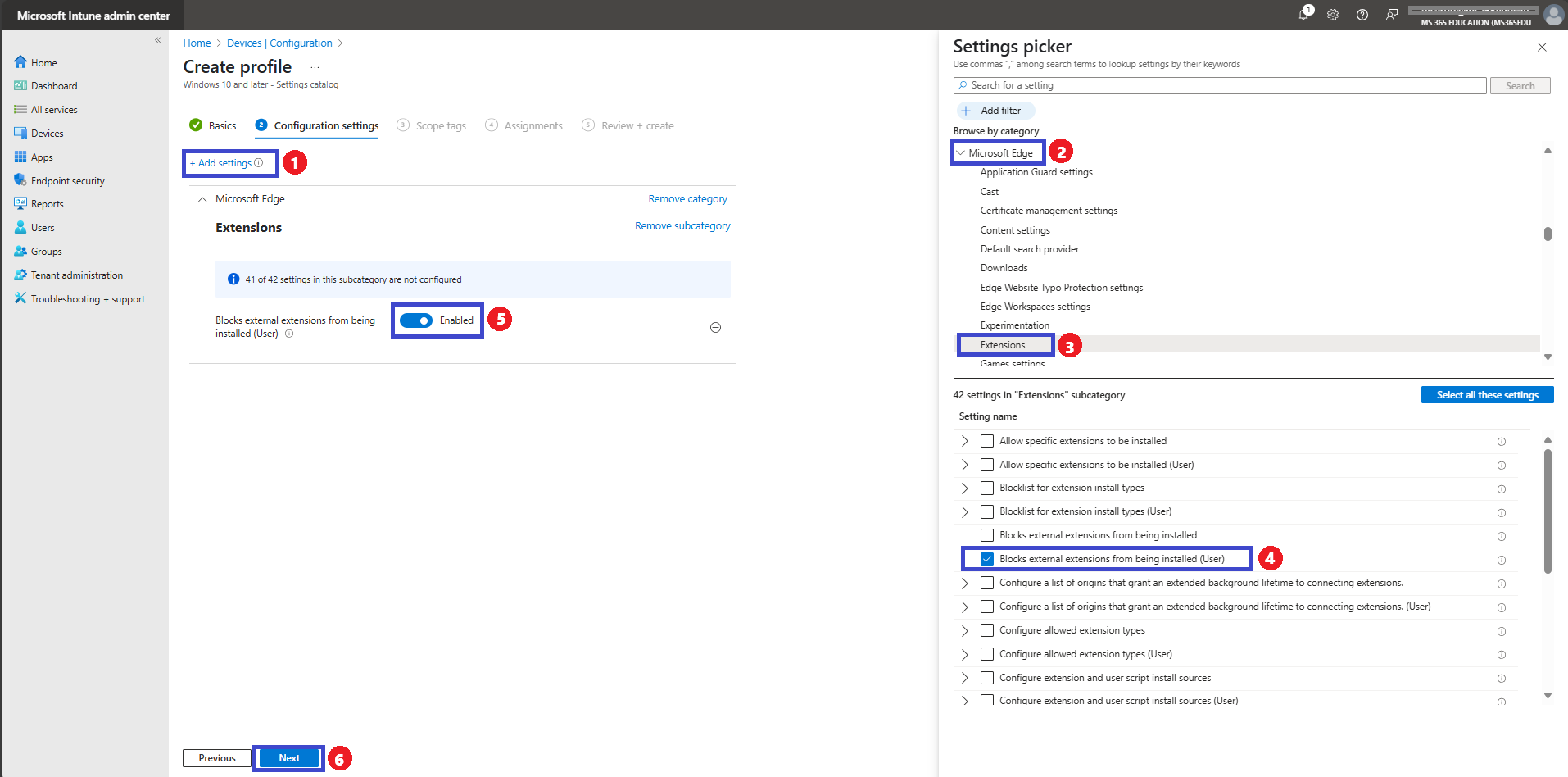
The Next Step Configuration Settings Page On the Configuration Settings page, you will see an option labeled “Add Settings” in blue. Click on that to open the Settings window. In the Settings window, locate and select the Microsoft Edge category. Within that category, click on the Extensions subcategory.
In the Extensions section, look for the policy named: “Block external extensions from being installed for users” select the policy and close settings picker.
Block External Extensions from Being Installed — Default Behavior
By default, the “Block External Extensions from Being Installed” policy is set to Disabled.
After selecting the setting in the Configuration Settings page and closing the Settings window, you will return to the main Configuration Settings view. At this point, you will see that the policy is now listed and visible.
When the policy remains in the Disabled state, users can still install external extensions, which may introduce security risks.
👉 In our example, we will enable this policy by selecting Enabled. This ensures that only trusted extensions can be installed, improving the overall security posture of the organization.
Tip: Enabling this policy helps enforce corporate security standards by ensuring that only approved extensions from trusted sources can be installed — providing greater control and protection over browser usage across managed devices.
Define Scope (if applicable)
In this step, you can define scoping filters to target specific groups or conditions—this is useful in more complex environments where policies should only apply to a subset of devices or users. If you’re not using scoping filters, simply leave the default settings and click Next to proceed.
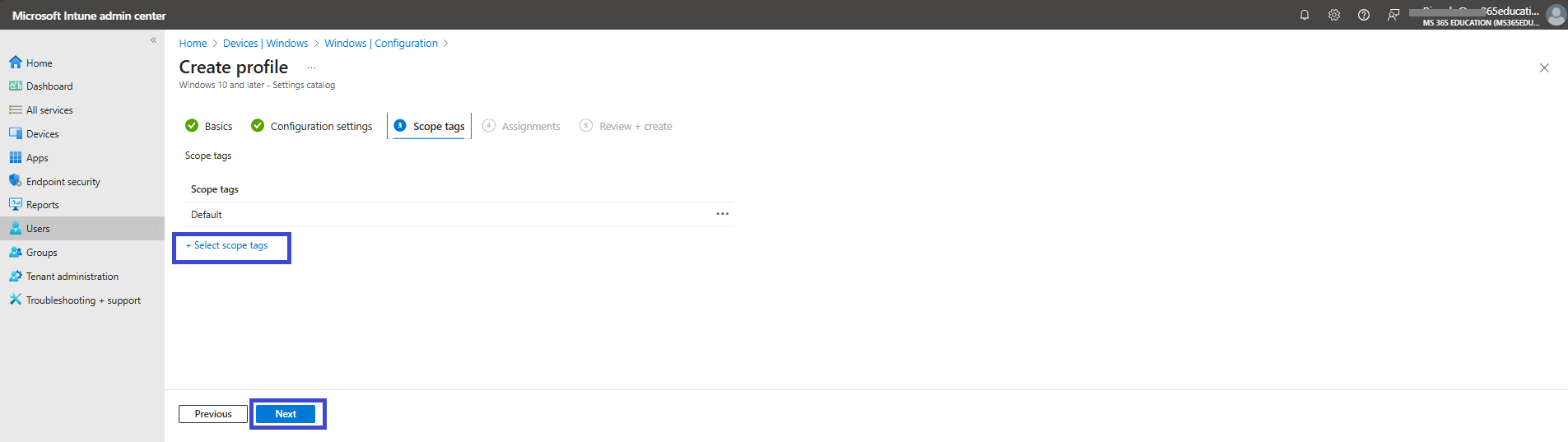
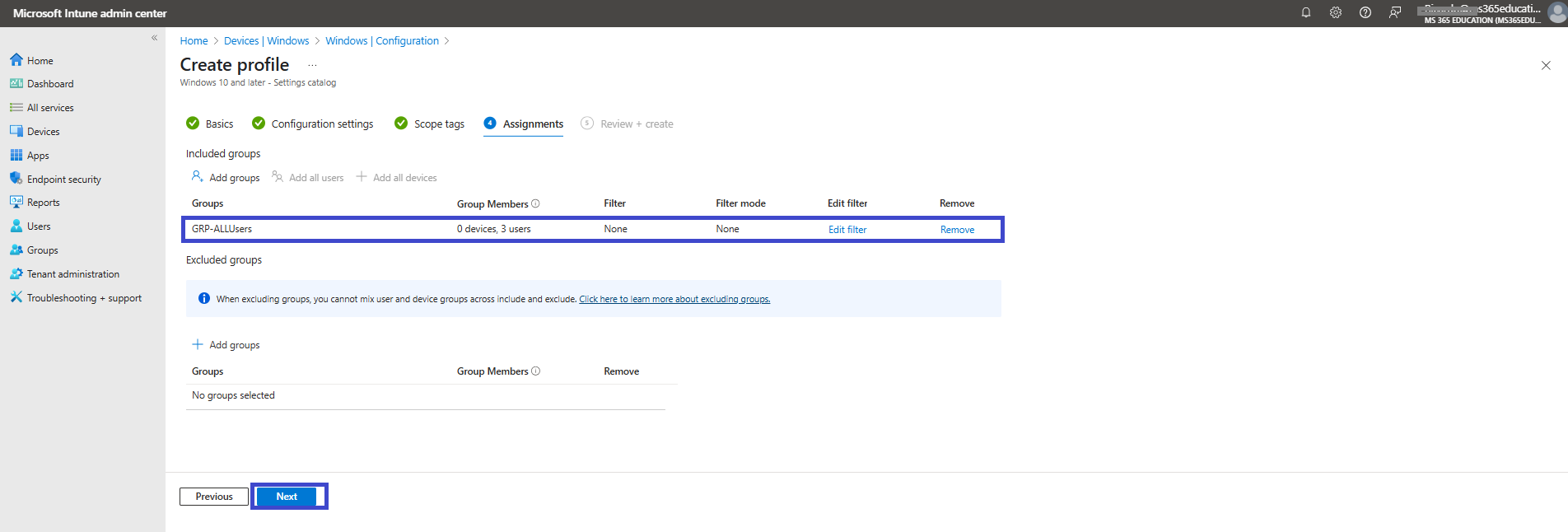
Assign the Policy
In the Assignments tab, choose who will receive this reboot policy. You can assign it to a specific group, or apply it broadly to All Users or All Devices, depending on your deployment strategy.
Once you've selected the appropriate target group, click Next to continue.
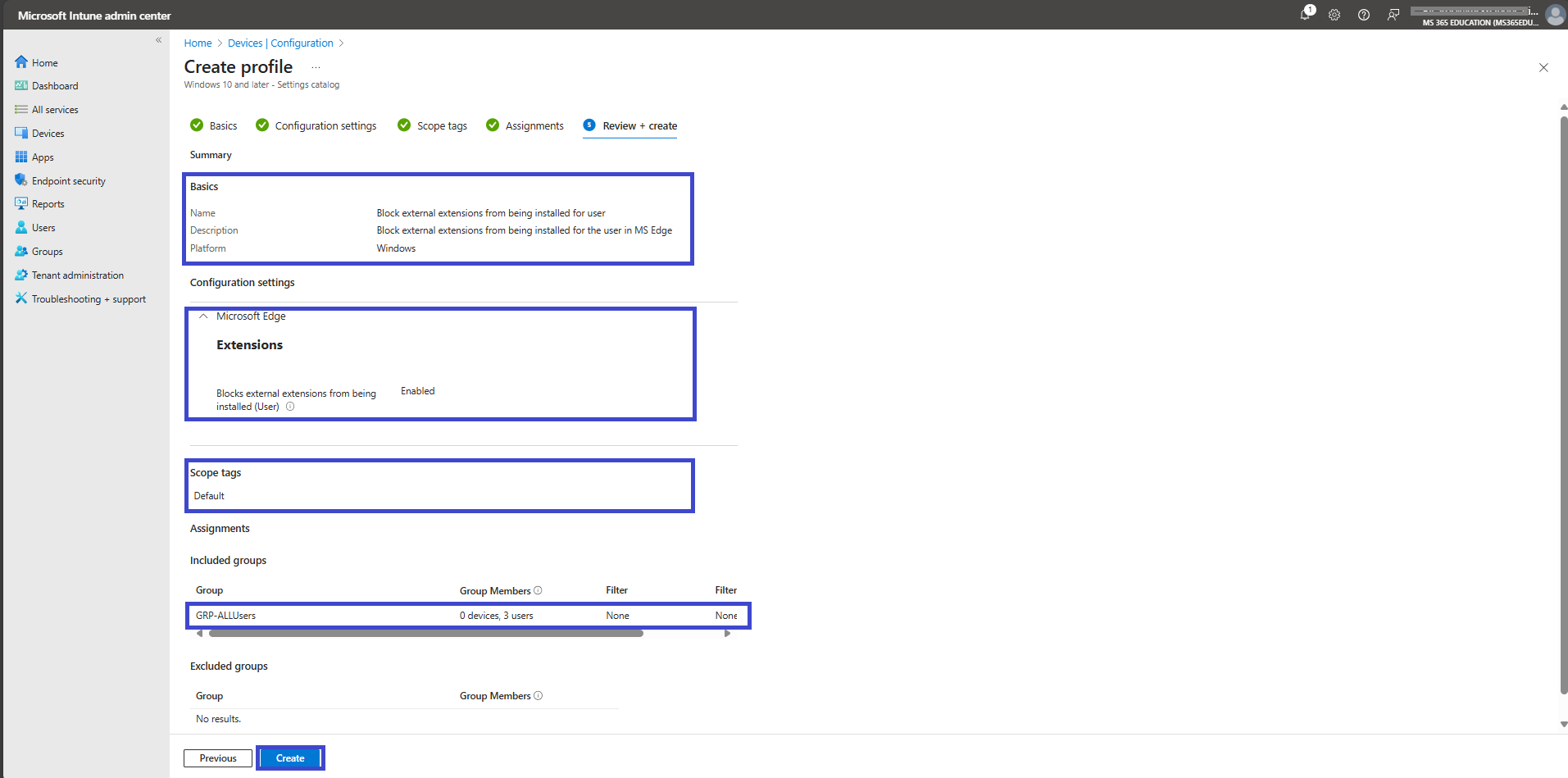
Review and Create
In the final step, review all the configurations you've made, including the platform, profile type, settings, scope, and assignments. If everything looks correct, click Create to deploy the policy. This will apply the scheduled reboot configuration to the assigned devices, ensuring they restart as planned without manual intervention.
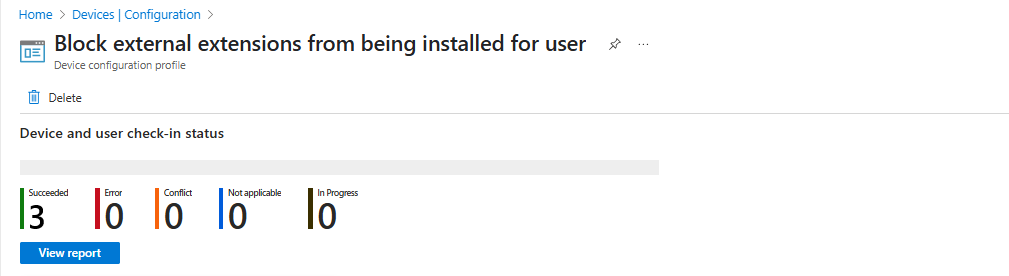
Device and user Check-in Status
After creating the policy, the next step is to check if it was applied successfully. Always remember that it can take up to 8 hours for the policy to be fully deployed. If you’ve synced the policy through the Company Portal, you can check its status easily. Just go to Devices > Configuration, then search for the name of your policy in the list.
Click on the policy to see the check-in status for both devices and users.
In the screenshot below, you’ll see it says “Succeeded: 3” this means the policy was deployed successfully.
Client-Side Verification
After deploying the policy, you can verify whether it has been successfully applied on the client side using Event Viewer.
To do this:
Open Event Viewer.
Navigate to: Applications and Services Logs > Microsoft > Windows > Device Management > Enterprise Diagnostic Provider > Admin.
Within this log, you will see a list of policy-related events. To narrow down the results, use the “Filter Current Log” option on the right-hand panel.
👉 In this case, look specifically for Event ID 813 or Event ID 814, which indicate policy processing and application.
In my example, I found confirmation of the policy in Event ID 813.
The event details indicated that the following policy had been applied:
Policy Name: BlockExternalExtensions Policy Area: microsoft_edgePolicymicrosoft_edge~Extensions Enrollment ID: (unique identifier for the device enrollment) Current User: (SID of the user the policy was applied to) Enrollment Type: (shows the enrollment method — for example, MDM enrollment) Scope: (indicates the scope of the policy application)
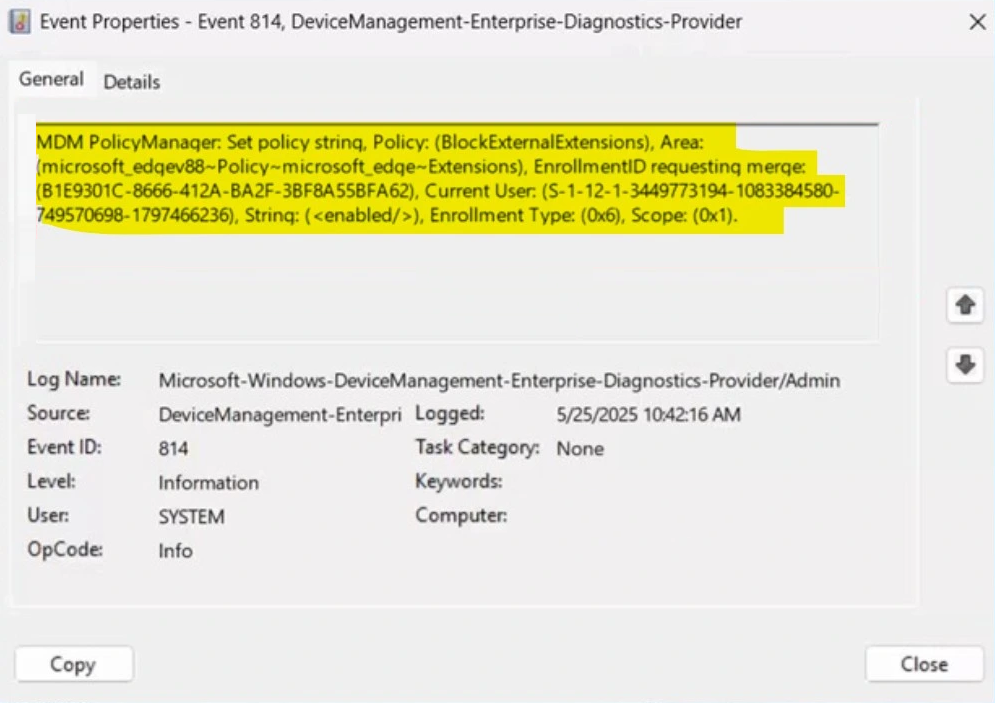
This confirms that the Block External Extensions policy was successfully processed and applied to the device.
👉 Tip: Event ID 813 typically reflects successful policy application, while Event ID 814 may provide additional diagnostic information in case troubleshooting is required.
More Information
For additional guidance on managing Microsoft Edge extensions using Microsoft Intune, refer to the following Microsoft Learn resources:
Manage Microsoft Edge extensions in the enterprise Provides best practices for admins managing Microsoft Edge extensions in their organizations. https://learn.microsoft.com/en-us/deployedge/microsoft-edge-manage-extensions
Use group policies to manage Microsoft Edge extensions Describes options and steps for managing extensions using group policies. https://learn.microsoft.com/en-us/deployedge/microsoft-edge-manage-extensions-policies
Detailed guide to the ExtensionSettings policy Offers an in-depth explanation of the ExtensionSettings policy, including configuration examples. https://learn.microsoft.com/en-us/deployedge/microsoft-edge-manage-extensions-ref-guide
Microsoft Edge Browser Policy Documentation Lists all browser-related group policies available in the latest release of Microsoft Edge. https://learn.microsoft.com/en-us/deployedge/microsoft-edge-policies
Extensions management with Microsoft Edge management service Provides details to help manage extensions in the Microsoft Edge management service. https://learn.microsoft.com/en-us/deployedge/microsoft-edge-management-service-extensions
These resources provide comprehensive guidance for configuring, managing, and optimizing extension policies using Microsoft Intune and Microsoft Edge.
Thank you!
🖥️ Ricardo Barbosa
📘 MCT Microsoft Certified Trainer | ☁️ Cloud Architect
🌐 Technology Director - https://altelix.com
