

Managing how users interact with the Power options on Windows devices is a critical aspect of endpoint security and operational reliability especially in corporate and remote environments. In this article, we’ll explore how to hide the Shutdown, Restart, Sleep, and Hibernate options from the Start Menu using Microsoft Intune policies.
🖥️ The Role of Power Controls in Endpoint Management
The Power button in Windows is essential for system functions such as shutting down, restarting, putting the device to sleep, or hibernating. These actions are commonly used to:
Apply system updates
Refresh configurations
Troubleshoot performance issues
However, in corporate environments, uncontrolled access to power controls can lead to:
Unintended shutdowns
Missed overnight updates or compliance scans
Disruption of background processes or remote sessions
✅ Why Restrict Power Options?
By hiding these options, you create a more secure and stable device experience. This is especially valuable in shared workstations, call centers, kiosk environments, or when managing Cloud PCs and Azure Virtual Desktops, where session continuity is key.
Key Benefits of Hiding Power Options via Intune
Prevents unauthorized or accidental shutdowns
Maintains device availability for IT operations
Ensures compliance scans and scheduled updates run as expected
Improves virtual session integrity in Cloud PC scenarios
For example, in Windows 365 or Azure Virtual Desktop environments, hiding the shutdown/restart options helps avoid users accidentally terminating remote sessions, improving session uptime and reducing support tickets.
How to Hide Power Options Using Intune
Microsoft Intune allows administrators to configure a policy through the Settings Catalog that disables the display of power options from the Start Menu. Once applied, this policy restricts access to:
Shutdown
Restart
Sleep
Hibernate
You can deploy this policy to specific device groups, enforce consistency, and still allow power configurations to be managed via the Settings app if needed.
Real-World Use Case
Imagine an organization where employees routinely shut down their laptops at the end of the day. Overnight updates, security patches, or app installations then fail, and compliance scans are skipped putting the environment at risk.
By hiding the Power options:
Devices remain online and reachable during maintenance windows
IT retains control without disrupting user productivity
The overall compliance posture and patch success rate improve

Let’s imagine you’re an IT Administrator in a hospital, managing a fleet of Windows devices running critical healthcare applications that handle sensitive patient information. You've scheduled a critical security update to deploy overnight via Intune, ensuring all devices remain compliant and protected.
However, one employee manually restarts their device before the update and post-installation scripts complete. This seemingly simple action could result in:
Partially applied patches
Corrupted configurations
A system left vulnerable to known threats
By hiding the Restart button using Intune policies, you can prevent such accidental reboots. Without visible power controls, users are less likely to interrupt critical update processes, ensuring full deployment of patches and reducing exposure to risk.
This strategy is particularly effective in environments that demand high security and operational integrity, such as hospitals, finance, or government institutions.
Windows CSP Reference – Hide Power Options
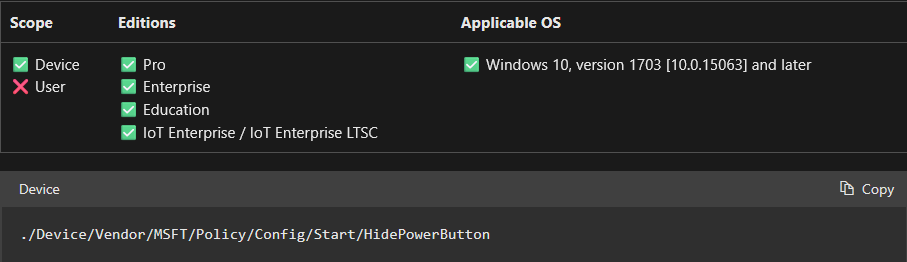
The Configuration Service Provider (CSP) for this setting provides the technical specification:
Policy Name: HidePowerButton
Supported OS: Windows 10 version 1703 (build 10.0.15063) and later
Allowed Values:
🔁 Note: A device reboot is required after applying this policy for it to take effect.
When configured, this policy removes the Power button from the Start Menu, blocking access to Shutdown, Restart, Sleep, and Hibernate options — enhancing control and stability across your device fleet.


How to Configure the Hide Power Button Policy via Intune
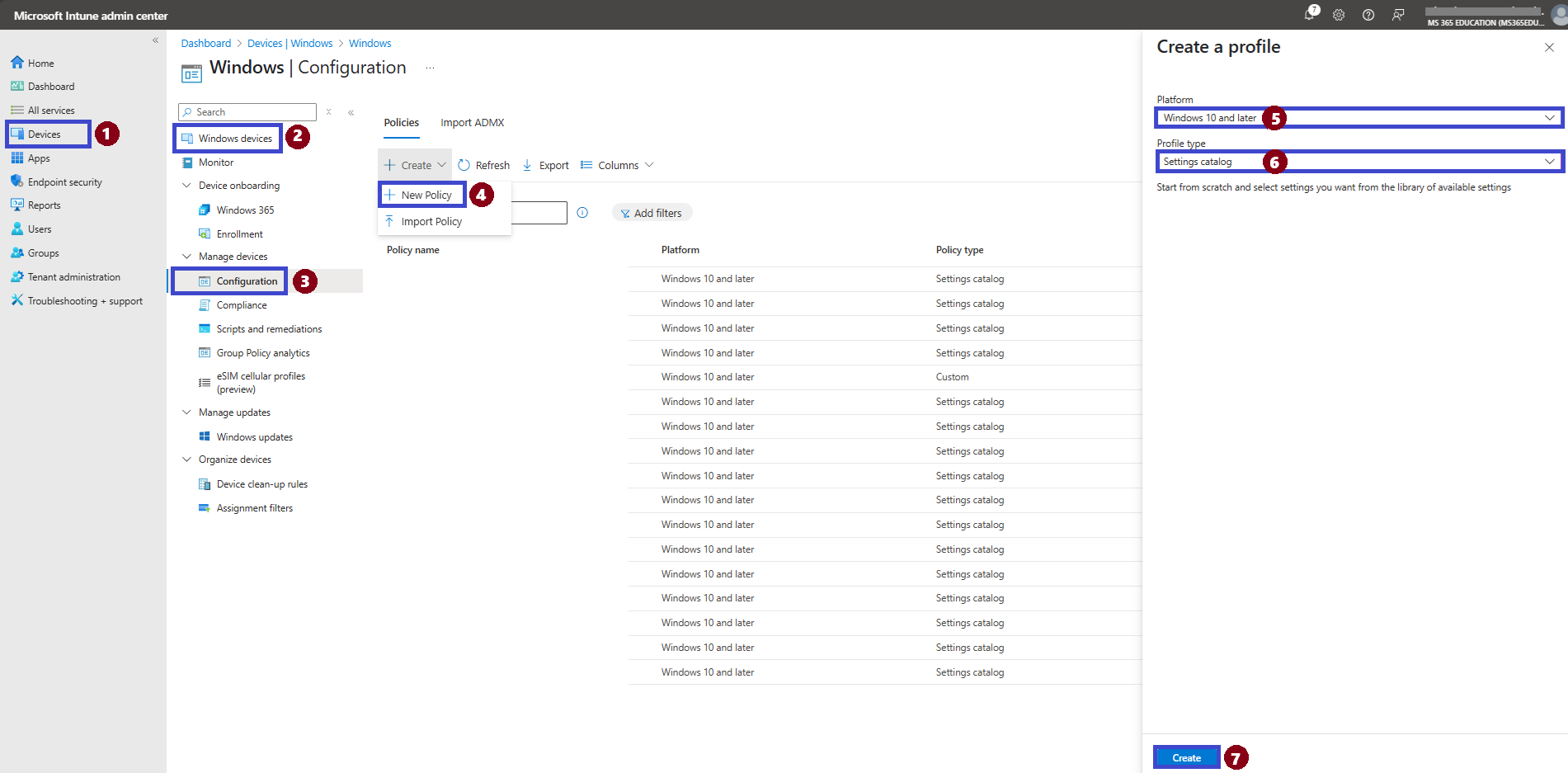
Microsoft Intune allows administrators to quickly deploy configuration profiles using the Settings Catalog. To disable the Shutdown, Restart, Sleep, and Hibernate options from the Start Menu, follow the steps below to create the required policy.
Step-by-Step Guide
Refer to the screenshot for visual guidance and follow the instructions below:
In the Microsoft Intune admin center, navigate to Devices
Click on Windows devices
Under the Policy section, select Configuration
Click on + Create and choose New Policy
In the Create a profile pane, set the Platform to Windows 10 and later
Set the Profile type to Settings catalog
Click on Create to proceed
This will initiate the creation of a settings-based configuration profile where you can search for and apply the Hide Power Button setting.
Define Basic Profile Details
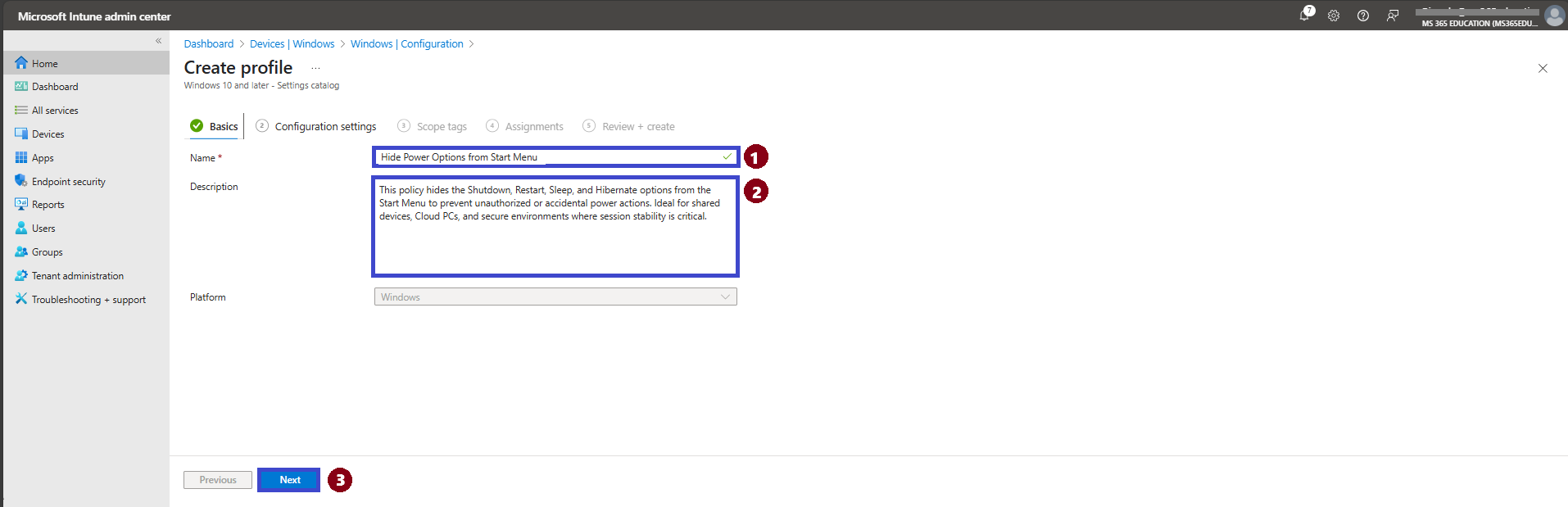
After clicking Create, the next step is to define the basic details of your configuration profile. You'll be asked to provide a Name, an optional but recommended Description, and to confirm the Platform (which should already be pre-selected as Windows 10 and later).
Providing a clear and descriptive name makes it easier to identify and manage the policy later, especially in environments with multiple configuration profiles.
✅ Suggested Name and Description:
Name: Hide Power Options from Start Menu
Description: This policy hides the Shutdown, Restart, Sleep, and Hibernate options from the Start Menu to prevent unauthorized or accidental power actions. Ideal for shared devices, Cloud PCs, and secure environments where session stability is critical.
No changes are needed in the Platform field. Once the name and description are filled in, click Next to continue.
Configure the Hide Power Button Setting
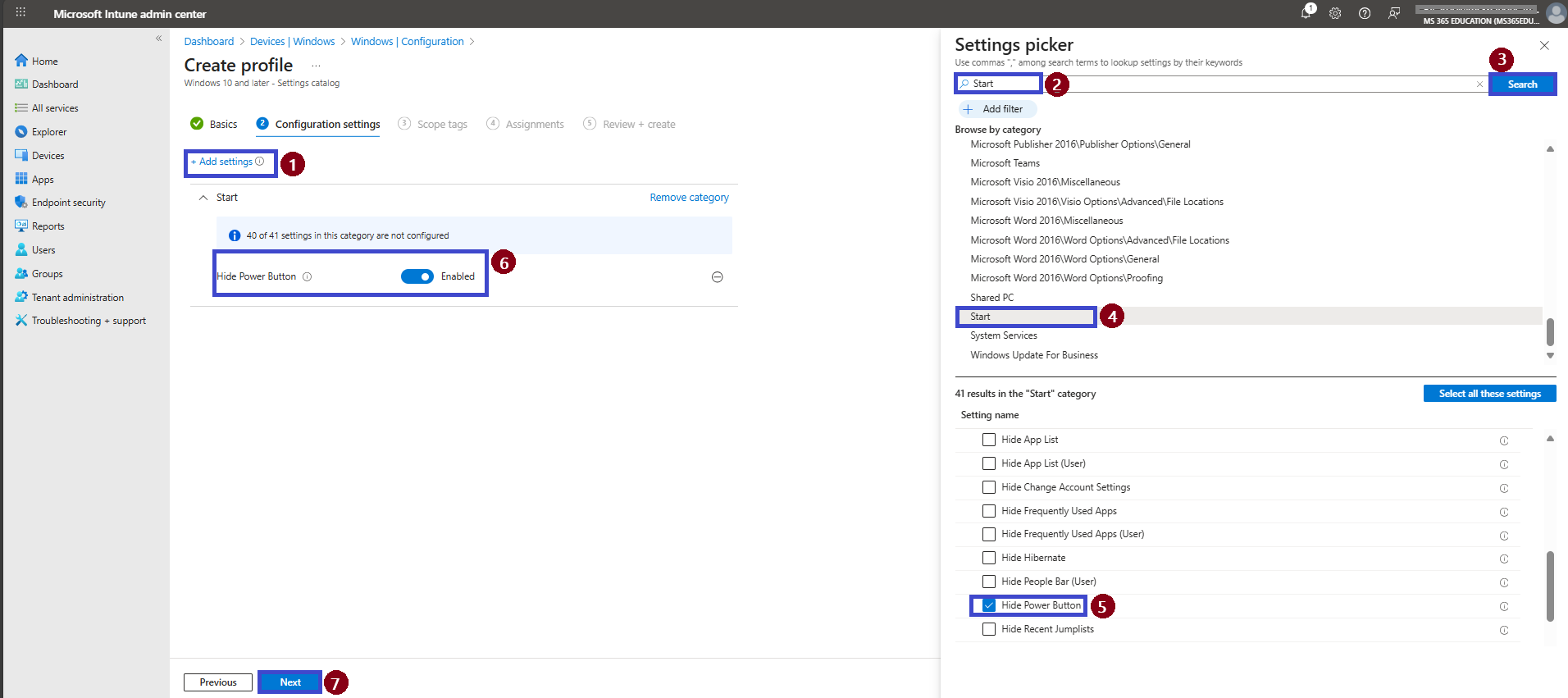
In this step, you'll use the Settings Catalog to configure the Hide Power Button policy a critical setting to restrict shutdown, restart, sleep, and hibernate options from the Start Menu.
Follow the instructions below, referring to the image:
On the Configuration settings page, click + Add settings
In the Settings picker pane, type “Start” into the search bar and click Search
From the results, expand the Start category
Scroll down and check the box for Hide Power Button
The setting will now appear in the main configuration pane
Toggle the value to Enabled this will hide the power options from the Start Menu
Click Next to proceed
✅ Observation:
By default, this setting is Disabled, meaning the power button is visible to end users.
When set to Enabled, it removes the Shutdown, Restart, Sleep, and Hibernate options from the Start Menu, preventing unauthorized or accidental reboots.
This configuration is especially useful in environments like Cloud PCs, shared workstations, education labs, and healthcare settings, where maintaining session uptime and policy enforcement is critical.
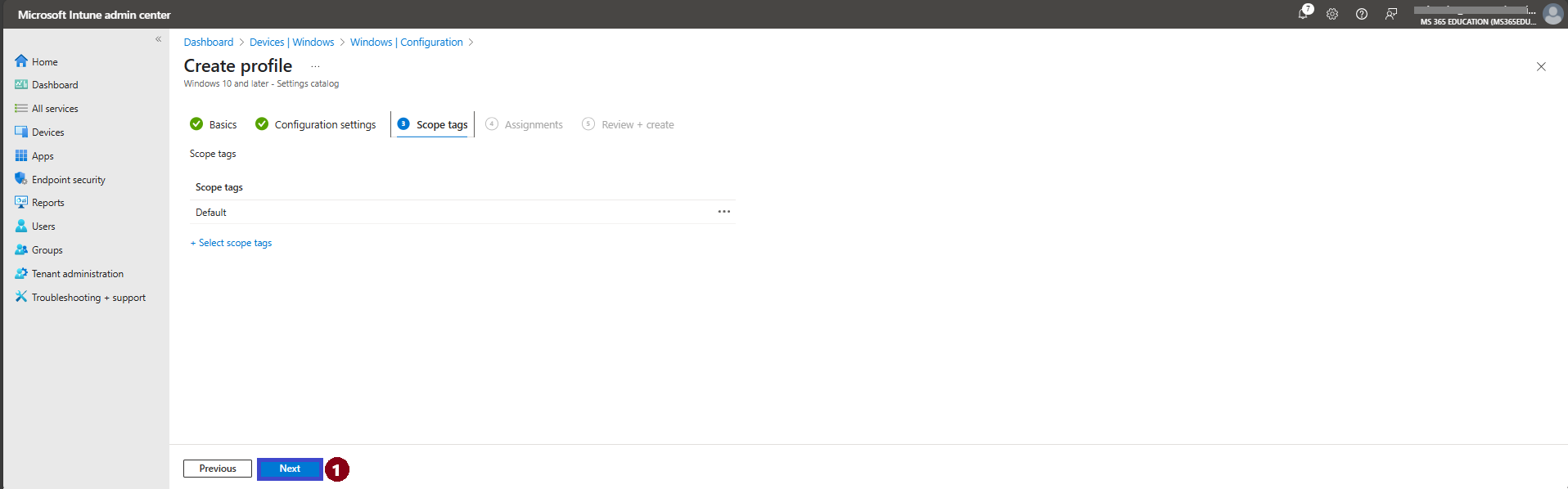
Configure Scope Tags (Optional)
The next step is the Scope tags tab. Scope tags are typically used to associate policies with specific groups or administrative units within your organization, especially in larger or delegated environments.
For this particular policy, scope tags are not required. If you don’t need to assign the policy to a custom scope, you can simply leave this section blank.
Click Next to continue to the Assignments step.
Assign the Policy to Target Devices
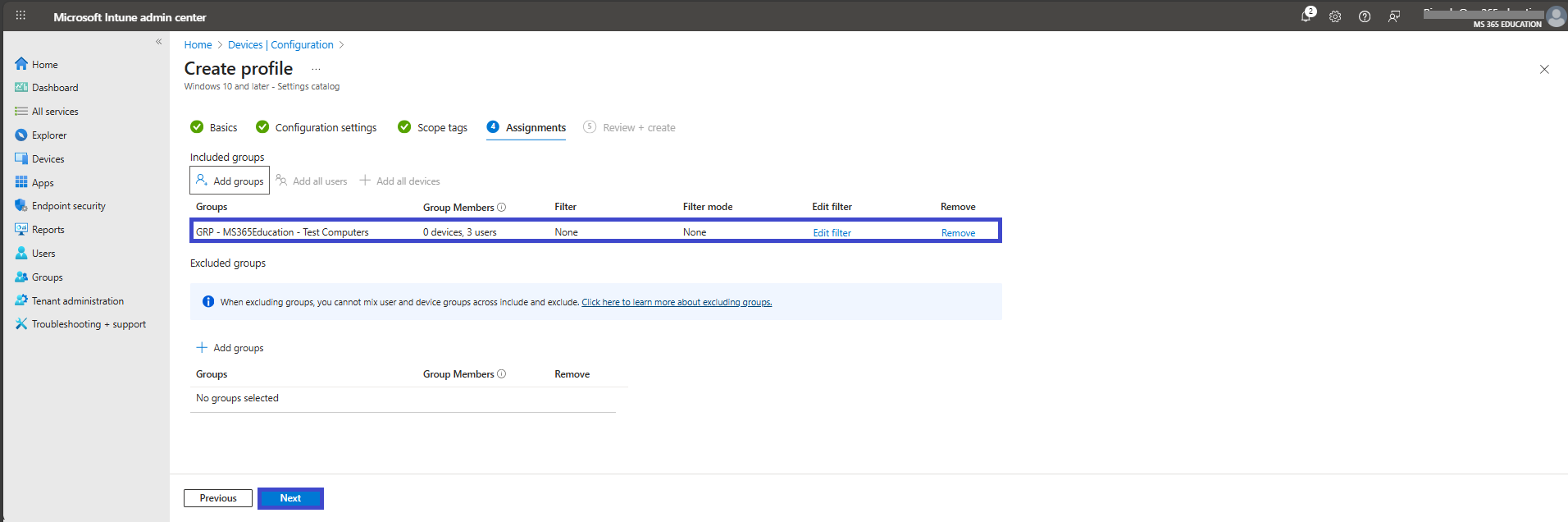
In the Assignments section, you'll define who will receive this policy. This step is essential, as it determines which users or devices the configuration will apply to.
To deploy this policy to a specific group:
Click on Add groups under the Include groups section. A list of available groups will appear use the search bar to quickly find the target group.
Once you've selected the appropriate group(s), confirm your choice. Click Next to move forward to the final step: Review + Create.
Review and Create the Policy
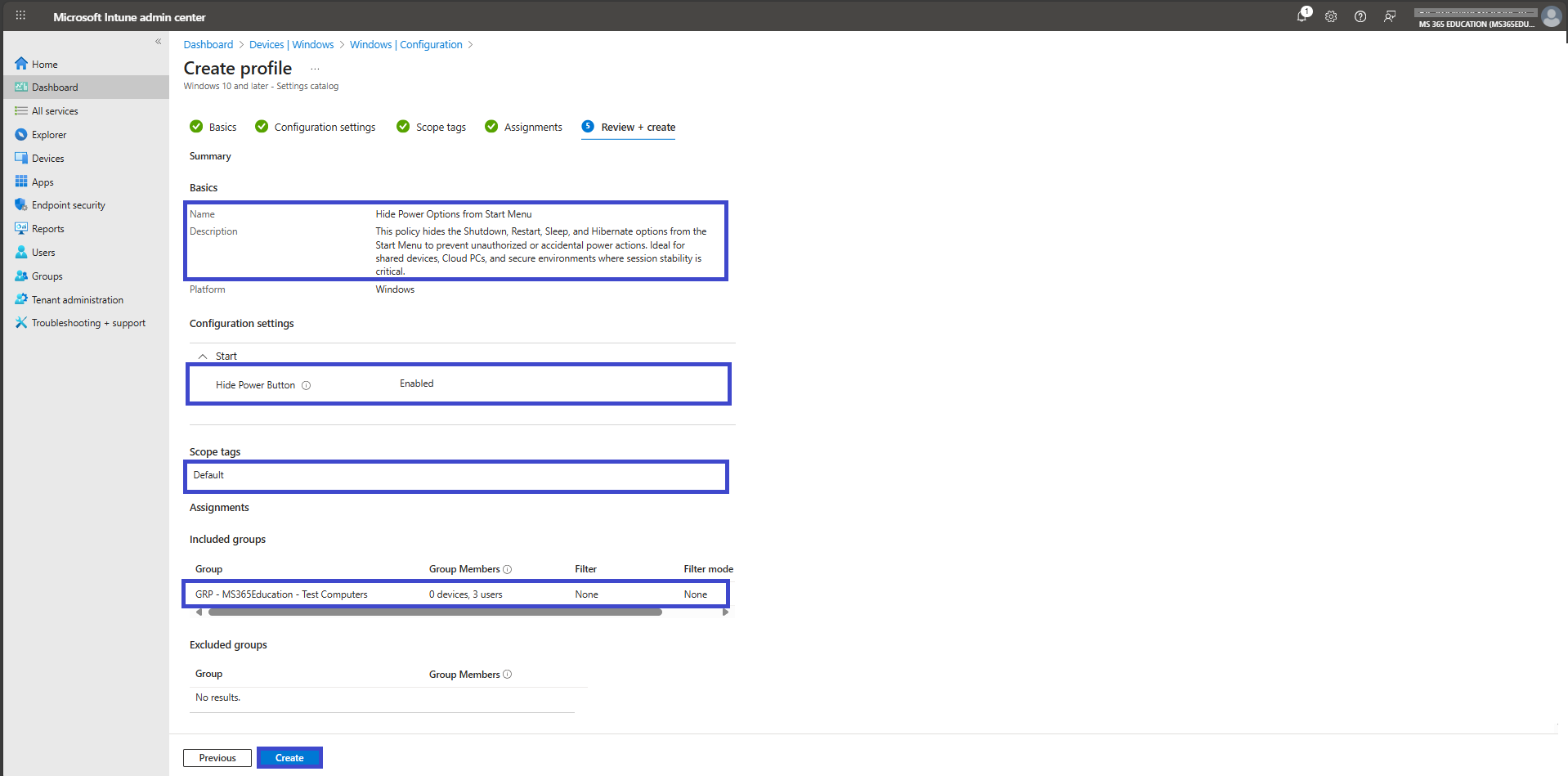
After completing the Assignments step, you'll land on the final tab: Review + Create.
This is your chance to review a full summary of the configuration including the basic details, selected settings, and group assignments. Take a moment to carefully review all entries to ensure everything is accurate and aligned with your intent.
If you need to make any changes, you can easily navigate back to the previous tabs and update the information as needed.
Once everything looks good, click Create to deploy the policy.
Your configuration will now be saved and pushed to the assigned devices based on the group you selected.
Monitor Policy Deployment Status
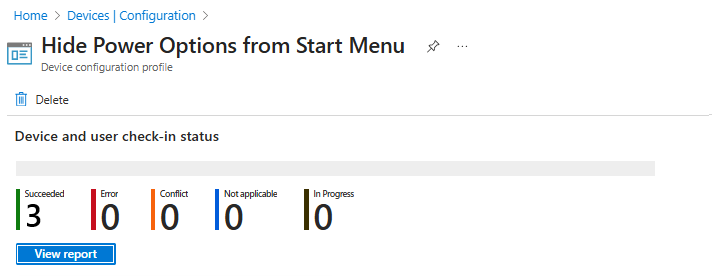
After creating and assigning the Hide Power Button policy, it's important to monitor whether the configuration has been successfully deployed to all targeted devices.
By default, Intune policy deployment may take up to 8 hours. To speed up the process, you can manually trigger a device sync using the Company Portal app, or initiate a sync via Intune Management Extension.
✅ How to Verify Deployment Status:
In the Microsoft Intune admin center, navigate to: Devices ➝ Configuration profiles
Use the search bar to locate the profile you created — for example: "Hide Power Options from Start Menu"
Click on the policy name to open its overview page
Review key deployment metrics such as:
This visibility ensures that the Hide Power Button policy has been properly applied, and allows administrators to take corrective actions if devices are non-compliant or facing deployment issues.
Client-Side Verification via Event Viewer
After manually syncing the device or waiting for Intune to automatically apply the policy, you can confirm that the “Hide Power Button” policy has been successfully enforced using Event Viewer on the client device.
This is especially useful for troubleshooting or auditing deployments in secure environments.
Steps to Verify Policy Application:
Open Event Viewer on the target Windows device
Navigate to: Applications and Services Logs ➝ Microsoft ➝ Windows ➝ DeviceManagement-Enterprise-Diagnostics-Provider ➝ Admin
In the right-hand pane, click “Filter Current Log”
Look for Event ID 813 or 814 These events typically indicate successful processing of Intune configuration profiles
In the event details, verify that:
You may also see additional fields like Enrollment ID, User SID, and Scope, depending on how the device was enrolled and how the policy was assigned.
💡 Pro Tip: Always ensure the Event ID reflects the correct timestamp and status. This method offers one of the most reliable ways to confirm if the policy is successfully applied on the device — especially when troubleshooting delayed or failed deployments.
More Information
To deepen your understanding of how to manage power settings and deploy configuration profiles using Microsoft Intune, explore the following Microsoft Learn resources:
🔹 Policy CSP – Start
Learn more about the Start Configuration Service Provider (CSP), including the HidePowerButton setting used to control the visibility of the Shutdown, Restart, Sleep, and Hibernate options in the Start Menu.
🔹 Create a Settings Catalog Policy in Intune
A step-by-step guide to creating and deploying configuration profiles using the Settings Catalog in Microsoft Intune — the method used in this article.
https://learn.microsoft.com/en-us/mem/intune/configuration/settings-catalog
🔹 Monitor Intune Policy Deployment
Understand how to monitor policy deployment status, troubleshoot failed profiles, and verify successful application across devices.
https://learn.microsoft.com/en-us/mem/intune/configuration/device-profile-troubleshoot
🔹 Event Viewer Logs for MDM Diagnostics
Learn how to use Event Viewer to validate whether a policy has been applied on the client device by checking relevant logs like Event ID 813 and 814.
Thank you!
🖥️ Ricardo Barbosa
🎖️ Microsoft MVP | 📘 Microsoft Certified Trainer (MCT)
☁️ Intune & Cloud Architect |💼 Technology Director at Altelix.com
