

Simplifying Windows 11 24H2 upgrades with Intune’s Update Rings.
Introduction
Windows 11 24H2 is the next major update to Microsoft’s operating system, bringing new features, security enhancements, and performance improvements. To ensure a seamless and secure transition, IT administrators must implement effective update management strategies, leveraging Microsoft Intune for centralized control and automation.
This article provides a comprehensive guide on how to efficiently deploy Windows 11 24H2 using Microsoft Intune, ensuring minimal disruption and maximum compliance across enterprise devices.
Prerequisites
Before initiating the upgrade, ensure the following conditions are met:
✔ Device Enrollment – All target devices are registered and managed via Microsoft Intune. ✔ Storage Availability – Devices have sufficient disk space to accommodate the update. ✔ Application Compatibility – Critical business applications are fully compatible with Windows 11 24H2.
1. Creating an Update Rings Profile in Microsoft Intune
In Microsoft Intune, an Update Rings profile is used to control how and when Windows updates are deployed on Windows 10 and Windows 11 devices. This approach allows IT teams to strategically manage updates while minimizing disruptions.
Key Benefits of Update Rings in Intune
• Automated Update Deployment – Ensure that feature and quality updates are applied consistently across all devices. • Update Scheduling & Control – Define when updates are installed to reduce downtime and user interruptions. • Seamless OS Upgrades – Use Update Rings to upgrade eligible Windows 10 devices to Windows 11, ensuring compliance with Microsoft’s lifecycle policies.
In summary, Update Rings in Microsoft Intune serve as a powerful tool to ensure that devices remain secure, compliant, and up to date with the latest Windows releases.
Accessing Microsoft Intune
To configure Update Rings, follow these steps:
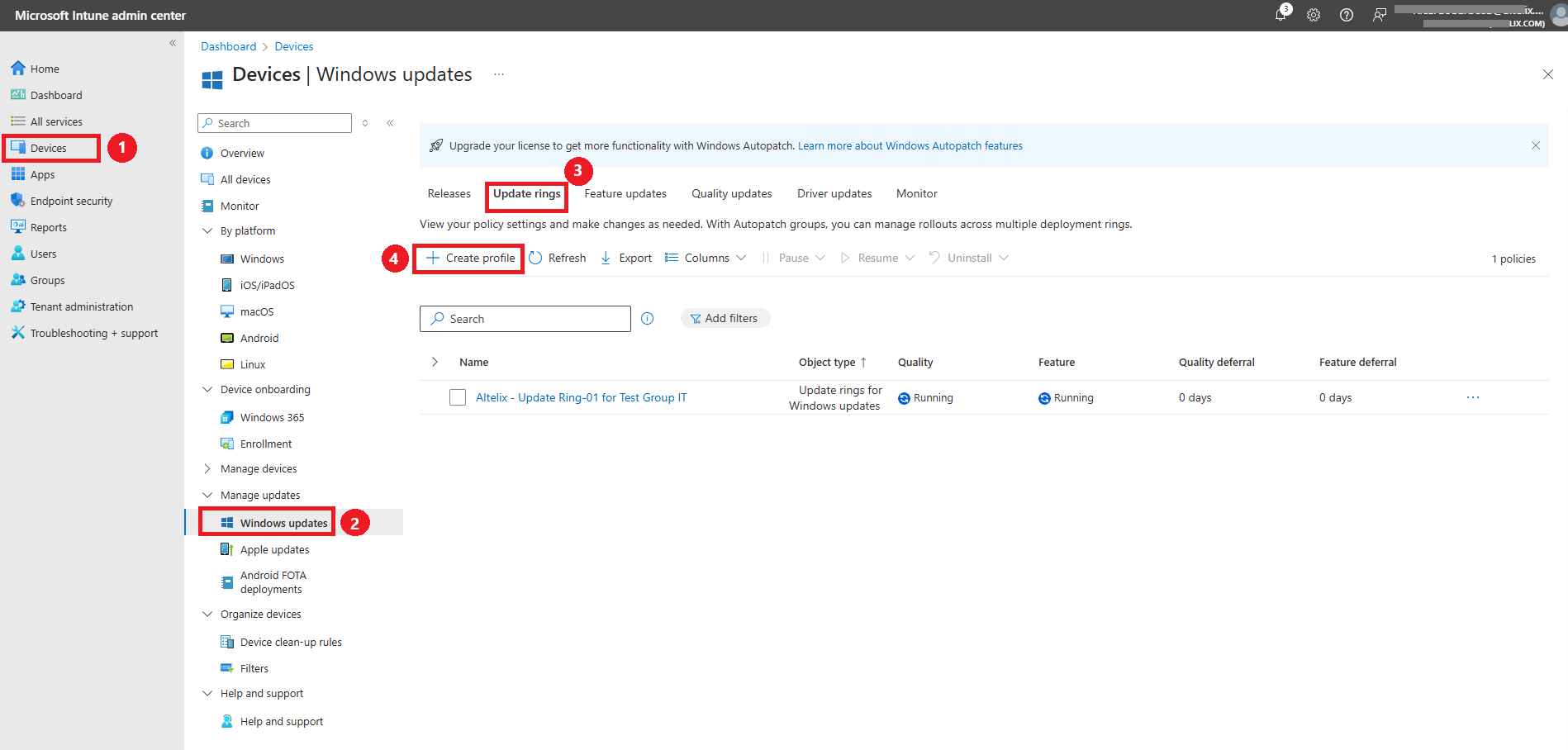
Log in to the Microsoft Endpoint Manager Admin Center.
Navigate to Devices > Manage Updates > Windows updates > Update rings for Windows 10 and later.
Click Create Profile and define the update deployment settings based on organizational policies.
By leveraging Microsoft Intune’s Update Rings, IT administrators can streamline Windows 11 24H2 deployments while maintaining security, stability, and compliance across managed devices.
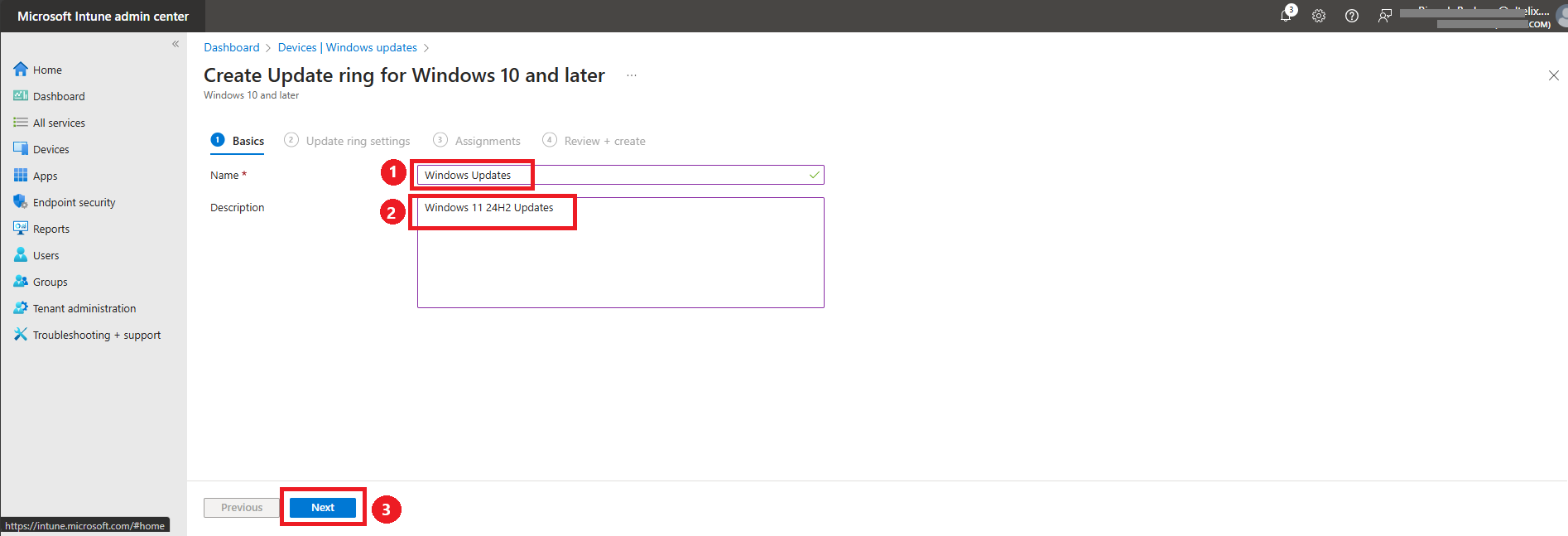
Enter a clear and descriptive name for the profile.
Provide a brief description outlining the purpose of the profile.
Click Next to continue.
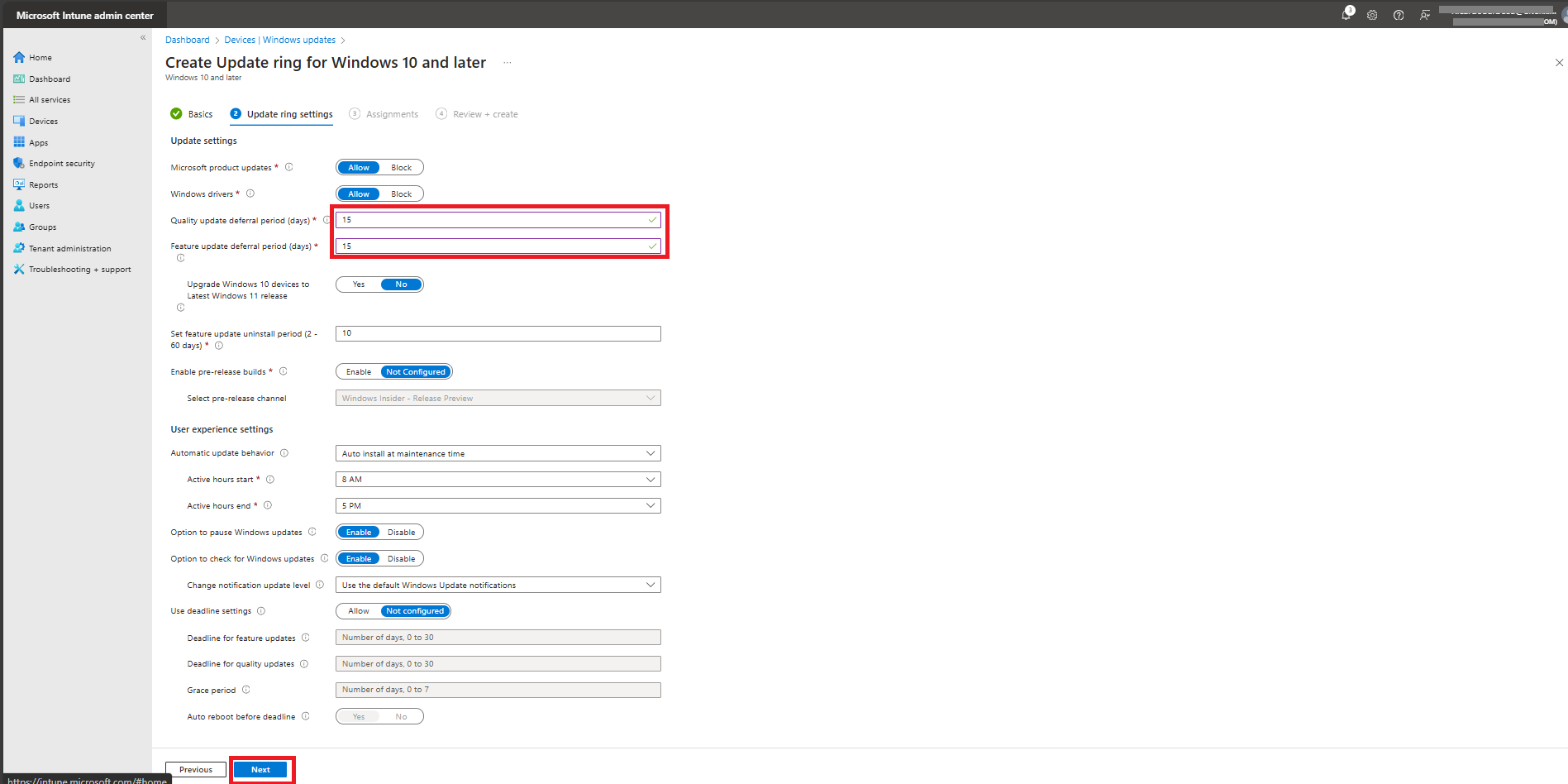
Configuring Update Settings in Intune
Set parameters such as deferral time and reboot management to control update deployment and user experience.
In this case, I have specified a 15-day deferral period for feature and quality updates before they become available for installation. This helps prevent potential issues caused by untested updates. However, if you prefer updates to install immediately, you can set the deferral period to 0.
By customizing these settings, IT administrators can strike a balance between security, stability, and timely feature deployment in Windows 11 24H2 updates.
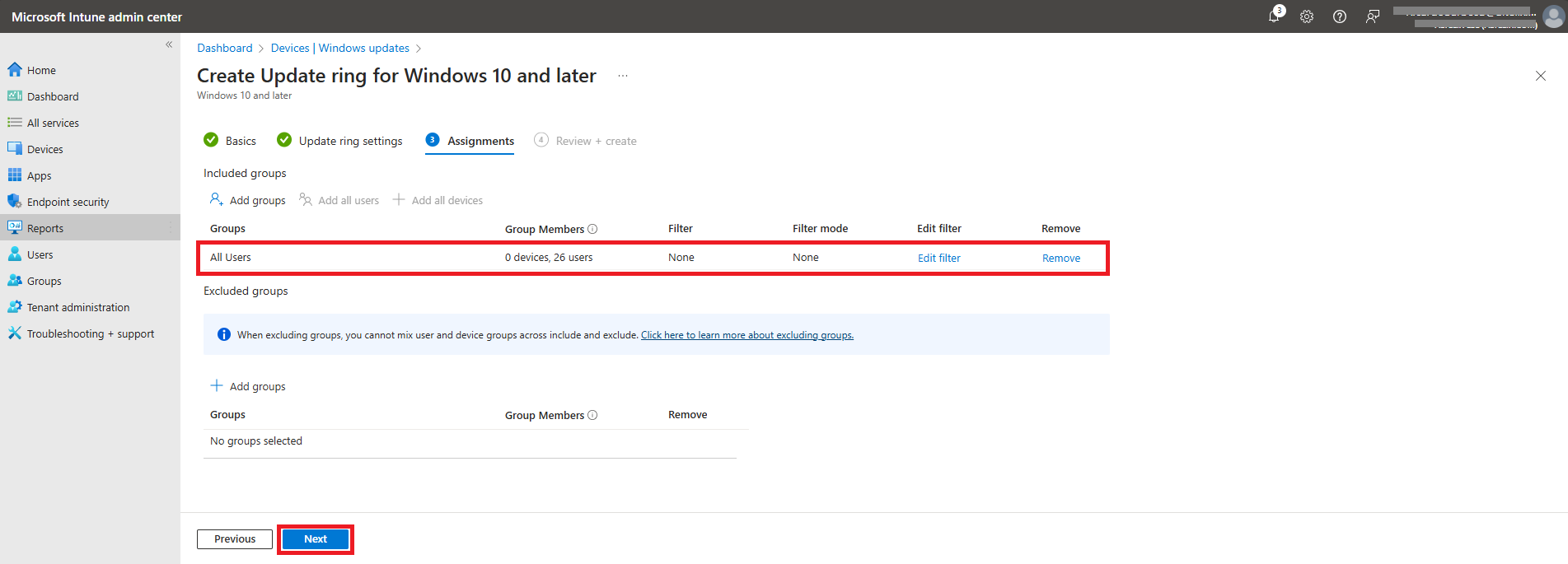
In this step, we will configure assignments, selecting the specific groups or devices that should receive the update.
In this next step, we will review the configuration settings and click Create to finalize the setup.
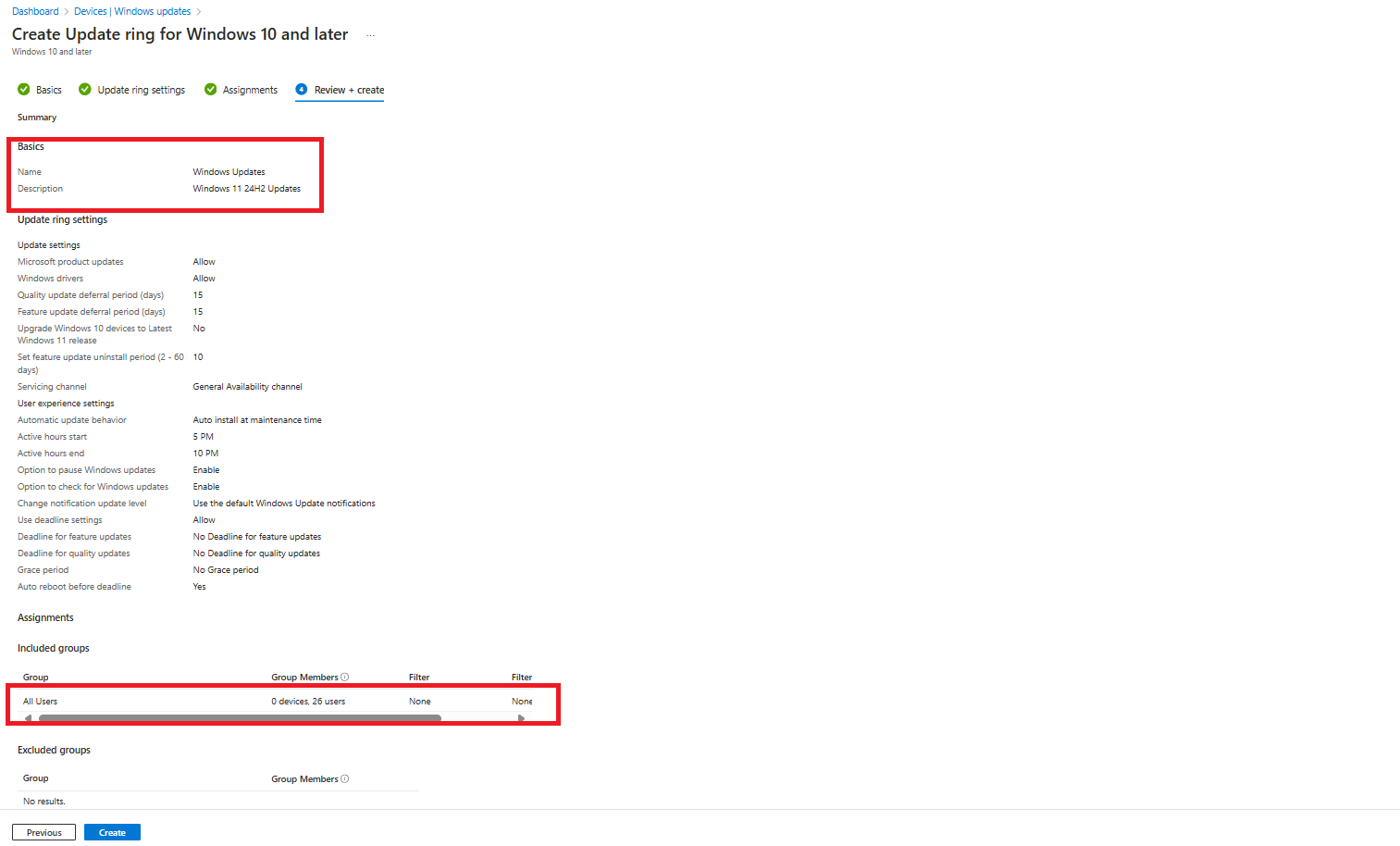
2 - Creating a Feature Update Profile
In Microsoft Intune, the Feature Update Profile is used to manage which specific versions of Windows devices should receive, ensuring controlled and stable update deployment.
Key Benefits of Feature Update Profiles
Version Selection – Define the Windows feature update version that devices should remain on, such as Windows 11 22H2, 23H2, or 24H2.
Windows 11 Upgrades – Use this profile to upgrade Windows 10 devices to Windows 11, ensuring a smooth transition.
In summary, Feature Update Profiles in Intune provide IT administrators with precise control over Windows update versions, reducing compatibility issues and maintaining a consistent update strategy across managed devices.
Creating a Feature Update Profile in Intune
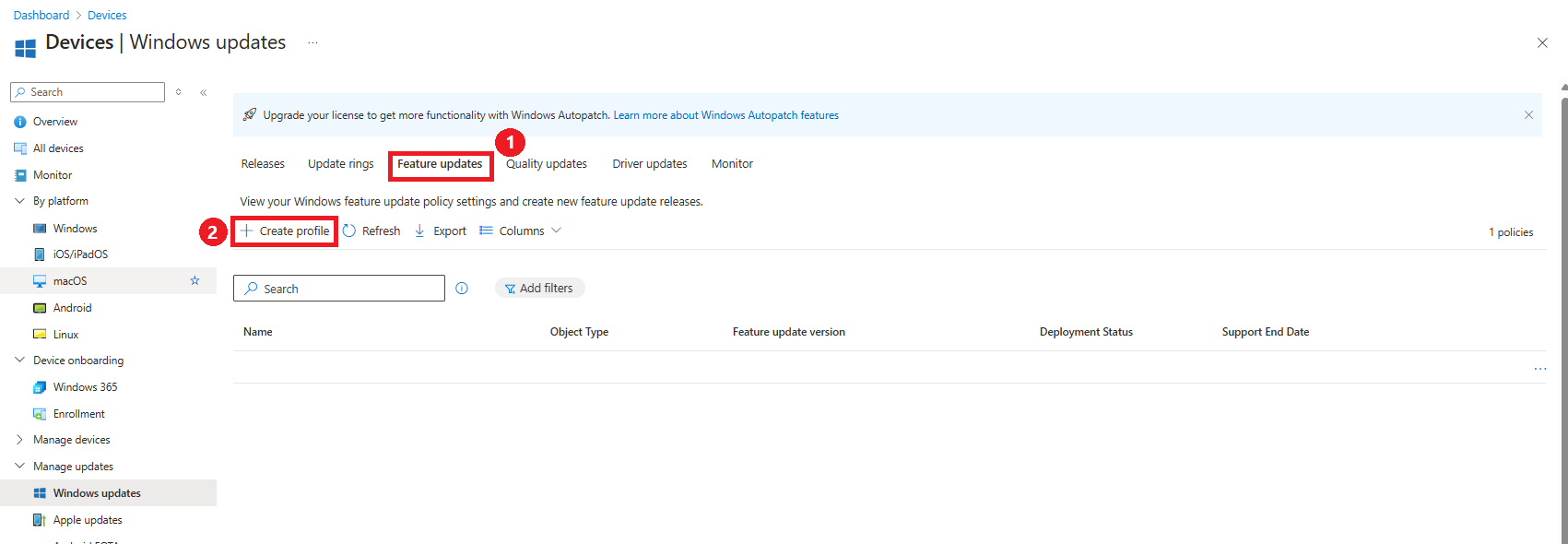
Navigate to the Windows Update section in Intune.
Select "Feature Updates".
Click "Create Profile" and configure the required settings.
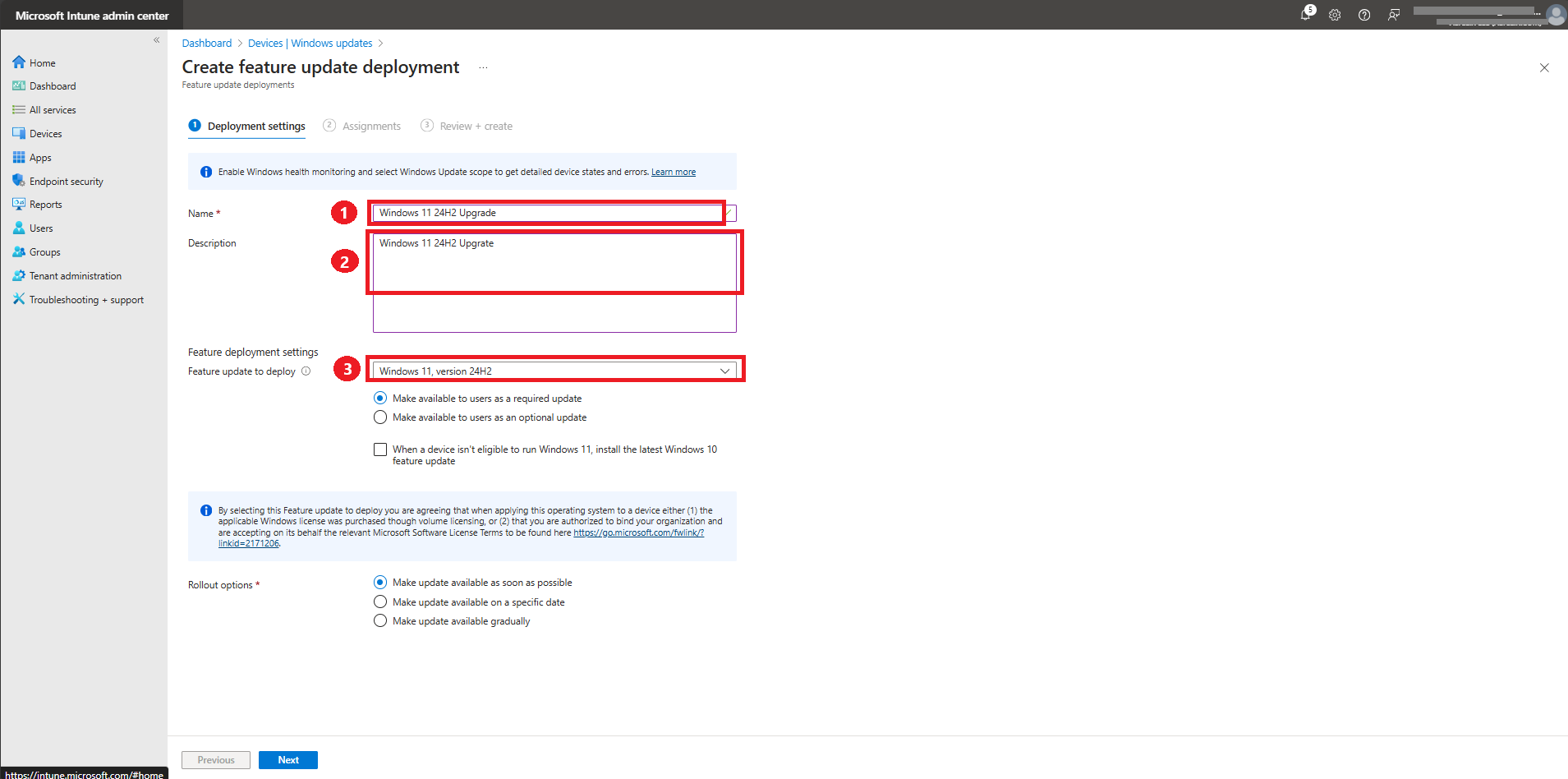
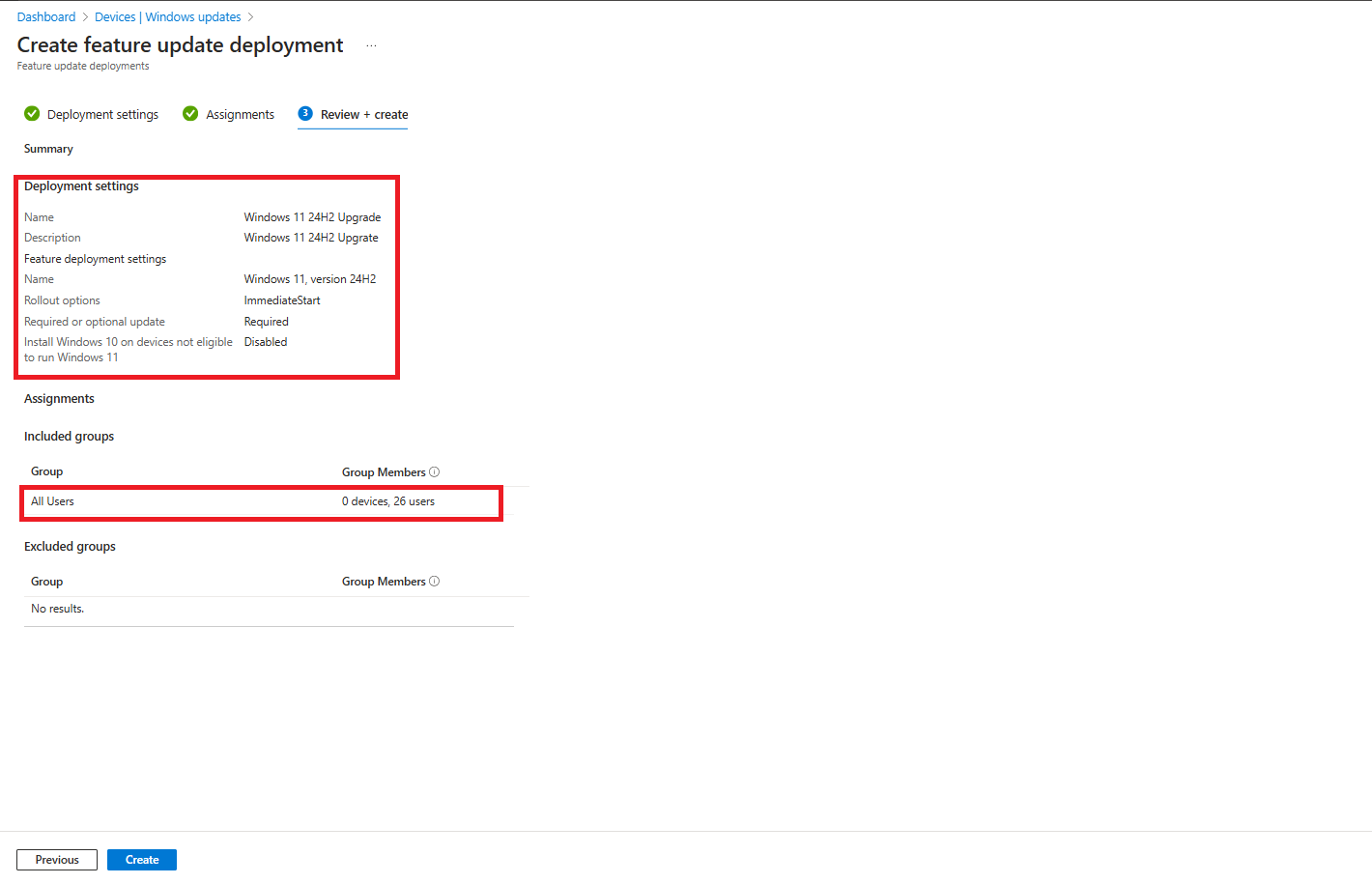
Assign a clear and descriptive name to your profile, then select Windows 11 version 24H2 or choose a different version based on your update requirements.
In this step, we will configure assignments, selecting the specific groups or devices that should receive the update.
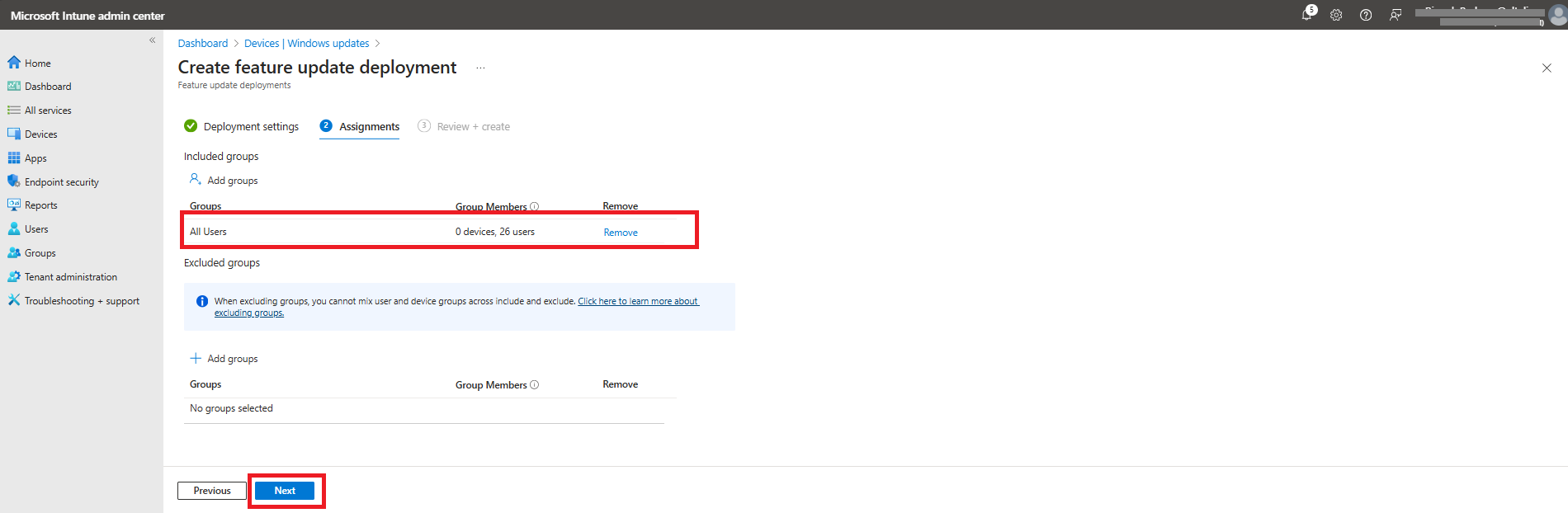
In this next step, we will review the configuration settings and click Create to finalize the setup.
Viewing Reports for Windows 11 Update Installation
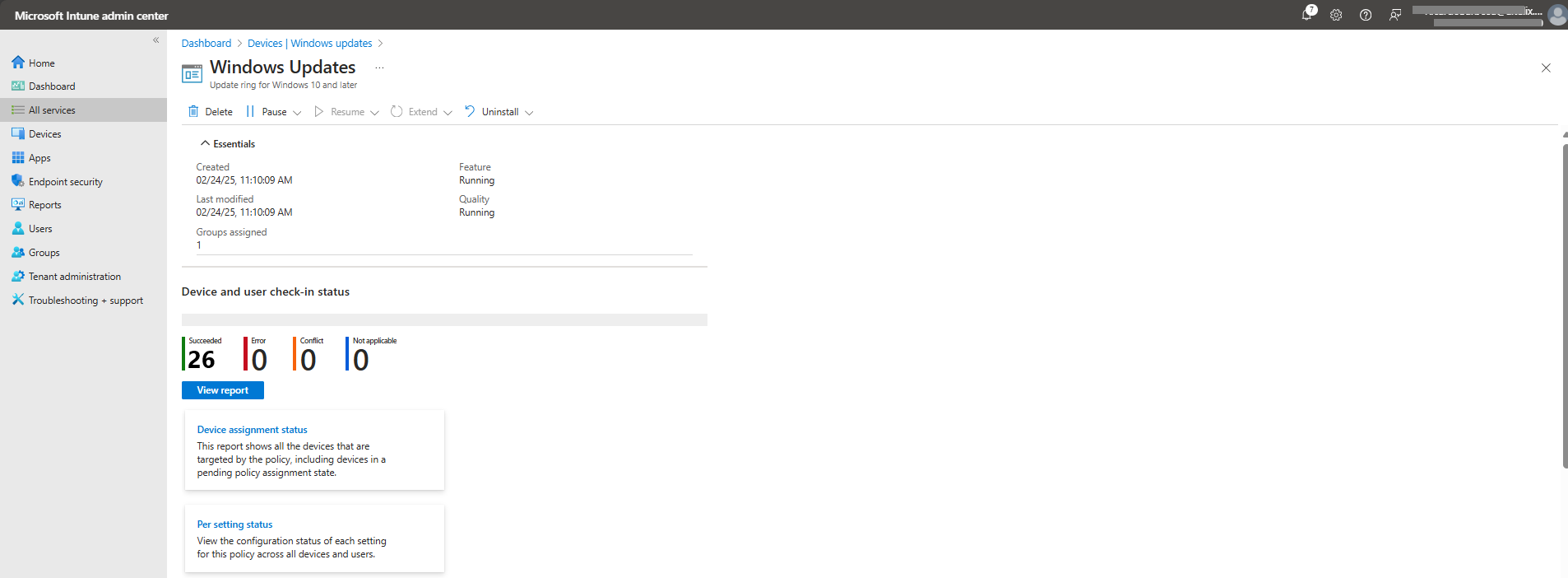
After allowing time for updates to install, you can monitor deployment progress by checking the reports for the policies created.
Steps to View Update Reports:
Navigate to Microsoft Intune Admin Center.
Go to Devices > Windows Updates > Feature Updates.
Click on the policy you created.
View the summary dashboard, which provides statistics on:Successful installationsErrors and conflictsPending installations
For detailed insights, click "View Report" to see the update status per device, including installation progress and any issues encountered.
Monitoring these reports helps identify and resolve update issues, ensuring a smooth Windows 11 24H2 deployment across your organization.
Conclusion
Upgrading to Windows 11 version 24H2 via Microsoft Intune provides a streamlined, secure, and automated approach to keeping devices up to date with the latest features, performance improvements, and security enhancements.
By leveraging Feature Update Profiles and Update Rings, IT administrators can precisely control the rollout process, reducing disruptions while ensuring a consistent and stable transition across all managed devices. This method not only enhances security compliance but also optimizes the user experience, allowing organizations to fully embrace the innovations introduced in Windows 11 24H2.
With Microsoft Intune, businesses can confidently manage large-scale updates, ensuring that devices remain efficient, secure, and aligned with modern IT best practices.
More Information
For additional guidance on deploying Windows 11 version 24H2 using Microsoft Intune, refer to the following resources:
Feature Updates Policy in Intune – Learn how to create and manage feature update policies to control Windows version deployments. https://learn.microsoft.com/en-us/mem/intune/protect/windows-10-feature-updates
Update Rings Configuration – Understand how to configure update rings to manage the timing and delivery of Windows updates. https://learn.microsoft.com/en-us/mem/intune/protect/windows-10-update-rings
Windows Update Reports in Intune – Explore methods to monitor and report on the status of Windows update deployments. https://learn.microsoft.com/en-us/mem/intune/protect/windows-update-reports
Best Practices for Windows 11 24H2 Upgrade – Discover strategies and recommendations for a smooth upgrade to Windows 11 24H2 using Intune. https://learn.microsoft.com/en-us/windows/deployment/windows-autopatch/manage/windows-autopatch-windows-feature-update-overview
These resources provide comprehensive instructions on configuring, managing, and optimizing device updates with Microsoft Intune, ensuring a smooth and efficient upgrade to Windows 11 version 24H2.
Thank you!
🖥️ Ricardo Barbosa
📘 MCT Microsoft Certified Trainer | ☁️ Cloud Architect
🌐 Technology Director - https://altelix.com
