

When it comes to managing Windows Updates, timing is everything. Nothing is more frustrating for end-users than an update kicking in during a presentation, a critical task, or a late-night deadline. That’s where the Scheduled Install Time for Windows Updates policy in Microsoft Intune becomes a game-changer.
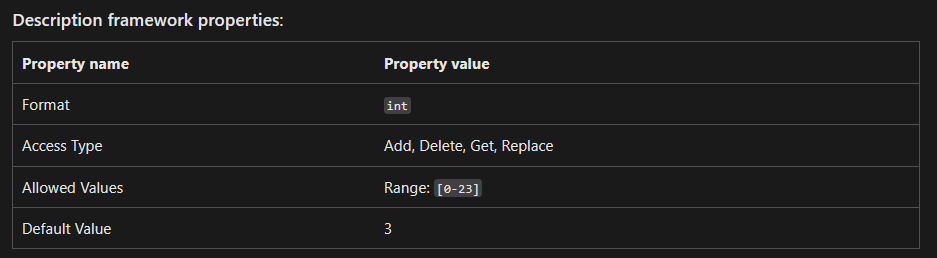
This policy empowers IT admins to take full control by defining the exact time of day (0–23, based on a 24-hour clock) when updates will install across managed devices:
Set it to 0, and updates roll out at midnight (12:00 AM).
Set it to 23, and they’ll install at 11:00 PM.
No surprises. No random reboots. Just predictable, consistent updates. ✅
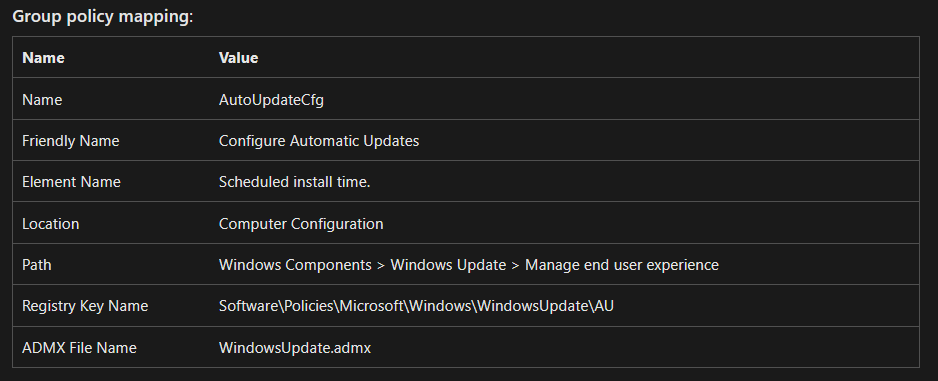
The Scheduled Install Time is part of the Windows Update for Business settings in Intune, and it works hand-in-hand with another policy that can block users from scanning, downloading, or installing updates on their own. Together, these controls ensure updates are always handled on your terms not when Windows or end-users decide.
For organizations, this translates to a unified, reliable update schedule across all Windows devices. Updates can be pushed outside of peak business hours, ensuring:
Stronger security with timely patching
Minimal disruption to productivity
Simplified IT management with one standard schedule for everyone
Why This Policy Matters
✅ Eliminates random disruptions – No more surprise reboots in the middle of a presentation, project, or client call.
✅ Keeps devices secure – Updates are applied consistently and on time, reducing the window of exposure to threats.
✅ Standardizes IT operations – A single schedule across all managed devices simplifies update management.
✅ Boosts user confidence – End-users know updates won’t interrupt their work, creating a smoother digital experience.
✅ Aligns with Zero Trust practices – Ensures that every device stays patched and compliant without relying on user intervention.
Why Configure Scheduled Install Time?
Managing Windows Updates in enterprise environments is all about consistency, compliance, and control. One of the most effective ways to achieve this is by configuring a fixed Scheduled Install Time for updates, ensuring that installations happen at predictable hours chosen by IT not at random times decided by Windows.
By leveraging Intune Policy and the Windows CSP ScheduledInstallTime, administrators can align update deployment with business needs, reduce disruptions, and guarantee that devices remain secure and compliant.
When this policy is configured, updates are installed at the exact time defined by IT. That means:
✅ Updates occur outside critical working hours
✅ Greater consistency across all managed devices
✅ Improved compliance with patching requirements
✅ Minimal disruption to end-user productivity
Windows CSP Details
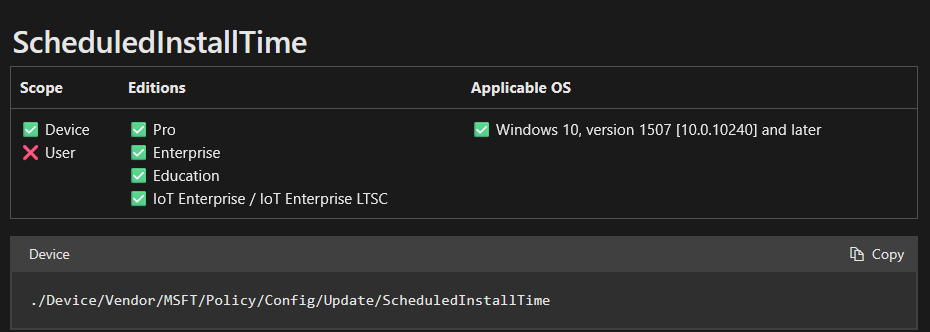
The ScheduledInstallTime policy applies at the device scope (not user scope) and is supported on:
Windows 10 Pro, Enterprise, Education, and IoT Enterprise / IoT Enterprise LTSC editions
Available starting from Windows 10, version 1507 [10.0.10240] and later
Policy Path for configuration:
./Device/Vendor/MSFT/Policy/Config/Update/ScheduledInstallTime
This CSP setting gives IT administrators the ability to enforce a unified update schedule across the entire organization, striking the right balance between security, compliance, and productivity.
How to Configure Scheduled Install Time for Windows Updates using Intune Policy
In this post, you’ll learn how to configure the Scheduled Install Time for Windows Updates using Intune. We’ll cover what the policy does, how it helps IT admins manage update installations more effectively, and the key steps to set it up in the Intune admin center.
Step-by-Step Guide
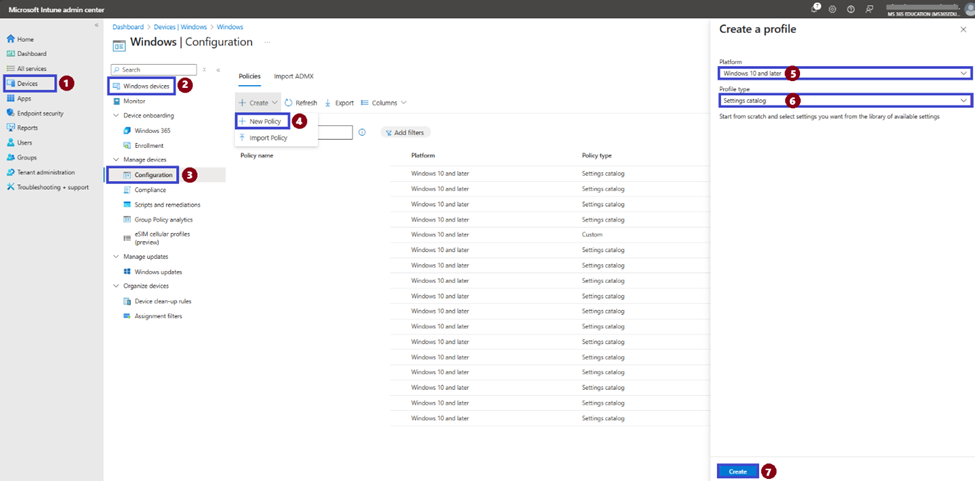
Refer to the screenshot for visual guidance and follow the steps below:
In the Microsoft Intune admin center, go to Devices.
Select Windows devices.
Under the Policy section, choose Configuration.
Click on + Create and then select New Policy.
In the Create a profile pane, set the Platform to Windows 10 and later.
Set the Profile type to Settings catalog.
Click Create to proceed.
This will initiate the creation of a settings-based configuration profile where you can search for and apply the Scheduled Install Time for Windows Updates policy.
Define Basic Profile Details
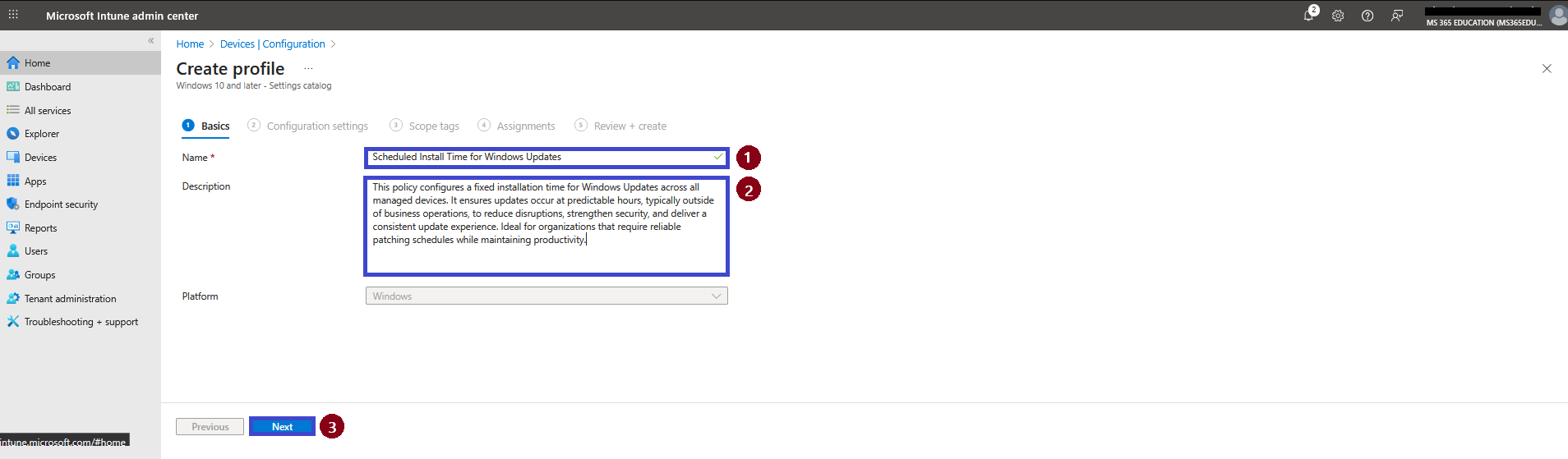
After clicking Create, the next step is to define the basic details of your configuration profile. You’ll need to provide a Name, an optional but highly recommended Description, and confirm the Platform (which will already be pre-selected as Windows 10 and later).
Providing a clear and descriptive name makes it easier to identify and manage the policy later, especially in environments with multiple configuration profiles or complex update strategies.
✅ Suggested Name and Description
Name: Scheduled Install Time for Windows Updates
Description: This policy configures a fixed installation time for Windows Updates across all managed devices. It ensures updates occur at predictable hours, typically outside of business operations, to reduce disruptions, strengthen security, and deliver a consistent update experience. Ideal for organizations that require reliable patching schedules while maintaining productivity.
No changes are needed in the Platform field. Once the name and description are filled in, click Next to continue.
Configure the Scheduled Install Time Setting
In this step, you’ll use the Settings Catalog to configure the Scheduled Install Time for Windows Updates policy. This critical setting allows IT admins to define the exact hour of the day when updates will be installed on managed devices.
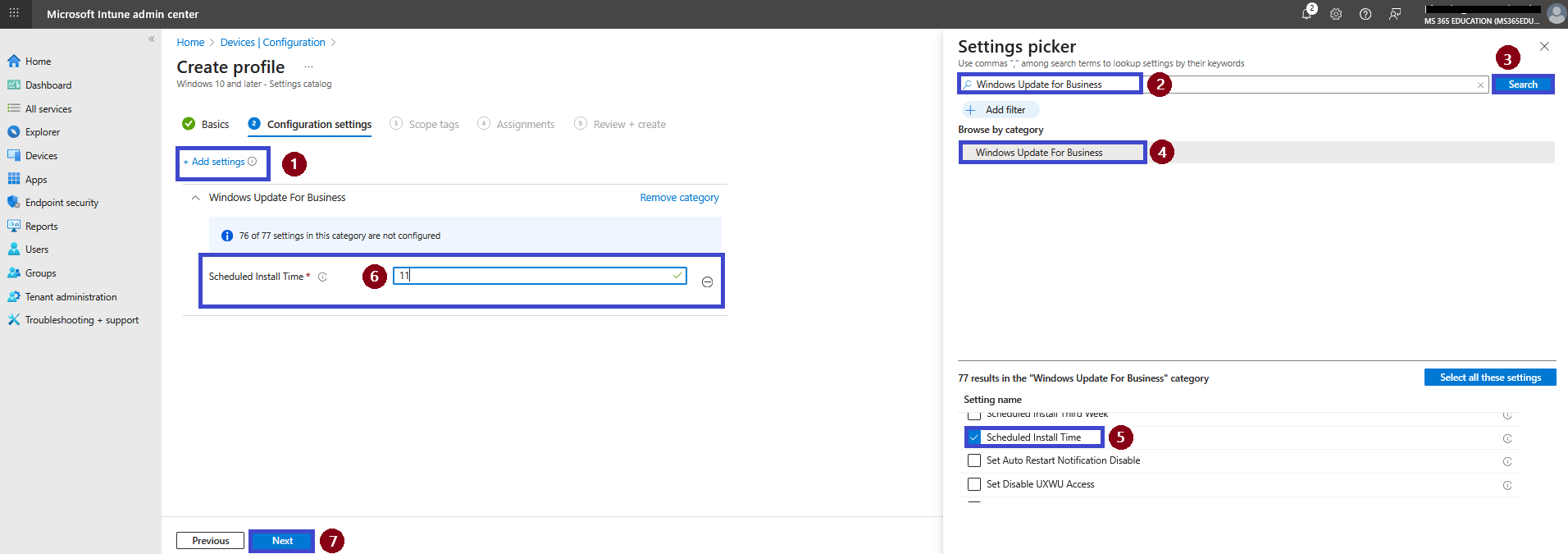
Follow the instructions below, referring to the image:
On the Configuration settings page, click + Add settings.
In the Settings picker pane, type Windows Update for Business into the search bar.
Click Search.
From the results, expand the Windows Update for Business category.
Scroll down and check the box for Scheduled Install Time.
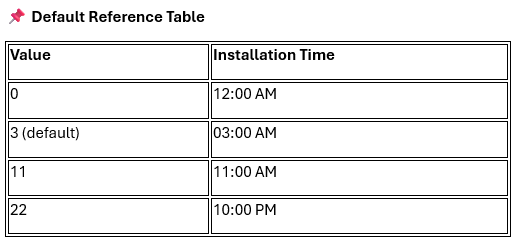
The setting will now appear in the main configuration pane. Enter an integer value between 0 and 23, where each number represents an hour of the day (for example, 0 = 12 AM, 23 = 11 PM).
Click Next to proceed.
✅ Observation:
By default, the Scheduled Install Time is set to 3 AM, which is often ideal as it avoids working hours.
Admins can adjust the schedule as needed by replacing the default with any value between 0 and 23.
Example: If you configure the value to 11, updates will be installed at 11:00 AM, ensuring a predictable and consistent patching process.
This configuration is especially valuable in enterprise environments, Cloud PCs, shared workstations, education labs, and healthcare settings, where maintaining update consistency, security, and compliance is critical.
Configure Scope Tags (Optional)
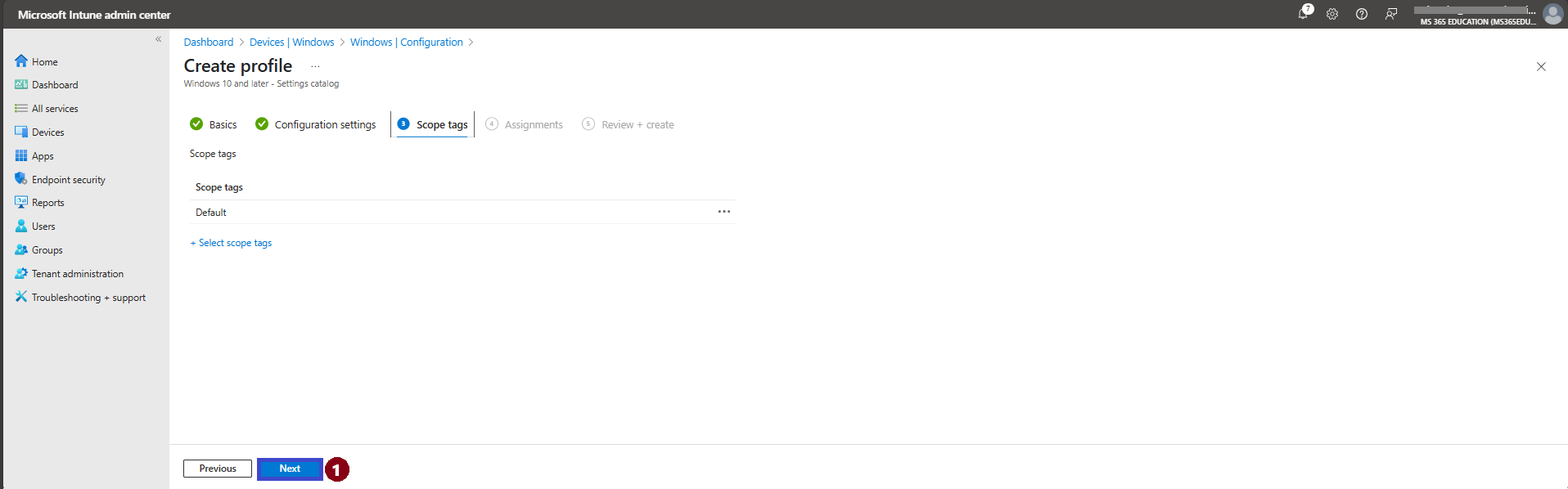
The next step is the Scope tags tab. Scope tags are typically used to associate policies with specific groups or administrative units within your organization, especially in larger or delegated environments.
For this particular policy, scope tags are not required. If you don’t need to assign the policy to a custom scope, you can simply leave this section blank.
Click Next to continue to the Assignments step.
Assign the Policy to Target Devices
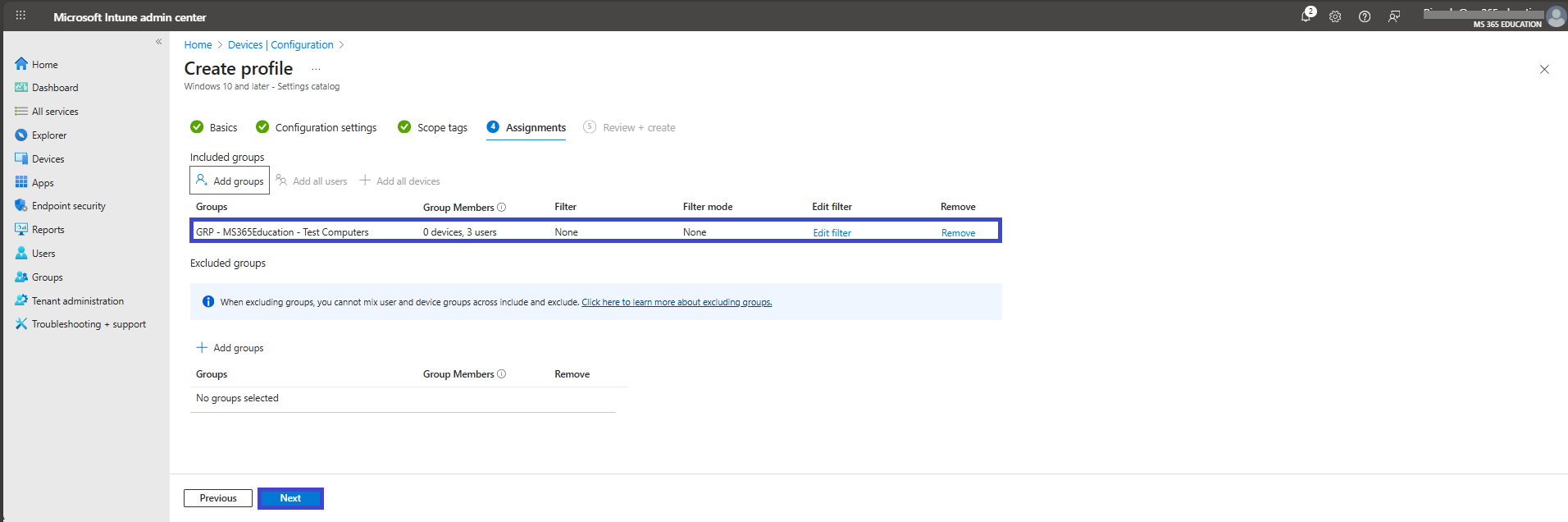
In the Assignments section, you'll define who will receive this policy. This step is essential, as it determines which users or devices the configuration will apply to.
To deploy this policy to a specific group:
Click on Add groups under the Include groups section. A list of available groups will appear use the search bar to quickly find the target group.
Once you've selected the appropriate group(s), confirm your choice. Click Next to move forward to the final step: Review + Create.
Review and Create the Policy
After completing the Assignments step, you’ll arrive at the final tab: Review + Create.
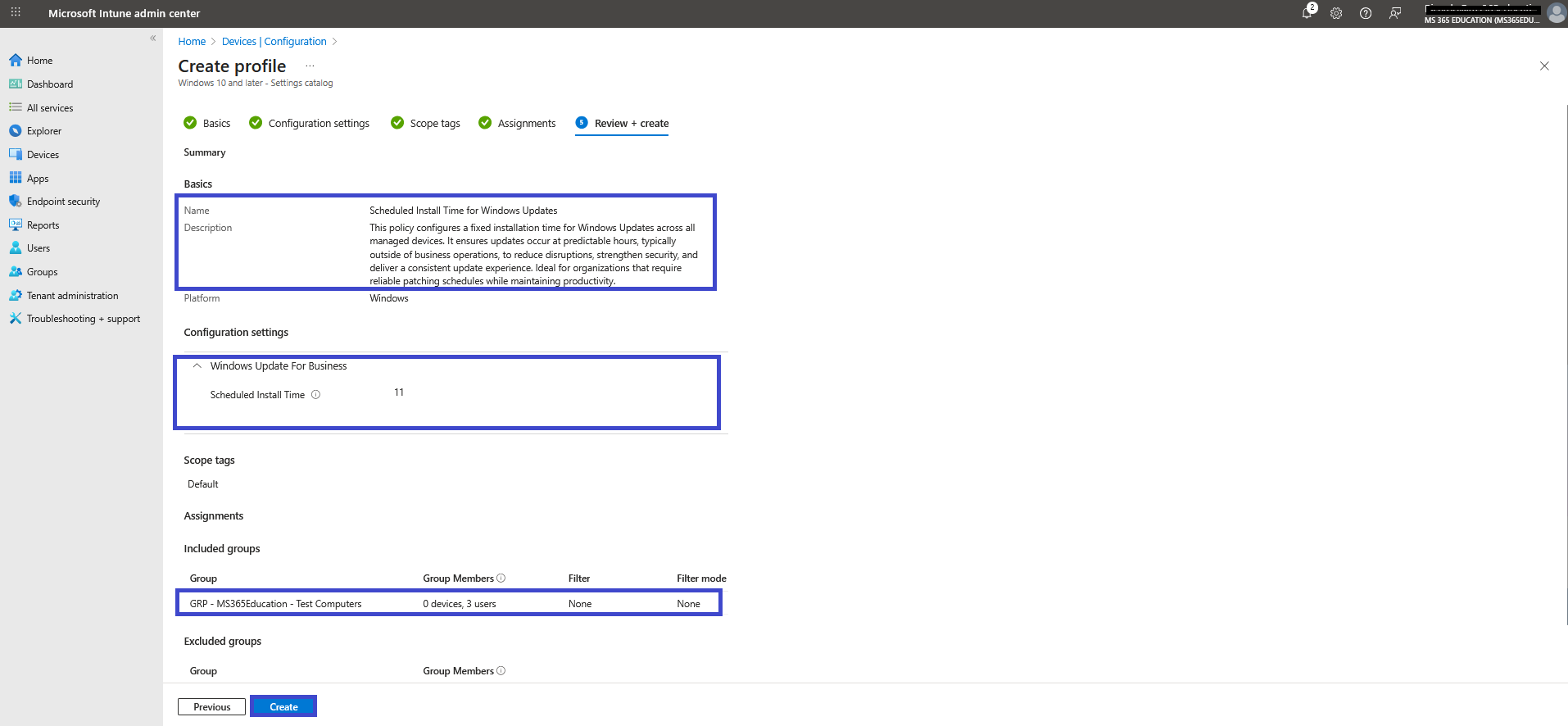
Here, Intune presents a complete summary of your configuration including the profile details, selected policy settings, and targeted groups. Take this opportunity to carefully verify all entries to ensure they align with your update strategy and organizational requirements.
If adjustments are needed, you can easily return to the previous tabs and make changes before finalizing.
Once everything is confirmed, click Create to deploy the policy. Intune will save your configuration and automatically push it to the assigned devices based on the groups you selected.
✅ From this point forward, Windows Updates will install according to the schedule you defined, ensuring a consistent, secure, and disruption-free experience for your users.
Monitor Policy Deployment Status
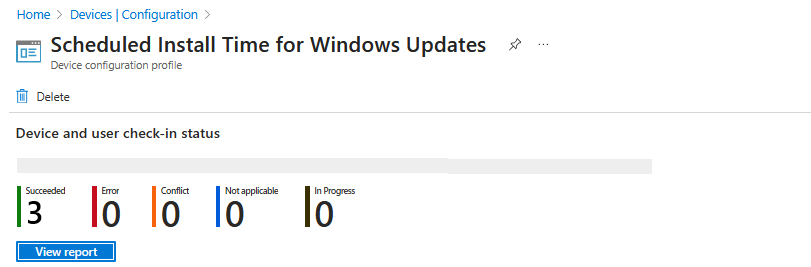
After creating and assigning the Scheduled Install Time for Windows Updates policy, it’s important to monitor whether the configuration has been successfully deployed to all targeted devices.
By default, Intune policy deployment may take up to 8 hours. To accelerate the process, you can manually trigger a device sync using the Company Portal app or initiate a sync via the Intune Management Extension.
✅ How to Verify Deployment Status:
In the Microsoft Intune admin center, navigate to: Devices ➝ Configuration profiles.
Use the search bar to locate the profile you created for example: Scheduled Install Time for Windows Updates.
Click on the policy name to open its overview page.
Review key deployment metrics such as:
This visibility ensures that the Scheduled Install Time policy has been properly applied, giving administrators confidence that updates will install at the scheduled hour. It also allows IT teams to take corrective action if any devices are non-compliant or encountering deployment issues.
Client-Side Verification via Event Viewer
After manually syncing the device or waiting for Intune to automatically apply the policy, you can confirm that the Scheduled Install Time for Windows Updates policy has been successfully enforced by checking the Event Viewer on the client device.
This method is especially valuable for troubleshooting or auditing deployments in secure environments, ensuring that the scheduled update configuration has been applied as intended.
✅ Steps to Verify Policy Application:
Open Event Viewer on the target Windows device.
Navigate to: Applications and Services Logs ➝ Microsoft ➝ Windows ➝ DeviceManagement-Enterprise-Diagnostics-Provider ➝ Admin
In the right-hand pane, click Filter Current Log.
Look for Event ID 813 or 814 these events typically indicate successful processing of Intune configuration profiles.
In the event details, verify that the ScheduledInstallTime policy under the Update area has been set.
You may also see additional fields such as:
Enrollment ID – identifies the device’s enrollment instance.
Integer Value (Int) – shows the applied time in hexadecimal (for example, 0xA = 11 in decimal → 11:00 AM).
Enrollment Type and Scope – provide context on how the policy was delivered and applied.
💡 Pro Tip: Always confirm that the Event ID reflects the correct timestamp and status. This is one of the most reliable ways to validate whether the Scheduled Install Time policy has been successfully applied to a device especially when troubleshooting delayed or failed deployments.
More Information
Policy CSP – Update (ScheduledInstallTime): https://learn.microsoft.com/en-us/windows/client-management/mdm/policy-csp-update#scheduledinstalltime
Create a Settings Catalog Policy in Intune: https://learn.microsoft.com/en-us/mem/intune/configuration/settings-catalog
Monitor Intune Policy Deployment: https://learn.microsoft.com/en-us/mem/intune/configuration/device-profile-troubleshoot
Event Viewer Logs for MDM Diagnostics: https://learn.microsoft.com/en-us/mem/intune/configuration/device-profile-troubleshoot#event-viewer-logs
Policy CSP – WindowsUpdate: https://learn.microsoft.com/en-us/windows/client-management/mdm/policy-csp-update
Thank you!
🖥️ Ricardo Barbosa
🎖️ Microsoft MVP | 📘 Microsoft Certified Trainer (MCT)
☁️ Intune & Cloud Architect |💼 Technology Director at Altelix.com
