

Customizing Win32 App Installations with PowerShell Scripts in Microsoft Intune
Microsoft Intune is taking a major step forward in app deployment flexibility with a powerful new feature: the ability to use PowerShell scripts to customize Win32 app installations through Enterprise Application Management (EAM).
Starting in September 2025, IT administrators will no longer be limited to traditional command-line installation parameters. Instead, they will be able to leverage PowerShell-based script installers, unlocking advanced capabilities such as:
Dynamic installation logic
Validation of prerequisites
Environment-specific configuration
Enhanced error handling and reporting
Whether you're deploying applications from the EAM catalog or rolling out custom Win32 app packages, this new capability streamlines complex scenarios and provides greater alignment with Microsoft Entra ID, SCCM, and existing Intune policies.
This update empowers IT pros to standardize and automate application deployments in a more robust and modular way — reducing manual overhead while increasing reliability and scalability across environments.
Why This Matters for IT Admins
Traditionally, Win32 app deployments in Intune relied on static command-line arguments defined at packaging time — offering limited flexibility and little room for contextual decision-making. With the Script Installer, admins can now write logic directly in PowerShell to handle conditions such as device type, OS version, installed apps, or user context — all before proceeding with installation. This brings a new level of precision and intelligence to application delivery.
💻 Example: PowerShell Script to Install a Win32 App Only on Windows 11 Devices with 8GB+ RAM
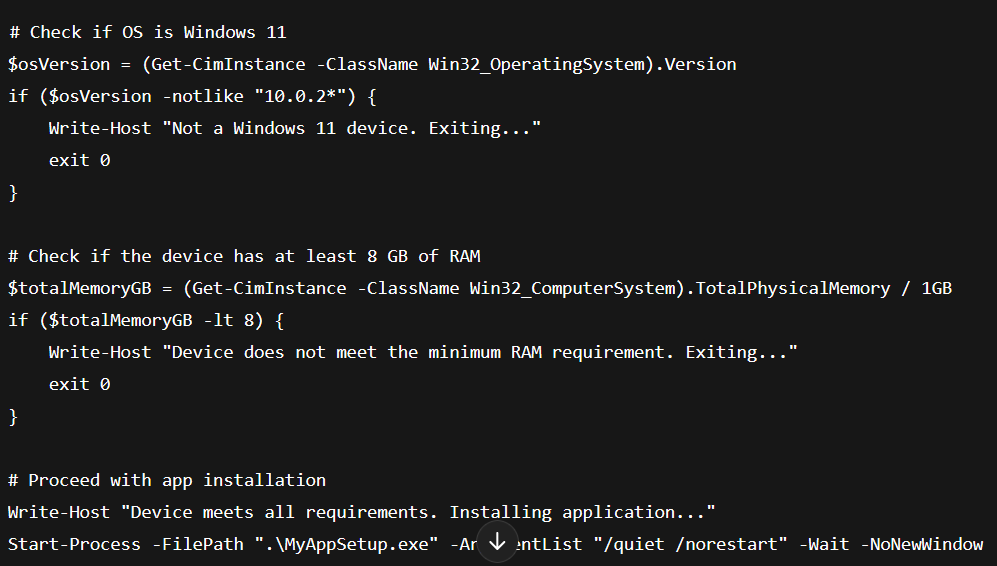
What This Script Does:
Checks if the OS is Windows 11
Verifies if the device has at least 8 GB of RAM
Proceeds with the application installation only if both conditions are met
What Is This Update About?
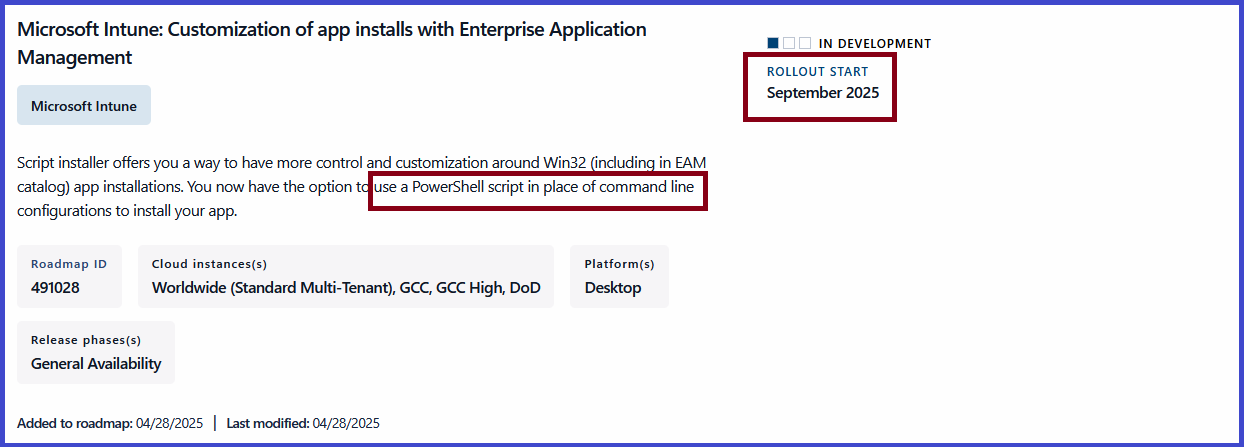
Microsoft Intune is introducing a powerful new capability for Win32 app deployments: the Script Installer option, now integrated into the Enterprise Application Management (EAM) experience. This enhancement provides IT administrators with a more intelligent and flexible approach to managing application installations — including those sourced from the EAM catalog.
What Does the Script Installer Do?
The Script Installer allows IT professionals to replace traditional command-line install commands with fully customized PowerShell scripts. This shift provides greater control over deployment logic, making it possible to:
Validate system prerequisites
Handle dynamic installation conditions
Implement advanced error handling
Adapt to specific environments or user contexts
This level of control is a game-changer for scenarios where static command-line arguments fall short.
When Will It Be Available?
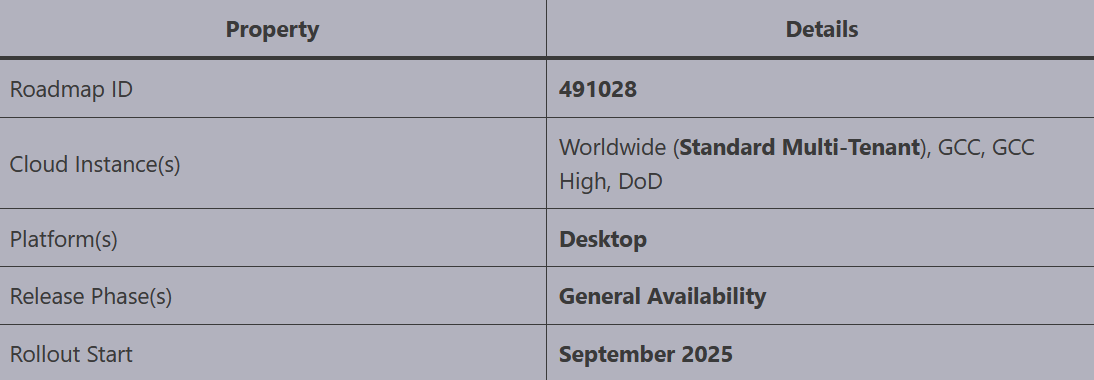
This feature is currently under development, with general availability scheduled to begin in September 2025. The rollout will cover all supported cloud environments, including Worldwide, GCC, GCC High, and DoD cloud instances — targeting desktop platforms.
Where Can I Use the Script Installer?
The Script Installer is available within the Enterprise Application Management (EAM) workflow in Microsoft Intune. When deploying Win32 applications, IT admins will be able to choose the Script Installer option during the configuration process.
What Is Enterprise Application Management (EAM)?
Enterprise Application Management is an Intune capability designed to simplify the entire lifecycle of application management — from deployment to updates and eventual retirement. It supports both third-party applications and custom-built, in-house software, offering a centralized, policy-driven approach.
How Does the Script Installer Enhance EAM?
By supporting PowerShell-based installation scripts, the Script Installer brings advanced automation and customization to EAM. It enables IT admins to define conditional logic, integrate system checks, and tailor installations to match organizational standards — making app deployments smarter, more adaptable, and easier to maintain at scale.
Microsoft Intune: How to Use PowerShell Scripts to Control Win32 App Installations
Microsoft Intune is introducing a new Script Installer feature that empowers IT administrators to deploy Win32 applications using PowerShell scripts rather than traditional command-line parameters. This capability applies to both custom app deployments and apps delivered through the Enterprise Application Management (EAM) catalog, offering greater flexibility, logic control, and automation during installation.
Breaking Command-Line Barriers: PowerShell for Win32 App Deployments in Intune
Historically, deploying Win32 applications via Intune required admins to rely on static command-line parameters to perform installations. While suitable for basic use cases, this approach quickly became restrictive when more complex deployment scenarios were needed, such as:
Conditional logic (e.g., install only if a specific app is not present)
Pre-installation validation or prerequisite checks
Custom system configurations (like registry edits or architecture-specific logic)
Detailed logging and error diagnostics
With the introduction of the Script Installer, these challenges are now addressed through PowerShell scripting — a much more dynamic and powerful tool compared to traditional command-line syntax.
What PowerShell Brings to Intune Win32 App Deployments
Using PowerShell scripts for app installations within Microsoft Intune unlocks a wide range of capabilities, enabling IT admins to:
Dynamically tailor installations based on the device’s current state — such as installed applications, environment variables, or user context.
Handle installation errors with custom logic, improving resilience and reducing failed or partial deployments.
Log actions and outcomes in designated locations or route output to centralized logging systems for audit and troubleshooting.
Perform compatibility checks before installation, including OS version, hardware specs, or the presence of required components.
Execute post-install tasks, such as setting registry values, removing temp files, or triggering additional configurations.
Thank you!
🖥️ Ricardo Barbosa
📘 MCT Microsoft Certified Trainer | ☁️ Cloud Architect
🌐 Technology Director - https://altelix.com
