

How to Block Control Panel and Windows Settings with Microsoft Intune
Welcome to our latest blog post! Today, we’ll explore a key device management strategy—blocking access to the Control Panel and Windows Settings using Microsoft Intune.
Restricting these settings is essential for enhancing security, ensuring compliance, and preventing unauthorized system modifications. In this article, we’ll guide you through the best practices for implementing this policy, helping you optimize your Microsoft Intune setup for a more secure and controlled IT environment.
Whether you’re new to Intune or looking to refine your security policies, this guide will provide step-by-step instructions to help you manage devices more effectively.
📌 Table of Contents
Why Block Control Panel and Windows Settings?
How to Block Control Panel and Windows Settings with Microsoft Intune
Conclusion
🔍 Why Block Control Panel and Windows Settings?
Blocking access to Control Panel and Windows Settings is a critical security measure that helps organizations maintain consistency and control across managed devices. By restricting these settings, IT administrators can:
✅ Prevent unauthorized system changes, reducing security risks.
✅ Ensure compliance with organizational IT policies.
✅ Minimize user-induced errors, protecting system stability.
✅ Enhance security posture by blocking access to sensitive configurations.
Without these restrictions, users may unintentionally modify system settings, which can lead to vulnerabilities, misconfigurations, and compliance issues. By enforcing this policy with Microsoft Intune, IT teams can maintain a controlled and secure device environment.
How to Block Control Panel and Windows Settings with Microsoft Intune
Follow these step-by-step instructions to enforce this policy using Microsoft Intune.
Step-by-Step Guide:
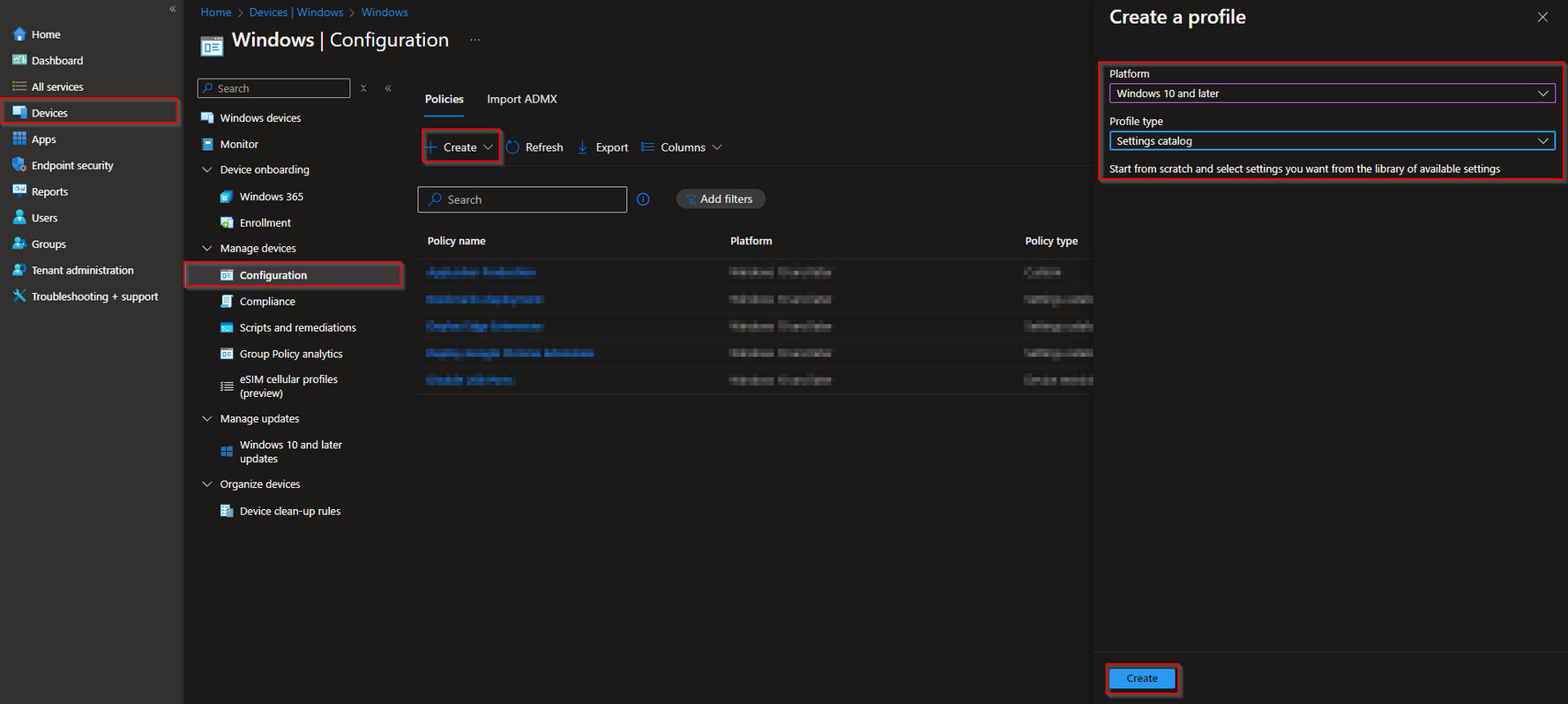
Go to Intune Portal
Click on Devices
Click on Windows
Click on Configuration Profiles
Click on Create
Select New Policy
Platform: Windows 10 and later
Profile Type: Settings Catalog
Click on Create
Once the profile is created, configure the required settings to restrict access to Control Panel and Windows Settings, then assign the policy to the necessary user groups or devices.
Give it a meaningful name and description. Click on Next.

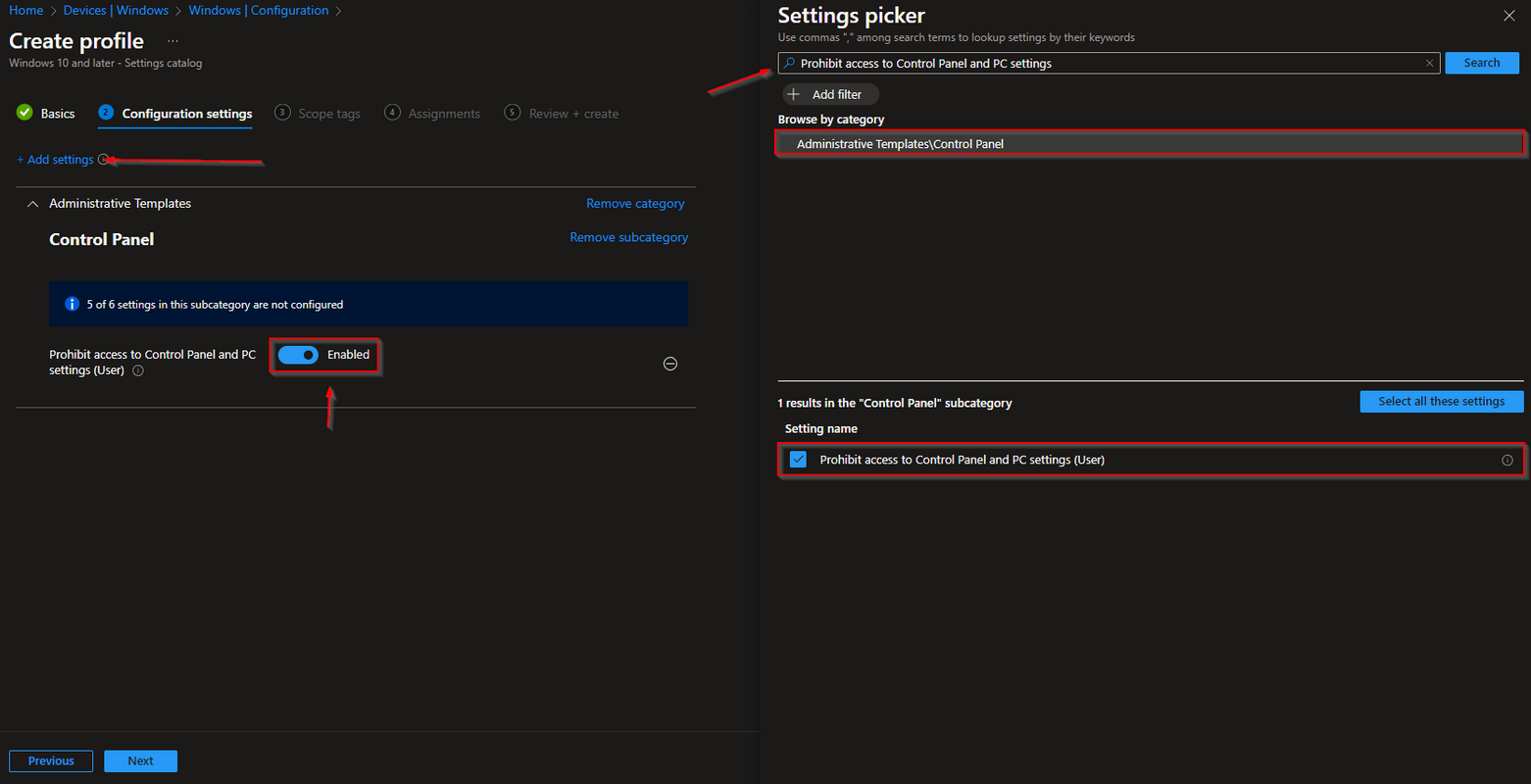
On the Configuration settings tab do the following:
Click on Add settings
Search for Prohibit access to Control Panel and PC settings
Choose Administrative Templates\Control Panel
Click on Prohibit access to Control Panel and PC settings (User)
On the left site Enabel Prohibit access to Control Panel and PC settings (User)
Define your Scope tags if applicable and click on Next
On the Assignments tab assign the Policy to a Group or to All Users / All Devices
And Review + Create the Policy
Conclusion
Blocking Control Panel and Windows Settings with Microsoft Intune is a proactive security measure that ensures device integrity, compliance, and system stability. By implementing this policy, IT administrators can enforce security standards while preventing unauthorized modifications to system configurations.
More Information
For additional guidance on configuring the "Prohibit Access to Control Panel and PC Settings" policy using Microsoft Intune, refer to the following resources on Microsoft Learn:
Overview of Microsoft Intune Provides a comprehensive introduction to Microsoft Intune, including its features and capabilities. 🔗 https://learn.microsoft.com/en-us/mem/intune/fundamentals/what-is-intune
Configuration Service Provider (CSP) Policies Details the Configuration Service Provider (CSP) policies available in Intune, allowing for granular device management. 🔗 https://learn.microsoft.com/en-us/windows/client-management/mdm/policy-configuration-service-provider
Settings Catalog in Intune Explains how to create and manage policies using the Settings Catalog in Intune for efficient device configuration. 🔗 https://learn.microsoft.com/en-us/mem/intune/configuration/settings-catalog
Device Restriction Settings for Windows 10/11 in Intune Outlines how to configure device restriction settings, including blocking access to Control Panel and Settings. 🔗 https://learn.microsoft.com/en-us/mem/intune/configuration/device-restrictions-windows-10
Managing Devices with Intune Provides guidance on enrolling and managing devices using Microsoft Intune. 🔗 https://learn.microsoft.com/en-us/mem/intune/enrollment/device-enrollment
Assigning Policies and Apps in Intune Describes how to assign policies and applications to users and devices within Intune. 🔗 https://learn.microsoft.com/en-us/mem/intune/apps/apps-deploy
These resources provide comprehensive instructions on setting up, managing, and optimizing device security policies using Microsoft Intune. 🚀
Thank you!
🖥️ Ricardo Barbosa
📘 MCT Microsoft Certified Trainer | ☁️ Cloud Architect
🌐 Technology Director - https://altelix.com
