

Streamline Updates, Boost Security, and Deliver a Smooth Windows 11 Experience with Intune
Windows 11, version 25H2 brings new features, performance improvements, and critical security updates. But managing these upgrades across hundreds or thousands of devices can quickly become a challenge for IT admins.
Without the right tools, feature updates may disrupt end users, cause application compatibility issues, or expose organizations to security risks.
That’s where Microsoft Intune Feature Update Policies come into play. These policies give admins full control over when, how, and to whom Windows updates are deployed ensuring a rollout that is secure, consistent, and predictable.
By using these policies, IT admins can lock devices to a specific Windows version, guaranteeing stability and preventing unexpected feature changes. Targeting Windows 11 25H2 also enables organizations to leverage the latest security enhancements, productivity improvements, and AI-driven innovations, while maintaining compliance and reducing risk.
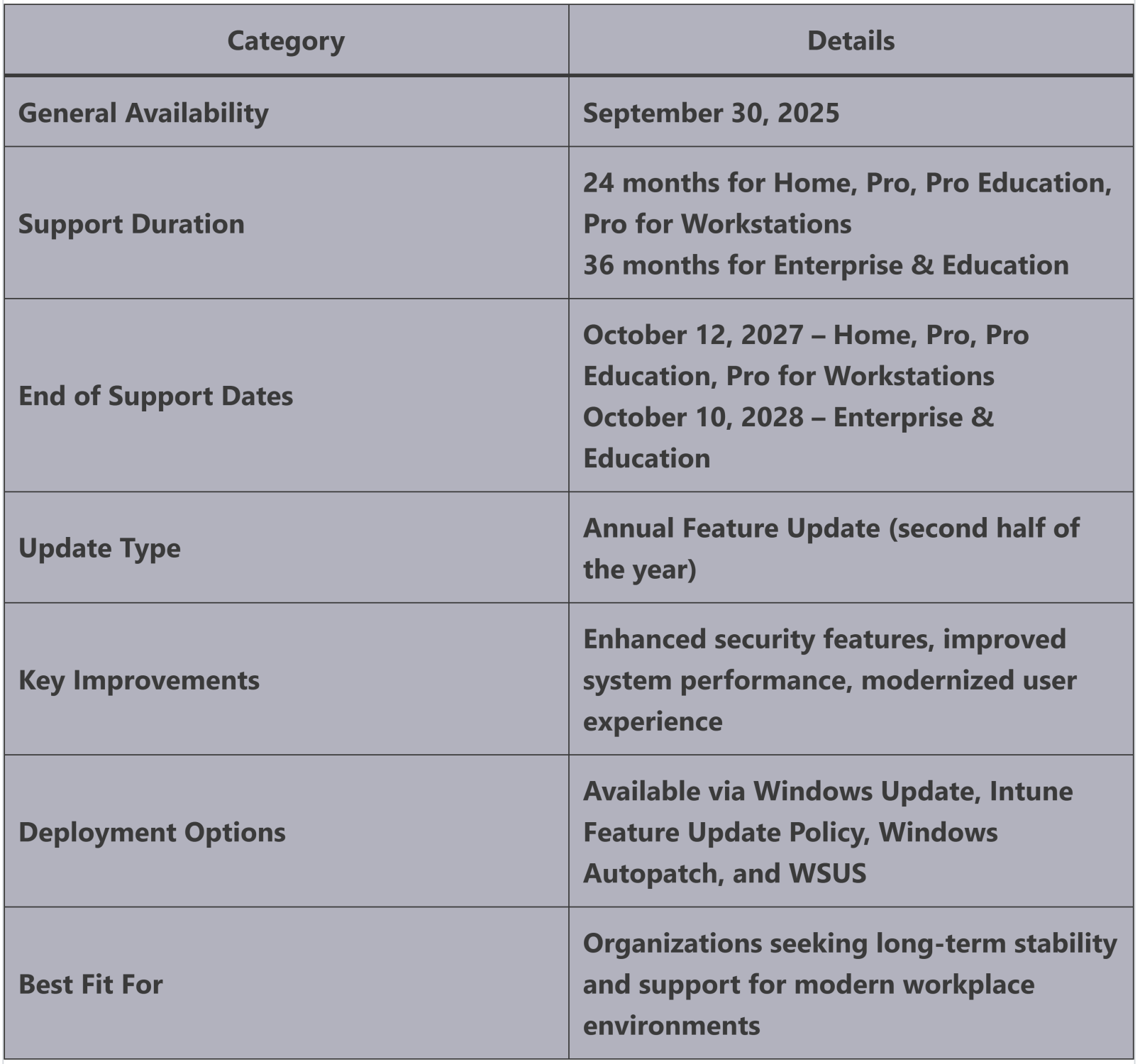
📅 Availability & Support
🖥️ Home, Pro, Pro Education, and Pro for Workstations → End of support on October 12, 2027
🏢 Enterprise and Education editions → Supported until October 10, 2028
🚀 Key Highlights of Windows 11 25H2 This release builds on Microsoft’s continuous innovation, with several features now enabled by default that were previously under commercial control in 24H2. Among them:
🤖 AI actions in File Explorer
✅ Click to Do
⚙️ Agent in Settings (Copilot+ PC features)
🔑 Why This Policy Matters
Implementing a Feature Update Policy in Intune ensures:
✅ Consistency – All devices move to the same version, avoiding fragmentation
✅ Control – Admins decide the timing and rollout strategy
✅ Stability – Reduced risk of downtime and compatibility issues
✅ Security – Faster adoption of Microsoft’s latest protections
✅ Visibility – Centralized monitoring through Intune reports
Key Highlights of Windows 11 25H2 Upgrade
Below is a clean summary table of the key highlights for Windows 11, version 25H2.
This release introduces innovations such as quick recovery and hotpatching, along with Wi-Fi 7 support for enterprise devices, ensuring secure and reliable connectivity in demanding environments.
Additionally, IT admins now have the ability to remove select preinstalled Microsoft Store apps via MDM or Group Policy reducing complexity and delivering a cleaner, work-ready experience out of the box.
Creating a Windows 11 25H2 Feature Update Policy in Intune
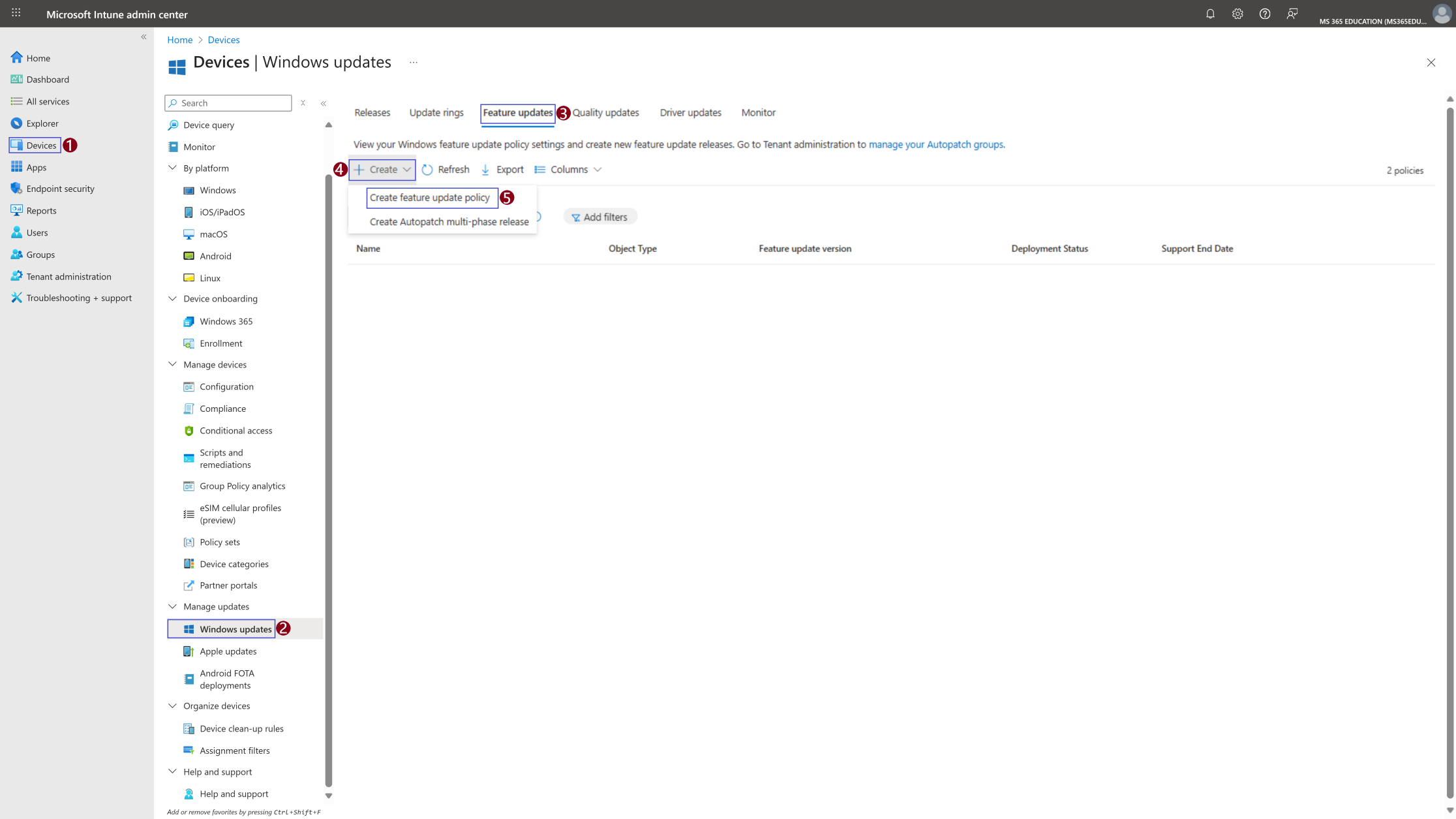
To roll out Windows 11, version 25H2 in a controlled and secure way, we’ll use Feature Update Policies in Intune. This ensures devices get the update at the right time, with full visibility for IT admins. Follow the improved step-by-step guide:
1️⃣ In the Intune Admin Center left navigation, click Devices.
2️⃣ Under Manage updates, select Windows updates.
3️⃣ Select the Feature updates tab This tab centralizes policies that pin devices to a specific Windows release.
4️⃣ Click + Create Start the creation workflow for a new update policy.
5️⃣ Choose Create feature update policy This opens the wizard where you’ll configure targeting for Windows 11, version 25H2.
⚠️ Default Behavior
By default, devices upgrade to new Windows versions as Microsoft makes them available through Windows Update. This uncontrolled behavior can lead to fragmented environments, where some users move quickly to Windows 11 25H2, while others remain on older builds. The result is inconsistency, compatibility issues, and increased security risks.
📌 Controlled Example with Intune
When organizations implement a Windows 11 25H2 Feature Update Policy in Intune, IT admins gain full control over when and how devices upgrade. This ensures that all targeted endpoints are locked to Windows 11, version 25H2, avoiding unexpected feature changes and guaranteeing a smooth, predictable rollout.
👉 Practical Scenario
Imagine a global enterprise managing 5,000 Windows devices. Without a Feature Update Policy:
Some users upgrade immediately,
Others postpone for weeks or months,
Critical apps may break due to inconsistent builds,
Security teams struggle to enforce compliance.
With Intune’s Feature Update Policy, IT ensures that:
🎯 All targeted devices are standardized on Windows 11 25H2
🔒 Security and compliance baselines apply consistently
🛠️ Application compatibility is validated before rollout
📊 Reporting and monitoring provide clear visibility
This structured approach delivers predictability, security, and operational stability, while giving organizations the confidence to leverage the new AI-powered and productivity features of Windows 11 25H2.
Configure Deployment Settings
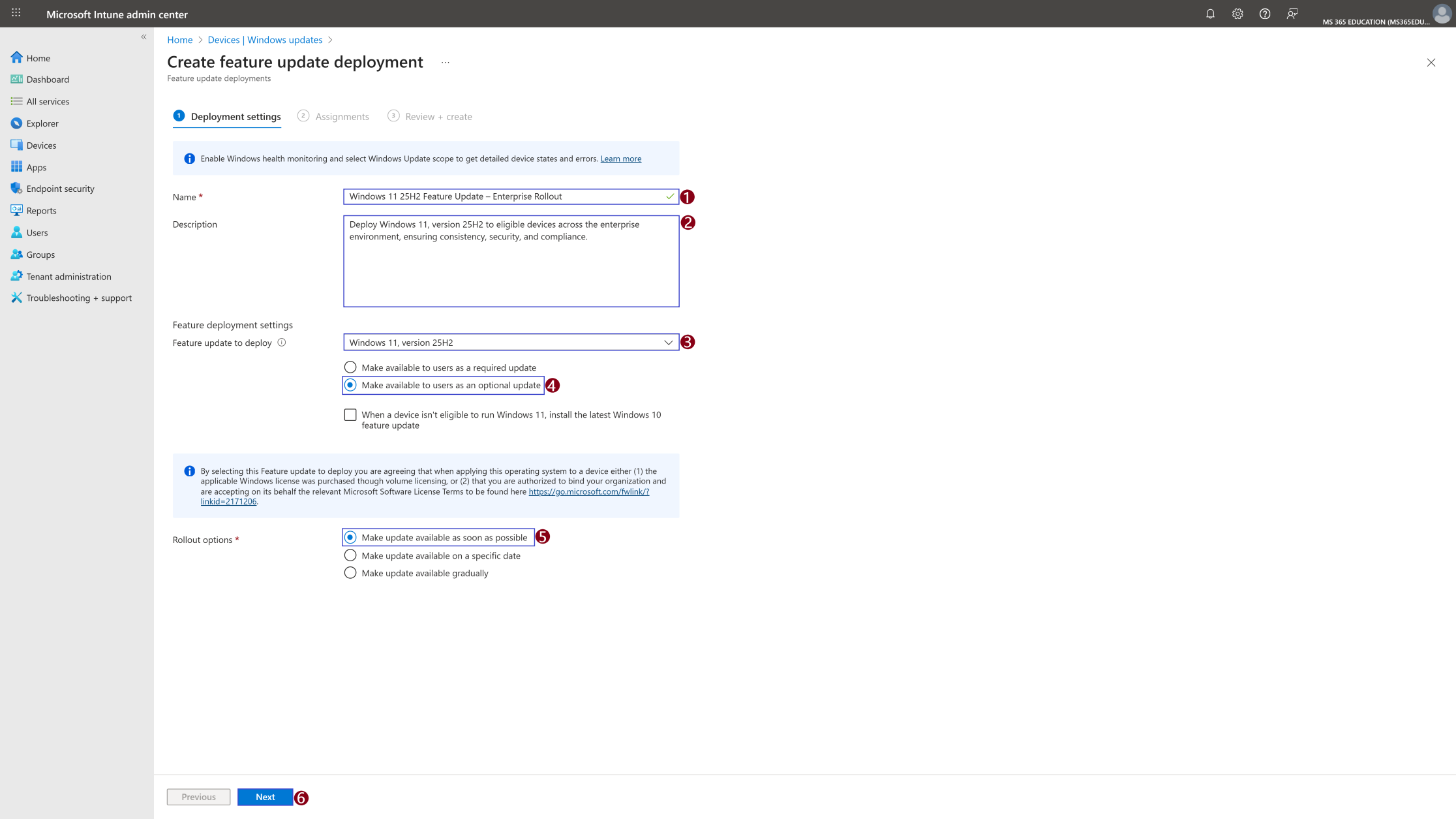
In the Deployment settings pane, you’ll define how the Windows 11 25H2 Feature Update Policy will be applied across devices. This section is critical because it controls what version gets deployed, how it’s presented to users, and when it becomes available.
For this example, we are not selecting the option “When a device isn’t eligible to run Windows 11, install the latest Windows 10 feature update.” This ensures the policy strictly targets eligible devices for Windows 11 25H2.
🛠️Configuration
Using a clear Name and Description is more than just labeling the policy it’s a best practice for long-term management. A consistent naming convention helps admins quickly identify the purpose of each policy, while a meaningful description provides context for your team, audits, and troubleshooting.This is especially important in large environments where multiple update policies may exist.
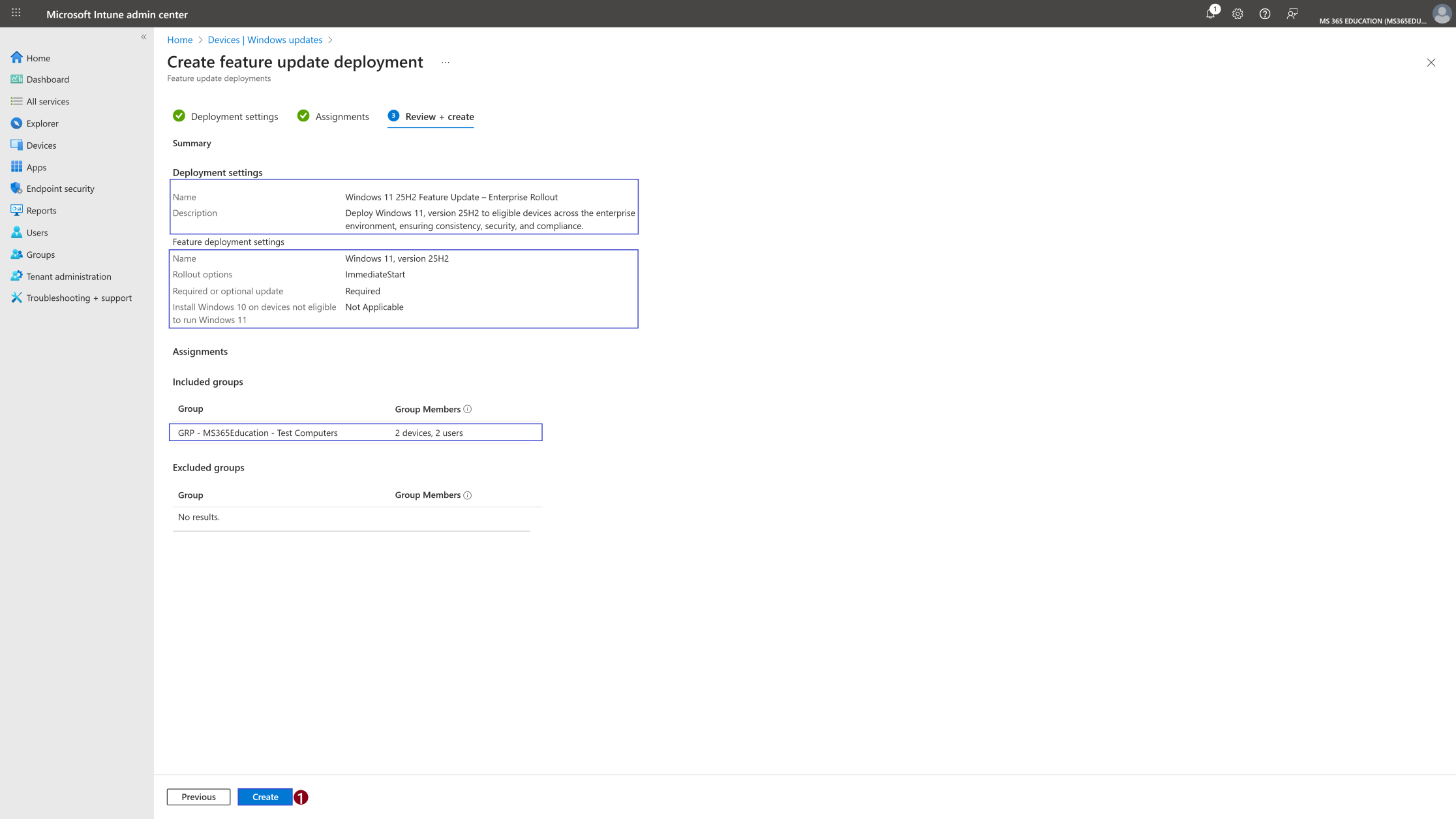
1️⃣ Name Windows 11 25H2 Feature Update – Enterprise Rollout
2️⃣ Description Deploy Windows 11, version 25H2 to eligible devices across the enterprise environment, ensuring consistency, security, and compliance.
3️⃣ Feature Update to Deploy From the dropdown, select Windows 11, version 25H2.
4️⃣ Availability Setting Choose “Make available to users as an optional update.” ➡️ This gives end users flexibility to upgrade earlier if desired, while IT maintains control.
5️⃣ Rollout Options Select “Make update available as soon as possible.” ➡️ Ensures that once the policy is assigned, the update is immediately offered to targeted devices.
6️⃣ Proceed to Next Click Next to continue with Assignments.
Assign the Policy to Target Devices
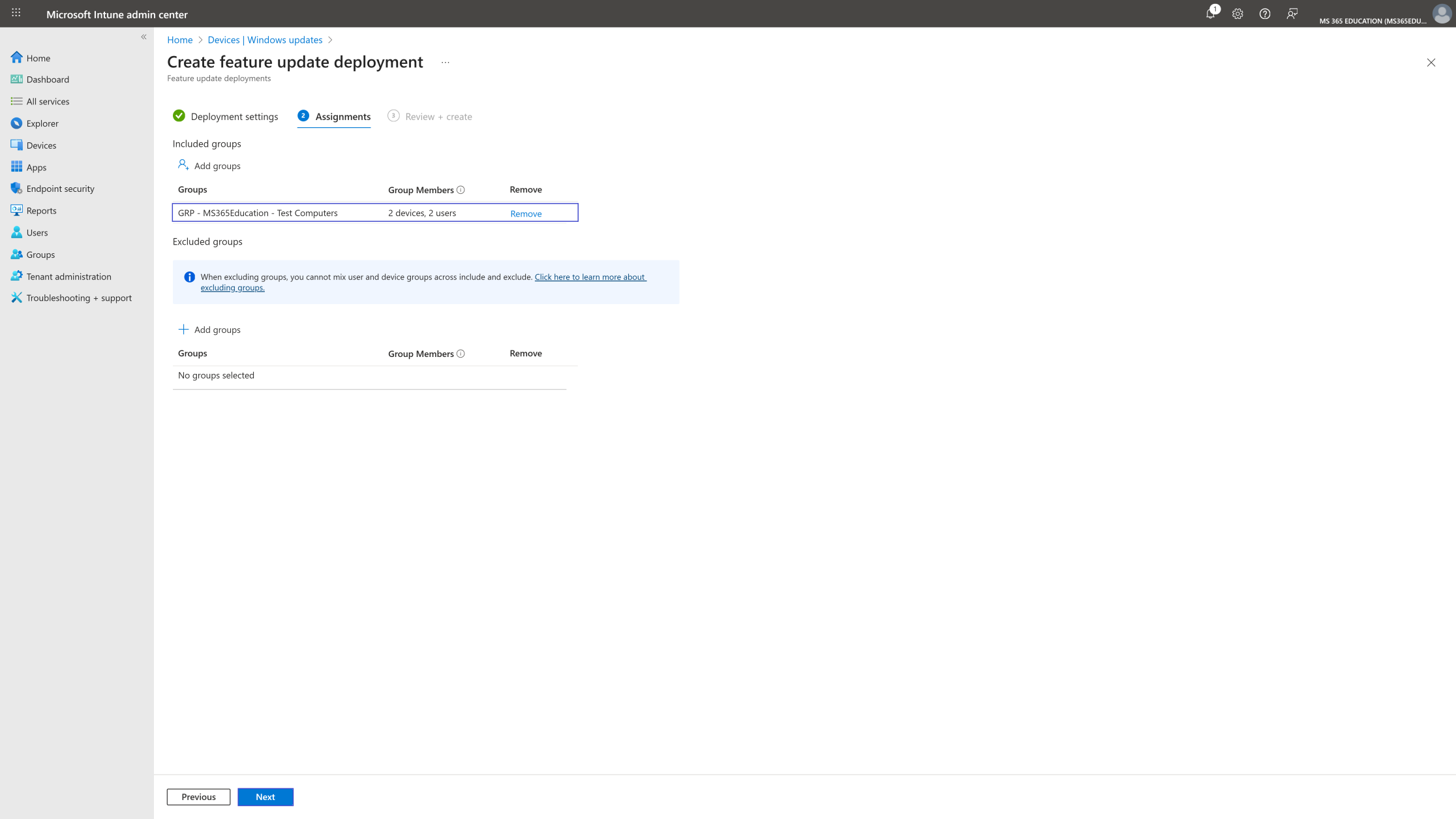
In the Assignments section, you'll define who will receive this policy. This step is essential, as it determines which users or devices the configuration will apply to.
To deploy this policy to a specific group:
Click on Add groups under the Include groups section. A list of available groups will appear use the search bar to quickly find the target group.
Once you've selected the appropriate group(s), confirm your choice. Click Next to move forward to the final step: Review + Create.
Review and Create the Policy
After completing the Assignments step, you'll land on the final tab: Review + Create.
This is your chance to review a full summary of the configuration including the basic details, selected settings, and group assignments. Take a moment to carefully review all entries to ensure everything is accurate and aligned with your intent.
If you need to make any changes, you can easily navigate back to the previous tabs and update the information as needed.
Once everything looks good, click Create to deploy the policy.
Your configuration will now be saved and pushed to the assigned devices based on the group you selected.
Monitor the Windows 11 25H2 Upgrade Deployment Status
Once the policy has been deployed to the targeted Microsoft Entra ID groups, it will take effect as soon as devices perform their next sync with Intune. To ensure a smooth rollout, it’s important to track both the deployment progress and the update status from the Intune portal.
Follow these steps to generate and review the report:
📊 How to Monitor the Deployment
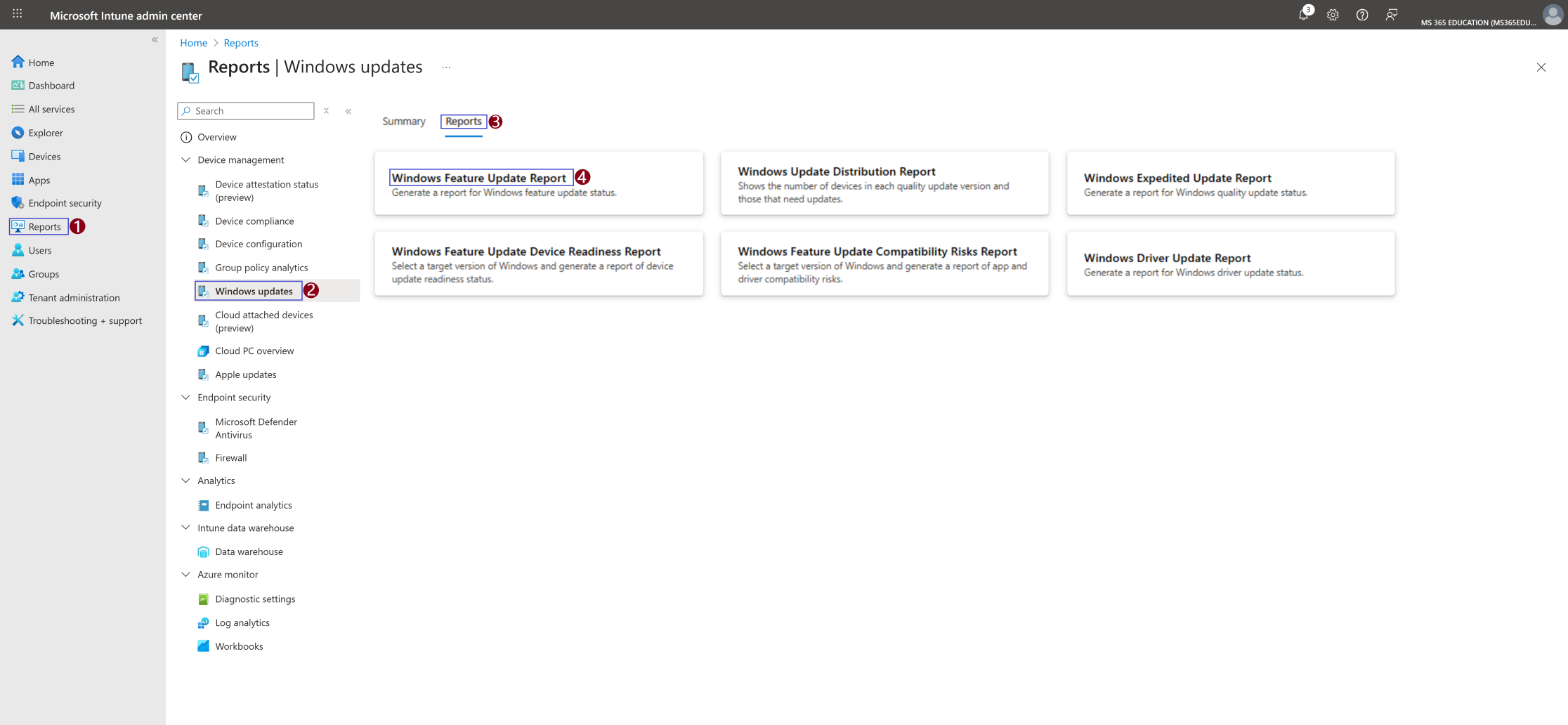
In the Intune Admin Center, go to: Reports
Windows updates
Reports tab
Select Windows Feature Update Report
Monitor the Windows 11 25H2 Upgrade Deployment Status
After deploying the Windows 11 25H2 Feature Update Policy, it’s essential to validate if the rollout is being applied correctly to your devices. Intune provides built-in reporting that allows IT admins to track deployment status in real time.
Follow the steps below, referencing the figures for clarity:
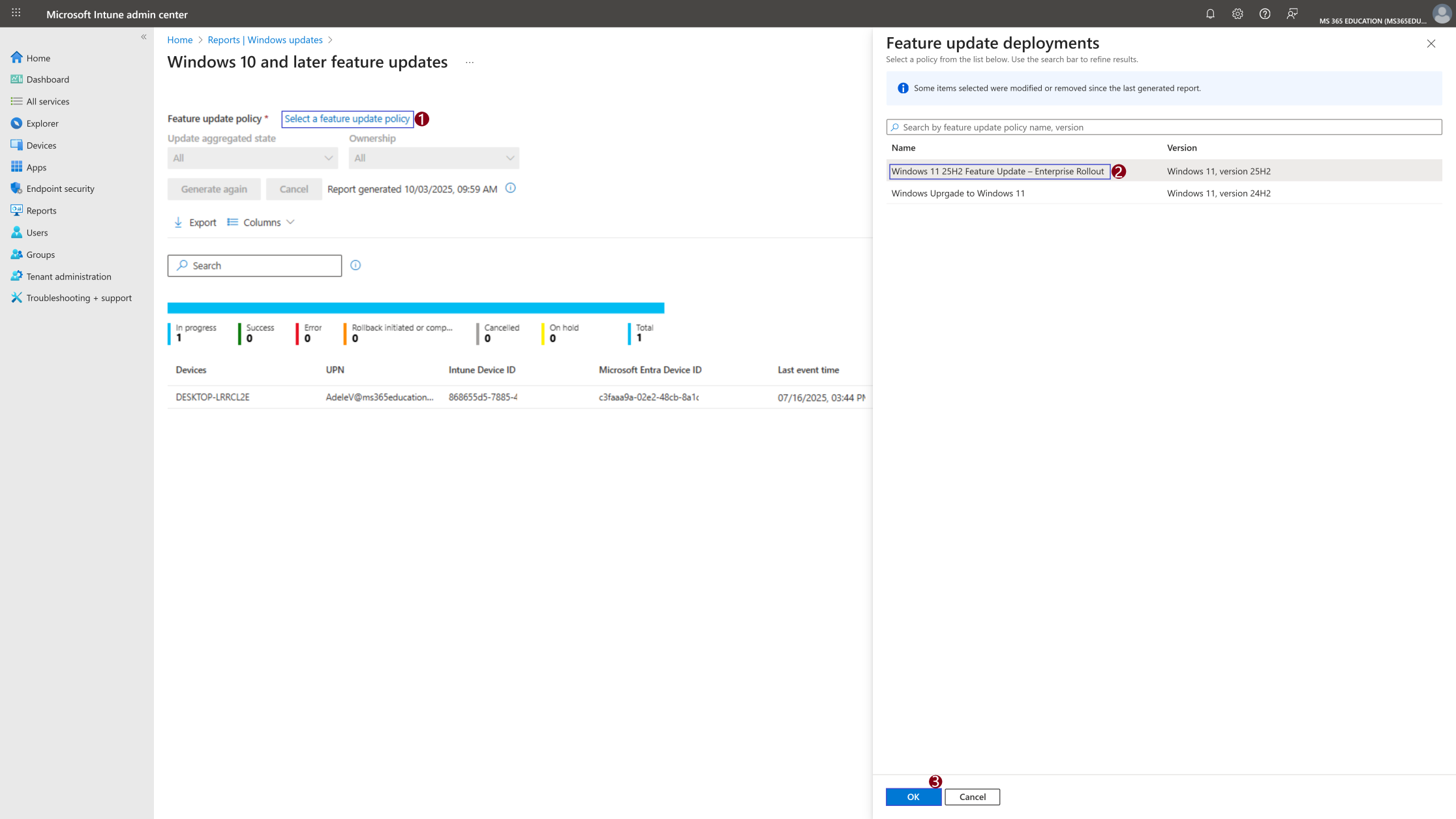
1️⃣ Select a Feature Update Policy select the policy you want to monitor.
2️⃣ Choose the Correct Policy From the list, select the intended policy in this case: Windows 11 25H2 Feature Update – Enterprise Rollout.
3️⃣ Click OK to apply your selection.
4️⃣ Policy Applied to Reports Once confirmed, you’ll now see the selected policy listed in the report view. This ensures the data shown will be scoped to that specific update deployment.
5️⃣ Click Generate again to pull the latest deployment data.
6️⃣ Report Successfully Generated A green notification will appear in the top-right corner confirming: “Report successfully generated.”
7️⃣ Analyze Device-Level Results The report now lists all devices targeted by the policy. For each device, you can see details such as:
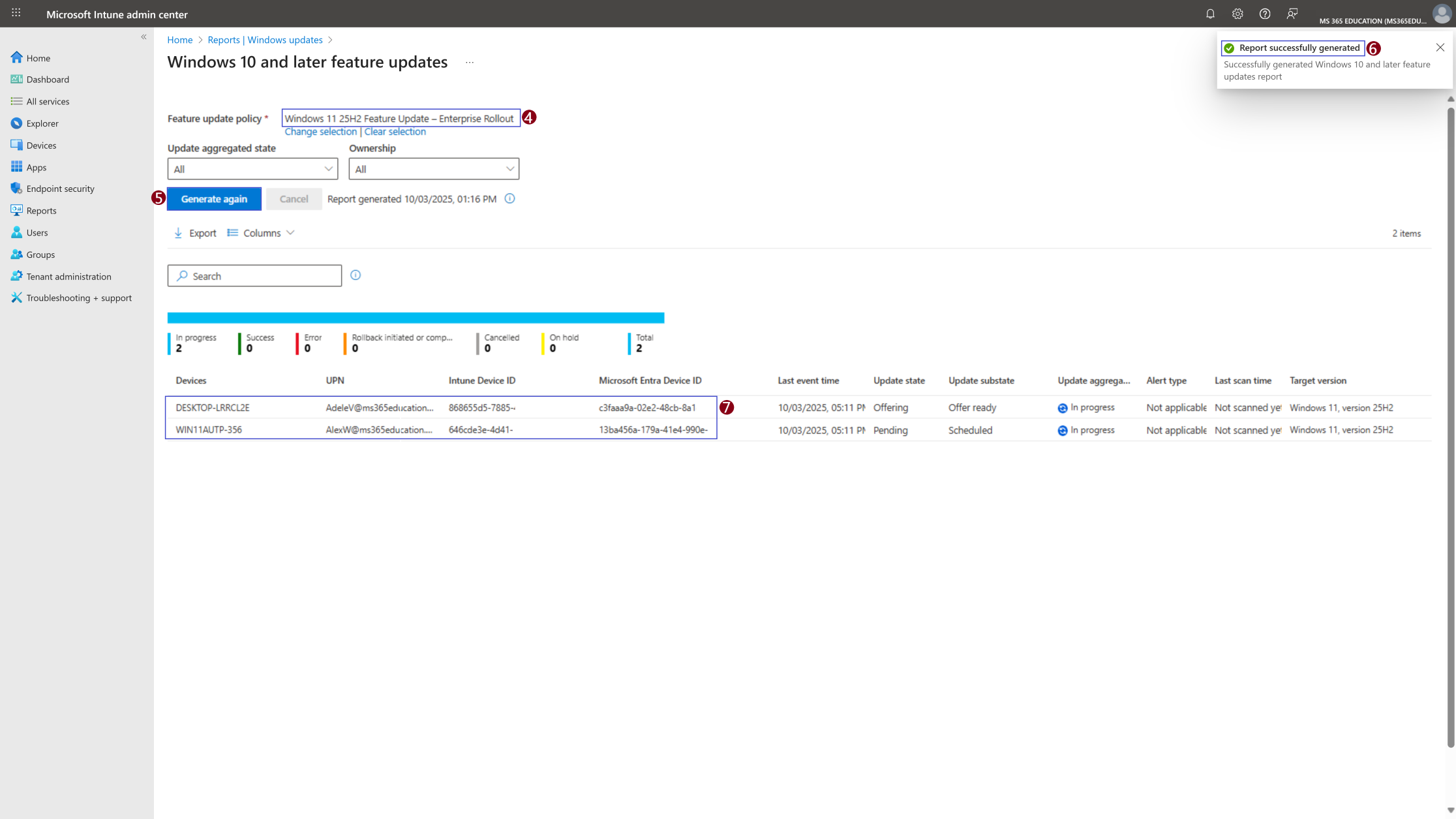
Update state (e.g., In progress, Offer ready, Scheduled)
Target version (Windows 11, version 25H2)
Last event time
Device ID and UPN
Additionally, the top bar provides an aggregated view of deployment results:
🔄 In progress
✅ Success
❌ Error
↩️ Rollback initiated/completed
🛑 Cancelled
⏸️ On hold
This visibility helps IT admins quickly identify issues, monitor adoption, and confirm that the Windows 11 25H2 rollout is progressing smoothly across the environment.
End User Experience – Windows 11 25H2 Upgrade Deployment
After deploying the Windows 11 25H2 Feature Update Policy, it’s essential to validate the end-user experience to confirm that the rollout is functioning as expected. This ensures that not only is the policy applied, but that users can see and interact with the upgrade option seamlessly.
👨💻 What the User Sees
Log in to a device that has been targeted by the policy.
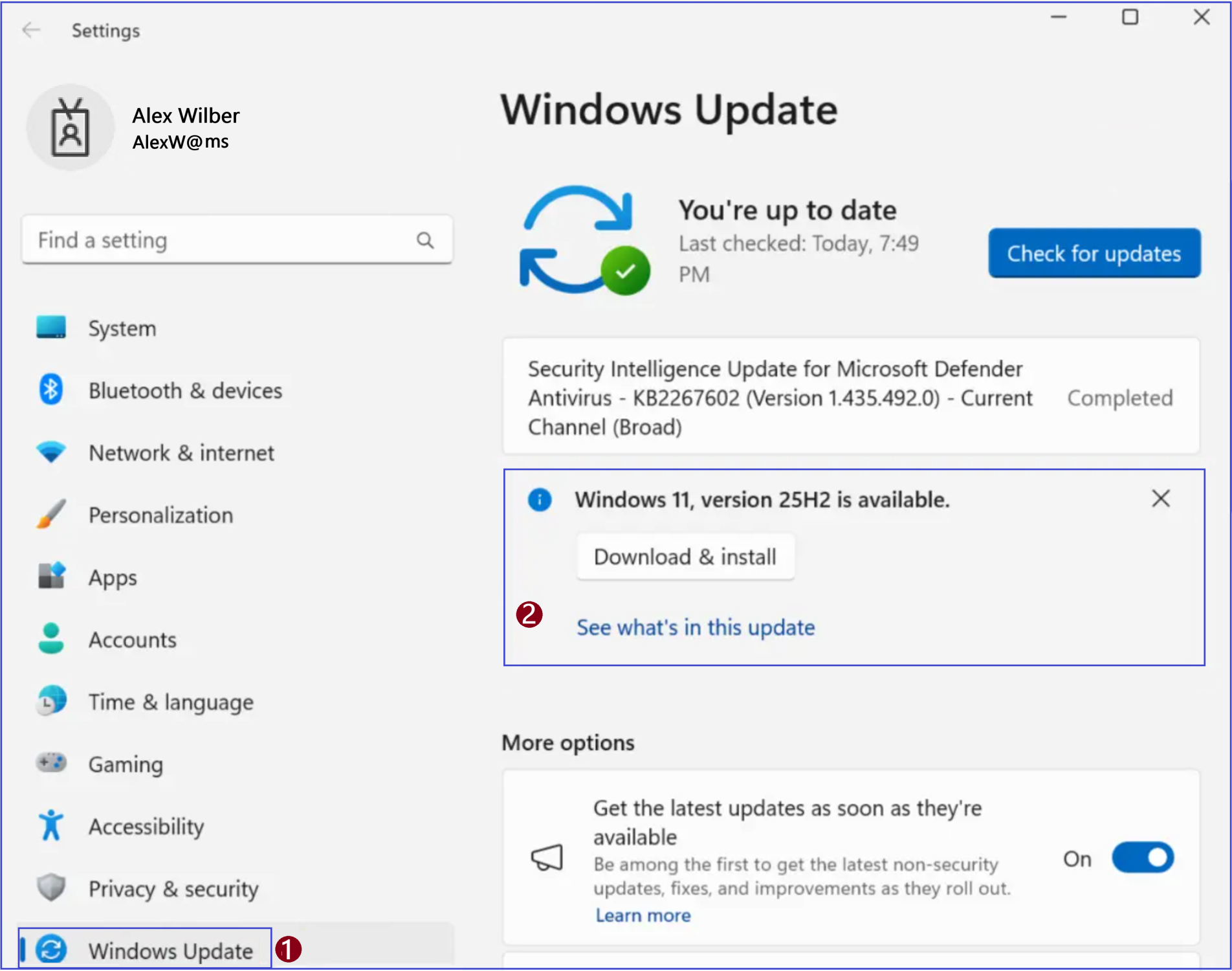
Click on the Search icon and go to: Settings > Windows Update.
Under Windows Update, you will now see “Windows 11, version 25H2 is available.”
Users can simply select Download & Install to begin the upgrade process.
✨ Why This Matters
This validation step is crucial because it:
Confirms that the Intune policy is reaching end devices correctly.
Provides users with a controlled, self-service option to start the upgrade at their convenience.
Ensures IT admins maintain consistency and visibility, while giving end users a smooth and familiar upgrade experience.
🔍 More Information
Feature updates for Windows 10 and later – Intune Microsoft Learn documentation on how to create and manage Feature Update policies in Intune. 👉 https://learn.microsoft.com/en-us/mem/intune/protect/windows-10-feature-updates
Manage Windows Updates for Business with Intune Step-by-step Microsoft Learn guide for configuring Windows Update for Business policies in Intune. 👉 https://learn.microsoft.com/en-us/mem/intune/protect/windows-update-for-business-configure
Policy CSP – Update (Windows Updates for Business) Complete reference for all Windows Update CSP policies used to manage update behavior on Windows devices. 👉 https://learn.microsoft.com/en-us/windows/client-management/mdm/policy-csp-update
Windows release health – Windows 11, version 25H2 Microsoft’s official status page for Windows 11 25H2, including rollout details, known issues, and availability. 👉 https://learn.microsoft.com/en-us/windows/release-health/status-windows-11-25h2
Thank you!
🖥️ Ricardo Barbosa
🎖️ Microsoft MVP | 📘 Microsoft Certified Trainer (MCT)
☁️ Intune & Cloud Architect |💼 Technology Director at Altelix.com
