

Seamless Deployment of SQL Server Management Studio (SSMS) with Microsoft Intune
Deploying SQL Server Management Studio (SSMS) through Microsoft Intune is a game-changer for IT administrators looking to streamline application distribution across enterprise environments. By leveraging Intune's Win32 app deployment, organizations can ensure a smooth, automated rollout of this essential database management tool.
This guide will walk you through the complete process—from preparing the SSMS installer to configuring deployment settings that guarantee a seamless installation experience. The deployment starts by converting the SSMS installer into a .intunewin package using the Microsoft Win32 Content Prep Tool, ensuring compatibility with Intune's app distribution framework.
By defining detection rules and dependencies, IT administrators can enforce targeted deployments, ensuring that SSMS is installed only on the required devices. Custom detection methods help verify installation success, enabling Intune to monitor deployment status and maintain compliance across managed endpoints.
Beyond deployment, Intune offers advanced management capabilities, such as conditional access enforcement, compliance monitoring, and automated updates. By packaging newer SSMS versions as Win32 apps, organizations can centrally manage updates, eliminating manual intervention while ensuring consistency across their IT infrastructure.
With Microsoft Intune, deploying and managing SQL Server Management Studio becomes effortless, enhancing security, compliance, and operational efficiency for IT teams.
Download SQL Server Management Studio (SSMS) from the Official Microsoft Site
Before deploying SQL Server Management Studio (SSMS) via Microsoft Intune, you need to obtain the latest version of the installer.
Start by downloading SSMS version 20.2.30.0 directly from the official Microsoft site using the following link: Download SSMS.
In this guide, we will walk through the process of packaging SSMS as a Win32 app for seamless deployment through Microsoft Intune, ensuring efficient distribution across your enterprise environment.
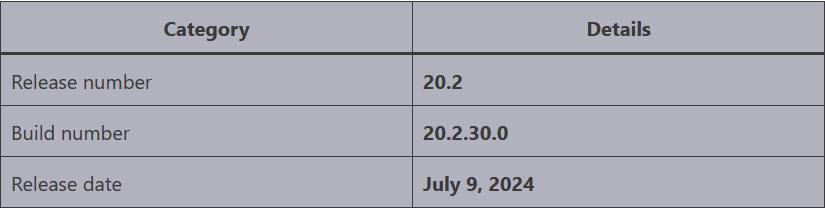
Repackaging SQL Server Management Studio (SSMS) for Intune Deployment
To deploy SQL Server Management Studio (SSMS) as a Win32 app via Microsoft Intune, the installation file (SSMS-Setup-ENU.exe) must be converted into a .intunewin package. This is done using the Microsoft Win32 Content Prep Tool, which ensures compatibility with Intune’s app deployment framework.
Step 1: Download the Win32 Content Prep Tool
If you haven’t already, download the Microsoft Win32 Content Prep Tool from its official GitHub repository. This tool is essential for repackaging SSMS into the required .intunewin format.
Step 2: Convert SSMS Installer to .intunewin Format
Open a Command Prompt (Admin) and run IntuneWinAppUtil.exe, providing the following inputs when prompted:
Source Folder: The directory where you downloaded and stored the SSMS-Setup-ENU.exe file.
Setup File: Enter the exact file name: SSMS-Setup-ENU.exe.
Output Folder: Specify the location where the converted .intunewin package will be saved.
Catalog Folder (Y/N)? Type N.
Once the process completes, the SSMS-Setup-ENU.intunewin package will be ready for deployment via Microsoft Intune, ensuring a streamlined and automated installation across your organization.
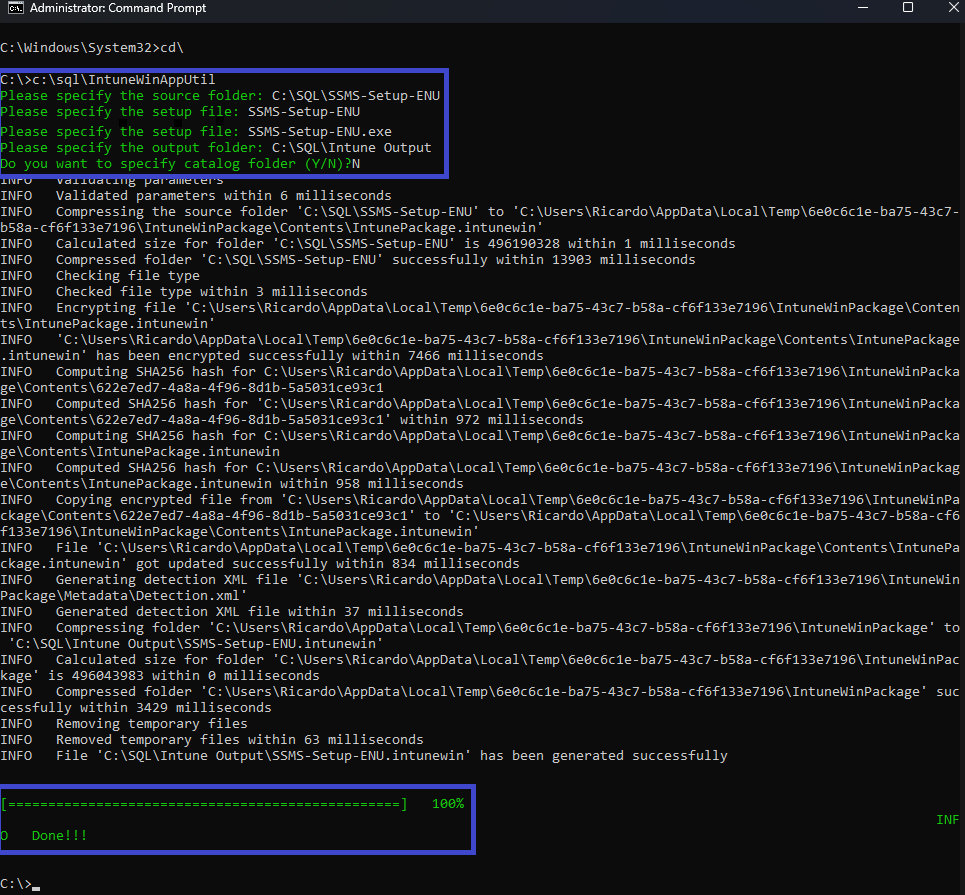
Once all the required details are entered, the tool will validate the inputs, process the package, and generate the .intunewin file in the specified output folder. This packaged application is now ready for deployment via Microsoft Intune, ensuring a seamless and automated installation experience.

Creating a Win32 App for SQL Server Management Studio (SSMS) v20.2.30.0 in Microsoft Intune
To deploy SQL Server Management Studio (SSMS) v20.2.30.0 via Microsoft Intune, follow these steps to create a Win32 app:
Step 1: Sign In to Microsoft Intune
Go to the Microsoft Intune Admin Center.
Sign in using your administrator credentials.
Step 2: Navigate to the Apps Section
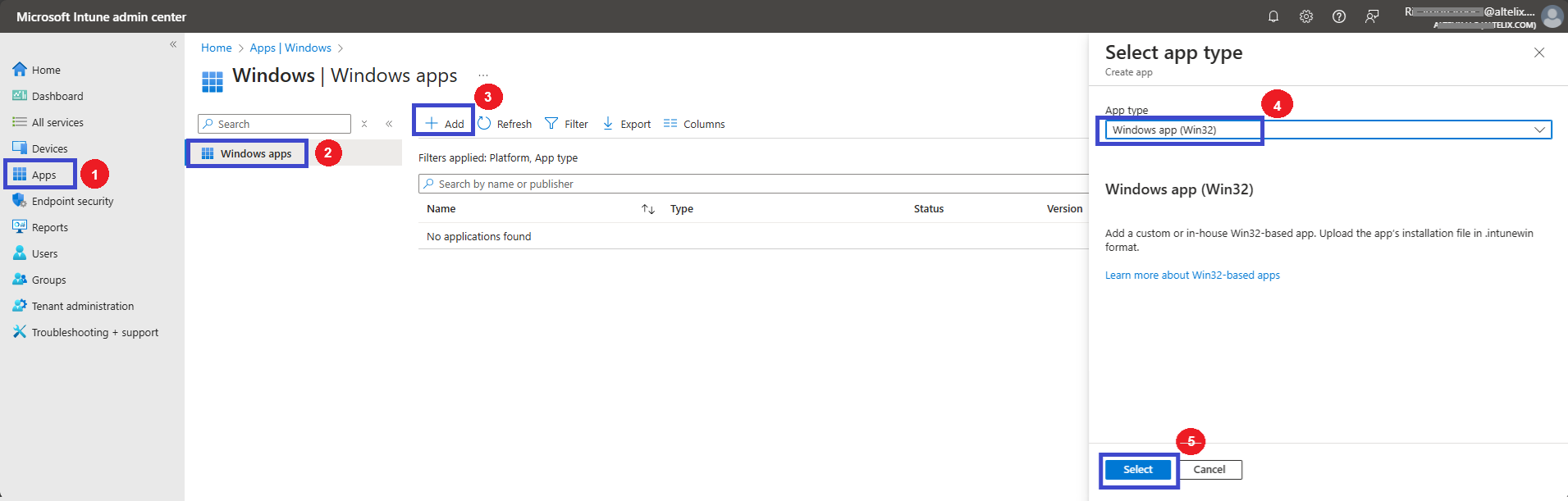
In the left-hand menu, select Apps.
Click Windows.
Click + Add to create a new application.
Step 3: Select the App Type
In the Select app type window, locate the App type drop-down menu.
Choose Windows app (Win32).
Click Select to proceed.
Next, you'll configure the application package by uploading the SSMS .intunewin file and defining its installation parameters.
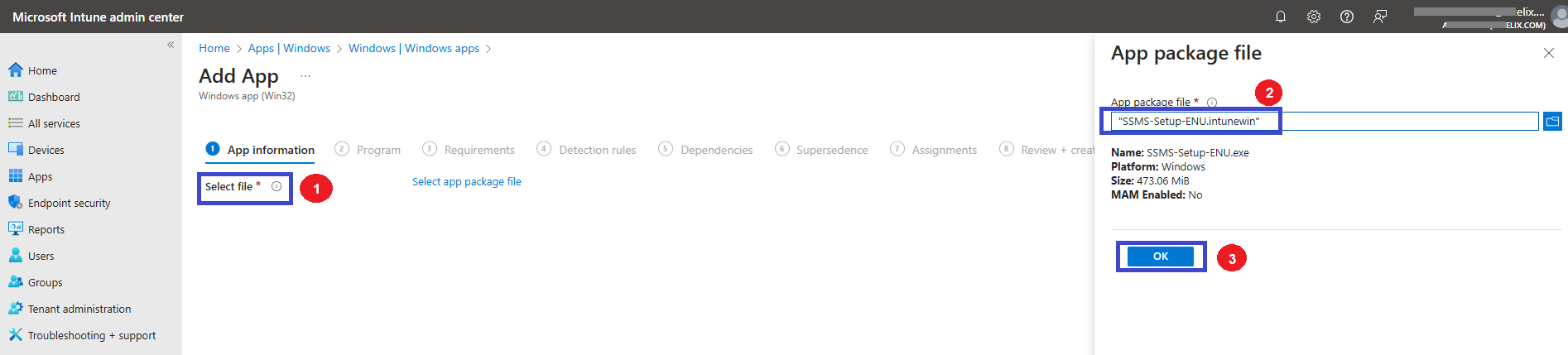
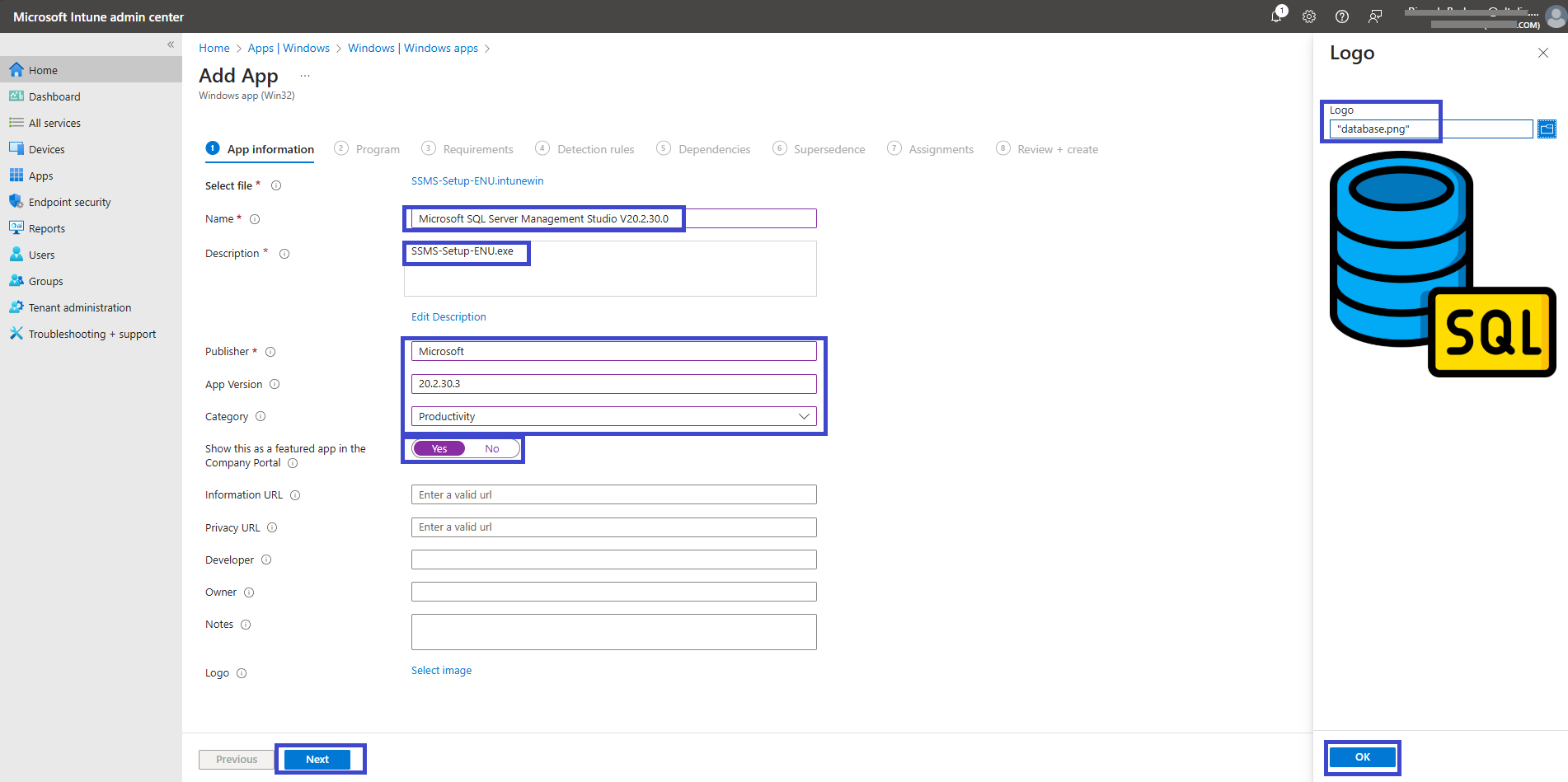
On the App information page, first, we have to select the “SSMS-Setup-ENU.intunewin” app package file, which was already created. Once you select the package, it will auto-populate the following information in Intune.
Name: SSMS-Setup-ENU.exe
Platform: Windows
Size: 473.06MiB
MAM Enabled: No
Step 4: Configure App Details
Now, customize the app details to ensure a clear and professional presentation in Microsoft Intune and the Company Portal:
Name: Enter a descriptive name, e.g., Microsoft SQL Server Management Studio v20.2.30.0.
Description: Provide a brief overview of the application.
Publisher: Enter Microsoft.
(Optional) Specify additional details such as:
App Version
Category (e.g., Developer Tools or Database Management)
Featured App: Check this option if you want SSMS to be highlighted in the Company Portal.
Logo: Upload an appropriate image for better visibility.
Once all details are entered, click Next to proceed.
Step 5: Configure Installation and Uninstallation Commands
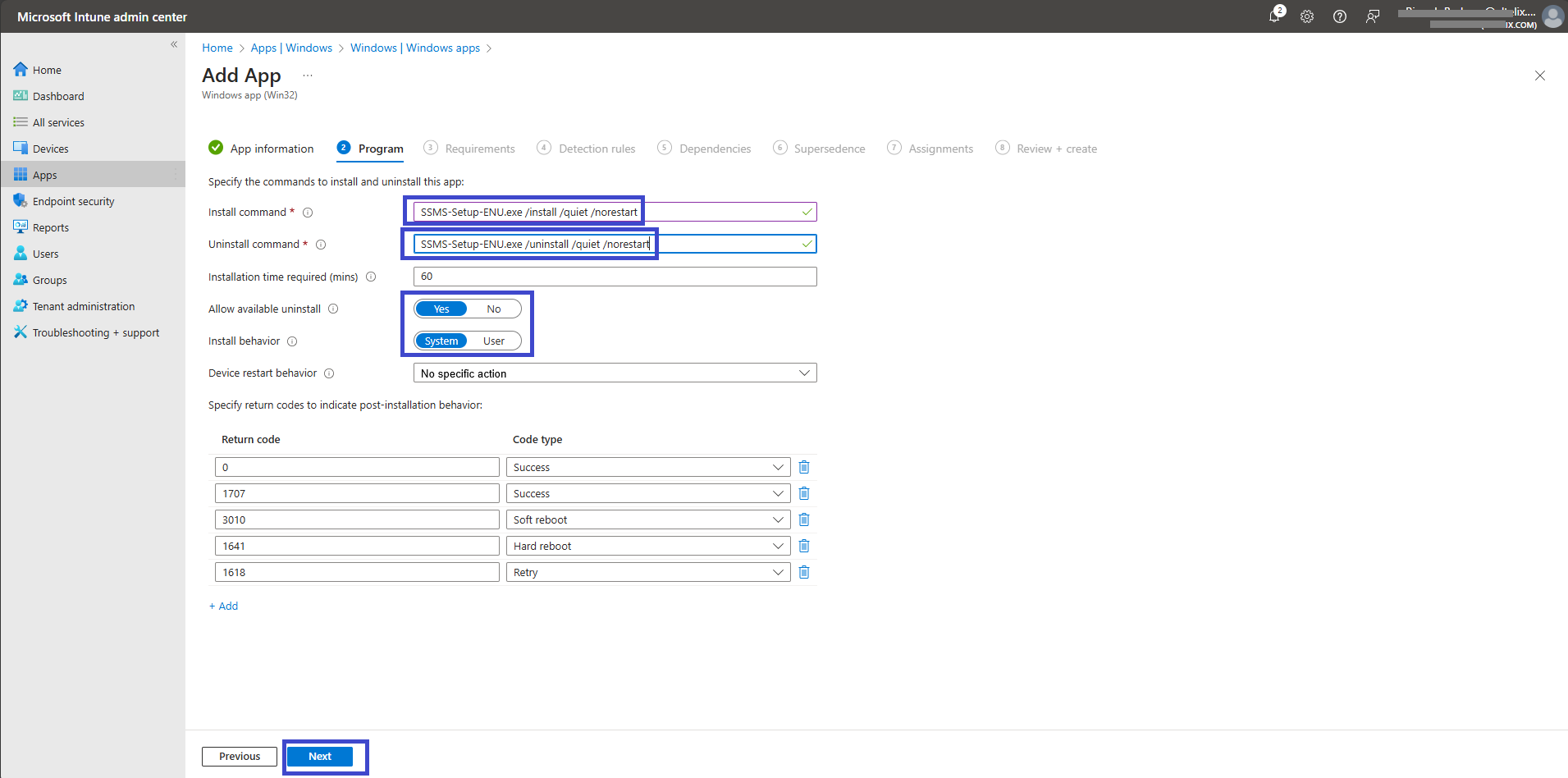
In the Program pane, enter the installation and uninstallation command lines for SQL Server Management Studio (SSMS) to ensure a silent deployment with no user interruptions.
Install Command: SSMS-Setup-ENU.exe /install /quiet /norestart
Uninstall Command: SSMS-Setup-ENU.exe /uninstall /quiet /norestart
These commands follow Microsoft's recommended syntax, which can be verified in the official SSMS documentation. Both fields are mandatory for the deployment.
Additionally, configure other optional settings as needed, such as:
Device restart behavior
Install behavior (user or system context)
Time-out settings
Once all configurations are set, click Next to proceed.
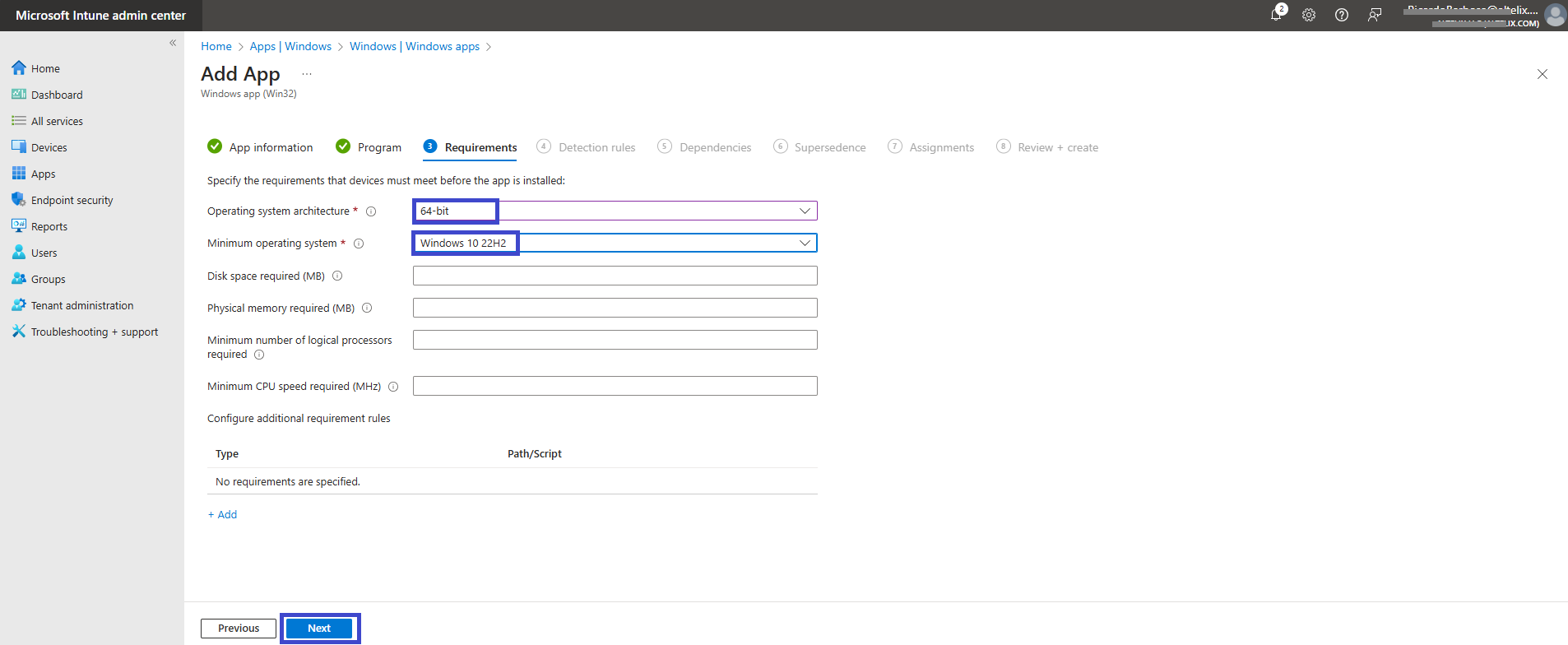
Operating system architecture: 64bit
Minimum operating system: Windows 10 22H2
Step 6: Configure Detection Rules for SSMS Installation
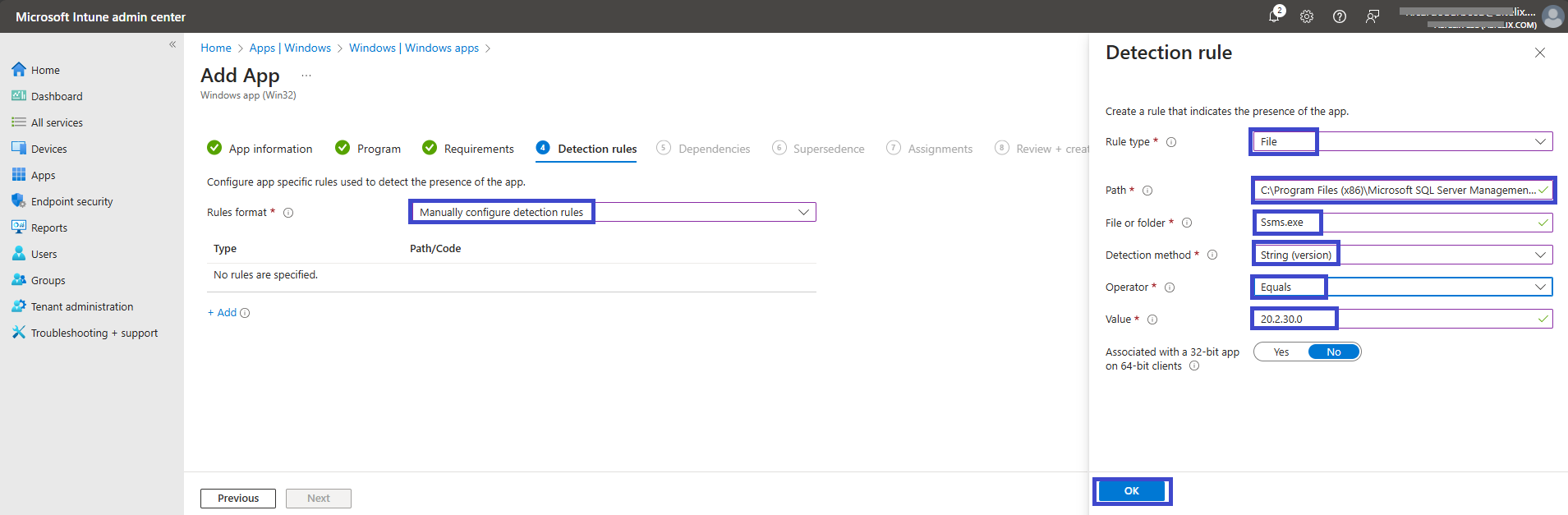
To ensure that Microsoft Intune correctly detects a successful installation of SQL Server Management Studio (SSMS), you need to configure a detection rule. This rule verifies the presence of SSMS on the device before marking the installation as complete.
Configure the Detection Rule
In the Rules format section, select Manually Configure Detection Rules from the dropdown menu.
Create a detection rule based on the presence of the SSMS executable file:
Rule Type: File
Path: C:\Program Files (x86)\Microsoft SQL Server Management Studio 20\Common7\IDE
File or Folder: Ssms.exe
Detection Method: String (Version)
Operator: Equals
Value: 20.2.30.0
Associated with a 32-bit app on 64-bit clients: No (Default)
This configuration ensures that Intune only confirms the installation as successful if the specified SSMS version is found in the designated directory.
Once the detection rule is set, click Next to proceed.
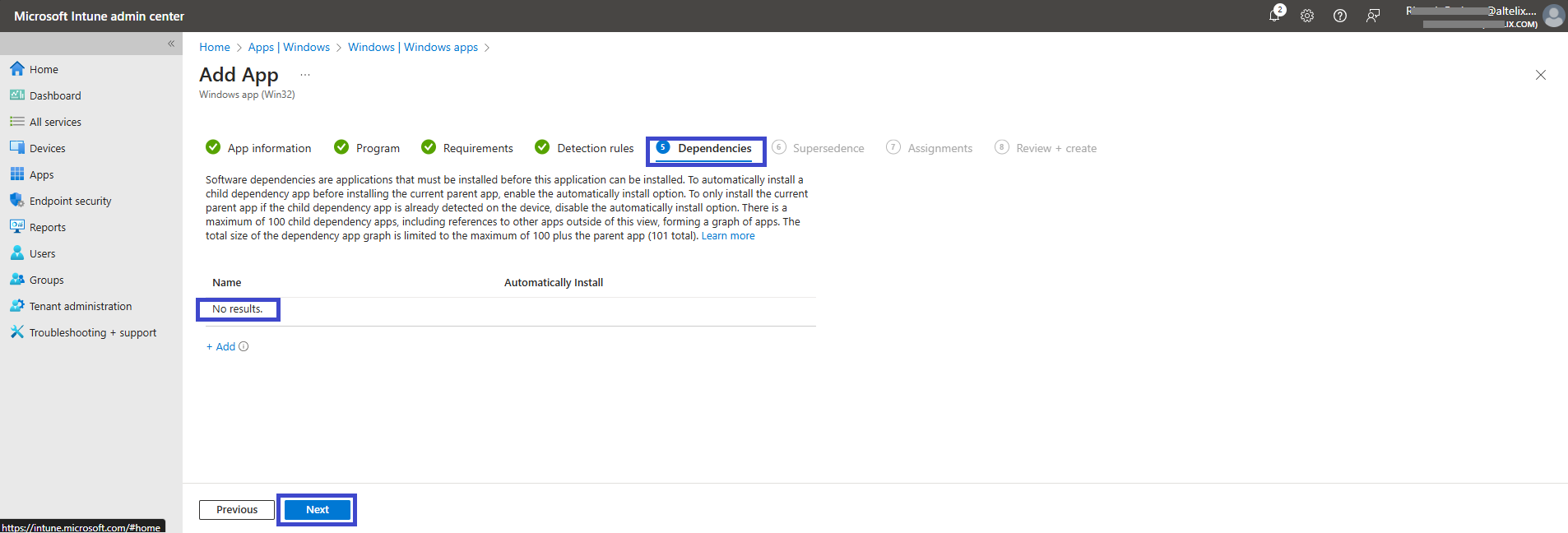
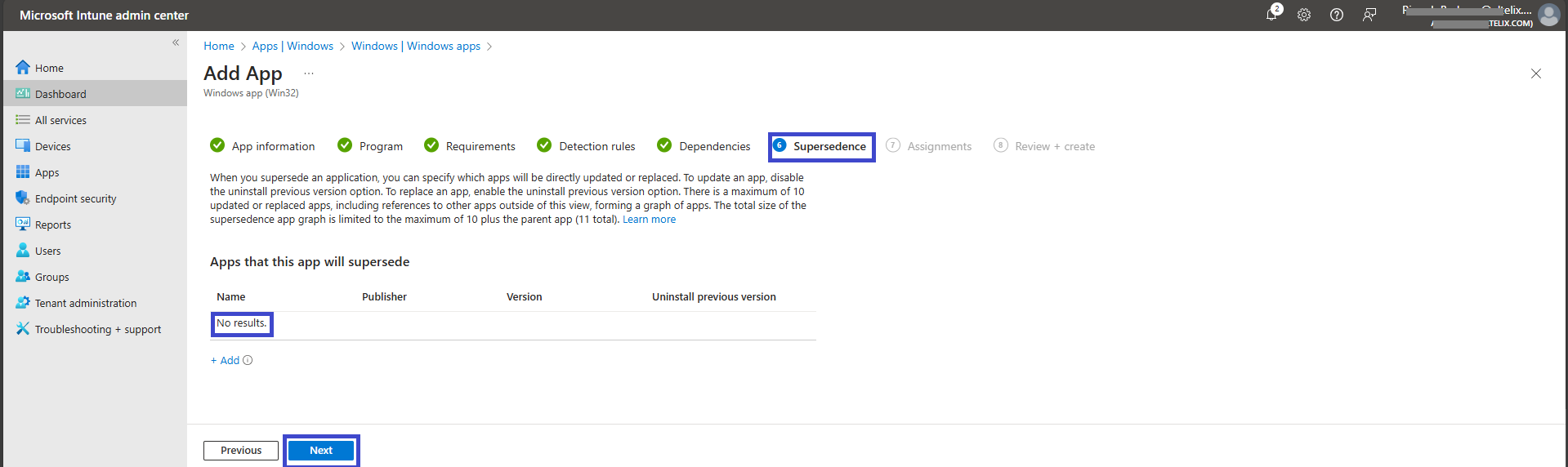
Step 7: Configure Dependencies and Supersedence (Optional)
Like SCCM, Microsoft Intune provides the ability to configure dependencies and supersedence for applications. These options allow you to define prerequisite applications and manage version upgrades efficiently.
However, in this case, we are not using these options. Simply leave the settings as they are and click Next to proceed.
On the next page, Leave the Scope tags as No scope tags. If your tenant has default or custom scope tags, you can select them based on your policy needs then Click on Next.
Step 8: Assign the Application to a Device Group
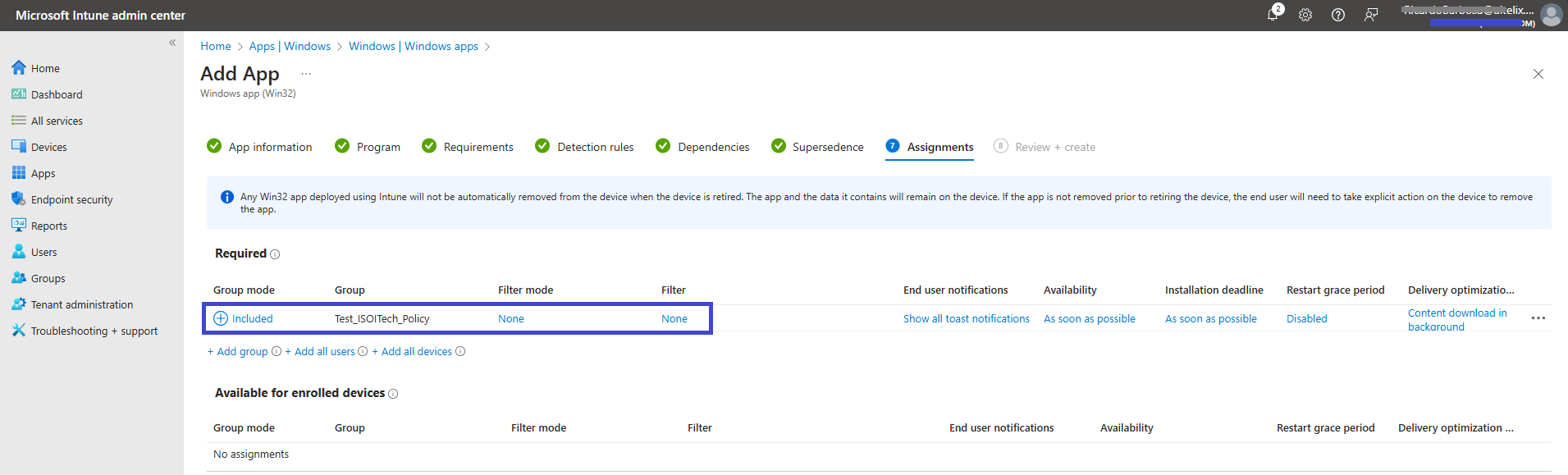
In this step, we will deploy the SQL Server Management Studio (SSMS) App to the Test_ISOTech_Policy device group.
Click Add Group.
Under the Included Groups section, select the Test_ISOTech_Policy device group as a Required deployment.
No Filters are being used in this example, but you can configure them if needed.
You can also explore other available deployment options based on your organization's requirements.
Once the assignment is configured, click Next to continue.
Step 9: Review and Deploy the Application
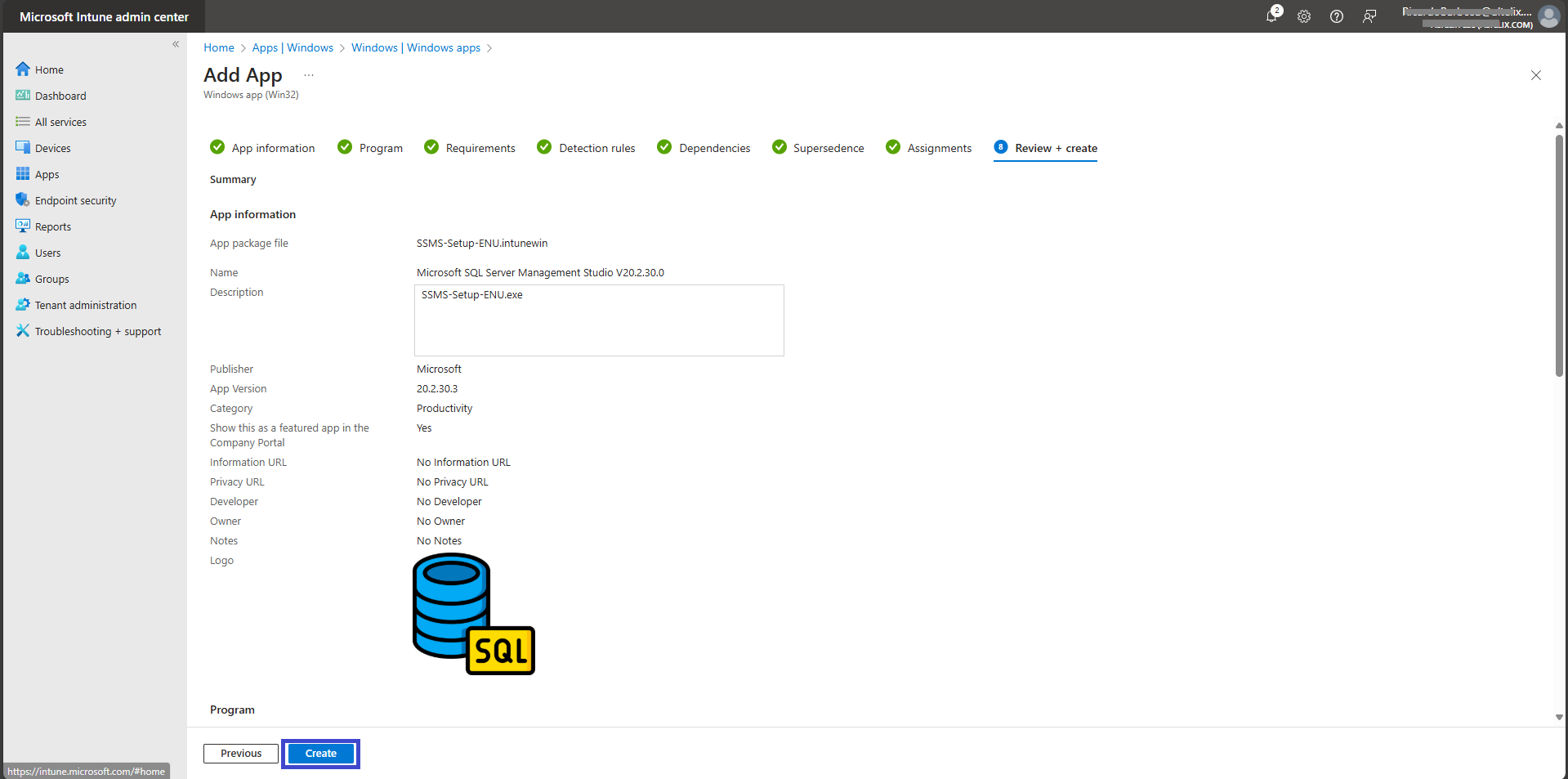
On the Review + Create page, carefully review all the settings configured for SQL Server Management Studio v20.2.30.0 to ensure accuracy. Verify the app details, installation parameters, detection rules, and assignment settings.
Once everything is confirmed, click Create to finalize the deployment and publish the Win32 application via Microsoft Intune.
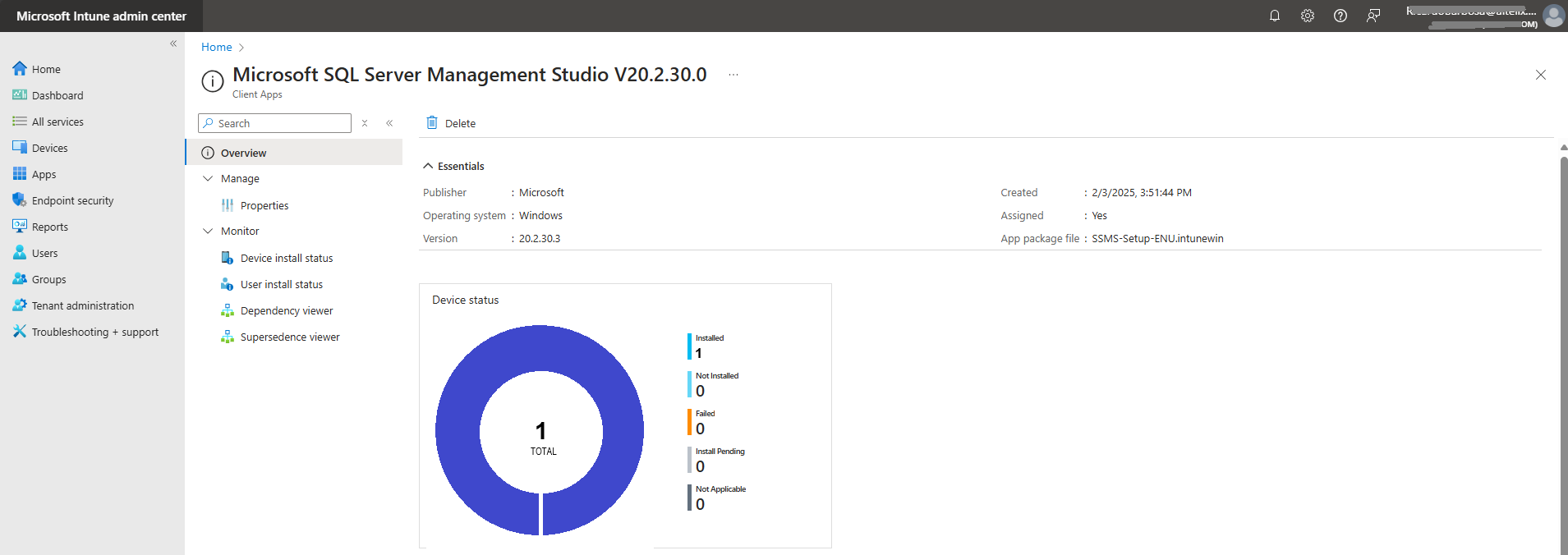
Step 10: Monitor the Deployment of SQL Server Management Studio
Once the Win32 app has been deployed to the Test_ISOTech_Policy device group, the installation will begin as soon as the assigned devices sync with Microsoft Intune.
To monitor the deployment status, follow these steps in the Intune Admin Center:
Navigate to Apps > Windows.
Use the search bar to find SQL Server Management Studio – v20.2.30.0 (Win32).
Click on the application to access its Overview page.
Under the Overview section, you can track the Device and User deployment statuses, including installation progress, success rates, and potential errors.
Regular monitoring ensures that the deployment runs smoothly and allows you to troubleshoot any installation issues proactively.
Step 11: End-User Experience – Verifying SSMS Deployment
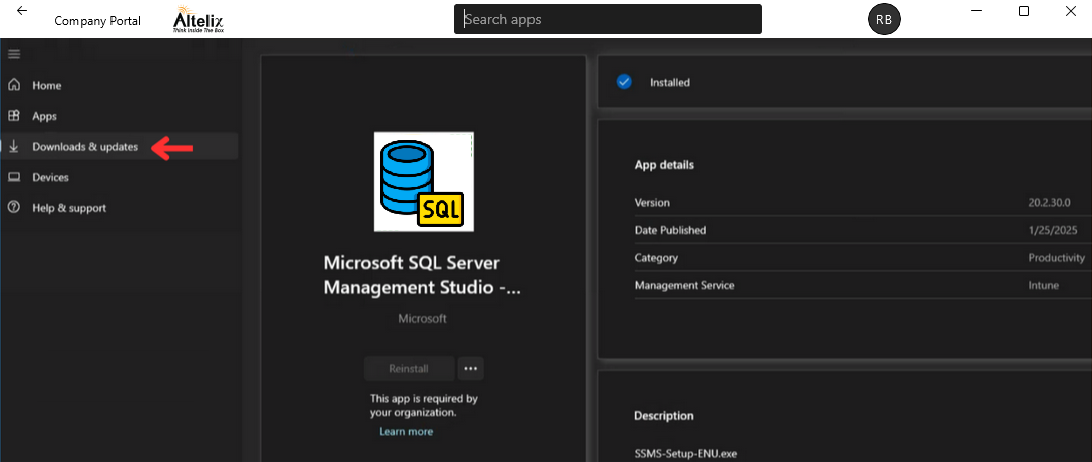
Since the SQL Server Management Studio (SSMS) deployment is set to Required, it will be automatically installed on all targeted devices.
To verify a successful installation, follow these steps on a deployed device:
Log in to one of the targeted devices.
Open the Company Portal application.
Navigate to Downloads & Updates.
Search for Microsoft SQL Server Management Studio – v20.2.30.0.
If the installation was successful, the app will appear as Installed, confirming that the deployment via Microsoft Intune was completed successfully.
More Information
For additional guidance on deploying SQL Server Management Studio (SSMS) via Microsoft Intune, refer to the following resources on Microsoft Learn:
These resources provide step-by-step instructions, best practices, and troubleshooting tips for effectively deploying and managing Win32 applications like SSMS in Microsoft Intune.
Thank you!
🖥️ Ricardo Barbosa
📘 MCT Microsoft Certified Trainer | ☁️ Cloud Architect
🌐 Technology Director - https://altelix.com
