

Introduction
Welcome to this guide on how to schedule a reboot using Microsoft Intune — a simple but powerful way to maintain device health across your organization.
Keeping devices running smoothly is essential for both productivity and security. Often, a simple reboot can resolve performance issues, complete software installations, or apply critical updates. However, manually rebooting devices across a large, distributed workforce — especially in hybrid or remote environments — is inefficient and disruptive.
That’s where Microsoft Intune comes in. With Intune, you can automate reboots for managed devices, ensuring they occur at the right time with minimal impact on end users.
In this article, I’ll walk you through the why and how of scheduling reboots through Intune, so your devices stay compliant, secure, and optimized.
Table of Contents
Why Schedule Device Reboots?
How to Schedule a Reboot with Microsoft Intune
Conclusion
Why Schedule Device Reboots?
Regular reboots are more than just good IT hygiene — they’re critical for maintaining security, stability, and performance. Here's why scheduling reboots with Intune is so effective:
🔄 Completes critical updates that require a restart to take effect.
🛡️ Applies security patches and configuration policies without delay.
🚀 Prevents performance degradation from extended uptime.
📅 Avoids user disruption by scheduling reboots outside of working hours.
✅ Ensures compliance in environments with strict IT governance.
By leveraging Intune, IT administrators can automate this process with precision — rebooting devices only when necessary, and always at the right time.
How to Schedule a Reboot with Microsoft Intune
In this section, we’ll walk you through the step-by-step process of scheduling a reboot on Windows devices using Microsoft Intune. We'll create a configuration profile and assign it to a group of users or devices.
Follow the steps below:
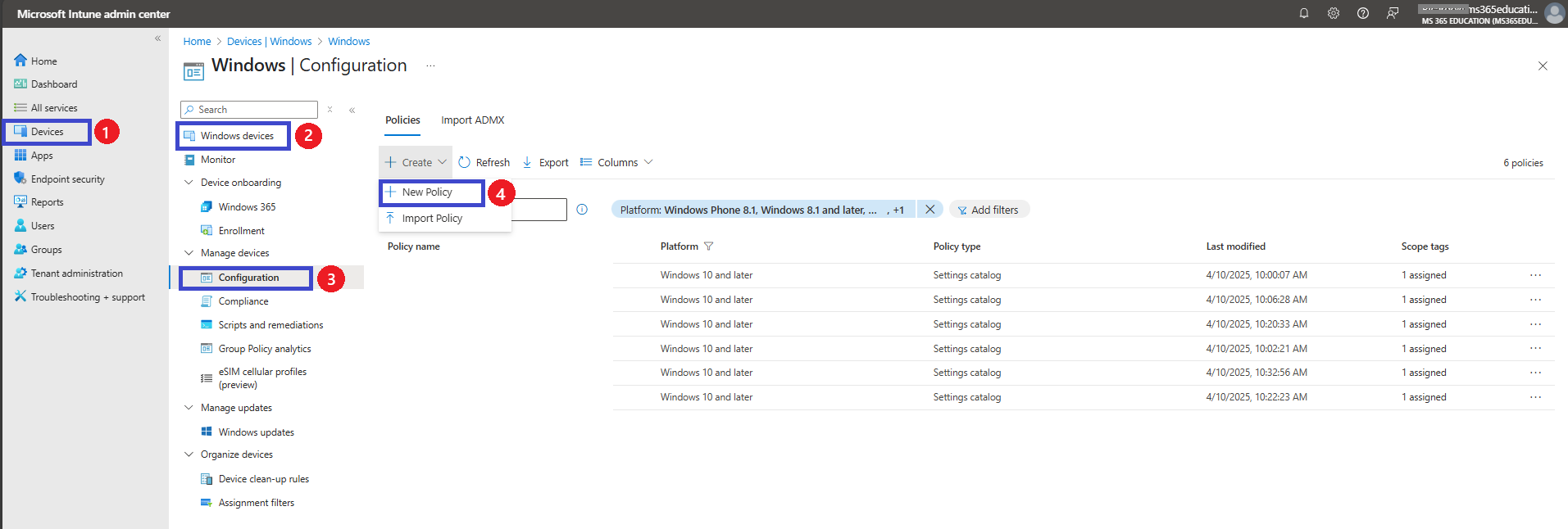
Go to Microsoft Intune admin center.
In the left-hand menu, click Devices.
Select Windows Devices.
Click on Configuration.
Policies New Policy.
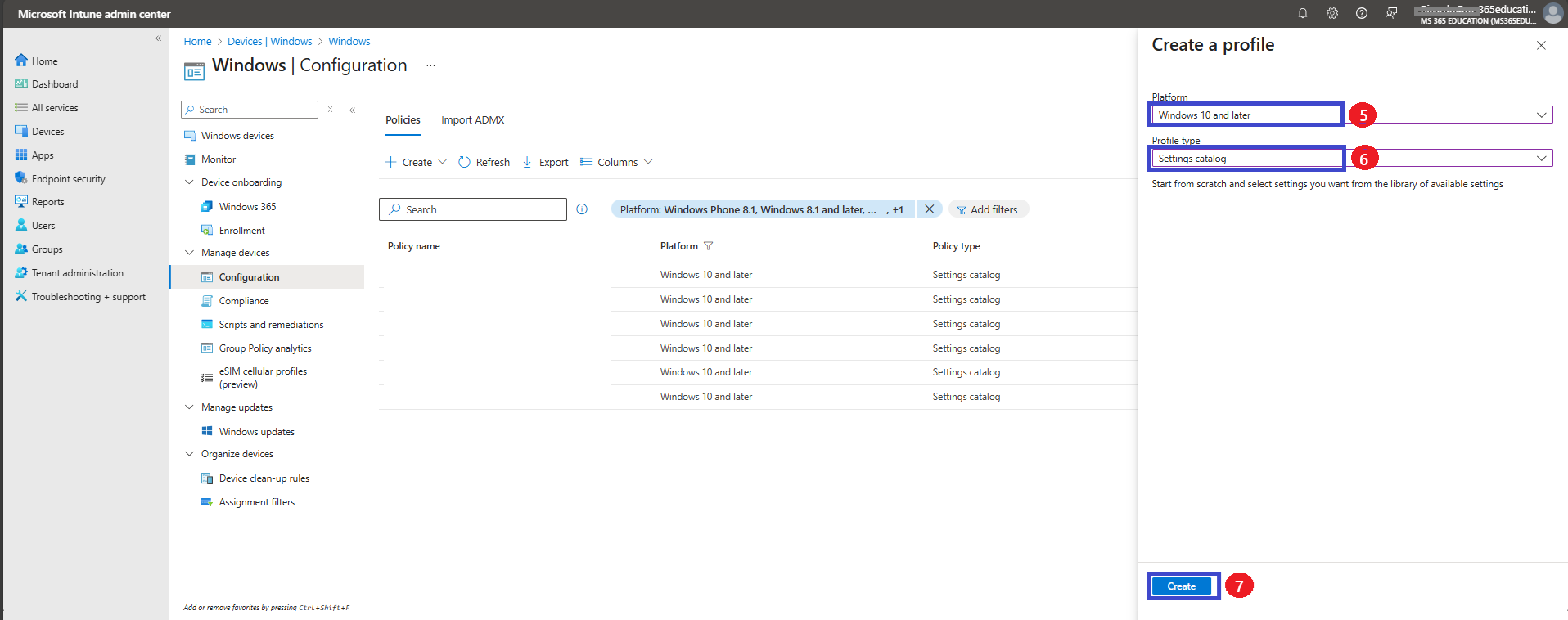
A new pane will open on the right side.
Under Platform, select Windows 10 and later.
Under Profile type, choose Settings catalog.
Click Create to begin configuring the policy.
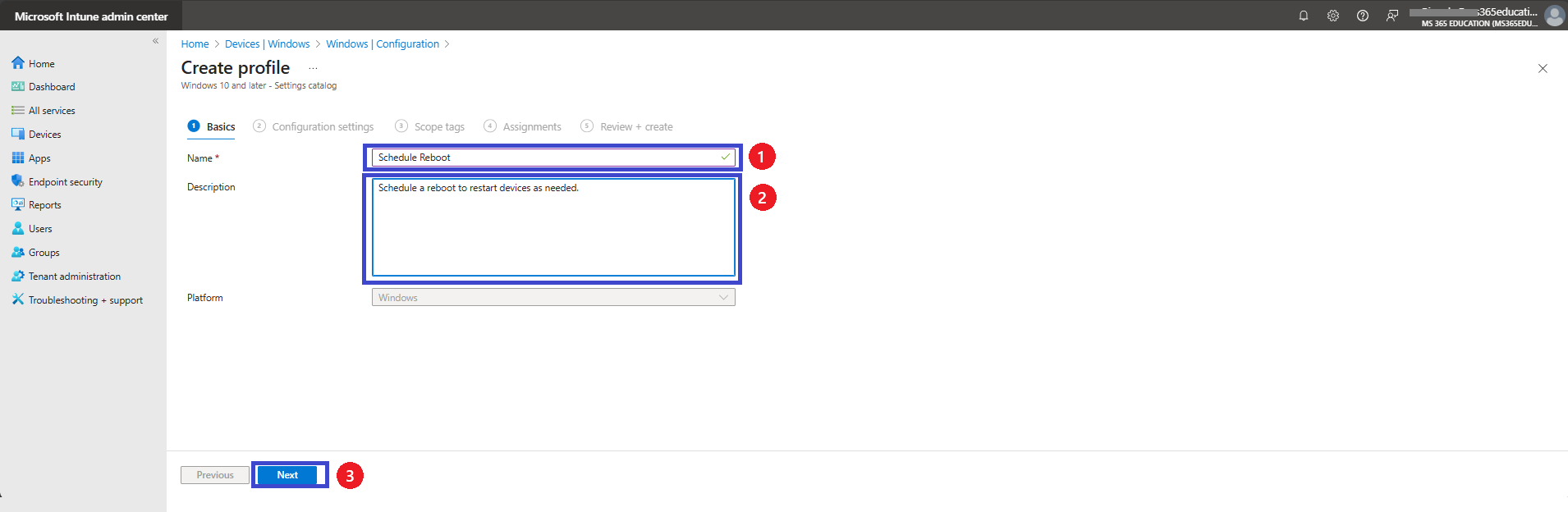
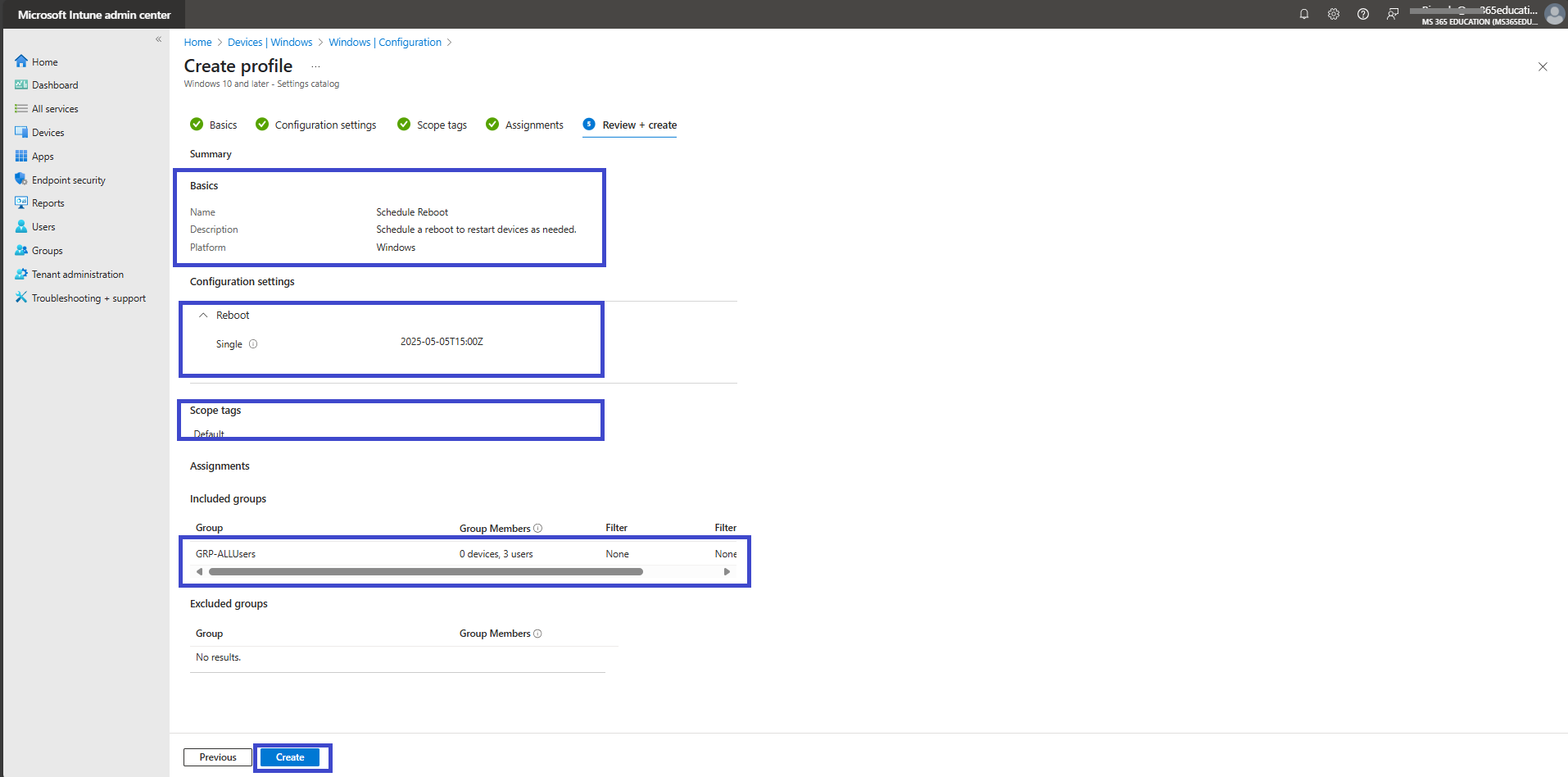
In this next step, we’ll name our policy and provide a description. A clear name and description help ensure easy identification and management in the future. Then, click Next to proceed.
Configure the Reboot Settings
Now that the profile is created, it’s time to define the reboot configuration:
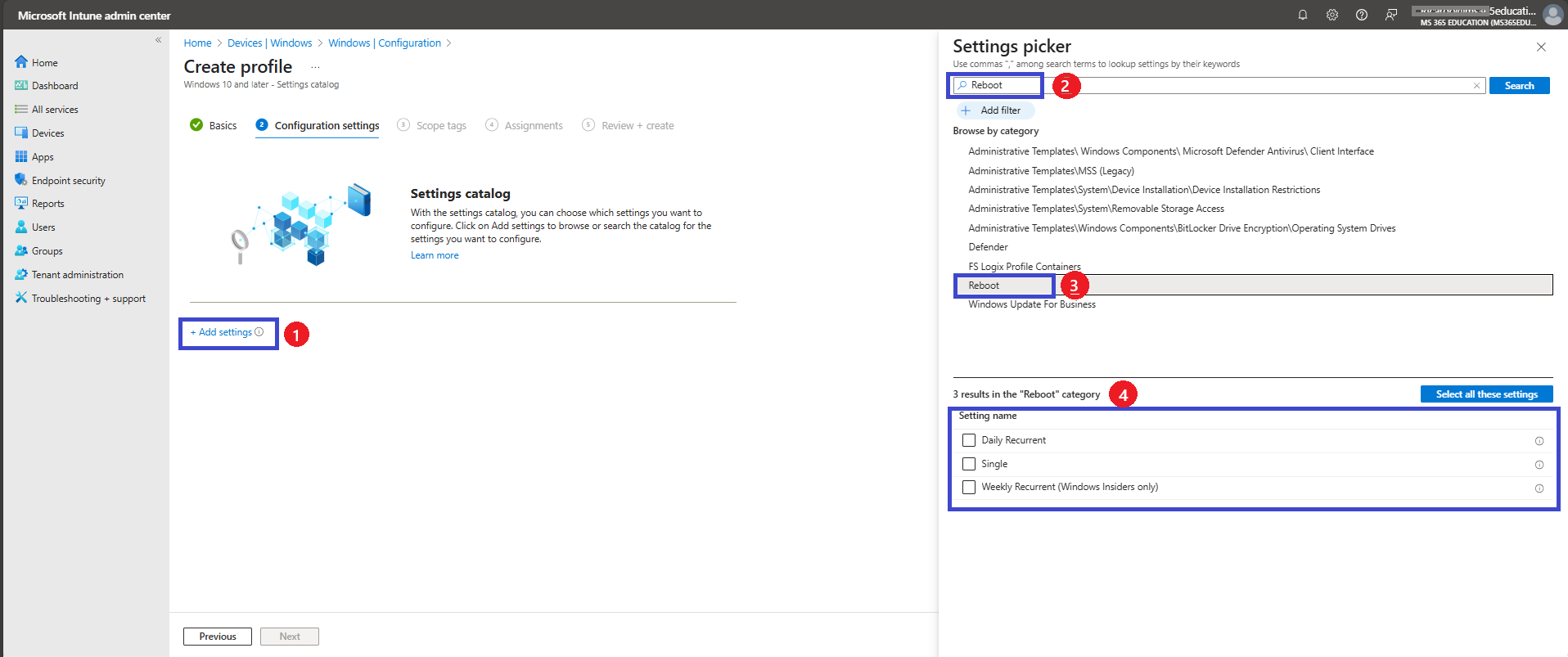
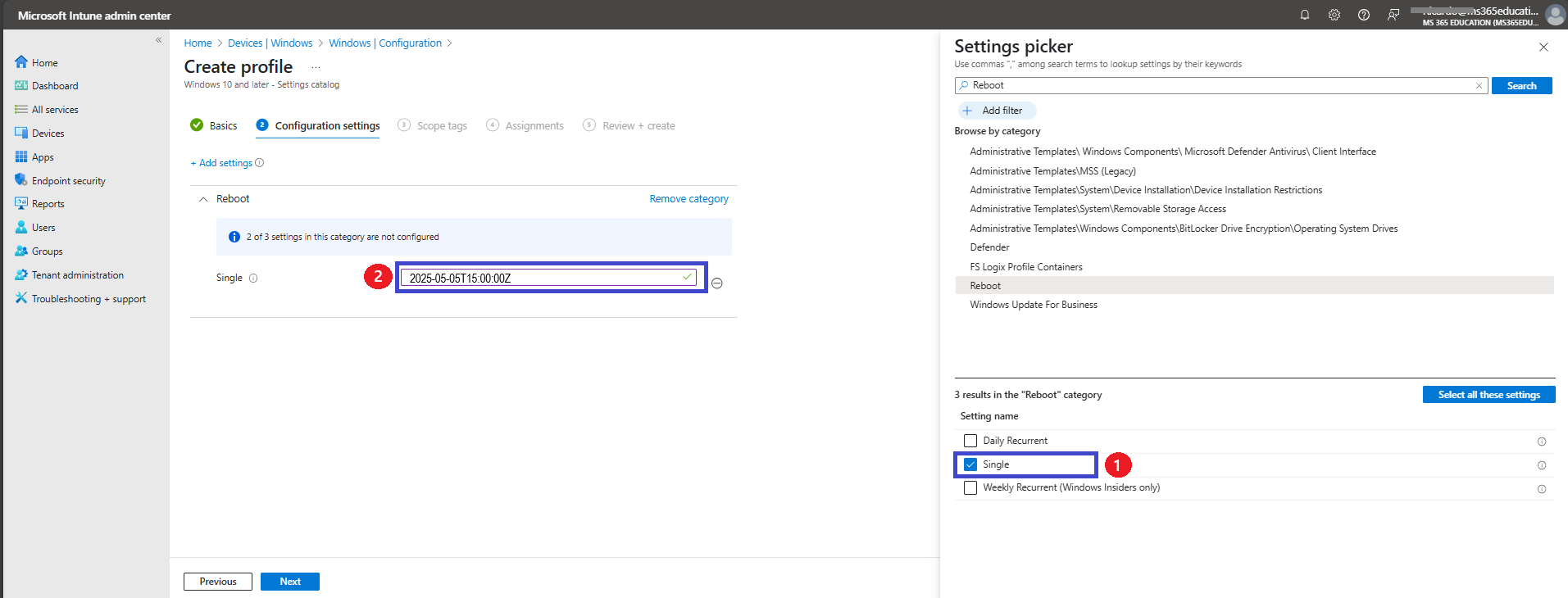
In the Configuration settings tab, click Add settings.
Use the search bar to find Reboot.
From the search results, select the Reboot category.
Choose the scheduling method that best suits your needs:
Daily Recurrent – Automatically reboots the device every day at the specified time, starting from the chosen date. If no date is entered, any existing schedule will be removed.
Single – Schedules a one-time reboot at a specific date and time. Leaving the date field blank cancels the schedule.
Weekly Recurrent – Reboots the device weekly on a selected day and time, beginning on the specified date. An empty date field removes the configured schedule.
These options give you flexibility to align reboots with maintenance windows, minimize user disruption, and ensure devices remain updated and stable. In our case, we’ll select the Single option so we can continue with the configuration in the next step.
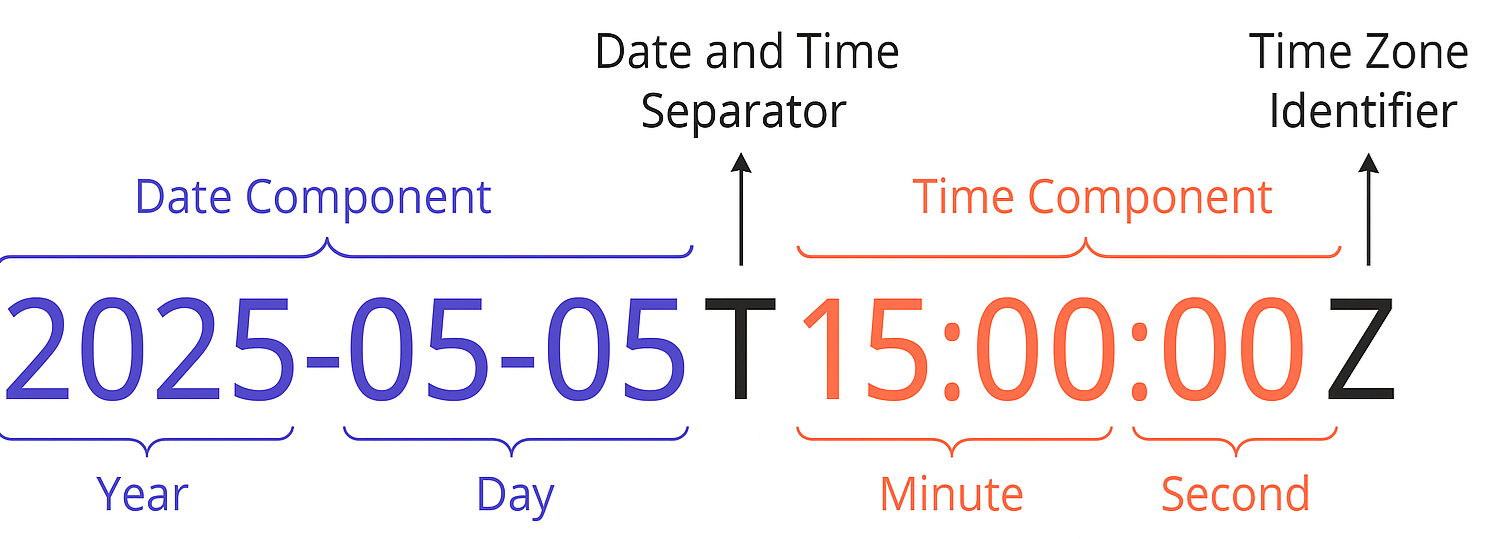
Once you’ve selected Daily Recurrent, Single, or Weekly Recurrent, the next step is to specify the exact date and time for the reboot. This must be entered using the ISO 8601 format, which follows the structure: YYYY-MM-DDTHH:MM:SSZ.
Example: 2025-05-05T15:00:00Z means May 5, 2025 at 3:00 PM UTC.
Make sure to adjust the time according to your time zone and reboot window preferences.
To help visualize the format, the image below provides an illustrated breakdown of how the ISO 8601 timestamp is structured. This format is required when setting the reboot schedule in Microsoft Intune:
Date Component: Year, month, and day
Time Component: Hour, minute, and second
T: Separator between date and time
Z: Indicates the time is in Coordinated Universal Time (UTC)
Example: 2025-05-05T15:00:00Z means May 5, 2025 at 3:00 PM UTC.
Use this format carefully to ensure your scheduled reboot occurs at the correct time.To help visualize the format, the image below provides an illustrated breakdown of how the ISO 8601 timestamp is structured. This format is required when setting the reboot schedule in Microsoft Intune:
Define Scope (if applicable)
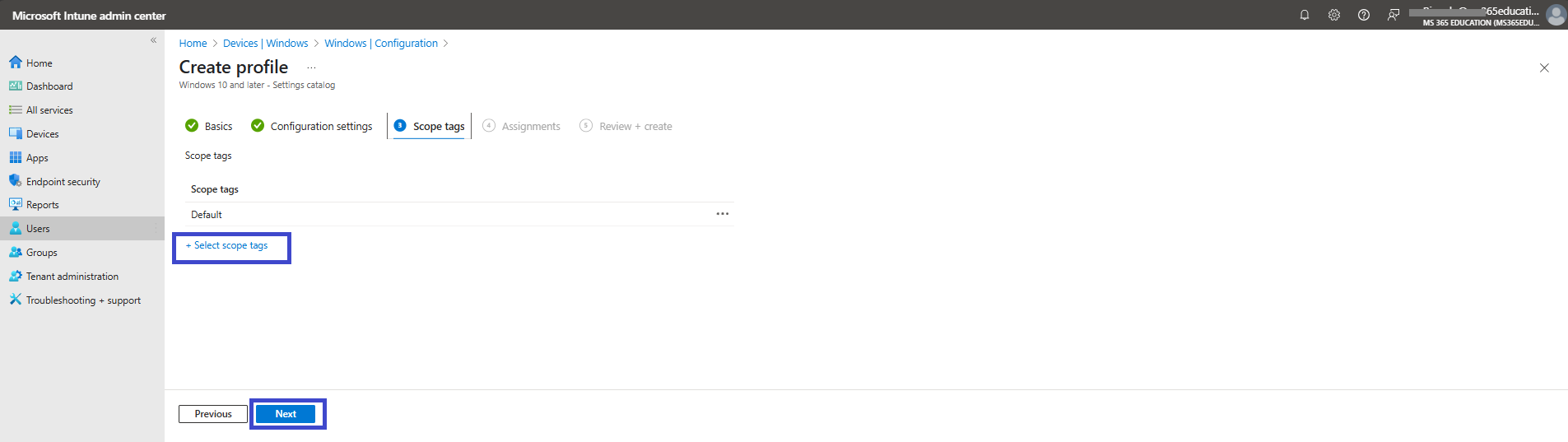
In this step, you can define scoping filters to target specific groups or conditions—this is useful in more complex environments where policies should only apply to a subset of devices or users. If you’re not using scoping filters, simply leave the default settings and click Next to proceed.
Assign the Policy
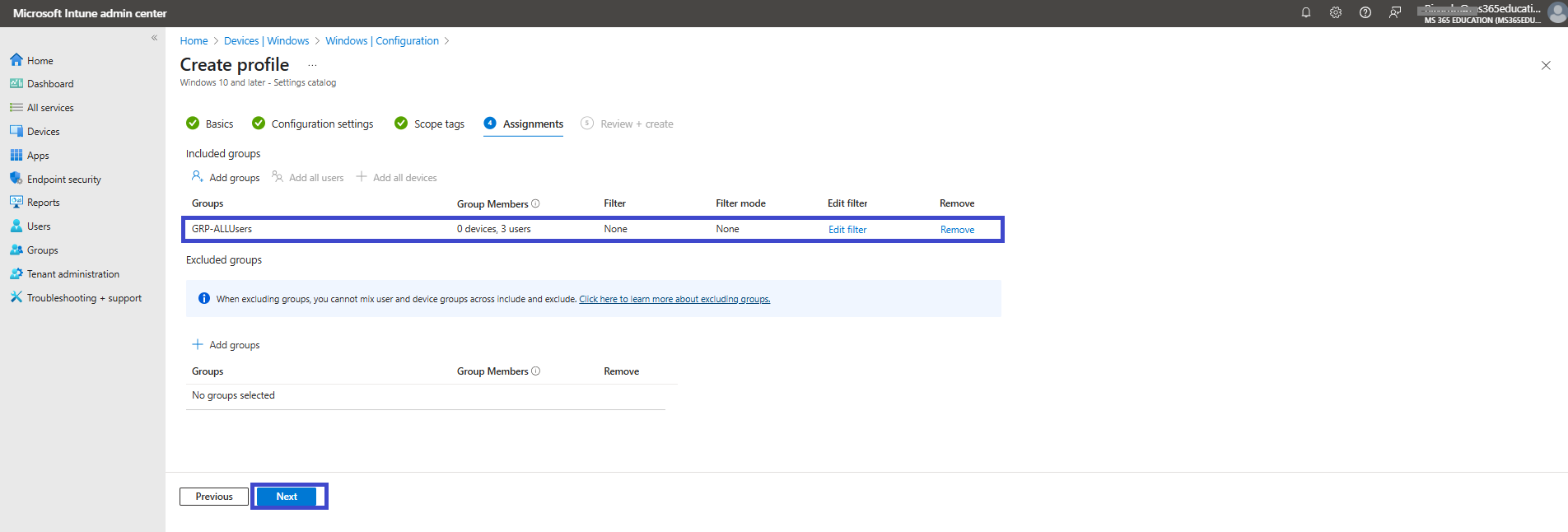
In the Assignments tab, choose who will receive this reboot policy. You can assign it to a specific group, or apply it broadly to All Users or All Devices, depending on your deployment strategy.
Once you've selected the appropriate target group, click Next to continue.
Review and Create
In the final step, review all the configurations you've made, including the platform, profile type, settings, scope, and assignments. If everything looks correct, click Create to deploy the policy. This will apply the scheduled reboot configuration to the assigned devices, ensuring they restart as planned without manual intervention.
Monitoring Status
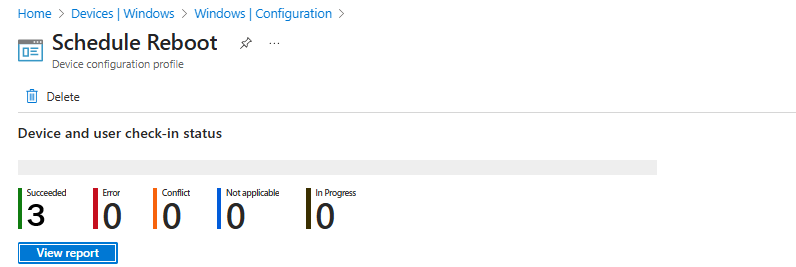
The Schedule Rebbot policy was successfully created. The Succeeded value displays 3, indicating that the creation process completed without any issues.
Refer to the screenshot below for additional details on this process and its successful implementation.
Conclusion
In this blog post, we explored how to schedule a reboot using Microsoft Intune. We walked through the process of creating a configuration profile, defining the reboot schedule—whether single, daily, or weekly—and assigning it to the appropriate groups.
We hope this guide has provided you with clear, practical steps to enhance your device management strategy and ensure a more stable and secure endpoint environment.
More Information
For additional guidance on configuring scheduled reboots for Windows devices using Microsoft Intune, refer to the following Microsoft Learn resources:
Reboot CSP (Configuration Service Provider) Provides details on how to configure scheduled reboots using Schedule/Single, Schedule/DailyRecurrent, and Schedule/WeeklyRecurrent.
Restart devices remotely in Intune Covers how to remotely restart managed Windows devices via the Intune admin center.
Manage device restarts after updates Explains how to handle restarts triggered by Windows updates, including scheduling logic.
Windows update settings you can manage with Intune Outlines update and restart policies that can be applied to Windows devices using Intune.
Configure update rings for Windows 10 and later policy in Intune Guides you through setting up update rings with reboot behavior and scheduling.
These resources provide comprehensive instructions for scheduling, managing, and optimizing reboot policies using Microsoft Intune.
Thank you!
🖥️ Ricardo Barbosa
📘 MCT Microsoft Certified Trainer | ☁️ Cloud Architect
🌐 Technology Director - https://altelix.com
