

You may have heard about the new generation of PCs hitting the market—Copilot+ PCs. These cutting-edge devices are defined by two key features:
A powerful NPU (Neural Processing Unit) capable of delivering over 40 TOPS (trillion operations per second).
A dedicated Copilot button integrated directly into the keyboard.
Of course, these devices also run Windows 11, ensuring seamless integration with Microsoft's AI-powered ecosystem.
The Evolution of Copilot+ PCs
As of now, most Copilot+ PCs we’ve seen are based on ARM architecture, but x86 models from AMD and Intel are just around the corner. Expect a broader range of devices soon!
The Copilot Button: More Than Just a Shortcut
One of the most talked-about features of these new PCs is the Copilot button. Initially, when the first devices launched, pressing this button would open the Microsoft Copilot app, designed primarily for consumer use. However, in corporate environments, this app was not ideal, as organizations require Microsoft 365 Copilot, which allows users to sign in with their work credentials for a fully integrated experience.
What’s Changing?
With the October 2024 updates, Microsoft has redefined how the Copilot button behaves, depending on how you sign into your device.
Another major shift is that the Copilot in Windows (preview) experience has been phased out. Now, depending on your authentication method, pressing the Copilot button will either launch:
Microsoft Copilot app (for consumer users).
Microsoft 365 Copilot (for corporate users).
The table below breaks down what happens when you press the Copilot button, based on your authentication method:
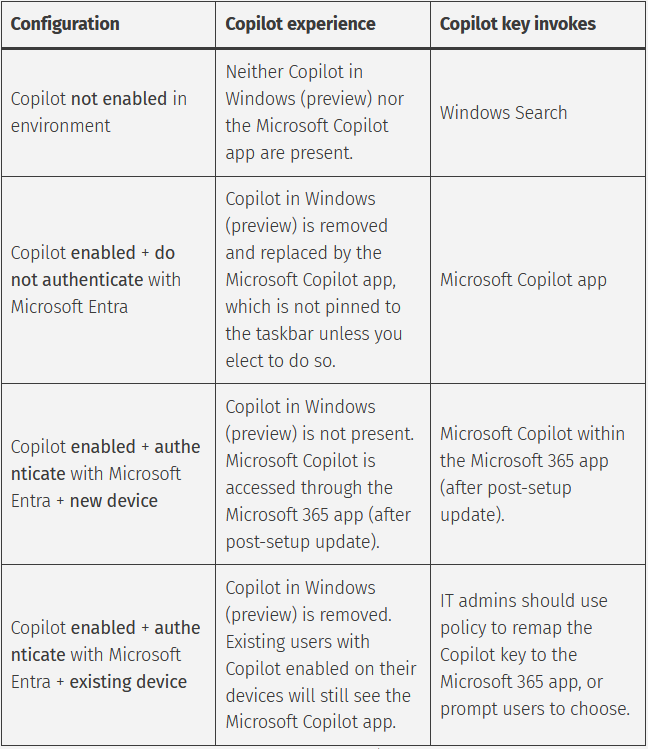
Ensuring Microsoft 365 Copilot Launches with the Copilot Button
In a corporate environment, our goal is to ensure that pressing the Copilot button launches the Microsoft 365 app, where Microsoft 365 Copilot is available. Let’s go through the different scenarios.
New Copilot+ PCs
If you're setting up a new Copilot+ PC (or resetting an existing one), the process is straightforward. Once the October 2024 monthly security update is installed, the Copilot button will automatically remap to the Microsoft 365 app, provided:
✔️ You're signed in with a Microsoft Entra account.
✔️ Copilot is enabled in your environment (it doesn’t have to be the $30/month version).
If Copilot is disabled, pressing the button will open Windows Search instead, as outlined in the table below.
Existing Copilot+ PCs
For Copilot+ PCs set up before the October 2024 update, admins need to take action. By default, these devices will still launch the Microsoft Copilot app. To ensure they use Microsoft 365 Copilot, you can:
🔹 Guide users to manually update their settings.
🔹 Deploy a configuration policy via GPO or Intune CSP.
With these steps, you can ensure a seamless Copilot experience across your organization!
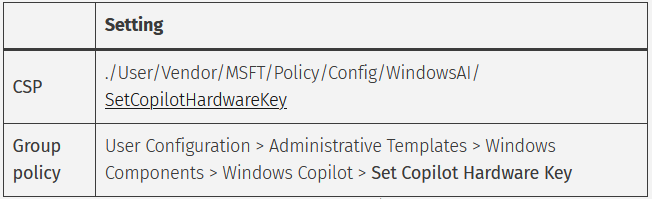
With the latest Microsoft Intune service release, you can now configure this using the Settings Catalog—a feature not yet reflected in the official Microsoft documentation.
How to Set It Up in Microsoft Intune (Updated with Settings Catalog Instructions)
Open the Microsoft Intune Admin Center.
Navigate to Devices > Windows > Configuration and create a new policy.
Select Windows 10 and later, then choose Settings Catalog.
Click "Create" to proceed.
Now, let's dive into the setup process!
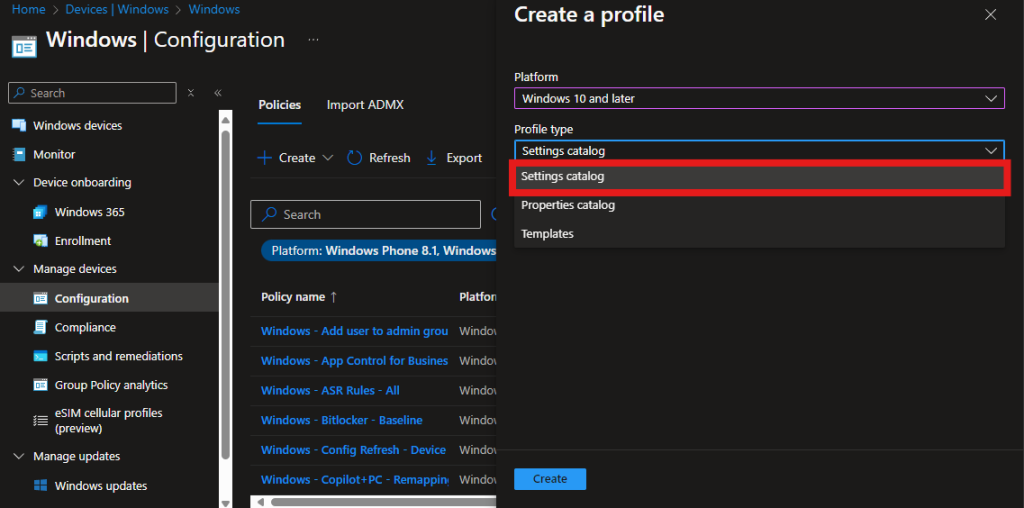
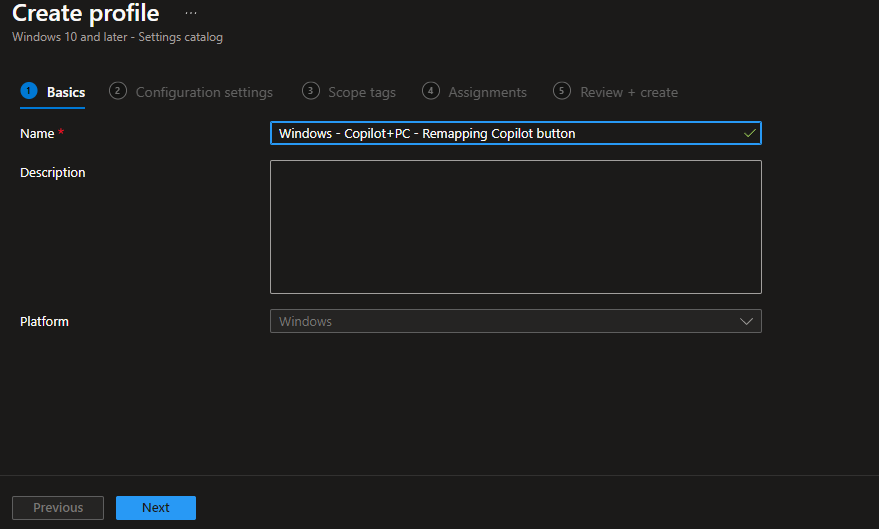
We start by giving the new profile a name which makes sense in our environment. Then click Next.
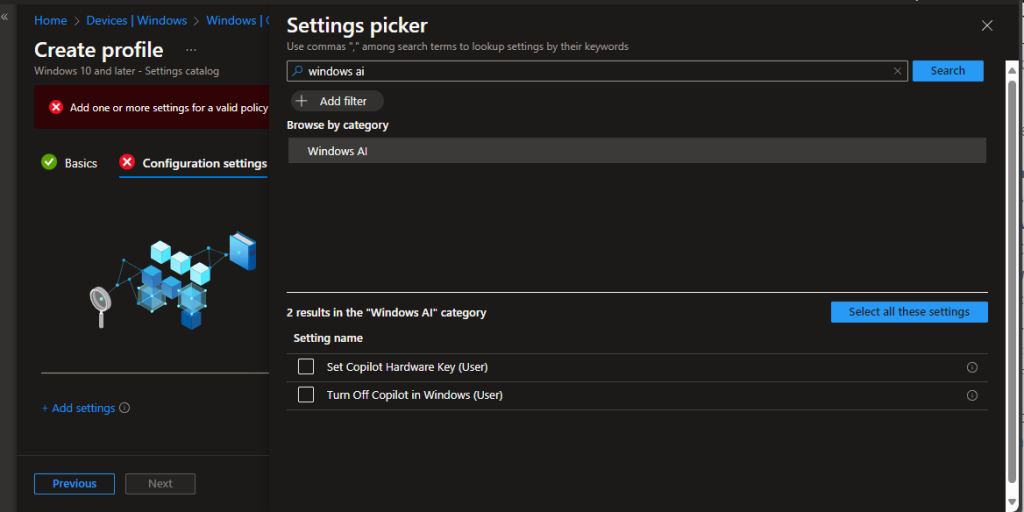
Next step is to add the setting by pressing +Add setting. Search for Windows AI and select the “Set Copilot Hardware Key (user)” setting.
Close the flyout and enter the AUMID for the Microsoft 365 app.
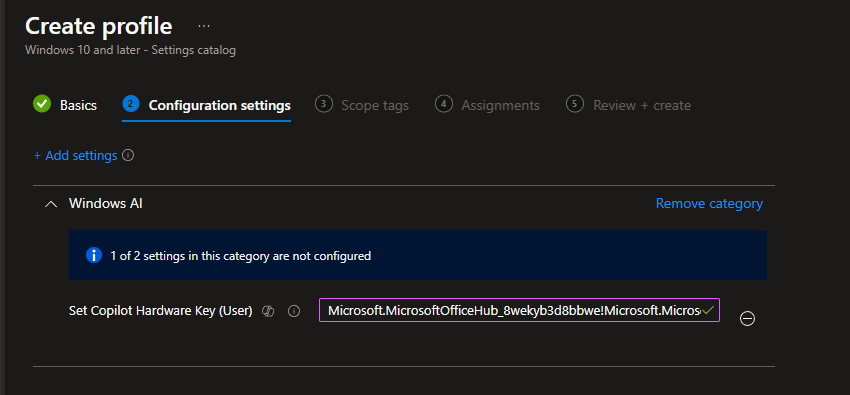
If you are not using Copilot and want to disable the button, set the value to 0 instead of the AUMID of the Microsoft 365 app.
Click though the wizard and assign the profile to an applicable group.
Review your configuration before creating.
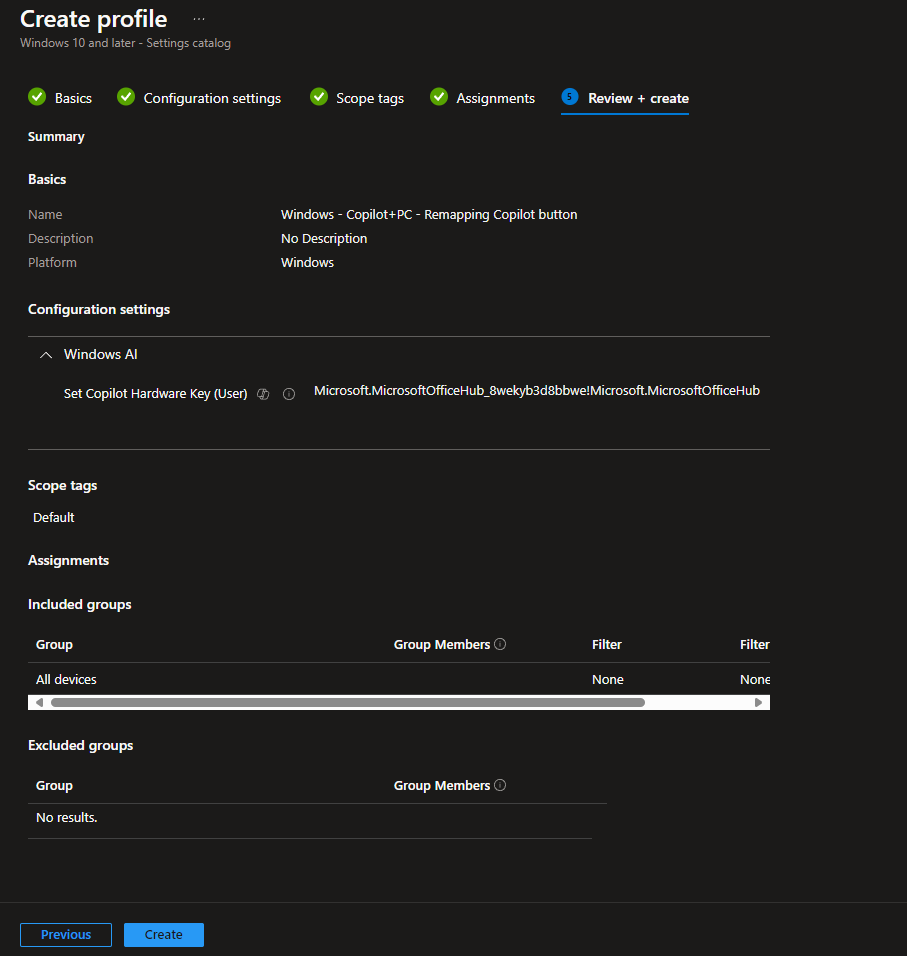
We have now successfully changed the behavior of the Copilot button on our Copilot+ PCs!
More Information
For additional guidance on Copilot+ PCs and configuring the Copilot button in corporate environments, refer to the following resources on Microsoft Learn and other official sources:
Developer Guide for Copilot+ PCs Learn about the specifications and capabilities of Copilot+ PCs, including details on NPUs and Windows 11 integration. https://learn.microsoft.com/en-us/windows/ai/npu-devices
Getting Started with Copilot+ PCs An introduction to Copilot+ PCs, their key features, and how they enhance productivity and creativity. https://www.microsoft.com/en-us/windows/learning-center/getting-started-copilot-plus-pc
Overview of Copilot in Intune A comprehensive guide on how Microsoft Intune manages Copilot settings, including policy configurations. https://learn.microsoft.com/en-us/mem/intune/copilot/copilot-intune-overview
Manage Copilot in Windows Details on changes to the Windows Copilot experience and how to configure it in a corporate environment. https://learn.microsoft.com/en-us/windows/client-management/manage-windows-copilot
These resources provide in-depth instructions for implementing, managing, and optimizing Copilot+ PCs in enterprise environments.
Thank you!
🖥️ Ricardo Barbosa
📘 MCT Microsoft Certified Trainer | ☁️ Cloud Architect
🌐 Technology Director - https://altelix.com
