

How to Manage Copilot in Windows 11 with Intune
With the gradual rollout of the latest Windows 11 update, Microsoft introduced Copilot, an AI-powered assistant designed to enhance productivity and user experience. Powered by OpenAI’s GPT technology, Copilot integrates seamlessly into the operating system, providing intelligent responses, task assistance, and enhanced workflows.
Once activated, the Copilot icon will appear on your taskbar, signaling its availability. While this feature offers many benefits, some organizations may prefer to control or restrict its use to ensure alignment with company policies or security requirements.

If Copilot is not appearing on your Windows 11 taskbar, it’s likely because the feature is not yet available in your region. The initial version of Copilot was introduced as part of the September 2023 update and is gradually being rolled out worldwide.
In the meantime, you can still explore Copilot's capabilities by using the tool via Copilot on the web, providing early access to its AI-powered features.
Why Control Copilot?
Although Copilot can be a powerful tool, there are scenarios where organizations might need to limit its functionality, such as:
Maintaining compliance with industry regulations.
Preventing potential data leakage or unintentional sharing of sensitive information.
Reducing distractions or unapproved AI interactions in a professional environment.
To address these concerns, organizations can leverage Microsoft Intune to create a Copilot Policy for Windows 11 devices. While it’s possible to manage Copilot through Group Policy, this guide focuses on using Intune for centralized management and scalability.
Managing Windows Copilot Settings with CSP Policy
Windows Copilot CSP
It’s important to note that Windows Copilot is disabled by default for Windows 11, version 22H2 commercial update-managed devices. To manage Copilot settings in Intune, we will use a CSP Policy (Configuration Service Provider). CSP Policies function similarly to Group Policies for Windows devices managed by Intune.
Here are the key points about this policy:
Disabling Copilot: If this policy setting is enforced, users will not be able to use Copilot. The Copilot icon will also be removed from the taskbar.
Enabling Copilot: If this policy setting is disabled or not configured, users will have access to Copilot.
Disabling Copilot in Windows 11 Using Intune
To disable Copilot on Windows 11 devices managed by Intune, we will create a Custom CSP Policy. This policy ensures that Copilot is turned off across all selected devices, aligning with organizational preferences or compliance requirements.
By leveraging Intune’s capabilities, administrators can enforce this setting effectively, providing granular control over Copilot's availability in the environment.
Let me know if further details or step-by-step instructions are needed!
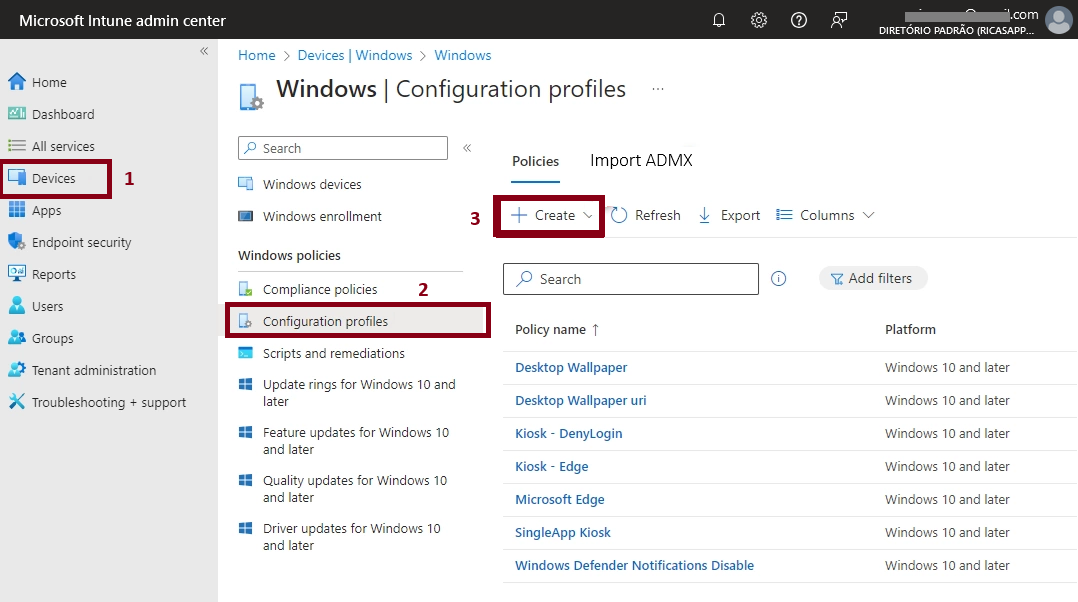
Sign in to the Microsoft Intune Admin portal .
Go to Devices / Windows / Configuration Profiles
Click Create / New Policy
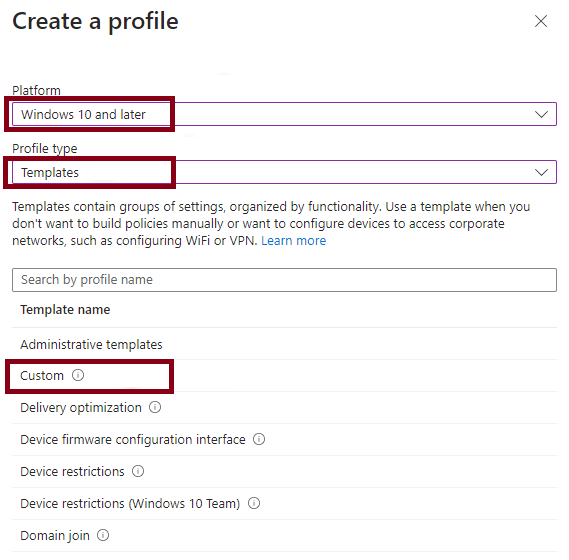
Select the Platform : Windows 10 and Later
Select Profile Type : Templates
Select Custom and Create at the bottom
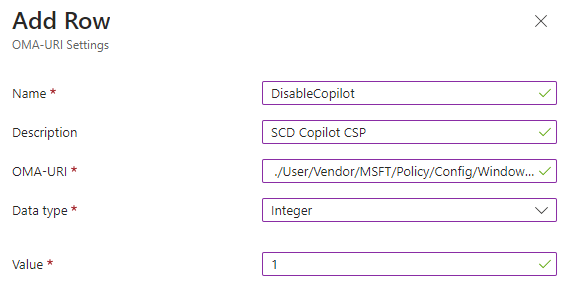
Click on the Add button to add additional configuration.
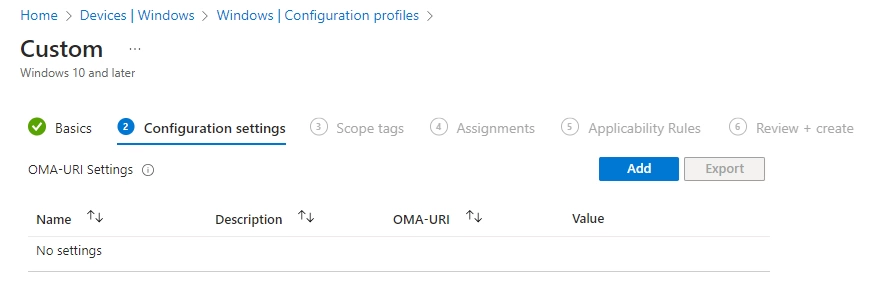
On the right pane, add the following information :
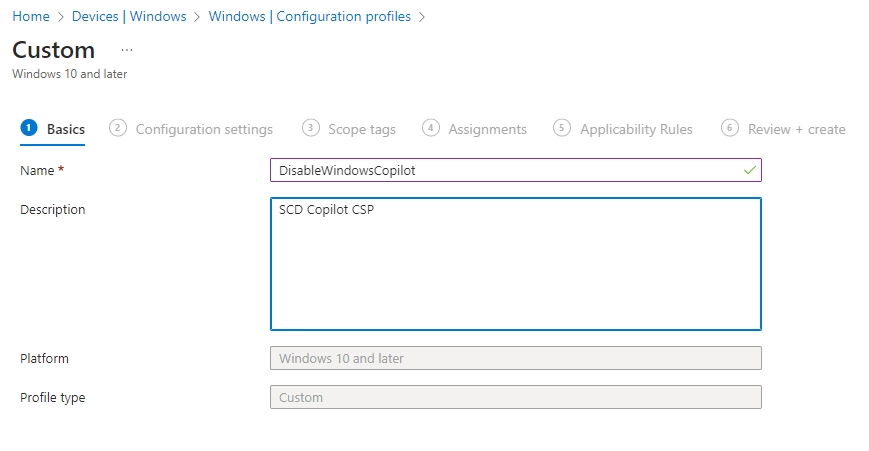
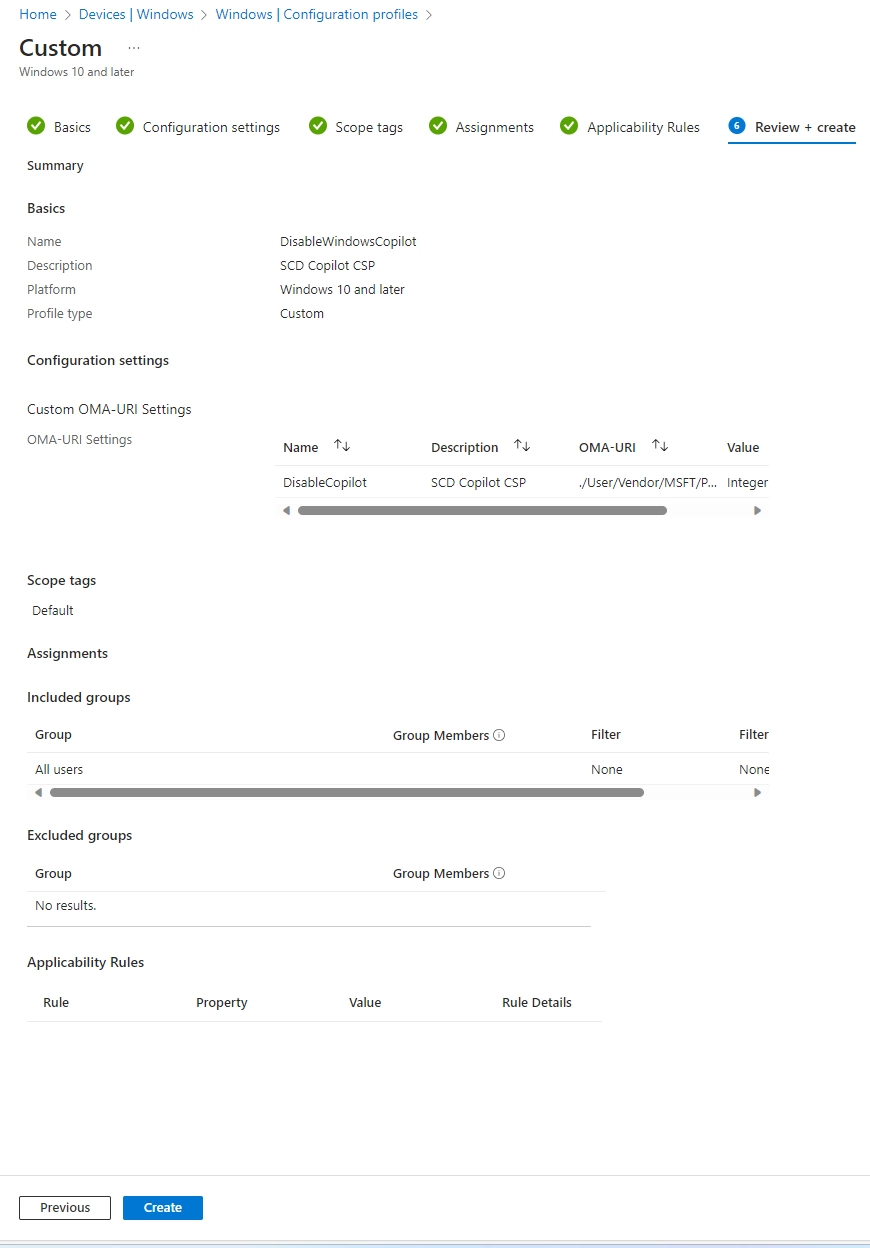
Name – DisableWindowsCopilot
Description – Add a description
OMA-URI – ./User/Vendor/MSFT/Policy/Config/WindowsAI/TurnOffWindowsCopilot
Data Type – Integer
Value – 1 (Disable Copilot)
Click on the Save button to continue.
The magic setting is in the OMA-URI, make sure to include the “.” at the start.
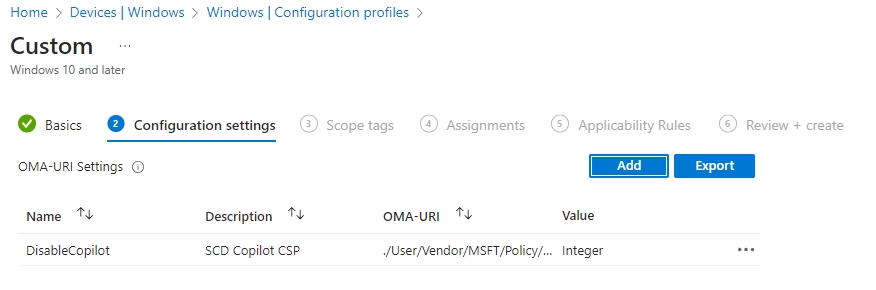
You’ll be back on the first screen, validate the information about your Copilot policy
Click on Next, at the bottom
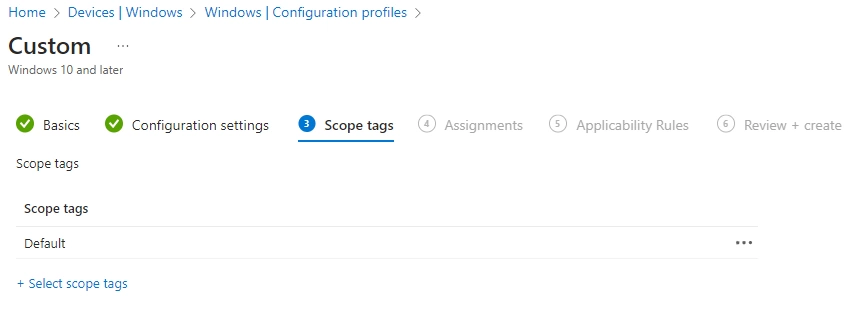
Select your Scope tag, click Next
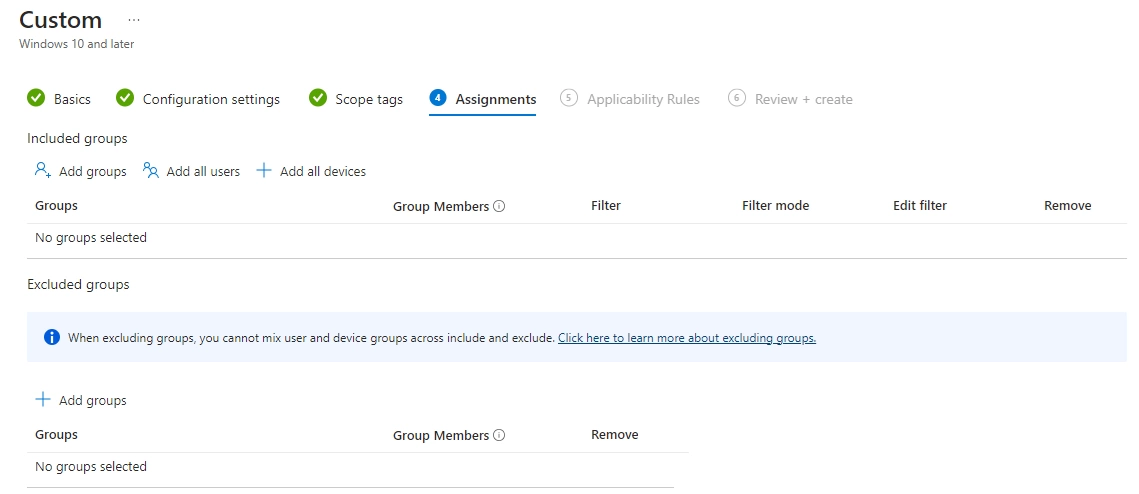
On the Assignments screen, select the group or devices that will receive your Copilot policy. This is the important part as every group or device selected will receive the policy and see Copilot disabled.
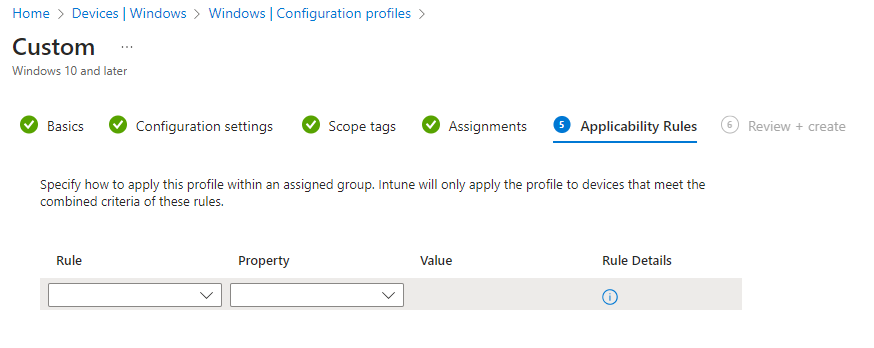
On the Applicability Rules screen, customize to your needs
Review all your settings and click Create at the bottom
Monitor Intune Copilot Policy
To monitor your assignment, back on the first screen, click on the Copilot policy you just created. You will see device and user statistics receiving your Copilot policy. For a more detailed report, click on the View Report button at the bottom.
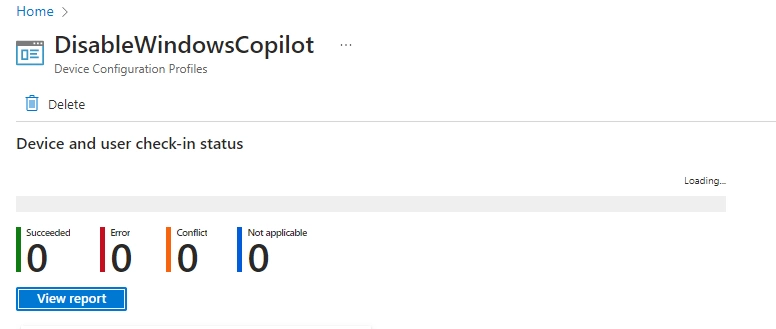
That’s it, if everything was set correctly, you have disabled copilot on your devices using Intune.
More Information
For more information about managing Copilot in Windows 11 with Intune, refer to the following docs:
Learn about using Microsoft Intune to manage Windows Copilot
https://learn.microsoft.com/en-us/mem/intune/copilot/copilot-intune-overview
FAQs about Microsoft Intune Copilot
https://learn.microsoft.com/en-us/mem/intune/copilot/copilot-intune-faq
How to manage device information and errors using Copilot in Intune
https://learn.microsoft.com/en-us/mem/intune/copilot/copilot-devices
Manage Copilot Chat in Microsoft 365
https://learn.microsoft.com/en-us/copilot/manage
Enhance Endpoint Security with Microsoft Intune and Copilot
https://learn.microsoft.com/en-us/training/paths/enhance-endpoint-security-microsoft-intune-copilot
Thank you!
🖥️ Ricardo Barbosa
📘 MCT Microsoft Certified Trainer | ☁️ Cloud Architect
🌐 Technology Director - https://altelix.com
