

Managing "Restrict App to System Volume" Policy with Microsoft Intune
In this article, we’ll walk through how to enable or disable the "Restrict App to System Volume" policy using Microsoft Intune. This policy governs whether applications can be installed or moved outside the system volume — the main drive where the operating system is installed and from which it boots.
Why This Policy Matters Restricting app installations to the system volume helps improve system security and integrity by preventing apps from being installed on external or secondary storage devices such as USB drives, SD cards, or additional hard drives. It can also help preserve disk space and reduce the risk of data loss or tampering.
What Happens When the Policy is Enabled? When enabled, this policy restricts all Windows app installations and relocations strictly to the system volume. When disabled or not configured, users are allowed to install or move apps to other available volumes.
What You’ll Learn This guide provides step-by-step instructions on how to configure this policy using Microsoft Intune, including how to:
Create a configuration profile
Enable or disable the policy
Monitor deployment status
Verify the setting from the client side
Benefits of Restricting App Installations to the System Volume
Enabling the “Restrict App to System Volume” policy provides several key advantages for organizations focused on security and system stability:
Enhanced Security By limiting app installations and data storage to the system volume, the risk of malware or unauthorized applications being executed from external or secondary drives (such as USBs or SD cards) is significantly reduced.
Optimized Storage Management Preventing apps from spreading across multiple volumes helps keep the system organized and minimizes storage clutter, especially on devices with limited capacity.
Simplified System Maintenance Centralizing application data within the system volume can streamline backup, imaging, and recovery processes, making it easier for IT teams to maintain and restore systems when needed.
Windows Policy CSP – ApplicationManagement
The Policy Configuration Service Provider (CSP) is a core framework used in Microsoft Intune and other MDM platforms to configure policies on Windows 10 and 11 devices. It provides granular control over settings like "Restrict App to System Volume" through structured attributes:
Description Framework Properties: Each policy includes metadata that describes the setting’s function, required value type (e.g., integer or string), and default behavior.

Allowed Values: The CSP defines what values are acceptable for a given policy — for example, enabling (1) or disabling (0) the restriction.

Group Policy Mapping: When applicable, the CSP entry will indicate if the setting maps to an equivalent traditional Group Policy, helping administrators bridge on-prem and cloud-based management.
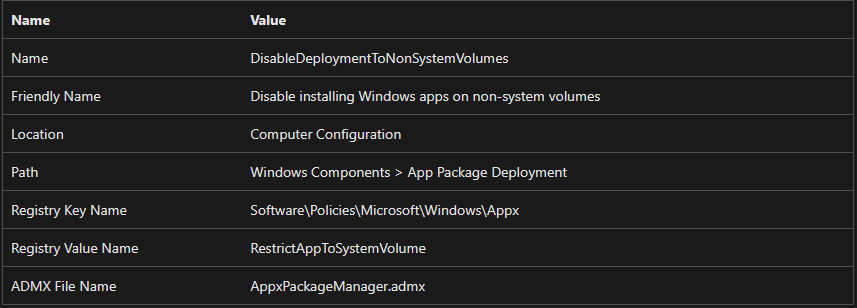
./Device/Vendor/MSFT/Policy/Config/ApplicationManagement/RestrictAppToSystemVolume
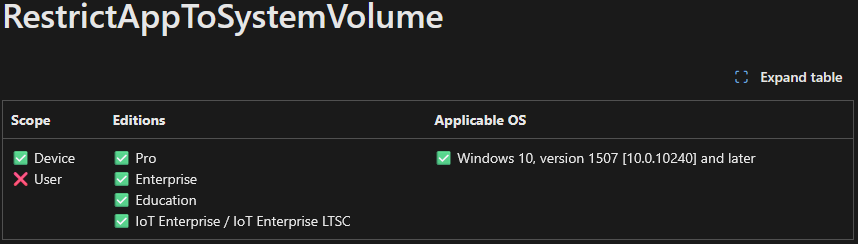
✅ Create a Configuration to Enable or Disable "Restrict App to System Volume" Policy in Intune
To configure the "Restrict App to System Volume" policy using Microsoft Intune, follow the steps below:
Configuration Steps:
Sign in to the Microsoft Intune Admin Center using your administrator credentials.
In the left-hand menu, go to Devices.
Select Windows Devices.
Click on Configuration.
Click on + Create profile (or + New Policy, depending on the interface version).
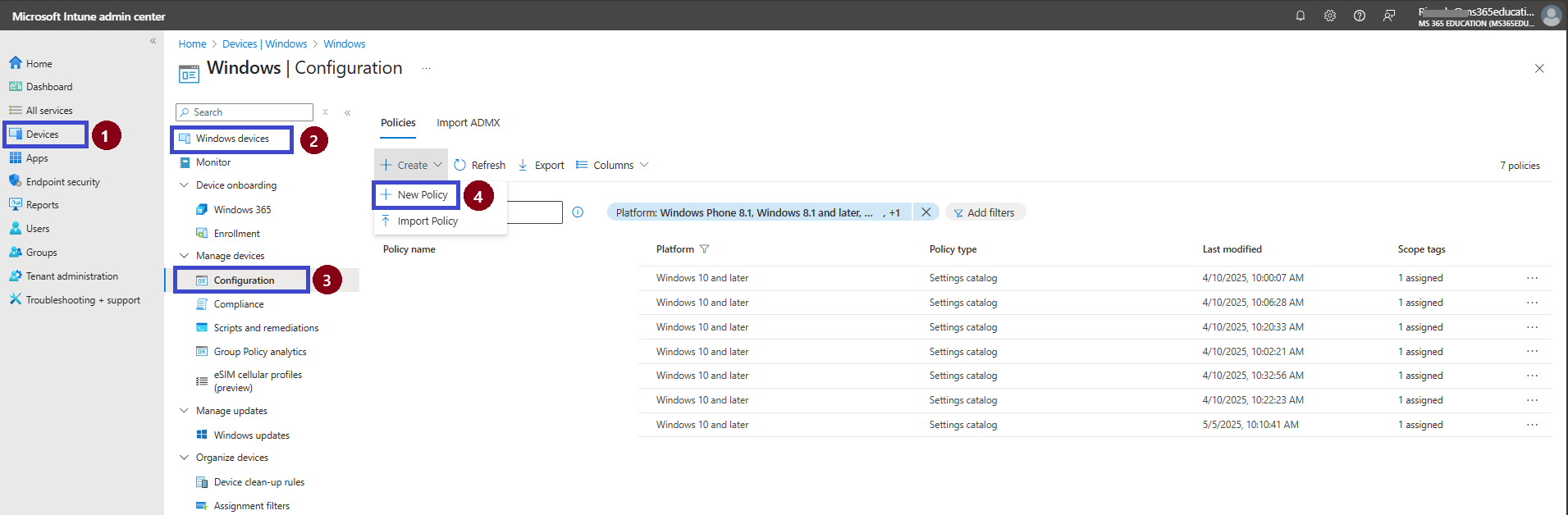
Next, we will create a new configuration profile from scratch. First, we need to provide the options mentioned below.
Under Platform, select: Windows 10 and later
Under Profile type, choose: Settings catalog
Click Create to start configuring the policy.
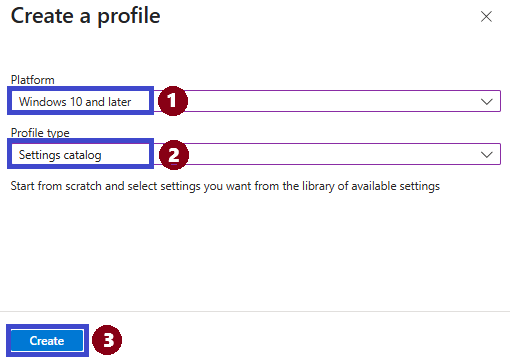
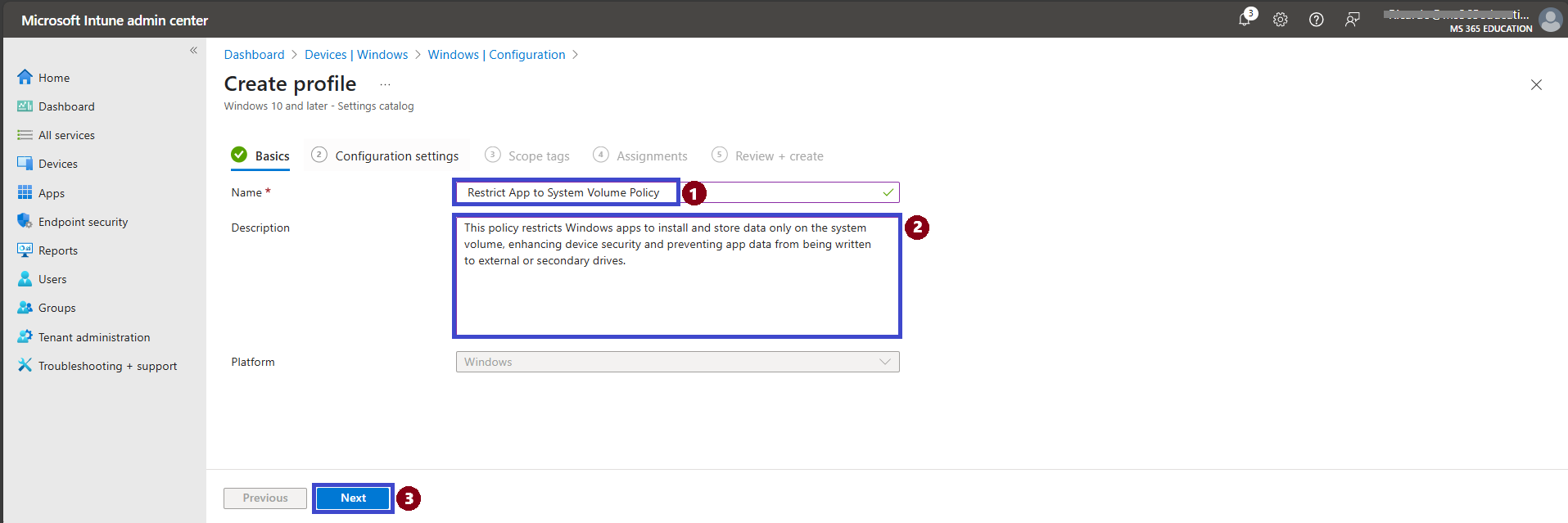
On the Basics page, provide the following details for your configuration profile:
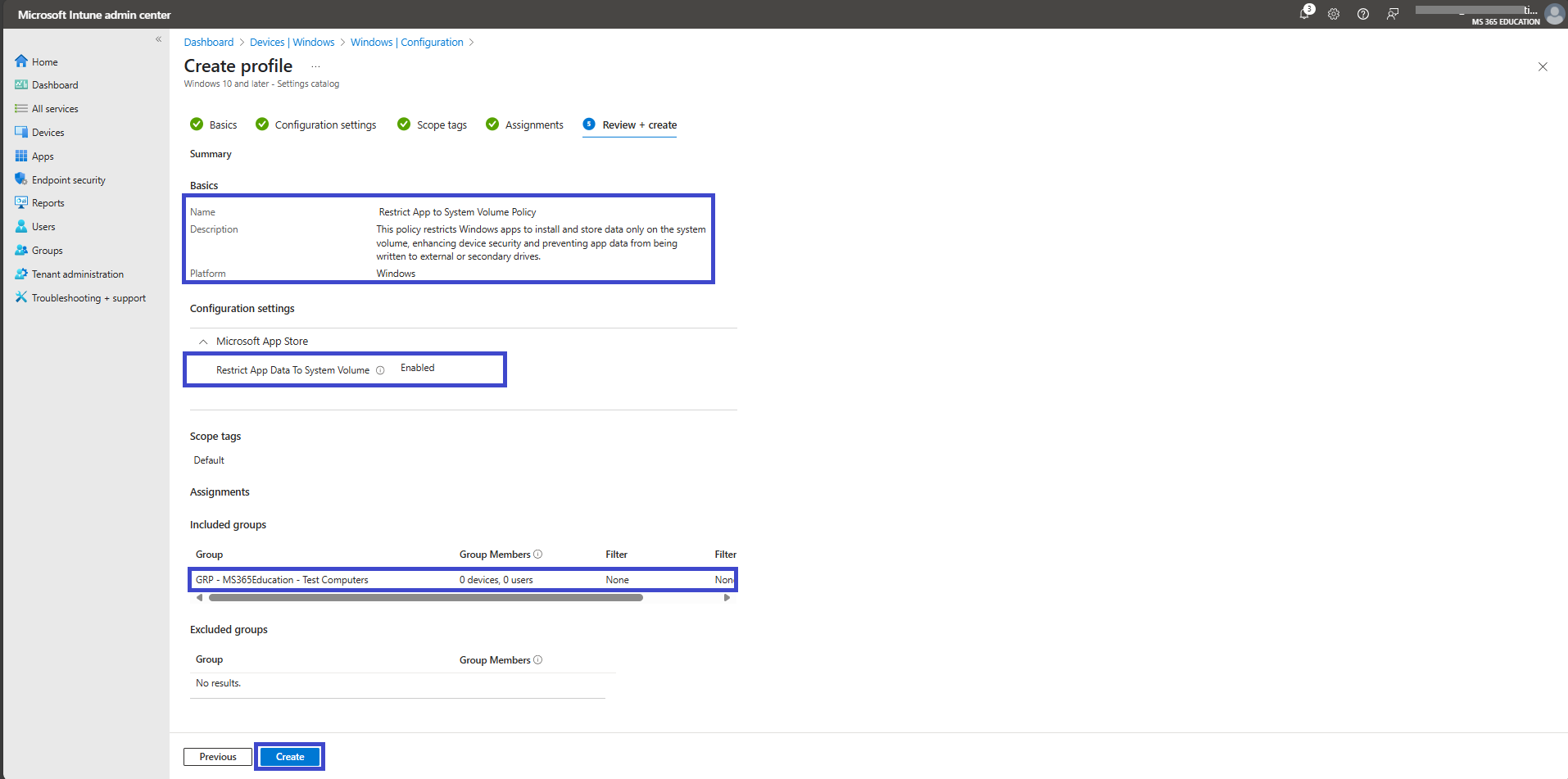
Name: Restrict App to System Volume Policy
Description: This policy restricts Windows apps to install and store data only on the system volume, enhancing device security and preventing app data from being written to external or secondary drives.
Once all fields are completed, click Next to continue.
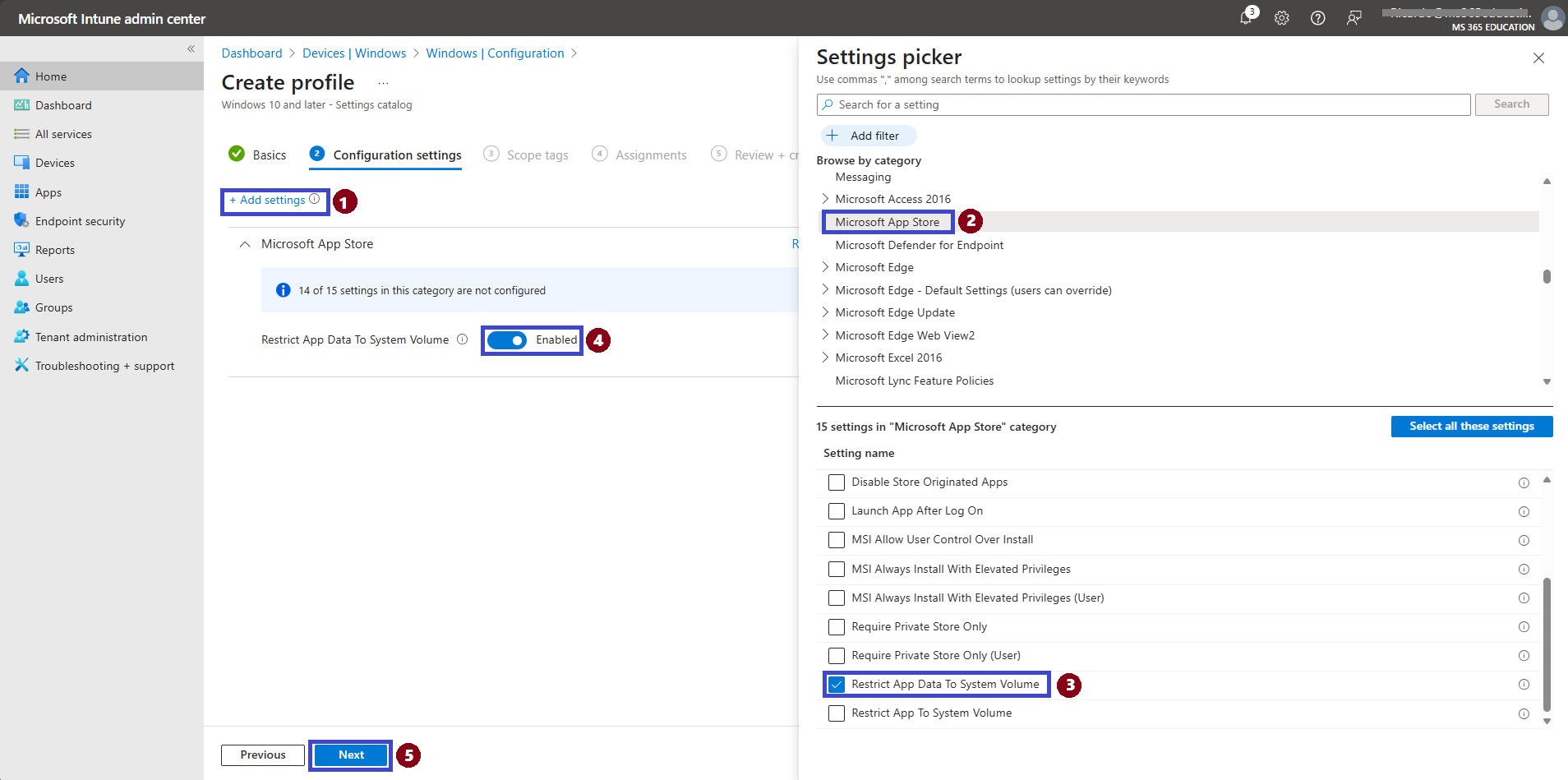
Configuration Settings
In this step, you’ll define the specific setting to manage.
Click Add settings to open the Settings picker panel.
In the search bar or category list, locate and select Microsoft App Store.
Within the category, choose the setting: Restrict App To System Volume.
Turn On or Off the Restrict App to System Volume Setting
Click Next to proceed.
By default, the Restrict App To System Volume setting is turned off (value = 0), meaning it's not enforced. As a result, users are allowed to install or relocate Windows apps to any available storage location.
Switching this setting to enabled (value = 1) ensures that apps can only be installed or moved within the system volume, enhancing control and consistency.
In this example, I enabled the setting by toggling it to the On position.
This is the policy that controls whether Windows apps are allowed to be installed or relocated outside the system volume.
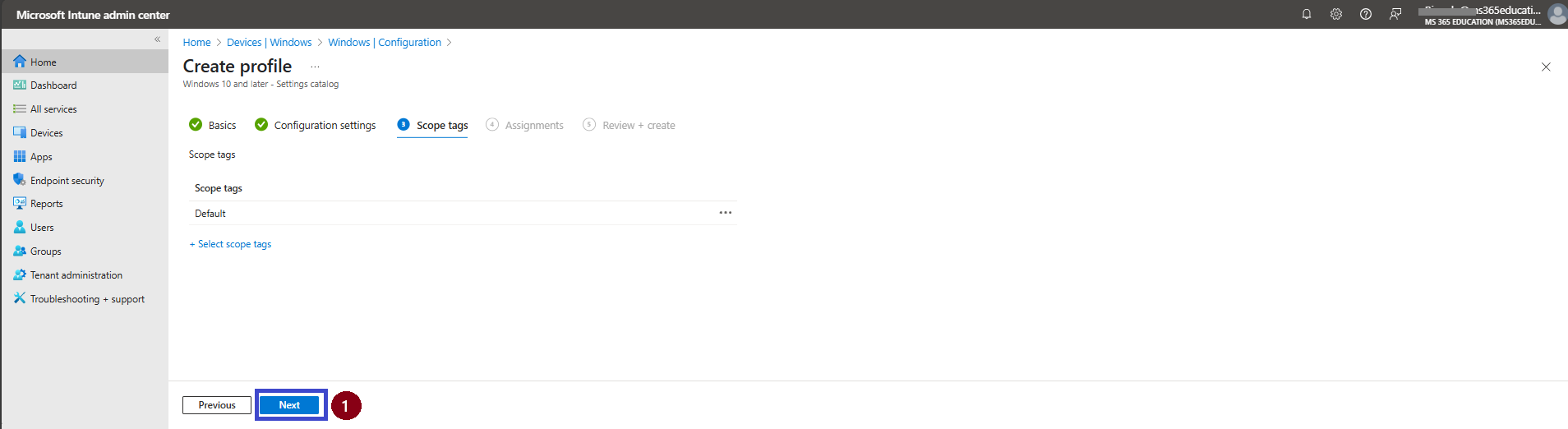
On the Scope tags page, you can leave the setting as Default if no custom tags are required. If your organization uses custom scope tags to segment administrative access, select the appropriate tags based on your policy requirements.
Click Next to proceed.
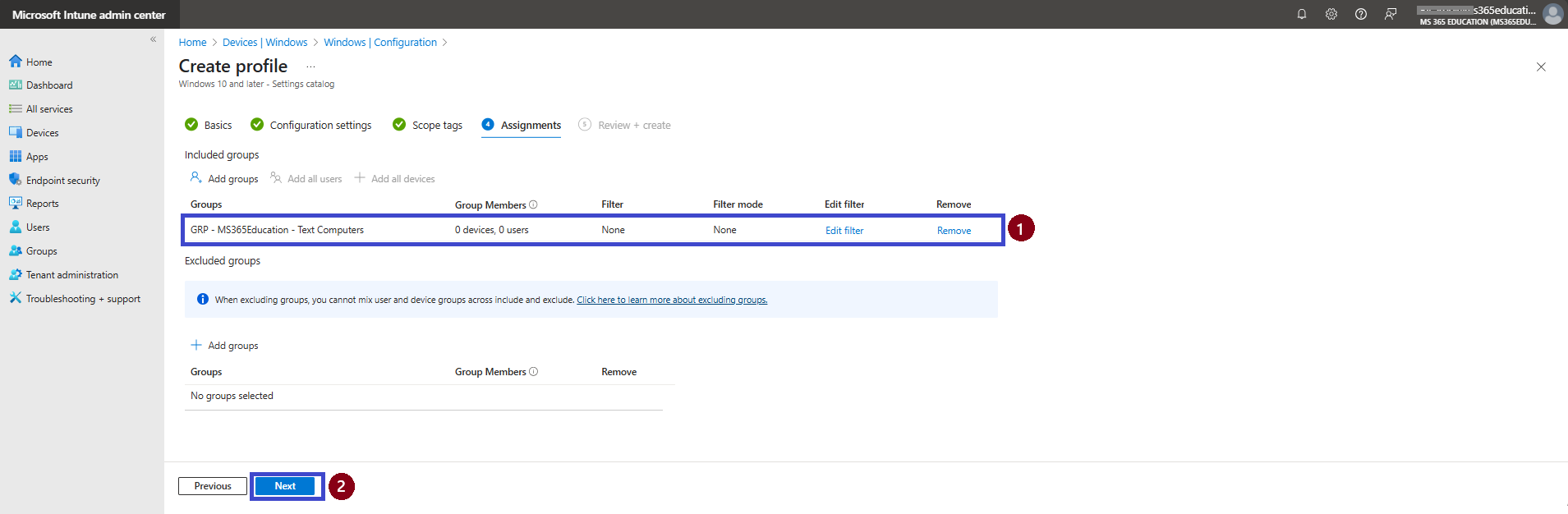
On the Assignments page, assign the configuration profile to the appropriate device group.
Click on Add Groups under the Included Groups section, then select: “GRP - MS365Education - Test Computers”
In this example, no filters are applied, and the Excluded Groups section remains blank.
Click Next to continue.
On the Review + create page, carefully review all the settings configured for the Restrict App to System Volume Policy.If everything is correct, click Create to deploy the policy to the assigned devices.
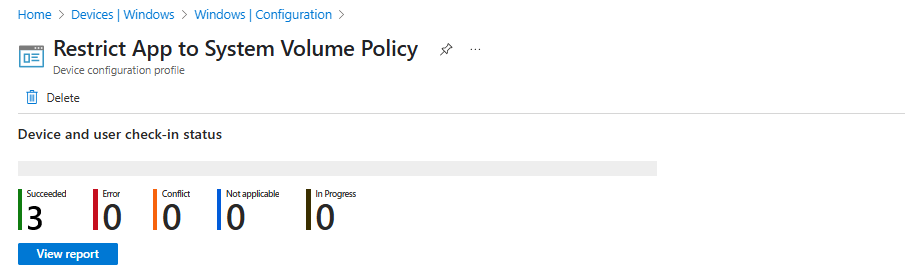
Device and User Check-in Status
Once the Restrict App to System Volume Policy is created, a confirmation notification will appear. To verify if the policy is successfully applied to the target devices, follow these steps:
Navigate to the Configuration profiles section and open the policy you just created.
Before checking the status, initiate a manual sync on the target device using the Company Portal app. This ensures the policy is applied more quickly.
After synchronization, return to the Device configuration profile page — the policy status should now reflect as successfully applied.
Additionally, you can monitor deployment progress by going to: Devices > Windows > Configuration profiles, and searching for your policy. The deployment details, including device and user check-in status, will be visible under the “Device and user check-in status” section.
💻 End User Experience & Client-Side Verification
Once the Restrict App to System Volume Policy is deployed via Microsoft Intune, it takes effect after the next successful sync between the managed device and the Intune service. While the end user typically will not see any direct notification, the policy silently enforces restrictions on where Windows apps can be installed or moved — allowing only the system volume when enabled.
Client-Side Verification
The MDM Policy Manager enforces this configuration under the Application Management category. Several parameters can help verify whether the policy was applied correctly on the client device.
Example Parameters (May Vary by Device):
Enrollment ID: Unique identifier for the device's MDM enrollment (e.g., B1E9301C-8666-412A-BA2F-3BF8A55BFA62)
Int Value: Reflects the applied setting (0x1 for enabled, 0x0 for disabled)
Enrollment Type: Type of device enrollment (0x6 for MDM-managed)
Scope: Level at which the policy is applied (0x0 for device-level)
How to Verify on the Client
To check if the Restrict App to System Volume Policy is applied:
Open Event Viewer on the device.
Navigate to: Applications and Services Logs > Microsoft > Windows > DeviceManagement-Enterprise-Diagnostics-Provider > Admin
Look for Event ID 813 or related entries confirming the successful application of the policy.
In the event details, confirm that the setting “RestrictAppToSystemVolume” appears with the expected value (0x1 for enabled, 0x0 for disabled).
⚠️ Troubleshooting Tips
Ensure the device has synced recently with Intune.
Verify that the device is included in the assignment group for this policy in the Intune Admin Center.
Check for conflicting settings in other configuration profiles.
For deeper analysis, consult Microsoft’s official documentation and cross-reference Event Viewer logs.
📚 More Information
To deepen your understanding of configuring and managing the Restrict App to System Volume policy using Microsoft Intune, refer to the following official Microsoft resources:
These resources provide detailed guidance for configuring, deploying, and verifying device restriction policies across managed devices using Microsoft Intune.
Thank you!
🖥️ Ricardo Barbosa
📘 MCT Microsoft Certified Trainer | ☁️ Cloud Architect
🌐 Technology Director - https://altelix.com
