

Welcome to this week’s blog post on how to safeguard your Microsoft Intune configurations with a simple backup and restore process.
Imagine dedicating hours to fine-tuning your Intune policies, only to lose everything due to an accidental change or a system update. Without a backup strategy in place, recovering those settings can turn into a real headache.
Fortunately, creating a backup of your Intune configuration is more straightforward than you might think — and it can save you a lot of time and trouble.
Having a solid backup not only protects your work from unexpected mishaps, but also streamlines the process of deploying new environments. Instead of rebuilding everything from scratch, you can deploy consistent, pre-configured policies across your organization — faster and with more confidence.
In this article, I’ll guide you through a simple, step-by-step approach to back up and restore your Microsoft Intune settings using PowerShell and Microsoft Graph. Let’s jump in!
📌 Table of Contents
What We'll Cover
How to Backup and Restore Microsoft Intune Configurations
Step 1: Install the PowerShell Module
Step 2: Connect to Microsoft Graph
Step 3: Backup Intune Configuration
Step 4: Restore Intune Configuration
Final Thoughts
🔧 What We'll Cover
We’ll walk through how to back up your Microsoft Intune configurations using PowerShell and the Microsoft Graph module.
You’ll learn how to:
Install the necessary module
Connect to your Microsoft 365 tenant
Export your Intune settings
And finally, how to restore those settings when needed
For more technical details and script examples, you can also refer to this great resource on GitHub: 👉 https://github.com/jseerden/IntuneBackupAndRestore
🔁 Backing Up and Restoring Microsoft Intune Configurations
🛠️ Step 1: Install the Required PowerShell Module
To get started, we’ll set up the necessary PowerShell environment to interact with Microsoft Graph. If you encounter any issues during this process, ensure you're using PowerShell 7, as it's the recommended version for compatibility.
We'll begin by installing the MSGraphFunctions module, which will allow us to manage Intune configurations via Microsoft Graph.
✅ Steps:
Launch PowerShell as an administrator.
Run the command below to install the module. When prompted, confirm with "Yes to All" to proceed.

Now we will install the IntuneBackupAndRestore. Run the following command to Install the Module. Accept with Yes to All.

Last, Import both Module with the following command:

Step 2: Connect to MSGraph
Next, we'll establish a connection with the Microsoft Graph module. Before proceeding, make sure you have your Microsoft 365 admin credentials on hand — they’ll be required for authentication.
In your PowerShell session, run the following command to initiate the connection:
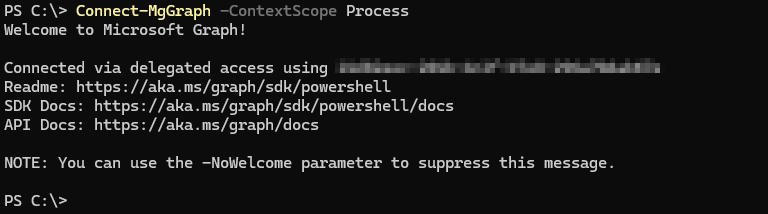
Your browser should open with a new Microsoft Login page. Login with your Administrator. When you have logged in, you will see something like this.
Step 3: Back Up Your Microsoft Intune Configuration
Now it's time to back up your Microsoft Intune configuration.
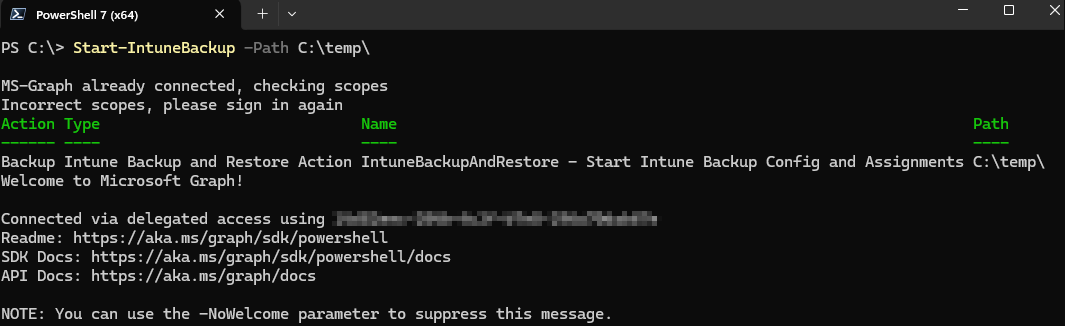
You can run the command below to start the backup process — just make sure to specify the correct path where you want the backup files to be saved. In this example, we’re using a folder named C:\temp.
Feel free to adjust the path to match your preferred location.
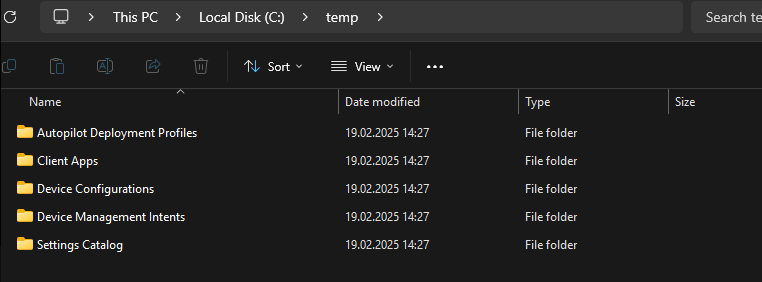
You might be asked to login again with your administrator. This is normal, it just need to verify it has its permission to Backup the policies. In your specified folder you will see the configuration saving.
📌 Step 4: Restore Microsoft Intune Configuration
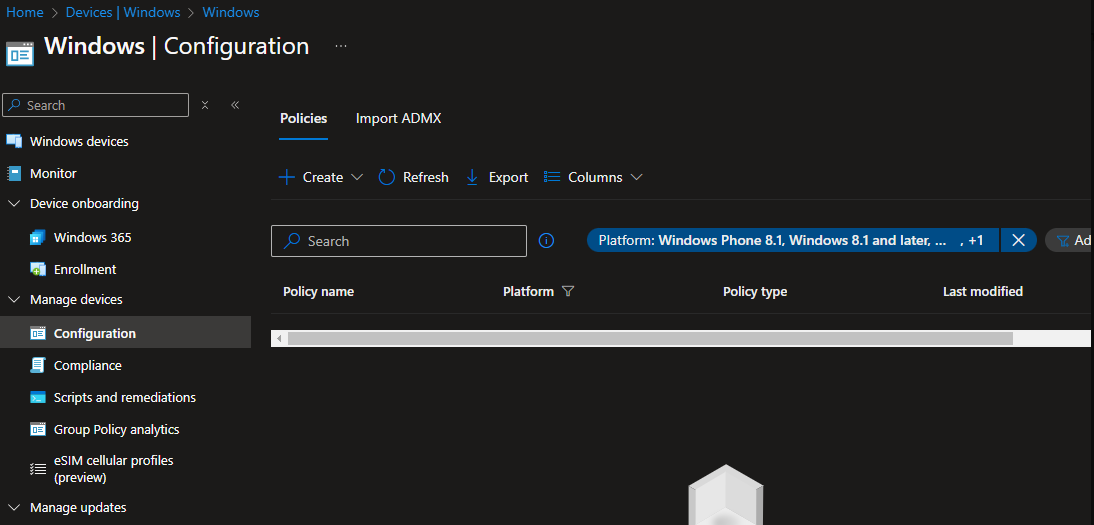
To restore a previously backed-up configuration, begin by logging in again — just like in Steps 1 and 2.
Run the command below to start the restoration process.
🔔 Note: This step restores the configuration settings only. It does not include the assignments for policies or apps. We'll apply those in the next step using a separate command.
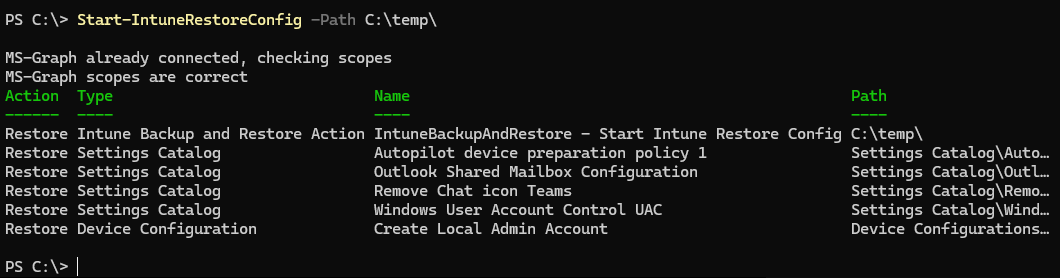
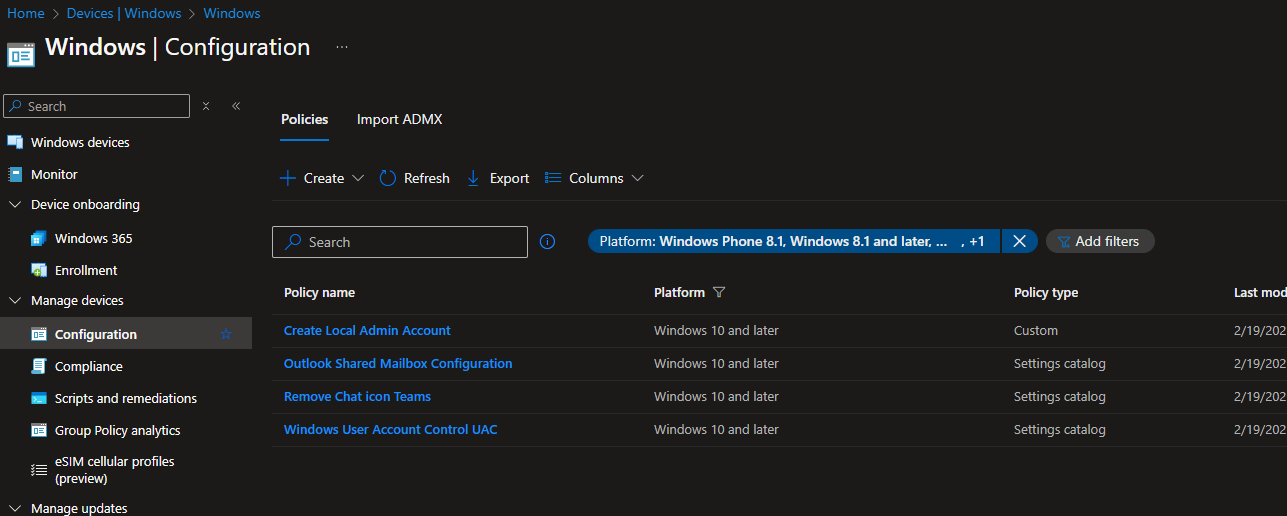
To restore the Assignments run the following command.

✅ Conclusion
In today’s digital landscape, where organizations rely heavily on cloud-based management, having a solid backup strategy is no longer optional — it’s essential. Throughout this post, we walked through how to back up and restore Microsoft Intune configurations using PowerShell and the Microsoft Graph module.
We began by installing the required modules — MSGraphFunctions and IntuneBackupAndRestore — then established a secure connection to Microsoft Graph. From there, we demonstrated how to export and safeguard your Intune configurations, and how to restore them quickly when needed.
Whether you’re managing multiple tenants, preparing for disaster recovery, or simply ensuring consistency across environments, having a reliable backup of your Intune settings can save time, reduce stress, and prevent costly misconfigurations.
Thank you!
🖥️ Ricardo Barbosa
📘 MCT Microsoft Certified Trainer | ☁️ Cloud Architect
🌐 Technology Director - https://altelix.com
