

Configuring Mozilla Firefox for usage with device-based Conditional Access
In this article, we will explore managing and configuring Mozilla Firefox with a focus on its use in device-based Conditional Access scenarios. Mozilla Firefox is now recognized as a supported browser for device-based Conditional Access on devices running Windows 10 and later. This development is a positive step forward, but it requires specific configurations within the browser to ensure proper functionality.
Understanding how to optimize Mozilla Firefox for Conditional Access can significantly enhance security and simplify device management in modern IT environments. This article highlights the importance of these configurations and the tools available to IT administrators to streamline the process.
Whether you're looking to integrate Mozilla Firefox into your organization's security framework or simply want to better understand its capabilities, this article offers valuable insights to get started.
Important: At the moment of writing, the feature of importing third-party ADMX-files is still in public preview.
Importing the Mozilla Firefox ADMX-files
Managing the settings of Mozilla Firefox begins with importing third-party ADMX files. To make the most of this feature, it's crucial to understand its current limitations. Being aware of these constraints helps in determining how best to use the feature effectively:
A maximum of 20 ADMX files can be imported, with each file being 1MB or smaller.
Each ADMX file supports only a single language and must be paired with a corresponding single ADML file.
By keeping these limitations in mind, administrators can better plan and optimize the management of Firefox settings in their environments.
Important: At the moment of writing, only en-us ADML-files are supported.
After understanding the current limitations of importing third-party ADMX files, the next step is to explore the process of importing those files. It’s equally important to be aware of the dependencies associated with these ADMX files, as those dependencies must be imported first. This is particularly relevant for configuring Mozilla Firefox, which requires the firefox.admx file, dependent on the mozilla.admx file.
The following five steps outline the process of importing these files efficiently.
Important: At the moment of writing, the combo box setting type is still not supported.
Download the ADMX and ADML-files for Mozilla Firefox here
Open the Microsoft Intune admin center portal and navigate to Devices > Configuration
On the Import ADMX tab, select Import to start the process of importing the ADMX-file and ADML-file
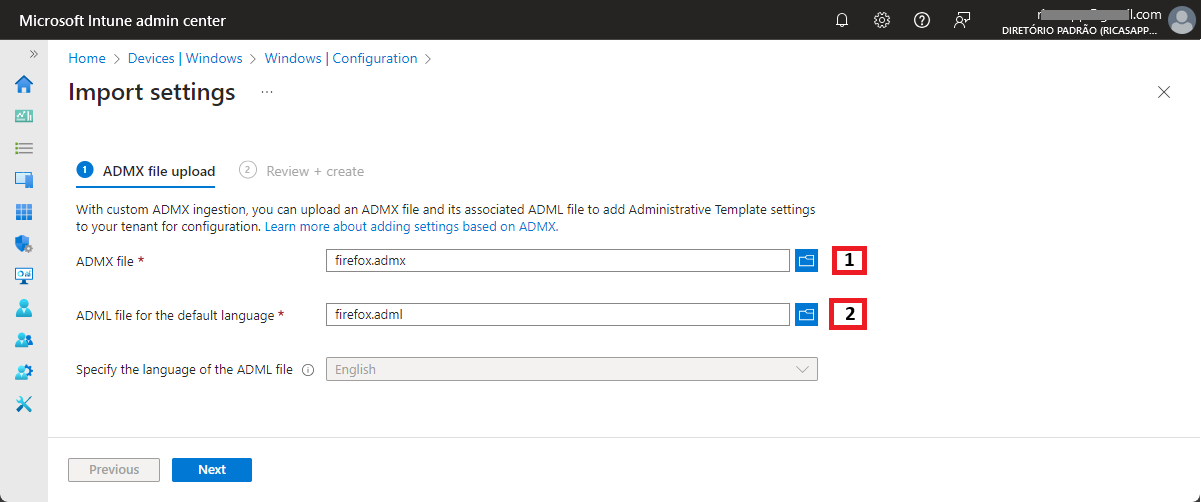
On the ADMX file upload page, as shown in Figure 1, provide the following information and click Next
ADMX file (1): Select the mozilla.admx file to import
ADML file for the default language (2): Select the mozilla.adml file to import
Specify the language of the ADML file: At this moment English is selected and grayed out
6. On the Review + create page, click Create
7. Once the Status is Available, walk through step 2-4 for the firefox.admx file and the firefox.adml file.
One important consideration when working with third-party ADMX files is the challenge of keeping them up-to-date. This is because uploading a new version of an ADMX file that contains settings already imported will result in a namespace conflict error, causing the upload to fail. This limitation applies even if the new version includes only minor updates to the same settings.
To address this challenge effectively:
Plan for updates: Establish a process for tracking and updating third-party ADMX files.
Remove outdated files: If updates are required, delete the existing ADMX and ADML files before uploading the new version.
Test updates in advance: Always test new versions of ADMX files in a non-production environment to ensure compatibility.
By proactively managing updates and conflicts, you can maintain a seamless workflow and ensure the effective use of third-party ADMX files in your environment.
Configuring the required settings in Mozilla Firefox
Once the necessary ADMX and ADML files have been successfully imported, the settings defined within those files become available for configuration through Microsoft Intune. This is achieved using the configuration template named Imported Administrative Templates, which allows administrators to easily browse and select the imported settings for managing Mozilla Firefox.
One critical setting for enabling device-based Conditional Access is Allow Windows single sign-on for Microsoft, work, and school accounts. Within the available settings, this is referred to as Windows SSO. Enabling this setting ensures seamless authentication for users accessing work or school resources through the browser.
The following eight steps outline the process of configuring this specific setting in Mozilla Firefox, ensuring it is optimized for use with Conditional Access.
1. Open the Microsoft Endpoint Manager admin center portal and navigate to Devices > Configuration
2. On the Devices | Configuration profiles page, click Create profile
3. On the Create a profile blade, provide the following information and click Create
Platform: Select Windows 10 and later as platform
Profile type: Select Templates > Imported Administrative templates as profile type
4. On the Basics page, provide at least a unique name and click Next
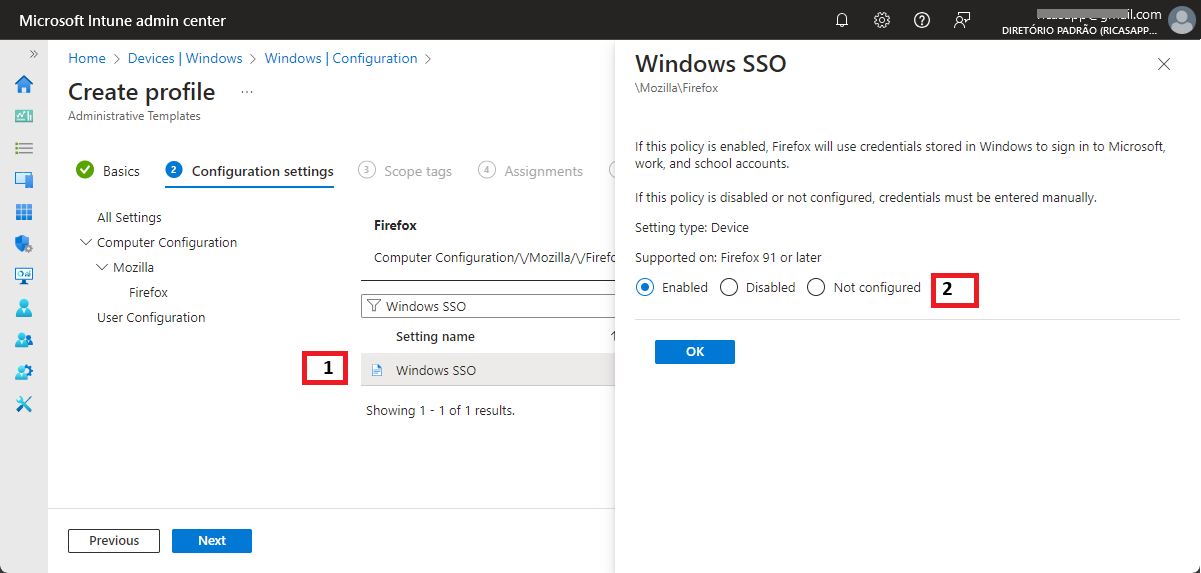
5. On the Configuration settings page, as shown in Figure 2, configure the following setting and click Next
Navigate to Computer Settings > Mozilla > Firefox, select Windows SSO (1) and select Enabled (2)
6. On the Scope tags page, configure the require scope tags and click Next
7. On the Assignments page, configure the required assignment and click Next
8. On the Review + create page, verify the configuration and click Create
Experiencing the New Configuration
Once the configuration for Mozilla Firefox is applied, it’s time to verify that it’s working as expected. This can be done in several ways. Since the configuration is ADMX-backed, verification can be performed through the Registry Editor, the Settings app, or directly in the browser. The browser itself often provides the most detailed and concrete information, as it offers direct access to both available and applied configurations (similar to Microsoft Edge).
To verify in Mozilla Firefox:
1. Open the browser, navigate to Settings, and scroll down to the Passwords section.
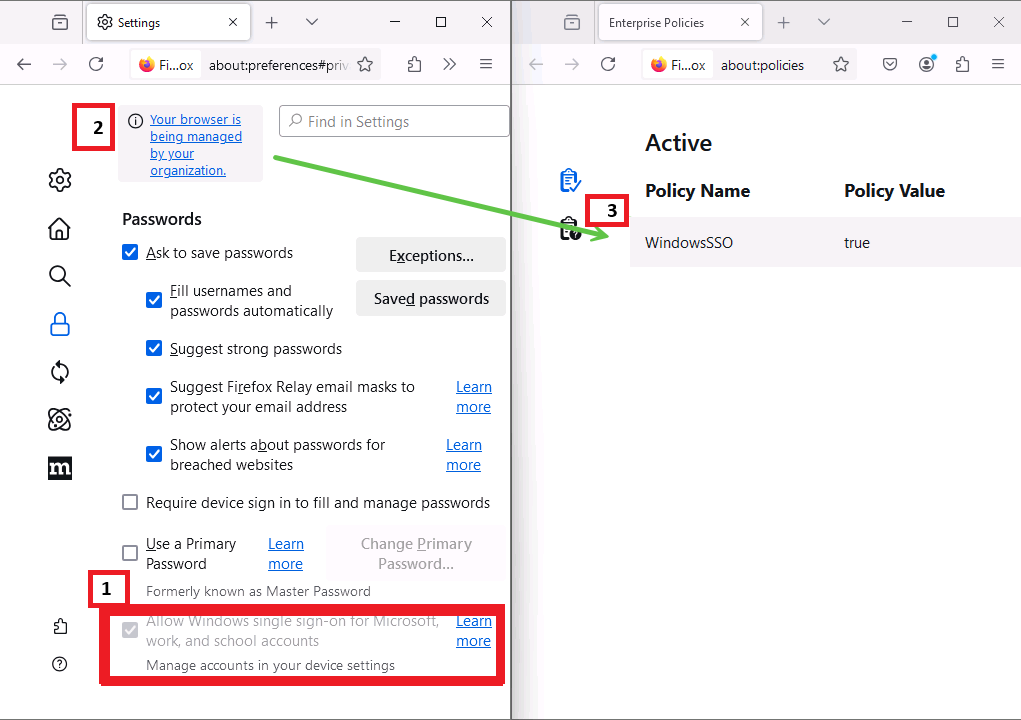
The setting Allow Windows single sign-on for Microsoft, work, and school accounts should appear selected and grayed out (as shown in Figure 3, item 1).
2. At the top of the page, there should be a notification indicating that the browser is managed (see Figure 3, item 2).
Clicking this notification will open a page displaying the applied policies for the browser (Figure 3, item 3).
This page provides a comprehensive overview of all configured settings and their values. In this case, the policy WindowsSSO should be listed with the value true, confirming that the configuration has been successfully applied.
More information
For more information about managing third-party ADMX-files, and Mozilla Firefox ADMX-files, refer to the following docs.
Conditions in Conditional Access policy – Microsoft Entra ID | Microsoft Learn
Import custom and third-party partner ADMX templates in Microsoft Intune | Microsoft Learn
Thank you!
🖥️ Ricardo Barbosa
📘 MCT Microsoft Certified Trainer | ☁️ Cloud Architect
🌐 Technology Director - https://altelix.com
