

🖥️ Why This Matters
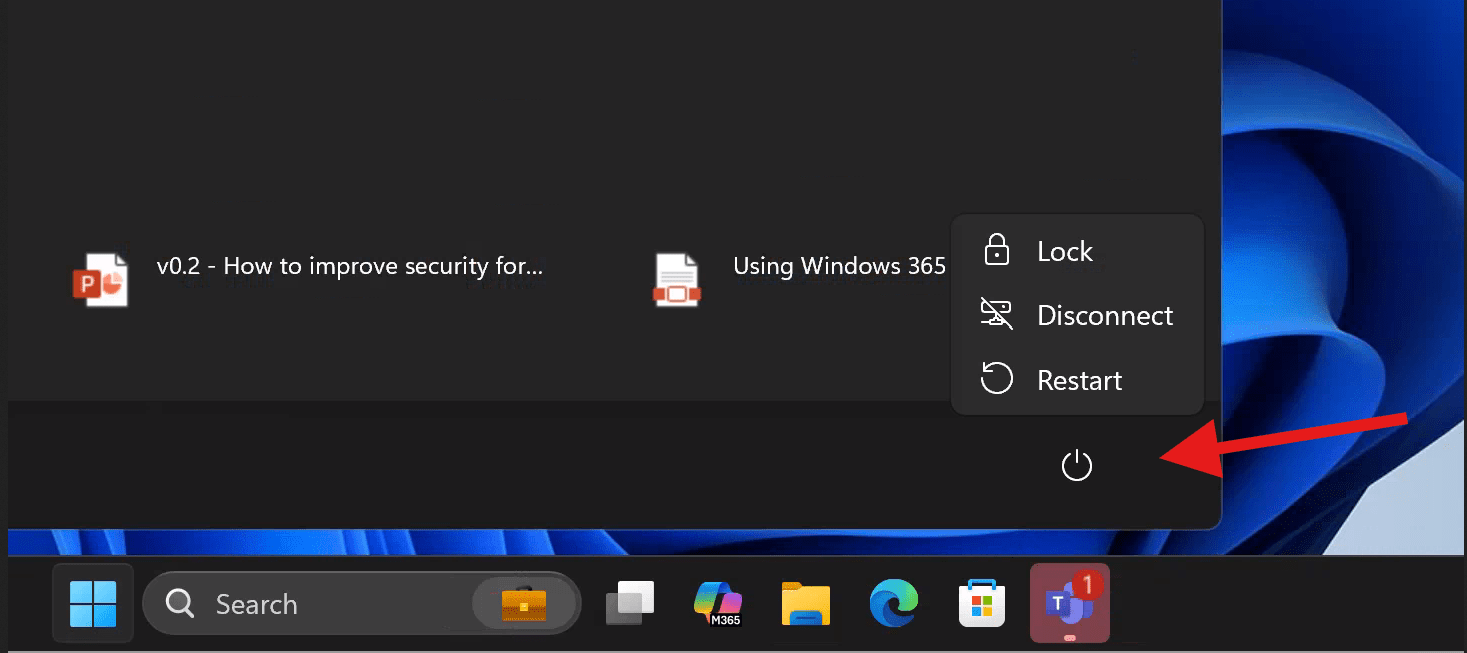
Some users may have noticed that after updating a Windows 365 Cloud PC to Windows 11 24H2, the shutdown button appears unexpectedly in the Start menu. This can lead to unintended behavior, as shutting down a Cloud PC isn't typically necessary—it will boot back up automatically within minutes.
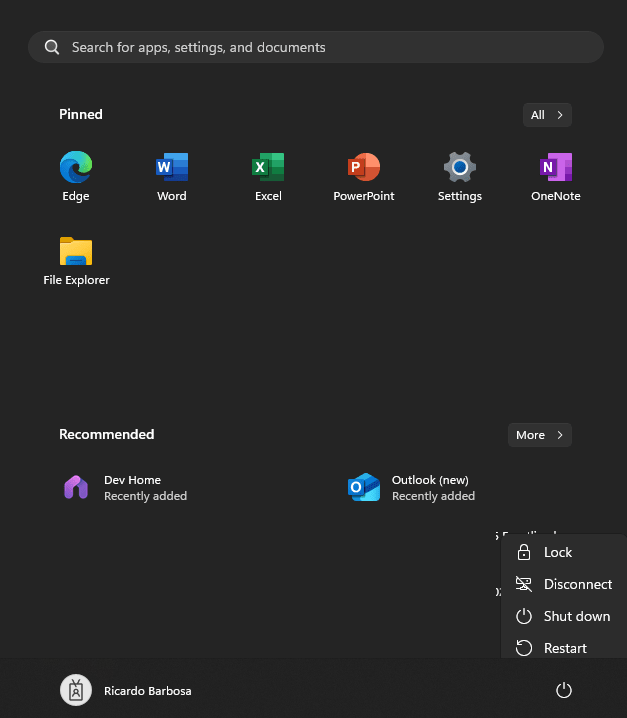
This issue arises because the Windows 11 24H2 update resets a registry value, leading to the reappearance of the shutdown button.
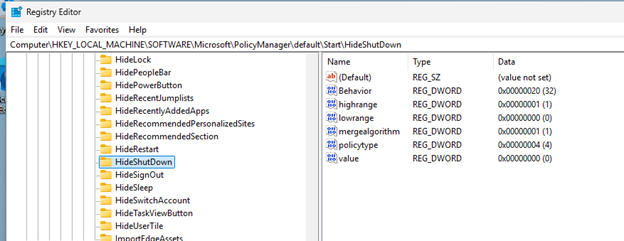
While providing feedback to Microsoft is always encouraged, there are two effective ways to fix this issue:
1️⃣ Using the Settings Catalog in Microsoft Intune
2️⃣ Implementing Proactive Remediation with a PowerShell Script
In this article, I’ll walk you through both methods step by step.
🛠️ Method 1: Using the Settings Catalog in Intune
🔹 Open Microsoft Intune and navigate to: ➡ Devices > Windows > Configuration ➡ Click on + Create to set up a new configuration profile.
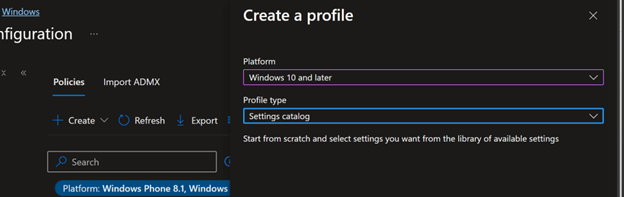
🔹Select Windows 10 and later
🔹 Select Settings Catalog as the profile type and proceed.
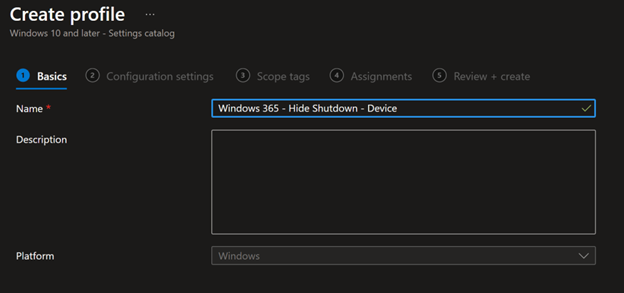
🔹 Name your profile appropriately to match your organization's environment.
🔹 Search for “Start”, find “Hide Shutdown”, and check the box. ✅
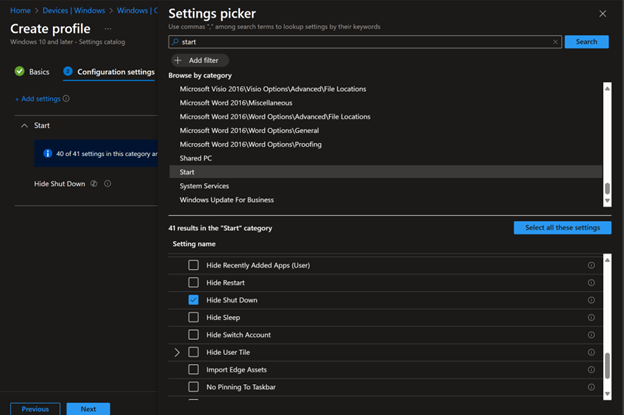
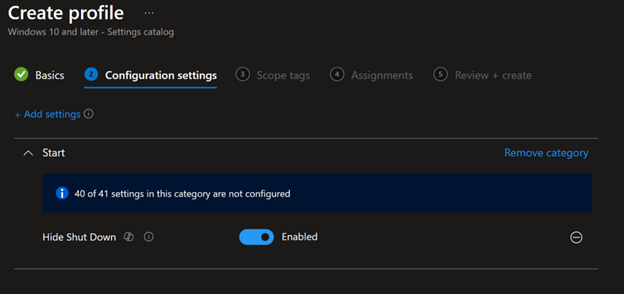
Make sure to enable the setting before moving to the next step.
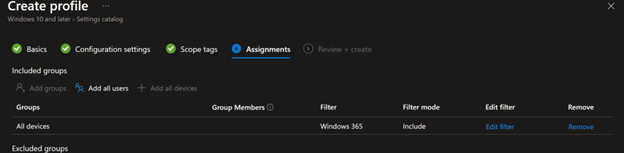
🔹 In my case, I will skip scope tags and move straight to Assignments, where I select “All devices” and filter out Windows 365 with a filter.
🔹 Complete the process by reviewing and creating the policy.
⏳ Now, wait for the policy to apply. The shutdown button will be removed automatically from Cloud PCs. 🎯
⚡ Method 2: Proactive Remediation via PowerShell
Using a scripted solution via remediation is another great approach because it allows for: ✅ Continuous monitoring and feedback on affected devices. ✅ A one-time fix or ongoing checks.
Creating a New Remediation in Intune
📌 Step 1: Detection Script
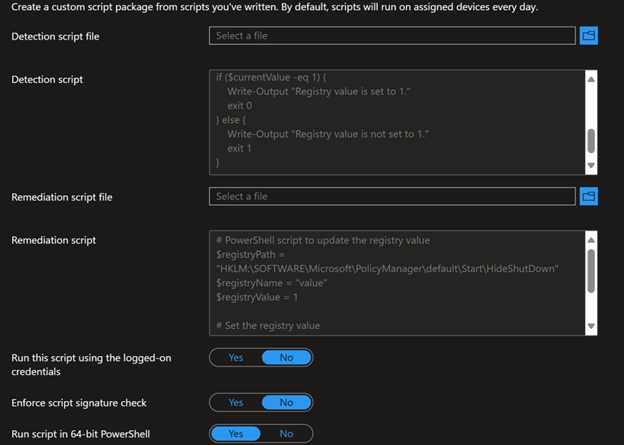
This script checks if the registry value is correctly set:
PowerShell script to detect registry value:
Registry Path: HKLM:\SOFTWARE\Microsoft\PolicyManager\default\Start\HideShutDown
Value Name: value
Retrieves the current value and verifies if it is set to 1. If not, it exits with code 1 to indicate an issue.
📌 Step 2: Remediation Script
If the detection script finds an incorrect value, this script corrects it:
PowerShell script to update registry value:
Registry Path: HKLM:\SOFTWARE\Microsoft\PolicyManager\default\Start\HideShutDown
Registry Name: value
Sets the registry value to 1 to ensure the shutdown button is hidden.
🔧 Setting Up Remediation in Microsoft Intune
🔹 In Microsoft Intune, navigate to: ➡ Devices > Scripts and Remediations ➡ Click + Create to set up a new remediation.
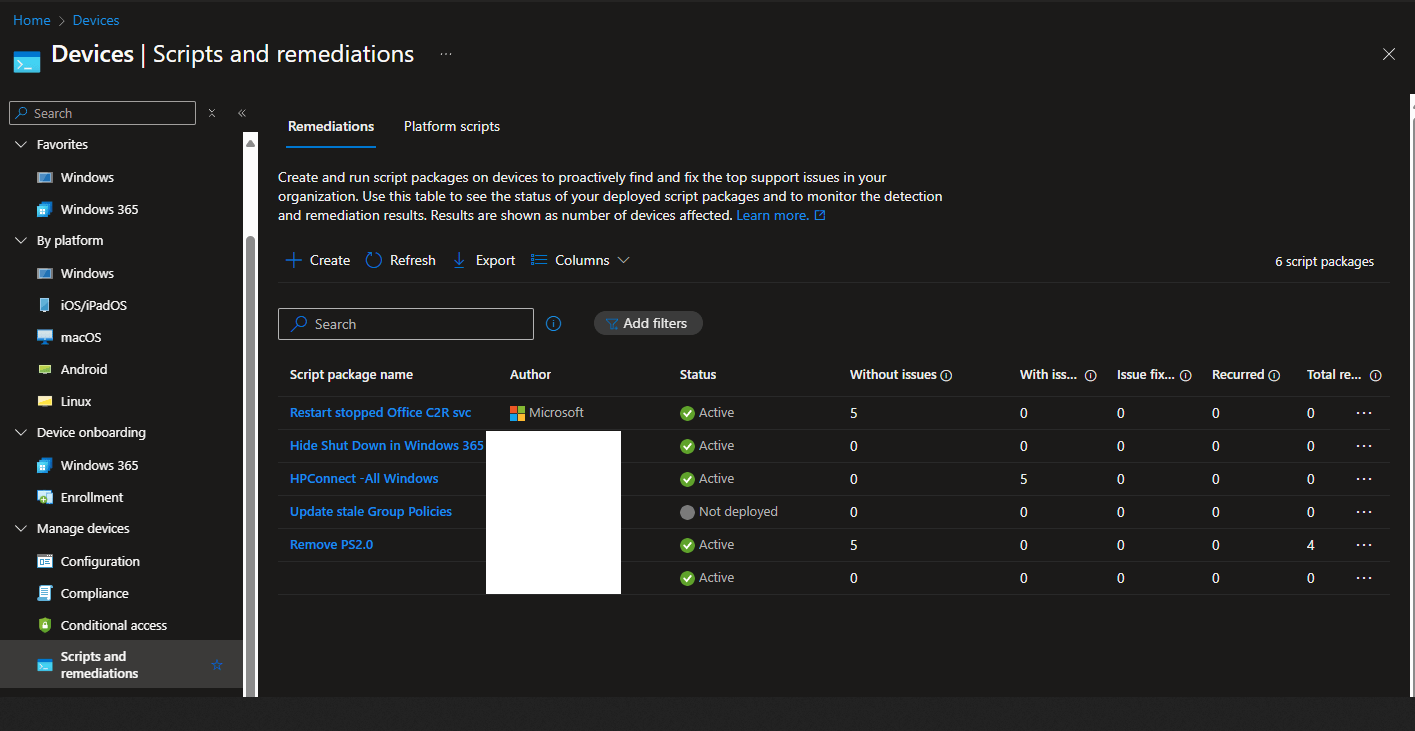
Uploading Detection and Remediation Scripts
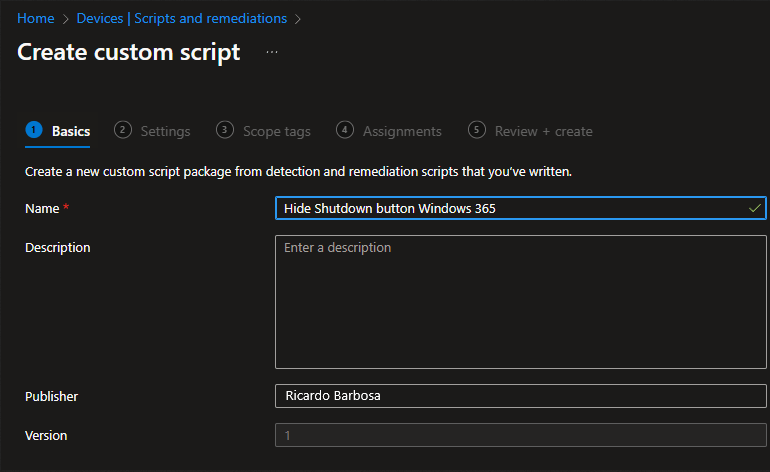
Select “+ Create” in the ribbon and give your remedation a good name, then press next.
Now we will add the detection and remediation scripts, which you need to save as PowerShell scripts on your device to upload to Microsoft Intune. Change the “Run script in 64-bit PowerShell” to yes, but leave all the other options at their default values and press next.
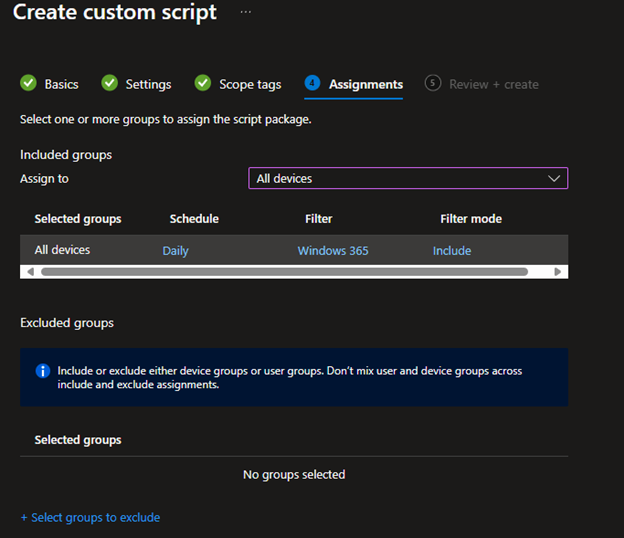
On the Assignment tab, select your target group. I’m using “All devices” with a filter for Windows 365.
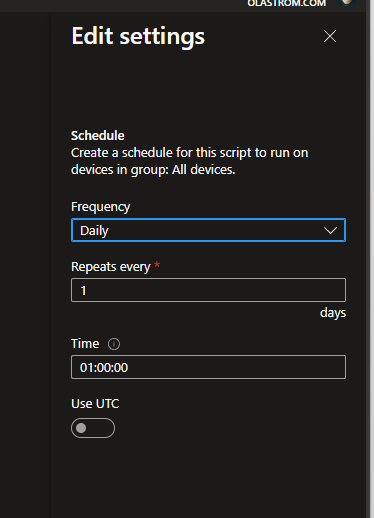
At this step, you can set the schedule by selecting the default 'Daily' option. From there, you can choose to run it once, hourly, or daily, based on your preference.
After selecting your schedule, click 'Next' to review your settings before finalizing with 'Create
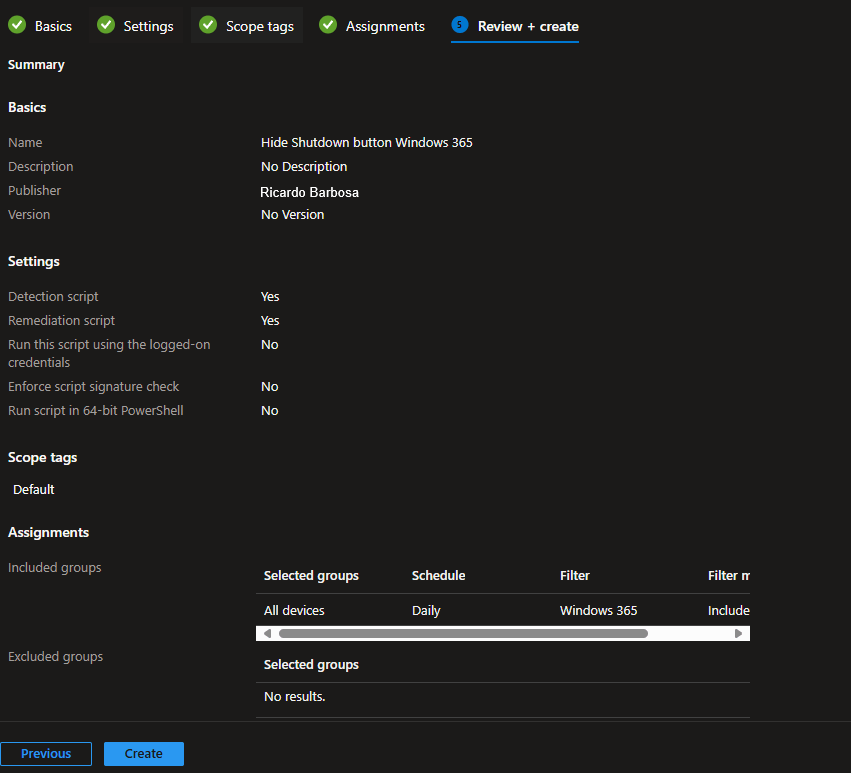
Now, we just wait for the remediation to run
📊 Monitoring the Remediation Process
To track progress:
🔹 Navigate to the device status section of the remediation in Intune.
🔹 Check individual device statuses to see how many were affected.
🔹 If the script detects an incorrect registry value, it will automatically apply the fix and confirm remediation. ✅
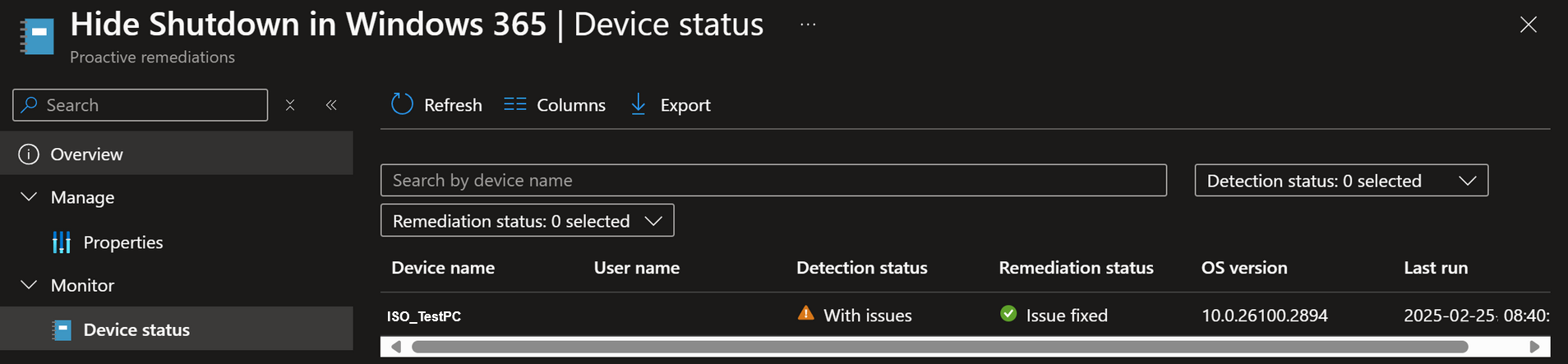
In this view, you can track individual devices and see how many were affected. If the script detects a value other than '1', it will execute the necessary fix, and you can monitor whether the issue was resolved here. This feedback is available regardless of whether the script runs on a schedule or just once.
What happens on the Cloud PC?
Regardless of the method used, the result for the end-user remains the same: the shutdown button will be removed, preventing the Cloud PC from being turned off— which is the intended outcome.
🔍 Key Takeaways
There is no single “correct” approach—both methods are effective. Here’s how they compare:
🟢 Settings Catalog (Intune Policy)
✔ Ensures the value is always applied.
✔ Simple and easy to deploy via Microsoft Intune.
✔ Best for environments where policy enforcement is preferred.
🟢 Proactive Remediation (Scripted Approach)
✔ Provides visibility into affected devices.
✔ Can be set to continuously monitor and remediate.
✔ Best when troubleshooting or dynamically enforcing settings.
💡 Bonus: You can reuse the remediation script for other registry modifications as needed.
Thank you!
🖥️ Ricardo Barbosa
📘 MCT Microsoft Certified Trainer | ☁️ Cloud Architect
🌐 Technology Director - https://altelix.com
