

A single open port on a forgotten laptop is often all an attacker needs to move laterally across an entire network.
Remote Desktop Protocol (RDP) is one of the oldest and most heavily targeted remote access technologies in Windows. It exists to let administrators and end users connect to a device's desktop session over the network, and it has shipped in every Windows edition since Windows XP Professional.
The problem is that RDP is frequently left in whatever state the local administrator, or the default operating system behavior, decided. Ransomware operators scan the internet continuously for exposed RDP endpoints, and once inside a corporate network, RDP is a favorite lateral movement channel.
The AllowUsersToConnectRemotely setting governs exactly this behavior. When enabled, only members of the local Remote Desktop Users group can establish a session. When disabled, no new connections are accepted, although existing sessions continue until they are closed.
Enforcing it through Microsoft Intune removes the ambiguity of "it depends on what the local admin configured." Every managed endpoint receives the same explicit, auditable decision instead of falling back to whatever is set in System Properties.
The result is an environment where remote desktop access is a deliberate, governed capability, granted only where the business genuinely needs it, rather than an accidental door left open by default.
Why This Policy Matters
Attackers do not need to break encryption to abuse RDP. They need a valid credential and an endpoint that is listening. Every device that accepts inbound RDP connections without a business justification widens the attack surface unnecessarily.
Standard user workstations rarely need to accept incoming remote desktop sessions at all. That capability belongs to jump servers, admin workstations, and support scenarios, not to every laptop in the fleet.
Without this policy:
- A local administrator, or malware running with local admin rights, can silently re-enable RDP on any device
- Endpoints accept inbound sessions with no centralized record of which machines are exposed
- Compromised credentials become immediately usable for lateral movement across the network
- Security teams have no consistent baseline to audit or prove during a compliance review
With this setting enforced through Intune:
- RDP acceptance becomes an explicit, centrally managed decision rather than a device-by-device default
- Standard endpoints stop listening for inbound RDP sessions, shrinking the attack surface fleet-wide
- Exceptions can be scoped intentionally to groups such as jump servers or admin workstations
- Deployment status becomes fully auditable inside the Intune admin center
This configuration aligns with modern security principles such as defense in depth, endpoint hardening, proactive threat detection, and Zero Trust architecture.
Security Governance
Security governance ensures that hardening controls are consistently applied, monitored, and aligned with organizational standards.
Without centralized governance, settings such as this one can drift across devices, leaving blind spots that attackers can exploit.
Managing the Allow users to connect remotely by using Remote Desktop Services setting through Microsoft Intune brings several governance benefits:
- Centralized enforcement of the control across all managed Windows endpoints
- Consistent configuration aligned with corporate security baselines
- Clear visibility into deployment status and configuration compliance
- Defined ownership and accountability through scope tags and role-based administration
- An auditable policy lifecycle from creation to enforcement and validation
This level of governance ensures that the control is handled in a controlled and transparent manner, reinforcing compliance with internal security policies and regulatory frameworks.
Windows CSP Overview
This section explains how the setting is exposed at the operating system level and how Microsoft Intune interacts with it. The configuration is powered by the Windows Policy Configuration Service Provider (CSP) framework, specifically the RemoteDesktopServices area.
| Scope | Editions | Applicable OS |
|---|---|---|
| ✅ Device ❌ User | ✅ Pro ✅ Enterprise ✅ Education ✅ IoT Enterprise / IoT Enterprise LTSC | ✅ Windows 10, version 1703 [10.0.15063] and later |
This policy setting allows you to configure remote access to computers by using Remote Desktop Services.
If you enable this policy setting, users who are members of the Remote Desktop Users group on the target computer can connect remotely to the target computer by using Remote Desktop Services.
If you disable this policy setting, users can't connect remotely to the target computer by using Remote Desktop Services. The target computer will maintain any current connections, but won't accept any new incoming connections.
If you don't configure this policy setting, Remote Desktop Services uses the Remote Desktop setting on the target computer to determine whether the remote connection is allowed. This setting is found on the Remote tab in the System properties sheet. By default, remote connections aren't allowed.
You can limit which clients are able to connect remotely by using Remote Desktop Services by configuring the policy setting at Computer Configuration\Administrative Templates\Windows Components\Remote Desktop Services\Remote Desktop Session Host\Security\Require user authentication for remote connections by using Network Level Authentication.
You can limit the number of users who can connect simultaneously by configuring the policy setting at Computer Configuration\Administrative Templates\Windows Components\Remote Desktop Services\Remote Desktop Session Host\Connections\Limit number of connections, or by configuring the policy setting Maximum Connections by using the Remote Desktop Session Host WMI Provider.
This is an ADMX-backed policy and requires SyncML format for configuration. For an example of SyncML format, refer to Enabling a policy.
Description Framework Properties
This section defines how the configuration behaves at a technical level within the CSP framework.
| Property name | Property value |
|---|---|
| Format | chr (string) |
| Access Type | Add, Delete, Get, Replace |
Group Policy Mapping
For organizations operating in hybrid environments, this CSP setting maps to a corresponding Group Policy configuration.
| Name | Value |
|---|---|
| Name | TS_DISABLE_CONNECTIONS |
| Friendly Name | Allow users to connect remotely by using Remote Desktop Services |
| Location | Computer Configuration |
| Path | Windows Components > Remote Desktop Services > Remote Desktop Session Host > Connections |
| Registry Key Name | SOFTWARE\Policies\Microsoft\Windows NT\Terminal Services |
| ADMX File Name | TerminalServer.admx |
Security Considerations
Before enabling this policy, administrators should understand how it behaves and plan for its impact.
- Disabling the setting does not terminate existing RDP sessions; it only blocks new inbound connections, so an active session survives until it is closed
- Devices that legitimately require inbound RDP, such as jump servers or remote support workstations, must be scoped into a separate profile with the setting enabled
- Applicable to Windows 10 version 1703 and later, across Pro, Enterprise, Education, and IoT Enterprise editions
- Because this is an ADMX-backed policy, it is delivered as a Settings Catalog entry and requires the device to fully sync with Intune before enforcement takes effect
A phased, pilot-first deployment is recommended to validate the behavior in a controlled group and avoid unexpected impact before rolling the setting out across production devices.
How to Configure Allow Users to Connect Remotely by Using Remote Desktop Services Using Intune (Settings Catalog)
You can enforce this policy centrally using the Intune Settings Catalog, ensuring that standard endpoints no longer accept inbound Remote Desktop connections unless explicitly authorized is applied consistently across all managed Windows devices.
To begin, sign in to the Microsoft Intune admin center and follow the steps below, as illustrated in the screenshots.
Create the Configuration Profile
In the Microsoft Intune admin center:
- Navigate to Devices › Windows › Configuration
- Select + Create policy
In the Create a profile pane:
- Platform: Windows 10 and later
- Profile type: Settings catalog
Click Create to continue.
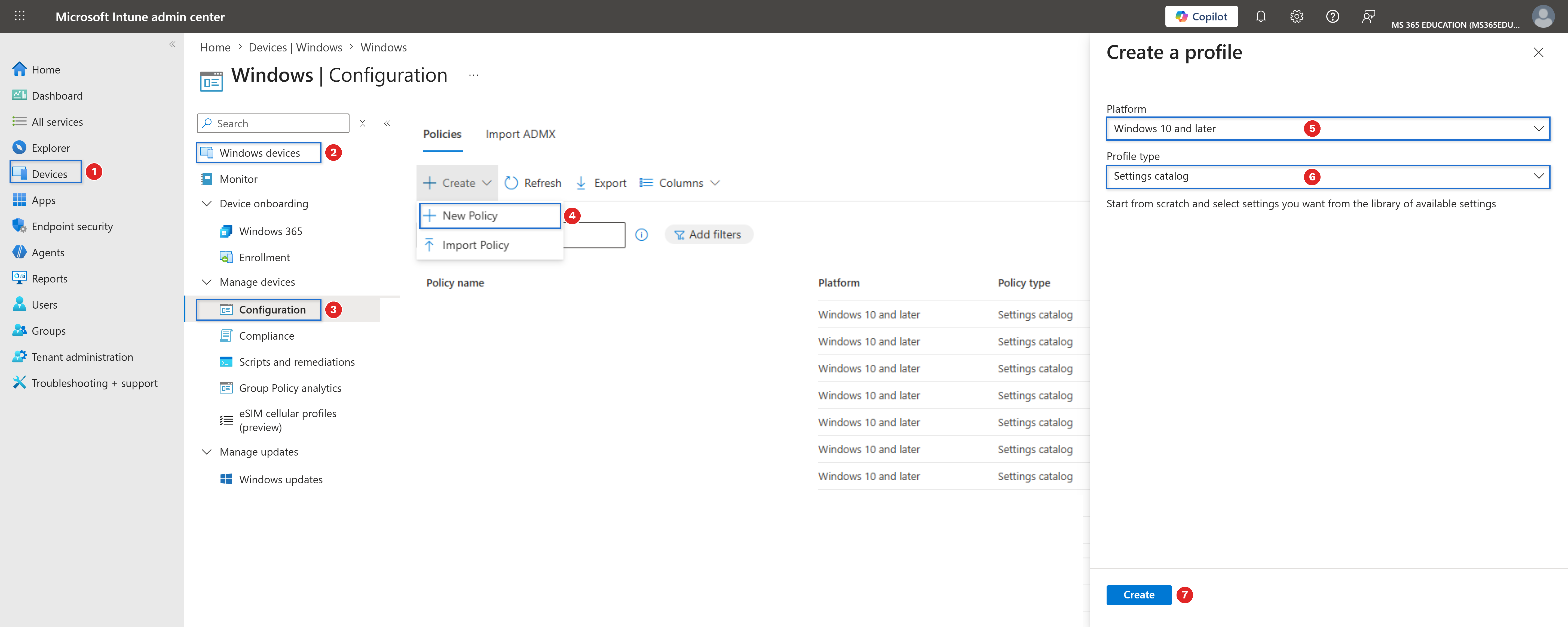
At this stage, you have created the foundation of a Settings Catalog policy. In the next steps, you will search for and configure the setting that controls whether Remote Desktop Services accepts incoming connections on the device.
Define Basic Profile Details
After clicking Create, the next step is to define the basic details of the configuration profile. This stage is essential for long-term management, clarity, and governance within Microsoft Intune, especially in environments with multiple endpoint hardening policies and security baselines.
Providing a clear Name and a concise but meaningful Description ensures that the purpose of the policy is immediately understood by administrators and security teams in the future. As shown in the screenshot, configure the fields as follows.
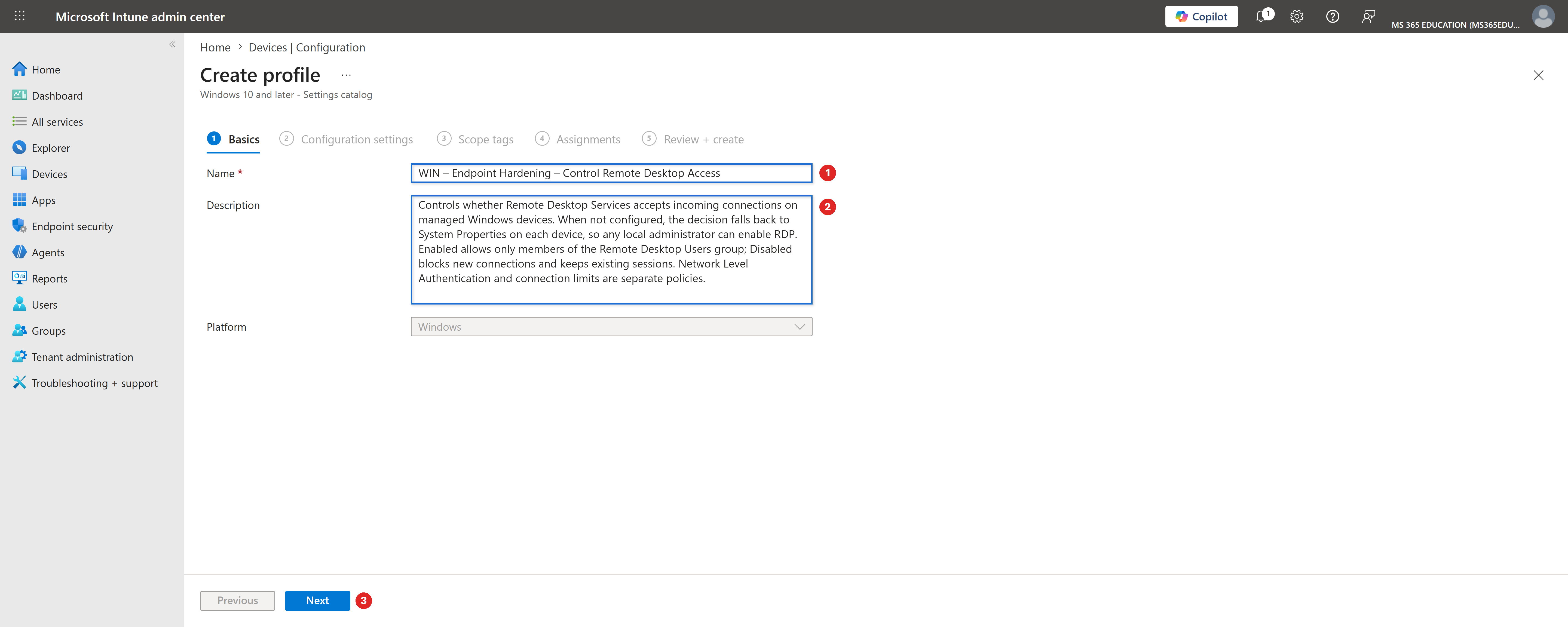
The Platform field is already pre-selected as Windows, so no changes are required. Once the name and description are defined, click Next to proceed to the configuration settings.
Configure the Setting Using the Settings Picker
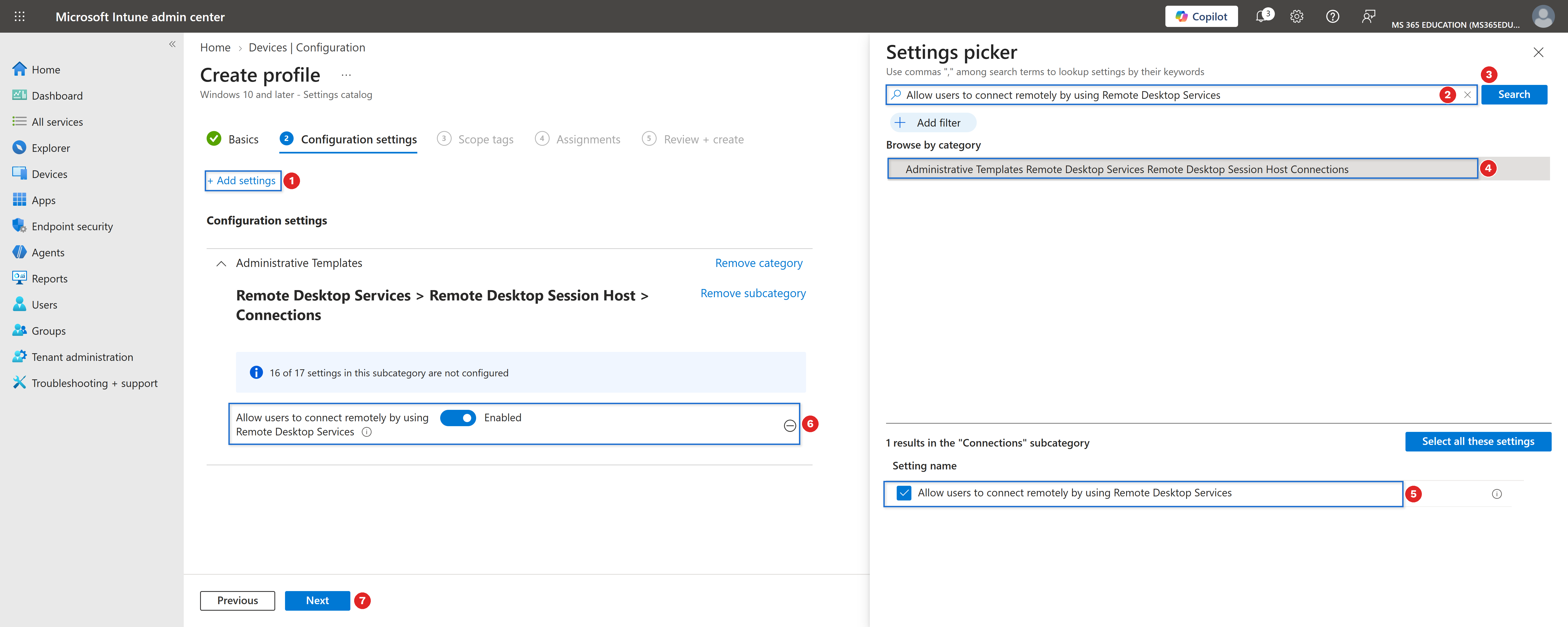
With the profile basics defined, the next step is to configure the policy using the Settings picker, where you select the exact Windows setting you want to enforce. To open the Settings picker panel, click Add settings.
When not configured, Windows relies entirely on the local System Properties setting on the Remote tab, which means any local administrator can toggle RDP access at will.
In the search field at the top of the Settings picker, type Allow users to connect remotely by using Remote Desktop Services, and then click Search to filter the results.
From the returned results, select the category Administrative Templates Remote Desktop Services Remote Desktop Session Host Connections, and then choose the setting Allow users to connect remotely by using Remote Desktop Services. Once selected, the setting is automatically added to the configuration profile. Back on the configuration page, change the value from its default state to Disabled.
When disabled, the device stops accepting new inbound Remote Desktop connections while any existing session remains active until closed. This ensures that:
- Standard endpoints no longer expose an inbound RDP listener by default
- Only devices deliberately scoped into a separate profile can accept remote desktop sessions
- Security teams gain a consistent, auditable baseline instead of relying on local device state
This configuration aligns with modern endpoint hardening practices and supports Zero Trust security principles.
Configure Scope Tags (Optional)
Scope tags are used to control who can view and manage this policy within the Microsoft Intune admin center. They are particularly useful in environments with delegated administration, multiple IT teams, or regional management models.
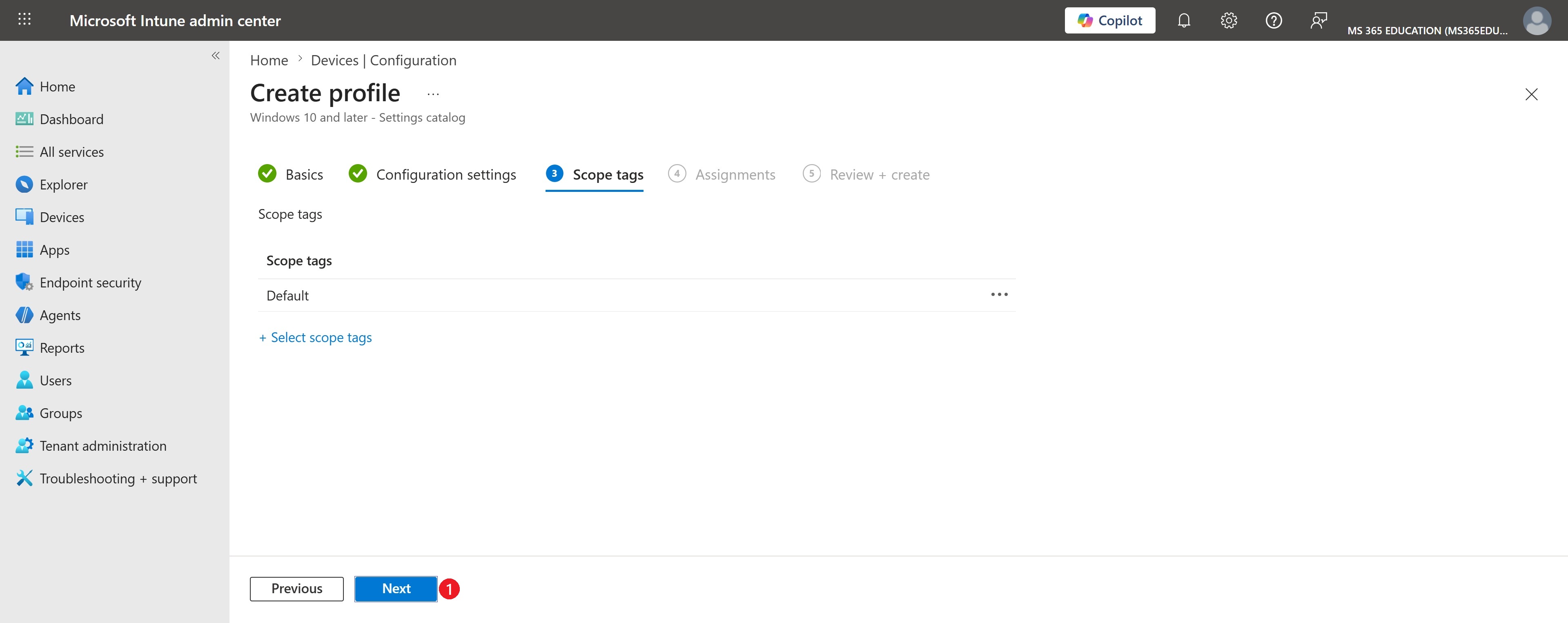
As shown in the screenshot, the Default scope tag is selected. This is the standard and recommended configuration for most environments, as it ensures the policy is visible to all administrators who have access to Intune.
Optionally, custom scope tags can be assigned if you need to:
- Restrict policy visibility to specific IT roles or teams
- Enforce administrative separation of duties
- Support delegated or region-based Intune management
If no additional scope tags are required, keep the Default selection and click Next to continue.
Assignments – Control Remote Desktop Access
After configuring the policy settings, the next step is to assign the policy to the appropriate target group. Assignments define which devices will receive and enforce this configuration, ensuring the policy is applied in a controlled and intentional manner.
In the Assignments tab, click Add groups under Included groups and search for the group you want to target. This approach allows you to deploy the policy gradually, starting with test devices before expanding to production.
As shown in the screenshot, the policy is assigned to the following group: GRP – MS365Education – Test Computers.
Once the group is selected, verify the following:
- The group appears under Included groups
- The group status is Active
- No assignment filters are applied (unless explicitly required)
At this stage, no Excluded groups are configured, which is appropriate for controlled test deployments.
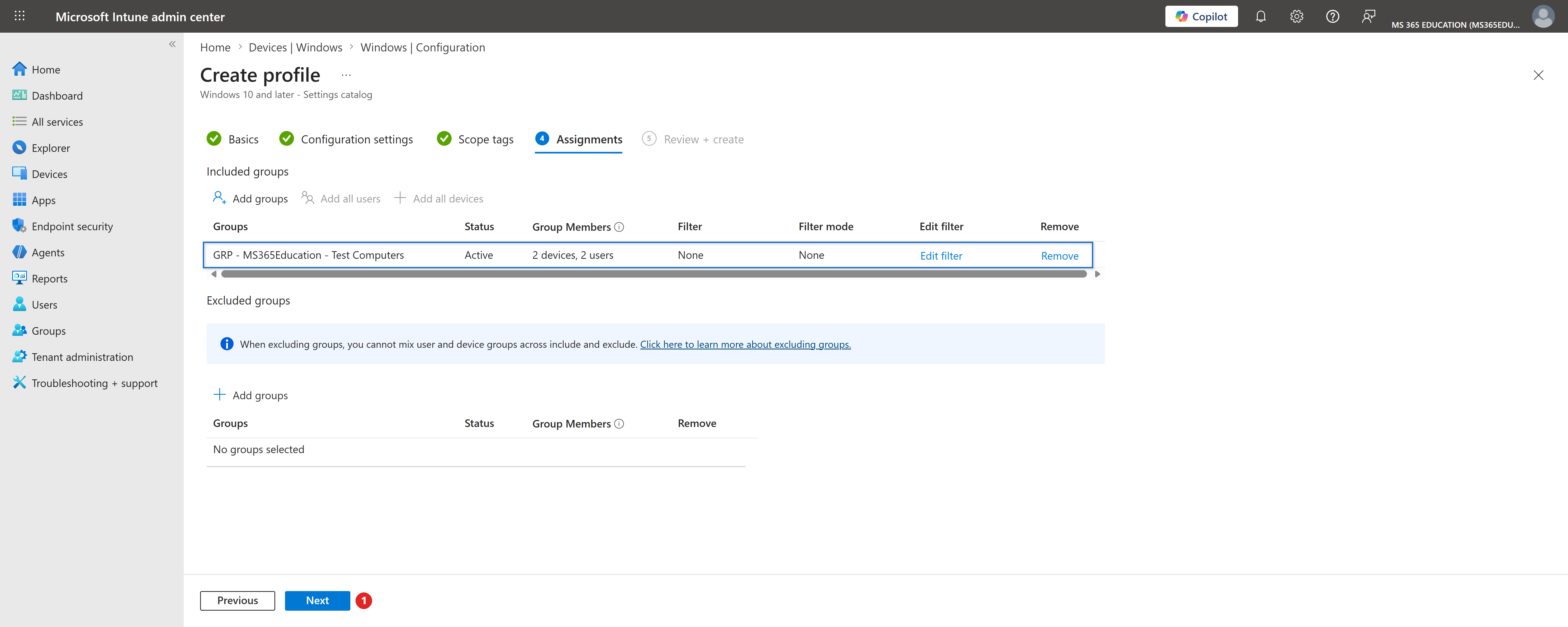
After confirming the assignment, click Next to proceed to the Review + Create step.
Review + Create – Final Validation
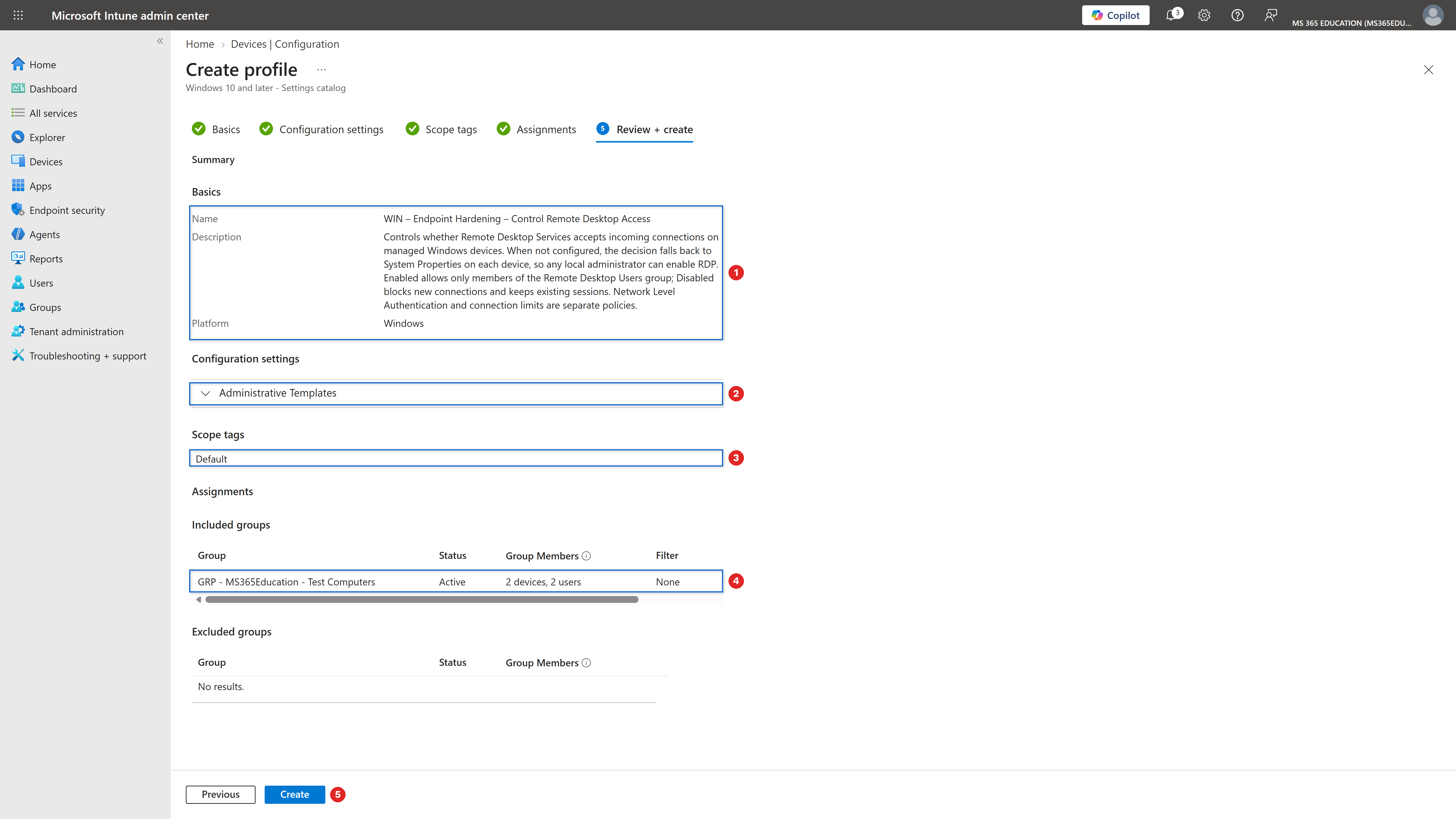
The Review + Create step is the final checkpoint before deploying the policy. This is where you validate that all configurations are correct and aligned with your intended endpoint hardening objective.
Pay special attention to the following items:
- Policy name and description: confirm that the policy clearly reflects its purpose, blocking inbound Remote Desktop connections on standard managed endpoints
- Configuration settings: verify that Allow users to connect remotely by using Remote Desktop Services is set to Disabled, under Remote Desktop Services
- Scope tags: ensure the correct scope tag is assigned. In this example, the Default scope tag is used
- Assignments: confirm the policy is assigned to the intended group, GRP – MS365Education – Test Computers, and that no unintended exclusions are configured
Once everything has been validated, click Create to finalize and deploy the policy to the assigned devices.
Monitor Policy Deployment Status
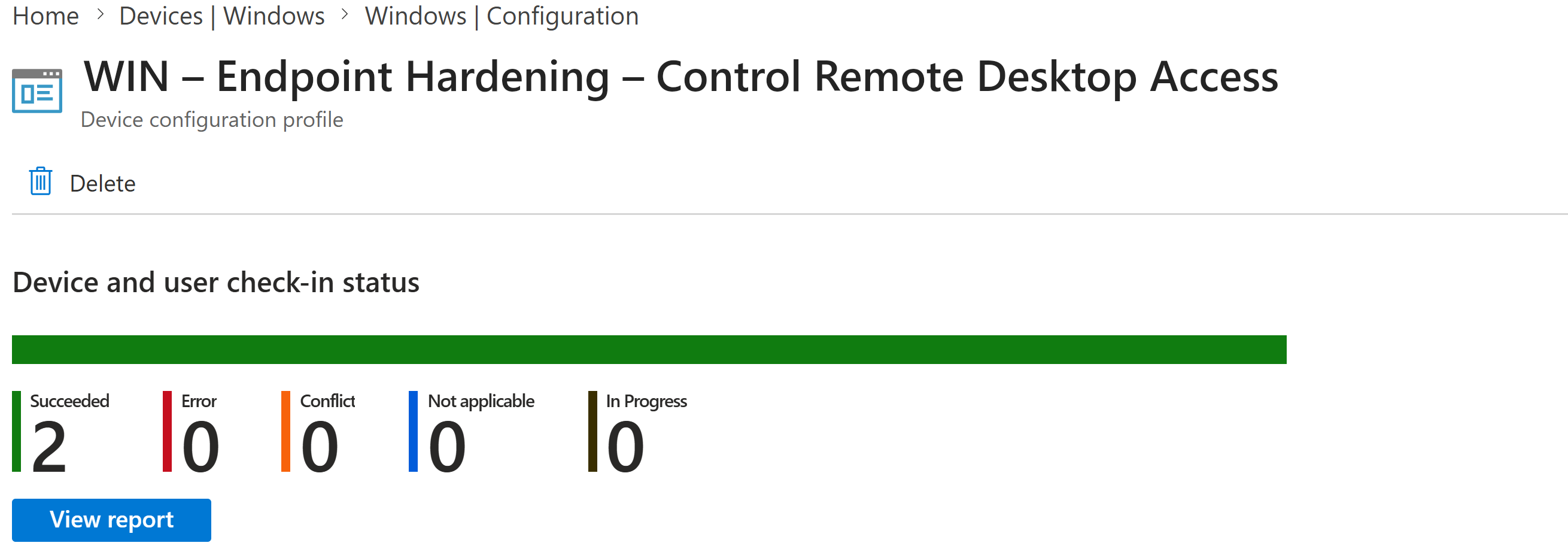
After creating and assigning the WIN – Endpoint Hardening – Control Remote Desktop Access configuration profile, the next step is to verify its deployment status. This validation confirms that the policy has been successfully applied and that inbound Remote Desktop connections are blocked as expected on the targeted devices.
Although Microsoft Intune can take up to 8 hours to automatically deliver configuration profiles, deployment often occurs much faster. If needed, you can accelerate the process by:
- Triggering a manual device sync from the Company Portal
- Initiating a sync directly from the Microsoft Intune admin center
Intune provides clear indicators to evaluate the policy deployment status: Succeeded (devices have applied the policy), In progress (devices are still processing), Error (the policy failed and requires investigation), and Not applicable (the device does not support the configuration).
When devices report Succeeded, it confirms that the inbound RDP listener has been disabled on the endpoint, ensuring that the device can no longer be reached through an unmanaged Remote Desktop session.
Client-Side Verification via Event Viewer
After the device has synced with Intune, you can perform a client-side verification to confirm that the policy was successfully applied. Windows records Intune policy processing events locally, allowing administrators to confirm policy enforcement without relying only on the Intune portal.
- Open Event Viewer on the target device
- Navigate to Applications and Services Logs › Microsoft › Windows › DeviceManagement-Enterprise-Diagnostics-Provider › Admin
- Select Filter Current Log
- Look for Event ID 813 or Event ID 814, which indicate successful processing of Intune configuration policies
- Open the event details and confirm that the RemoteDesktopServices setting was applied
For deeper validation, you can confirm the effective setting directly on the device. Open the System Properties dialog (sysdm.cpl) and check the Remote tab, or verify the registry value fDenyTSConnections under HKLM\SYSTEM\CurrentControlSet\Control\Terminal Server, which should read 1 when RDP is blocked.
Remember that this setting only governs whether connections are accepted. Network Level Authentication and simultaneous session limits are configured through separate, complementary policies and should be reviewed as part of the same hardening baseline.
Why This Matters for Endpoint Security
Remote access protocols sit at the intersection of productivity and exposure. Every legitimate use case for RDP has an equivalent abuse case for an attacker with stolen credentials.
Without this control, security teams have no reliable way to know, at scale, which endpoints in the fleet are silently listening for inbound Remote Desktop sessions.
By enforcing Allow users to connect remotely by using Remote Desktop Services through Microsoft Intune and validating the configuration locally, organizations ensure that:
- Inbound RDP access becomes an explicit, reviewed exception rather than a silent default
- The attack surface available for lateral movement is measurably reduced across the fleet
- Compliance and audit teams have a verifiable, device-level record of enforcement
- Exceptions for jump servers or admin workstations remain deliberate and scoped, not accidental
This configuration provides strong security value without disrupting standard user workflows when properly validated and deployed.
Key Takeaway
Remote access should always be a decision, never a default.
Enforcing this setting through Microsoft Intune turns that decision into a consistent, auditable baseline applied identically across every managed Windows device.
Combined with centralized deployment and client-side validation, the organization gains a fleet where the only devices accepting Remote Desktop connections are the ones explicitly chosen to do so.
And in modern security architecture, governing RDP access is not optional, it is essential.
More Information
For additional technical details, refer to the official Microsoft documentation below:
- https://learn.microsoft.com/en-us/windows/client-management/mdm/policy-csp-remotedesktopservices#allowuserstoconnectremotely
- https://learn.microsoft.com/en-us/mem/intune/configuration/settings-catalog
- https://learn.microsoft.com/en-us/mem/intune/configuration/device-profiles
- https://learn.microsoft.com/en-us/mem/intune/configuration/device-profile-monitor
- https://learn.microsoft.com/en-us/mem/intune/configuration/device-profile-troubleshoot
Thank you for reading!
🖥️ Ricardo Barbosa
🏆️ Microsoft MVP | 📘 Microsoft Certified Trainer (MCT)
☁️ Intune & Cloud Architect | 💼 Technology Director at Altelix.com
💬 Follow me for more Windows endpoint hardening and Intune content.
