

Hardening Windows Endpoints: Automating Data Collection for Phishing Protection with Microsoft Intune
In modern enterprise environments, phishing remains one of the most persistent and damaging attack vectors targeting organizations of every size.
Attackers continue to evolve their techniques, using convincing imitations of trusted websites and applications to harvest corporate credentials.
Once a single set of work or school credentials is compromised, attackers can quickly move laterally, escalate privileges, and gain access to sensitive corporate resources.
Technologies such as Microsoft Defender SmartScreen provide a strong first line of defense, helping identify malicious sites and applications before users interact with them.
However, traditional protections rely heavily on pre-existing threat intelligence, which is not always sufficient against new or rapidly evolving phishing campaigns.
One critical capability that helps close this gap is Enhanced Phishing Protection in Microsoft Defender SmartScreen.
Enhanced Phishing Protection is integrated directly into Windows 11 and continuously monitors how users enter their work or school passwords across browsers and applications.
When users type their corporate password into a website or application that SmartScreen finds suspicious, additional context can be automatically collected to support deeper security analysis.
This includes information such as displayed content, sounds played, and application memory, all used exclusively for security purposes.
If automatic data collection is not enabled, SmartScreen loses access to valuable signals that could help identify emerging phishing techniques and protect users more effectively.
Microsoft provides a policy that allows organizations to enforce automatic data collection across managed devices, ensuring that suspicious activity is consistently analyzed.
By enforcing this configuration through Microsoft Intune, administrators can guarantee that all corporate endpoints contribute to Microsoft's threat intelligence and benefit from a continuously improving phishing detection model.
When enabled, this policy strengthens visibility into suspicious password entry events, reinforces endpoint hardening, and supports a layered approach to identity protection.
The result is a more resilient environment where phishing attempts are not only blocked, but also analyzed, learned from, and used to protect the entire ecosystem.
Why This Policy Matters
Phishing attacks remain the leading cause of credential compromise across enterprise environments.
Strong protections such as Microsoft Defender SmartScreen are essential, but their effectiveness depends on the quality and depth of the data they can analyze.
Without automatic data collection enabled:
Suspicious password entry events lack additional context for analysis
SmartScreen has less information to validate whether a site or app is malicious
New and unknown phishing patterns are harder to detect
Security teams lose valuable forensic signals during incident investigations
With automatic data collection enabled:
SmartScreen gains additional context such as displayed content, sounds, and application memory
Detection accuracy improves through continuous learning from real-world events
Organizations contribute to and benefit from Microsoft's broader threat intelligence
Endpoint protection becomes more proactive instead of purely reactive
This configuration aligns with modern security principles such as defense in depth, endpoint hardening, proactive threat detection, and Zero Trust architecture.
By enabling automatic data collection through Microsoft Intune, organizations move from passive protection to an active, intelligence-driven defense model.
Security Governance
Security governance plays a critical role in ensuring that endpoint hardening controls are consistently applied, monitored, and aligned with organizational standards.
Without centralized governance, configurations such as Enhanced Phishing Protection can drift across devices, leaving gaps that attackers can exploit.
Managing the Automatic Data Collection policy through Microsoft Intune brings several governance benefits to the organization:
Centralized enforcement of phishing protection across all managed Windows endpoints
Consistent configuration aligned with corporate security baselines
Clear visibility into deployment status and configuration compliance
Defined ownership and accountability through scope tags and role-based administration
Auditable policy lifecycle from creation to enforcement and validation
This level of governance ensures that data collected for security analysis is handled in a controlled and transparent manner.
It also reinforces compliance with internal security policies, regulatory frameworks, and Microsoft's recommended best practices for endpoint protection.
By integrating Enhanced Phishing Protection into a broader security governance model, organizations strengthen not only their technical defenses, but also the operational discipline required to keep them effective over time.
Windows CSP Overview
This section explains how the policy is exposed at the operating system level and how Microsoft Intune interacts with it.
The configuration of Enhanced Phishing Protection through Intune is powered by the Windows Policy Configuration Service Provider (CSP) framework.
Within this framework, the WebThreatDefense CSP enables administrators to manage how Microsoft Defender SmartScreen behaves when users enter their work or school passwords across browsers and applications, including phishing detection, password reuse warnings, and automatic data collection.
The specific setting responsible for enabling automatic data collection for security analysis is:
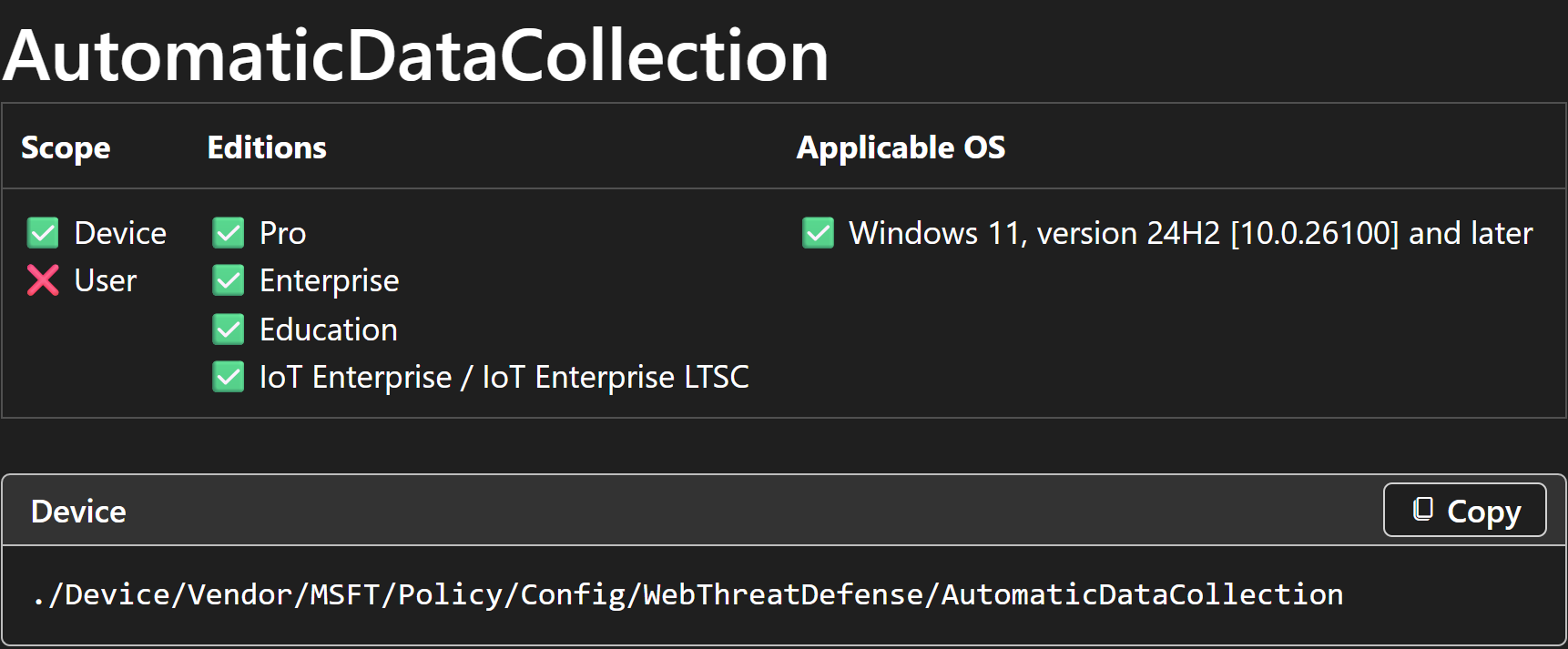
./Device/Vendor/MSFT/Policy/Config/WebThreatDefense/AutomaticDataCollection
This setting acts as a switch that determines whether Enhanced Phishing Protection can collect additional content from suspicious websites or apps when users enter their work or school password.
This configuration:
Applies at the device scope
Is supported on modern Windows editions such as Pro, Enterprise, Education, and IoT Enterprise / IoT Enterprise LTSC
Requires Windows 11 version 24H2 (10.0.26100) and later
Is enforced through the Windows MDM engine when deployed via Intune
When this value is enabled:
Enhanced Phishing Protection may automatically collect content such as displayed elements, sounds played, and application memory
This information is used exclusively for security analysis
SmartScreen gains additional signals to determine whether a website or app is malicious
If this policy is not configured, Enhanced Phishing Protection honors the end user's local settings, which can result in inconsistent behavior across managed devices.
Description Framework Properties
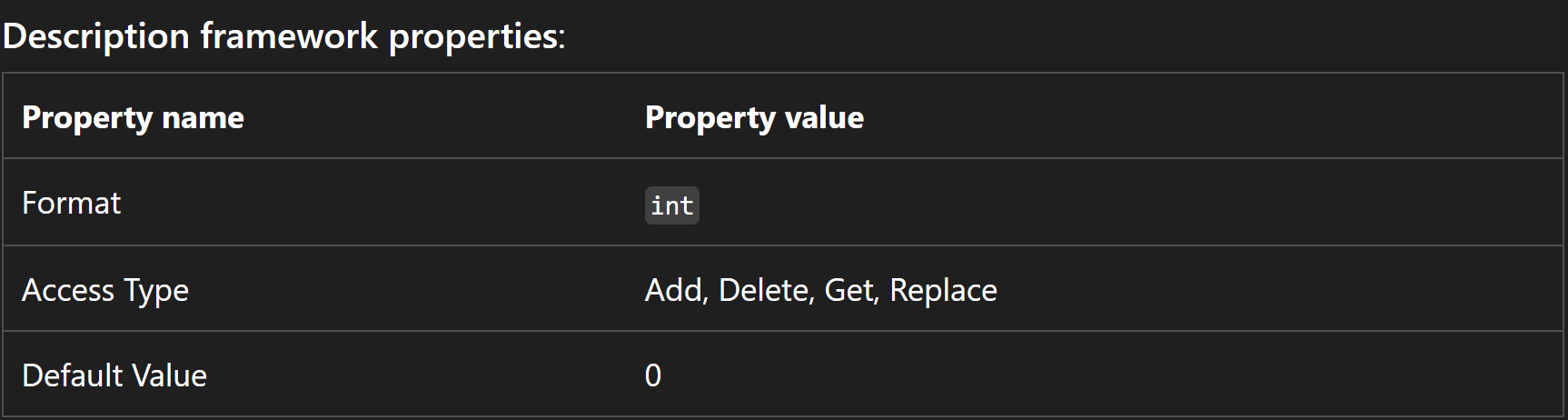
This section defines how the configuration behaves at a technical level within the CSP framework. Understanding these properties is essential for ensuring correct deployment and avoiding configuration conflicts. Key configuration properties include:
Format: int
Access Type: Add, Delete, Get, Replace
Default Value: 0
This means:
The setting is disabled by default (value 0)
It must be explicitly enabled by setting the value to 1
It can be centrally managed and enforced via Intune
Allowed Values
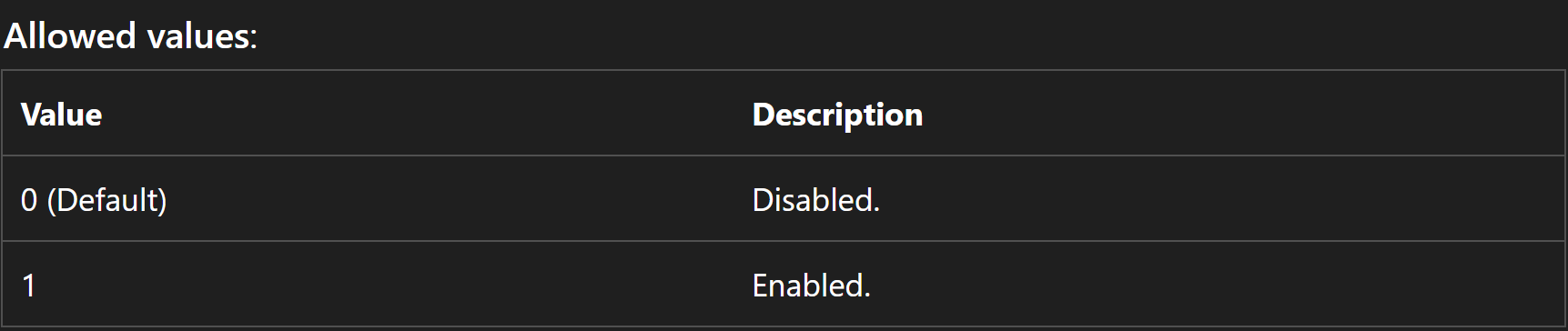
This section defines the valid configuration values supported by the policy. The setting uses an integer format and supports the following values:
0 (Default) Disable automatic data collection
1 Enable automatic data collection
When set to 1, Windows automatically collects threat-related data from Enhanced Phishing Protection events, allowing administrators and Microsoft to analyze detected phishing activity and strengthen protection.
Group Policy Mapping
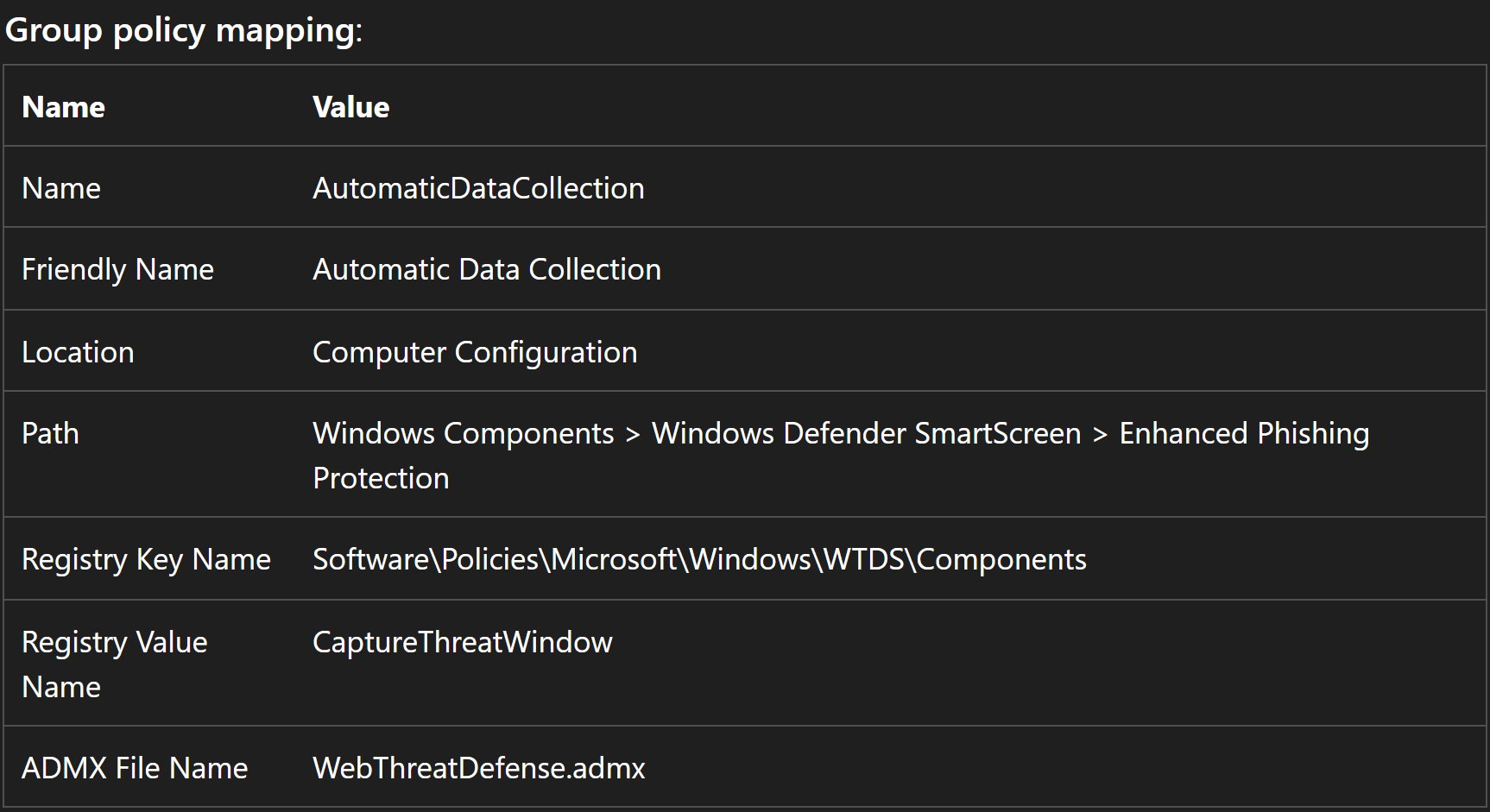
For organizations operating in hybrid environments, this CSP setting maps to a corresponding Group Policy configuration.
Name: AutomaticDataCollection
Friendly Name: Automatic Data Collection
Location: Computer Configuration
Path: Windows Components > Windows Defender SmartScreen > Enhanced Phishing Protection
Registry Key Name: Software\Policies\Microsoft\Windows\WTDS\Components
Registry Value Name: CaptureThreatWindow
ADMX File Name: WebThreatDefense.admx
This mapping helps administrators understand how the same security control can be represented across traditional Group Policy and modern cloud-based management through Microsoft Intune.
Security Considerations
Before enabling this policy, administrators should understand what information is collected and confirm that it aligns with the organization's privacy and compliance requirements. Important requirements and considerations include:
Enhanced Phishing Protection must be enabled for this setting to take effect
Windows 11, version 24H2 (build 10.0.26100) or later
Supported on Pro, Enterprise, Education, and IoT Enterprise / IoT Enterprise LTSC editions
Applies at the device scope only — it is not available at the user scope
When enabled, threat-related data is automatically captured and shared with Microsoft for analysis
The configuration should be reviewed against internal data privacy, governance, and compliance policies
A phased, pilot-first deployment is recommended to validate the behavior in a controlled group, confirm that the collected data meets compliance expectations, and avoid unexpected impact before rolling the setting out across production devices.
How to Configure Automatic Data Collection Using Intune (Settings Catalog)
You can enforce this policy centrally using the Intune Settings Catalog, ensuring that Automatic Data Collection for Enhanced Phishing Protection is applied consistently across all managed Windows devices. By enforcing this configuration through Microsoft Intune, organizations strengthen their phishing defense by allowing Windows to automatically capture and share threat-related data, which helps Microsoft improve detection and protection across the environment.
To begin, sign in to the Microsoft Intune admin center and follow the steps below, as illustrated in the screenshot.
Create the Configuration Profile
In the Microsoft Intune admin center:
Navigate to Devices
Select Windows
Click Configuration
Select + Create policy
In the Create a profile pane:
Platform: Windows 10 and later
Profile type: Settings catalog
Click Create to continue.
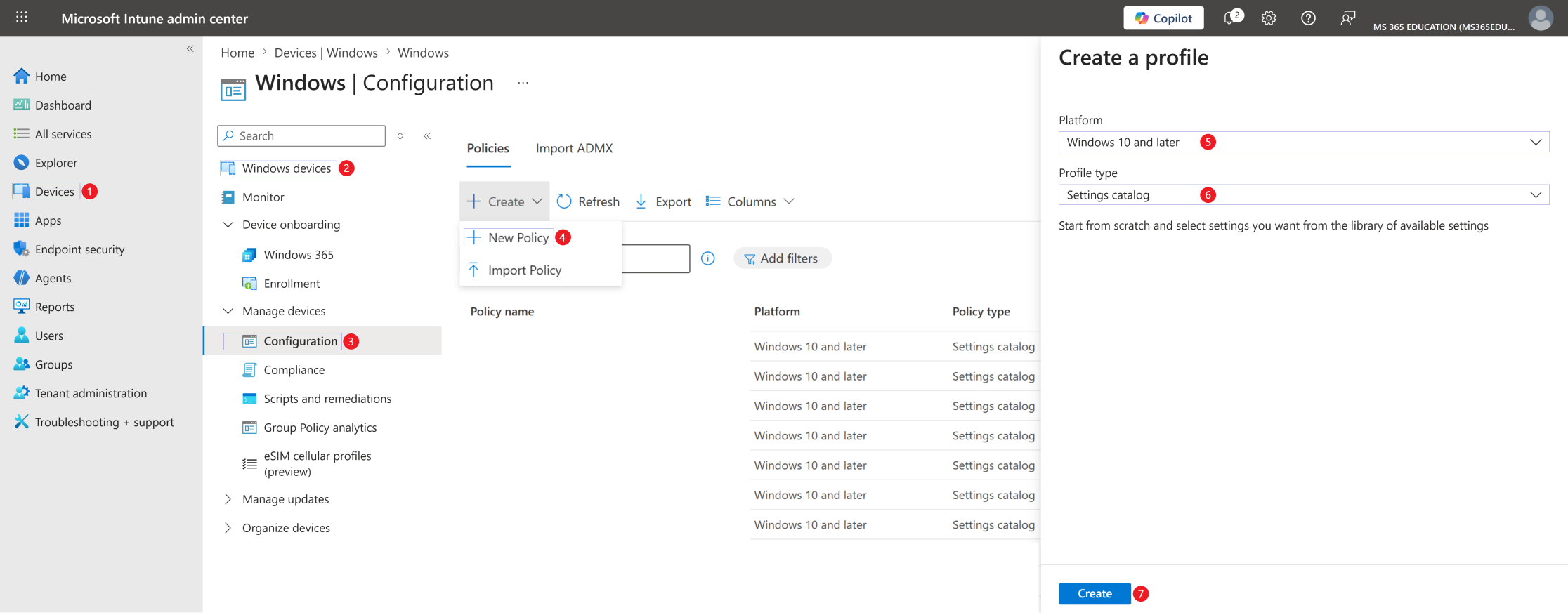
At this stage, you have created the foundation of a Settings Catalog policy. In the next steps, you will search for and configure the setting that enables Automatic Data Collection for Enhanced Phishing Protection as part of Microsoft Defender SmartScreen. This configuration ensures that Windows automatically captures additional threat context, such as displayed content, sounds played, and application memory, when users enter their work or school passwords into suspicious websites or apps, helping Microsoft Defender SmartScreen identify malicious activity and strengthen endpoint protection through richer security telemetry.
Define Basic Profile Details
After clicking Create, the next step is to define the basic details of the configuration profile. This stage is essential for long-term management, clarity, and governance within Microsoft Intune, especially in environments with multiple endpoint hardening policies and security baselines. Providing a clear Name and a concise but meaningful Description ensures that the purpose of the policy is immediately understood by administrators and security teams in the future. As shown in the screenshot, configure the fields as follows.
Policy Name and Description
Name: WIN – Endpoint Hardening – Phishing Protection Automatic Data Collection
Description: Enables automatic collection of additional context, such as displayed content, sounds played, and application memory, when users enter their work or school passwords into suspicious websites or apps. This configuration helps Microsoft Defender SmartScreen identify malicious activity, improve phishing detection accuracy, and strengthen endpoint protection through richer security telemetry.
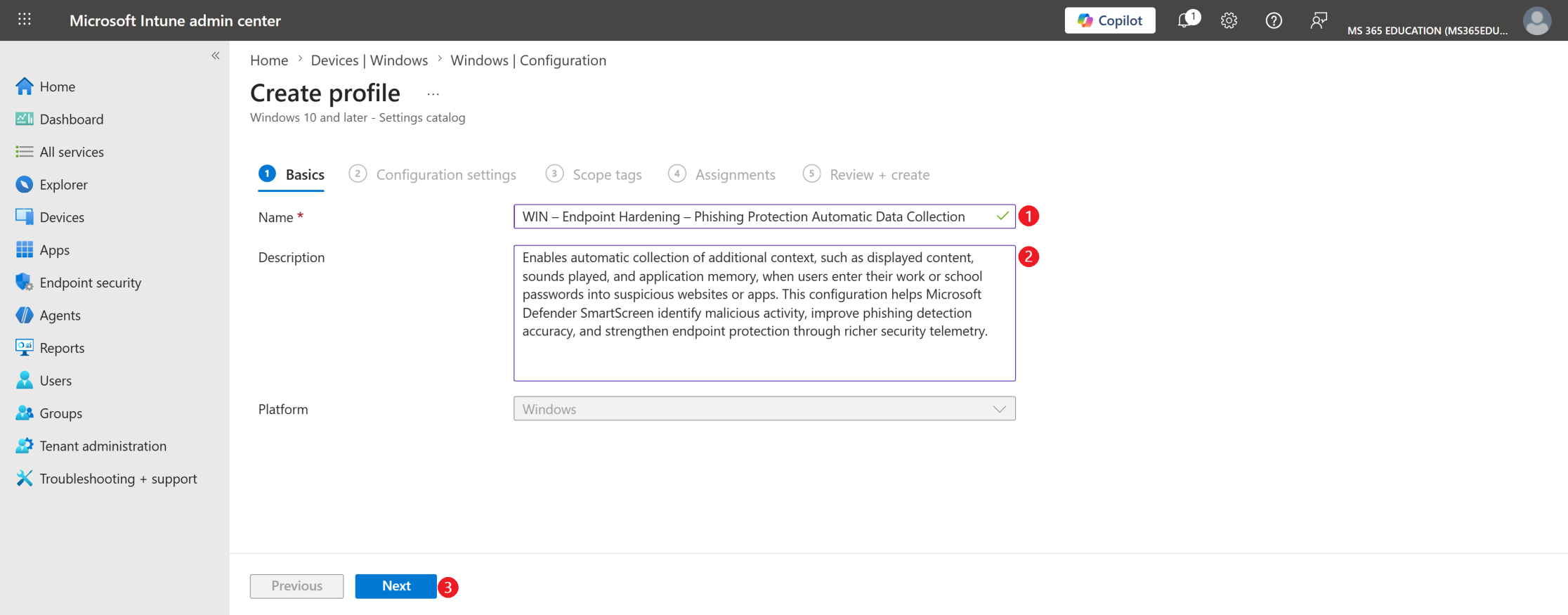
The Platform field is already pre-selected as Windows, so no changes are required.
Once the name and description are defined, click Next to proceed to the configuration settings.
Configure the Setting Using the Settings Picker
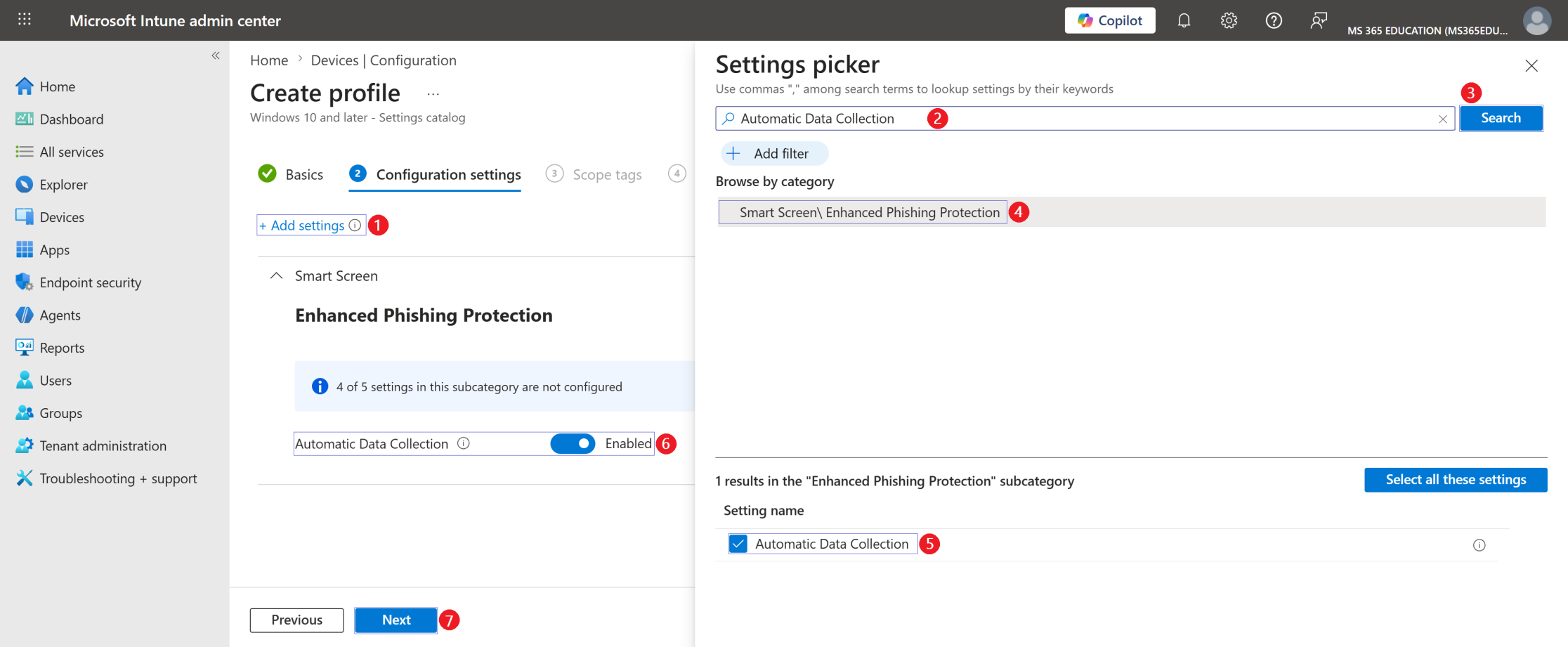
With the profile basics defined, the next step is to configure the policy using the Settings picker, where you select the exact Windows security setting you want to enforce.
To open the Settings picker panel, click Add settings.
By default, this setting is not configured, which means Windows will follow its existing behavior and will not explicitly enforce Automatic Data Collection for Enhanced Phishing Protection through Intune unless you enable it.
In the search field at the top of the Settings picker, type Automatic Data Collection, and then click Search to filter the results.
From the returned results, select the category Smart Screen \ Enhanced Phishing Protection, and then choose the setting Automatic Data Collection. Once selected, the setting is automatically added to the configuration profile.
Back on the configuration page, change the value from its default state to Enabled, as shown in field number 6.
When enabled, Windows automatically collects additional threat context from Microsoft Defender SmartScreen Enhanced Phishing Protection.
This ensures that:
Additional context, such as displayed content, sounds played, and application memory, is captured when users enter their work or school passwords into suspicious websites or apps
This threat-related data is shared with Microsoft to help identify malicious activity
Phishing detection accuracy is improved through richer security telemetry
This significantly strengthens the organization's ability to detect and respond to phishing attempts, improving the overall endpoint security posture.
This configuration aligns with modern endpoint hardening practices and supports Zero Trust security principles, ensuring that credential-based phishing threats are continuously monitored and analyzed.
Configure Scope Tags (Optional)
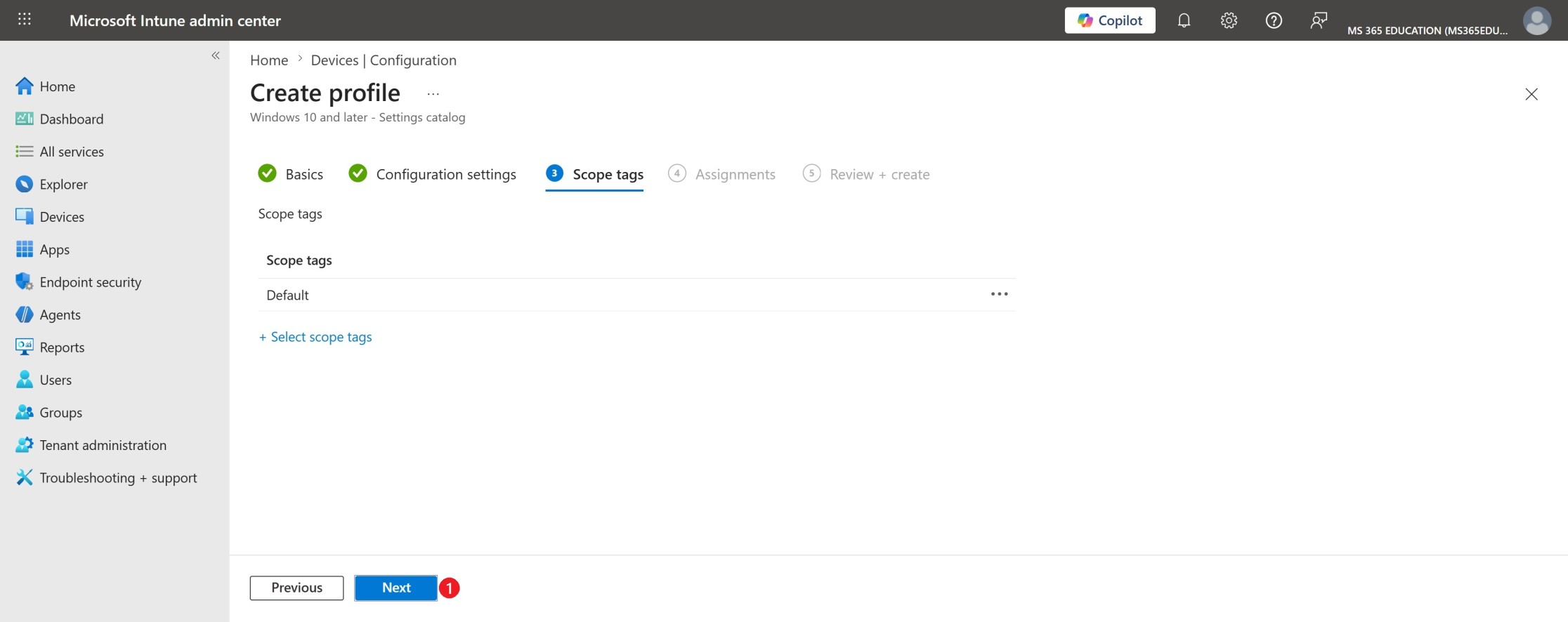
Scope tags are used to control who can view and manage this policy within the Microsoft Intune admin center. They are particularly useful in environments with delegated administration, multiple IT teams, or regional management models.
As shown in the screenshot, the Default scope tag is selected. This is the standard and recommended configuration for most environments, as it ensures the policy is visible to all administrators who have access to Intune.
Optionally, custom scope tags can be assigned if you need to:
Restrict policy visibility to specific IT roles or teams
Enforce administrative separation of duties
Support delegated or region-based Intune management
If no additional scope tags are required, keep the Default selection and click Next to continue.
Assignments – Restrict Anonymous Access Policy
After configuring the policy settings, the next step is to assign the policy to the appropriate target group. Assignments define which devices will receive and enforce this configuration, ensuring the policy is applied in a controlled and intentional manner.
In the Assignments tab, click Add groups under Included groups and search for the group you want to target. This approach allows you to deploy the policy gradually, starting with test devices before expanding to production.
As shown in the screenshot, the policy is assigned to the following group:
GRP – MS365Education – Test Computers
Once the group is selected, verify the following:
The group appears under Included groups
The group status is Active
No assignment filters are applied (unless explicitly required)
At this stage, no Excluded groups are configured, which is appropriate for controlled test deployments.
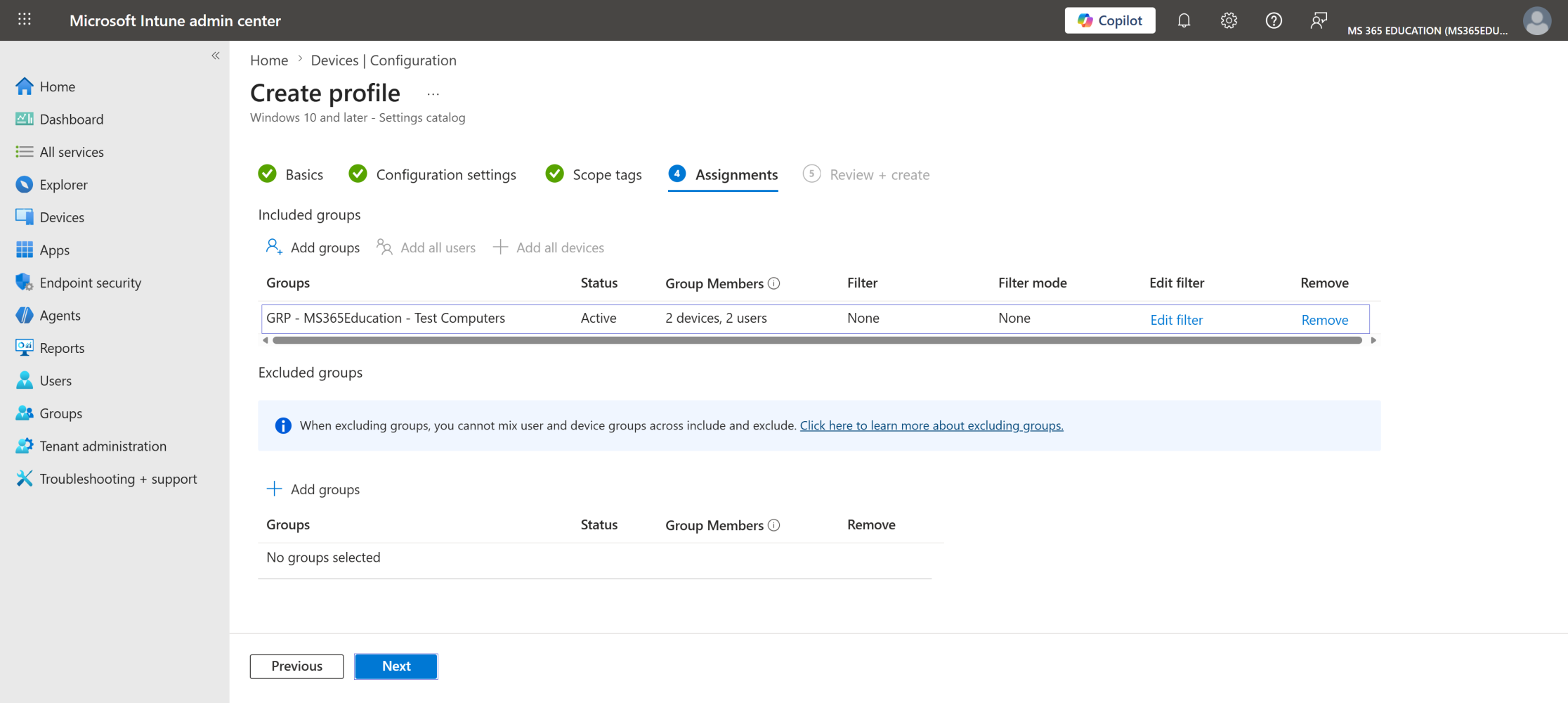
After confirming the assignment, click Next to proceed to the Review + Create step.
Review + Create – Final Validation
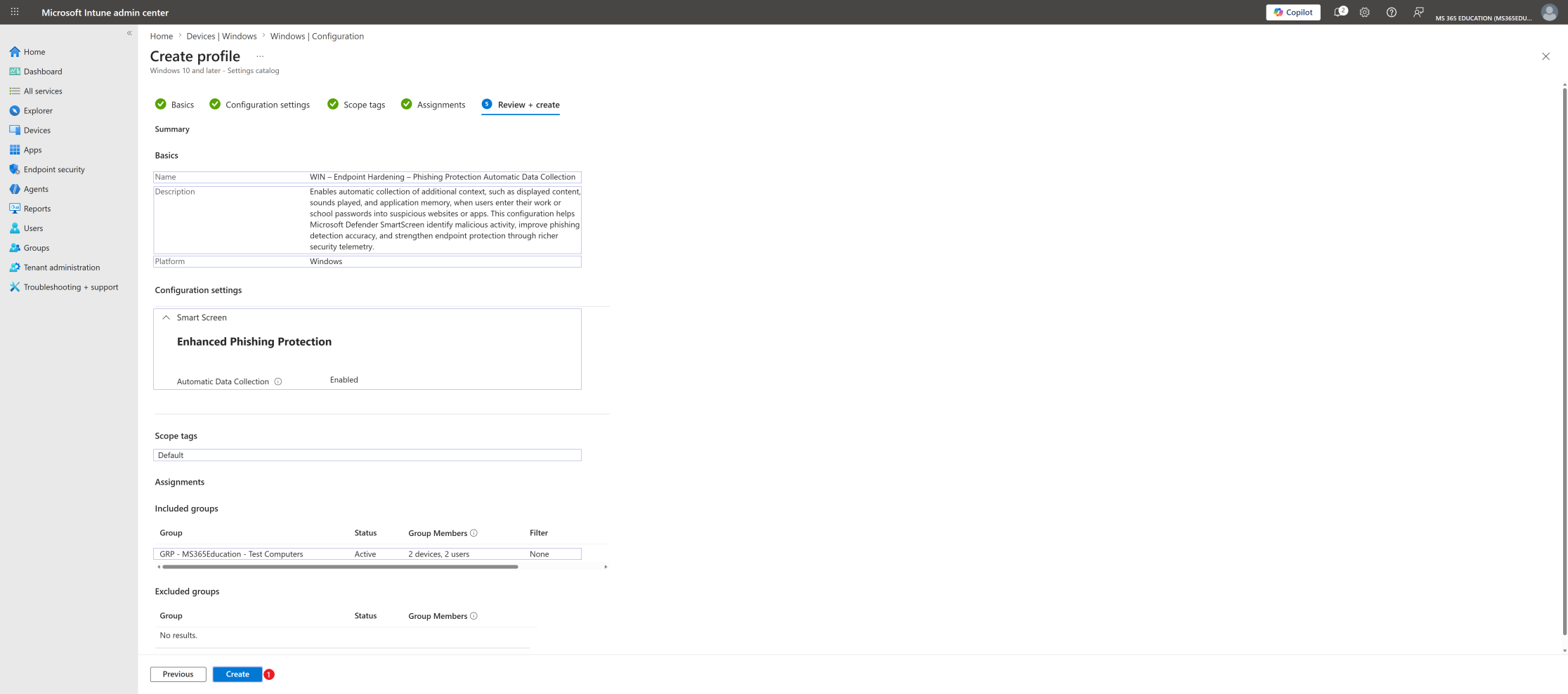
The Review + Create step is the final checkpoint before deploying the policy. This is where you validate that all configurations are correct and aligned with your intended endpoint hardening and phishing protection objective.
Pay special attention to the following items.
Policy name and description
Confirm that the policy clearly reflects its purpose: strengthening endpoint security by enabling Automatic Data Collection for Microsoft Defender SmartScreen Enhanced Phishing Protection, allowing Windows to capture additional threat context when users enter their work or school passwords into suspicious websites or apps.
Configuration settings: Verify that Automatic Data Collection is set to Enabled, under Smart Screen \ Enhanced Phishing Protection.
Scope tags: Ensure the correct scope tag is assigned. In this example, the Default scope tag is used.
Assignments: Confirm the policy is assigned to the intended group: GRP – MS365Education – Test Computers. Also verify that no unintended exclusions are configured.
This final review step helps prevent misconfigurations, unintended deployments, or scope issues, especially in environments with multiple security baselines, delegated administration, and layered endpoint security policies.
Once everything has been validated, click Create to finalize and deploy the policy to the assigned devices.
Monitor Policy Deployment Status
After creating and assigning the WIN – Endpoint Hardening – Phishing Protection Automatic Data Collection configuration profile, the next step is to verify its deployment status.
This validation confirms that the policy has been successfully applied and that Windows is enforcing Automatic Data Collection for Microsoft Defender SmartScreen Enhanced Phishing Protection on the targeted devices.
Although Microsoft Intune can take up to 8 hours to automatically deliver configuration profiles, deployment often occurs much faster. If needed, you can accelerate the process by:
Triggering a manual device sync from the Company Portal
Initiating a sync directly from the Microsoft Intune admin center
Monitoring deployment ensures that the Automatic Data Collection policy is active and operating as intended.
How to Verify Policy Deployment Status
To review the deployment results:
In the Microsoft Intune admin center, navigate to Devices ➝ Configuration profiles
Use the search bar to locate the profile: WIN – Endpoint Hardening – Phishing Protection Automatic Data Collection
Select the policy to open the Overview page
Review Deployment Metrics
Intune provides clear indicators to evaluate the policy deployment status:
Succeeded – Devices have successfully applied the policy
In progress – Devices are still processing the configuration
Error – The policy failed to apply and requires investigation
Not applicable – The device does not support the configuration
When devices report Succeeded, it confirms that Windows is enforcing Automatic Data Collection for Enhanced Phishing Protection, ensuring that threat-related context is captured and shared with Microsoft when credential-based phishing attempts are detected.
This means:
Additional context, such as displayed content, sounds played, and application memory, is collected when users enter their work or school passwords into suspicious websites or apps
This threat data is shared with Microsoft to help identify malicious activity
Phishing detection accuracy is continuously improved through richer security telemetry
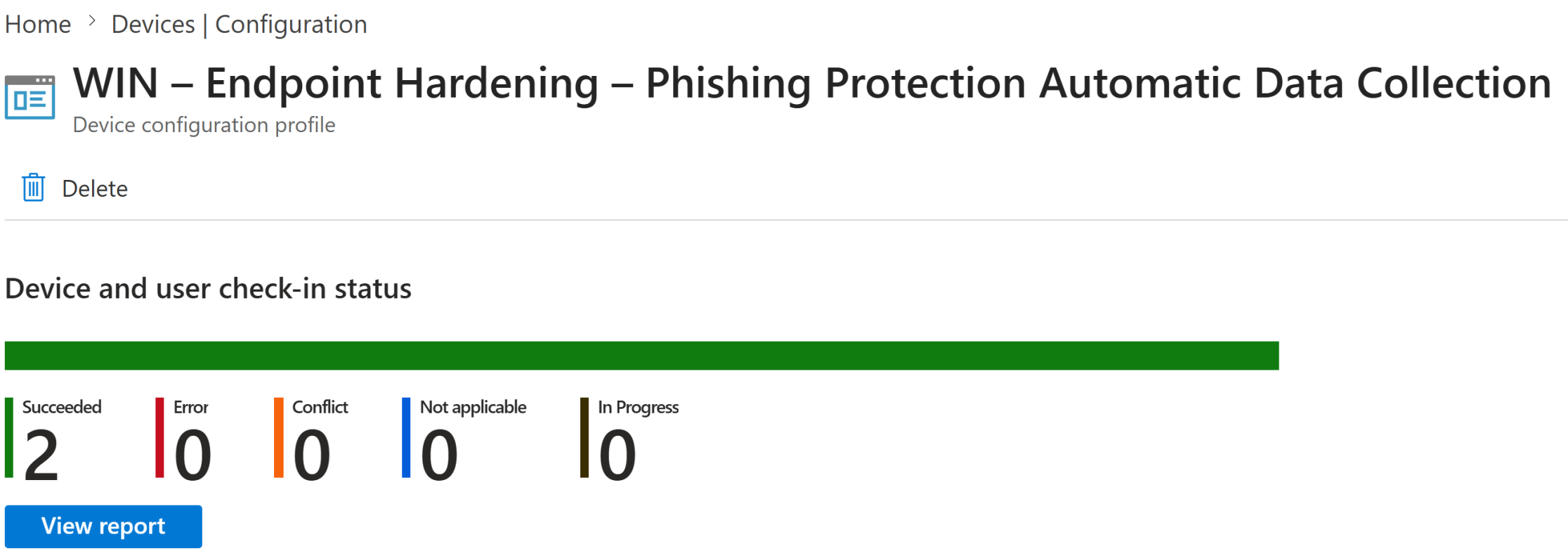
This verification step confirms that the endpoint hardening control is successfully deployed and protecting managed Windows devices against credential phishing threats.
Client-Side Verification via Event Viewer
After the device has synced with Intune, you can perform a client-side verification to confirm that the WIN – Endpoint Hardening – Phishing Protection Automatic Data Collection policy was successfully applied.
This validation ensures that Automatic Data Collection for Microsoft Defender SmartScreen Enhanced Phishing Protection is actively enforced at the operating system level.
Windows records Intune policy processing events locally, allowing administrators to confirm policy enforcement without relying only on the Intune portal.
How to Verify
Open Event Viewer on the target device
Navigate to: Applications and Services Logs ➝ Microsoft ➝ Windows ➝ DeviceManagement-Enterprise-Diagnostics-Provider ➝ Admin
Select Filter Current Log
Look for Event ID 813 or Event ID 814, which indicate successful processing of Intune configuration policies
Open the event details and confirm that the Automatic Data Collection setting was applied
Pro Tip
Match the event timestamp with the device's most recent Intune sync.
Event IDs 813 and 814 are reliable indicators that the configuration policy was processed by the Windows MDM engine.
For deeper validation, you can also confirm the setting directly in the registry:
Registry key: HKEY_LOCAL_MACHINE\SOFTWARE\Policies\Microsoft\Windows\WTDS\Components
Value name: CaptureThreatWindow
Expected value: 1 (Enabled)
Here, you can confirm that:
Automatic Data Collection is enabled, with CaptureThreatWindow set to 1
Enhanced Phishing Protection is configured to capture additional threat context
The policy was correctly processed by the Windows MDM engine
If the policy is correctly applied, Windows will enforce Automatic Data Collection for Enhanced Phishing Protection, ensuring that:
Additional context, such as displayed content, sounds played, and application memory, is captured when users enter their work or school passwords into suspicious websites or apps
This threat-related data is shared with Microsoft to help identify malicious activity
Phishing detection accuracy is improved through richer security telemetry
Why This Matters for Endpoint Security
Credential phishing is one of the most common and damaging attack vectors in modern endpoint security.
Without proper visibility and enforcement, attackers may successfully trick users into entering their corporate credentials on malicious websites or applications, bypassing traditional defenses.
By enabling Automatic Data Collection through Microsoft Intune and validating the configuration locally, organizations ensure that:
Phishing attempts are detected with richer contextual data
Threat visibility across managed endpoints is significantly improved
Microsoft Defender SmartScreen detection is strengthened through security telemetry
Endpoints are more resilient against credential theft and advanced phishing attacks
This configuration provides strong protection without disrupting standard user workflows when properly validated and deployed.
Key Takeaway
Effective endpoint security starts with protecting user identity and credentials.
By enabling Automatic Data Collection for Enhanced Phishing Protection through Microsoft Intune, organizations ensure that phishing threat context is consistently captured across all managed devices.
Combined with centralized deployment and proper client-side validation, this policy helps transform endpoint security into a more resilient, controlled, and trustworthy environment.
And in modern security architecture, protecting users against phishing is not optional, it is essential.
More Information
For additional technical details, refer to the official Microsoft documentation below:
https://learn.microsoft.com/en-us/windows/client-management/mdm/policy-csp-webthreatdefense
https://learn.microsoft.com/en-us/mem/intune/configuration/settings-catalog
https://learn.microsoft.com/en-us/mem/intune/configuration/device-profiles
https://learn.microsoft.com/en-us/mem/intune/configuration/device-profile-monitor
https://learn.microsoft.com/en-us/mem/intune/configuration/device-profile-troubleshoot
Thank you!
🖥️ Ricardo Barbosa
🎖️ Microsoft MVP | 📘 Microsoft Certified Trainer (MCT)
☁️ Intune & Cloud Architect | 💼 Technology Director at Altelix.com
