

In modern endpoint security, what we control silently often matters more than what we visibly block.
While DNS dominates today’s networks, NetBIOS and WINS still exist in many hybrid environments. And legacy protocols, when left unmanaged, can introduce unnecessary risk.
One overlooked vector?
NetBIOS Name Release requests.
An attacker with simple network access can attempt to flood the environment with name release requests targeting a Domain Controller or critical file server.
If successful, this could cause:
Temporary service disruption
Name resolution conflicts
Authentication instability
Potential lateral movement scenarios
And here’s the key point:
This does not require domain admin privileges.
It only requires exposure of legacy behavior.
The Control
Using Microsoft Intune, administrators can enforce a device-level policy that:
Forces Windows to ignore NetBIOS Name Release requests unless they originate from authorized WINS servers.
This means:
Only trusted infrastructure can instruct a system to release its NetBIOS name
All unauthorized release attempts are ignored
Name integrity is preserved across the network
This protection works silently at the system level, without impacting users or applications.
Why This Matters in Modern Security
This setting is especially relevant in:
Hybrid environments
Legacy-dependent applications
Networks still running WINS
Gradual modernization projects
It supports:
Zero Trust principles
Defense-in-depth strategy
Reduced legacy attack surface
Centralized governance via Intune
Modern device management does not mean ignoring legacy risk. It means controlling it intentionally.
Technical Overview
This configuration is deployed via the MSS Legacy CSP at the device scope.
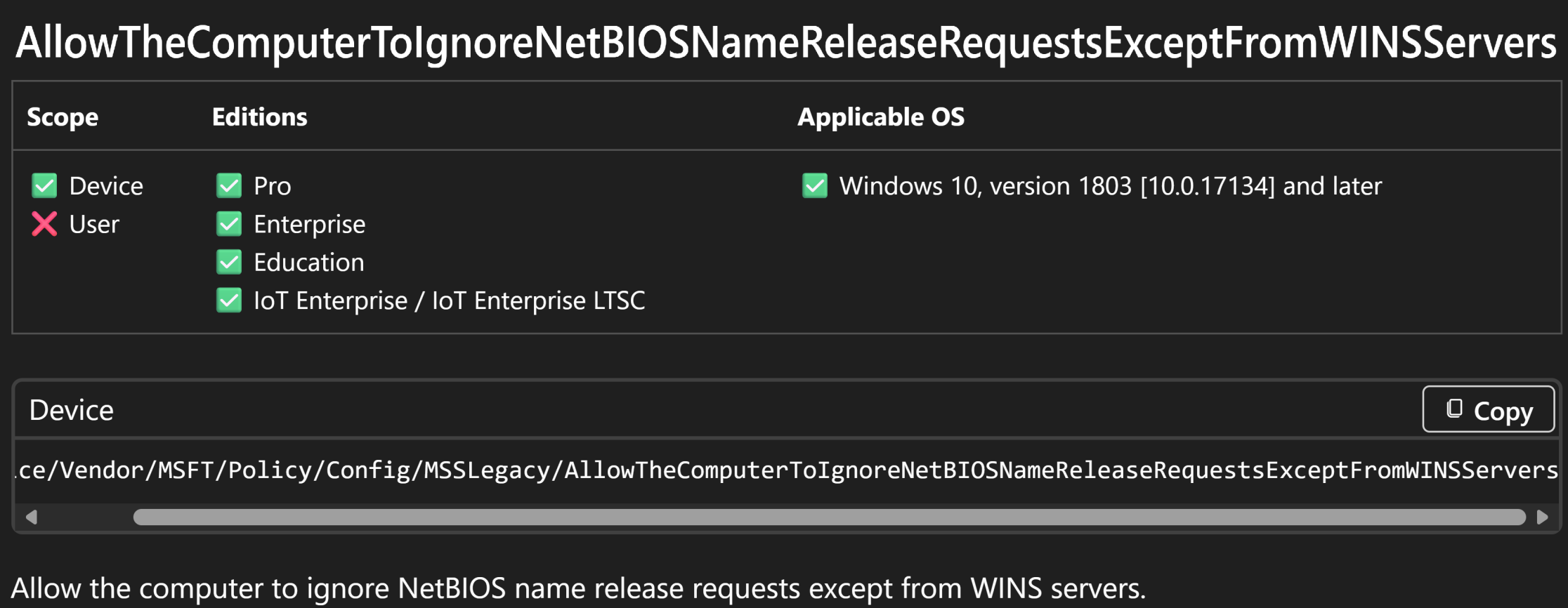


Supported on Windows 10 version 1803 and later, including Windows 11.
Key Takeaways
Prevents unauthorized NetBIOS name release attempts
Protects against name hijacking and spoofing
Maintains service stability in hybrid environments
Applies legacy controls within modern Intune management
Strengthens governance without operational impact
How to Configure NetBIOS Name Release Protection Using Intune (Settings Catalog)
This policy can be centrally enforced using the Intune Settings Catalog, ensuring consistent deployment across all Windows devices.
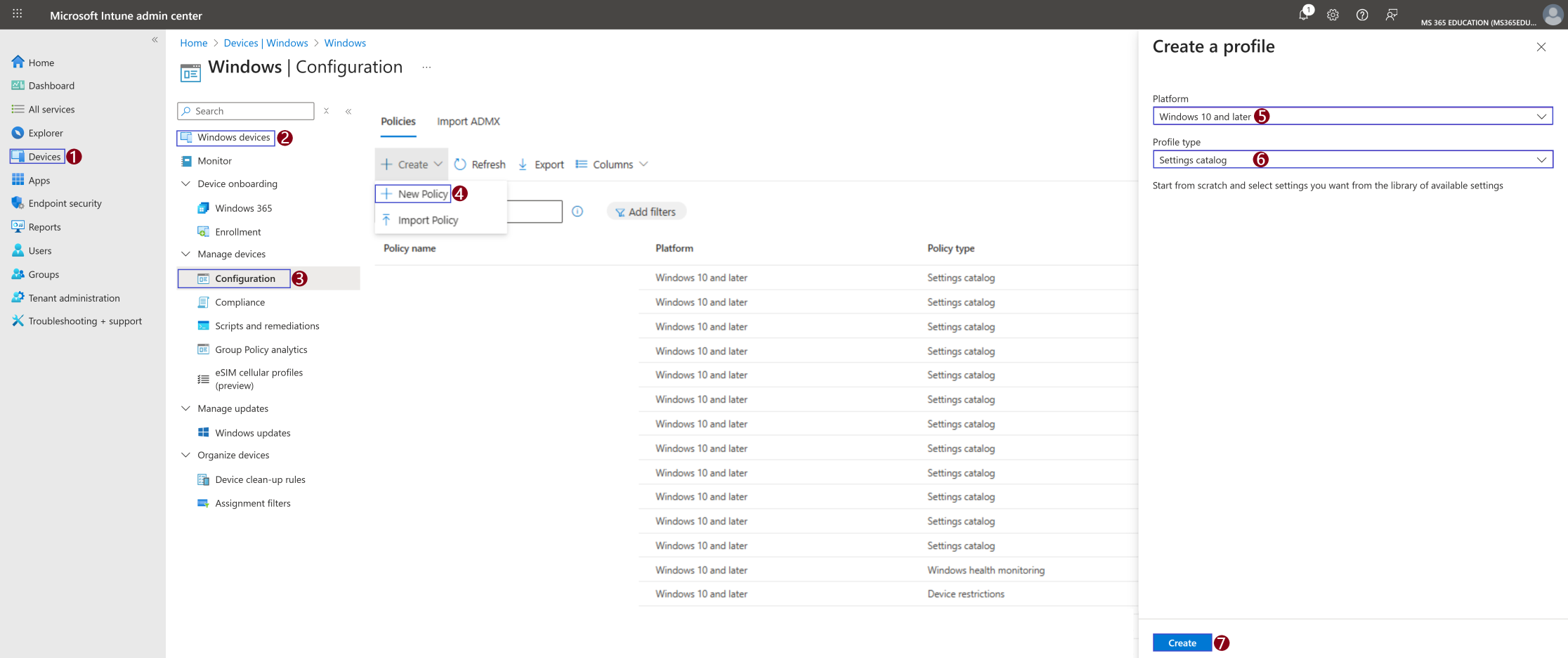
To begin, sign in to the Microsoft Intune admin center and follow the steps below, as illustrated in the screenshot.
Create the Configuration Profile
In the Microsoft Intune admin center, navigate to Devices
Select Windows
Click Configuration
Select + Create policy
In the Create a profile pane:
Platform: Windows 10 and later
Profile type: Settings catalog
Click Create to continue.
At this point, you’ve created the foundation of a Settings Catalog policy. In the next steps, you will locate and configure the setting that controls anonymous access to named pipes and shares, ensuring it is enforced consistently across all managed devices.
Define Basic Profile Details
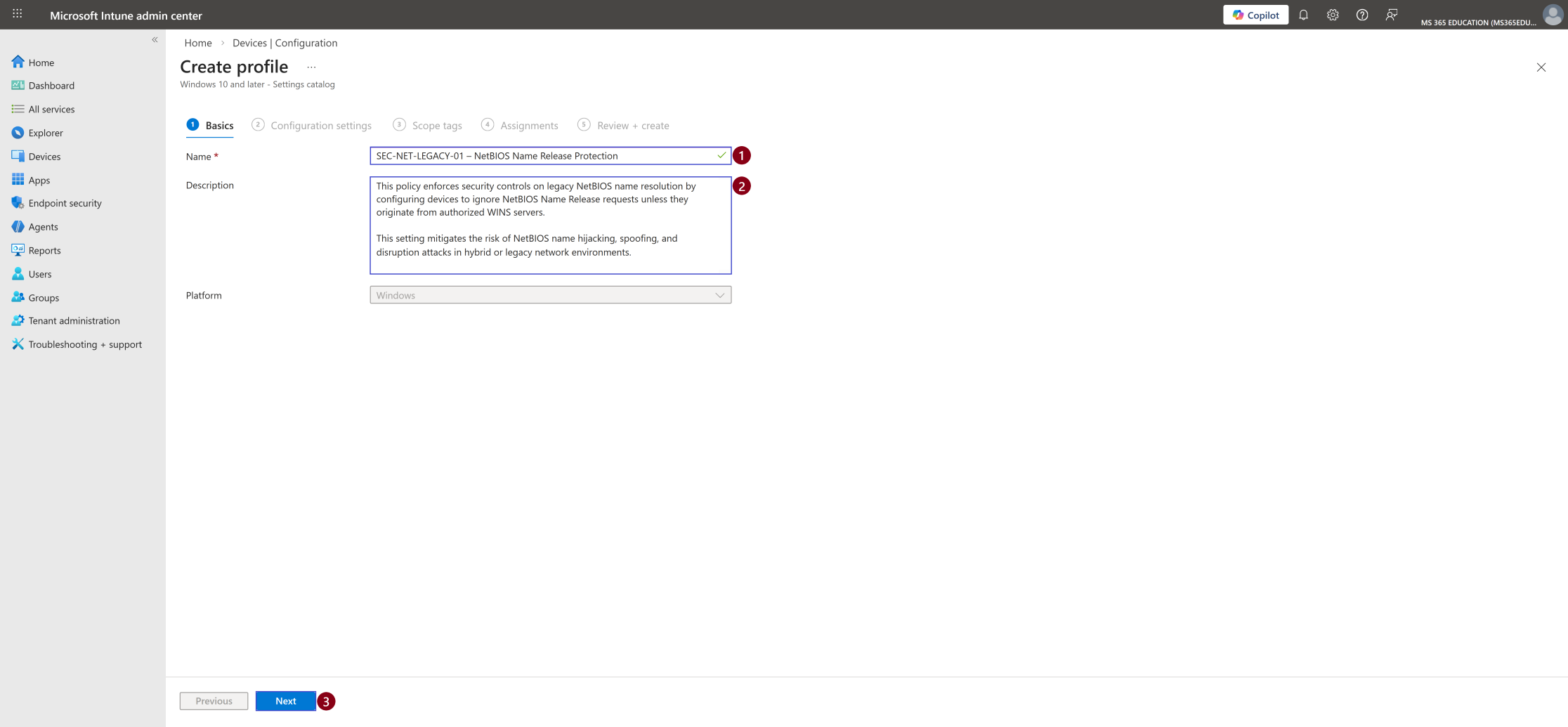
After clicking Create, the next step is to define the basic details of the configuration profile.
This stage is critical for long-term governance, clarity, and policy lifecycle management inside Microsoft Intune especially in environments with multiple security baselines and hardening policies.
A clear Name and a concise but meaningful Description ensure that the purpose of the policy is immediately understood by administrators, security engineers, and auditors in the future.
Suggested Name and Description
Name: SEC-NET-LEGACY-01 – NetBIOS Name Release Protection
Description: Configures devices to ignore NetBIOS Name Release requests unless issued by authorized WINS servers. This setting mitigates name hijacking and spoofing risks in legacy or hybrid environments where NetBIOS or WINS is still in use.
The Platform field will already be set to Windows, so no changes are required.
Once the name and description are defined, click Next to proceed to the configuration settings.
Governance Tip
Using a structured naming convention (like SEC-NET-LEGACY-01) helps:
Organize policies by category
Simplify auditing and reporting
Improve documentation consistency
Scale security controls cleanly
Modern endpoint management is not just about configuration it’s about controlled, intentional governance.
Configure the Setting Using the Settings Picker
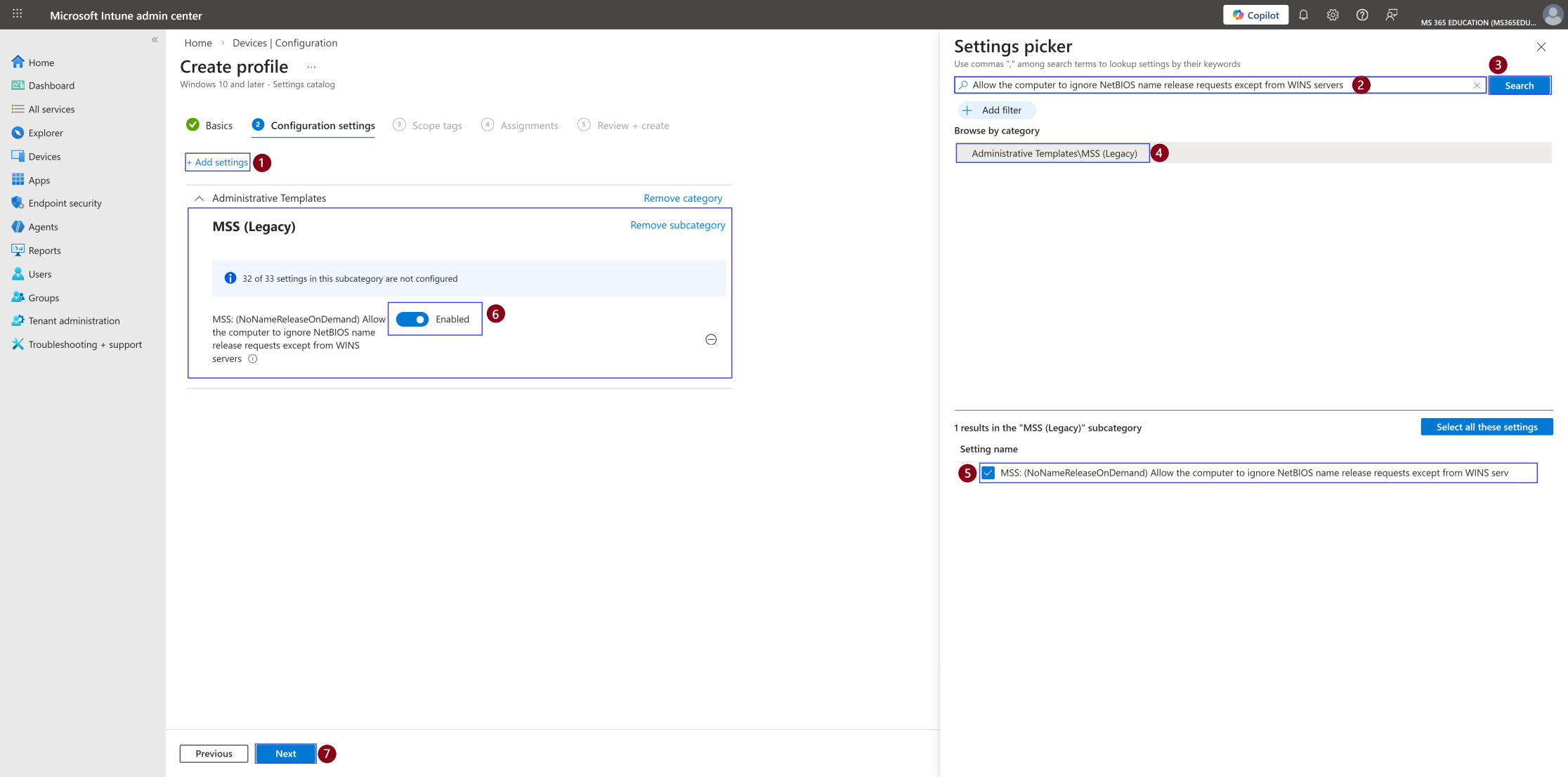
With the profile basics defined, the next step is to configure the policy using the Settings picker, where you select the exact Windows security setting to enforce.
Click Add settings to open the Settings picker panel.
In the search field at the top of the Settings picker, type:
Allow the computer to ignore NetBIOS name release requests except from WINS servers
Then click Search to filter the results.
From the returned results, navigate to:
Administrative Templates → MSS (Legacy)
Select the setting:
MSS: (NoNameReleaseOnDemand) Allow the computer to ignore NetBIOS name release requests except from WINS servers
Once selected, the setting is added to the configuration profile.
Back on the configuration page, change the value to:
Enabled
This is the key enforcement point.
When enabled, Windows ignores NetBIOS Name Release requests from unauthorized sources and only accepts release instructions from trusted WINS servers. This prevents name hijacking and spoofing attempts while preserving normal network functionality.
After configuring the setting, click Next to continue with scope tags, assignments, and deployment.
Security Impact
By default, this setting is Not Configured, which allows standard NetBIOS behavior.
When set to Enabled, the device enforces controlled name release behavior, ensuring that only authorized WINS infrastructure can trigger a NetBIOS name release event.
This reduces legacy attack surface without affecting modern DNS-based operations or user productivity.
Configure Scope Tags (Optional)
Scope tags are used to control who can view and manage this policy within the Microsoft Intune admin center. They are particularly useful in environments with delegated administration, multiple IT teams, or regional management models.
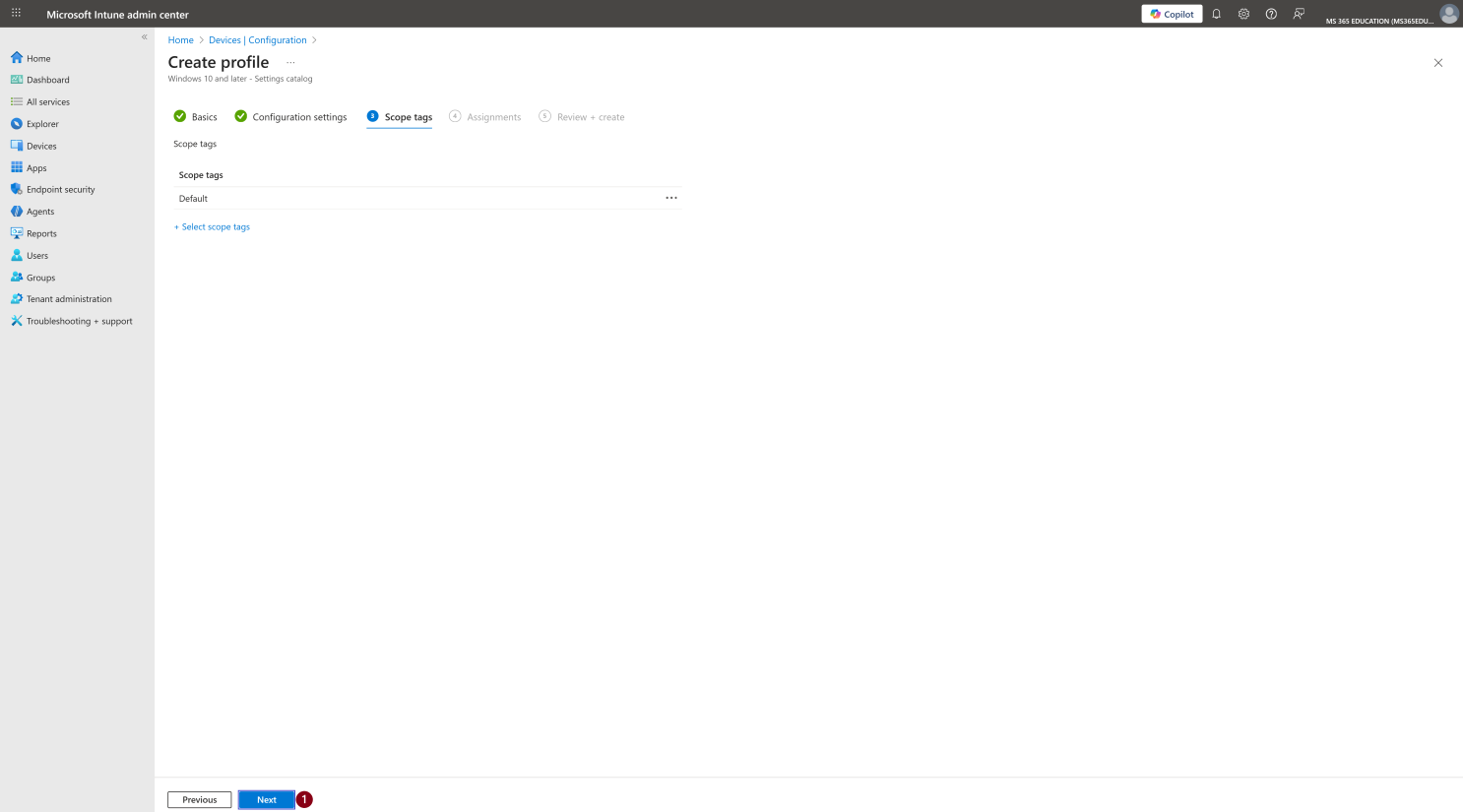
As shown in the screenshot, the Default scope tag is selected. This is the standard and recommended configuration for most environments, as it ensures the policy is visible to all administrators who have access to Intune.
Optionally, custom scope tags can be assigned if you need to:
Restrict policy visibility to specific IT roles or teams
Enforce administrative separation of duties
Support delegated or region-based Intune management
If no additional scope tags are required, keep the Default selection and click Next to continue.
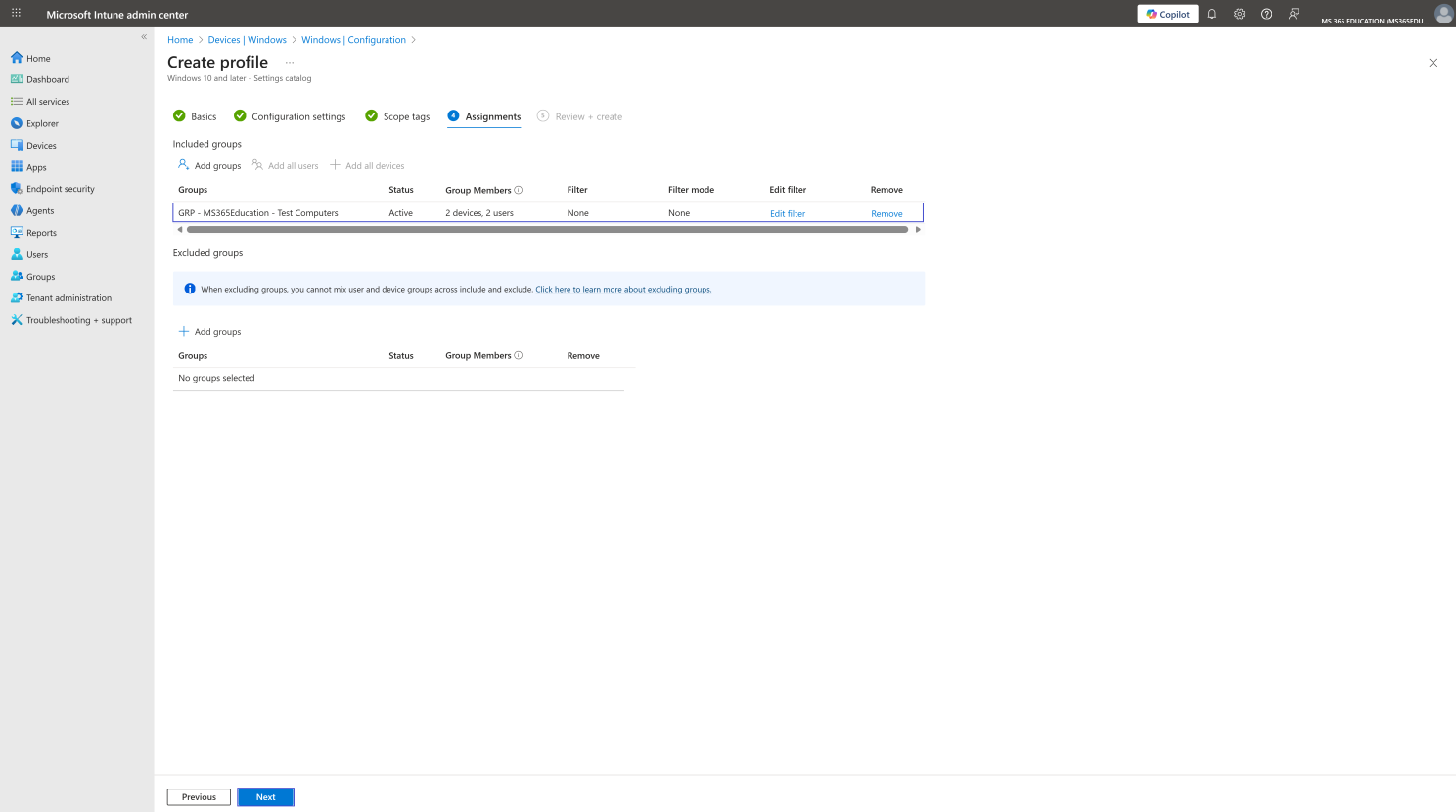
Assignments – Restrict Anonymous Access Policy
After configuring the policy settings, the next step is to assign the policy to the appropriate target group. Assignments define which devices will receive and enforce this configuration, ensuring the policy is applied in a controlled and intentional manner.
In the Assignments tab, click Add groups under Included groups and search for the group you want to target. This approach allows you to deploy the policy gradually, starting with test devices before expanding to production.
As shown in the screenshot, the policy is assigned to the following group:
GRP – MS365Education – Test Computers
Once the group is selected, verify the following:
The group appears under Included groups
The group status is Active
No assignment filters are applied (unless explicitly required)
At this stage, no Excluded groups are configured, which is appropriate for controlled test deployments.
After confirming the assignment, click Next to proceed to the Review + Create step.
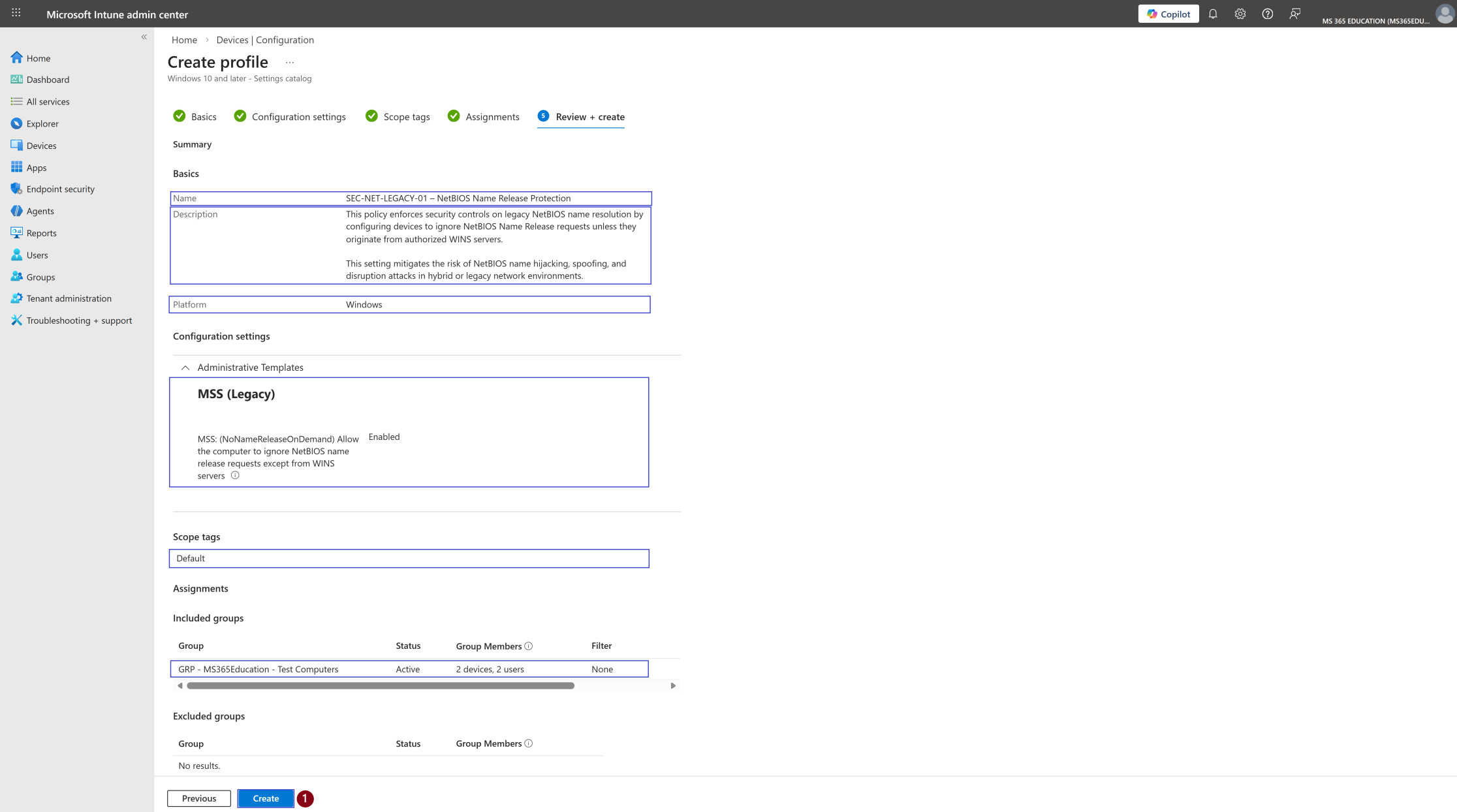
Review + Create – Final Validation
The Review + create step is the final checkpoint before deploying the policy. This is where you validate that all configurations are accurate and aligned with the intended security objective.
During this stage, carefully review the following:
Policy name and description Confirm the policy reflects its true purpose:
SEC-NET-LEGACY-01 – NetBIOS Name Release Protection
The description should clearly state that devices are configured to ignore NetBIOS Name Release requests unless issued by authorized WINS servers.
This ensures long-term governance clarity and audit readiness.
Configuration settings Verify that the setting:
MSS: (NoNameReleaseOnDemand) Allow the computer to ignore NetBIOS name release requests except from WINS servers
is set to Enabled.
This confirms the control is actively enforced and not left in a Not Configured state.
Scope tags Ensure the correct scope tag is applied. In this example, the Default scope tag is used.
In delegated environments, incorrect scope tags can prevent administrators from managing or viewing the policy properly.
Assignments Confirm the policy is assigned to the intended group:
GRP – MS365Education – Test Computers
Verify that:
The correct device group is targeted
No unintended exclusions are configured
The deployment scope aligns with your rollout strategy (pilot vs. production)
This final validation step reduces the risk of misconfiguration, unintended deployment, or governance gaps particularly in environments with multiple baselines and layered security controls.
Once all items have been reviewed and validated, click Create to finalize and deploy the policy to the assigned devices.
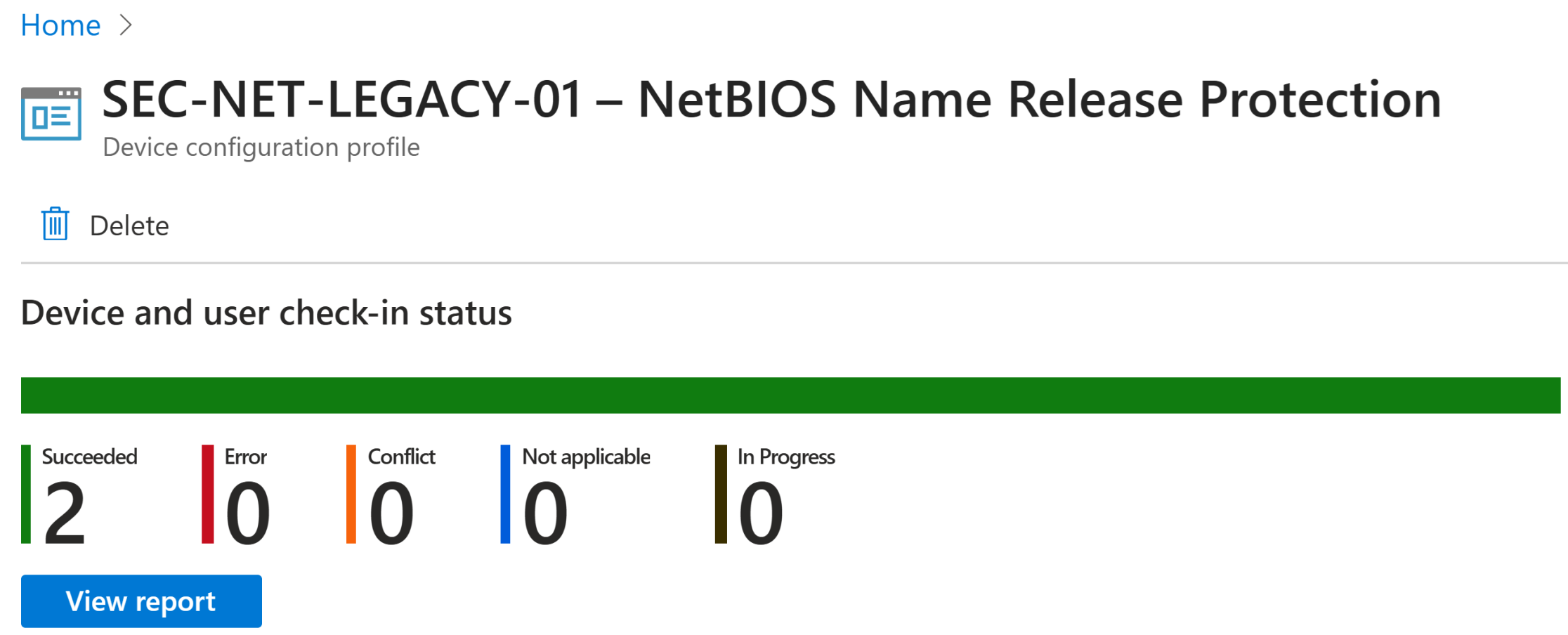
Monitor Policy Deployment Status
After creating and assigning the SEC-NET-LEGACY-01 – NetBIOS Name Release Protection configuration profile, the next critical step is to monitor its deployment status. This verification ensures that the policy has been successfully applied and is actively enforcing NetBIOS Name Release protection on the targeted devices.
Although Microsoft Intune can take up to 8 hours to automatically deliver configuration profiles, deployment often occurs much faster. If needed, you can accelerate the process by:
Manually triggering a device sync from the Company Portal
Forcing a sync directly from the Microsoft Intune admin center
How to Verify Policy Deployment Status
To review the deployment results:
In the Microsoft Intune admin center, navigate to: Devices ➝ Configuration profiles
Use the search bar to locate the profile: SEC-NET-LEGACY-01 – NetBIOS Name Release Protection
Select the policy to open the Overview page
Review Deployment Metrics
As shown in the screenshot, Intune provides clear deployment indicators:
Succeeded – Devices have successfully applied the policy
In progress – Devices are still processing or have not checked in yet
Error – The policy failed to apply and requires investigation
Not applicable – The device does not support this setting
In this example, all targeted devices report Succeeded, confirming that NetBIOS Name Release protection is now fully enforced and that only authorized WINS servers can issue valid name release instructions.
Client-Side Verification via Event Viewer
After the device has synced with Intune, you can perform a client-side verification to confirm that the SEC-NET-LEGACY-01 – NetBIOS Name Release Protection policy was successfully applied. This validation is particularly useful for troubleshooting and for ensuring the setting is actively enforced at the operating system level.
Windows records Intune policy processing events locally, allowing administrators to verify enforcement without relying solely on portal reporting.
How to Verify
Open Event Viewer on the target device
Navigate to: Applications and Services Logs ➝ Microsoft ➝ Windows ➝ DeviceManagement-Enterprise-Diagnostics-Provider ➝ Admin
Select Filter Current Log…
Look for Event ID 813 or Event ID 814, which indicate successful processing of Intune configuration policies
Open the event details and confirm that the policy MSS: (NoNameReleaseOnDemand) Allow the computer to ignore NetBIOS name release requests except from WINS servers was applied successfully
Pro Tip: Match the event timestamp with the device’s most recent Intune sync. Event IDs 813 and 814 are reliable indicators that the policy was evaluated and enforced by the MDM engine.
Why This Validation Matters
NetBIOS name release abuse may seem like a legacy issue, but in hybrid or legacy-dependent environments it can still introduce operational risk.
Attackers can attempt to manipulate name resolution behavior to disrupt services or create instability within the network.
By enforcing this protection through Intune and validating it locally, organizations ensure that:
Unauthorized NetBIOS name release attempts are ignored
Name integrity is preserved across the network
Service disruption scenarios are minimized
Legacy protocol behavior remains centrally controlled
Key Takeaway
Security hardening does not always require complex tooling. Targeted, well-governed configurations can significantly reduce risk.
By enforcing NetBIOS Name Release protection via Intune and validating it through local event logs, organizations strengthen control over legacy protocol behavior while maintaining centralized governance and minimal operational impact.
More Information
For additional technical details, official documentation, and deeper insights into this policy and related Microsoft Intune concepts, refer to the Microsoft Learn resources below:
Policy CSP – MSS Legacy Official reference for legacy security policies exposed through MDM, including the NetBIOS Name Release setting backed by mss-legacy.admx. https://learn.microsoft.com/en-us/windows/client-management/mdm/policy-csp-msslegacy
Create a Settings Catalog Policy in Microsoft Intune Step-by-step guidance on creating and managing Settings Catalog policies for Windows devices. https://learn.microsoft.com/en-us/mem/intune/configuration/settings-catalog
Device Configuration Profiles in Intune Overview of how configuration profiles work and how they are applied across managed Windows endpoints. https://learn.microsoft.com/en-us/mem/intune/configuration/device-profiles
Monitor Intune Policy Deployment and Troubleshoot Profiles Learn how to monitor deployment status, interpret errors, and troubleshoot configuration issues. https://learn.microsoft.com/en-us/mem/intune/configuration/device-profile-troubleshoot
Event Viewer Logs for MDM and Intune Diagnostics Detailed explanation of client-side Event Viewer logs used to validate Intune policy processing and enforcement. https://learn.microsoft.com/en-us/mem/intune/configuration/device-profile-troubleshoot#event-viewer-logs
Thank you!
🖥️ Ricardo Barbosa
🎖️ Microsoft MVP | 📘 Microsoft Certified Trainer (MCT)
☁️ Intune & Cloud Architect |💼 Technology Director at Altelix.com
