

Introduction
Hi there! In this post, we're diving into a Quick and Simple FAQ Guide to Windows 11 Client Hotpatching — covering its availability, eligibility requirements, and why it's becoming such a valuable tool for modern endpoint management.
The first Hotpatch update for clients is now available for Windows 11 Enterprise and Education, version 24H2 — and it brings a powerful advantage: the ability to apply critical security updates without requiring a system restart.
Unlike traditional updates that interrupt users and force downtime, Hotpatch updates are applied directly in memory, keeping devices secure while allowing users to stay productive — all without rebooting the system.
Hotpatching follows a three-month servicing cycle:
Every three months, devices receive a baseline update, which includes new features and security fixes — and does require a restart.
In the two months that follow, devices receive hotpatch updates — smaller, in-memory patches that don’t require any reboot.
To benefit from this seamless update experience, your devices must be:
Running Windows 11 Enterprise or Education (version 24H2)
Managed via Microsoft Intune
Ready to learn more? In the sections below, we’ll walk through key details, update behavior, compatibility, management tips, and more — so you can confidently adopt Hotpatching in your environment.
🔥 What Exactly is Hotpatching?
Hotpatching is a method of deploying security updates directly into memory, allowing them to take effect instantly—without forcing a system reboot. These updates contain the same security improvements as traditional ones but with significantly less disruption to end users.
🔁 Traditional Updates Explained
Standard updates refer to the monthly cumulative Windows patches that require a reboot to be fully applied. These are the updates most administrators are already familiar with.
🔄 How Does the Hotpatch Cycle Work?
Hotpatching follows a quarterly rhythm that enhances update compliance while reducing downtime for end users.
Month 1 (Baseline): A full cumulative update is delivered. This includes new features, improvements, and security fixes — and requires a system restart.
Months 2 & 3: Devices receive hotpatch updates that contain only security fixes and are applied directly in memory — no restart needed.
📘 Quick and Simple FAQ Guide to Windows 11 Client Hotpatching
In this section, we provide a simplified summary of how Hotpatching works for Windows 11 clients and why understanding the Hotpatch Update Cycle is essential.
Devices running Windows 11 version 24H2 that are configured to use hotpatching follow a quarterly servicing model. This approach ensures that endpoints remain protected with monthly security updates, while requiring a system restart only once every three months, during what's known as a baseline month.
As illustrated below:
Baseline Month: Devices receive a full cumulative update with the latest security fixes, features, and improvements. A restart is required to complete the update.
Following Two Months: Devices receive lightweight hotpatches containing only security fixes. These updates are applied in memory and do not require a reboot.
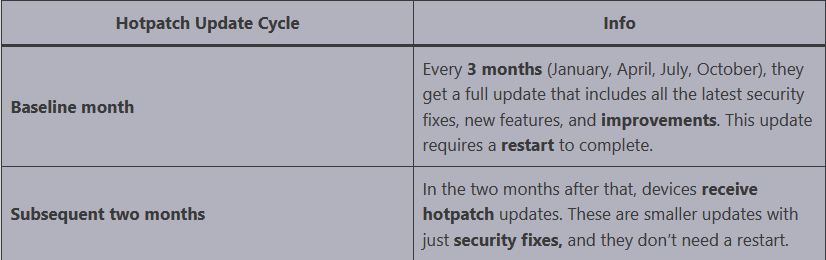
The cycle repeats every quarter — January, April, July, and October — as shown in the Hotpatch Release Cycle Diagram, where hotpatching follows a streamlined update track separate from the standard servicing path.
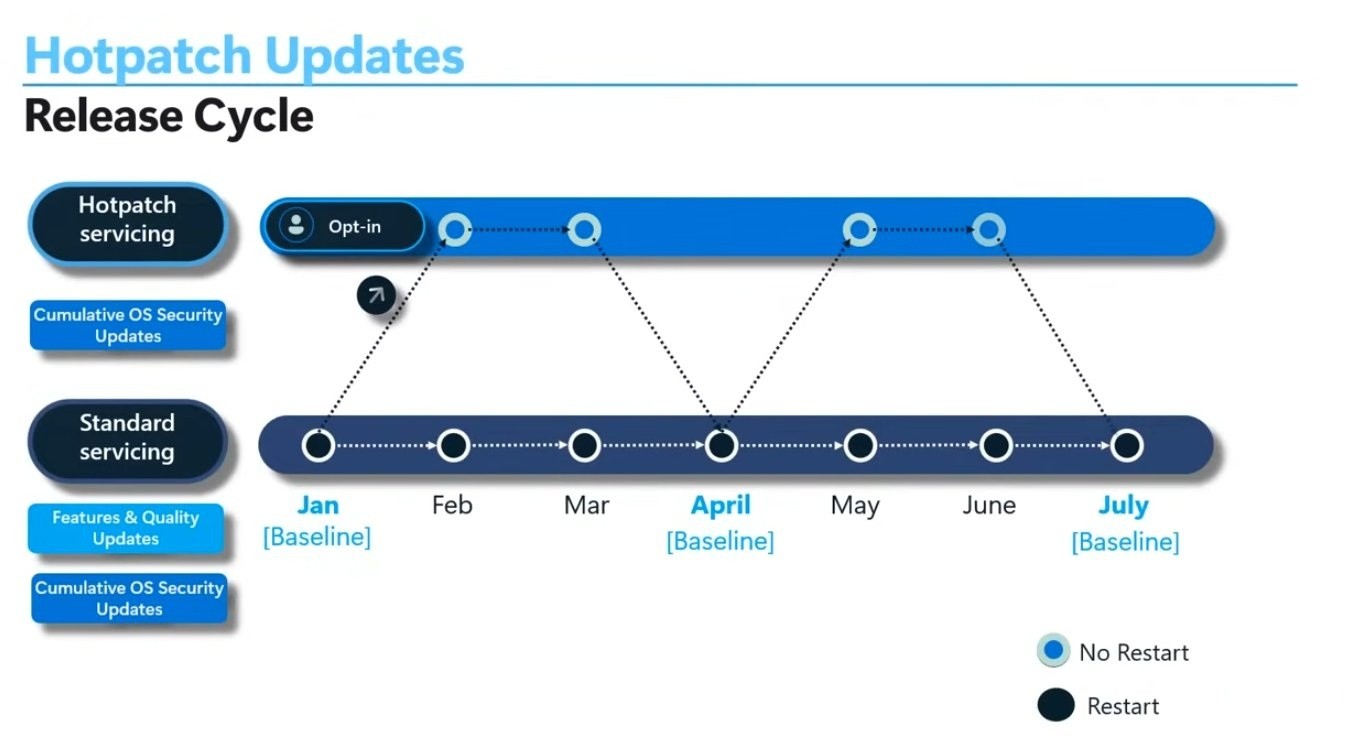
📌 This update strategy enhances uptime and minimizes user disruption while maintaining strong security compliance.
📆 When is Hotpatch Available for Windows Clients?
You can use hotpatching today on:
Windows 11 version 24H2 (x64)
Windows 365 Cloud PCs
Arm64 devices (preview phase)
✅ Prerequisites for Using Hotpatch on Windows Clients
To enable and manage hotpatch updates, devices must meet these requirements:
Running Windows 11 Enterprise or Education, version 24H2
Covered by a supported license (Enterprise E3/E5, Microsoft 365 F3, or Business Premium)
VBS (Virtualization-Based Security) must be enabled
Device must be managed via Microsoft Intune
⚠️ What Happens If Devices Don’t Meet Requirements?
Devices that don’t meet the eligibility criteria—such as missing baseline updates or having VBS disabled—will automatically fall back to receiving the standard updates that require reboots.
🖥️ Comparing Windows 11 vs Windows Server Hotpatching
While both Windows 11 and Windows Server 2025 support hotpatching, their management differs:
Windows 11: Managed via Windows Autopatch
Windows Server: Managed through Azure Update Manager or Azure Arc
🤖 Using Hotpatch on Arm64 Devices
Yes, hotpatching is supported on Arm64, but it’s in preview. CHPE must be disabled for hotpatch to work.
❗ Is Disabling CHPE Temporary?
No. CHPE must remain turned off even after the preview phase ends in order to continue using hotpatch updates.
🔍 What’s the User Impact of Disabling CHPE?
Disabling CHPE may increase app compatibility with hotpatching on Arm64. Admins must choose between enabling CHPE (standard updates) or disabling it (hotpatch support).
🛠️ How to Turn Off CHPE on Arm64 Devices
CHPE can be disabled via:
Registry key: HKLM\SYSTEM\CurrentControlSet\Control\Session Manager\Memory Management\HotPatchRestrictions = 1
CSP (Configuration Service Provider) policy
🧾 How to Verify If a Hotpatch Was Installed
Check Windows Update History. Entries for hotpatches will include the KB number and a note that the update was installed without requiring a reboot.
🔁 What If a Device Reboots After a Hotpatch?
No worries—restarting won’t undo the patch. However, new features will only arrive with the next full baseline update.
🔄 Can I Still Perform Regular System Restarts?
Absolutely. Hotpatching doesn’t interfere with your reboot policies. If your routine includes scheduled reboots for performance reasons, you can continue with them as usual.
💼 Are Third-Party Apps Covered by Hotpatching?
Yes. Hotpatches apply to all Windows OS binaries, even those used by third-party applications.
🧪 How to Identify Hotpatched DLLs
Use Process Explorer to inspect loaded modules. You’ll spot hotpatched components marked accordingly in memory.
⚙️ Is Kernel-Level Hotpatching Supported?
Yes, even kernel-mode binaries can receive hotpatch updates.
❌ What If a Hotpatch Fails to Apply?
Failures resemble traditional update issues—often due to insufficient disk space or interrupted downloads. Logs will indicate hotpatch-specific errors.
🔄 Switching Between Hotpatch and Traditional Updates
Yes, you can opt out of hotpatching. If you do, the device will go back to standard update behavior in the next applicable cycle.
🔍 Forensics and Hotpatching
You can analyze hotpatch activity using audit logs, Event Viewer, or Process Explorer. Each KB includes a link to a CSV listing the update’s contents.
🚨 Can I Get Alerts on Hotpatch Activity?
Yes. Event Tracing for Windows (ETW) logs hotpatch events. Look for entries containing "hotpatch" in Event Viewer.
🧪 Should I Test Hotpatches Even If I Already Test Monthly Updates?
Yes. Microsoft advises testing hotpatches 8 times a year, avoiding the baseline months (January, April, July, October), while standard updates continue to be tested 12 times annually.
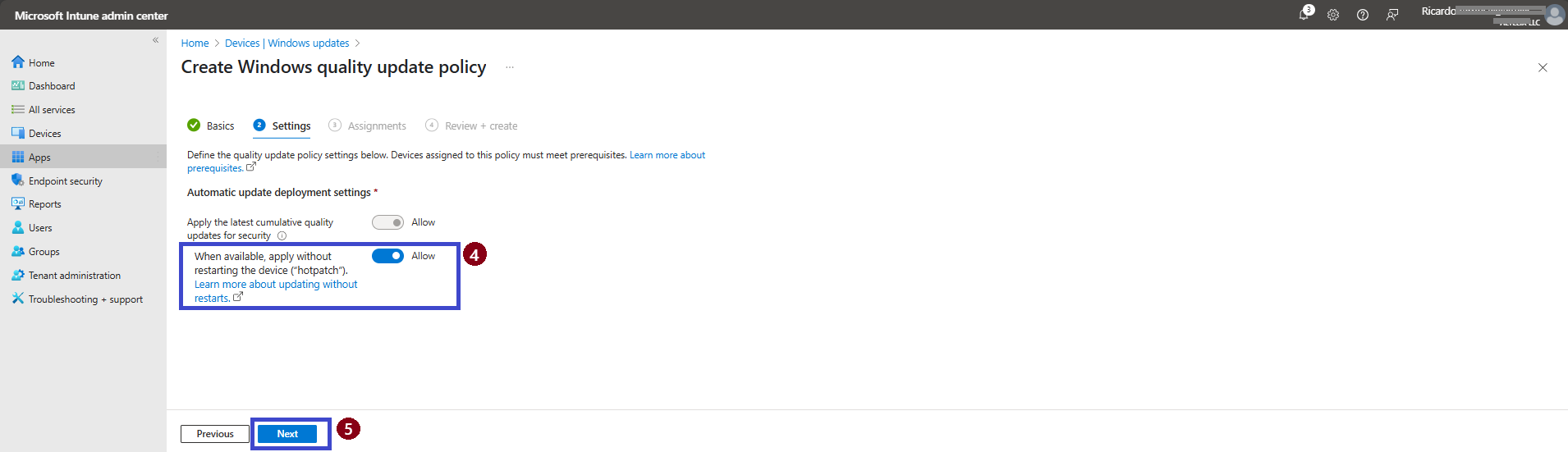
🛡️ Enabling Hotpatch Updates via Intune
To configure eligible devices for hotpatching:
Go to Microsoft Intune Admin Center
Navigate to Devices > Windows Updates
Click Create Windows Quality Update Policy
In the Settings, toggle “Apply without restart (Hotpatch)”
Click Next to assign the policy to the appropriate device groups.
💡 Final Thoughts
Hotpatching is a game-changer in Windows update strategy. When managed via Intune and paired with Windows 11 version 24H2, it ensures secure updates with minimal user disruption, helping IT teams maintain compliance and uptime with modern servicing practices.
📚 More Information
To deepen your understanding of Hotpatching in Windows 11 and how to manage it through Microsoft Intune, refer to the following official Microsoft resources:
Thank you!
🖥️ Ricardo Barbosa
📘 MCT Microsoft Certified Trainer | ☁️ Cloud Architect
🌐 Technology Director - https://altelix.com
