

A practical guide to turning on upcoming Windows 11 features early, on your own schedule, with Microsoft Intune.
Windows 11 no longer waits for a single annual release to deliver new functionality.
Through continuous innovation, Microsoft now ships new features and enhancements throughout the year using the monthly cumulative update.
To give organizations time to plan, many of these new features arrive turned off by default, held behind a mechanism called temporary enterprise feature control.
This is intentional. A feature is usually kept off when it changes the user experience or requires administrators to take action before it is used.
The result is that managed devices stay stable, but the latest features remain dormant until the next annual feature update enables them.
For organizations that want to evaluate and adopt new functionality on their own schedule, waiting is not always the best option.
The Allow Temporary Enterprise Feature Control setting changes that, allowing administrators to turn these features on early across selected devices.
By enforcing this setting through Microsoft Intune, IT teams can pilot upcoming Windows 11 features in a controlled way, validate their impact, and stay ahead of the continuous innovation cycle instead of reacting to it.
Why This Policy Matters
Continuous innovation means useful features can sit on a device for months, fully delivered but switched off, until an annual feature update finally turns them on.
For organizations, this creates a gap between what Windows can do and what users actually experience.
Without enabling Temporary Enterprise Feature Control:
New Windows 11 features delivered through monthly updates stay off until the next annual feature update
Organizations cannot evaluate upcoming functionality on their own timeline
IT teams react to features at broad rollout instead of preparing for them in advance
End-user enablement and support readiness are delayed until features arrive by default
With this setting enforced through Intune:
Targeted devices receive upcoming features early, on a controlled schedule
IT teams can validate, document, and prepare support before broad rollout
The organization stays ahead of the Windows continuous innovation cycle
Feature adoption becomes a planned, governed process rather than a surprise
This approach turns early feature access into a deliberate, business-aligned decision instead of an all-or-nothing wait.
Governance and Change Control
Governance ensures that feature changes are introduced in a controlled, consistent, and accountable way across the fleet.
Without centralized control, early feature enablement would depend on manual, per-device changes that are hard to track and easy to apply inconsistently.
Managing the Allow Temporary Enterprise Feature Control setting through Microsoft Intune brings several governance benefits:
Centralized enablement of early features across targeted device groups
Consistent, policy-based control instead of manual per-device changes
Clear visibility into which devices receive features early
Defined ownership and accountability through scope tags and role-based administration
An auditable policy lifecycle from pilot to production
This level of governance ensures that adopting upcoming features is handled transparently, in line with internal change management standards.
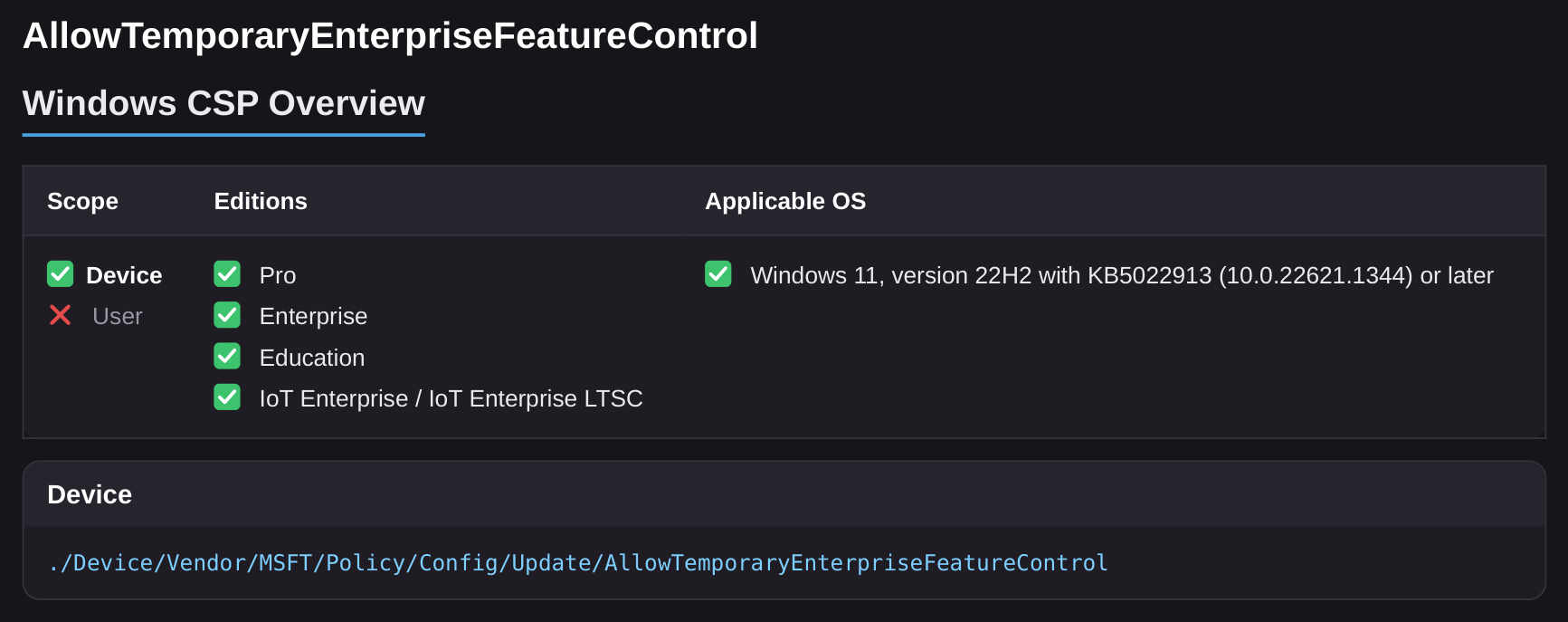
Windows CSP Overview
This section explains how the setting is exposed at the operating system level and how Microsoft Intune interacts with it. The configuration is powered by the Windows Policy Configuration Service Provider (CSP) framework, specifically the Update area.
Setting: AllowTemporaryEnterpriseFeatureControl
Scope: Device (not User)
Editions: Pro, Enterprise, Education, IoT Enterprise / IoT Enterprise LTSC
Applicable OS: Windows 11, version 22H2 with KB5022913 (10.0.22621.1344) or later
OMA-URI (Device): ./Device/Vendor/MSFT/Policy/Config/Update/AllowTemporaryEnterpriseFeatureControl
When this setting is enabled, all features currently held behind temporary enterprise feature control are turned on after the device restarts. If it is set to Not Configured or Disabled, those features remain off until the feature update that includes them is installed.
Description Framework Properties
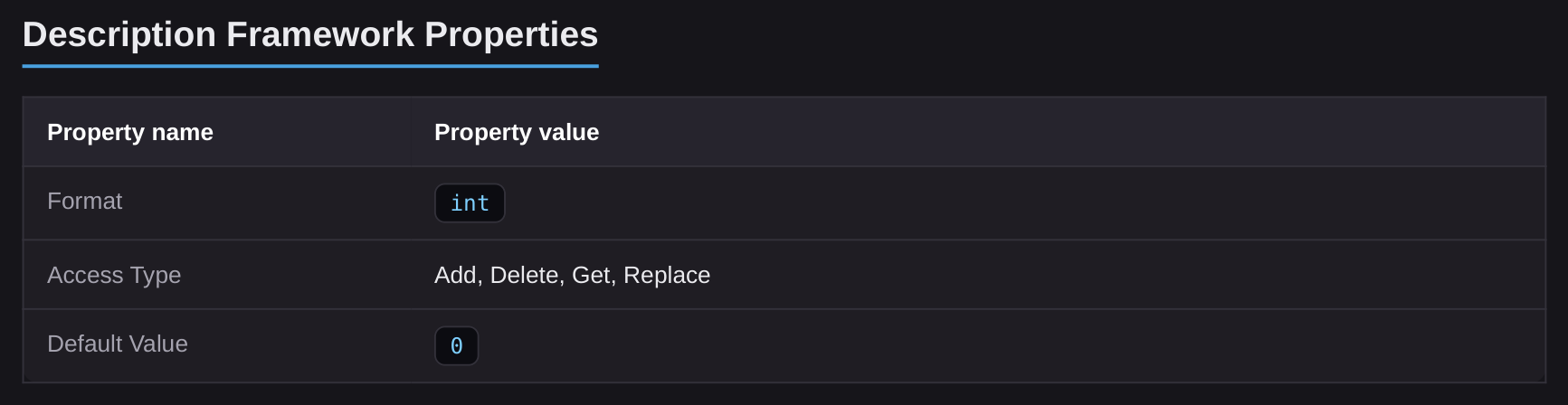
This section defines how the configuration behaves at a technical level within the CSP framework.
Format: int
Access Type: Add, Delete, Get, Replace
Default Value: 0
This means the value is stored as an integer, the default value 0 represents the not allowed state where features stay off, and it must be explicitly enabled by setting the value to 1. It can be centrally managed and enforced via Intune.
Allowed Values
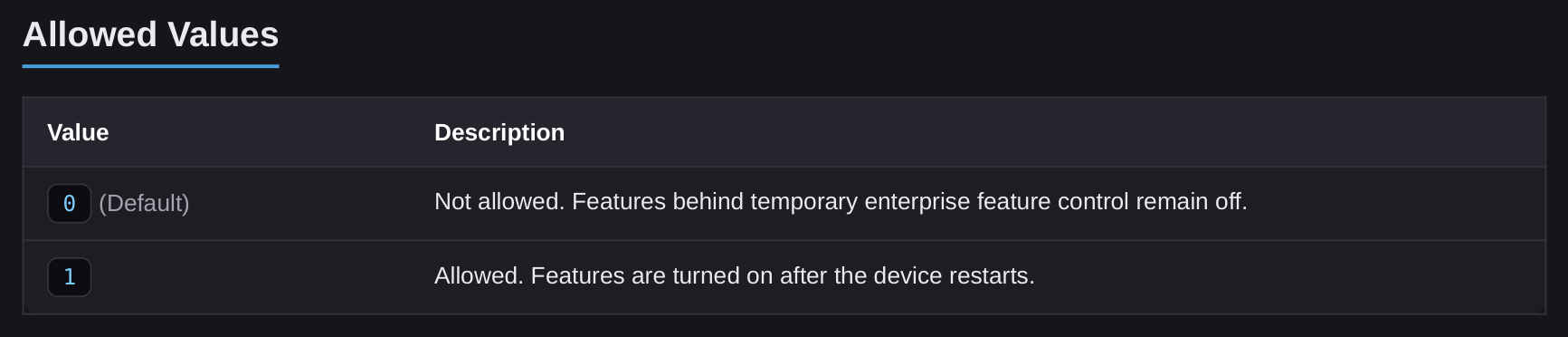
0 (Default): Not allowed. Features behind temporary enterprise feature control remain off.
1: Allowed. Features behind temporary enterprise feature control are turned on after the device restarts.
When set to Allowed, the device opts in to receiving upcoming Windows 11 features early, rather than waiting for the next annual feature update.
Group Policy Mapping
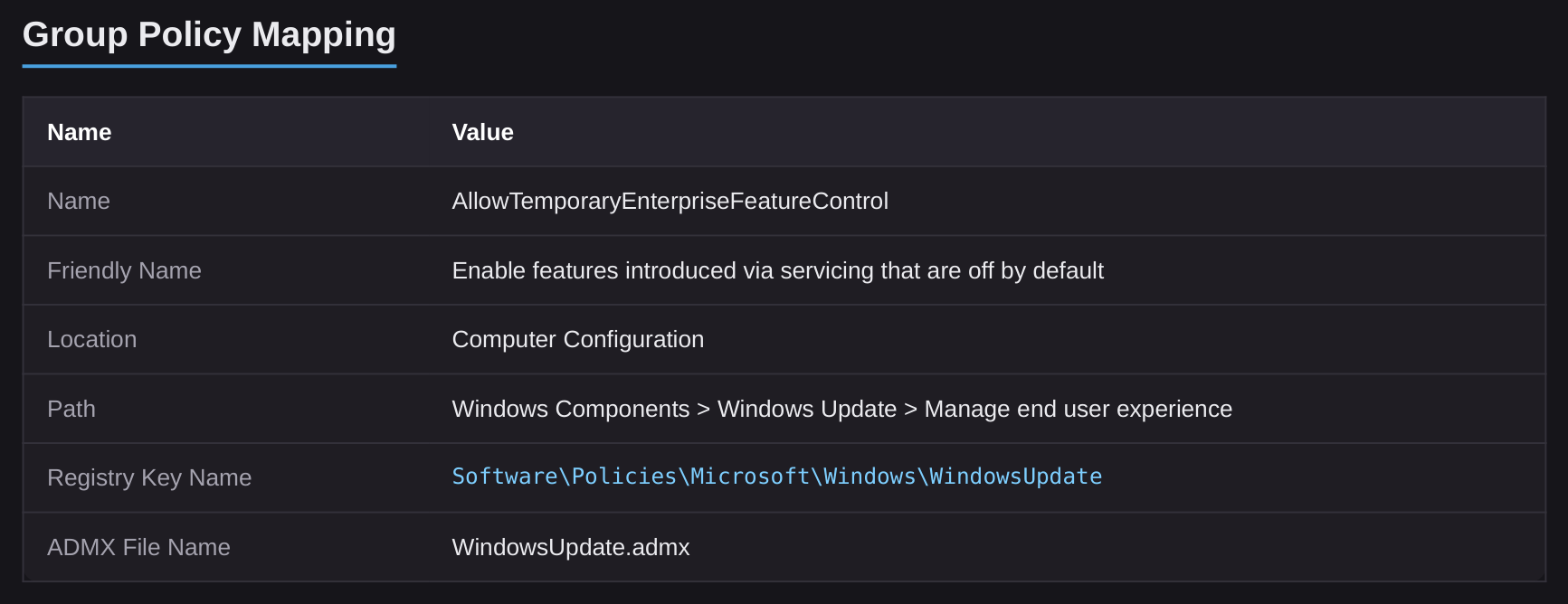
For organizations operating in hybrid environments, this CSP setting maps to a corresponding Group Policy configuration.
Name: AllowTemporaryEnterpriseFeatureControl
Friendly Name: Enable features introduced via servicing that are off by default
Path: Computer Configuration > Administrative Templates > Windows Components > Windows Update > Manage end user experience
ADMX File Name: WindowsUpdate.admx
This mapping helps administrators understand how the same control can be represented across traditional Group Policy and modern cloud-based management through Microsoft Intune.
Considerations Before Enabling
Before enabling this setting, administrators should understand how it behaves and plan for its impact.
This setting only takes effect on devices whose Windows updates are managed by policy, through Windows Update for Business or WSUS. Unmanaged devices are not affected
When enabled, all features currently behind temporary enterprise feature control are turned on after the device restarts
Features are off by default because they may change the user experience or require administrator action, so early enablement should be validated first
Supported on Windows 11, version 22H2 with KB5022913 (10.0.22621.1344) or later
Applies at the device scope only, it is not available at the user scope
A phased, pilot-first deployment is recommended to evaluate the new features in a controlled group, confirm there is no unexpected impact, and document support guidance before rolling the setting out across production devices.
How to Enable Temporary Enterprise Feature Control Using Intune (Settings Catalog)
You can enforce this setting centrally using the Intune Settings Catalog, ensuring that early feature enablement is applied consistently across the targeted Windows devices. To begin, sign in to the Microsoft Intune admin center and follow the steps below, as illustrated in the screenshots.
Create the Configuration Profile
In the Microsoft Intune admin center:
Navigate to Devices › Windows › Configuration
Select + Create policy
In the Create a profile pane:
Platform: Windows 10 and later
Profile type: Settings catalog
Click Create to continue.
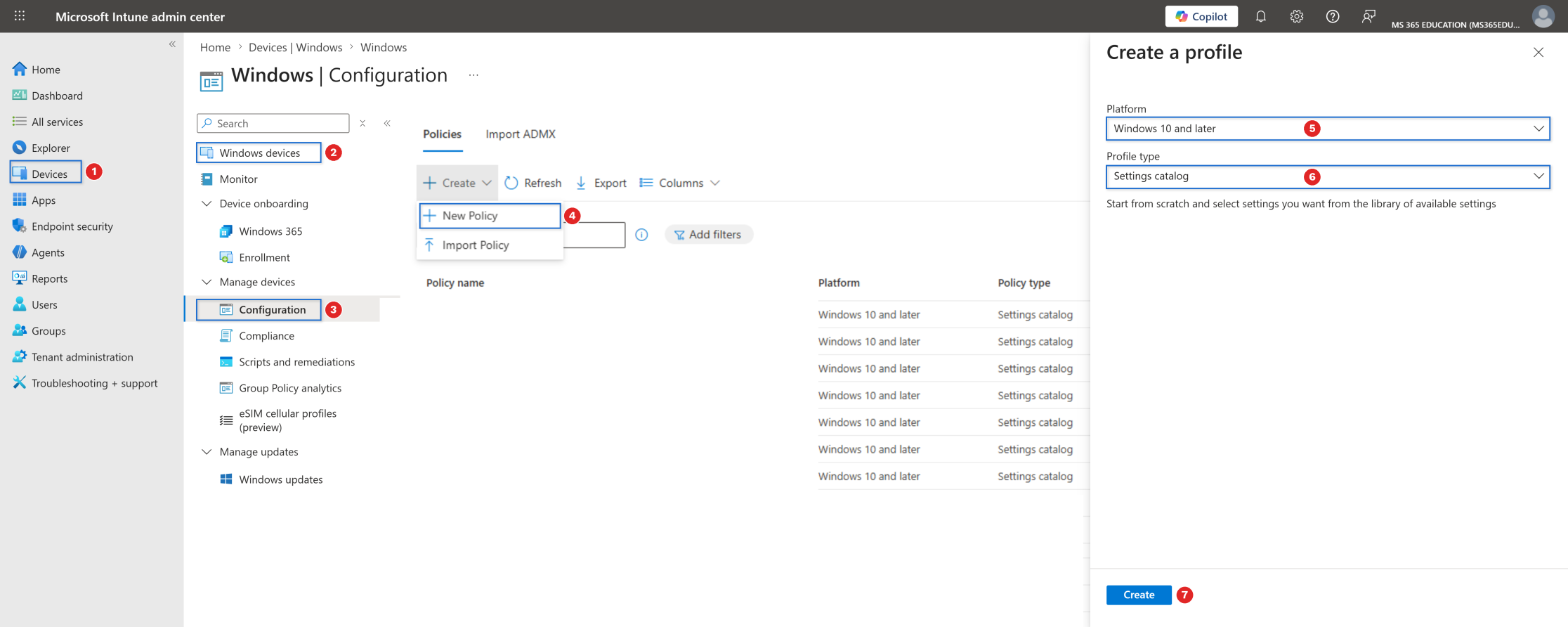
At this stage, you have created the foundation of a Settings Catalog policy. In the next steps, you will search for and configure the setting that enables temporary enterprise feature control.
Define Basic Profile Details
After clicking Create, the next step is to define the basic details of the configuration profile. Providing a clear Name and a concise but meaningful Description ensures that the purpose of the policy is immediately understood by administrators in the future. As shown in the screenshot, configure the fields as follows.
Name: WIN – Endpoint Hardening – Temporary Enterprise Feature Control
Description: Enables Temporary Enterprise Feature Control to turn on Windows 11 features that are delivered through monthly cumulative updates but kept off by default. This allows organizations to evaluate and adopt upcoming features early, before they are enabled in the next annual feature update. It gives IT teams controlled, policy-based access to continuous innovation features across Windows Update managed devices.
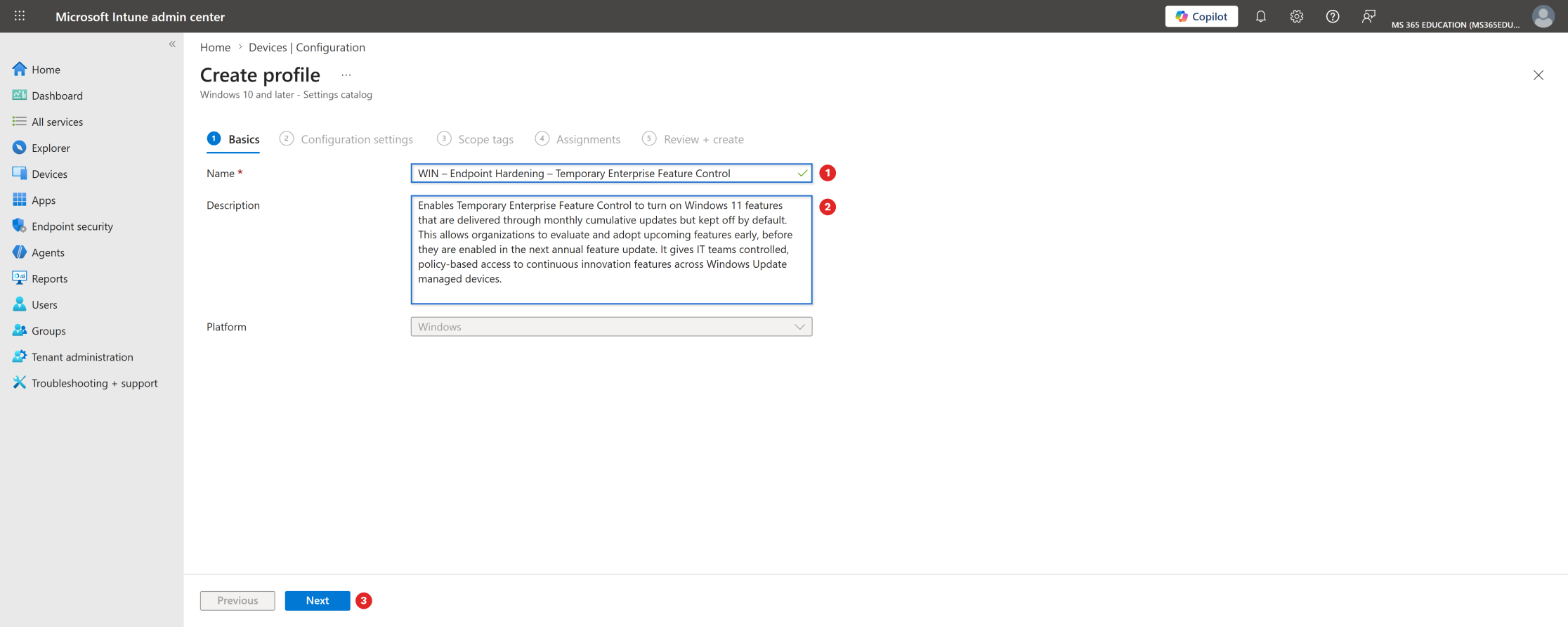
The Platform field is already pre-selected as Windows, so no changes are required. Once the name and description are defined, click Next to proceed to the configuration settings.
Configure the Setting Using the Settings Picker
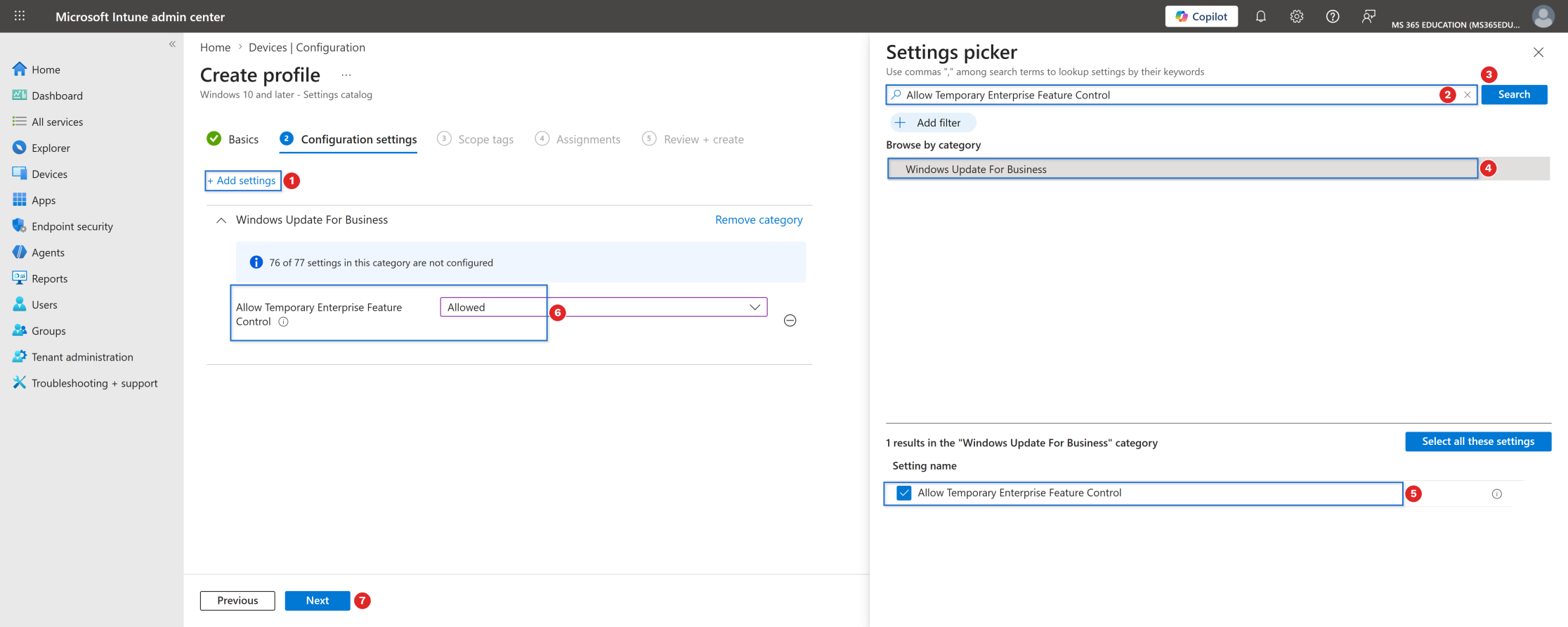
With the profile basics defined, the next step is to configure the policy using the Settings picker. To open the Settings picker panel, click Add settings. By default, this setting is not configured, which means Windows keeps features behind temporary enterprise feature control turned off until the next annual feature update.
In the search field at the top of the Settings picker, type Allow Temporary Enterprise Feature Control, and then click Search to filter the results. From the returned results, select the category Windows Update for Business, and then choose the setting Allow Temporary Enterprise Feature Control. Once selected, the setting is automatically added to the configuration profile. Back on the configuration page, change the value from its default state to Allowed.
When set to Allowed, the device opts in to early features. This ensures that:
Features behind temporary enterprise feature control are turned on after the device restarts
Targeted devices receive upcoming Windows 11 functionality ahead of the annual feature update
IT teams can pilot and validate new features on a controlled schedule
This configuration supports a planned approach to continuous innovation, ensuring that upcoming features are adopted deliberately rather than by default.
Configure Scope Tags (Optional)
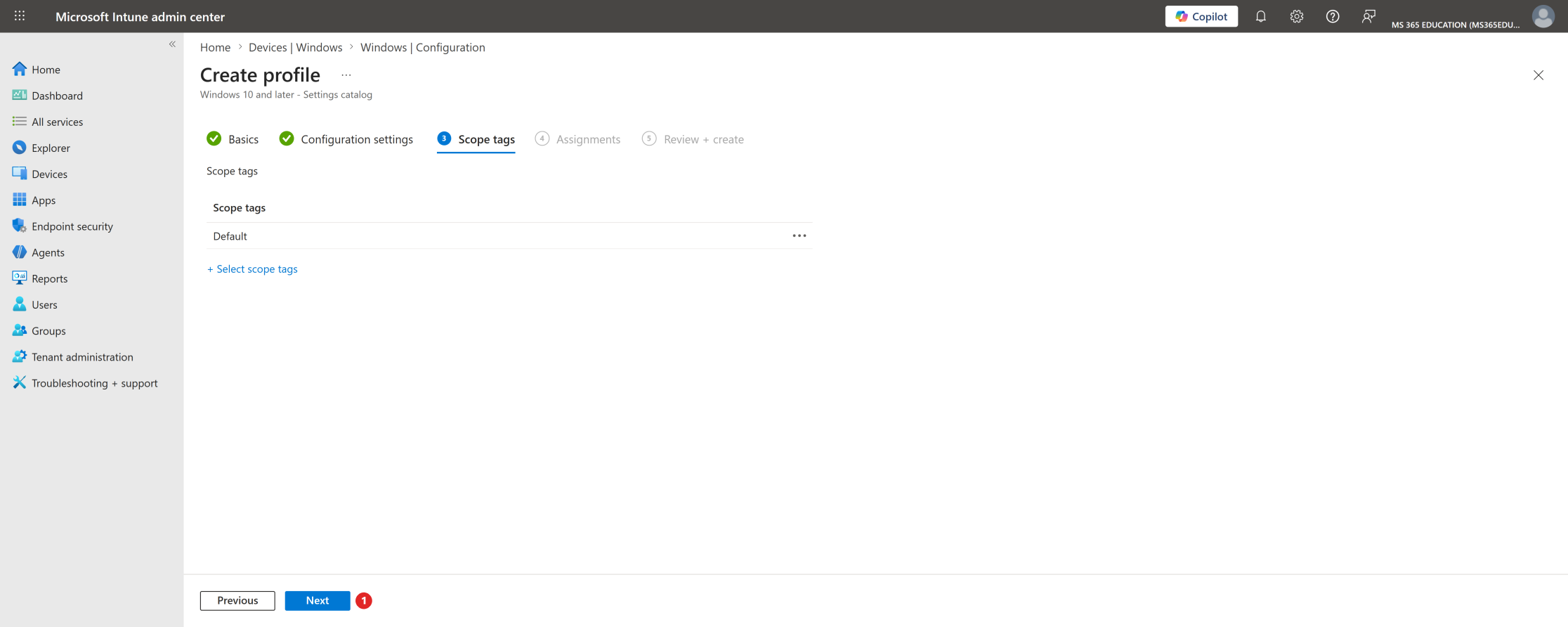
Scope tags are used to control who can view and manage this policy within the Microsoft Intune admin center. They are particularly useful in environments with delegated administration, multiple IT teams, or regional management models.
As shown in the screenshot, the Default scope tag is selected. This is the standard and recommended configuration for most environments, as it ensures the policy is visible to all administrators who have access to Intune.
Optionally, custom scope tags can be assigned if you need to restrict policy visibility to specific IT roles or teams, enforce administrative separation of duties, or support delegated or region-based Intune management. If no additional scope tags are required, keep the Default selection and click Next to continue.
Assignments – Temporary Enterprise Feature Control
After configuring the policy settings, the next step is to assign the policy to the appropriate target group. Assignments define which devices will receive and enforce this configuration, ensuring the policy is applied in a controlled and intentional manner.
In the Assignments tab, click Add groups under Included groups and search for the group you want to target. This approach allows you to deploy the policy gradually, starting with test devices before expanding to production. As shown in the screenshot, the policy is assigned to the following group: GRP – MS365Education – Test Computers.
Once the group is selected, verify that the group appears under Included groups, that the group status is Active, and that no assignment filters are applied unless explicitly required. At this stage, no Excluded groups are configured, which is appropriate for controlled test deployments.
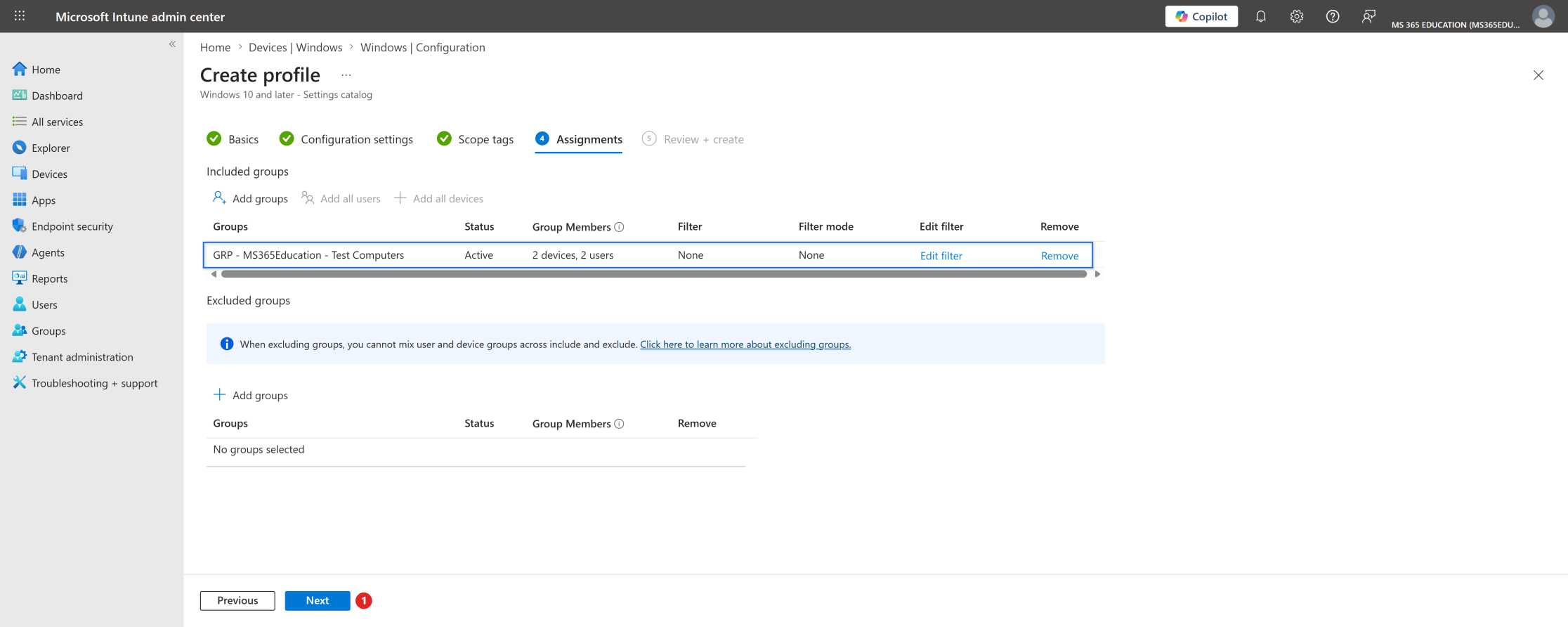
After confirming the assignment, click Next to proceed to the Review + Create step.
Review + Create – Final Validation
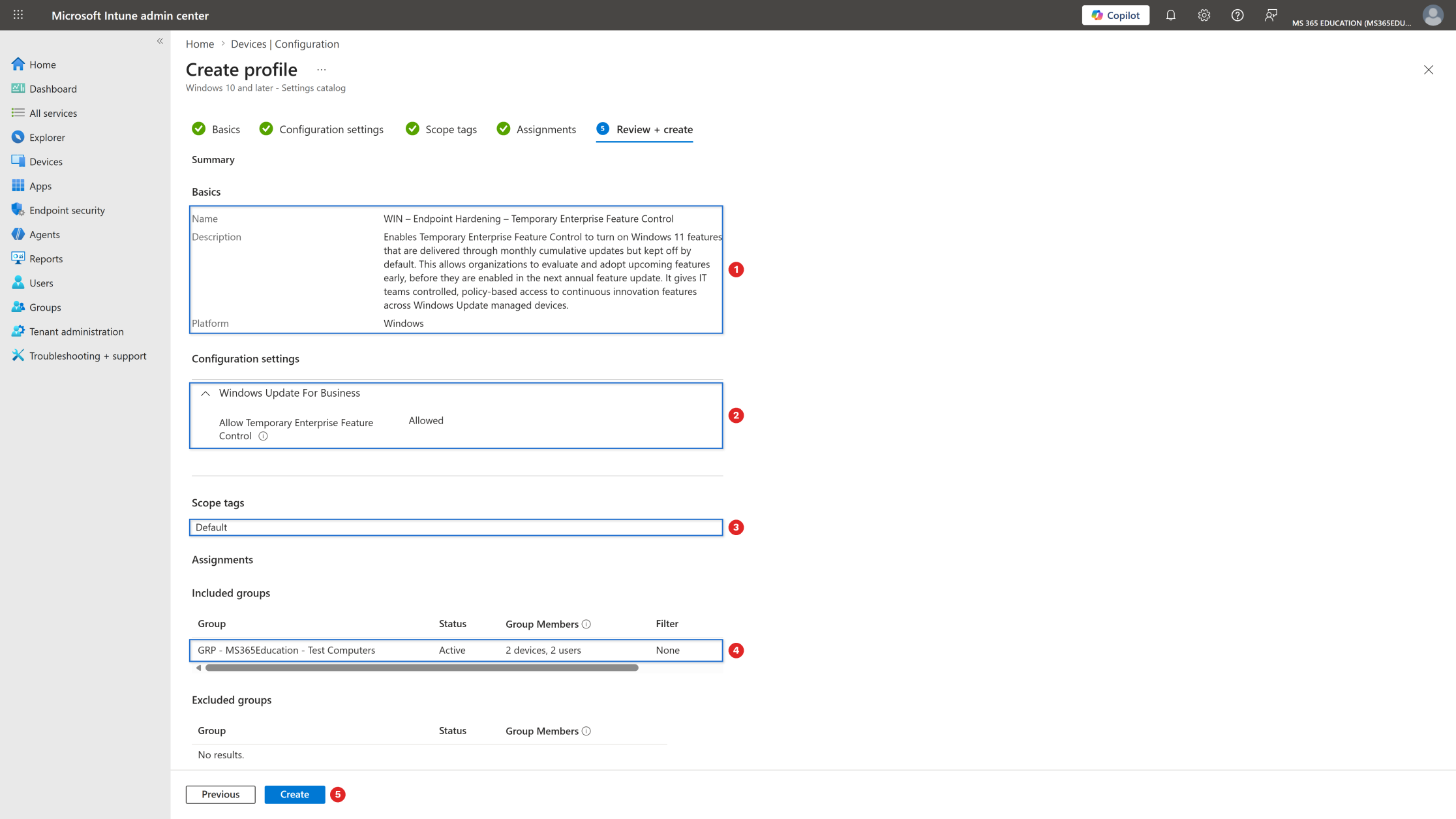
The Review + Create step is the final checkpoint before deploying the policy. This is where you validate that all configurations are correct and aligned with your intended feature enablement objective. Pay special attention to the following items:
Policy name and description: confirm that the policy clearly reflects its purpose, enabling temporary enterprise feature control so that upcoming Windows 11 features can be adopted early
Configuration settings: verify that Allow Temporary Enterprise Feature Control is set to Allowed, under Windows Update for Business
Scope tags: ensure the correct scope tag is assigned. In this example, the Default scope tag is used
Assignments: confirm the policy is assigned to the intended group, GRP – MS365Education – Test Computers, and that no unintended exclusions are configured
Once everything has been validated, click Create to finalize and deploy the policy to the assigned devices.
Monitor Policy Deployment Status
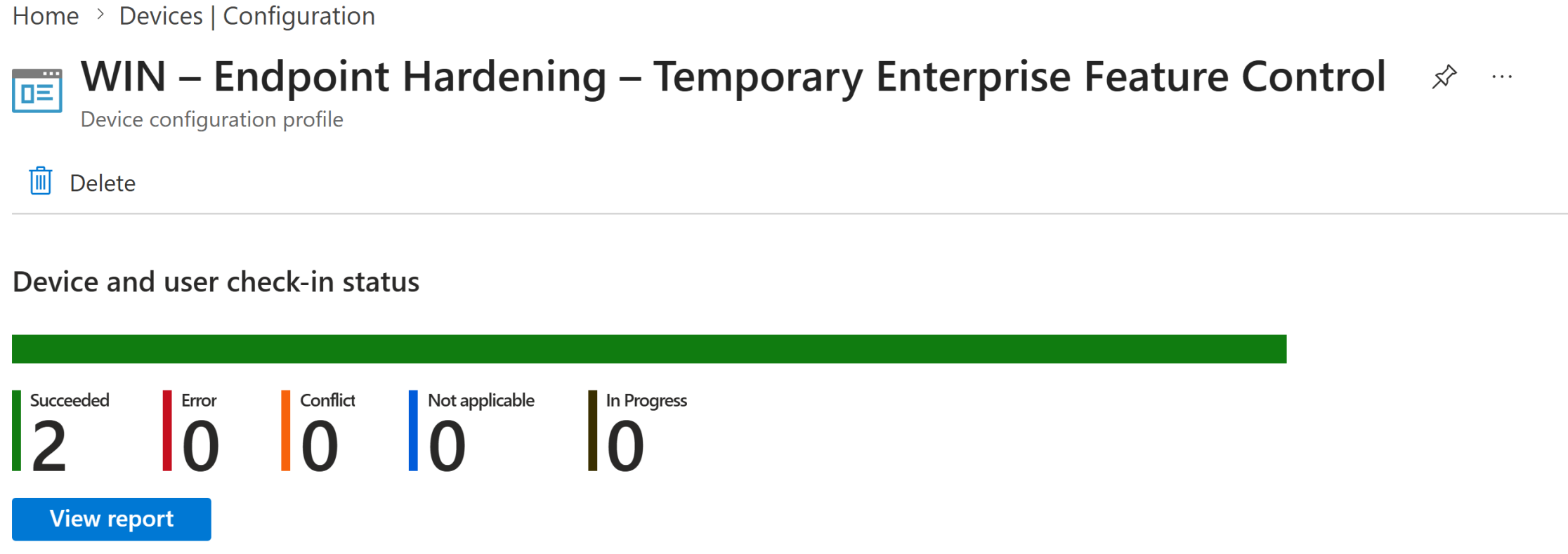
After creating and assigning the WIN – Endpoint Hardening – Temporary Enterprise Feature Control configuration profile, the next step is to verify its deployment status. This validation confirms that the policy has been successfully applied and that the targeted devices are opted in to temporary enterprise feature control.
Although Microsoft Intune can take up to 8 hours to automatically deliver configuration profiles, deployment often occurs much faster. If needed, you can accelerate the process by triggering a manual device sync from the Company Portal or initiating a sync directly from the Microsoft Intune admin center.
Intune provides clear indicators to evaluate the policy deployment status: Succeeded (devices have applied the policy), In progress (devices are still processing), Error (the policy failed and requires investigation), and Not applicable (the device does not support the configuration). When devices report Succeeded, it confirms that the setting has been applied and that the upcoming features will be turned on after the next device restart.
Client-Side Verification
After the device has synced with Intune, you can perform a client-side verification to confirm that the policy was successfully applied. Windows records Intune policy processing events locally, allowing administrators to confirm policy enforcement without relying only on the Intune portal.
Open Event Viewer on the target device
Navigate to Applications and Services Logs › Microsoft › Windows › DeviceManagement-Enterprise-Diagnostics-Provider › Admin
Select Filter Current Log
Look for Event ID 813 or Event ID 814, which indicate successful processing of Intune configuration policies
Open the event details and confirm that the Update setting was applied
For deeper validation, open Registry Editor (regedit), navigate to HKLM\SOFTWARE\Policies\Microsoft\Windows\WindowsUpdate, and confirm that the value AllowTemporaryEnterpriseFeatureControl is set to 1. Remember that the new features are turned on only after the device restarts.
Why This Matters for Modern Windows Management
Continuous innovation has changed how Windows 11 evolves, with new features arriving throughout the year instead of once per release. Without a deliberate strategy, organizations either wait passively for the annual feature update or react to features only when they are turned on by default.
By enabling temporary enterprise feature control through Microsoft Intune and validating the configuration locally, organizations ensure that:
Upcoming features are evaluated on the organization's own schedule
IT stays ahead of the continuous innovation cycle instead of reacting to it
End-user enablement and support are prepared before features reach production
Feature adoption is controlled, documented, and applied consistently across managed devices
This setting provides real strategic value, turning early feature access into a planned capability rather than an unmanaged surprise.
Key Takeaway
Modern Windows management depends on staying in control of change, not just keeping up with it.
By enabling Temporary Enterprise Feature Control through Microsoft Intune, organizations can adopt upcoming Windows 11 features early, on their own terms, across all targeted devices. Combined with a pilot-first rollout and proper client-side validation, this policy turns continuous innovation into a controlled, predictable process.
And in modern endpoint management, staying ahead of change is not a luxury, it is a strategic advantage.
More Information
For additional technical details, refer to the official Microsoft documentation below:
https://learn.microsoft.com/en-us/windows/client-management/mdm/policy-csp-update
https://learn.microsoft.com/en-us/windows/whats-new/temporary-enterprise-feature-control
https://learn.microsoft.com/en-us/mem/intune/configuration/settings-catalog
https://learn.microsoft.com/en-us/mem/intune/configuration/device-profile-monitor
https://learn.microsoft.com/en-us/mem/intune/configuration/device-profile-troubleshoot
Thank you for reading!
🖥️ Ricardo Barbosa
🏆️ Microsoft MVP | 📘 Microsoft Certified Trainer (MCT)
☁️ Intune & Cloud Architect | 💼 Technology Director at Altelix.com
