

Deploying Citrix Workspace with Microsoft Intune: A Step-by-Step Guide
Microsoft Intune is a cloud-based service that provides Mobile Device Management (MDM) and Mobile Application Management (MAM), allowing organizations to manage devices and applications from a centralized console.
On the other hand, Citrix Workspace is a widely used solution for virtual desktops and applications, offering secure remote access to corporate resources. In this blog post, we’ll walk you through the complete process of deploying Citrix Workspace using Microsoft Intune, ensuring a seamless and efficient installation.
📌 Table of Contents
What are we going to set up?
Step-by-Step: Installing Citrix Workspace with Intune
Step 1: Download the Citrix Workspace application
Step 2: Create a Win32 application package
Step 3: Import and deploy with Microsoft Intune
Conclusion
🔍 What Are We Going to Set Up?
In this guide, we’ll demonstrate how to deploy Citrix Workspace using Microsoft Intune. The deployment process consists of three key steps:
✅ Step 1: Download the Citrix Workspace application.
✅ Step 2: Convert the installer into a Win32 application package.
✅ Step 3: Import the package and deploy it using Microsoft Intune.
By following this process, you can efficiently manage Citrix Workspace installations across your organization, ensuring users have the necessary tools while maintaining centralized control over deployments.
Stay tuned as we walk you through each step in detail! 🚀
How to install Citrix Workspace with Microsoft Intune
In this section we will show you the process of How to install Citrix Workspace with Microsoft Intune. Just follow the steps below.
📥 Download Citrix Workspace Application
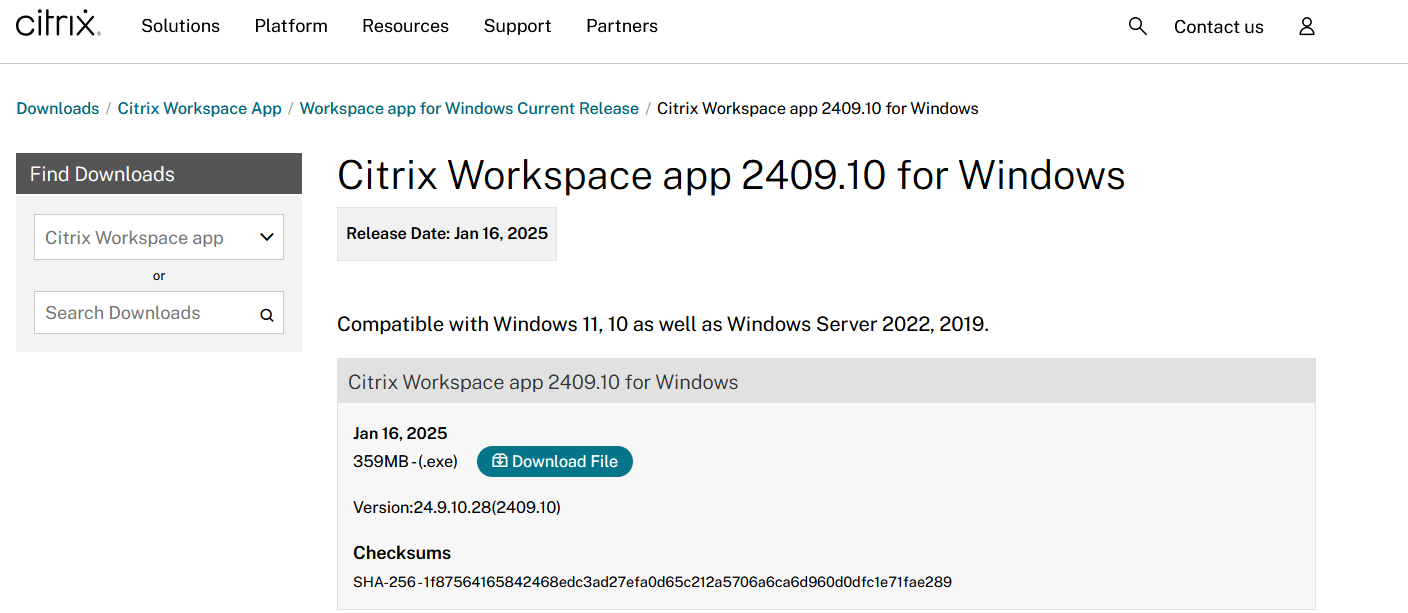
The first step is to download the Citrix Workspace application from the official website. Once the download is complete, you can proceed to the next step.
1️⃣ Navigate to Citrix Workspace Download Page.
2️⃣ Click on "Download Citrix Workspace app for Windows".
Once the file is downloaded, you're ready to move on to the next phase of the installation process. 🚀
🛠️ Create Win32 Application
After downloading the Citrix Workspace application, the next step is to create an Intune Win32 package. Follow these steps:
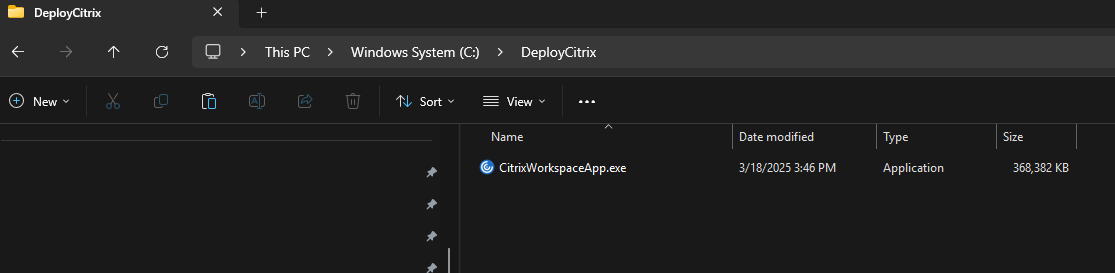
1️⃣ Create a new folder named DeployCitrix on C:\.
2️⃣ Copy the downloaded executable into this folder (note that the executable may have a different name).
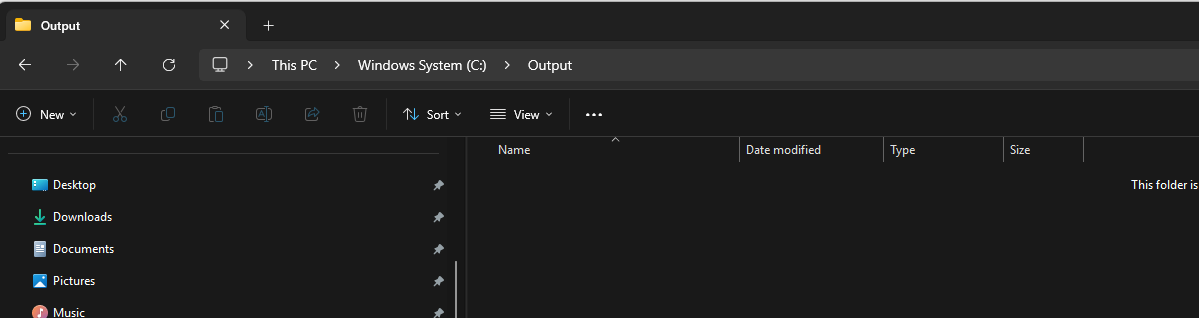
3️⃣ Create another folder named Output on C:\.
Once these folders are set up, you're ready to proceed with packaging the application for deployment. 🚀
🔧 Creating the Intune Win32 Application File
Now, we will package the Citrix Workspace application into a Win32 file for deployment via Microsoft Intune. To do this, follow the steps below:
1️⃣ Download the official Microsoft Intune Win32 App Tool.
2️⃣ Run the tool as Administrator (failure to do so may result in errors).
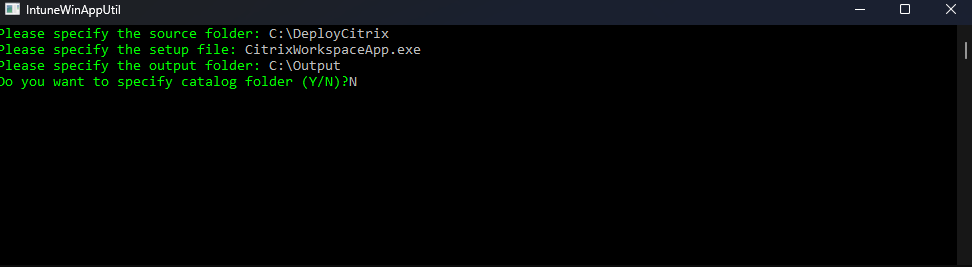
3️⃣ In the application, specify the following:
Source folder: C:\DeployCitrix
Setup file: CitrixWorkspaceApp.exe
Output folder: C:\Output
Specify catalog folder? N
Once the process is complete, you will have a Win32 application package ready for deployment in Microsoft Intune. 🚀
In your Output Folder, there should be a new intunewin file. We need this file in the next step.
🚀 Import and Deploy with Microsoft Intune
After creating the .intunewin file for the Citrix Workspace application, the next step is to upload and deploy it in Microsoft Intune. Follow these steps:
1️⃣ Go to Microsoft Intune Admin Center.
2️⃣ Click on Apps.
3️⃣ Select Windows.
4️⃣ Click on Add.
5️⃣ Choose App type: Windows app (Win32).
6️⃣ Click on Select.
Once selected, proceed with configuring deployment settings to distribute the application across your organization. 🎯
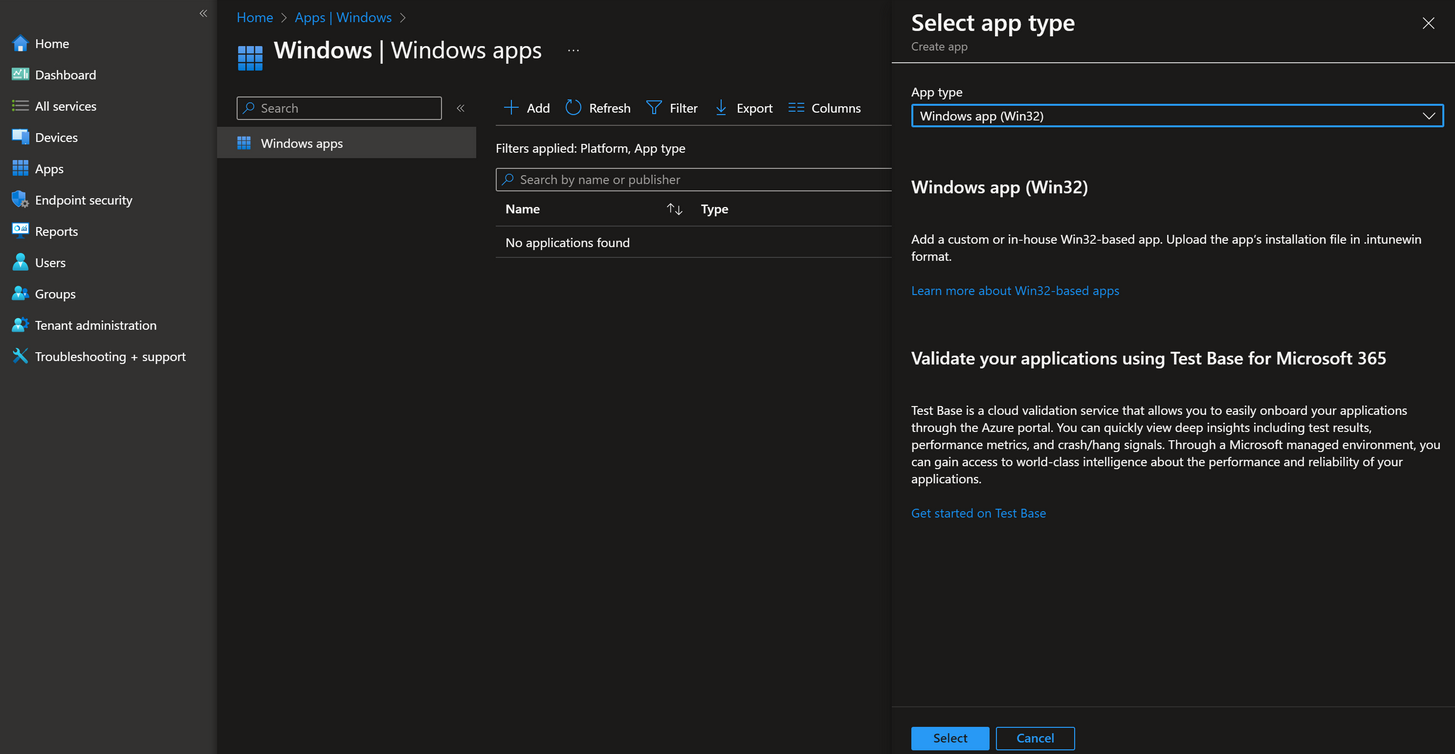
Click on Select app package file
Upload your IntuneWin file which is located in C:\Output
Click on OK
Click on Next
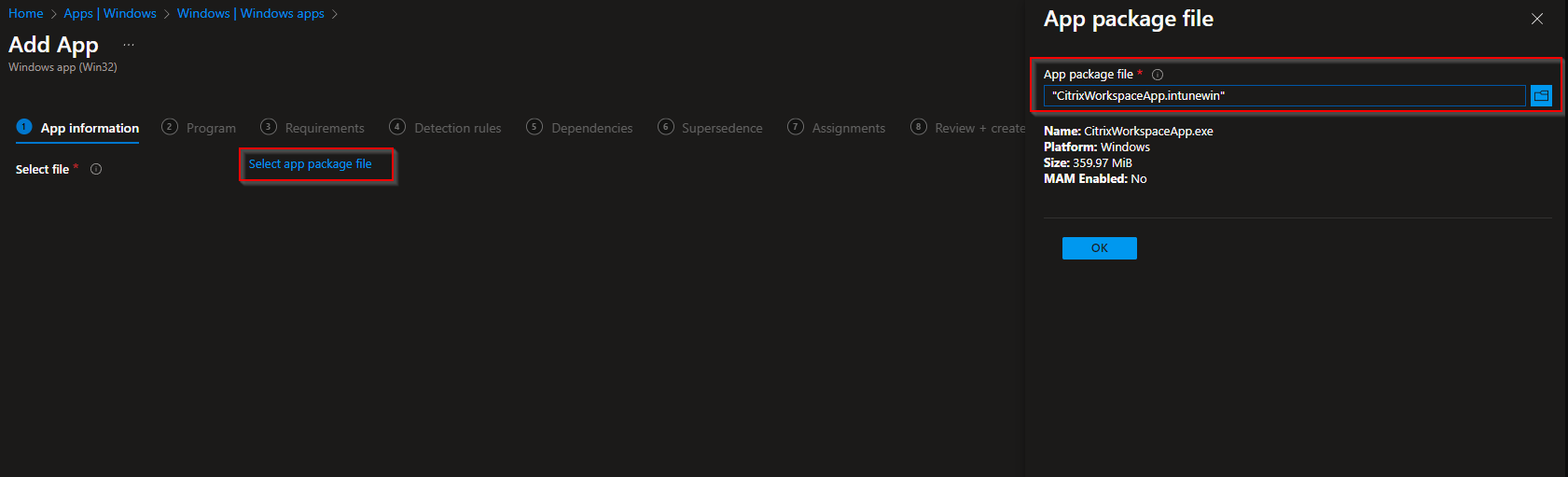
Here you can change the Settings. I leave it as it is. Dont forget to enter a Publisher
Click on Next
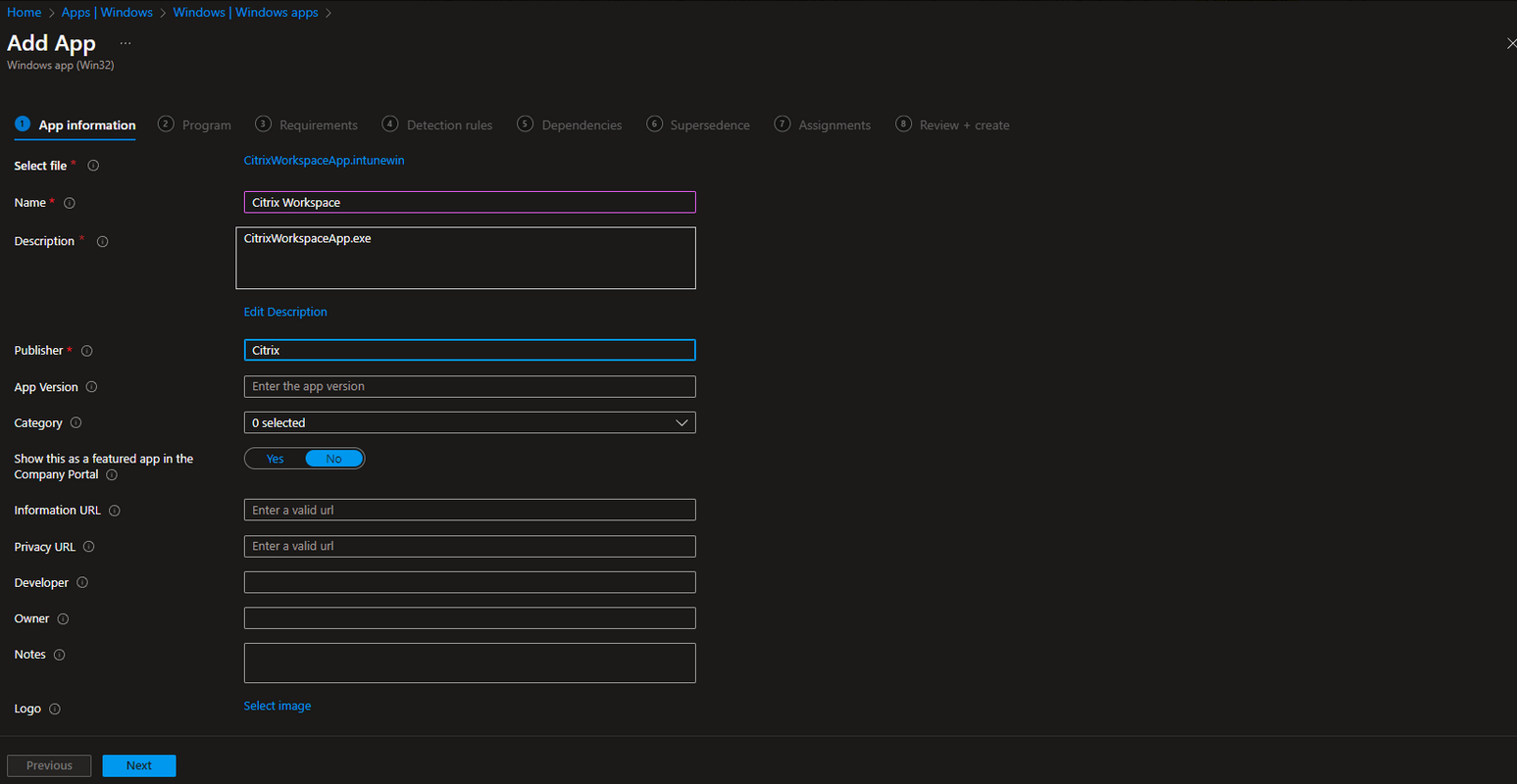
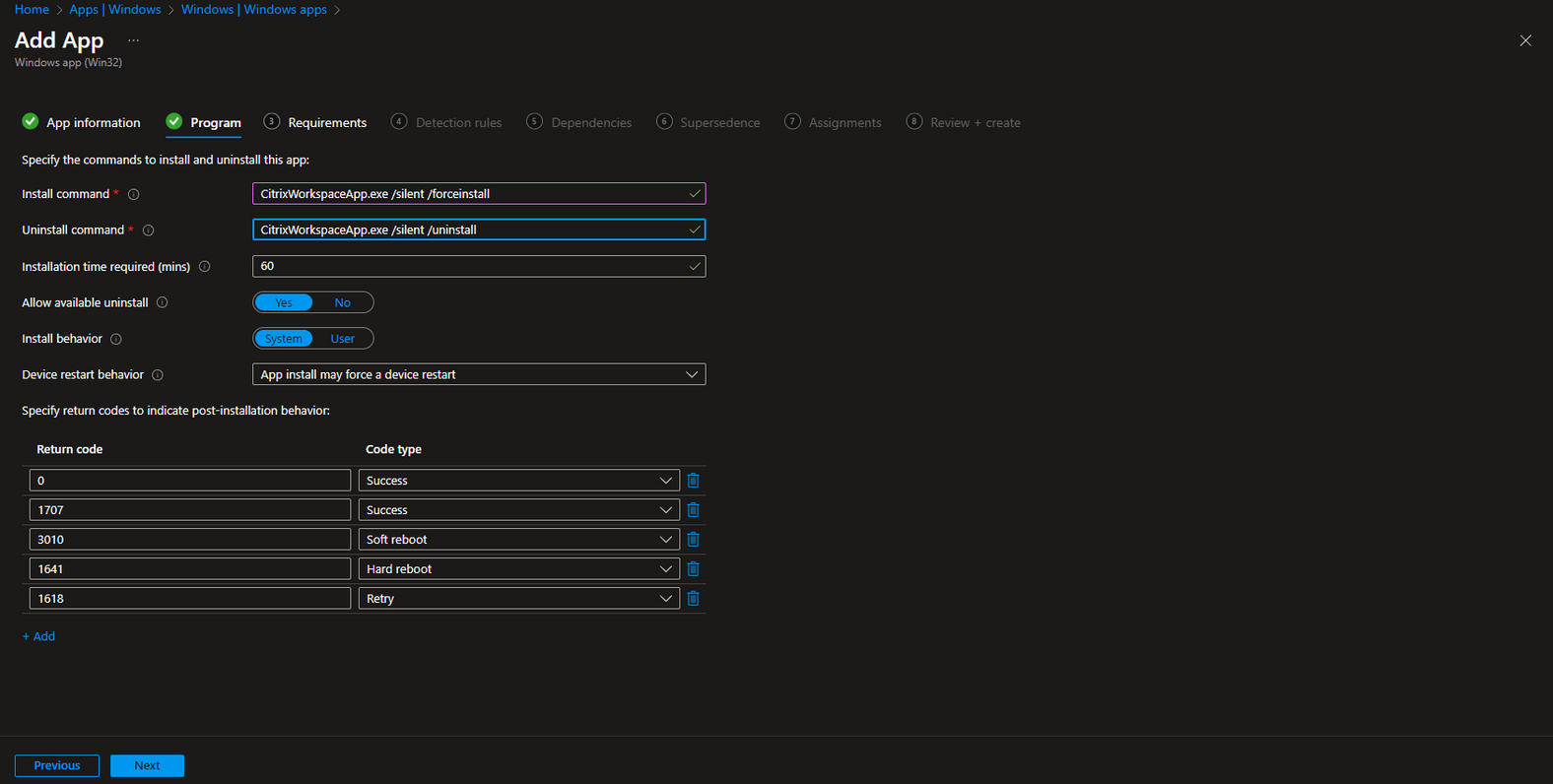
On the Program tab enter the following Commands:
Install Command: CitrixWorkspaceApp.exe /silent /forceinstall
Uninstall command: CitrixWorkspaceApp.exe /silent /uninstall
Allow available uninstall: Yes
Install behavior: System
Click on Next
On the Requirements tab enter:
Operating system architecture: 64-bit
Minimum operating system: Windows 10 1607
Click on Next
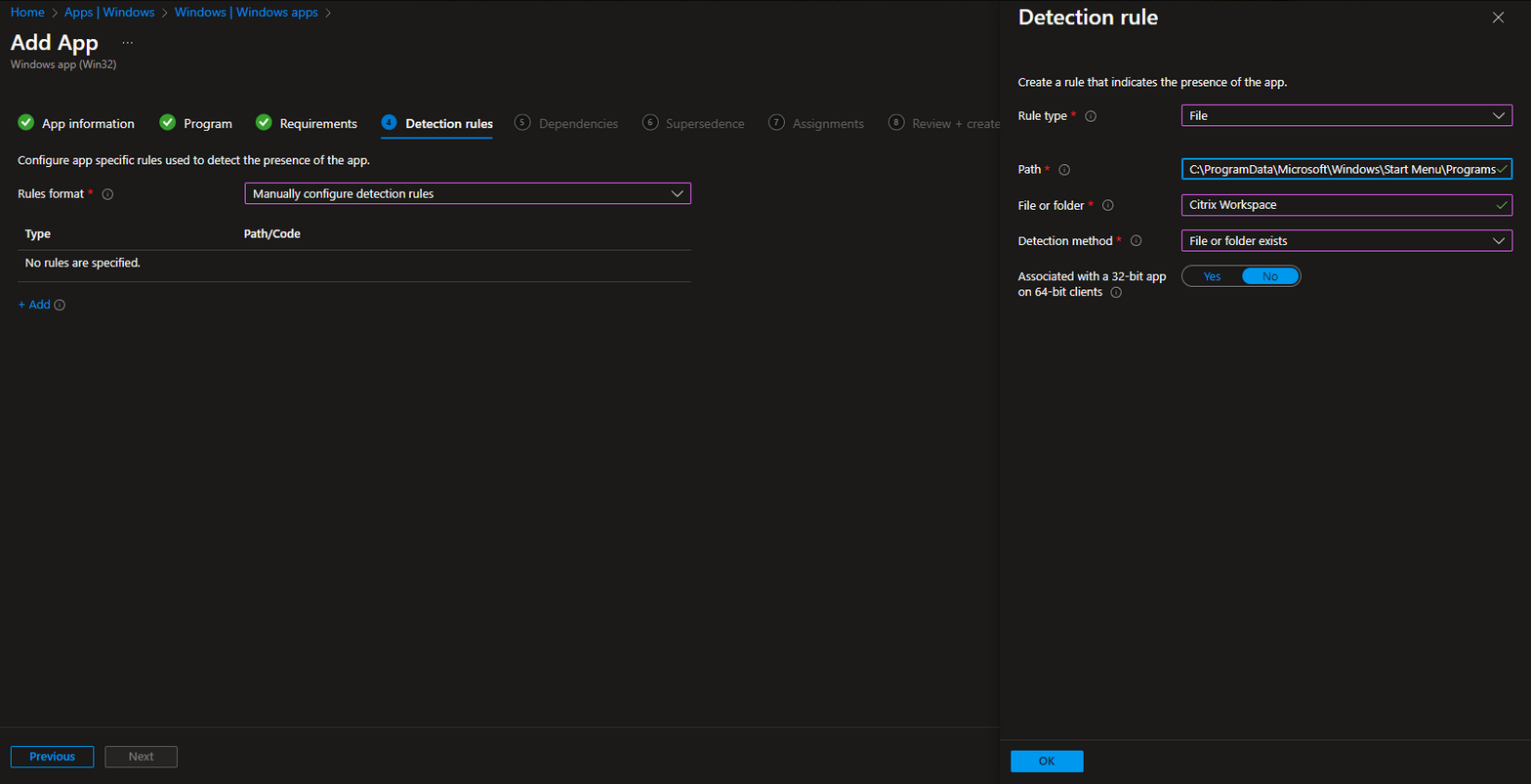
On the Detection rules tab enter the following:
Rules format: Manually configure detection rules
Click on Add
Rule type: File
Path: C:\ProgramData\Microsoft\Windows\Start Menu\Programs
File or Folder: Citrix Workspace
Detection method: File or folder exists
Associated with a 32-bit app on 64-bit clients: No
Click on Ok and on Next
Define your Dependencies if applicable and click on Next
Define your Supersedence if applicable and click on Next
On the Assignments tab assign the Policy to a Group or to All User
Click on Next
And Review + Create the Policy
Congratulations! Deployment Completed
You have successfully deployed Citrix Workspace using Microsoft Intune!
Conclusion
In this guide, you learned how to:
✅ Create a Win32 package from the official Citrix Workspace executable.
✅ Upload the application to Microsoft Intune.
✅ Configure deployment settings for seamless distribution.
More Information
For additional guidance on deploying Citrix Workspace with Microsoft Intune, refer to the following resources on Microsoft Learn:
Overview of Microsoft Intune
🔗 https://learn.microsoft.com/en-us/mem/intune/fundamentals/what-is-intune
Deploying Win32 Apps with Microsoft Intune
🔗 https://learn.microsoft.com/en-us/mem/intune/apps/apps-win32-app-management
Microsoft Intune Win32 App Packaging Tool
🔗 https://learn.microsoft.com/en-us/mem/intune/apps/apps-win32-app-prep-tool
Assigning and Monitoring Applications in Intune
🔗 https://learn.microsoft.com/en-us/mem/intune/apps/apps-deploy
Microsoft Intune Requirements and Limitations
🔗 https://learn.microsoft.com/en-us/mem/intune/apps/apps-win32-app-requirements
These resources provide detailed instructions on setting up, managing, and optimizing application deployments with Microsoft Intune. 🚀
Thank you!
🖥️ Ricardo Barbosa
📘 MCT Microsoft Certified Trainer | ☁️ Cloud Architect
🌐 Technology Director - https://altelix.com
