

How IT admins can control data sharing and enhance compliance using Intune policies for Microsoft Edge.
In today’s digital workplace, privacy and productivity go hand in hand. Microsoft Edge continues to evolve with new AI-driven features that improve user experience, but these capabilities must be carefully managed to protect organizational data. One such feature is the AI-Enhanced Search in History Policy, which allows users to search their browsing history using natural language and semantic understanding.
With Microsoft Intune, IT administrators can control how this feature is deployed, ensuring that employees benefit from improved search capabilities while maintaining compliance and data privacy standards.
What the Policy Does
The AI-Enhanced Search in History Policy controls whether users can leverage an on-device AI model in Microsoft Edge to perform smarter searches in their browsing history.
The model runs entirely on the user’s device, ensuring no browsing history is sent externally.
It uses the history already stored locally to understand context and semantics.
Users can find previously visited sites even if their search terms include synonyms, natural language phrases, or minor spelling errors.
✅ Example: A user searches for “hybrid work guide.” The AI engine can recognize this and match it to a page previously visited titled “The Definitive Guide to Remote-First Work.”
This enhances productivity by reducing the time needed to locate previously accessed resources.
Why It Matters for IT Admins
For IT administrators, the challenge is balancing innovation and control. While AI-enhanced search improves efficiency, it must be managed in line with corporate policies.
Through Intune, admins can:
Decide whether this feature should be enabled or restricted.
Align search capabilities with data protection and compliance requirements.
Ensure employees’ browsing history remains private and confined to the device.
Real-World Scenario
Imagine an IT admin in a marketing agency where Microsoft Edge is the default browser. Employees frequently research:
Market trends.
Competitor campaigns.
Creative inspirations.
They often revisit previously viewed websites for new projects. By enabling the AI-Enhanced Search in History Policy via Intune:
Employees quickly find relevant past resources.
Productivity improves without compromising privacy.
The IT team maintains centralized control over browser features.
Benefits of Enabling the Policy
🕒 Time-saving: Users can instantly find previously visited sites.
🔐 Privacy-focused: All processing remains on-device.
⚙️ Compliance-ready: Admins decide when and where to enable it.
💡 Enhanced user experience: Natural language search reduces frustration.
Data Privacy Management in Microsoft Edge: AI-Enhanced Search via Intune
In this post, you’ll learn how to configure the AI-Enhanced Search in History Policy for Microsoft Edge using Intune. We’ll cover what the policy does, how it helps IT admins manage data privacy more effectively, and the key steps to set it up in the Intune Admin Center.
Step-by-Step Guide
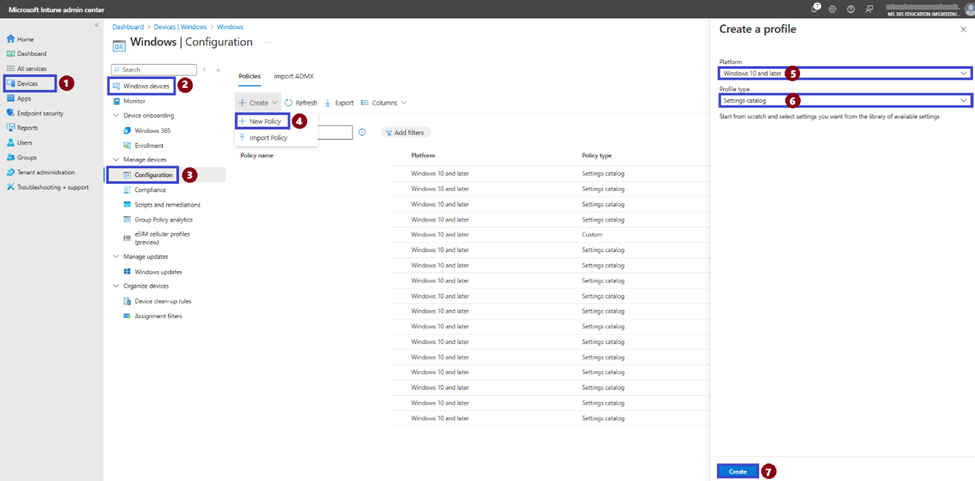
Refer to the screenshot for visual guidance and follow the steps below:
In the Microsoft Intune admin center, go to Devices.
Select Windows devices.
Under the Policy section, choose Configuration profiles.
Click on + Create and then select New Policy.
In the Create a profile pane, set the Platform to Windows 10 and later.
Set the Profile type to Settings catalog.
Click Create to proceed.
This will initiate the creation of a settings-based configuration profile where you can search for and apply the AI-Enhanced Search in History Policy for Microsoft Edge.
📝 Define Basic Profile Details
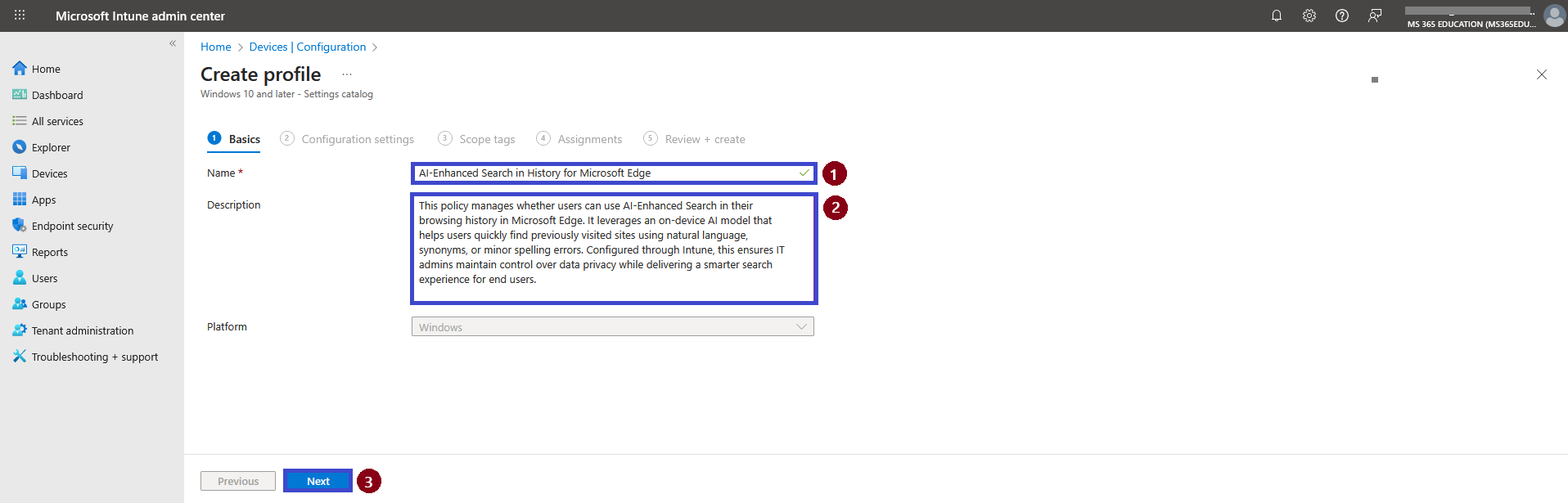
After clicking Create, the next step is to define the basic details of your configuration profile. You’ll need to provide a Name, an optional but highly recommended Description, and confirm the Platform (which will already be pre-selected as Windows 10 and later).
Providing a clear and descriptive name makes it easier to identify and manage the policy later, especially in environments with multiple configuration profiles or complex privacy strategies.
✅ Suggested Name and Description
Name: AI-Enhanced Search in History for Microsoft Edge
Description: This policy manages whether users can use AI-Enhanced Search in their browsing history in Microsoft Edge. It leverages an on-device AI model that helps users quickly find previously visited sites using natural language, synonyms, or minor spelling errors. Configured through Intune, this ensures IT admins maintain control over data privacy while delivering a smarter search experience for end users.
No changes are needed in the Platform field. Once the name and description are filled in, click Next to continue.
Configure the AI-Enhanced Search in History Setting
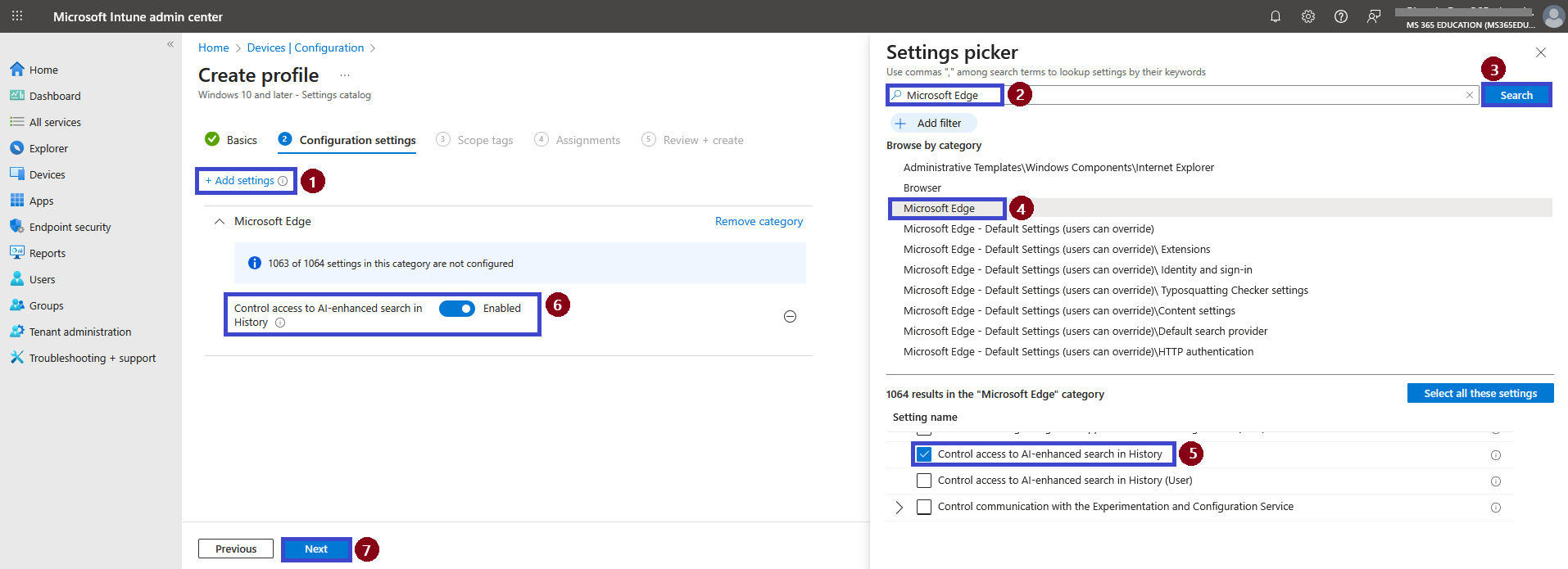
In this step, you’ll use the Settings Catalog to configure the policy that controls access to AI-Enhanced Search in History for Microsoft Edge. This setting determines whether users can leverage the on-device AI model to search their browsing history using natural language, synonyms, or even minor spelling errors.
Follow the instructions below, referring to the image:
On the Configuration settings page, click + Add settings.
In the Settings picker pane, type Microsoft Edge into the search bar.
Click Search.
From the results, expand the Microsoft Edge category.
Scroll down and check the box for Control access to AI-enhanced search in History.
The setting will now appear in the main configuration pane. Toggle the value to Enabled to allow the use of AI-enhanced search on the device.
Click Next to proceed.
✅ Observation:
By default, if this policy is not configured, users can still access AI-enhanced history search.
Setting it to Disabled ensures that browsing history search remains limited to exact keywords only, which may be required for organizations with stricter privacy or compliance policies.
When Enabled, users benefit from faster and smarter searches, while IT admins retain control over data privacy since all processing happens locally on the device.
This configuration is especially valuable in environments where productivity is a priority, but data privacy must be safeguarded for example, in marketing teams, research units, education, and consulting organizations.
Configure Scope Tags (Optional)
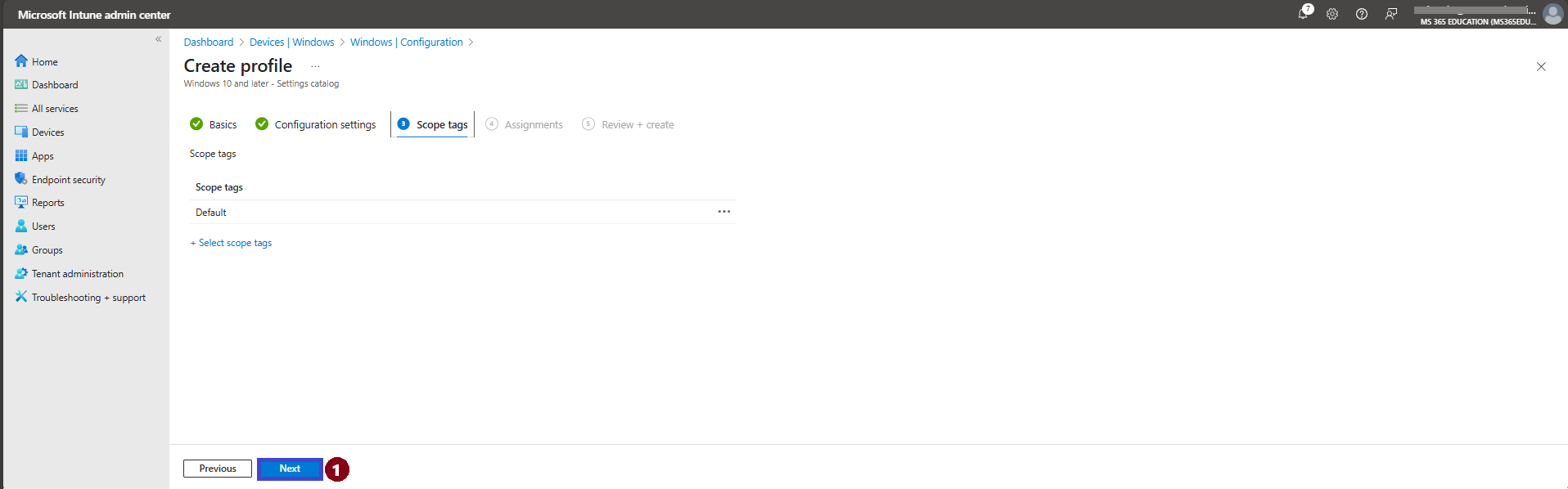
The next step is the Scope tags tab. Scope tags are typically used to associate policies with specific groups or administrative units within your organization, especially in larger or delegated environments.
For this particular policy, scope tags are not required. If you don’t need to assign the policy to a custom scope, you can simply leave this section blank.
Click Next to continue to the Assignments step.
Assign the Policy to Target Devices
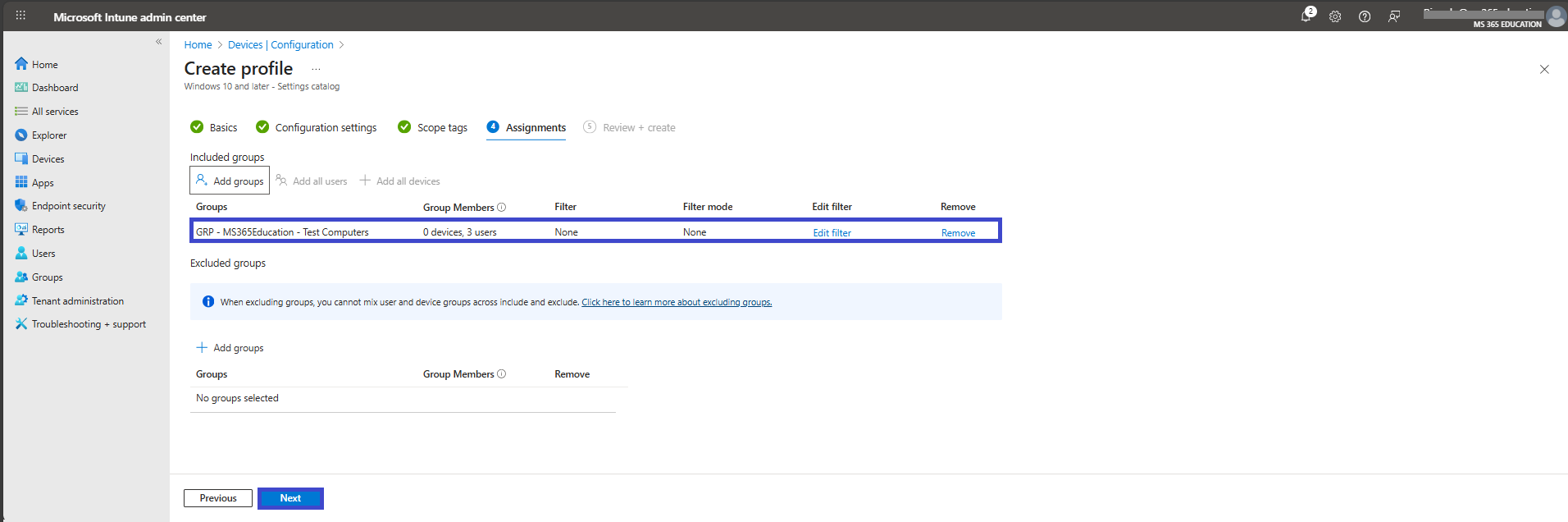
In the Assignments section, you'll define who will receive this policy. This step is essential, as it determines which users or devices the configuration will apply to.
To deploy this policy to a specific group:
Click on Add groups under the Include groups section. A list of available groups will appear use the search bar to quickly find the target group.
Once you've selected the appropriate group(s), confirm your choice. Click Next to move forward to the final step: Review + Create.
Review and Create the Policy
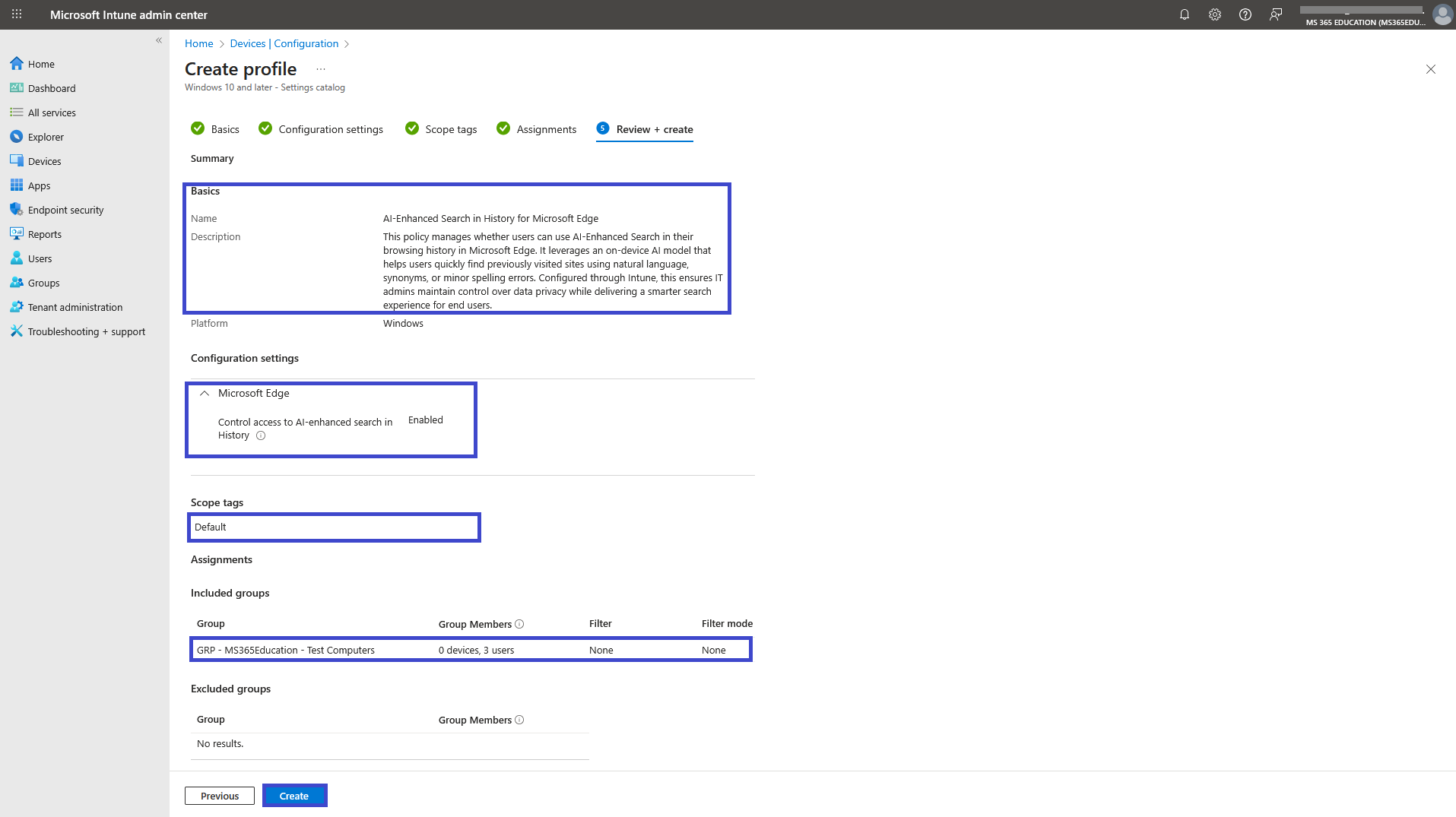
After completing the Assignments step, you'll land on the final tab: Review + Create.
This is your chance to review a full summary of the configuration including the basic details, selected settings, and group assignments. Take a moment to carefully review all entries to ensure everything is accurate and aligned with your intent.
If you need to make any changes, you can easily navigate back to the previous tabs and update the information as needed.
Once everything looks good, click Create to deploy the policy.
Your configuration will now be saved and pushed to the assigned devices based on the group you selected.
Monitor Policy Deployment Status
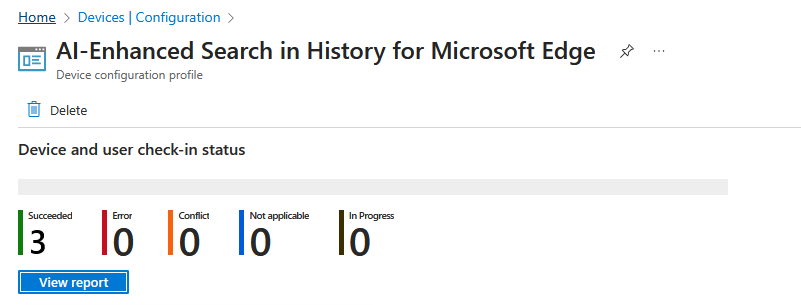
After creating and assigning the AI-Enhanced Search in History policy, it’s important to monitor whether the configuration has been successfully deployed to all targeted devices.
By default, Intune policy deployment may take up to 8 hours. To speed up the process, you can manually trigger a device sync using the Company Portal app or initiate a sync via the Intune Management Extension.
✅ How to Verify Deployment Status:
In the Microsoft Intune admin center, navigate to: Devices ➝ Configuration profiles.
Use the search bar to locate the profile you created for example: AI-Enhanced Search in History – Microsoft Edge.
Click on the policy name to open its Overview page.
Review key deployment metrics such as:
This visibility ensures that the AI-Enhanced Search in History Policy has been properly applied, and allows administrators to take corrective actions if devices are non-compliant or facing deployment issues.
Client-Side Verification via Event Viewer
After manually syncing the device or waiting for Intune to automatically apply the policy, you can confirm that the AI-Enhanced Search in History policy has been successfully enforced using Event Viewer on the client device.
This is especially useful for troubleshooting or auditing deployments in secure or compliance-focused environments.
✅ Steps to Verify Policy Application:
Open Event Viewer on the target Windows device.
Navigate to: Applications and Services Logs ➝ Microsoft ➝ Windows ➝ DeviceManagement-Enterprise-Diagnostics-Provider ➝ Admin
In the right-hand pane, click Filter Current Log.
Look for Event ID 813 or 814 these events typically indicate successful processing of Intune configuration profiles.
In the event details, verify that the setting “Control access to AI-enhanced search in History” was applied successfully.
You may also see additional fields such as Enrollment ID, User SID, and Scope, depending on how the device was enrolled and how the policy was assigned.
💡 Pro Tip: Always ensure the Event ID reflects the correct timestamp and status. This method is one of the most reliable ways to confirm if the AI-Enhanced Search in History Policy has been successfully applied especially when troubleshooting delayed or failed deployments.
🔍 More Information
EdgeHistoryAISearchEnabled policy – Control access to AI-enhanced search in History (Microsoft Edge) https://learn.microsoft.com/en-us/deployedge/microsoft-edge-browser-policies/edgehistoryaisearchenabled
Configure Microsoft Edge policy settings with Microsoft Intune – step-by-step guide for creating configuration profiles for Microsoft Edge using Intune. https://learn.microsoft.com/en-us/deployedge/configure-edge-with-intune
Microsoft Edge Browser Policy Documentation – complete reference list of all Microsoft Edge policies, including AI-Enhanced Search in History. https://learn.microsoft.com/en-us/deployedge/microsoft-edge-policies
Windows Central – Microsoft Edge will soon use AI to search browser history – article describing Microsoft’s new semantic browsing history search feature in Edge, with emphasis on on-device privacy. https://www.windowscentral.com/software-apps/browsing/microsoft-wants-ai-to-read-your-browsing-history-but-theres-one-reason-not-to-worry
Thank you!
🖥️ Ricardo Barbosa
🎖️ Microsoft MVP | 📘 Microsoft Certified Trainer (MCT)
☁️ Intune & Cloud Architect |💼 Technology Director at Altelix.com
