

Control Windows Updates Every First Week of the Month Using Intune
Let’s talk about how to schedule Windows Updates during the first week of every month using Intune policies.
This approach gives IT administrators full control over when updates are installed on managed devices. Instead of leaving updates to run at unpredictable times, you can enforce a consistent, predictable update cycle that aligns with business needs.
🔹 How It Works
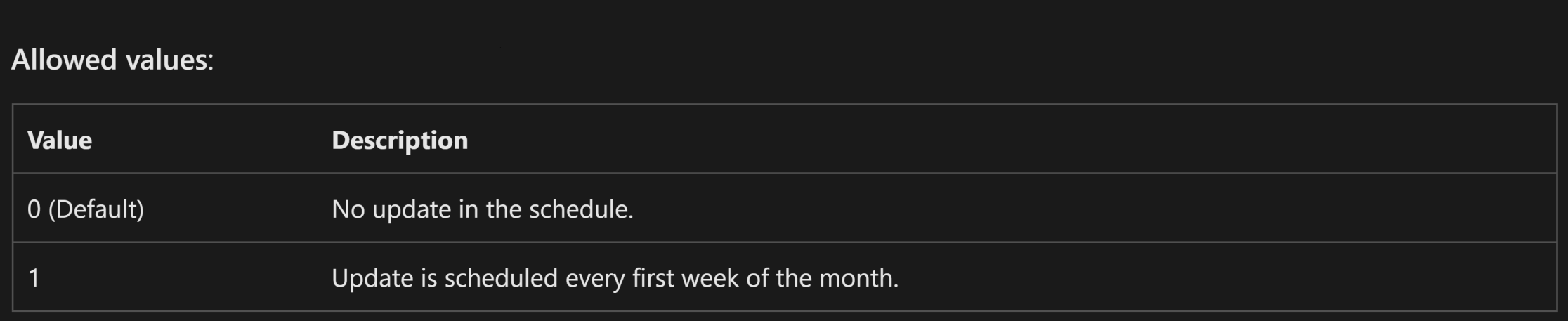
The policy relies on an integer value to determine when updates are installed:
0 → No specific schedule. Devices follow their default or manually configured update timelines.
1 → Updates are automatically installed during the first week of each month.
By setting the value to 1, organizations can ensure important patches are deployed on time, while avoiding unnecessary disruption for end users.
This results in:
A more consistent update management process
Reduced risk of unexpected downtime
Easier compliance monitoring across devices
✨ The Result
With this configuration, devices will automatically install updates during the first week of every month. This keeps patching cycles predictable and aligns with Microsoft’s Patch Tuesday schedule.
📌 Why This Policy Matters
✅ Provides predictable and secure update cycles
✅ Reduces risk of vulnerabilities by aligning with Patch Tuesday
✅ Minimizes unexpected downtime for end users
✅ Simplifies monitoring and compliance checks
✅ Gives IT admins centralized control across all devices
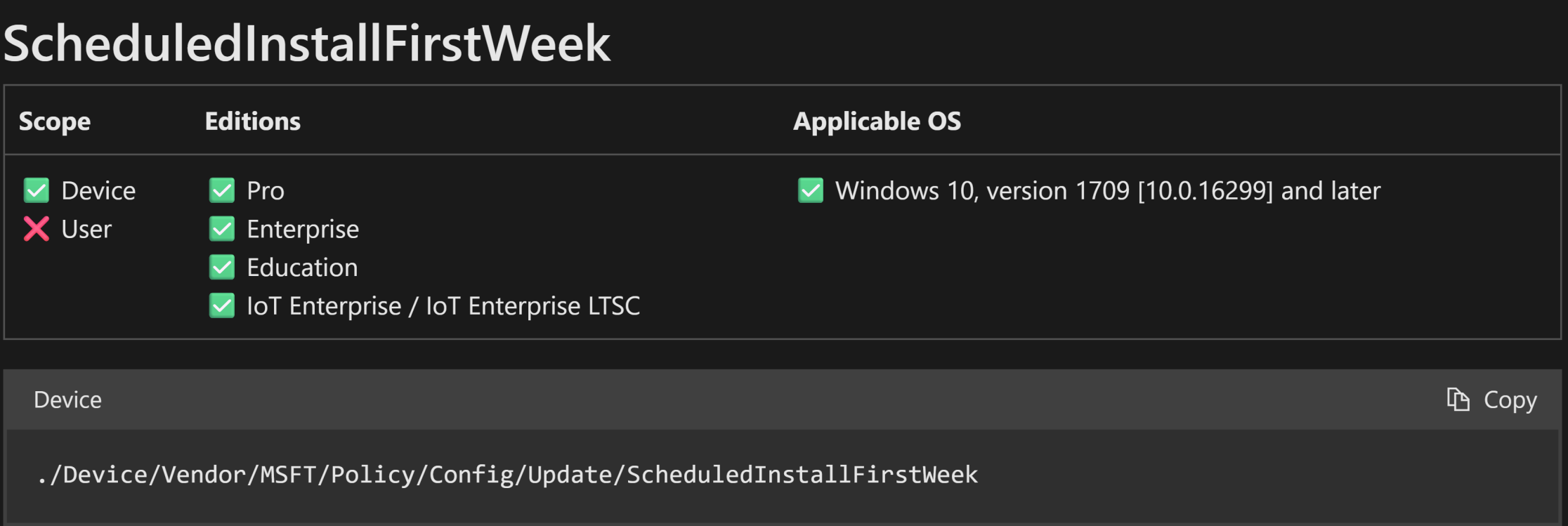
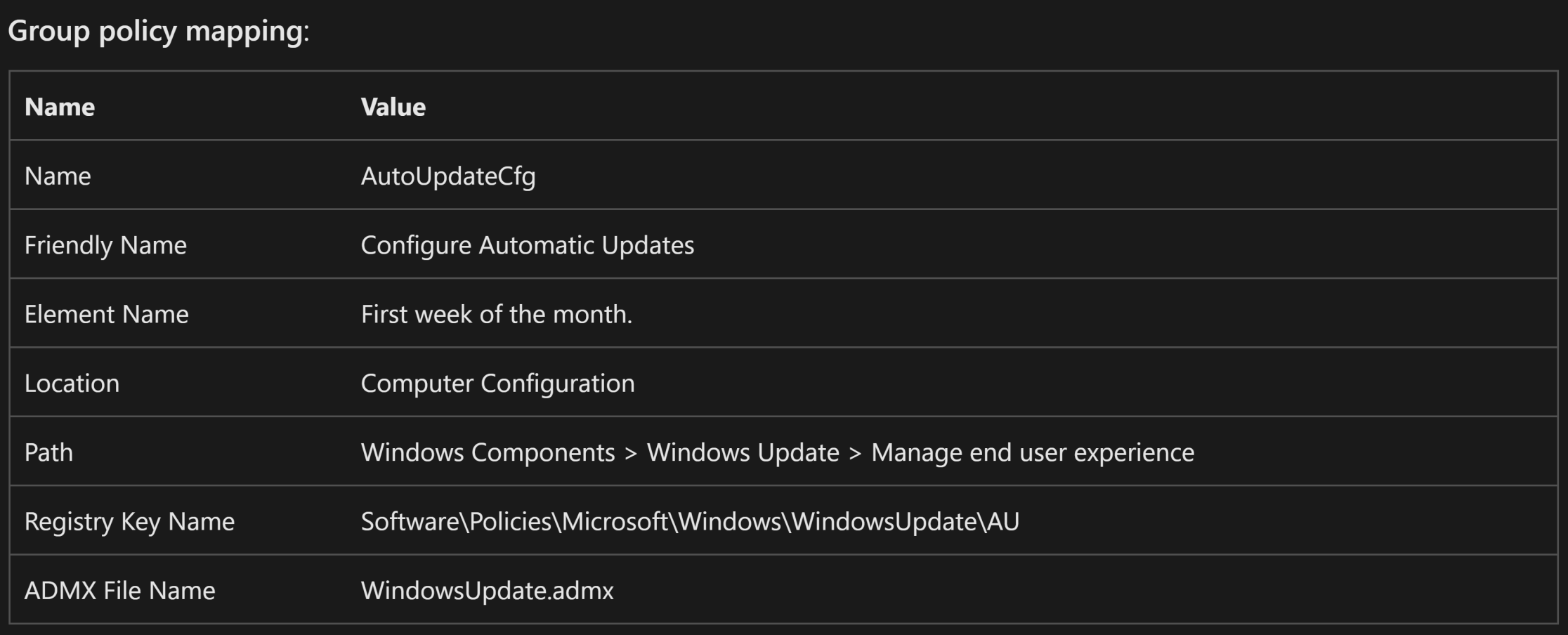
📖 Windows CSP Details — Scheduled Install First Week
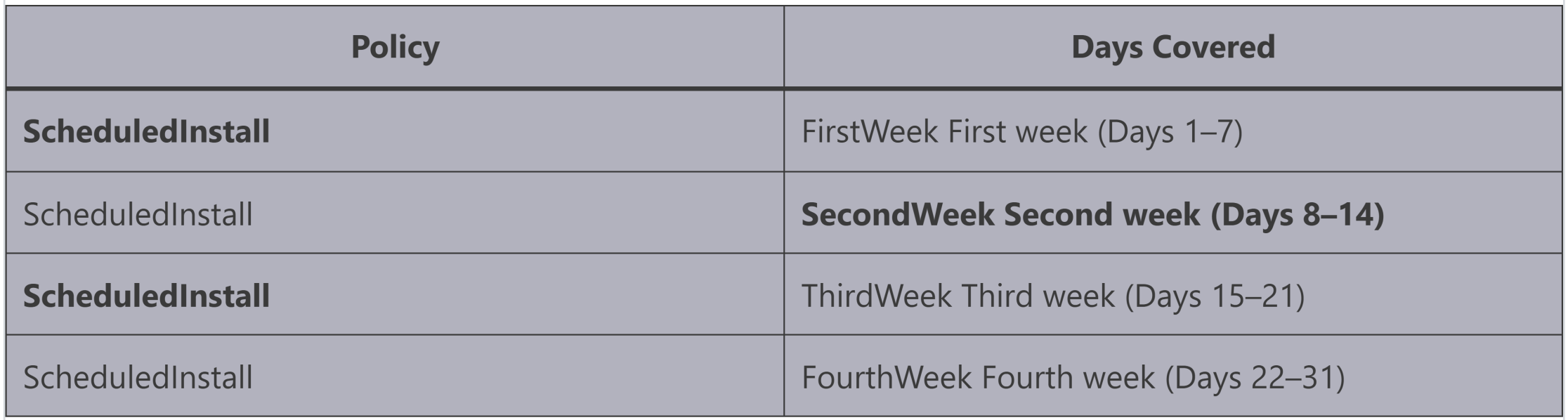
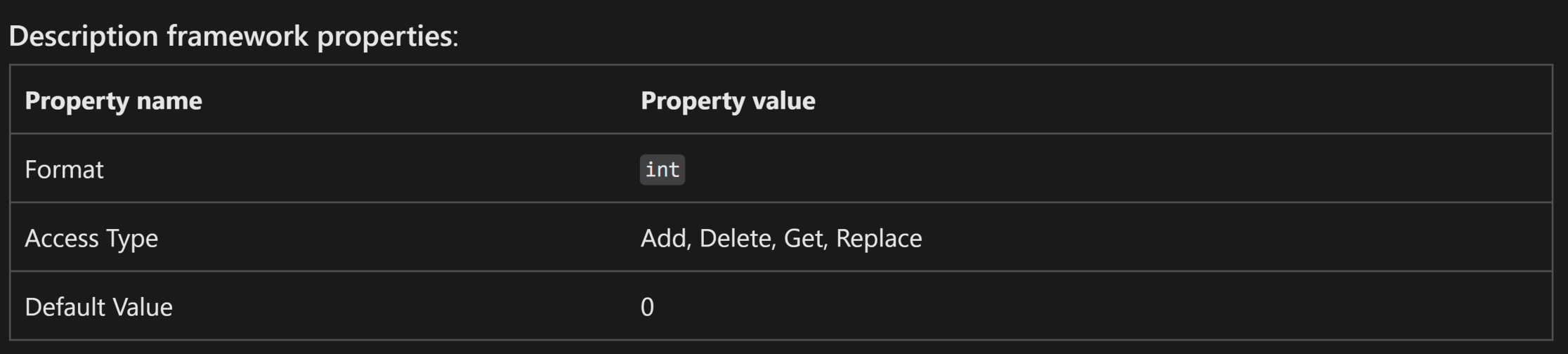
The ScheduledInstallWeek CSP policy allows IT admins to define the exact week of the month when updates will be installed. Each week is represented by a numeric value, enabling clear and repeatable scheduling across all managed devices.
This simplifies update cycles and ensures organizations stay aligned with security baselines.
🛠 Step-by-Step: Deploy via Intune
Here’s how to configure the policy in the Microsoft Intune Admin Center:
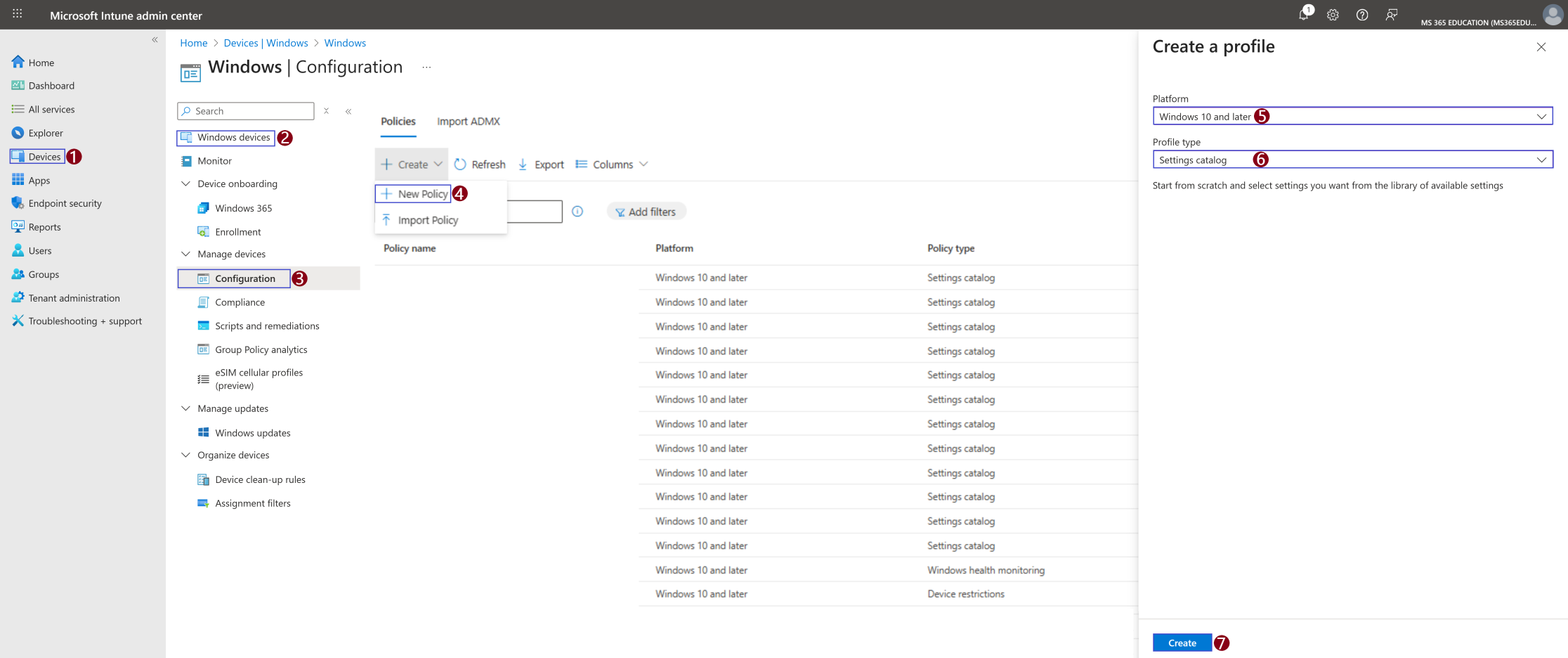
1️⃣ In the Microsoft Intune admin center, go to Devices
2️⃣ Select Windows devices
3️⃣ Under the Policy section, choose Configuration profiles
4️⃣ Click on + Create and then select New Policy
5️⃣ In the Create a profile pane, set Platform = Windows 10 and later
6️⃣ Set the Profile type = Settings catalog
7️⃣ Click Create to proceed
⚠️ Default Behavior
By default, Windows Updates follow Microsoft’s release cadence without a fixed “first week” schedule. This means updates may install unpredictably, depending on device configuration, user actions, or local policies. This lack of control can create inconsistency across the organization, especially when aligning with Patch Tuesday.
📌 Example Scenario
When organizations enforce this policy, all managed devices receive updates during the first week of each month. This ensures that patch cycles are consistent, predictable, and easier to monitor.
👉 For example: An enterprise with 2,000 Windows 11 devices wants updates aligned with Patch Tuesday to minimize vulnerabilities and reduce downtime. Without a controlled policy, some devices update immediately, others delay, and a few might miss updates altogether. By applying this Intune policy, IT ensures:
Updates install only during the first week of the month
Security patches are applied predictably across all devices
Compliance checks and reporting become much simpler
This approach demonstrates how the policy improves security, boosts reliability, and reduces disruption across large environments.
📝 Define Basic Profile Details
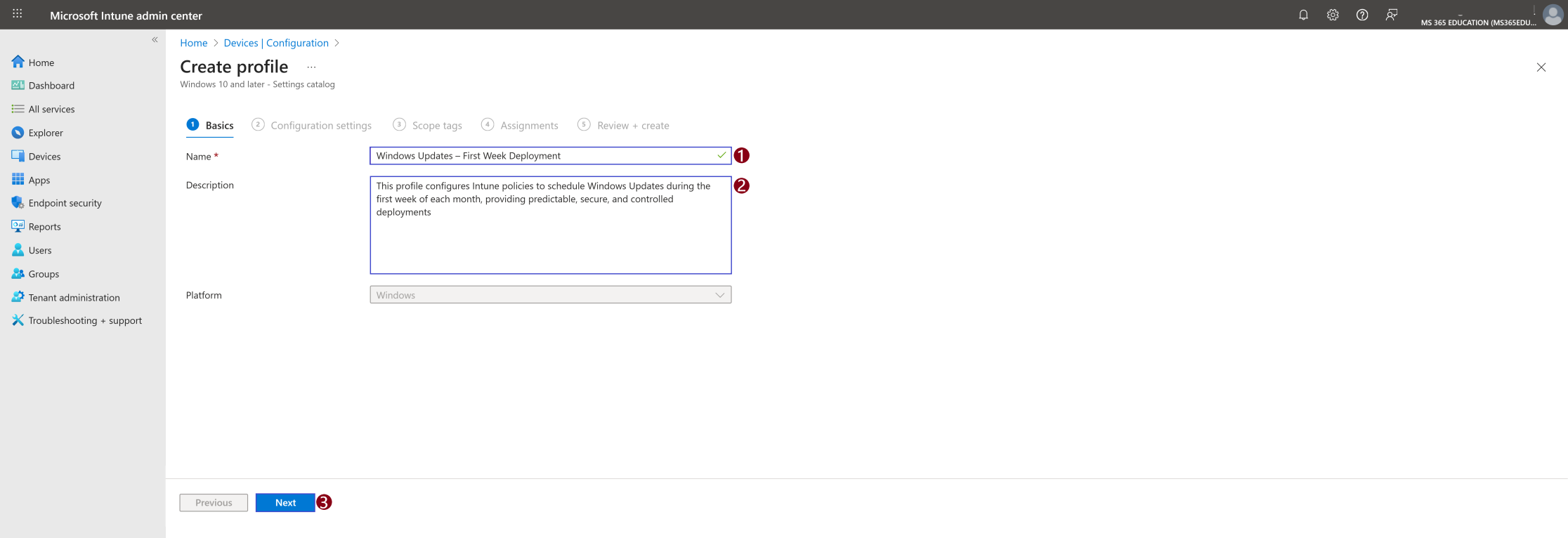
After choosing to create the profile, the next step is to define the basic details of your configuration. This step is important because it ensures the policy can be easily identified and managed later.
Here, you’ll provide a Name, a Description, and confirm the Platform (which defaults to Windows 10 and later).
✅ Suggested Name and Description
Name: Windows Updates – First Week Deployment
Description: This profile configures Intune policies to schedule Windows Updates during the first week of each month, providing predictable, secure, and controlled deployments.
No changes are required in the Platform field. Once the Name and Description are filled in, click Next to continue.
⚙️ Configure the Policy in Intune
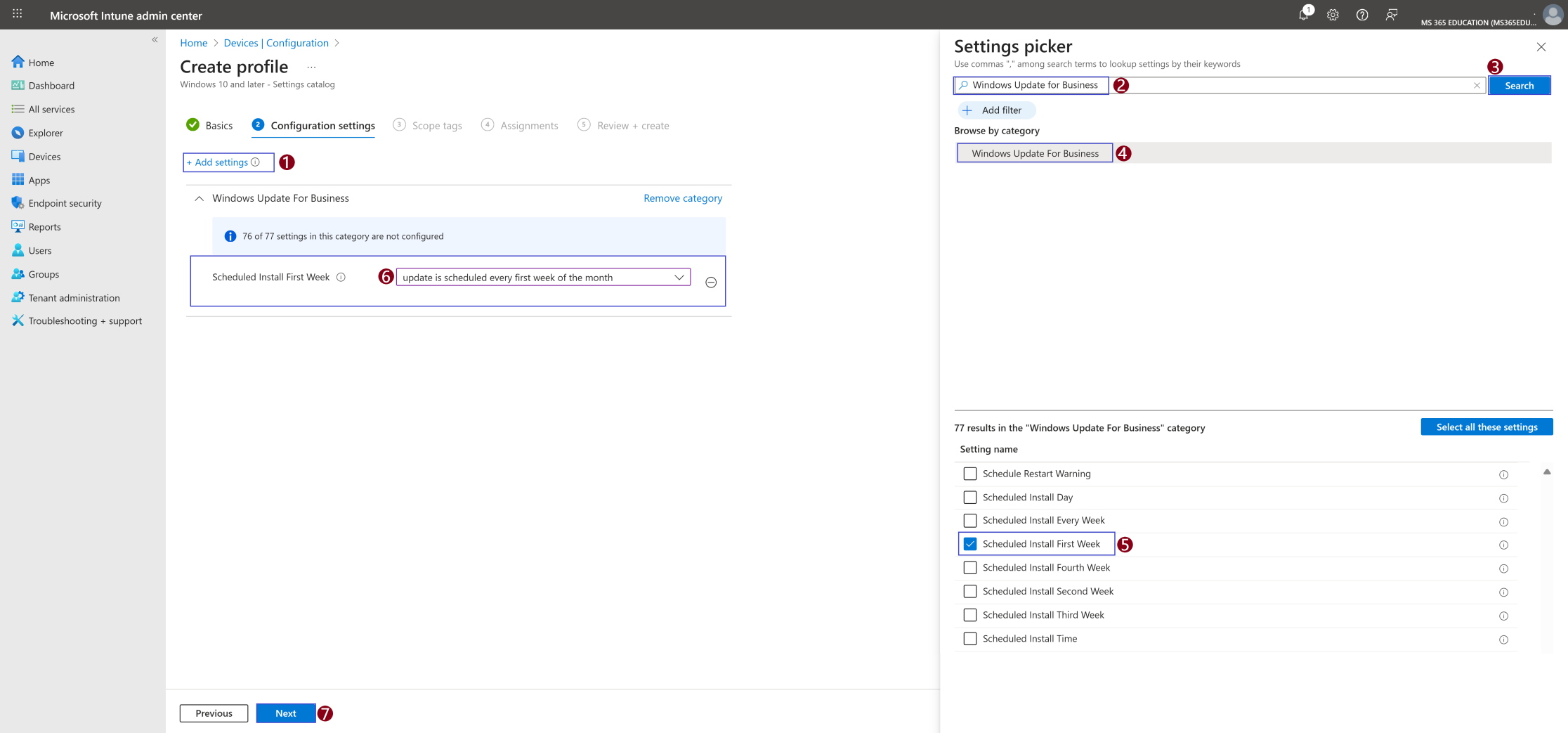
After defining the basic profile details, the next step is to configure the policy using the Settings Catalog. This is where you specify how Windows Updates will be scheduled to run during the first week of each month.
Follow the instructions below, referring to the screenshot for guidance:
1️⃣ On the Configuration settings page, click + Add settings.
2️⃣ In the Settings picker search bar, type Windows Update for Business.
3️⃣ Click Search.
4️⃣ From the results, expand Windows Update for Business.
5️⃣ Check the box for Scheduled Install First Week.
6️⃣ In the main configuration pane, set the option to update is scheduled every first week of the month.
7️⃣ Finally, click Next to proceed.
⚡ Result: By enabling this setting, Windows Updates are automatically installed during the first week of every month, ensuring a predictable and consistent patch cycle aligned with Patch Tuesday.
✅ Observation
If left Not Configured, devices will continue following their default update behavior, which can vary across the fleet.
If explicitly set to Scheduled Install First Week, IT gains clear visibility and control, ensuring updates are applied consistently in line with organizational requirements.
⚡ Key Point: While devices may update automatically by default, explicitly configuring this policy in Intune guarantees that updates are scheduled according to your governance and compliance needs, reducing the risk of missed or delayed patching.
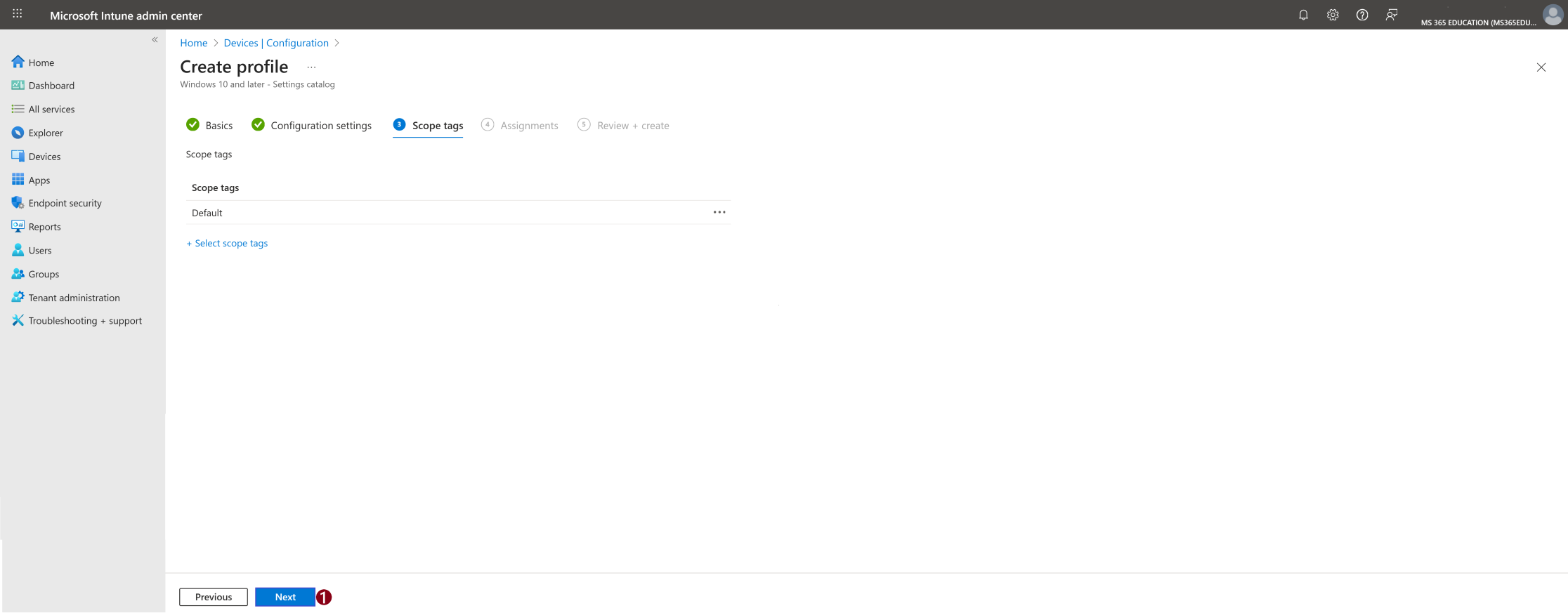
Configure Scope Tags (Optional)
The next step is the Scope tags tab. Scope tags are typically used to associate policies with specific groups or administrative units within your organization, especially in larger or delegated environments.
For this particular policy, scope tags are not required. If you don’t need to assign the policy to a custom scope, you can simply leave this section blank.
Click Next to continue to the Assignments step.
Assign the Policy to Target Devices
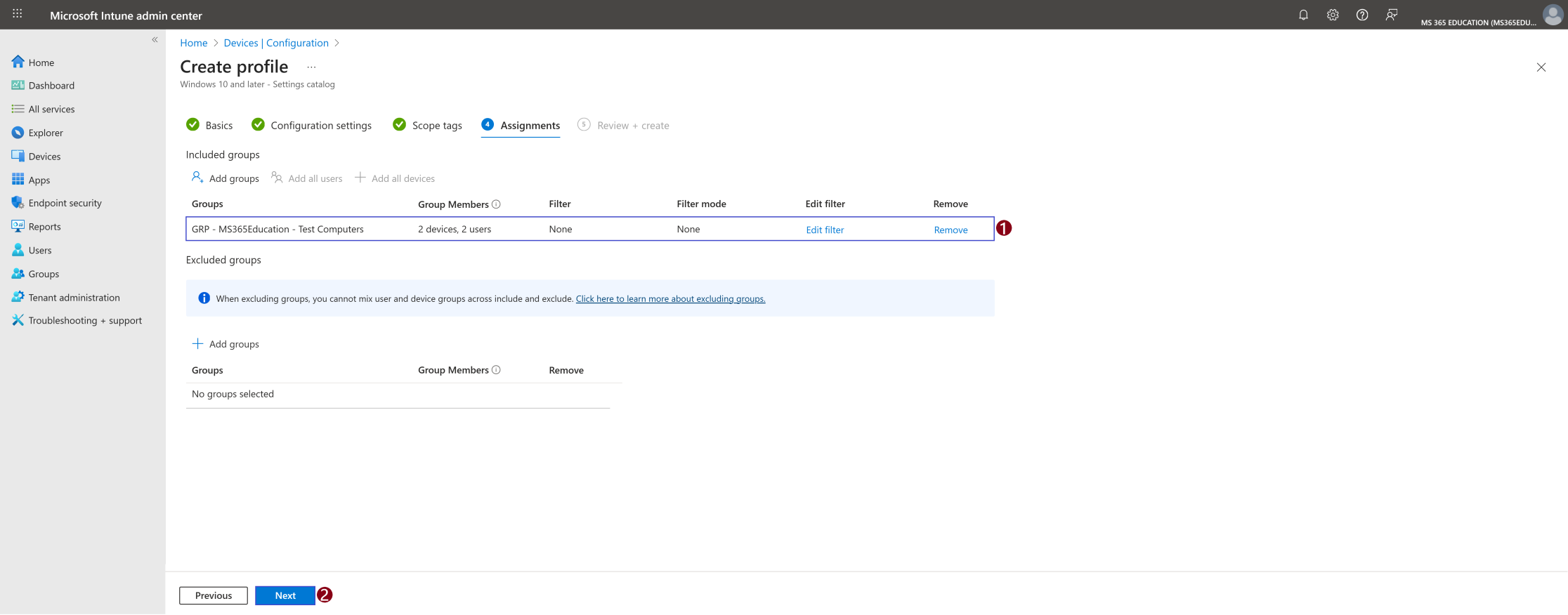
In the Assignments section, you'll define who will receive this policy. This step is essential, as it determines which users or devices the configuration will apply to.
To deploy this policy to a specific group:
Click on Add groups under the Include groups section. A list of available groups will appear use the search bar to quickly find the target group.
Once you've selected the appropriate group(s), confirm your choice. Click Next to move forward to the final step: Review + Create.
Review and Create the Policy
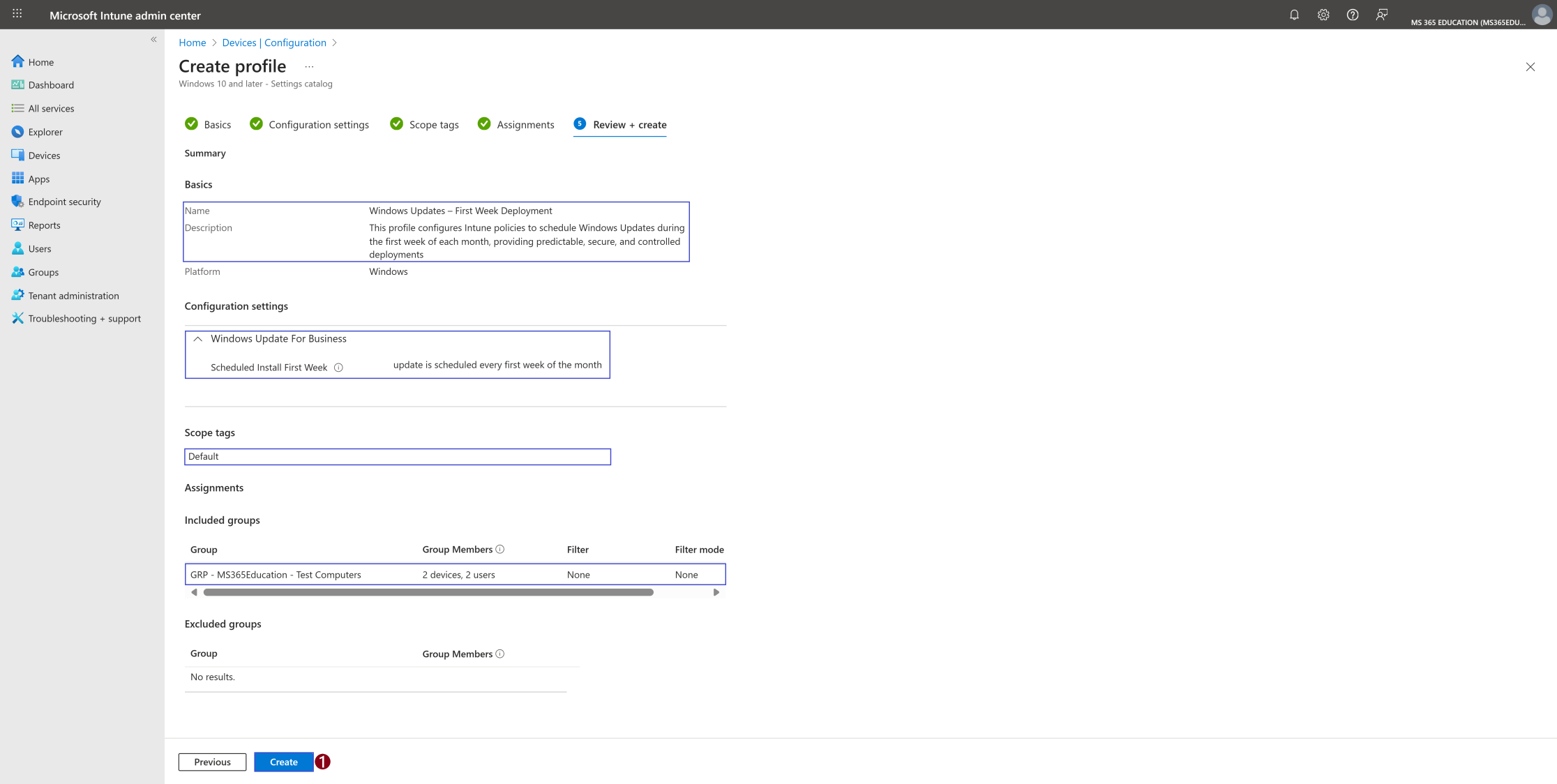
After completing the Assignments step, you'll land on the final tab: Review + Create.
This is your chance to review a full summary of the configuration including the basic details, selected settings, and group assignments. Take a moment to carefully review all entries to ensure everything is accurate and aligned with your intent.
If you need to make any changes, you can easily navigate back to the previous tabs and update the information as needed.
Once everything looks good, click Create to deploy the policy.
Your configuration will now be saved and pushed to the assigned devices based on the group you selected.
📊 Monitor Policy Deployment Status
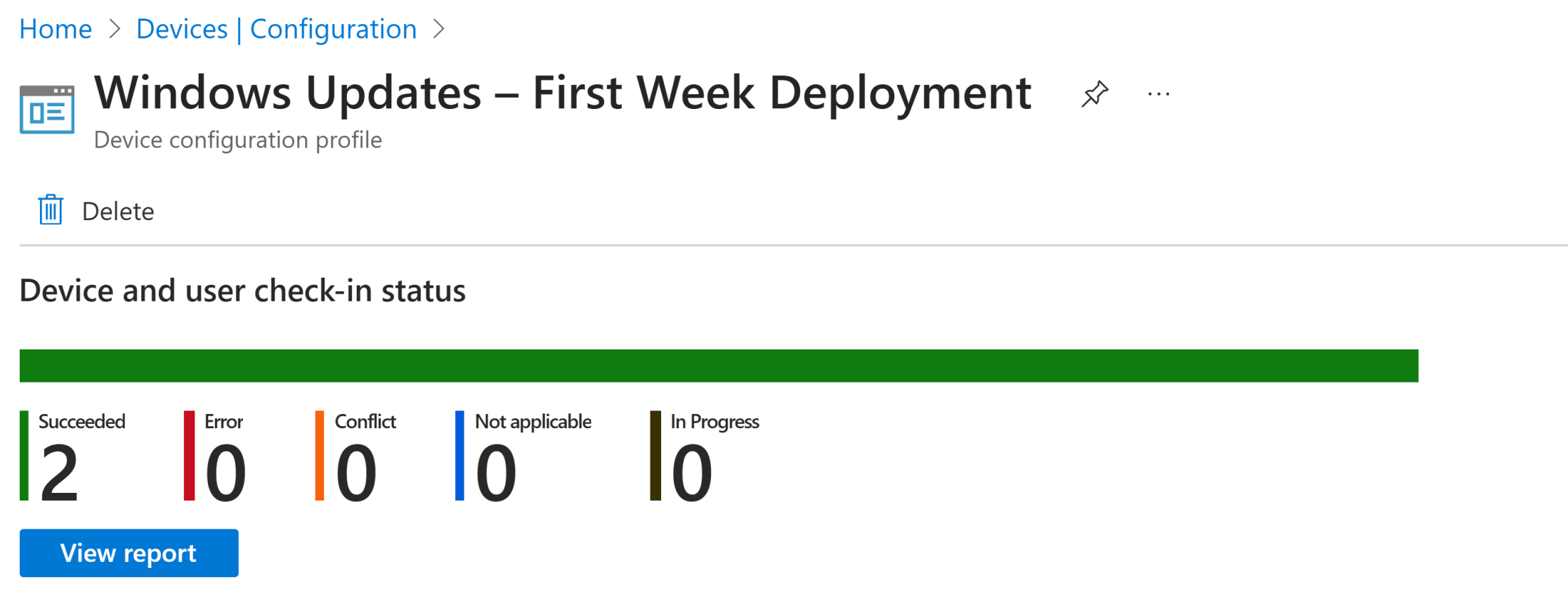
After creating and assigning the Windows Updates – First Week Deployment policy, it’s important to monitor whether the configuration has been successfully deployed to all targeted devices.
By default, Intune policy deployment can take up to 8 hours. To speed up the process, you can:
Manually trigger a device sync using the Company Portal app
Or initiate a sync via the Intune Management Extension
✅ How to Verify Deployment Status
1️⃣ In the Microsoft Intune Admin Center, navigate to: Devices ➝ Configuration profiles
2️⃣ Use the search bar to locate the profile you created (e.g., Windows Updates – First Week Deployment).
3️⃣ Click on the policy name to open its Overview page.
Review key deployment metrics such as:
Success
In progress
Error
Not applicable
This visibility ensures that the First Week Update Policy has been properly applied and allows administrators to take corrective actions if devices are non-compliant or experiencing deployment issues.
🖥️ Client-Side Verification via Event Viewer
After manually syncing the device or waiting for Intune to automatically apply the First Week Update Deployment Policy, you can confirm that the configuration has been successfully enforced using Event Viewer on the client device.
This step is especially useful for troubleshooting or auditing deployments in compliance-focused environments.
✅ Steps to Verify Policy Application
1️⃣ Open Event Viewer on the target Windows device.
2️⃣ Navigate to: Applications and Services Logs ➝ Microsoft ➝ Windows ➝ DeviceManagement-Enterprise-Diagnostics-Provider ➝ Admin
3️⃣ In the right-hand pane, click Filter Current Log.
4️⃣ Look for Event ID 813 or 814 — these indicate successful processing of Intune configuration profiles.
5️⃣ In the event details, verify that the setting Scheduled Install First Week was applied successfully.
You may also see additional fields such as Enrollment ID, User SID, and Scope, depending on how the device was enrolled and how the policy was assigned.
💡 Pro Tip: Always ensure that the Event ID matches the correct timestamp and policy status. This is one of the most reliable ways to confirm whether the policy has been successfully applied, especially when troubleshooting delayed or failed deployments.
🔚 Conclusion
Managing updates effectively is essential for both security and productivity in today’s workplace. The Windows Updates – First Week Deployment Policy, deployed via Intune, ensures that devices receive patches consistently, predictably, and in alignment with Patch Tuesday.
By leveraging Intune’s Settings Catalog, IT administrators gain explicit control of update behavior, providing governance, compliance, and centralized visibility across all managed devices.
🔑 Key Takeaway: While Windows Updates can run automatically by default, configuring this policy through Intune ensures updates are delivered on your terms, with predictable cycles and reduced risk for the organization.
🔍 More Information
ScheduledInstallFirstWeek – Microsoft Learn Documentation for the Scheduled Install First Week CSP policy, which defines installation of Windows Updates during the first week of the month. https://learn.microsoft.com/en-us/windows/client-management/mdm/policy-csp-update#scheduledinstallfirstweek
Policy CSP – Update (Windows Updates for Business) Complete reference for all Windows Update CSP policies available to manage update behavior on Windows devices. https://learn.microsoft.com/en-us/windows/client-management/mdm/policy-csp-update
Settings Catalog in Intune – Microsoft Learn Documentation on the Intune Settings Catalog, including how to create and assign device policies such as Windows Update configurations. https://learn.microsoft.com/en-us/mem/intune/configuration/settings-catalog
Manage Windows Updates for Business with Intune Step-by-step guide for configuring Windows Updates for Business policies directly in Microsoft Intune. https://learn.microsoft.com/en-us/mem/intune/protect/windows-update-for-business-configure
Windows release health – Windows 11, version 25H2 Status page for Windows 11 25H2, including rollout information, known issues, and update availability. https://learn.microsoft.com/en-us/windows/release-health/status-windows-11-25h2
Thank you!
🖥️ Ricardo Barbosa
🎖️ Microsoft MVP | 📘 Microsoft Certified Trainer (MCT)
☁️ Intune & Cloud Architect |💼 Technology Director at Altelix.com
