

In this article, I’ll walk you through how to enable the Device Password History policy using Microsoft Intune — a key step toward strengthening your organization's password hygiene.
The Device Password History setting helps prevent users from reusing their previous passwords on managed devices. When enabled, IT administrators can define how many past passwords the system remembers, ensuring users create unique credentials each time they update their password. This significantly reduces the risk of credential reuse and improves overall security.
In Microsoft Intune, this setting is part of the Device Restrictions configuration profile and can be applied across multiple platforms — including Windows, macOS, iOS/iPadOS, and Android. By specifying a password history count (e.g., remembering the last 5 or 10 passwords), organizations can enforce security standards and align with regulatory compliance requirements.
Once deployed via Intune, the policy automatically applies to all targeted devices. Any attempt to reuse an old password will be blocked, reinforcing secure practices across the environment. Combined with other password complexity and expiration rules, this policy plays a vital role in a modern endpoint protection strategy.
📑 Table of Contents
What is the Device Password History Policy? Understand the purpose and security benefits of enforcing password history on managed devices.
How to Create a Configuration Profile in Intune Step-by-step instructions to enable and configure the Device Password History Policy using Microsoft Intune.
Monitoring Policy Deployment in Intune Learn how to track and verify successful deployment across your devices.
End User Experience Discover what users will see and how the policy affects their password update process.
Here’s a concise table explaining key points about the Device Password History Policy Configuration in Microsoft Intune.
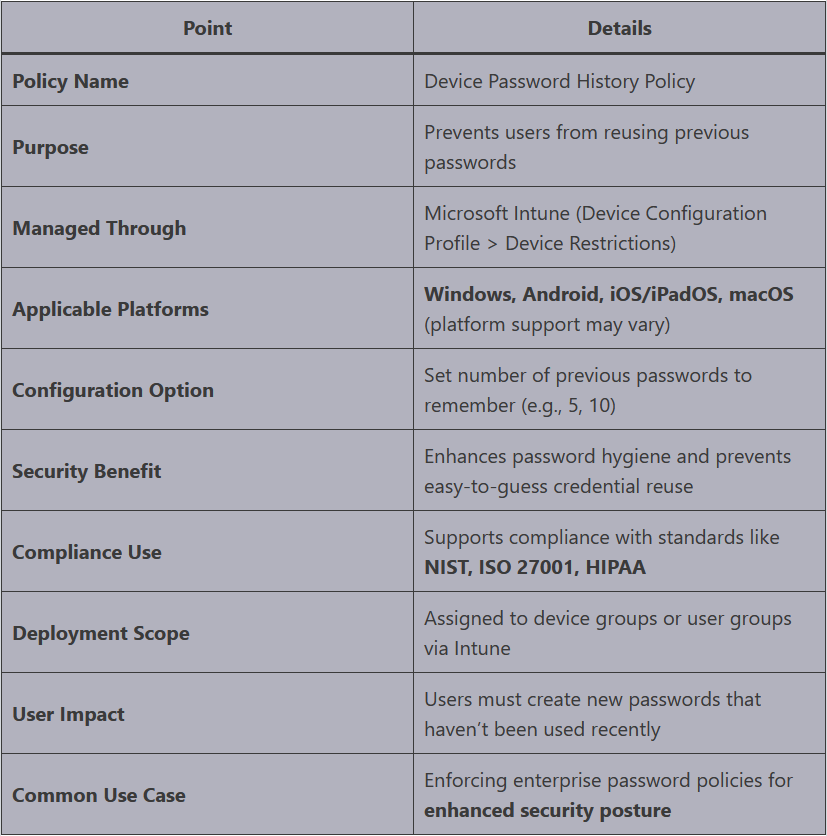
✅ Create a Configuration to Enable Device Password History Policy in Intune
To enable the Device Password History Policy using Microsoft Intune, follow the steps below:
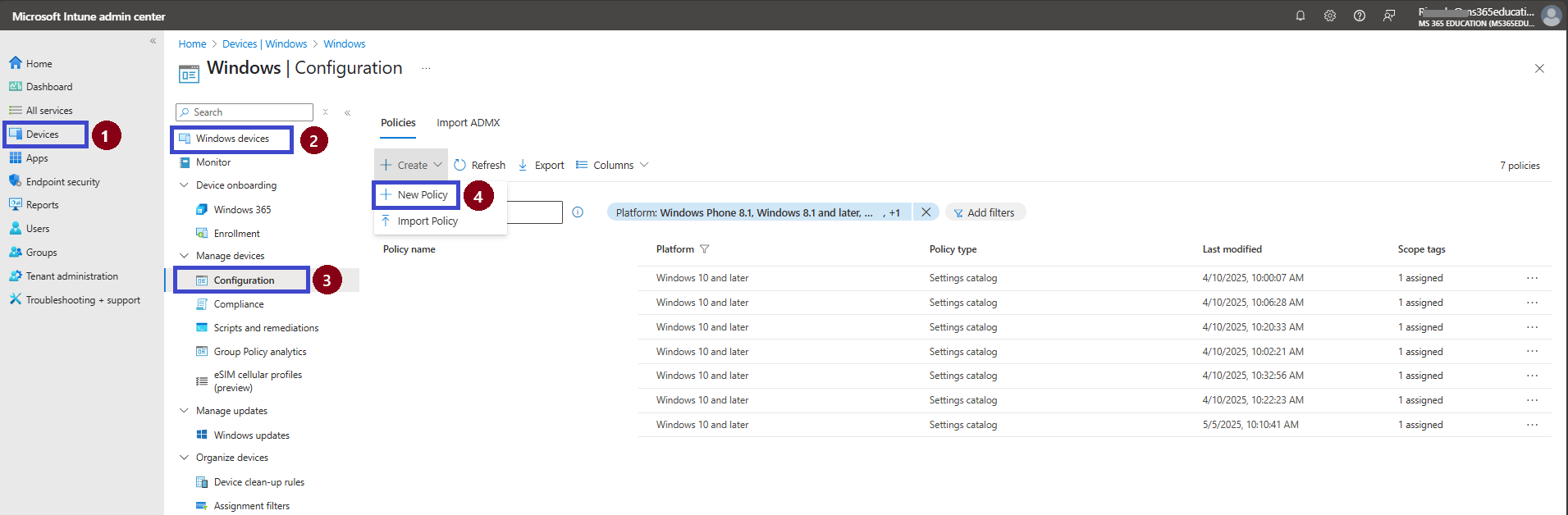
Sign in to the Microsoft Intune Admin Center using your administrator credentials.
In the left-hand menu, go to:
Devices
Windows
Configuration
New Policy
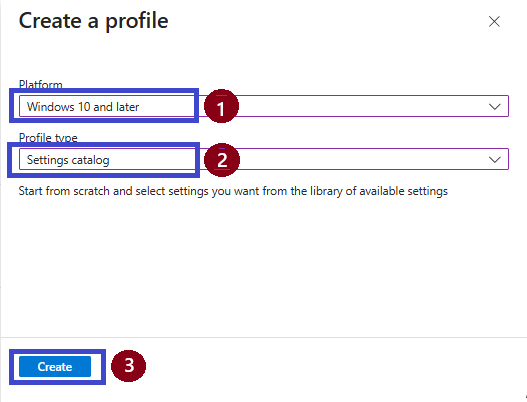
Next, we will create a new configuration profile from scratch. First, we need to provide the options mentioned below.
Under Platform, select: Windows 10 and later
Under Profile type, choose: Settings catalog
Click Create to start configuring the policy. (See example in Fig. 2 – How to Easily Enable or Disable Device Password History Policy using Microsoft Intune)
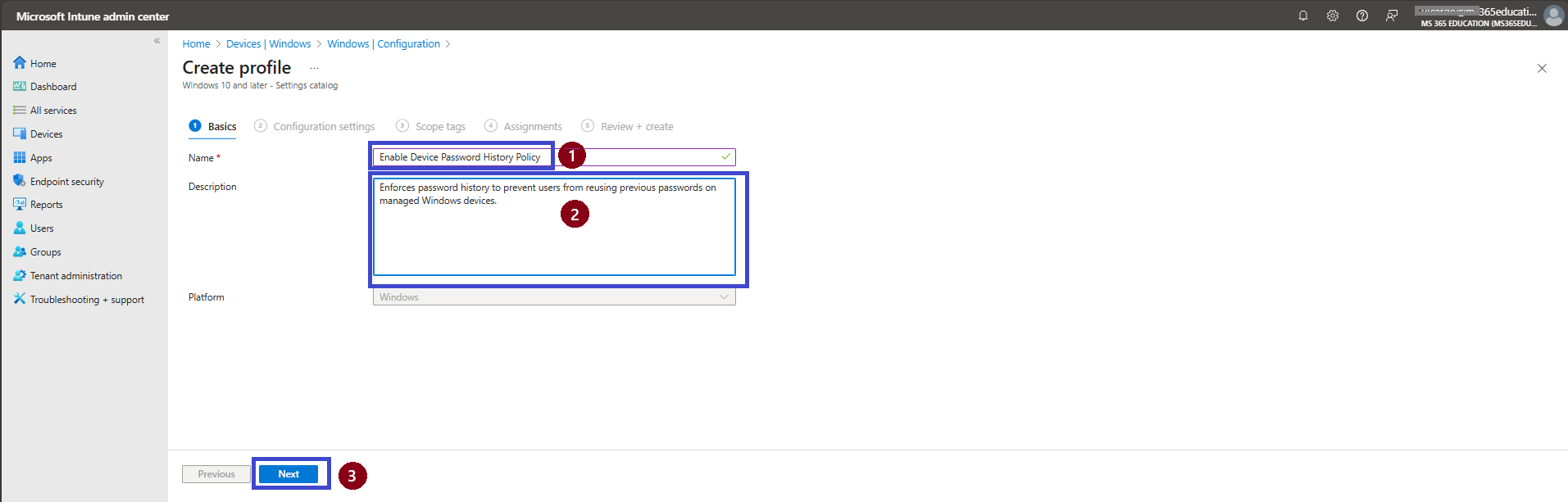
On the Basics page, enter a name for the configuration profile — for example: “Enable Device Password History Policy.”
In the Description field, you can add: “Enforces password history to prevent users from reusing previous passwords on managed Windows devices.”
Once completed, click Next to proceed.
Now it’s time to add the required settings to the configuration profile. In the Configuration settings pane, click + Add settings located at the bottom left of the page.
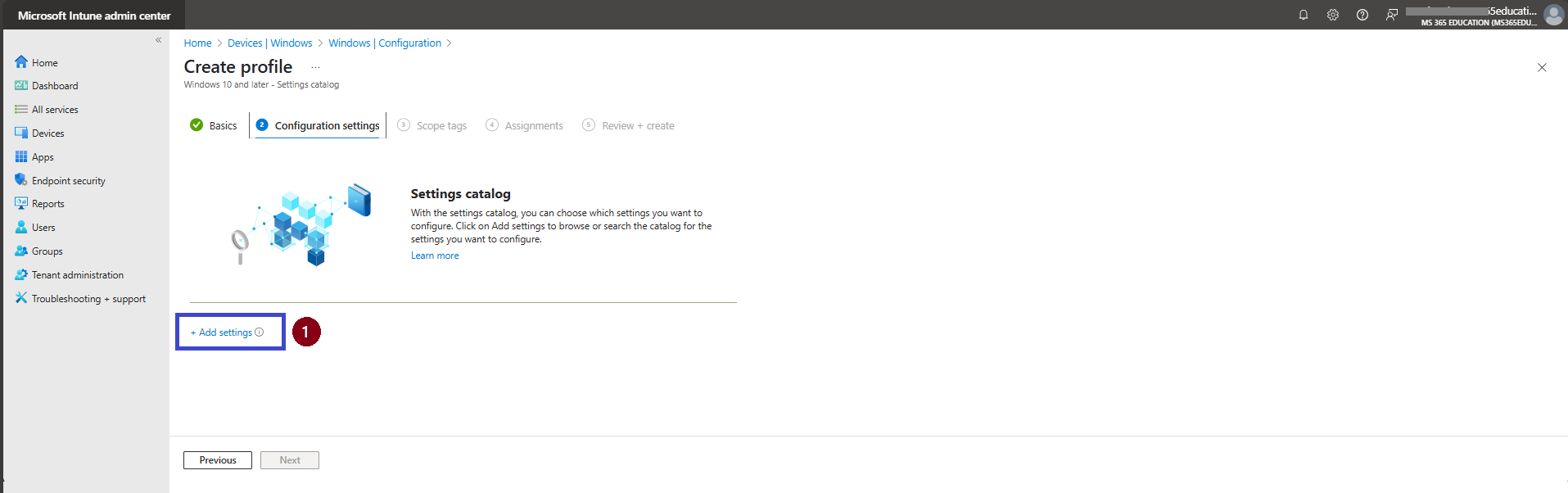
In the Settings picker window, use the search bar to look for: “Device Password History”
This will help you quickly locate the relevant setting.
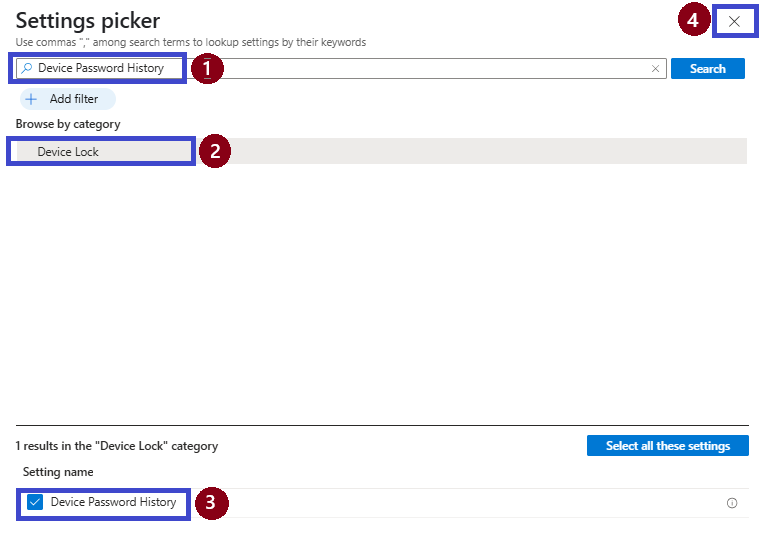
Next, expand the Device Lock category and select the setting: “Device Password History”
Once selected, click X to close the Settings picker and return to the configuration screen.
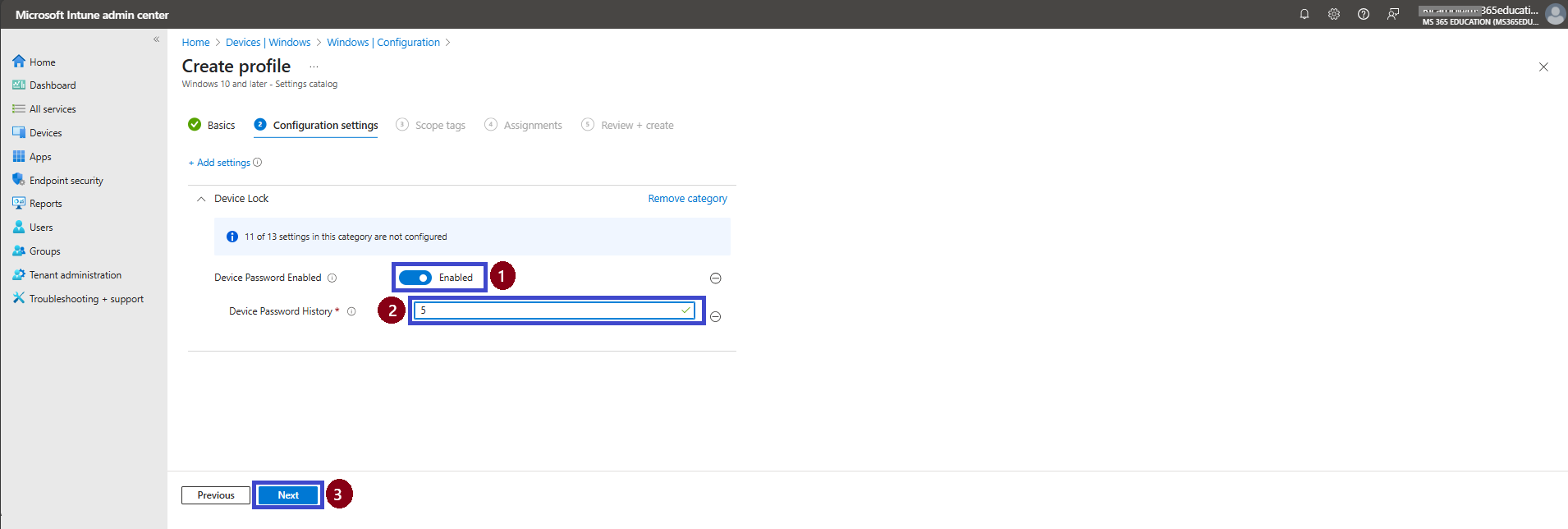
On the Configuration settings page, locate the Device Password History setting.
Enable the setting and set the value to 5 — this defines how many previous passwords will be remembered and cannot be reused by the user.
Once configured, click Next to continue.
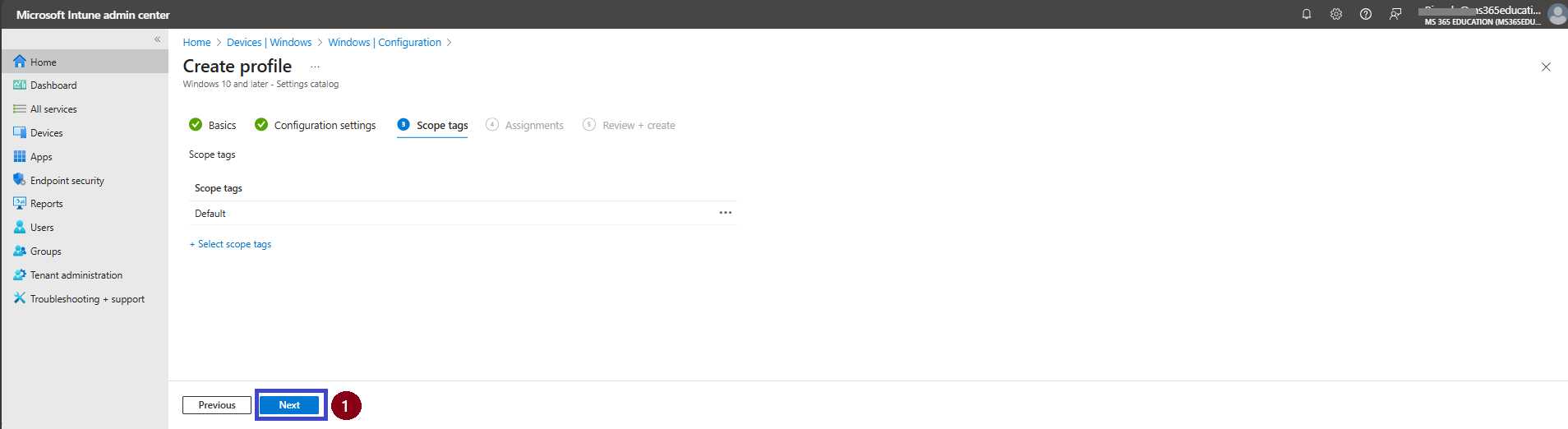
On the Scope tags page, you can leave the setting as Default if no custom tags are required. If your organization uses custom scope tags to segment administrative access, select the appropriate tags based on your policy requirements.
Click Next to proceed.
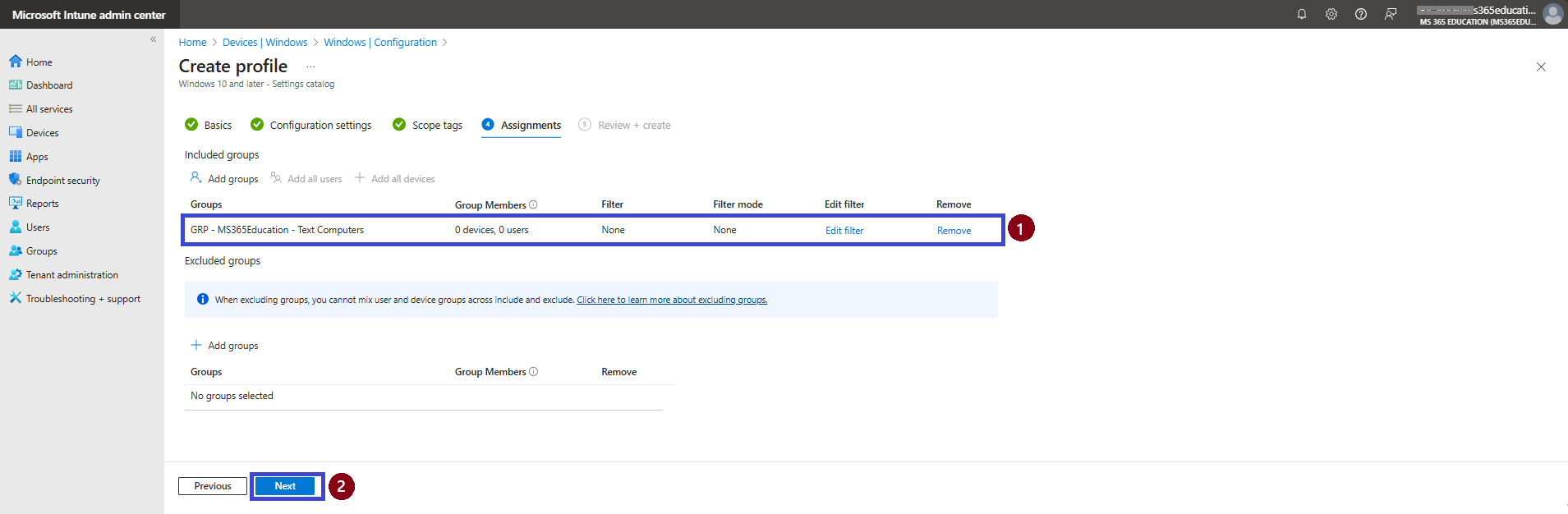
On the Assignments page, assign the configuration profile to the appropriate device group.
Click on Add Groups under the Included Groups section, then select your desired group. In this example, I used “GRP - MS365Education - Test Computers” as the target group.
No filters were applied, and the Excluded Groups section was left blank.
Click Next to continue.
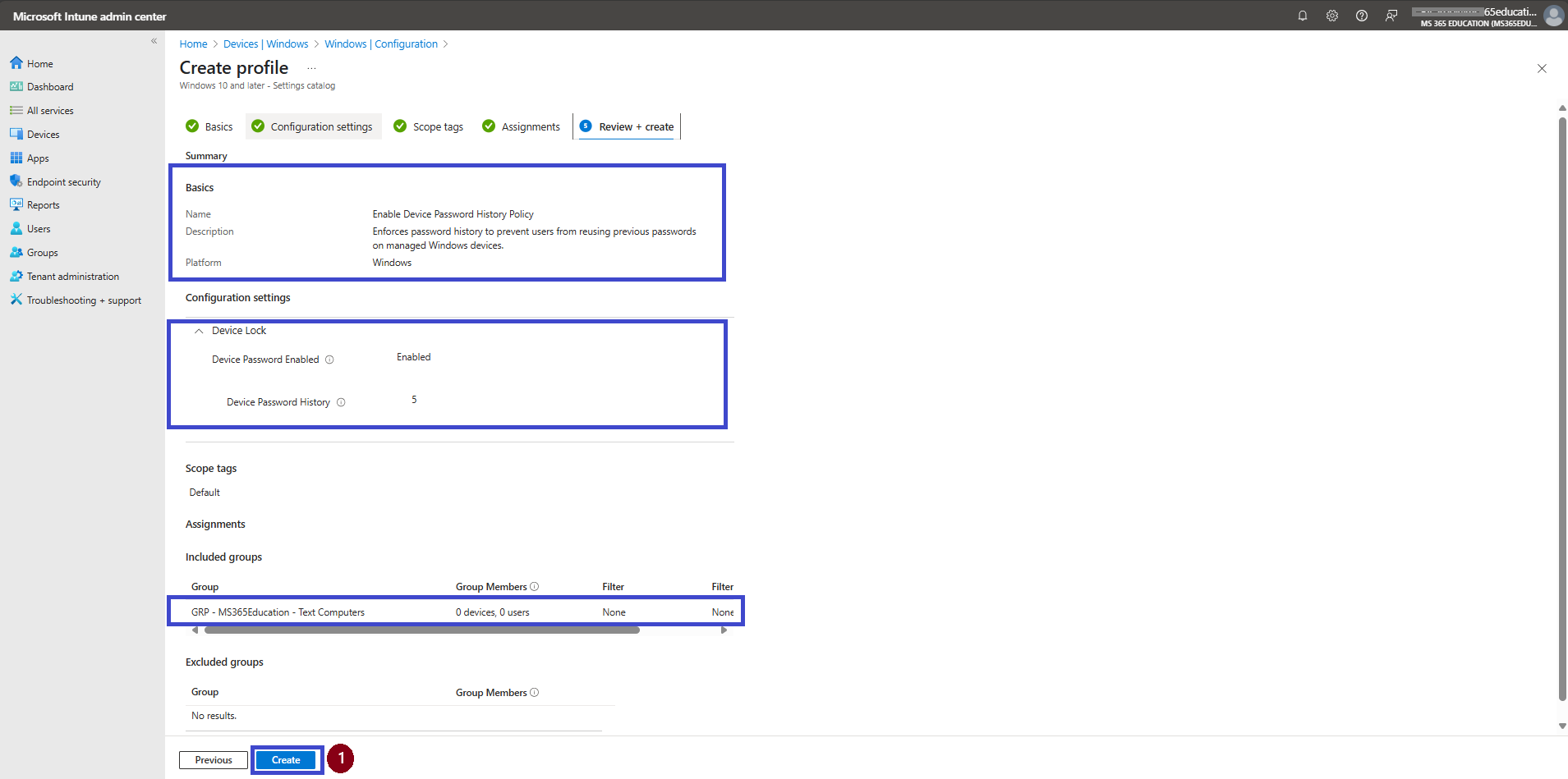
On the Review + create page, carefully review all the settings configured for the Enable Device Password History Policy.
If everything is correct, click Create to deploy the policy to the assigned devices.
Monitor the Deployment of the Device Password History Policy
After deploying the policy to the GRP - MS365Education - Test Computers device group, it will be applied as soon as the assigned devices complete a sync with Microsoft Intune.
To monitor the deployment status, follow these steps:
In the Intune portal, navigate to: Devices > Windows > Configuration profiles
Search for the profile named: “Enable Device Password History Policy”
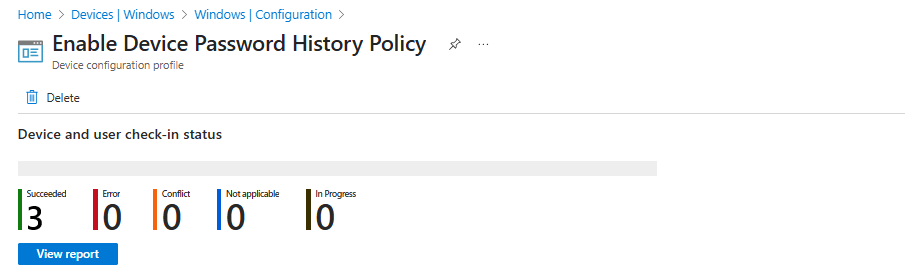
Click on the profile to open it, then check the Device and user check-in status section to view the deployment results and compliance status.
🖥️ End User Experience & Client-Side Verification
Once the Enable Device Password History Policy is deployed, it is enforced after the next successful sync between the device and Microsoft Intune. While the end user may not receive a visible notification, the policy ensures that users cannot reuse previously used passwords based on the configured history count.
Client-Side Verification
The MDM Policy Manager applies the Device Password History policy under the Device Lock category. Key parameters such as Enrollment ID, Int Value, Enrollment Type, and Scope may vary depending on the device’s configuration and the method of policy assignment.
Example Parameters (May Vary by Device):
Enrollment ID: A unique identifier for the device's MDM enrollment (e.g., B1E9301C-8666-412A-BA2F-3BF8A55BFA62).
Int Value: Reflects the applied policy’s setting (e.g., 0x5 to indicate password history count set to 5).
Enrollment Type: Indicates how the device is enrolled (e.g., 0x6 for MDM-managed).
Scope: Defines whether the policy is applied at user or device level (e.g., 0x0 for device-level).
How to Verify on the Client:
Open Event Viewer on the targeted Windows device.
Navigate to: Applications and Services Logs > Microsoft > Windows > DeviceManagement-Enterprise-Diagnostics-Provider > Admin
Look for Event ID 814 or other related entries indicating successful policy application.
Review the event details and confirm the policy "DevicePasswordHistory" is listed with the correct value and status.
⚠️ Troubleshooting Tips:
If the expected value is not applied, confirm that the device has recently synced with Intune.
Recheck assignments in the Intune Admin Center to ensure the device is part of the target group.
Validate that there are no conflicting policies or settings from other profiles.
Refer to Microsoft documentation for advanced troubleshooting based on log output.
📚 More Information
To deepen your understanding of configuring and managing the Device Password History policy in Microsoft Intune, refer to the following official Microsoft resources:
These resources provide detailed guidance for configuring, deploying, and verifying password-related security policies across managed devices using Microsoft Intune.
Thank you!
🖥️ Ricardo Barbosa
📘 MCT Microsoft Certified Trainer | ☁️ Cloud Architect
🌐 Technology Director - https://altelix.com
