

A single USB stick, plugged in for thirty seconds, can move gigabytes of confidential data past every firewall, DLP rule, and network control you have built.
Removable drive encryption is the capability that decides whether a USB flash drive, external SSD, or SD card can hold plaintext corporate data, or whether it is forced to carry that data protected by BitLocker.
Without enforcement, any employee, contractor, or visitor can copy files from a managed device onto an unencrypted stick and walk away with zero cryptographic protection and, in most environments, zero audit trail.
The RemovableDrivesRequireEncryption setting changes that equation. When enabled, Windows mounts any removable data drive that is not BitLocker-protected as read-only, blocking write operations until the drive is encrypted.
Enforcing it through Microsoft Intune matters because it removes the guesswork: every managed Windows endpoint applies the identical restriction, regardless of user role, department, or location, without relying on manual configuration or user compliance.
The result is an environment where removable media can still be used for legitimate work, but never as a silent, unencrypted exit point for corporate data.
Why This Policy Matters
Removable media remains one of the oldest and most persistently effective exfiltration paths, precisely because it bypasses network-based controls entirely.
Attackers and malicious insiders alike favor USB drives because the copy operation leaves no trace on the wire, no proxy log, and no email gateway to inspect.
Without this policy:
- An unencrypted USB drive can leave the building with sensitive files, and the data is instantly readable by anyone who plugs it in.
- A lost or stolen removable drive becomes a full data breach disclosure event, since nothing protects the contents at rest.
- Shared USB devices moved between personal and corporate machines can carry unencrypted corporate data into uncontrolled environments.
- Security teams lose the ability to prove, during an incident, that data leaving via removable media was ever protected.
With this setting enforced through Intune:
- Any removable drive without BitLocker protection is automatically mounted as read-only, blocking write attempts before data ever leaves.
- Users are naturally guided toward encrypting drives, since write access is restored the moment BitLocker To Go is applied.
- Read access is preserved, so day-to-day workflows that only require consuming files from removable media are not disrupted.
- The control applies uniformly across every managed device, closing a gap that used to depend entirely on individual user discipline.
This configuration aligns with modern security principles such as defense in depth, endpoint hardening, proactive threat detection, and Zero Trust architecture.
Security Governance
Security governance ensures that hardening controls are consistently applied, monitored, and aligned with organizational standards.
Without centralized governance, settings such as this one can drift across devices, leaving blind spots that attackers can exploit.
Managing the Removable Drives Require Encryption setting through Microsoft Intune brings several governance benefits:
- Centralized enforcement of the control across all managed Windows endpoints
- Consistent configuration aligned with corporate security baselines
- Clear visibility into deployment status and configuration compliance
- Defined ownership and accountability through scope tags and role-based administration
- An auditable policy lifecycle from creation to enforcement and validation
This level of governance ensures that the control is handled in a controlled and transparent manner, reinforcing compliance with internal security policies and regulatory frameworks.
Windows CSP Overview
This section explains how the setting is exposed at the operating system level and how Microsoft Intune interacts with it. The configuration is powered by the Windows Policy Configuration Service Provider (CSP) framework, specifically the BitLocker area.
| Scope | Editions | Applicable OS |
|---|---|---|
| ✅ Device ❌ User | ✅ Pro ✅ Enterprise ✅ Education ✅ IoT Enterprise / IoT Enterprise LTSC | ✅ Windows 10, version 1703 [10.0.15063] and later |
This policy setting configures whether BitLocker protection is required for a computer to be able to write data to a removable data drive.
If you enable this policy setting, all removable data drives that aren't BitLocker-protected will be mounted as read-only. If the drive is protected by BitLocker, it will be mounted with read and write access.
If the "Deny write access to devices configured in another organization" option is selected, only drives with identification fields matching the computer's identification fields will be given write access. When a removable data drive is accessed it will be checked for valid identification field and allowed identification fields. These fields are defined by the "Provide the unique identifiers for your organization" policy setting.
If you disable or don't configure this policy setting, all removable data drives on the computer will be mounted with read and write access.
Data ID elements:
RDVCrossOrg: Deny write access to devices configured in another organization
Sample value for this node to enable this policy is:
<enabled/><data id="RDVCrossOrg" value="xx"/>
The possible values for 'xx' are:
true = Explicitly allow
false = Policy not set
Description Framework Properties
This section defines how the configuration behaves at a technical level within the CSP framework.
| Property name | Property value |
|---|---|
| Format | chr (string) |
| Access Type | Add, Delete, Get, Replace |
Group Policy Mapping
For organizations operating in hybrid environments, this CSP setting maps to a corresponding Group Policy configuration.
| Name | Value |
|---|---|
| Name | RemovableDrivesRequireEncryption |
| Location | Computer Configuration |
Security Considerations
Before enabling this policy, administrators should understand how it behaves and plan for its impact.
- Existing removable drives that already contain unencrypted corporate data will be mounted as read-only until they are encrypted with BitLocker To Go, so plan a communication and remediation path for legacy USB media.
- Vendor-supplied media such as firmware update sticks, installer drives, or hardware diagnostic tools are frequently unencrypted and may be blocked from write operations, which can surprise field technicians.
- The setting applies to Windows 10 version 1703 and later on Pro, Enterprise, Education, and IoT Enterprise editions, so verify device eligibility before broad rollout.
- Users need a straightforward, documented way to encrypt a removable drive with BitLocker To Go, or help desk volume will increase once write access starts being denied.
A phased, pilot-first deployment is recommended to validate the behavior in a controlled group and avoid unexpected impact before rolling the setting out across production devices.
How to Configure Removable Drives Require Encryption Using Intune (Settings Catalog)
You can enforce this policy centrally using the Intune Settings Catalog, ensuring that write access to unencrypted removable media is denied is applied consistently across all managed Windows devices.
To begin, sign in to the Microsoft Intune admin center and follow the steps below, as illustrated in the screenshots.
Create the Configuration Profile
In the Microsoft Intune admin center:
- Navigate to Devices › Windows › Configuration
- Select + Create policy
In the Create a profile pane:
- Platform: Windows 10 and later
- Profile type: Settings catalog
Click Create to continue.
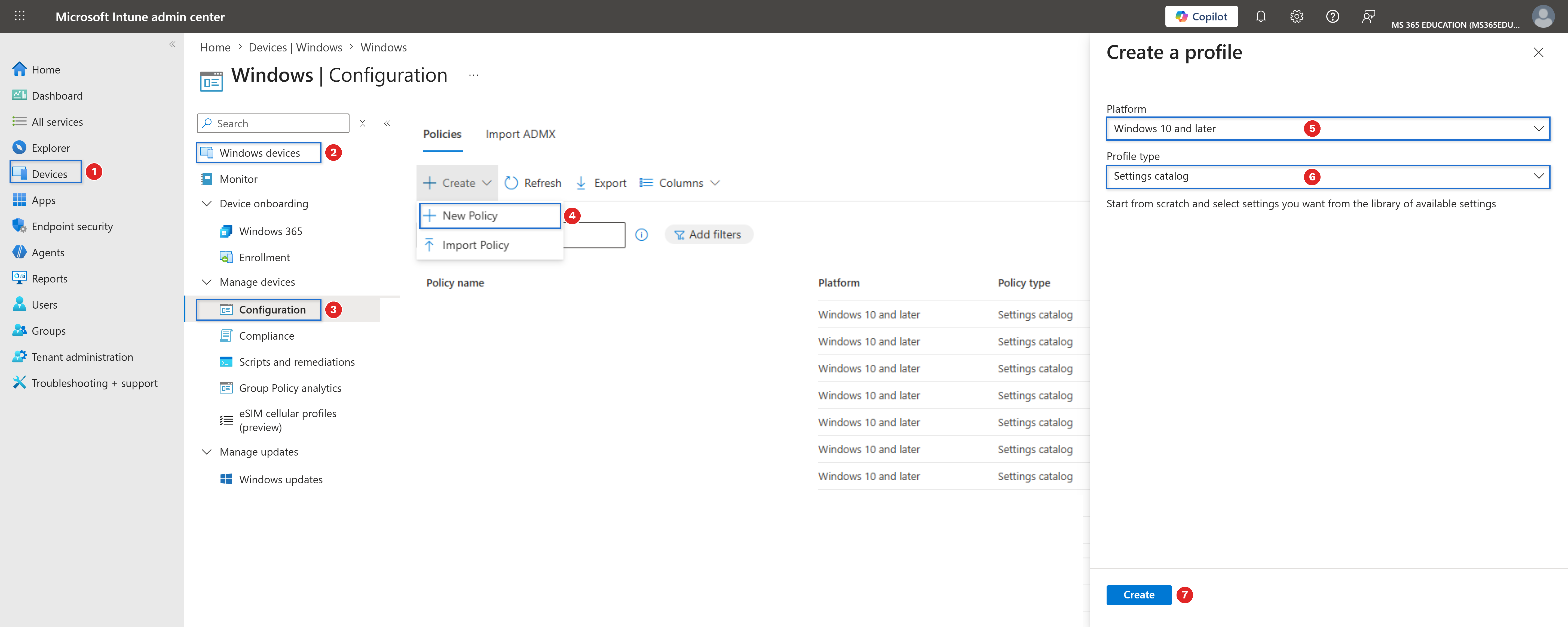
At this stage, you have created the foundation of a Settings Catalog policy. In the next steps, you will search for and configure the setting that denies write access to any removable drive that is not protected by BitLocker.
Define Basic Profile Details
After clicking Create, the next step is to define the basic details of the configuration profile. This stage is essential for long-term management, clarity, and governance within Microsoft Intune, especially in environments with multiple endpoint hardening policies and security baselines.
Providing a clear Name and a concise but meaningful Description ensures that the purpose of the policy is immediately understood by administrators and security teams in the future. As shown in the screenshot, configure the fields as follows.
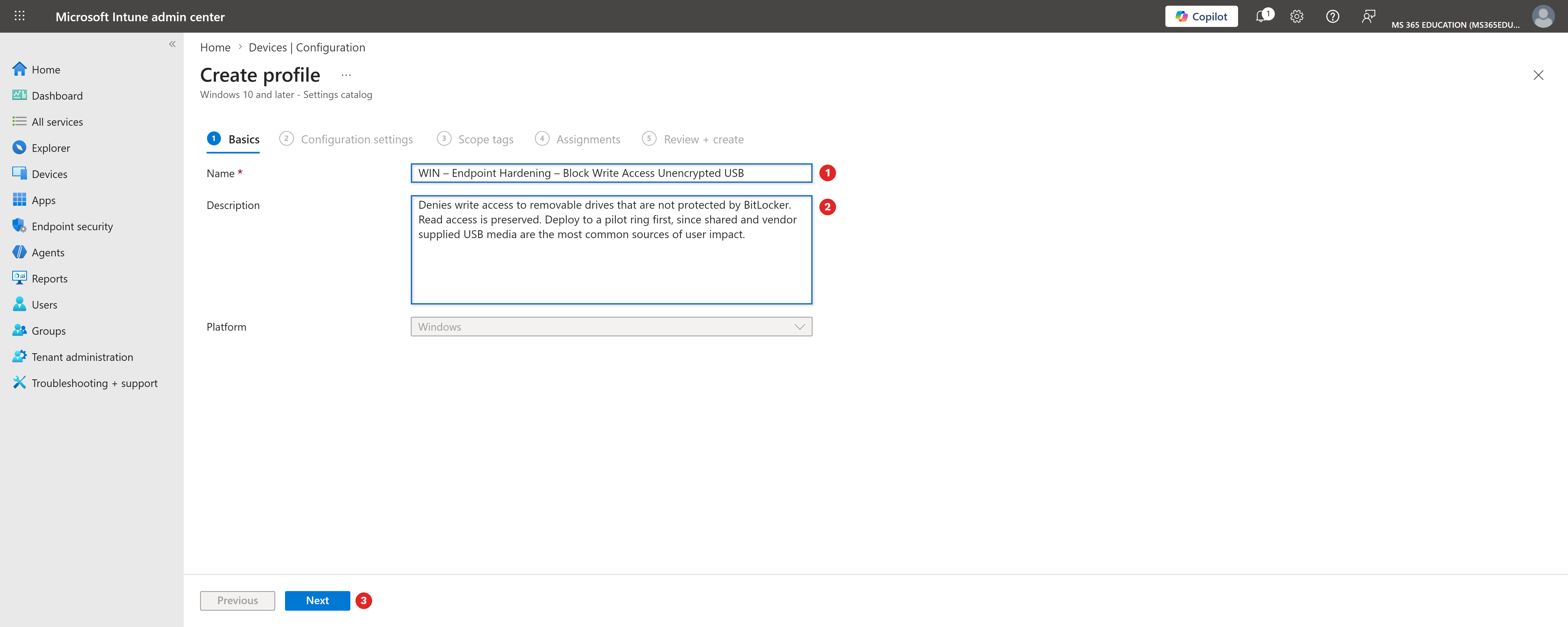
The Platform field is already pre-selected as Windows, so no changes are required. Once the name and description are defined, click Next to proceed to the configuration settings.
Configure the Setting Using the Settings Picker
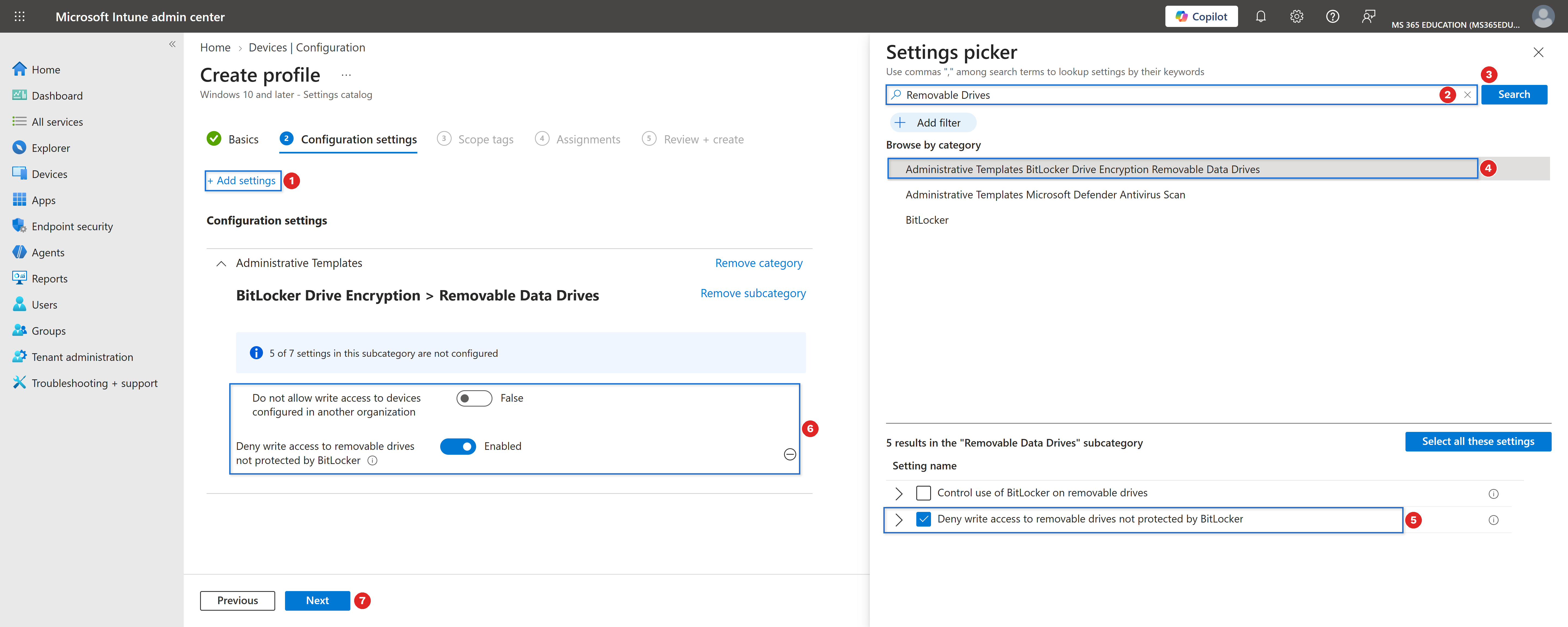
With the profile basics defined, the next step is to configure the policy using the Settings picker, where you select the exact Windows setting you want to enforce. To open the Settings picker panel, click Add settings.
By default, this setting is not configured, which means Windows mounts every removable data drive with full read and write access regardless of its encryption state.
In the search field at the top of the Settings picker, type Removable Drives, and then click Search to filter the results.
From the returned results, select the category Administrative Templates BitLocker Drive Encryption Removable Data Drives, and then choose the setting Deny write access to removable drives not protected by BitLocker. Once selected, the setting is automatically added to the configuration profile. Back on the configuration page, change the value from its default state to Enabled.
When enabled, Windows mounts any removable data drive that is not protected by BitLocker as read-only, blocking write operations until the drive is encrypted. This ensures that:
- Copying files to unencrypted USB drives is prevented at the operating system level, before any data leaves the device.
- Read access remains available, so users can still consume files from removable media without workflow disruption.
- Encrypting a drive with BitLocker To Go is the only path to restoring write access, reinforcing encrypted media as the organizational standard.
This configuration aligns with modern endpoint hardening practices and supports Zero Trust security principles.
Configure Scope Tags (Optional)
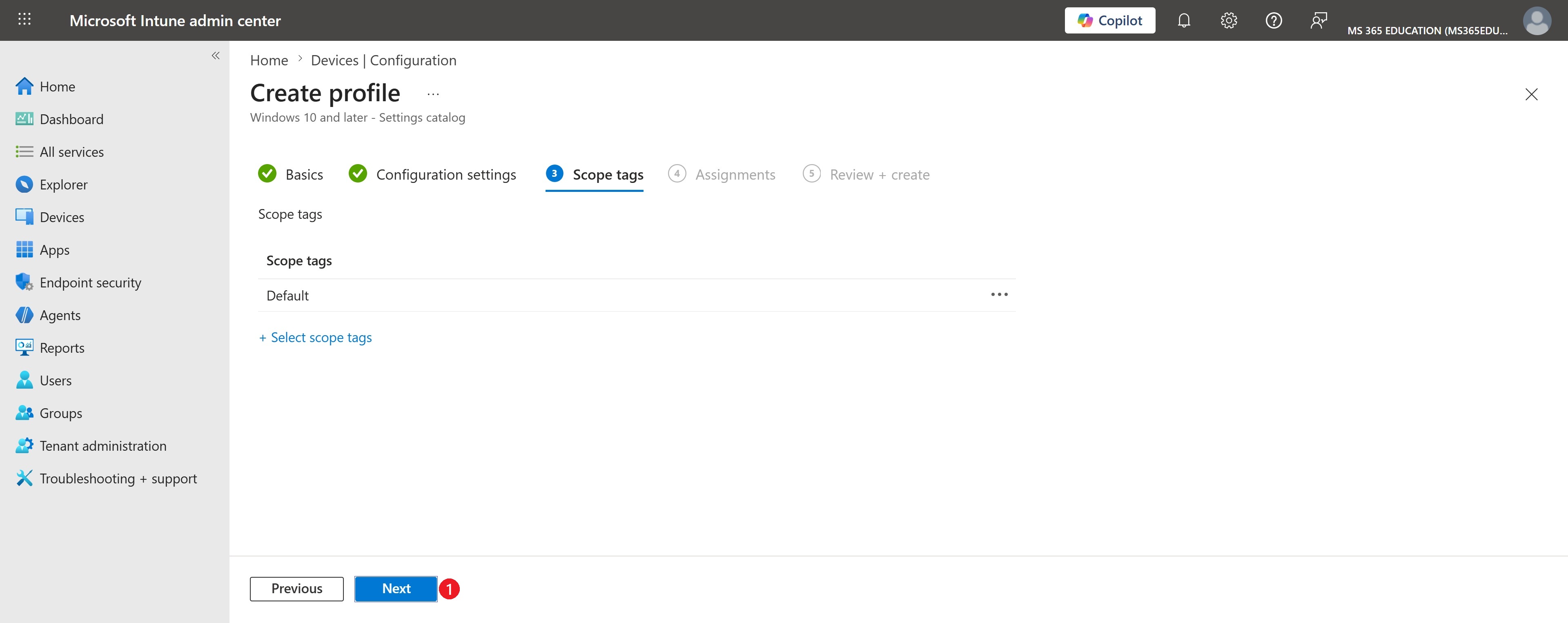
Scope tags are used to control who can view and manage this policy within the Microsoft Intune admin center. They are particularly useful in environments with delegated administration, multiple IT teams, or regional management models.
As shown in the screenshot, the Default scope tag is selected. This is the standard and recommended configuration for most environments, as it ensures the policy is visible to all administrators who have access to Intune.
Optionally, custom scope tags can be assigned if you need to:
- Restrict policy visibility to specific IT roles or teams
- Enforce administrative separation of duties
- Support delegated or region-based Intune management
If no additional scope tags are required, keep the Default selection and click Next to continue.
Assignments – Block Write Access Unencrypted USB
After configuring the policy settings, the next step is to assign the policy to the appropriate target group. Assignments define which devices will receive and enforce this configuration, ensuring the policy is applied in a controlled and intentional manner.
In the Assignments tab, click Add groups under Included groups and search for the group you want to target. This approach allows you to deploy the policy gradually, starting with test devices before expanding to production.
As shown in the screenshot, the policy is assigned to the following group: GRP – MS365Education – Test Computers.
Once the group is selected, verify the following:
- The group appears under Included groups
- The group status is Active
- No assignment filters are applied (unless explicitly required)
At this stage, no Excluded groups are configured, which is appropriate for controlled test deployments.
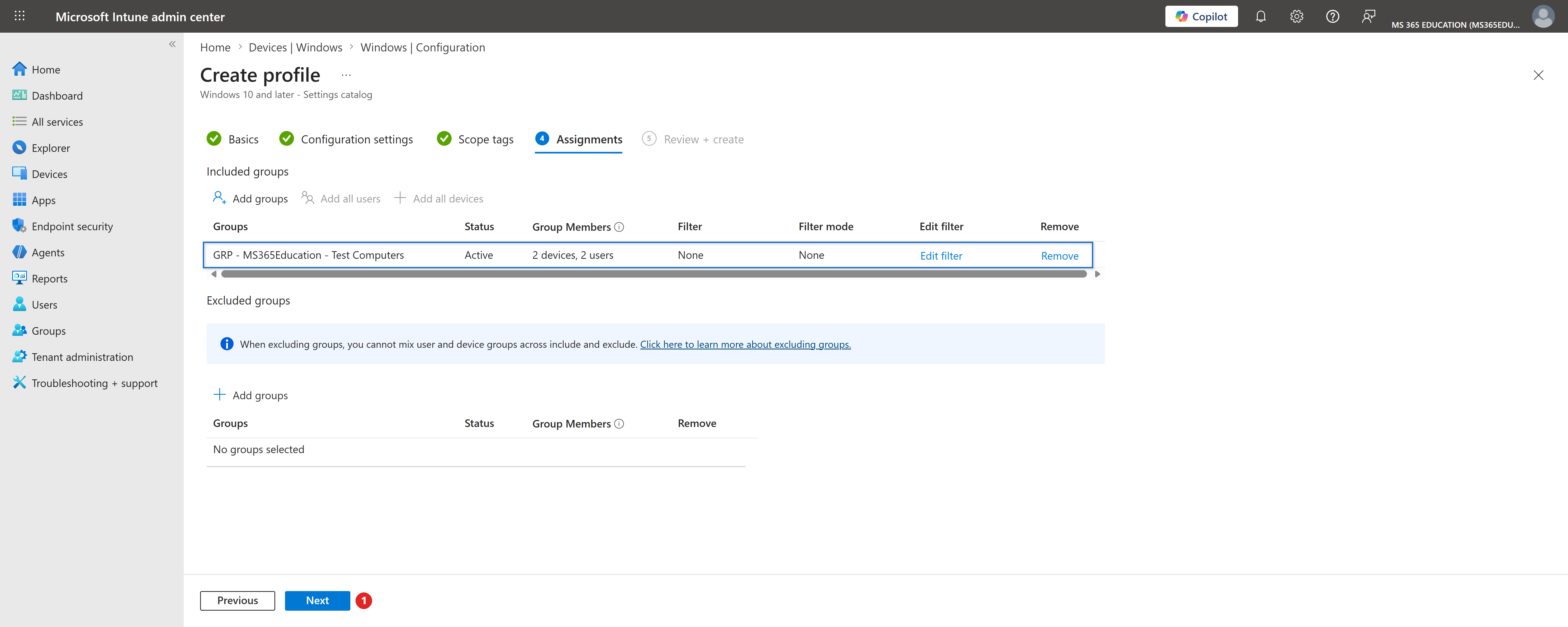
After confirming the assignment, click Next to proceed to the Review + Create step.
Review + Create – Final Validation
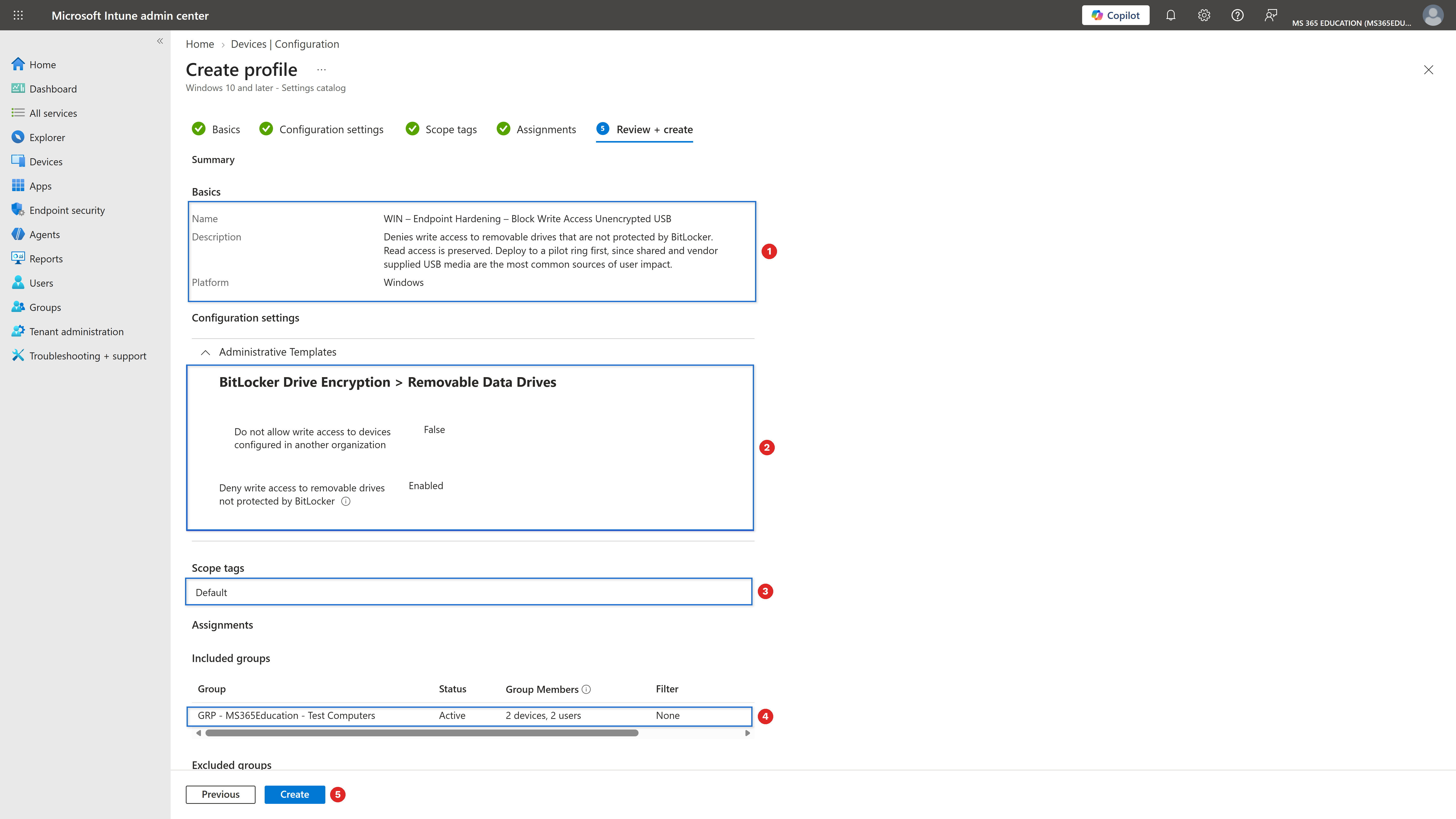
The Review + Create step is the final checkpoint before deploying the policy. This is where you validate that all configurations are correct and aligned with your intended endpoint hardening objective.
Pay special attention to the following items:
- Policy name and description: confirm that the policy clearly reflects its purpose, blocking write access to unencrypted removable drives
- Configuration settings: verify that Removable Drives Require Encryption is set to Enabled, under BitLocker
- Scope tags: ensure the correct scope tag is assigned. In this example, the Default scope tag is used
- Assignments: confirm the policy is assigned to the intended group, GRP – MS365Education – Test Computers, and that no unintended exclusions are configured
Once everything has been validated, click Create to finalize and deploy the policy to the assigned devices.
Monitor Policy Deployment Status
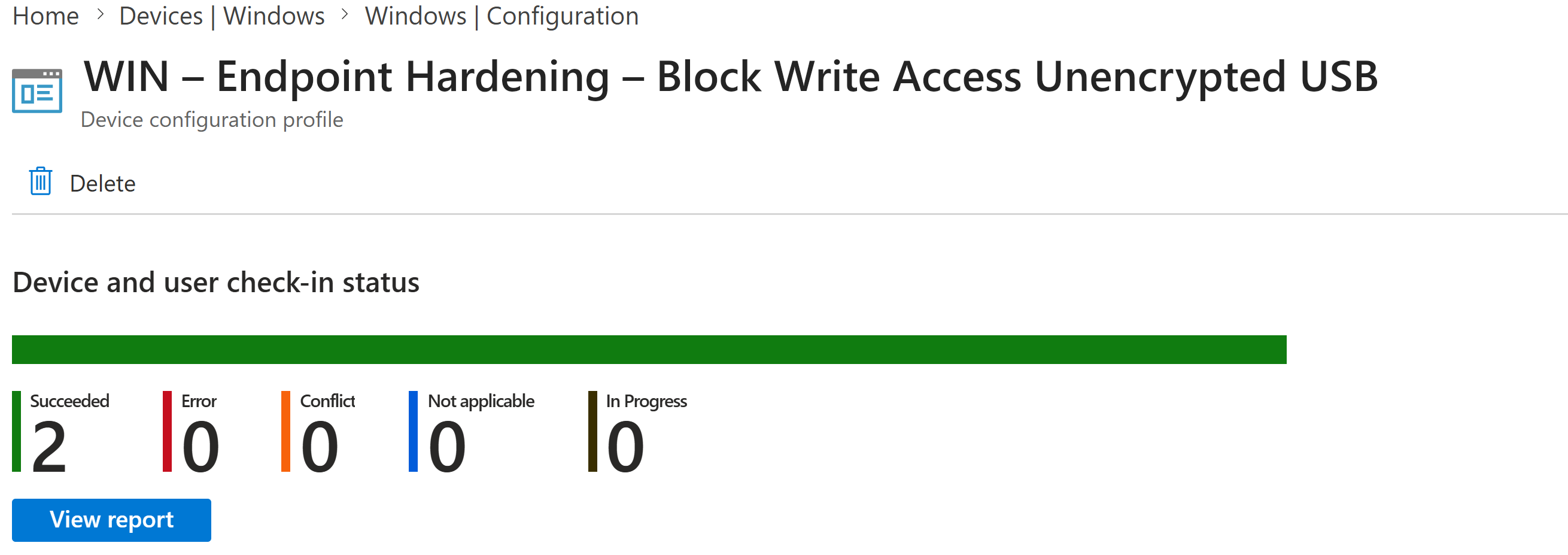
After creating and assigning the WIN – Endpoint Hardening – Block Write Access Unencrypted USB configuration profile, the next step is to verify its deployment status. This validation confirms that the policy has been successfully applied and that unencrypted removable drives are locked to read-only mode on the targeted devices.
Although Microsoft Intune can take up to 8 hours to automatically deliver configuration profiles, deployment often occurs much faster. If needed, you can accelerate the process by:
- Triggering a manual device sync from the Company Portal
- Initiating a sync directly from the Microsoft Intune admin center
Intune provides clear indicators to evaluate the policy deployment status: Succeeded (devices have applied the policy), In progress (devices are still processing), Error (the policy failed and requires investigation), and Not applicable (the device does not support the configuration).
When devices report Succeeded, it confirms that the write-access restriction on unencrypted removable drives is active, ensuring that no corporate data can be copied to unprotected USB media on that endpoint.
Client-Side Verification via Event Viewer
After the device has synced with Intune, you can perform a client-side verification to confirm that the policy was successfully applied. Windows records Intune policy processing events locally, allowing administrators to confirm policy enforcement without relying only on the Intune portal.
- Open Event Viewer on the target device
- Navigate to Applications and Services Logs › Microsoft › Windows › DeviceManagement-Enterprise-Diagnostics-Provider › Admin
- Select Filter Current Log
- Look for Event ID 813 or Event ID 814, which indicate successful processing of Intune configuration policies
- Open the event details and confirm that the BitLocker setting was applied
For deeper validation, you can confirm the effective setting directly on the device. Insert an unencrypted USB drive and attempt to create or copy a file to it in File Explorer; Windows should deny the write and, in most cases, display a prompt offering to turn on BitLocker for the drive. You can also check the local policy state through gpedit.msc under Computer Configuration > Administrative Templates > Windows Components > BitLocker Drive Encryption > Removable Data Drives > "Deny write access to removable drives not protected by BitLocker", which should show as Enabled.
Remember that read access to the same unencrypted drive remains fully functional, so users are never blocked from opening or consuming existing files, only from writing new unprotected data to the media.
Why This Matters for Endpoint Security
Data protection strategies often focus heavily on the network perimeter and cloud services, while physical, removable media quietly remains an open door.
Without this control, the strongest DLP and conditional access policies in Microsoft 365 can be completely bypassed by a five-dollar USB drive and a few seconds of physical access.
By enforcing Removable Drives Require Encryption through Microsoft Intune and validating the configuration locally, organizations ensure that:
- Removable media can no longer serve as an unmonitored, unencrypted exfiltration channel.
- Encryption becomes the default state for any data that leaves the device on physical media.
- The control is enforced uniformly, regardless of device location, network connection, or user privilege level.
- Compliance and audit teams gain a verifiable, centrally reported control to point to during assessments.
This configuration provides strong security value without disrupting standard user workflows when properly validated and deployed.
Key Takeaway
Encryption at rest is only meaningful if it is enforced consistently, and removable media is precisely where enforcement most often breaks down.
Enforcing this setting through Microsoft Intune delivers that consistency across every managed device, without depending on individual users to remember to encrypt a drive before using it.
Combined with centralized deployment and client-side validation, the organization gains a control that is both provable during an audit and quietly effective every single day.
And in modern security architecture, encrypting removable drives is not optional, it is essential.
More Information
For additional technical details, refer to the official Microsoft documentation below:
- https://learn.microsoft.com/en-us/windows/client-management/mdm/policy-csp-bitlocker#removabledrivesrequireencryption
- https://learn.microsoft.com/en-us/mem/intune/configuration/settings-catalog
- https://learn.microsoft.com/en-us/mem/intune/configuration/device-profiles
- https://learn.microsoft.com/en-us/mem/intune/configuration/device-profile-monitor
- https://learn.microsoft.com/en-us/mem/intune/configuration/device-profile-troubleshoot
Thank you for reading!
🖥️ Ricardo Barbosa
🏆️ Microsoft MVP | 📘 Microsoft Certified Trainer (MCT)
☁️ Intune & Cloud Architect | 💼 Technology Director at Altelix.com
💬 Follow me for more Windows endpoint hardening and Intune content.
