

Setting Up Azure Virtual Desktop for Azure Local
This guide gives a clear approach to Making decision and configuring an Azure Virtual Desktop (AVD) solution which optimized for Azure Local. By following this architecture, you can streamline the deployment and management process, saving both time and effort.
Understanding Azure Local Baseline Architecture
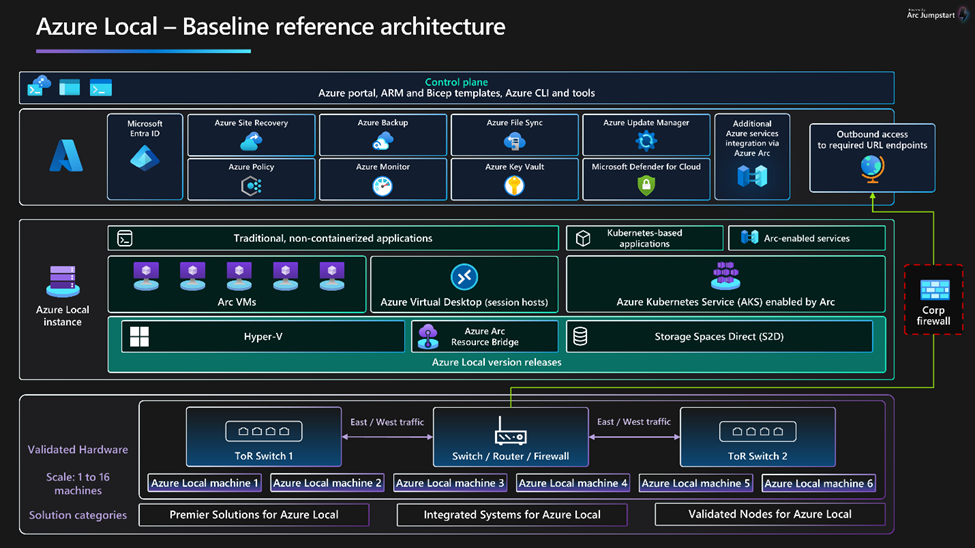
Before diving into the setup, it is essential to understand the Azure Local baseline architecture. This reference architecture provides insights into the core design principles behind Azure Local, focusing on the physical machines that enable compute, storage, and networking capabilities.
What is Azure Local?
Azure Local extends Azure services to customer-owned infrastructure, enabling organizations to run both modern and traditional applications across distributed locations. With Azure Local, businesses can execute workloads locally while benefiting from the seamless integration and unified management of Azure’s control plane.
Azure Local combines the following:
Validated hardware from a hardware partner.
Azure Stack HCI OS.
Hyper-V-based computer resources.
Storage Spaces Direct-based virtualized storage.
Windows and Linux virtual machines as Arc-enabled servers.
Azure Virtual Desktop. Azure Kubernetes Service (AKS) enabled by Azure Arc.
AI and machine learning workload deployment.
Azure services including monitoring, backup, site recovery, and more.
Azure portal, Azure Resource Manager and Bicep templates, Azure CLI.
Let’s explore the architecture in more detail.
The following diagram provides a high-level overview of the Azure Virtual Desktop for Azure Local solution. This architecture highlights the key components and how they work together to deliver a seamless experience for running AVD on Azure Local infrastructure.
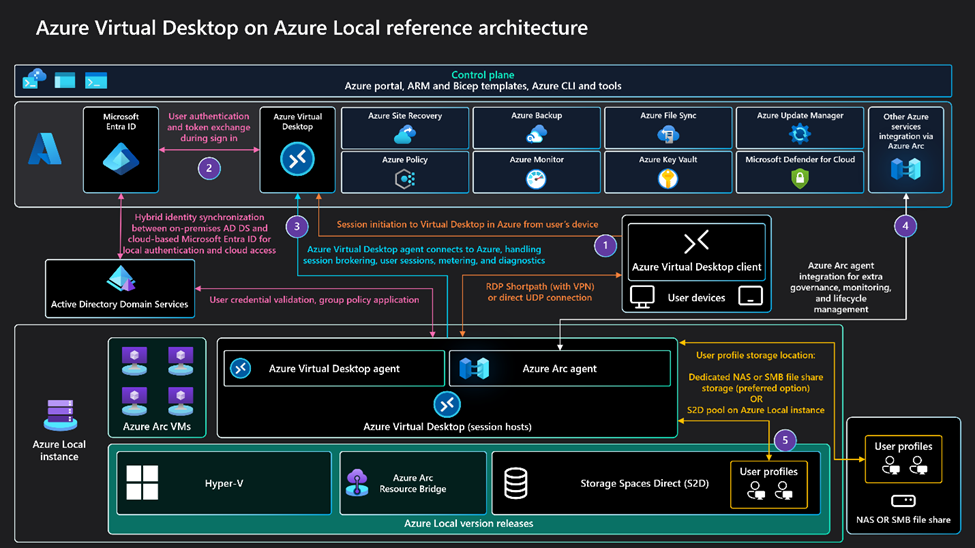
Let’s dive into the workflow of the Azure Virtual Desktop on Azure Local solution. Here’s an end-to-end overview, starting from the user’s device all the way to session management.
A user device initiates connection: An on-premises or remote user device runs the Azure Virtual Desktop client and initiates a connection to the AVD service in Azure.
Microsoft Entra ID authenticates the user:
User authentication: The AVD service communicates with Microsoft Entra ID to authenticate the user and perform a token exchange during sign-in.
Hybrid identity synchronization: A synchronization occurs between the on-premises Active Directory Domain Services (AD DS) and Microsoft Entra ID. This ensures that user identities are available for both local authentication (for session hosts on Azure Local) and cloud access. This process runs continuously to keep both systems in sync.
The session host connects to on-premises AD DS: The selected AVD session host connects to the on-premises AD DS server for user credential validation and applies any group policies to configure the user environment.
The Azure Virtual Desktop agent communicates with Azure:
The AVD agent installed on the session host VM manages:
Session brokering
User sessions
Metering and diagnostics This ensure smooth communication between the VM and AVD in Azure.
The Azure Arc agent manages the infrastructure:
The Azure Arc agent running on the session host VM provides:
Security
Governance
Monitoring
Additionally, the Azure Resource Bridge orchestrates lifecycle management for the Azure Arc-enabled VMs.
User profiles are stored in FSLogix containers:
FSLogix manages user profiles and personalization seamlessly.
Profiles are stored in a dedicated network-attached storage (NAS) or SMB file share, or within the Storage Spaces Direct (S2D) pool on the Azure Local instance.
This setup ensures efficient profile management and quick load times during user sessions.
Let’s discuss Azure Virtual Desktop for Azure Local.
Azure Virtual Desktop for Azure Local is a powerful desktop and application virtualization solution that brings together the flexibility of Azure Virtual Desktop with the performance and reliability of Azure Local.
With this setup, you can:
Deliver highly secure virtual desktops and applications.
Achieve scalability without compromising on performance.
Leverage your existing on-premises infrastructure seamlessly.
In short, it’s a perfect combination for organizations looking to modernize their desktop environments while keeping operations efficient and local.
Let’s explore the VMs in Azure Virtual Desktop in more detail.
Azure Virtual Desktop operates on Azure Arc-enabled VMs running Windows, providing a powerful platform for hosting remote end-user sessions. To get the most out of your deployment, it’s crucial to:
Understand the specific requirements of remote sessions.
Properly size your VMs to ensure optimal performance.
By addressing these factors, you can design an Azure Virtual Desktop solution that not only meets user demands but does so efficiently.
Why Choose Azure Arc VMs?
Azure Arc-enabled VMs stand out for their unique advantages, making them an ideal choice for your Azure Virtual Desktop environment:
Full Compliance: Azure Arc VMs are fully compatible with Azure Virtual Desktop, ensuring smooth operation with no compatibility issues.
Advanced Capabilities:
Hybrid management for streamlined oversight.
Centralized policy enforcement to maintain control.
Seamless integration with Azure services, unlocking the full potential of the cloud.
While non-Azure Arc VMs are an option, they lack these enhanced features and the deep integration benefits that Azure Arc provides.
The Clear Advantage
With Azure Arc VMs, you gain a robust, managed, and integrated solution that elevates your Azure Virtual Desktop workloads. From better performance to greater control, the benefits are undeniable. The choice is clear—Azure Arc VMs deliver unparalleled value for your virtual desktop needs.
Let’s discuss the benefits of Azure Virtual Desktop for Azure Local.
Improved Performance: Deliver session hosts closer to user locations in areas with poor connectivity to the Azure public cloud. This significantly improves performance for Azure Virtual Desktop users.
Meet Data Locality Requirements: Keep application and user data on-premises to meet data sovereignty and compliance needs.
Better Access to Legacy Apps: Simplify access to legacy on-premises applications and data sources by keeping desktops and apps in the same location.
Reduce Cost & Enhance User Experience: Use Windows 10 and Windows 11 Enterprise multi-session to support multiple concurrent interactive sessions. It’s cost-effective and improves the user experience.
Simplified Deployment & Management: Compared to traditional on-premises VDI solutions, Azure Virtual Desktop simplifies deployment and management using the Azure portal.
Low-Latency User Access: Achieve best-in-class performance with RDP Shortpath, ensuring low-latency user access for a smooth experience.
Quickly Deploy Fully Patched Images: Use Azure Marketplace images to deploy the latest, fully patched VMs quickly and efficiently.
These advantages position Azure Virtual Desktop for Azure Local as an ideal solution for organizations seeking to boost performance, streamline VDI management, and address data locality requirements—all while achieving significant cost savings.
Learn more by visiting the Microsoft Documentation
