

21 - Admin Rights & Windows Autopatch – Strengthening Endpoint Security and Update Automation
Even in a modern Intune-managed environment, local administrator control remains one of the biggest risks to security and compliance. Giving users admin rights effectively bypasses the entire purpose of MDM they can uninstall protection agents, disable compliance policies, or tamper with configurations meant to secure the environment.
By combining Endpoint Privilege Management (EPM) or Account-Based Restrictions (ABR) with Microsoft LAPS, you can maintain operational flexibility while ensuring robust privilege governance.
Admin Rights – Follow the Principle of Least Privilege
Avoid Permanent Local Admin Access
Granting users administrative rights defeats Intune’s control layer. Even well-intentioned users can inadvertently compromise security through:
Installing unauthorized software
Modifying registry or firewall rules
Disabling endpoint protection
Removing compliance configurations
Instead, apply Just-in-Time (JIT) access using Endpoint Privilege Management (EPM) to elevate privileges only when required and only for approved applications.
Learn more about Endpoint Privilege Management: https://learn.microsoft.com/en-us/mem/intune/protect/epm-overview
Microsoft LAPS Integration (Local Administrator Password Solution)
Use Microsoft LAPS (Local Administrator Password Solution) to automatically manage local admin credentials on all Entra-joined or Intune-managed devices. Each device receives a unique, rotated password that is securely stored in Microsoft Entra ID protecting against credential reuse and lateral movement.
Learn more about Microsoft Entra LAPS: https://learn.microsoft.com/en-us/windows-server/identity/laps/laps-scenarios-azure-active-directory
Endpoint Privilege Management vs. LAPS
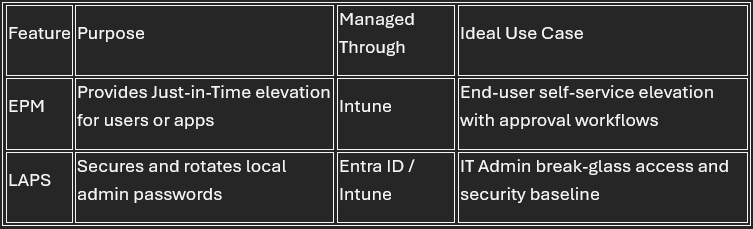
Together, they create a layered defense that enforces Zero Trust Privilege Access reducing attack surfaces while maintaining manageability.
Windows Autopatch – Automate Updates with Confidence
Keeping Windows devices patched consistently is essential to maintaining security and performance. With Windows Autopatch, Microsoft takes responsibility for managing and orchestrating the entire update lifecycle, including:
Windows quality and feature updates
Microsoft 365 Apps updates
Microsoft Edge and firmware rollouts
Autopatch ensures updates are rolled out safely across deployment rings with automatic rollback on failure, minimizing downtime and manual oversight.
Learn more about Windows Autopatch: https://learn.microsoft.com/en-us/windows/deployment/windows-autopatch/prepare/windows-autopatch-start-using-autopatch
Best Practices
Do not assign permanent local admin roles to users
Implement EPM or ABR for controlled privilege elevation
Enable Microsoft Entra LAPS for credential rotation
Adopt Windows Autopatch if licensed, to automate updates and reduce manual maintenance
Key Goals of This Configuration
Eliminate standing local admin privileges
Ensure secure, auditable password management with LAPS
Automate OS and application updates via Windows Autopatch
Strengthen endpoint governance under a Zero Trust framework
22 - Key Security Policies & Defender for Endpoint Integration – Building a Strong Security Foundation
After onboarding your devices to Intune, it’s essential to implement a core security policy stack to protect your Windows environment. These key policies define the foundation of a resilient, compliant, and Zero Trust–aligned configuration, reducing attack surfaces and enforcing consistent protection across all endpoints.
Key Policies for Windows Environments
Even though this guide doesn’t walk through a full tenant build, the following policies are non-negotiable in any secure Windows setup managed by Intune:
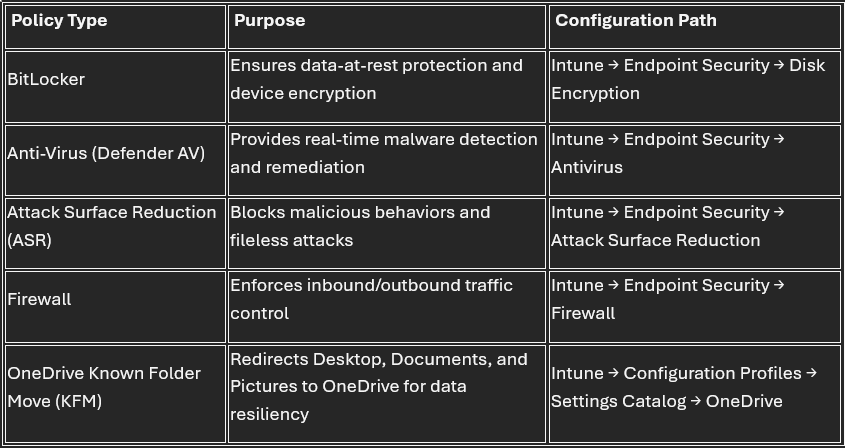
These policies form the minimum viable baseline for security and compliance. They can later be extended with features like Device Control, Credential Guard, or Application Control for advanced protection.
Integration with Microsoft Defender for Endpoint (MDE)
If your organization is licensed for Microsoft Defender for Endpoint, integrating it with Intune is one of the most impactful steps you can take. This connection enables real-time security telemetry, automated remediation, and Unified Security Management across your endpoints.
How the Integration Works
Once Defender for Endpoint is linked with Intune:
Devices automatically report their security posture to Microsoft 365 Defender.
Intune compliance policies can leverage threat level signals (Low, Medium, High) to dynamically enforce Conditional Access.
Security recommendations from Defender feed directly into Endpoint Security posture management, giving visibility into vulnerabilities, missing patches, or misconfigurations.
Configuration Path
To enable the integration: Go to Intune admin center → Endpoint Security → Microsoft Defender for Endpoint Click Open the connector page Turn on:
“Connect Windows devices version 10.0.15063 and later to Microsoft Defender for Endpoint”
“Allow Microsoft Defender for Endpoint to enforce compliance policies”
Official documentation:
https://learn.microsoft.com/en-us/mem/intune/protect/advanced-threat-protection
Why It Matters
This integration turns Intune into a proactive defense platform, not just a management tool. By linking device compliance with threat intelligence, you can automatically:
Quarantine compromised devices
Block risky endpoints from accessing cloud resources
Prioritize remediation based on actual risk level
Best Practices
Use Security Baselines from the Defender for Endpoint and CIS/NCSC frameworks as a reference, but customize them before deployment.
Regularly sync Defender data with Intune and verify reports under Endpoint Security → Microsoft Defender for Endpoint → Security Recommendations.
Do not rely solely on “Default” baselines they often include settings that require refinement for production.
Enable Automated Investigation and Response (AIR) to contain threats automatically.
Learn more:
Key Goals of This Configuration
Establish a secure Windows policy foundation aligned with Zero Trust principles
Integrate Intune with Defender for unified threat visibility
Automate remediation and compliance enforcement based on threat signals
Reduce operational overhead through intelligent policy governance
23 - Reporting & Endpoint Analytics – Visibility, Insights, and Continuous Optimization
Once your Intune and Defender environment is fully deployed, visibility becomes the most powerful asset you have. You can’t improve what you can’t measure and that’s where Endpoint Analytics and Intune’s reporting features come in.
By enabling Endpoint Analytics early, you ensure your devices start collecting telemetry and performance insights right away, giving you a historical baseline to evaluate health, performance, and compliance over time.
What Is Endpoint Analytics?
Endpoint Analytics provides data-driven visibility into your device estate, measuring startup performance, application reliability, and configuration health. It identifies bottlenecks, misconfigurations, and policy conflicts before they impact end users empowering IT teams to shift from reactive troubleshooting to proactive optimization.
Key capabilities include:
Startup performance tracking (boot time, sign-in delays)
User experience insights (responsiveness, crashes, app reliability)
Device compliance posture overview
Policy impact analysis (how your Intune configurations affect endpoints)
Custom reports and exportable analytics for governance and audits
Learn more: https://learn.microsoft.com/en-us/mem/analytics/overview
How to Enable Endpoint Analytics
In the Intune admin center, navigate to: Reports → Endpoint analytics → Settings
Under “Enable Endpoint Analytics”, toggle to On. This activates data collection for all enrolled devices that support analytics.
Ensure devices have the Intune Management Extension installed and are running a supported Windows version (Windows 10 1903 or later).
Once enabled, metrics may take 24–48 hours to populate in the dashboard.
Reference: https://learn.microsoft.com/en-us/mem/analytics/enable-data-collection
Key Reporting Areas
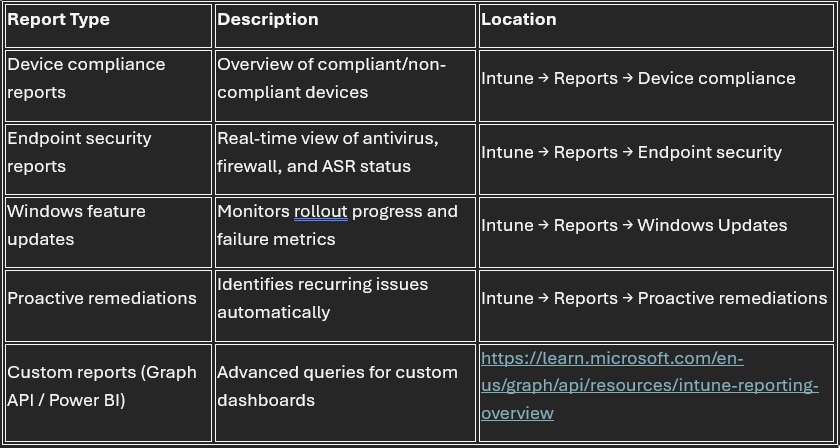
Pro Tip
Enable Endpoint Analytics as early as possible in your Intune journey. The sooner it’s active, the more historical data you’ll have to:
Detect long-term trends
Identify configuration drift
Quantify improvements after policy changes
You’ll thank yourself later when leadership asks for data-driven insights and you already have months of metrics ready to visualize.
Key Goals of This Configuration
Enable continuous visibility into endpoint health and compliance
Use analytics to optimize performance and user experience
Detect misconfigurations before they cause disruption
Build an actionable, data-driven foundation for long-term governance
24 - Apple Certificates & Lifecycle Management – Maintaining Continuous Connectivity and Compliance
When managing Apple devices through Intune and Apple Business Manager (ABM) or Apple Volume Purchase Program (VPP), certificate management becomes a mission-critical responsibility. Letting one of these certificates expire can immediately disrupt device enrollment, app deployment, and ongoing management effectively locking your organization out of its own Apple ecosystem.
Understanding Apple Certificates in Intune
There are three key certificates or tokens required to integrate Apple services with Microsoft Intune:
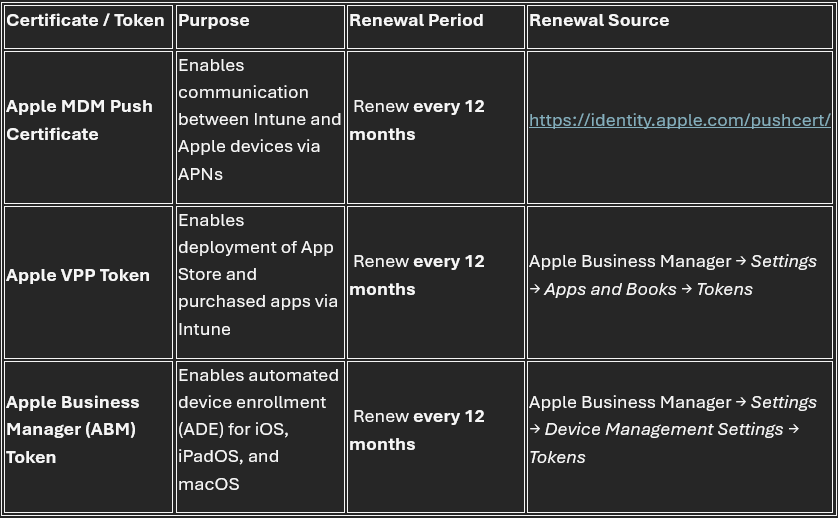
Learn more on Microsoft Learn: https://learn.microsoft.com/en-us/mem/intune/enrollment/apple-mdm-push-certificate-get
Why Expiration Matters
If any of these certificates expire, the following consequences occur:
Apple MDM Push Certificate – Intune immediately loses contact with all Apple devices. You’ll need to re-enroll them manually.
VPP Token – Apps will stop syncing or installing on managed devices.
ABM Token – New Apple devices cannot be automatically enrolled via Autopilot or Automated Device Enrollment (ADE).
That’s why regular monitoring and preemptive renewal is essential to maintain uninterrupted management.
Proactive Monitoring and Alerting
Manually checking certificate expiration dates across tenants can be time-consuming. Fortunately, tools like EUCToolbox Daily Checks automate this process providing centralized visibility and proactive alerts for critical items such as expiring Apple certificates, Intune connectors, and compliance drifts.
Tool Reference: https://dailychecks.euctoolbox.com/
This solution helps IT admins detect early warnings before certificate failures occur preventing downtime, deployment errors, and user disruption.
Best Practices
Track all Apple-related certificates in a shared renewal calendar with reminders at least 30 days before expiration.
Always renew certificates using the same Apple ID originally used to create them otherwise, devices will need to be re-enrolled.
Store Apple IDs and credentials securely using a corporate password vault such as Microsoft Entra ID PIM or Azure Key Vault.
Use automated monitoring (EUCToolbox or custom PowerShell scripts) for ongoing visibility.
Learn how to renew your Apple MDM certificate: https://learn.microsoft.com/en-us/mem/intune/enrollment/apple-mdm-push-certificate-renew
Key Goals of This Configuration
Maintain uninterrupted management of Apple devices through valid certificates
Prevent loss of communication, app sync, or enrollment failures
Automate monitoring and renewal reminders for operational continuity
25 - Troubleshooting & Support – Diagnosing Intune and MAM Issues Efficiently
Even the most well-planned Intune deployment will eventually face device sync issues, failed app installs, or compliance drifts. That’s when the Troubleshooting + Support section of the Intune Admin Center becomes your best ally.
While often underestimated, this built-in tool provides real-time insights into user and device health, app deployments, and MAM (Mobile Application Management) applicability helping IT admins resolve problems faster and with confidence.
Overview
The Troubleshooting + Support workspace in Intune consolidates diagnostic data from multiple sources devices, policies, apps, and compliance into a single, user-centric dashboard. This eliminates the need to jump between portals or manually correlate data, saving time and ensuring accurate root-cause analysis.
To access it:
Microsoft Intune admin center → Troubleshooting + Support
Official Documentation: https://learn.microsoft.com/en-us/mem/intune/fundamentals/help-desk-operators
How to Use It
Search by User Enter the affected user’s name or UPN (User Principal Name). The portal immediately retrieves:
Assigned policies (configuration, compliance, update rings)
Enrolled devices (status, last check-in, OS version)
App deployments and installation state
MAM policies applied to the user
Review Device Compliance and Policy Application Identify any configuration conflicts, failed assignments, or pending compliance checks. Each entry links directly to the policy object for deeper analysis or remediation.
Monitor MAM Applicability Quickly verify whether Mobile Application Management policies are correctly targeted and applied. This is especially useful when troubleshooting BYOD or app-protection scenarios in Microsoft 365 and Entra environments.
Export and Share Findings You can export the results as JSON or CSV for record-keeping or to attach in a support ticket when escalating to Microsoft Support.
Why This Tool Matters
This feature acts as your first line of defense for diagnosing Intune-related problems before escalating to higher-tier support. It provides:
Immediate visibility into device and policy states
MAM and compliance troubleshooting without PowerShell or Graph queries
Faster root-cause isolation for sync or policy-conflict issues
By mastering this section, you’ll spend less time guessing and more time fixing keeping your environment compliant and users productive.
Pro Tips
Combine this with Intune’s “Device Diagnostics” (accessible under each device → Collect Diagnostics) to download logs directly from the endpoint for advanced analysis. Learn more: https://learn.microsoft.com/en-us/intune/intune-service/remote-actions/collect-diagnostics?tabs=reg&pivots=windows
Use the Microsoft 365 Admin Center → Service Health dashboard to verify whether issues are tenant-wide or specific to a configuration. Learn more: https://learn.microsoft.com/en-us/microsoft-365/enterprise/view-service-health
Schedule routine health checks weekly or biweekly to proactively identify users or devices with compliance or enrollment anomalies.
Key Goals of This Configuration
Enable efficient, user-centric troubleshooting for Intune and MAM issues
Reduce mean time to resolution (MTTR) for device and policy problems
Leverage built-in diagnostics before opening Microsoft Support tickets
26 - MDM Authority – Ensuring Microsoft Intune is Your Central Management Platform
Before deploying or enrolling any devices, it’s critical to verify that your tenant’s Mobile Device Management (MDM) authority is correctly set to Microsoft Intune. This determines which service has permission to manage and enforce policies across your organization’s devices.
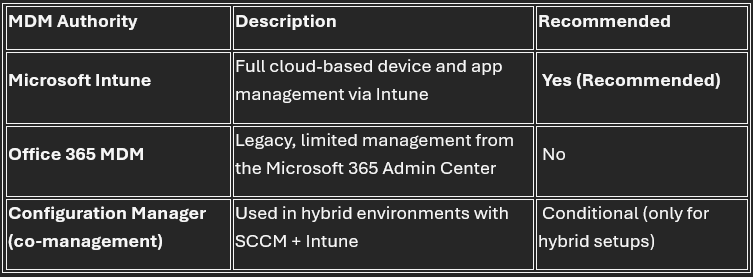
If your tenant is configured with Office 365 MDM (legacy) which still exists in some older tenants you won’t have access to the full range of modern management features available in Intune, including Conditional Access, Endpoint Security, and compliance integrations.
What Is MDM Authority?
The MDM authority defines the management service responsible for controlling enrolled devices within your tenant. There are three possible configurations:
How to Check Your MDM Authority
Go to the Microsoft Intune Admin Center https://intune.microsoft.com
Navigate to: Tenant administration → Tenant details
Under MDM authority, confirm that it reads: Microsoft Intune
If it still shows Office 365, you need to switch it manually using the direct configuration blade.
Magic Link: https://intune.microsoft.com/#view/Microsoft_Intune_Enrollment/ChooseMDMAuthorityBlade
Why This Setting Matters
If your tenant remains on Office 365 MDM, you may encounter:
Limited device management capabilities
Inability to deploy configuration profiles, compliance policies, or apps
No integration with Endpoint Security or Defender for Endpoint
No Conditional Access enforcement at device level
By setting the MDM Authority to Microsoft Intune, you unlock the complete Microsoft Endpoint ecosystem including unified policy enforcement, security baselines, analytics, and cross-platform management for Windows, macOS, iOS/iPadOS, and Android.
Verification Example
In a properly configured tenant, you’ll see something like this:
Tenant name: ms365education.com MDM authority: Microsoft Intune Service release: 2509 Total enrolled devices: 2 Total Intune licenses: 525 Account status: Active

(as shown in the image)
Reference
Learn more on Microsoft Learn: https://learn.microsoft.com/en-us/mem/intune/fundamentals/mdm-authority-set
Key Goals of This Configuration
Ensure Microsoft Intune is the single authority for device and app management
Avoid conflicts with legacy O365 MDM configurations
Enable full access to advanced features, policies, and integrations
27 - Service Health & Message Center – Monitoring Tenant Stability and Planned Changes
Before diving into troubleshooting or making major configuration changes, always verify the Service Health of your Microsoft Intune environment. Many issues that appear to be misconfigurations or policy conflicts are actually caused by temporary service interruptions or global updates rolling out across Microsoft 365 tenants.
You can find Service Health directly from your Intune Home dashboard or by navigating to: Tenant administration → Service health and message center
Service Health Dashboard
The Service Health panel displays the overall operational state of your Microsoft Intune tenant, helping you quickly identify whether the issue is local or service-wide.
Common health indicators include:
Healthy: No service incidents detected.
Advisory: Some features may be degraded or undergoing updates.
Incident: A known service outage or critical degradation is affecting tenant operations.
Example Overview
As shown in the image above:
Devices not in compliance: 14
Configuration policies with errors/conflicts: 7
Client app install failures: 19
Connector errors: 0
Service health: Healthy
Account status: Active
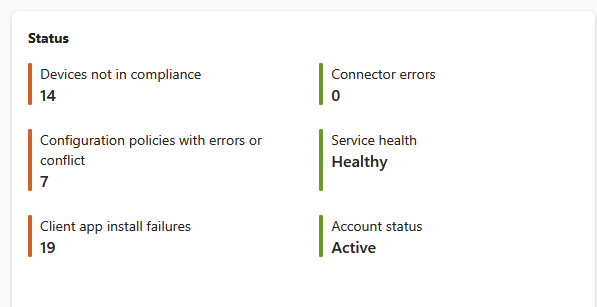
This data provides an at-a-glance operational summary of your Intune environment enabling you to identify whether an issue is policy-related, device-related, or due to an external service dependency.
Message Center
The Message Center (also visible under Tenant Administration) is where Microsoft publishes:
Upcoming feature changes
Planned service retirements
Maintenance schedules
Critical updates affecting Intune, Entra ID, and Microsoft 365
Each message includes:
Message Title (e.g., “Plan for Change: Intune moving to updated policy engine”)
Service Affected (Microsoft Intune, Entra, etc.)
Action Required By Date
Message ID (for tracking in the Microsoft 365 Message Center)
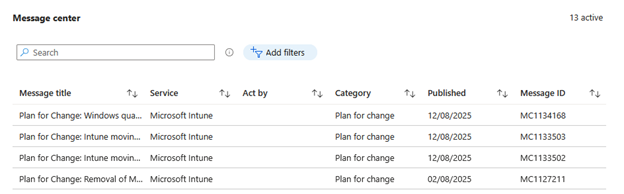
Tip: Check this panel weekly or subscribe to email notifications to stay ahead of feature changes and avoid last-minute surprises during production deployments.
Why This Matters
Ignoring the Service Health and Message Center can lead to unnecessary troubleshooting or misconfigurations caused by backend updates. By reviewing this section regularly, you:
Detect ongoing Microsoft-side issues before altering configurations.
Plan ahead for deprecations or required admin actions.
Maintain proactive control over upcoming service changes and feature rollouts.
Reference
Learn more about Service Health and the Message Center on Microsoft Learn: https://learn.microsoft.com/en-us/microsoft-365/enterprise/view-service-health
Key Goals of This Configuration
Monitor tenant health and detect potential service interruptions early.
Stay informed about Microsoft 365 and Intune platform changes.
Reduce downtime and avoid unnecessary configuration changes during active incidents.
28 - Keep Up to Date – Staying Current with Intune Enhancements
Microsoft Intune evolves at an incredible pace new policies, settings, and integrations are released almost every month. To stay effective as an administrator or architect, it’s crucial to stay informed about these updates before they impact your environment.
Why Staying Current Matters
Intune is a cloud-first management platform, meaning you don’t need to wait for version upgrades new capabilities roll out automatically. However, this also means your configurations, compliance policies, and deployment strategies must adapt continuously to align with Microsoft’s updates.
Failing to stay informed can lead to:
Deprecated features or legacy settings breaking existing configurations
Missed security improvements (e.g., ASR, Defender, or Conditional Access updates)
Compatibility issues with new Windows or app versions
Reduced operational efficiency due to outdated practices
Official Intune Blog
The best way to keep track of new features, previews, and roadmap changes is through the Microsoft Intune Blog on Tech Community. This is the official communication channel used by Microsoft product teams to publish:
New feature announcements and previews
Configuration tips and scenario-based guides
Security and compliance updates
Integration news (e.g., with Entra, Defender, or Purview)
Release notes and roadmap highlights
Bookmark this link and check it weekly: https://techcommunity.microsoft.com/category/microsoftintune/blog/microsoftintuneblog
Additional Learning Resources
For a more structured learning and certification-oriented approach, also follow:
Microsoft Learn – Intune Documentation https://learn.microsoft.com/en-us/mem/intune/
Microsoft 365 Roadmap (filter by Intune) https://www.microsoft.com/microsoft-365/roadmap
Microsoft Security Blog (for Defender, Entra, and Purview integration updates) https://techcommunity.microsoft.com/t5/security-compliance-and-identity/bg-p/SecurityComplianceIdentity
Key Goals of This Practice
Stay proactive with evolving Intune and M365 features.
Ensure compliance and security policies reflect the latest Microsoft standards.
Anticipate roadmap changes and prepare your environment in advance.
29 - RBAC & Least Privilege in Intune – Strengthening Administrative Governance
Managing Microsoft Intune effectively goes beyond policies and configurations it requires governance. That means ensuring only authorized personnel have the necessary permissions to perform administrative actions. Implementing Role-Based Access Control (RBAC) and following the Principle of Least Privilege (PoLP) are critical steps to maintain operational security and prevent human error or privilege misuse.
What Is RBAC in Intune?
Role-Based Access Control (RBAC) allows you to assign permissions based on job functions rather than individual users. Each role defines what tasks can be performed and on which scope (users, devices, or groups).
Common examples include:
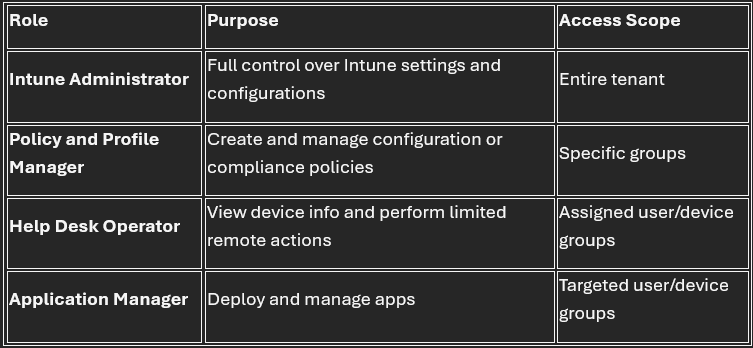
This segmentation prevents over-privileged accounts and reduces the risk of accidental or malicious misconfigurations.
Principle of Least Privilege (PoLP)
The Principle of Least Privilege dictates that every admin or user should only have the minimum permissions necessary to perform their tasks. This is a fundamental concept in Zero Trust architecture protecting your tenant from insider threats and mismanagement.
Key Actions:
Avoid using Global Administrator accounts for daily tasks.
Assign Intune Admin, Security Admin, or Help Desk roles as appropriate.
Use Privileged Identity Management (PIM) for just-in-time elevated access.
Always review role assignments periodically through Entra ID → Roles and Administrators.
How to Configure RBAC in Intune
Navigate to Intune Admin Center → Tenant administration → Roles.
Click + Create to define a new custom role or select a predefined one.
Specify:
Permissions (what actions the role can perform)
Scope groups (which users/devices it applies to)
Assign members accordingly and review the scope of access regularly.
For hybrid or large-scale environments, combine Intune RBAC with Azure AD Administrative Units for even more granular control.
Best Practices
Use custom roles for specific functions (e.g., App Management, Compliance Reporting).
Regularly review role assignments and remove inactive accounts.
Enforce MFA on all admin roles via Conditional Access.
Separate Break-Glass accounts from day-to-day administrative users.
Enable Access Reviews and PIM alerts for critical roles.
References
Microsoft Learn – Role-based access control (RBAC) in Intune https://learn.microsoft.com/en-us/mem/intune/fundamentals/role-based-access-control
Microsoft Learn – Least privilege access in Microsoft Entra ID https://learn.microsoft.com/en-us/entra/identity/role-based-access-control/best-practices
Microsoft Learn – Privileged Identity Management (PIM) https://learn.microsoft.com/en-us/entra/id-governance/pim-configure
Key Goals of This Configuration
Implement least-privilege access aligned with Zero Trust principles.
Protect tenant configuration integrity from human error or privilege misuse.
Establish scalable, auditable, and secure admin governance in Intune.
More Information
Microsoft Entra Local Administrator Password Solution (LAPS) Learn how to configure and enable Microsoft Entra LAPS for secure, automated local admin password rotation and retrieval. https://learn.microsoft.com/en-us/windows-server/identity/laps/laps-overview
Restricting BitLocker Key Recovery in Microsoft Entra ID Step-by-step guidance on encrypting devices and controlling recovery key access using Intune and Entra ID. https://learn.microsoft.com/en-us/mem/intune/protect/encrypt-devices
Enterprise State Roaming (ESR) Overview of ESR and how to enable secure user setting synchronization across multiple devices in Entra ID. https://learn.microsoft.com/en-us/entra/identity/devices/enterprise-state-roaming-enable
Default User Permissions in Microsoft Entra ID Understand and configure default user roles and permissions to prevent unauthorized app registration and tenant creation.
Group Self-Service Management Controls Microsoft Learn article on restricting or delegating group creation and self-service access in Entra ID.
User Consent and Admin Consent Workflow Detailed documentation for controlling user consent to enterprise applications and implementing an approval workflow for admin consent.
https://learn.microsoft.com/en-us/entra/identity/enterprise-apps/user-admin-consent-overview
https://learn.microsoft.com/en-us/entra/identity/enterprise-apps/configure-admin-consent-workflow
Conditional Access and Break-Glass Accounts Microsoft Learn best practices for planning Conditional Access and setting up emergency access accounts.
https://learn.microsoft.com/en-us/entra/identity/conditional-access/plan-conditional-access
https://learn.microsoft.com/en-us/entra/identity/role-based-access-control/security-emergency-access
Tenant Restrictions and External Collaboration Control How to configure Tenant Restrictions to prevent unauthorized cross-tenant access and data leakage.
RBAC and Least Privilege Governance Official documentation on implementing Role-Based Access Control (RBAC) in Intune and enforcing least-privilege access.
https://learn.microsoft.com/en-us/mem/intune/fundamentals/role-based-access-control
https://learn.microsoft.com/en-us/entra/identity/role-based-access-control/best-practices
Microsoft Defender for Endpoint Integration Step-by-step guide on connecting Microsoft Intune with Defender for Endpoint for unified security posture and compliance enforcement.
Windows Autopatch and Update Automation Microsoft Learn article explaining how to deploy and manage updates automatically with Windows Autopatch.
Endpoint Analytics and Reporting Comprehensive overview of Endpoint Analytics for monitoring device performance, compliance, and user experience.
Thank you!
Ricardo Barbosa
Microsoft MVP | Microsoft Certified Trainer (MCT)
Intune & Cloud Architect | Technology Director at Altelix.com
